BreakTimer Review 2026: Features, Benefits, Pros, and Cons
Spending long hours in front of a computer can make it easy to forget about regular breaks.
Whether you work from home, study online, write articles, or spend most of your day at a desk, taking short breaks can help you build a more balanced screen-time routine.
BreakTimer is a desktop application designed to remind you when it is time to pause your work.
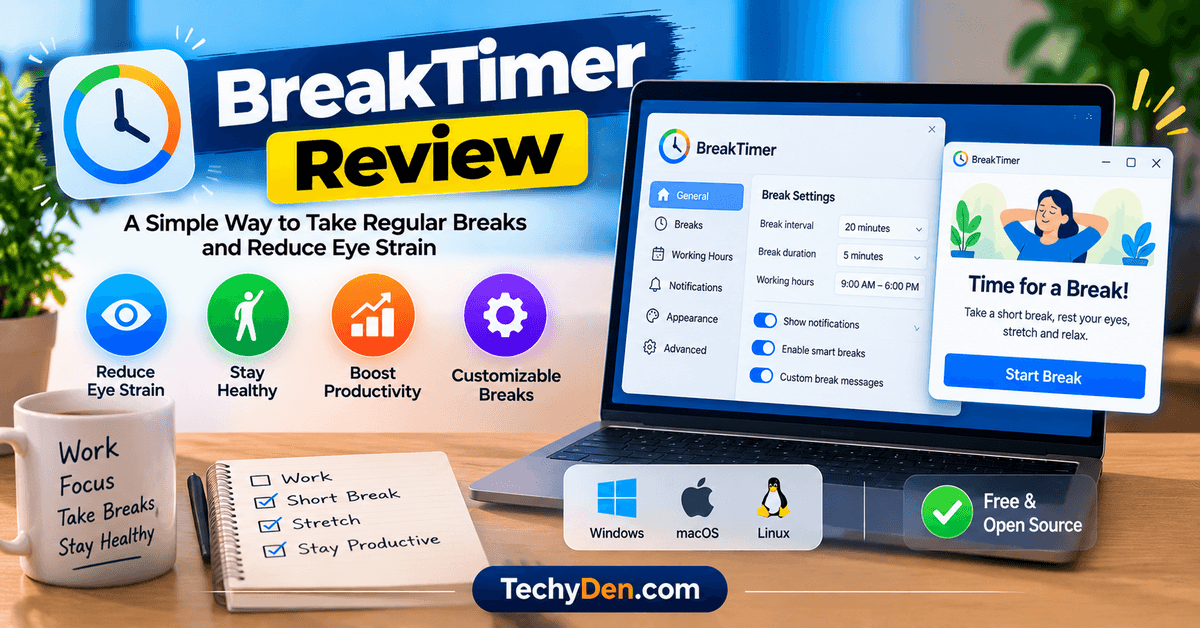
It lets you configure break intervals, set working hours, customize notifications, and choose how reminders appear on your screen.
But is BreakTimer worth using in 2026? In this BreakTimer review, we examine its features, supported operating systems, customization options, pricing, privacy considerations, advantages, limitations, and alternatives to help you decide whether it suits your workflow.
If you also want to reduce distractions on your smartphone, learn how to reduce screen time by activating grayscale mode on your mobile device.
BreakTimer Review: Quick Overview
| Feature | Details |
|---|---|
| Software name | BreakTimer |
| Main purpose | Scheduled computer-break reminders |
| Supported platforms | Windows, macOS, and Linux |
| Pricing | Free |
| License | GNU General Public License v3.0 |
| Custom break intervals | Yes |
| Working-hour scheduling | Yes |
| Customizable messages | Yes |
| Notification options | Reminders and break windows |
| Smart breaks | Can adjust the countdown when computer inactivity is detected |
| Best for | Students, remote workers, writers, and desktop users |
| Official website | https://breaktimer.app/ |
BreakTimer is particularly useful for people who want a dedicated break reminder without paying for a productivity subscription.
Its main purpose is straightforward: help you establish a consistent schedule for pausing computer work.
What Is BreakTimer?
BreakTimer is a free, open-source desktop application that helps users schedule regular breaks during computer use.
Instead of relying on memory or setting repeated alarms, you can configure the application to remind you automatically.
You can choose how frequently breaks occur, how long they last, and when the application should interrupt you.
You can also customize the messages displayed during breaks and configure working hours so that reminders fit your schedule.
BreakTimer is available for Windows, macOS, and Linux, making it suitable for people who use different desktop operating systems.
The application is intended to support healthier computer-use habits. It does not diagnose or treat eye conditions, and using a break reminder does not guarantee that you will avoid eye strain or other discomfort associated with prolonged screen use.
Official website: https://breaktimer.app/
BreakTimer Features Reviewed
BreakTimer focuses on break scheduling rather than offering a large collection of unrelated productivity tools. Here are its most useful features.
1. Customizable Break Intervals
One of BreakTimer’s main features is the ability to customize when breaks occur and how long they last.
You can choose a schedule that fits your working routine instead of following a fixed interval imposed by the application.
For example, you might prefer a short pause after a focused writing session or a longer break between demanding tasks.
This flexibility is useful for bloggers, programmers, students, and remote workers who need different break schedules throughout the day.
However, your ideal interval depends on your work and personal comfort. BreakTimer does not determine the perfect break schedule for every individual.
2. Customizable Break Duration
BreakTimer lets you configure the length of each break.
Some users may prefer brief pauses to rest their eyes or change posture, while others may want longer breaks for stretching or walking around. You can adjust the duration to suit your routine.
The benefit is that you can experiment with different schedules without needing a separate timer application.
3. Working-Hour Scheduling
Not every hour of the day is suitable for a break notification. You might not want the application interrupting you before your workday begins or after you have finished working.
BreakTimer allows you to configure working hours so reminders occur within your preferred schedule.
This is particularly helpful for people who work regular office hours or follow a consistent study timetable. It also reduces unnecessary interruptions outside your planned computer-use sessions.
4. Customizable Notifications
BreakTimer can notify you before a scheduled break begins. Depending on the configuration, you can skip or snooze a reminder when you need to finish an important task.
This approach gives you some flexibility when a break arrives at an inconvenient moment.
For example, if you are finishing an article paragraph or completing a presentation, you may prefer to postpone the reminder briefly rather than abandon the task immediately.
Frequent skipping, however, can defeat the purpose of using a break reminder. The feature works best when you use it to manage genuine interruptions rather than avoid breaks altogether.
5. Full-Screen Break Windows
BreakTimer supports break windows that make it more noticeable when it is time to pause. The application can display a dedicated break screen rather than relying only on a small notification.
This can be useful if you regularly become absorbed in work and ignore ordinary reminders.
The precise interruption behavior depends on your settings and application version. If you need uninterrupted access to particular applications, test the break behavior before relying on it during meetings, presentations, or other important activities.
6. Customizable Break Messages
BreakTimer lets you personalize the messages displayed during breaks.
You can use this feature to make reminders more relevant to your routine. For example, your messages might encourage you to look away from the screen, stand up, stretch, or take a short walk.
Personalized messages can make repetitive reminders feel more useful than a generic notification.
Keep in mind that the application provides reminders, not medical advice. Choose activities that are appropriate for your circumstances.
7. Customizable Appearance
BreakTimer allows you to customize elements of its appearance, including the colors and messages shown during breaks.
This helps you create a reminder experience that is readable and suited to your preferences.
Customization may seem like a minor feature, but it can make a recurring notification less distracting and easier to recognize.
8. Smart Breaks
BreakTimer includes a smart-break feature that can restart the break countdown when it detects that you have not been using the computer.
This can help avoid treating every minute in front of a screen as continuous active work. For example, if you step away from your desk, the application may adjust the countdown rather than treating the entire period as uninterrupted computer use.
The behavior depends on the feature’s configuration and how the application detects inactivity. It should not be treated as a precise measurement of physical activity or time spent away from your workstation.
9. Cross-Platform Availability
BreakTimer is available for Windows, macOS, and Linux.
This makes it useful for people who work across different desktop operating systems. You can choose the appropriate download for your computer instead of looking for a separate application for each platform.
The installation process and available package formats differ by operating system. Linux users can choose among supported package options, while Windows and macOS users can download their respective application files.
10. Free and Open-Source Software
BreakTimer is distributed under the GNU General Public License version 3.0.
You can download and use the application without paying for a standard subscription. Its open-source license also makes its source code available for inspection and permitted modification under the license terms.
This is an advantage for users who prefer transparent software and do not want another recurring productivity expense.
Open-source licensing does not automatically guarantee that software is free from bugs or security issues. Users should still download it from the official website or project repository and keep it updated.
BreakTimer Pricing: Is It Free?
Yes. BreakTimer is available as free, open-source software.
The official website provides downloads for supported desktop operating systems. It does not advertise a standard paid subscription for ordinary personal use.
| Pricing Detail | Information |
|---|---|
| Standard download | Free |
| Subscription required | No standard subscription advertised |
| Open-source license | GNU GPL v3.0 |
| Windows download | Available |
| macOS download | Available |
| Linux downloads | Multiple package formats available |
| Enterprise support | Not offered by the project |
The developer states that enterprise environments and commercial deployments are not supported and that the software is supplied without warranties or guarantees of support.
This means BreakTimer is a better fit for individual users who are comfortable managing a desktop application themselves than for organizations requiring formal vendor support.
Check the official download page for the current package options and any installation notices.
Download BreakTimer: https://breaktimer.app/
How to Download and Install BreakTimer
You can download BreakTimer directly from its official website. Choose the package that matches your operating system.
To get the latest available version, visit the official BreakTimer website and select the download that matches your operating system.
Install BreakTimer on Windows.
- Visit https://breaktimer.app/.
- Find the Windows download option.
- Download the Windows application file.
- Follow the prompts or instructions supplied with the downloaded package.
- Open BreakTimer and configure your break schedule.
Important: The official website identifies the Windows executable as unsigned. Windows may display a security warning when you try to run it.
Do not ignore a security warning automatically. Confirm that you downloaded the file from the official BreakTimer website, review the available project information, and make your own decision about whether to proceed.
Install BreakTimer on macOS
- Open the official BreakTimer website.
- Download the macOS disk image.
- Open the downloaded
.dmgfile. - Follow the installation instructions supplied with the application.
- Launch BreakTimer and configure your preferred schedule.
macOS may display a warning for an application that is not signed or notarized in the expected way. Verify the download source before deciding how to proceed.
Install BreakTimer on Linux
BreakTimer provides several Linux package formats. Depending on your distribution and preferences, the official website lists options such as Snap, DEB, RPM, AppImage, and a compressed archive.
- Visit the official download page.
- Choose the package compatible with your Linux distribution.
- Download the file.
- Follow the package’s installation instructions.
- Open BreakTimer and configure the application.
Some package formats offer automatic updates, while others may require you to update the application manually.
For the most current instructions, use the official website rather than downloading an installer from an unfamiliar third-party source.
How to Use BreakTimer
After installing the application, configure a schedule that matches your normal workday.
- Step 1: Open BreakTimer: Launch the application from your operating system’s application menu or installed application location.
- Step 2: Configure Your Break Schedule: Choose how frequently you want to take breaks and how long each break should last. Start with a schedule you can follow consistently. You can adjust the intervals later if they interrupt your workflow too often or leave you sitting for longer than you prefer.
- Step 3: Set Your Working Hours: Configure the hours during which you want reminders to appear. This prevents the reminder schedule from extending unnecessarily beyond your normal working routine.
- Step 4: Customize Notifications and Messages: Choose the notification behavior and break messages that suit you. If the application offers skip or snooze controls, decide how you want to handle reminders that arrive during an important task.
- Step 5: Start the Timer: Enable your schedule and let BreakTimer run in the background as intended by your operating system.
- Step 6: Take Your Breaks: When a reminder appears, pause your work and step away from the screen when practical. You might look into the distance, stretch, change posture, or walk around.
The goal is to build a routine that you can maintain, not simply install an application and ignore its reminders.
Does BreakTimer Help Reduce Eye Strain?
BreakTimer can help you remember to take regular breaks, which is one practical way to manage prolonged screen use. It can also remind you to move, change posture, and briefly shift your attention away from your display.
However, BreakTimer cannot guarantee that you will avoid eye strain. Eye discomfort can have multiple causes, including prolonged near work, glare, poor lighting, an unsuitable viewing distance, and uncorrected vision problems.
For a more comfortable computer routine, consider these habits:
- Take regular breaks from close-up screen work.
- Look at a distant object periodically to relax your focus.
- Adjust your screen brightness to suit the room.
- Reduce glare and reflections where possible.
- Keep your monitor at a comfortable viewing distance.
- Remember to blink regularly.
- Change your posture and move throughout the day.
Some people use the 20-20-20 rule as a reminder to look at something about 20 feet away for 20 seconds every 20 minutes. BreakTimer can help you create reminders, although its default schedule may need to be adjusted to match this particular routine.
If eye discomfort is persistent or affects your vision, consult an appropriate eye-care professional rather than relying on a break reminder alone.
BreakTimer Pros and Cons
Before installing BreakTimer, consider its main advantages and limitations.
Pros
- Free to use: No standard paid subscription is required.
- Open-source software: Distributed under the GNU GPL v3.0 license.
- Cross-platform support: Available for Windows, macOS, and Linux.
- Flexible scheduling: Lets you customize break frequency and duration.
- Working-hour controls: Helps align reminders with your routine.
- Customizable messages: Makes break reminders more relevant to your needs.
- Notification flexibility: Supports reminder behavior that can accommodate occasional scheduling conflicts.
- Smart-break functionality: Can adjust the countdown based on detected inactivity.
Cons
- Limited scope: Primarily focuses on break reminders rather than a complete productivity suite.
- Potential interruptions: Full-screen break windows may disrupt some tasks.
- Unsigned installers: The Windows download may trigger a security warning.
- No enterprise support: The project does not offer formal support for enterprise environments or commercial deployment.
- Manual update requirements for some packages: Depending on your operating system and download format, you may need to install updates yourself.
- No medical guarantees: The application cannot diagnose, prevent, or treat eye conditions.
Is BreakTimer Safe to Use?
BreakTimer is an open-source application distributed through its official website and public project repository. These provide useful sources for checking the software’s features, licensing, releases, and reported issues.
Because BreakTimer is open-source software, you can review the BreakTimer source code and project details to examine its development activity, license, and available releases.
Nevertheless, no application should be considered completely risk-free merely because it is open source.
For safer use:
- Download BreakTimer from its official website.
- Verify the source before opening an installer that triggers a security warning.
- Keep the application and operating system updated.
- Review the project’s license and available source code if you want to inspect how it works.
- Avoid unofficial downloads or modified installers from unknown websites.
The project also states that it is provided without warranties or guarantees of support. If you require guaranteed support, formal deployment assistance, or a service-level agreement, check these limitations before using it in a business environment.
BreakTimer Alternatives
BreakTimer is not the only application designed to encourage regular breaks. The best alternative depends on whether you want simple reminders, a more customizable workflow, or a different approach to productivity.
| Alternative | Best For | What to Consider |
|---|---|---|
| Stretchly | Open-source break reminders | A cross-platform alternative focused on microbreaks and longer breaks |
| Workrave | Break reminders and movement routines | Offers configurable breaks and exercises on supported platforms |
| PomoDoneApp | Combining task management with Pomodoro workflows | More suitable when you want to connect work sessions with productivity tools |
| Built-in alarms or timers | Basic break reminders | Simple to use, but may offer fewer specialized break controls |
Check each application’s official website for its current supported platforms, pricing, and features before choosing an alternative.
If you prefer browser-based tools instead of desktop software, explore our guide to browser extensions to prevent eye strain for additional ways to manage your screen-time routine.
If your only goal is to establish a recurring reminder, BreakTimer may be sufficient. If you want structured exercises, task integrations, or a broader productivity system, compare the alternatives based on those specific requirements.
Who Should Use BreakTimer?
BreakTimer is worth considering if you spend long periods working at a computer and want a simple way to schedule regular pauses.
- Bloggers and Content Writers: Writers can become absorbed in research, editing, and drafting. BreakTimer can provide reminders to step away from the screen during long writing sessions.
- Students: Students who study online or prepare assignments on a computer can use a recurring schedule to create more consistent breaks between study sessions.
- Remote Workers: People working from home may benefit from scheduled reminders when they spend much of the day at a desk. If you want to improve your overall desktop workflow, explore our guide to productivity with Windows 11 for more ways to organize your work and manage everyday tasks.
- Programmers and Developers: Developers who spend extended periods reading code or troubleshooting software can use configurable reminders to break up long sessions.
- People Who Prefer Free Software: BreakTimer is particularly appealing to users who prefer free, open-source desktop applications over paid productivity subscriptions.
Who Should Avoid BreakTimer?
BreakTimer may not be the best option for everyone.
You may want to consider another solution if:
- You need formal technical support for a company-wide deployment.
- You require a comprehensive task-management or time-tracking platform.
- Full-screen interruptions would interfere with your work.
- You need a browser extension rather than a desktop application.
- Your organization restricts the installation of unsigned applications.
- You want automatic integrations with project-management tools or workplace calendars.
The right choice depends on how you work and which features you actually need.
Frequently Asked Questions About BreakTimer
Is BreakTimer free?
Yes. BreakTimer is free, open-source software distributed under the GNU GPL v3.0 license. The official website provides downloads for Windows, macOS, and Linux.
Does BreakTimer work on Windows 11?
BreakTimer provides a Windows download. Check the official website for current requirements and compatibility information before installing it on Windows 11.
Does BreakTimer work on Mac and Linux?
Yes. The official BreakTimer website provides downloads for macOS and Linux as well as Windows. The available package formats and installation steps differ by operating system.
Can I customize break times in BreakTimer?
Yes. You can configure how often breaks occur and how long they last. The application also supports working-hour settings so reminders fit your routine.
Can BreakTimer help with eye strain?
BreakTimer can remind you to take breaks from prolonged screen use. However, it cannot guarantee that eye strain will be prevented or treated. Screen setup, lighting, vision issues, and other factors can also affect eye comfort.
Is BreakTimer open source?
Yes. The official project states that BreakTimer is distributed under the GNU General Public License version 3.0. You can review its public source repository and licensing information.
Does BreakTimer collect personal data?
The application’s public source code and documentation are the appropriate places to examine its data handling. Do not assume that an application collects no information simply because it is open source. Review the current project documentation and source code if privacy is a deciding factor.
Is BreakTimer suitable for businesses?
Individuals can use the application for personal productivity, but the developer states that enterprise environments and commercial deployment are not supported. Businesses requiring formal support should review this limitation before adopting it.
Where can I download BreakTimer?
Download it from the official website: https://breaktimer.app/. Choose the package for your operating system and verify the source before installing it.
Final Verdict: Is BreakTimer Worth It in 2026?
BreakTimer is a useful option for people who want a straightforward way to schedule regular breaks while working at a computer. Its main strengths are customizable intervals, working-hour controls, personalized reminders, cross-platform availability, and a free, open-source license.
It is particularly suitable for bloggers, students, developers, and remote workers who need a little help remembering to pause during long computer sessions.
Its limitations are also important. It is not a complete productivity suite, its interruptions may not suit every workflow, and the project does not provide formal enterprise support. It also cannot guarantee protection against eye strain or other health problems.
Our recommendation: Consider BreakTimer if you want a free desktop break reminder without a subscription.
Download it from the official website, configure a realistic schedule, and use the reminders to build a consistent routine of resting your eyes and moving away from your workstation.