How to Remove a Trojan from Your PC: Windows 11 & 10 Guide
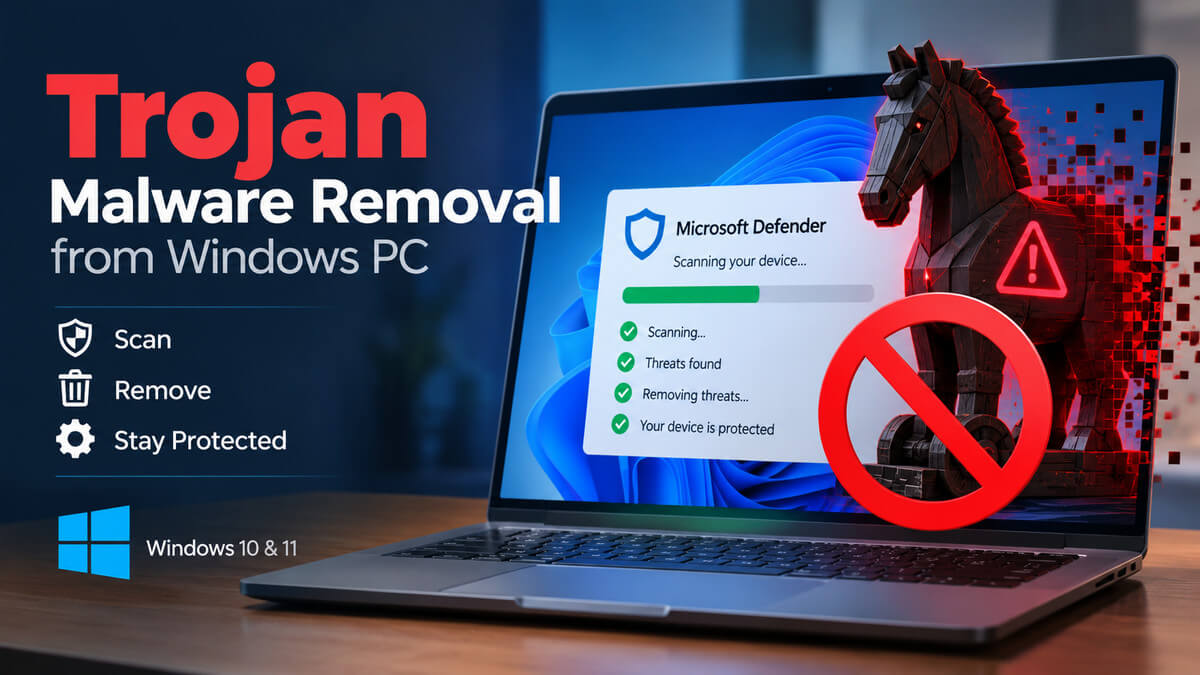
A Trojan is a type of malware that disguises itself as legitimate software, a file, download, or application to trick you into running it. Once activated, a Trojan can steal sensitive information, provide remote access to your computer, install additional malware, or interfere with normal system activity.
Unlike traditional computer viruses, Trojans generally do not self-replicate; instead, they rely on deception and user interaction to get onto a device.
If you suspect that your computer has a Trojan, don’t panic and don’t start deleting random files or registry entries. The safest approach is to use trusted security tools and follow a systematic Trojan removal process.
On Windows 10 and Windows 11, you can start with Windows Security and Microsoft Defender Antivirus, which provide Quick Scan, Full Scan, Custom Scan, and Microsoft Defender Offline Scan options.
In this guide, you’ll learn how to remove Trojan from your PC, how to detect signs of a Trojan infection, how to run a Microsoft Defender Full Scan and Offline Scan, what to do when a Trojan keeps coming back, and how to verify that the malware has been removed.
We’ll also cover when to use a second-opinion malware scanner, how to secure your accounts after an infection, and when resetting or reinstalling Windows may be necessary.
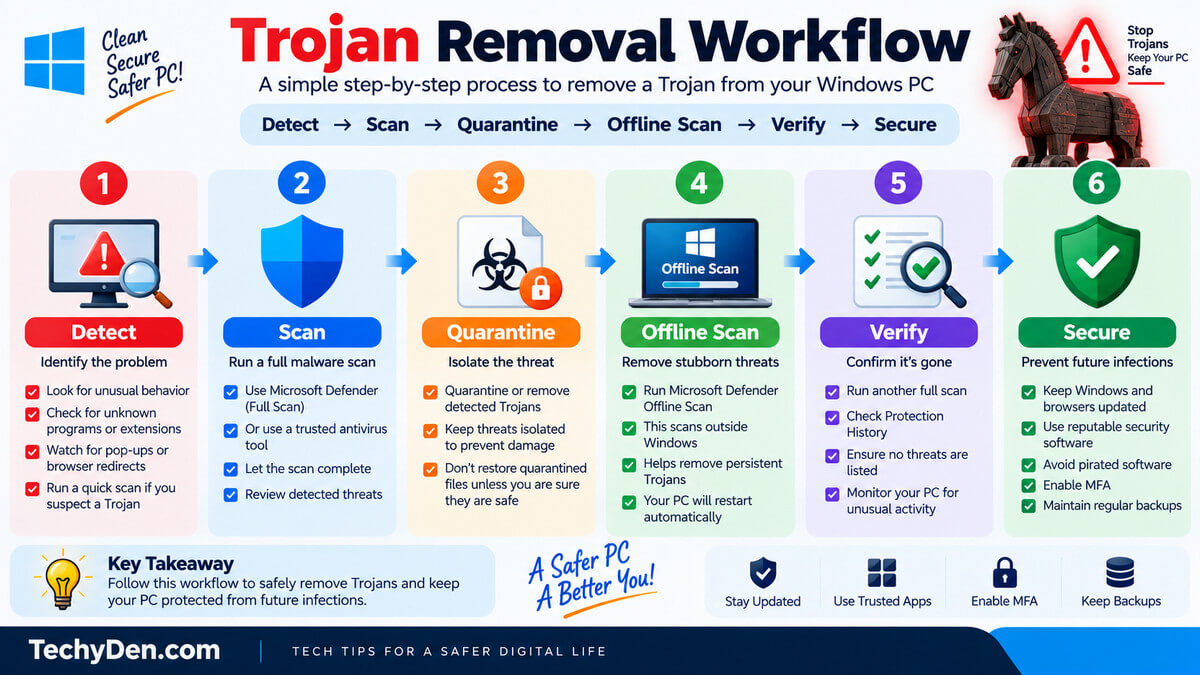
Quick answer: To remove a Trojan from a Windows PC, update Microsoft Defender, run a full scan, quarantine detected threats, and use Microsoft Defender Offline if the infection persists. Then check the protection history, secure potentially compromised accounts, and take additional recovery steps if the Trojan returns.
A Trojan infection should be taken seriously because some Trojans are designed to steal passwords and financial information, provide attackers with remote access, or download other threats such as ransomware and spyware.
However, a slow computer, pop-ups, or unusual behaviour alone does not necessarily mean that your PC has a Trojan. A proper malware scan is needed to confirm an infection.
Let’s start by understanding what a Trojan is and how it can affect your computer.
What Is a Trojan?
A Trojan, also called a Trojan horse, is a type of malware that tricks users into believing that a malicious file, program, download, or application is legitimate.
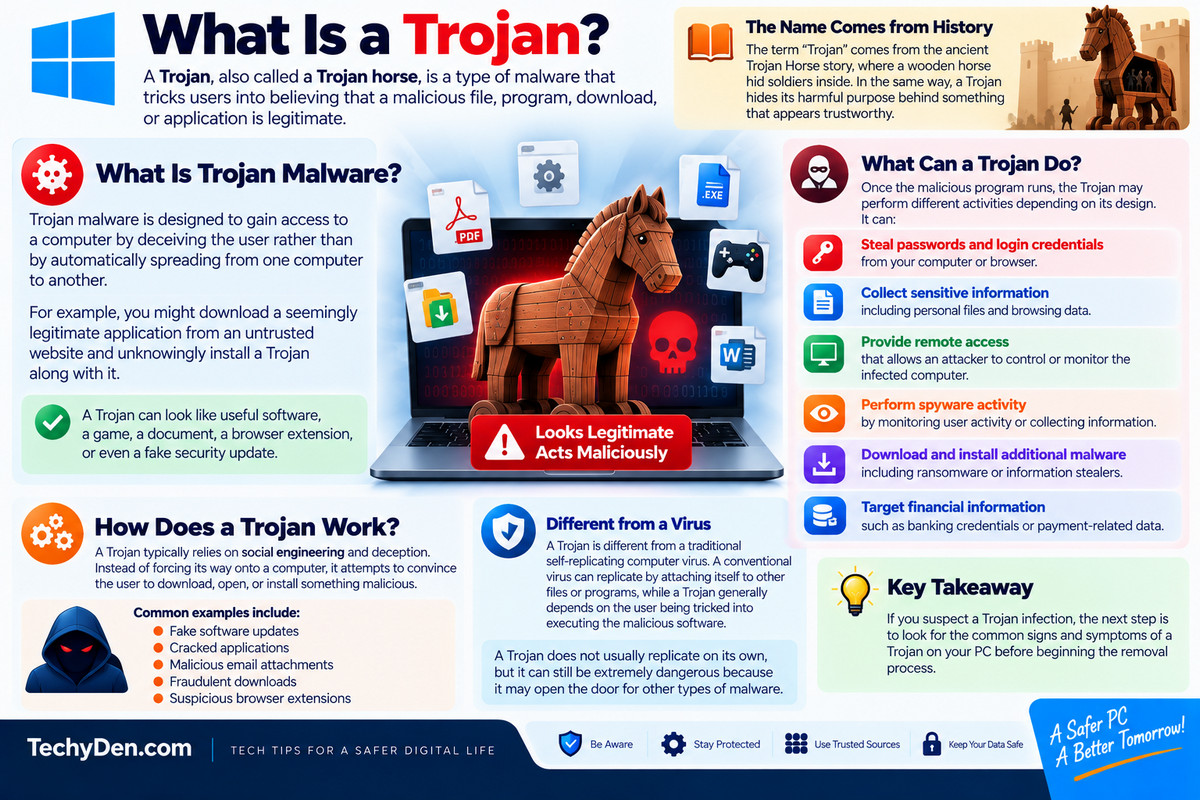
The name comes from the ancient Trojan Horse story: the malware hides its harmful purpose behind something that appears trustworthy.
A Trojan horse virus can therefore look like useful software, a game, a document, a browser extension, or even a fake security update.
What Is Trojan Malware?
Trojan malware is designed to gain access to a computer by deceiving the user rather than by automatically spreading from one computer to another.
For example, you might download a seemingly legitimate application from an untrusted website and unknowingly install a Trojan along with it.
Once the malicious program runs, the Trojan may perform different activities depending on its design. It can:
- Steal passwords and login credentials from your computer or browser.
- Collect sensitive information, including personal files and browsing data.
- Provide remote access that allows an attacker to control or monitor the infected computer.
- Perform spyware activity by monitoring user activity or collecting information.
- Download and install additional malware, including ransomware or information stealers.
- Target financial information, such as banking credentials or payment-related data.
How Does a Trojan Work?
A Trojan typically relies on social engineering and deception. Instead of forcing its way onto a computer, it attempts to convince the user to download, open, or install something malicious.
Common examples include fake software updates, cracked applications, malicious email attachments, fraudulent downloads, and suspicious browser extensions.
A Trojan is also different from a traditional self-replicating computer virus. A conventional virus can replicate by attaching itself to other files or programs, while a Trojan generally depends on the user being tricked into executing the malicious software.
However, a Trojan can still be extremely dangerous because it may open the door for other types of malware.
If you suspect a Trojan infection, the next step is to look for the common signs and symptoms of a Trojan on your PC before beginning the removal process.
Signs Your PC May Have a Trojan
Knowing the common Trojan symptoms can help you recognise a possible malware infection early. A computer infected with a Trojan may behave differently because the malware can run unwanted processes, change system settings, communicate with remote servers, or install additional malicious software.
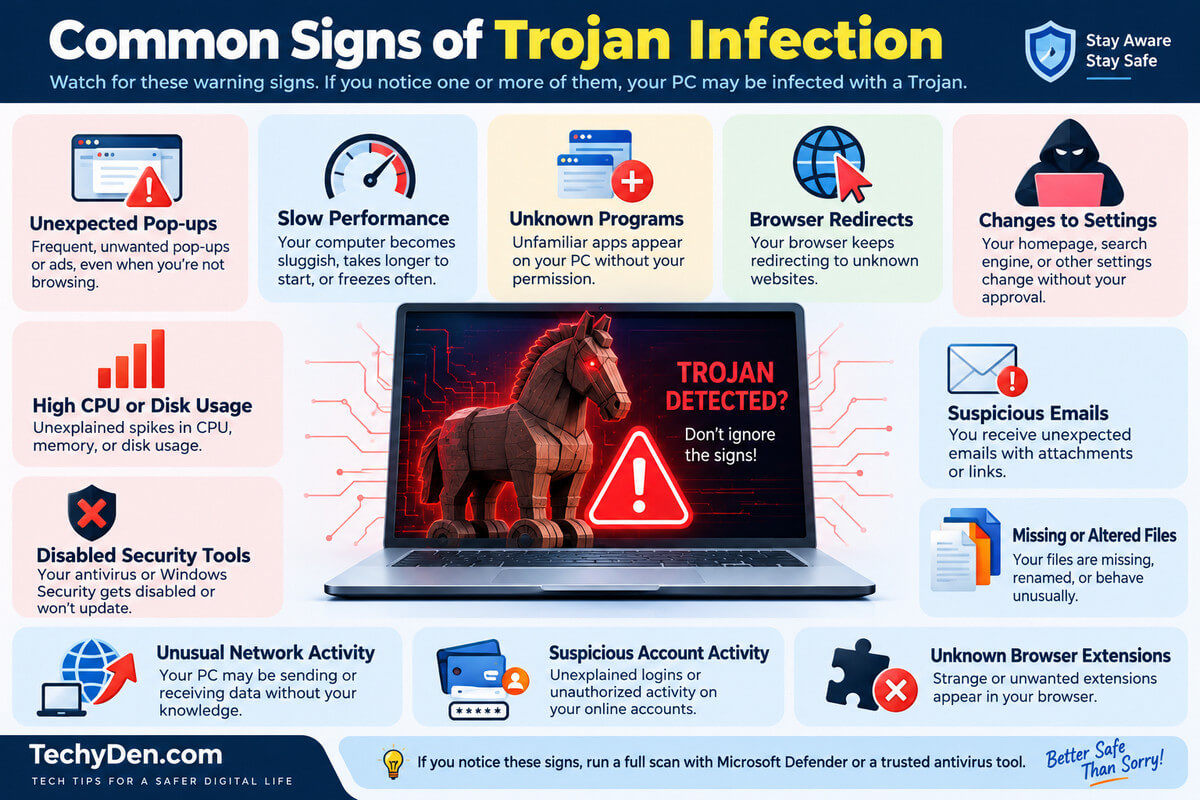
Here are some common signs of a Trojan infection to watch for:
- Unexpected pop-ups: Frequent advertisements, security warnings, or other pop-ups may appear even when you are not browsing the web.
- Browser redirects: Your browser may unexpectedly redirect you to unfamiliar websites, search pages, or advertisements.
- Unknown programs: New applications or files may appear on your PC without you knowingly installing them.
- Suspicious browser extensions: Unfamiliar extensions may be added to Chrome, Edge, Firefox, or another browser.
- Unusual system slowdown: Your computer may suddenly become slower because malicious processes are consuming CPU, memory, or other system resources.
- Unexpected CPU or network activity: High resource usage or unexplained network connections may occur when the computer is idle.
- Security software being disabled: Malware may attempt to interfere with antivirus or Windows Security protections.
- Unknown startup applications: Unrecognised programmes may automatically launch when Windows starts.
- Unexpected account activity: You may receive unfamiliar login alerts or notice suspicious activity on online accounts.
- Files being modified or deleted: Important files may be changed, moved, encrypted, or deleted unexpectedly.
Do These Symptoms Always Mean You Have a Trojan?
No. A single symptom does not prove that your computer has a Trojan. Slow performance, browser redirects, pop-ups, or high CPU usage can also result from legitimate applications, unwanted software, browser problems, hardware issues, or other types of malware.
If you notice several unusual behaviours at the same time, or Windows Security reports a threat, scan your PC with a trusted security tool before assuming you have a Trojan. The next step is to use Windows Security and Microsoft Defender to check your computer for malware.
How to Remove Trojan from Windows 11
If you are looking for how to remove Trojan from Windows 11, start with the security tools already built into Windows. Microsoft Defender Antivirus, accessed through the Windows Security app, can scan for malware, quarantine detected threats, and perform an Offline Scan when a persistent infection is suspected. Microsoft recommends keeping security intelligence updated before running a malware scan.
The following Windows 11 Trojan removal process focuses on safe, built-in tools rather than manually deleting suspicious files or modifying the Windows Registry.
1. Disconnect the PC from the Internet
If you strongly suspect an active Trojan infection, temporarily disconnect your Windows 11 PC from the internet before starting the removal process. You can turn off Wi-Fi or unplug the Ethernet cable.
Disconnecting the internet does not remove the Trojan, but it can limit the infected computer’s ability to communicate with remote systems while you investigate the problem.
This can be particularly useful when dealing with malware that may attempt to communicate with an external server or download additional malicious components.
After disconnecting, avoid logging into sensitive online accounts from the potentially infected computer until you’ve completed the malware scan.
Once the system has been checked and cleaned, you can reconnect it and continue with updates and other recovery steps.
2. Update Microsoft Defender
Before running a Microsoft Defender Trojan removal scan, make sure Defender has the latest security intelligence. These updates contain information about newer threats and help Microsoft Defender identify current malware.
Open:
Windows Security → Virus & threat protection → Protection updates → Check for updates
Windows normally downloads security intelligence automatically through Windows Update, but Microsoft also provides an option to manually check for updates.
After the update finishes, return to Virus & Threat Protection and continue with the scanning process. Keeping Defender updated is especially important when you suspect a recent Trojan or another type of malware infection.
Tip: Don’t turn off Microsoft Defender or real-time protection simply because a scan takes time. Disabling security protection can leave your PC more exposed while you’re trying to remove malware.
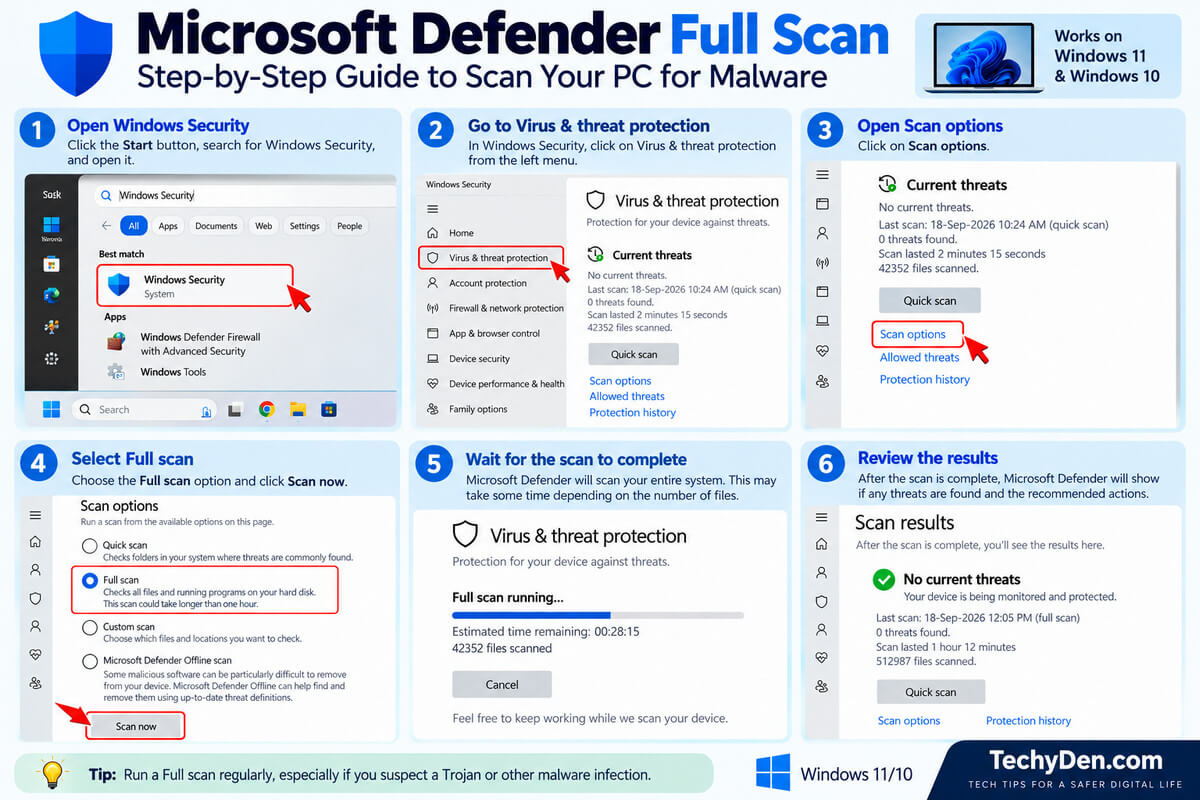
3. Run a Full Scan
The next step is to perform a Microsoft Defender Full Scan. A Full Scan is more thorough than a Quick Scan and is useful when you want to scan your PC for malware after noticing suspicious behavior or receiving a Trojan detection.
Open:
Windows Security → Virus & threat protection → Scan options → Full scan
Then select Scan now.
According to Microsoft, a Full Scan checks every file and program on the device. Depending on the amount of data and the speed of your computer, the scan can take considerable time, so you may want to let it complete without using the PC heavily.
If Microsoft Defender finds a potential Trojan, don’t immediately assume that every detection is malicious or manually delete the associated file. Review the detection in Windows Security and follow the recommended action.
If the Full Scan doesn’t find anything but you still strongly suspect an infection, continue with the next steps rather than assuming the computer is definitely clean.
4. Quarantine or Remove the Detected Trojan
If Windows Security reports a Trojan detected, open the relevant alert and review the detection details. Microsoft Defender may recommend an action such as quarantining or removing the threat.
Quarantine isolates the detected file so it cannot normally run or interact with the system. This is preferable to manually deleting files when you aren’t certain what they are. Microsoft specifically advises choosing Quarantine when you’re unsure whether a detected item is safe.
You can review detected threats through:
Windows Security → Virus & threat protection → Current threats
If a threat has been quarantined, you can review its details and choose Remove when appropriate. Avoid selecting Allow on device unless you have a strong reason to believe the detection is a false positive. Allowing a genuine Trojan to run could expose your computer and personal information.
Do not manually delete suspicious files from Windows system folders or Registry entries simply because their names look unfamiliar. Legitimate Windows components can have unfamiliar names, and deleting the wrong file can cause system problems.
5. Run Microsoft Defender Offline
If the Trojan remains after a Full Scan, or the Trojan keeps coming back, the next important step is Microsoft Defender Offline Scan.
Microsoft Defender Offline is designed to scan the computer outside the normal Windows environment. When you start the scan, Windows restarts the PC and performs the scan in the Windows Recovery Environment rather than loading normal Windows first. This makes it harder for persistent malware to hide or defend itself.
To start a Windows Defender Offline Scan:
Windows Security → Virus & threat protection → Scan options → Microsoft Defender Antivirus (offline scan) → Scan now
Save your work before starting because your computer will restart automatically.
The offline scan performs its scan after the restart, and then Windows automatically restarts again when the process is complete. Microsoft specifically recommends Defender Offline when the same malware repeatedly returns or when malware may be hiding while Windows is running.
This makes Defender Offline Trojan removal particularly useful for persistent infections that appear again after a normal restart.
After Windows starts again, open Windows Security → Protection history to review the result of the scan.
6. Check Windows Security Protection History
After running a Full Scan or Microsoft Defender Offline Scan, check Windows Security Protection History to see what Defender detected and what action it took.
Open:
Windows Security → Protection history
Protection History records actions taken by Microsoft Defender Antivirus, including detected malware, quarantined threats, blocked threats, potentially unwanted applications, and certain security-related events.
Look for entries related to the suspected Trojan and expand each alert to see its details. Depending on the result, you may see statuses such as:
- Threat found – action needed: Defender detected a possible threat and requires you to choose an action.
- Threat quarantined: The threat has been isolated and is no longer expected to pose an immediate risk.
- Threat blocked: Defender blocked and removed the threat.
- Remediation incomplete: Defender attempted to clean the threat but could not completely finish the process.
If the threat is quarantined, you can normally choose Remove rather than Restore unless you have verified that the detection is a false positive.
Also remember that Protection History only retains events for two weeks, according to Microsoft.
If the same Trojan appears again after you have completed these scans, don’t simply keep deleting the detection. A recurring detection can indicate that another component is reinstalling the malware. In that situation, the next step is to investigate why the Trojan keeps coming back and use additional malware-removal and recovery measures.
How to Remove a Trojan from Windows 10
If you’re searching for how to remove a Trojan from Windows 10, you can use the built-in Windows Security app and Microsoft Defender Antivirus to scan for and remove many types of malware.
The overall process is similar to Windows 11, although the Windows Security interface and some menu names can look slightly different depending on your Windows 10 version and installed updates.
Use Windows Security to Scan for the Trojan
Start by opening Windows Security from the Start menu and selecting Virus & Threat Protection. Before scanning, check that Microsoft Defender has the latest security intelligence updates.
From Virus & threat protection, select Scan options. You’ll generally find options such as:
- Quick scan – Checks common locations where malware may be found.
- Full scan – Checks files and programs across the computer.
- Custom scan – Lets you scan a specific file, folder, or location.
- Microsoft Defender Offline Scan – Restarts the PC and scans outside the normal Windows environment.
For a suspected Trojan infection, a Full scan is a useful starting point. If Microsoft Defender detects a Trojan, review the alert and allow Windows Security to quarantine or remove the detected threat.
Avoid manually deleting unfamiliar files from Windows system folders or modifying Registry entries unless you know exactly what you’re doing.
Run Microsoft Defender Offline if the Trojan Persists
If the Trojan continues to appear after a Full Scan, use Microsoft Defender Offline. This is particularly useful when dealing with malware that may attempt to hide or interfere with security software while Windows is running.
Go to:
Windows Security → Virus & threat protection → Scan options → Microsoft Defender Offline scan → Scan now
Save your work first because Windows will restart the computer to perform the scan. After Windows starts again, check Protection History to review what Microsoft Defender detected and what action it took. Microsoft’s current documentation covers Microsoft Defender Antivirus and its scanning options across supported Windows versions.
Windows 10 vs. Windows 11 Trojan Removal
The basic Windows 10 Trojan removal workflow is therefore very similar to Windows 11:
Update Defender → Full Scan → Quarantine/Remove → Defender Offline → Check Protection History
The main difference is the appearance and organisation of Windows Security, which can vary according to the Windows 10 release and updates installed on the PC. Don’t worry if the wording or location of an option looks slightly different from a Windows 11 screenshot.
If Microsoft Defender cannot remove the detected Trojan, or the same detection repeatedly returns, don’t keep manually deleting files. Move to the troubleshooting steps for persistent Trojan infections, including a second-opinion malware scan and additional recovery measures.
What If the Trojan Keeps Coming Back?
If a Trojan keeps coming back after you have scanned and restarted your PC, don’t assume that repeatedly deleting the same detection will solve the problem. A recurring detection can indicate a persistent Trojan or another form of persistent malware that is being restored, downloaded again, or detected from another location.
If a Trojan won’t go away or Windows Security reports that a Trojan was detected but can’t be removed, work through the following steps.
1. Run Microsoft Defender Offline
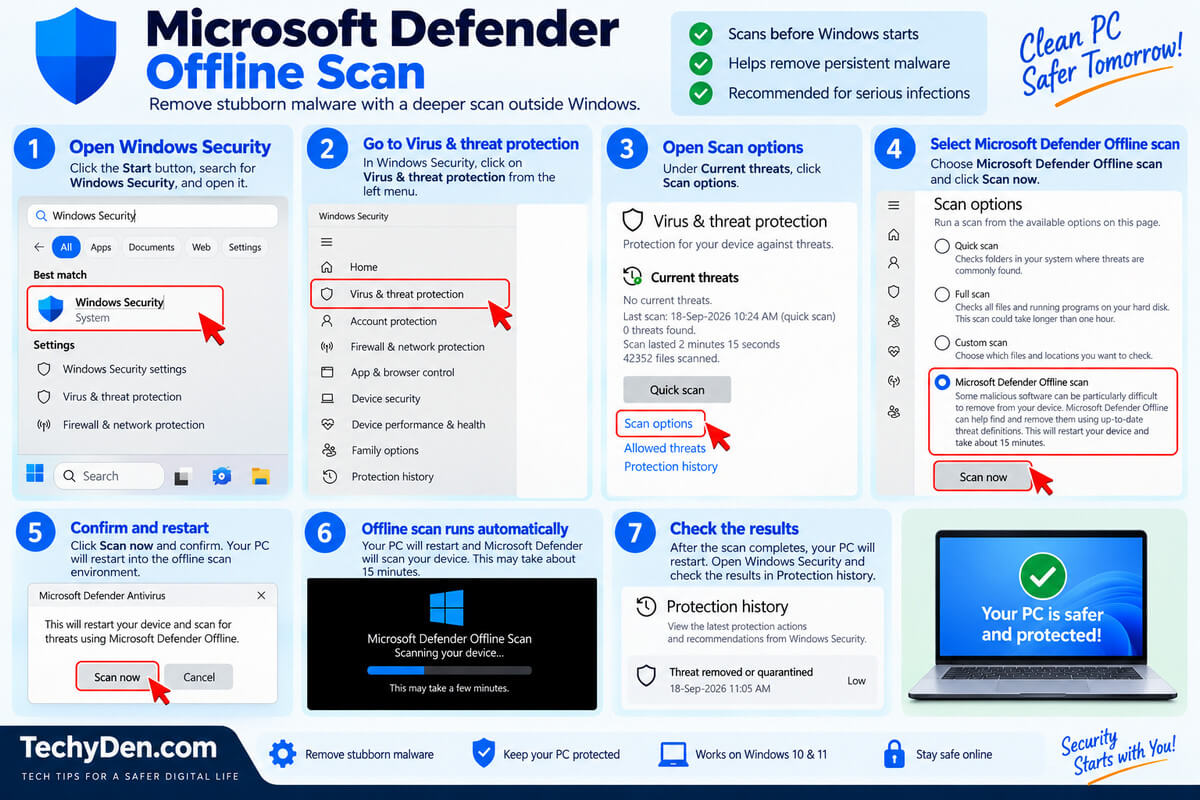
Start with Microsoft Defender Offline Scan if you haven’t already used it. An Offline Scan runs after Windows restarts and scans the system outside the normal Windows environment. This can help when persistent malware is difficult to remove while Windows is running.
Go to:
Windows Security → Virus & threat protection → Scan options → Microsoft Defender Offline scan → Scan now
Allow the scan to finish, then check Protection History after Windows starts again.
2. Use a Reputable Second-Opinion Scanner
If Microsoft Defender doesn’t fully resolve the problem, consider running a scan with a reputable second-opinion malware scanner such as Malwarebytes. A second scanner can sometimes identify potentially unwanted or malicious software that deserves further investigation.
Avoid installing several security products with real-time protection simultaneously unless you understand how they interact. For troubleshooting, an on-demand second-opinion scan is generally more appropriate.
3. Check Recently Installed Applications
Think about what changed shortly before the Trojan appeared. Open your installed applications and look for programs you don’t recognise or did not intentionally install.
Be particularly cautious with recently installed:
- Free software from unfamiliar websites
- Cracked or pirated applications
- Game modifications and keygens
- Fake browser utilities
- Unofficial system tools
Don’t remove a program solely because its name is unfamiliar. Search for the publisher and verify what the application does before uninstalling it.
4. Review Startup Applications and Browser Extensions
Some malware attempts to launch automatically when Windows starts. Review your startup applications and disable unfamiliar entries while investigating them.
Also check Chrome, Edge, Firefox, or other installed browsers for suspicious browser extensions. Remove extensions that you don’t recognize or no longer need, particularly if browser redirects, unwanted advertisements, or changed search settings started after installing them.
5. Check External Drives and Install Windows Updates
If the Trojan detection returns after connecting a USB flash drive, external hard drive, or another storage device, scan that device before opening its files. Malware can sometimes remain on removable media and reappear after the device is connected.
Also install pending Windows updates and update commonly targeted applications such as your browser. Keeping the operating system and software current reduces exposure to known security vulnerabilities.
6. Secure Potentially Compromised Accounts
A Trojan may be designed to steal passwords, browser information, or other sensitive data. If you believe your computer was compromised, change important passwords from a trusted device, starting with your email, financial, and other high-value accounts.
Enable multi-factor authentication (MFA) wherever available and review recent account activity for unfamiliar logins.
If the Trojan keeps coming back despite offline scans, second-opinion scanning, application checks, and updates, the infection may require more extensive recovery steps. In serious cases, you may need to consider resetting or reinstalling Windows rather than continuing to manually remove individual files.
Can Malwarebytes Remove a Trojan?
Yes, Malwarebytes can detect and remove many types of Trojan malware. Malwarebytes provides malware scanning designed to identify threats such as Trojans, spyware, ransomware, and other unwanted or malicious software.
Its scanner can be useful when you want a second opinion after Microsoft Defender or when suspicious behaviour continues despite an initial Windows Security scan.
How to Use Malwarebytes for Trojan Removal
Download Malwarebytes from its official website, install the application, and allow it to update before starting a scan. Open Malwarebytes and start a malware scan.
Depending on the version and available features, the software may scan your system for malicious files, programs, and other potentially unwanted threats.
If Malwarebytes identifies a Trojan, review the detection results before taking action. Detected threats can generally be quarantined, which isolates them so they cannot normally run or interfere with your computer.
After reviewing the results, follow Malwarebytes’ recommended removal procedure and restart the PC if requested.
A second-opinion scanner can be particularly useful when a Trojan won’t go away, Microsoft Defender reports a recurring detection, or you want additional confirmation that your computer is clean.
However, avoid installing multiple antivirus products with real-time protection and running them simultaneously unless you understand their compatibility.
Multiple real-time security products can interfere with each other or create unnecessary system overhead.
For troubleshooting, using Malwarebytes as an additional on-demand scanner alongside your primary Windows security protection can be a more practical approach.
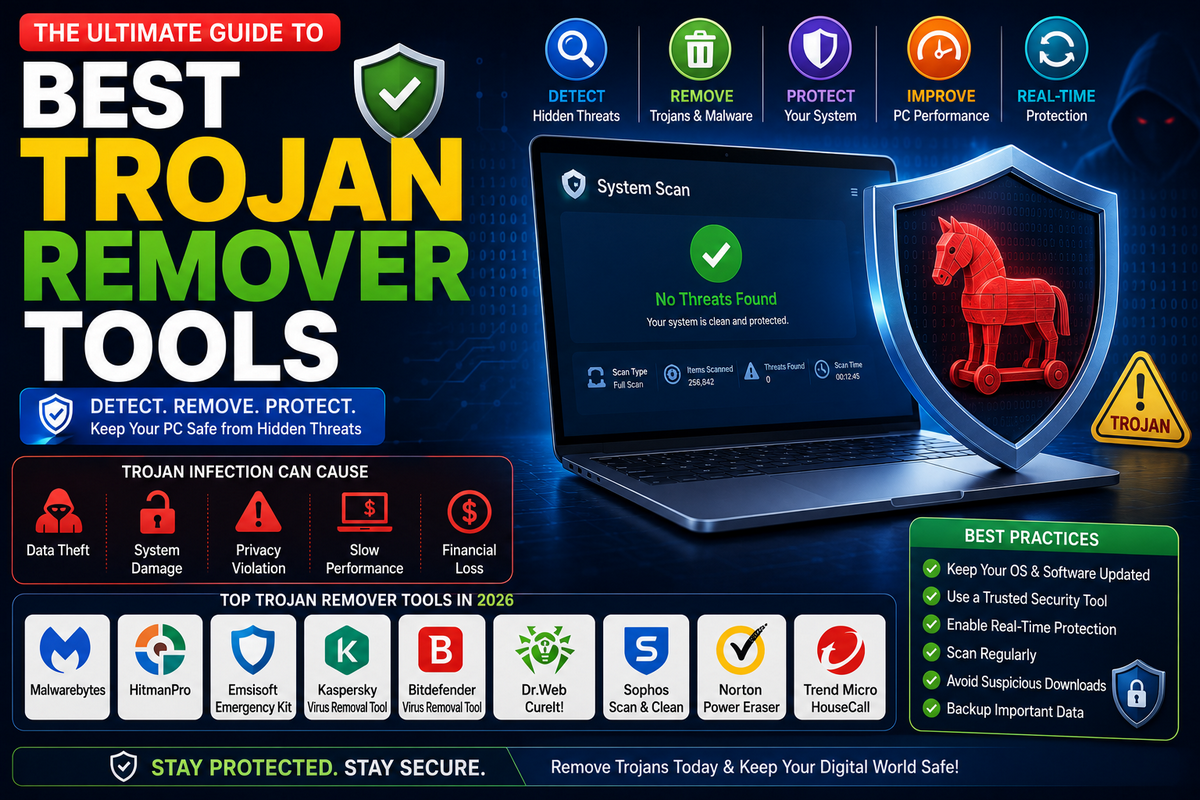
For more options, see our guide to 6 Best Trojan Remover Tools to Secure Your Computer.
How to Know If the Trojan Has Been Removed
After completing the removal process, you may wonder how to know if the Trojan is removed or how to tell if the Trojan is gone. A clean scan is a good sign, but you should also check your computer for any remaining suspicious activity.
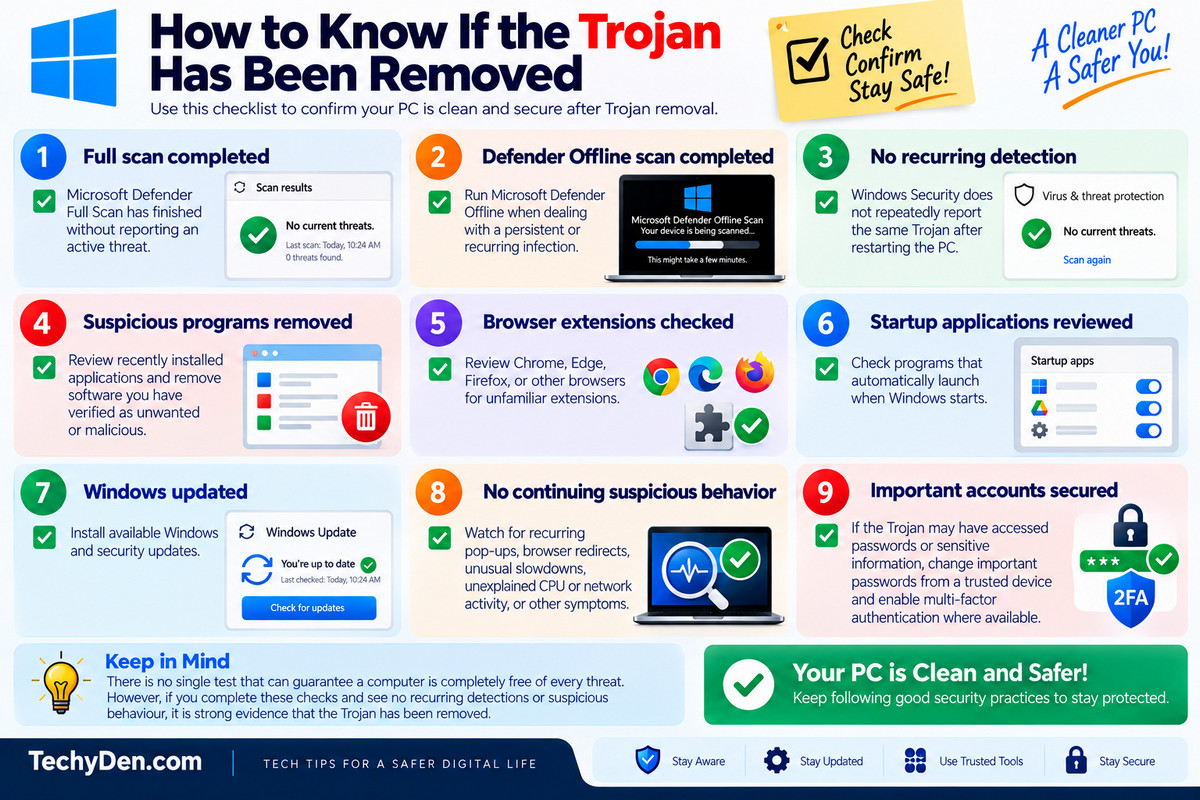
Use this practical Trojan removal checklist:
- Full scan completed: Microsoft Defender Full Scan has finished without reporting an active threat.
- Defender Offline scan completed: Run Microsoft Defender Offline when dealing with a persistent or recurring infection.
- No recurring detection: Windows Security does not repeatedly report the same Trojan after restarting the PC.
- Suspicious programs removed: Review recently installed applications and remove software you have verified as unwanted or malicious.
- Browser extensions checked: Review Chrome, Edge, Firefox, or other browsers for unfamiliar extensions.
- Startup applications reviewed: Check programs that automatically launch when Windows starts.
- Windows updated: Install available Windows and security updates.
- No continuing suspicious behaviour: Watch for recurring pop-ups, browser redirects, unusual slowdowns, unexplained CPU or network activity, or other symptoms.
- Important accounts secured: If the Trojan may have accessed passwords or sensitive information, change important passwords from a trusted device and enable multi-factor authentication where available.
There is no single test that can guarantee a computer is completely free of every possible threat. However, completing these checks and seeing no recurring detections or suspicious behaviour provides stronger evidence that the Trojan removal process was successful.
If the same malware continues to return, continue troubleshooting rather than assuming the PC is clean.
What to Do After Removing a Trojan
Knowing what to do after removing a Trojan is just as important as cleaning the malware from your computer. A successful malware recovery process should include securing your accounts, updating your software, and checking the system for signs of continued compromise.
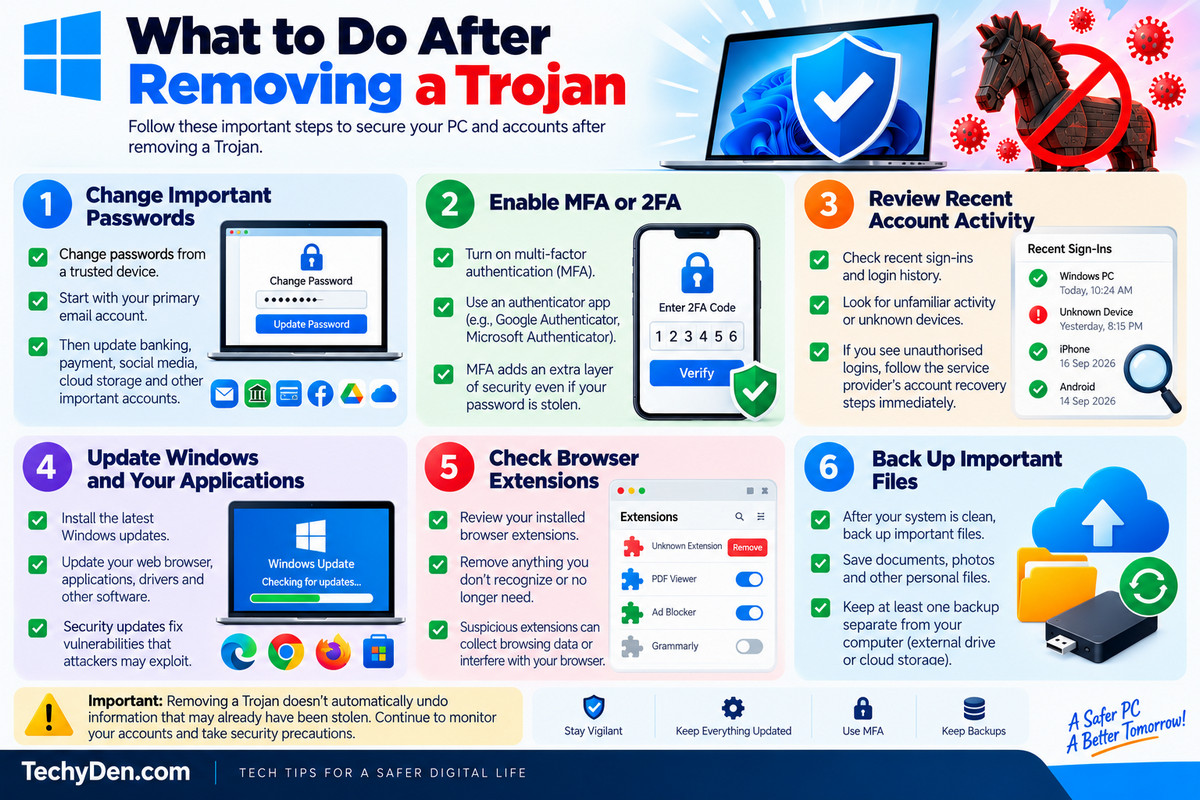
- Change Important Passwords: If you suspect that the Trojan may have accessed passwords or other sensitive information, change important passwords from a trusted device rather than the potentially infected computer. Start with your primary email account because it can often be used to reset passwords for other services. Then prioritise banking, payment, social media, cloud storage, and other important accounts.
- Enable MFA or 2FA: Enable multi-factor authentication (MFA) or two-factor authentication (2FA) wherever it is available. MFA provides an additional layer of protection if an attacker has obtained your password.
- Review Recent Account Activity: Check recent sign-ins, login history, security alerts, and connected devices for unfamiliar activity. If you find an unauthorised login, follow the service provider’s account recovery and security recommendations immediately.
- Update Windows and Your Applications: Install available Windows updates and update your web browser, applications, drivers, and other commonly used software. Security updates can address vulnerabilities that attackers may exploit.
- Check Browser Extensions: Review your installed browser extensions and remove anything you don’t recognize or no longer need. Suspicious extensions can potentially collect browsing information or interfere with your browser.
- Back Up Important Files: After your system is clean, create a backup of important documents, photos, and other personal files. Keep at least one backup separate from your computer so that it is less likely to be affected by future malware or ransomware.
Most importantly, remember that removing malware doesn’t automatically undo information that may already have been stolen. If a Trojan had access to passwords, personal information, or financial data, securing the affected accounts is an essential part of the recovery process.
Should You Reset or Reinstall Windows After a Trojan?
In many cases, you do not need to reset or reinstall Windows after removing a Trojan. If Microsoft Defender or another reputable security tool successfully detects and removes the malware and your computer behaves normally afterward, you can usually continue using the system while maintaining good security practices.
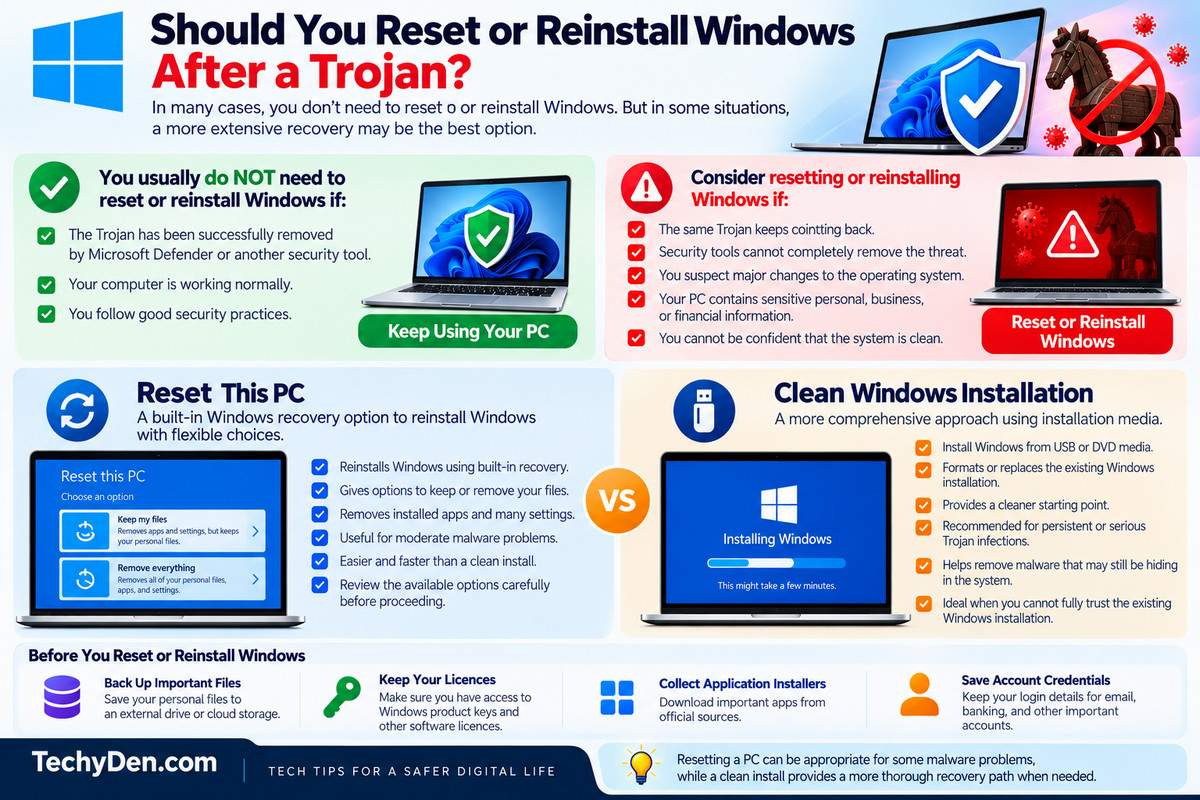
However, a more extensive recovery may be appropriate when a Trojan repeatedly returns, security tools cannot completely clean the system, or you have reason to believe the computer has been significantly compromised.
Consider resetting or reinstalling Windows after malware when:
- The same Trojan continues to appear after multiple scans.
- Security tools report that remediation is incomplete or cannot remove the threat.
- You suspect significant changes have been made to the operating system.
- The computer contains highly sensitive personal, business, or financial information.
- You cannot establish reasonable confidence that the system is clean.
Reset This PC vs. Clean Windows Installation
Reset this PC is a Windows recovery feature that reinstalls Windows while giving you options about what happens to your personal files. Depending on the option selected, Windows can remove installed applications and settings while reinstalling the operating system.
Microsoft provides different reset options, so review the available choices carefully before proceeding.
A clean Windows installation is a more comprehensive approach. It involves installing Windows from installation media and formatting or replacing the existing Windows installation.
This can provide a cleaner starting point when you have serious concerns about persistent malware or system compromise.
Before either option, back up important personal files and make sure you have access to the necessary product licences, application installers, and account credentials.
If you suspect highly sophisticated or persistent malware, don’t restore potentially infected applications or files blindly after reinstalling Windows.
In short, resetting a PC can be appropriate for some malware problems, while a clean install provides a more thorough recovery path when you cannot trust the existing Windows installation. Neither option should be treated as the first step for every Trojan detection.
How Do Trojans Infect Computers?
Understanding how Trojans infect computers can help you avoid the same problem in the future. If you’re wondering how a Trojan gets on your PC or how you got a Trojan, the answer is often related to downloading or installing something that appears legitimate but contains hidden malicious code.
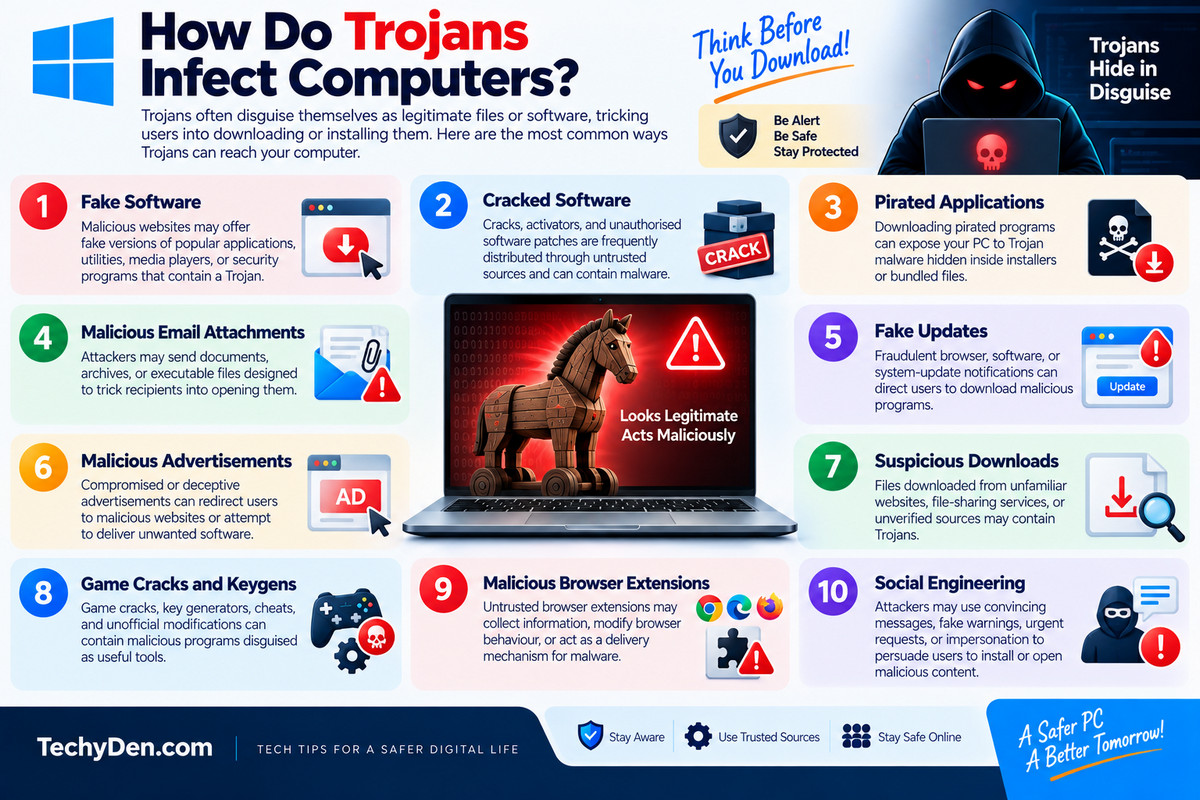
Common ways Trojans reach computers include:
- Fake software: Malicious websites may offer fake versions of popular applications, utilities, media players, or security programs that contain a Trojan.
- Cracked software: Cracks, activators, and unauthorised software patches are frequently distributed through untrusted sources and can contain malware.
- Pirated applications: Downloading pirated programs can expose your PC to Trojan malware hidden inside installers or bundled files.
- Malicious email attachments: Attackers may send documents, archives, or executable files designed to trick recipients into opening them.
- Fake updates: Fraudulent browser, software, or system-update notifications can direct users to download malicious programs.
- Malicious advertisements: Compromised or deceptive advertisements can redirect users to malicious websites or attempt to deliver unwanted software.
- Suspicious downloads: Files downloaded from unfamiliar websites, file-sharing services, or unverified sources may contain Trojans.
- Game cracks and keygens: Game cracks, key generators, cheats, and unofficial modifications can contain malicious programs disguised as useful tools.
- Malicious browser extensions: Untrusted browser extensions may collect information, modify browser behaviour, or act as a delivery mechanism for malware.
- Social engineering: Attackers may use convincing messages, fake warnings, urgent requests, or impersonation to persuade users to install or open malicious content.
How Do Trojans Spread?
Unlike traditional self-replicating viruses, Trojans generally do not spread automatically by copying themselves from one computer to another.
Instead, attackers rely heavily on deception to convince users to download and execute malicious software.
This is why downloading software from official or reputable sources, keeping Windows and applications updated, and carefully checking unexpected links, attachments, and installation prompts are important parts of preventing a Trojan infection.
How to Prevent Trojan Infections
Learning how to prevent Trojan infections is one of the best ways to protect your Windows PC from malware.
Trojans often rely on deceptive downloads, fake updates, malicious attachments, and social engineering, so good security habits are just as important as antivirus protection.
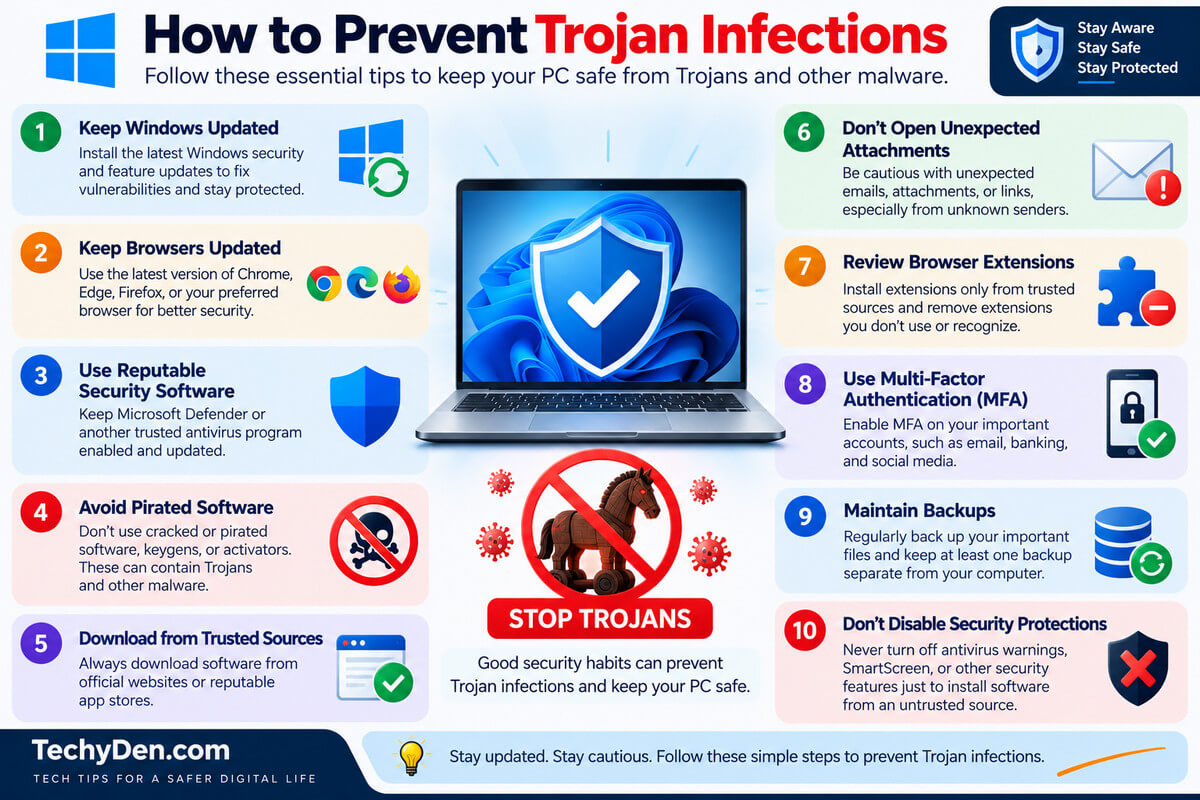
Use the following checklist to prevent Trojan infection and protect your PC from Trojans:
- Keep Windows updated: Install Windows security and feature updates regularly. Updates can fix vulnerabilities that attackers may exploit.
- Keep browsers updated: Use the latest version of Chrome, Edge, Firefox, or your preferred browser to benefit from current security protections.
- Use reputable security software: Keep Microsoft Defender or another trusted security solution enabled and regularly updated.
- Avoid pirated and cracked software: Don’t download cracks, keygens, activators, or pirated applications. These files can contain Trojans and other malware.
- Download applications from trusted sources: Whenever possible, download software directly from the developer’s official website or a reputable app store.
- Don’t open unexpected attachments: Be cautious with unexpected email attachments, especially executable files, archives, documents, or links from unknown senders.
- Review browser extensions: Install extensions only from trusted sources and periodically remove extensions you no longer use or don’t recognise.
- Use MFA: Enable multi-factor authentication (MFA) on important email, financial, social media, and other online accounts.
- Maintain backups: Regularly back up important documents, photos, and other files. Keep at least one backup separate from your computer.
- Don’t disable security protections: Never turn off antivirus warnings, SmartScreen, or other security features simply to install software from an untrusted source.
These habits can significantly reduce your exposure to Trojan malware, but no security measure provides complete protection. Stay cautious when downloading files, installing software, and responding to unexpected messages. If something seems suspicious, verify the source before opening or installing it.
Frequently Asked Questions About Trojan Removal
How do I remove a Trojan from my PC?
To remove a Trojan from your PC, update Microsoft Defender and run a full scan from Windows Security. Quarantine or remove detected threats, then run Microsoft Defender Offline if the infection persists. Afterward, check the protection history, review suspicious applications and browser extensions, and secure important accounts if sensitive information may have been exposed.
Can Windows Defender remove a Trojan?
Yes, Windows Defender, now part of Microsoft Defender Antivirus, can detect and remove many Trojan infections. Start by updating its security intelligence and running a full scan. If the Trojan continues to appear, use Microsoft Defender Offline Scan. Review the protection history afterward to confirm whether the detected threat was quarantined, removed, or requires additional action.
How do I remove a Trojan from Windows 11?
To remove a Trojan from Windows 11, open Windows Security and go to Virus & threat protection → Scan options → Full scan. Let the scan finish and follow the recommended action for detected threats. If the Trojan keeps coming back, run Microsoft Defender Offline and check Protection History for additional details.
How do I remove a Trojan from Windows 10?
For Windows 10 Trojan removal, open Windows Security and select Virus & threat protection. Update Microsoft Defender, run a Full Scan, and quarantine detected threats. If the Trojan won’t go away, use Microsoft Defender Offline Scan and review Protection History afterward. The exact interface may vary slightly depending on your Windows 10 version.
How do I know if my PC has a Trojan?
Common signs of a Trojan infection include unexpected pop-ups, browser redirects, unknown programs, suspicious extensions, unusual system slowdown, unexplained CPU or network activity, and disabled security software. However, these symptoms do not prove that your PC has a Trojan. Run a trusted malware scan with Microsoft Defender to check for an actual infection.
What should I do if a Trojan keeps coming back?
If a Trojan keeps coming back, run Microsoft Defender Offline after completing a full scan. You can also use a reputable second-opinion malware scanner, review recently installed programs, check startup applications and browser extensions, and scan external drives. If the infection continues, secure important accounts and consider more extensive Windows recovery options.
Can Malwarebytes remove a Trojan?
Yes, Malwarebytes can detect and remove many types of Trojan malware. It can also provide a useful second opinion when Microsoft Defender does not resolve suspicious activity or a Trojan keeps returning. Install Malwarebytes from its official source, update it, run a malware scan, and review detected threats before quarantining or removing them.
Can I remove a Trojan without antivirus software?
Manually removing a Trojan without antivirus software is possible in some situations, but it is not recommended for most users. Malware can hide in different locations or use persistence techniques to return after removal. Using Microsoft Defender or another reputable security tool provides a safer way to scan, identify, quarantine, and remove Trojan malware.
Does resetting a PC remove a Trojan?
Resetting a PC can remove many forms of malware, depending on the reset option and the nature of the infection, but it should not automatically be your first step. If a Trojan cannot be removed or repeatedly returns, resetting Windows may be appropriate. Back up important files carefully and review Microsoft’s reset options before proceeding.
Can a Trojan steal my passwords?
Yes. Some Trojans are specifically designed to steal passwords and login credentials from browsers, applications, or other locations on an infected computer. If you suspect your PC has been compromised, change important passwords from a trusted device, prioritize email and financial accounts, enable MFA or 2FA, and review recent account activity for unfamiliar logins.
How do I know if a Trojan has been completely removed?
To verify Trojan removal, run a Microsoft Defender Full Scan and, when appropriate, a Defender Offline Scan. Check Protection History for unresolved detections and watch for recurring symptoms such as redirects, pop-ups, or unusual activity. Also review installed programs, startup applications, and browser extensions. No single check can guarantee that every possible threat is gone.
What is Microsoft Defender Offline Scan?
Microsoft Defender Offline Scan is a Windows security feature that restarts the computer and scans it outside the normal Windows environment. This can make it harder for persistent malware to hide or interfere with the scan. It is particularly useful when a Trojan keeps returning or Microsoft Defender cannot completely remove a suspected infection.
Conclusion: How to Remove a Trojan from Your PC
Knowing how to remove a Trojan quickly and safely can help protect your files, accounts, and personal information from further damage. For most Windows users, the best starting point is Windows Security and Microsoft Defender. Update Defender, run a full scan, quarantine detected threats, and use Microsoft Defender Offline Scan when dealing with a persistent infection.
If a Trojan keeps coming back or cannot be removed, use a reputable second-opinion malware scanner and check recently installed applications, startup programs, browser extensions, and external drives. After removing the malware, change important passwords from a trusted device, enable MFA, install Windows updates, and review your account activity.
In more serious cases, such as a persistent Trojan that security tools cannot clean, resetting or reinstalling Windows may be necessary. Before taking that step, back up important files carefully and make sure you understand the available recovery options.
Most importantly, prevention matters. Keep Windows and applications updated, use reputable security software, avoid cracked or pirated software, and download programs only from trusted sources. These simple habits can significantly reduce the risk of another Trojan infection.