
Do you want to manage your Gmail messages directly from Microsoft Outlook? You can connect your Gmail account to Outlook and access your emails from one convenient place without constantly switching between applications.
Whether you use Windows 11, a Mac, or the Outlook mobile app, adding Gmail to Microsoft Outlook is relatively straightforward. Once connected, you can read messages, send emails using your Gmail address, and manage supported email folders from Outlook.
In this guide, you’ll learn how to add Gmail account to Outlook, connect multiple Gmail accounts, troubleshoot common setup problems, and understand how Gmail contacts and calendars work with Outlook.
Can You Add a Gmail Account to Microsoft Outlook?
Yes. You can add a Gmail account to supported versions of Microsoft Outlook using Google’s secure sign-in process.
Connecting Gmail to Outlook allows you to:
- Read and send Gmail messages from Outlook.
- Manage multiple email accounts in one application.
- Access supported Gmail folders and labels.
- Organize messages using Outlook’s available email management features.
- Reduce the need to switch between Gmail and Outlook throughout the day.
Your Gmail account remains a Google account. Connecting it to Outlook does not convert it into a Microsoft account or delete your Gmail messages.
However, the available features can vary depending on your version of Outlook. Email synchronization, contact integration, and calendar synchronization may work differently across Windows, Mac, and mobile devices.
What You Need Before Adding Gmail to Outlook
Before connecting your Gmail account, make sure you have the following:
- An active Gmail account: You need your complete Gmail address and access to the account.
- Microsoft Outlook: Install or update the Outlook application on your Windows PC, Mac, or mobile device.
- An internet connection: Outlook needs internet access to authenticate your Google account and synchronize messages.
- Access to Google verification: If two-step verification is enabled, you may need to approve a sign-in or complete another security check.
- Permission to connect your account: Google may ask you to review and authorize the access requested by Outlook.
For security, use the official Google sign-in process presented during setup. Avoid sharing your Google password with untrusted applications or disabling security protections to force a connection.
How to Add a Gmail Account to the New Outlook App for Windows
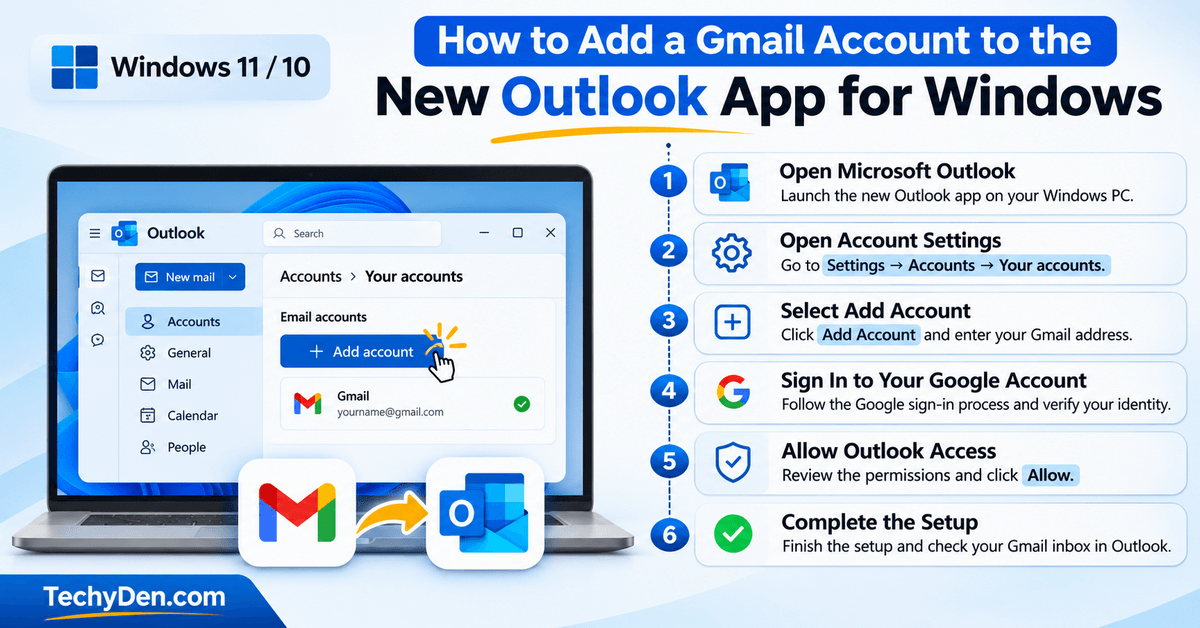
If you’re using the new Outlook app on Windows 11 or Windows 10, follow these steps to connect your Gmail account.
Step 1: Open Microsoft Outlook
Launch the new Outlook application on your Windows computer.
Make sure you’re using the new Outlook interface. If you see a traditional desktop interface with a File tab in the upper-left corner, you may be using classic Outlook instead.
Step 2: Open Outlook Account Settings
In the new Outlook app, open Settings and navigate to the account management area.
Depending on your version, the navigation may appear as:
Settings → Accounts → Your accounts
Look for the option to add another email account.
Step 3: Select Add Account
Click Add Account and enter the Gmail address you want to connect.
For example, enter your complete address, such as [email protected].
Select the option to continue.
Step 4: Sign In to Your Google Account
Outlook should open a Google sign-in window or redirect you to Google’s authentication page.
Enter your Gmail address if requested, then complete the sign-in process.
If Google asks you to verify your identity, follow the instructions displayed on the screen.
Step 5: Allow Outlook to Access Your Google Account
After signing in, Google may display a permissions screen explaining what account information Outlook wants to access.
Review the requested permissions carefully. If you’re comfortable with them, select Allow to continue.
Only authorize the connection if you recognize the application and understand the permissions being requested.
Step 6: Complete the Setup
Follow any remaining prompts to finish adding the account.
Once setup is complete, return to Outlook and look for your Gmail account in the account or folder list.
Open the inbox and check whether your messages appear.
Tip: If your Gmail account doesn’t connect successfully, update Outlook and retry the Google sign-in process before attempting manual configuration.
How to Add a Gmail Account to Classic Outlook for Windows
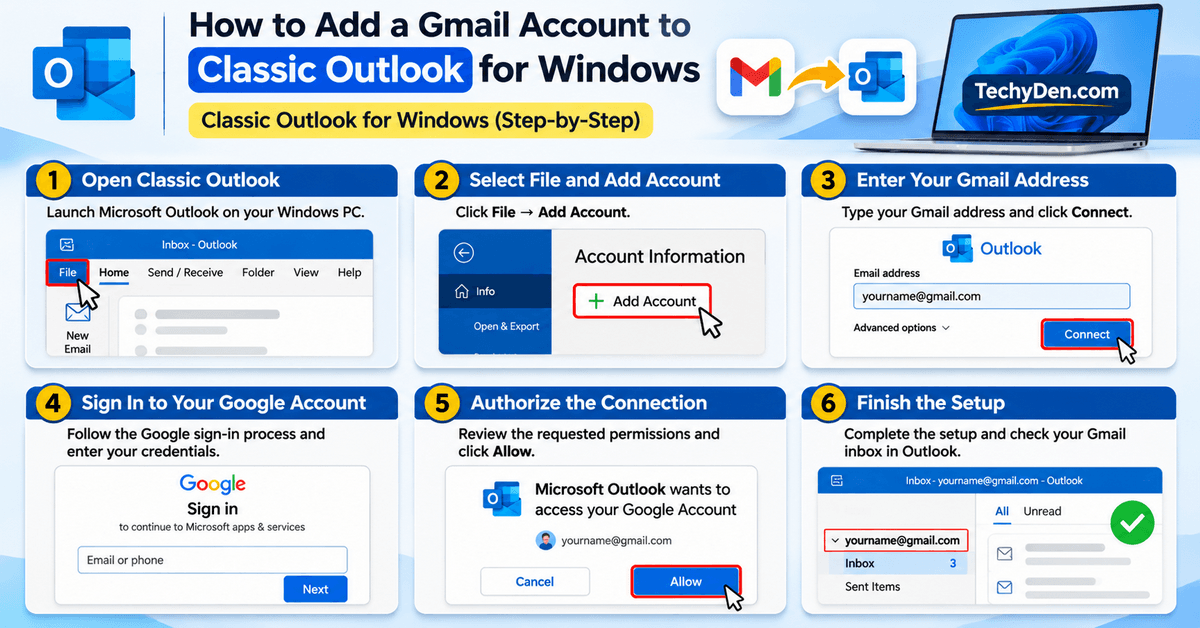
Classic Outlook has a different interface from the new Outlook app. If you use the traditional desktop version of Microsoft Outlook, follow these steps.
Step 1: Open Classic Outlook
Launch Outlook on your Windows PC.
If you see the File tab in the upper-left corner, you’re likely using classic Outlook.
Step 2: Select File and Add Account
Click:
File → Add Account
Outlook will display the account setup screen.
Step 3: Enter Your Gmail Address
Type your complete Gmail address in the email address field.
Click Connect to continue.
Step 4: Complete Google’s Sign-In Process
Follow the prompts to sign in to your Google account.
Enter your credentials through Google’s official authentication interface and complete any required verification steps.
Step 5: Authorize the Connection
Review the Google permissions screen if one appears.
Select Allow if you agree to the requested access.
Outlook can then continue configuring your Gmail account.
Step 6: Finish the Setup
Follow the remaining instructions until Outlook confirms that the account has been added.
Return to the main Outlook window and check the folder pane.
Your Gmail inbox and supported folders should appear once synchronization begins.
Microsoft provides an official step-by-step guide explaining how to add a Gmail account to Outlook for Windows, including the account authentication and setup process.
Note: The exact screens can vary depending on your Outlook version, update level, and account configuration. If you encounter an error, use the troubleshooting section below.
How to Add Gmail Account to Outlook on Mac
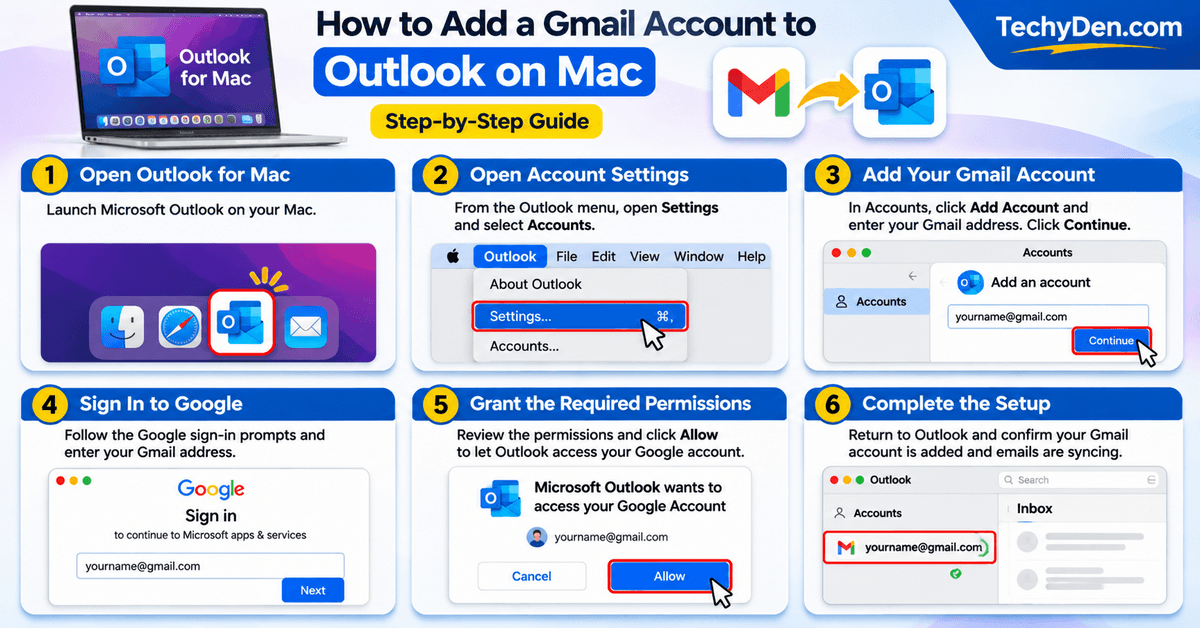
Mac users can also connect Gmail to Microsoft Outlook and manage their email from the desktop application.
Follow these steps.
Step 1: Open Outlook for Mac
Launch Microsoft Outlook on your Mac.
Make sure the application is updated to a supported version.
Step 2: Open Account Settings
From the Outlook menu, open Settings and select Accounts.
Look for the option to add another email account.
Step 3: Add Your Gmail Account
Select Add Account and enter your Gmail address.
Choose Continue to proceed.
The exact button labels may differ slightly between current and legacy versions of Outlook for Mac.
Step 4: Sign In to Google
Follow the Google sign-in prompts.
Enter your Gmail address and complete any required authentication or verification steps.
Step 5: Grant the Required Permissions
Google may ask you to authorize Outlook to access your account information.
Review the requested permissions and select Allow if you agree.
Step 6: Complete the Setup
Return to Outlook and confirm that your Gmail account appears in the account list.
Open your inbox to verify that messages are available.
If your Gmail account doesn’t appear or synchronization fails, check for application updates and retry the sign-in process.
How to Add Multiple Gmail Accounts to Outlook
If you use separate Gmail accounts for personal communication, work, or online projects, you can generally add multiple accounts to supported Outlook applications.
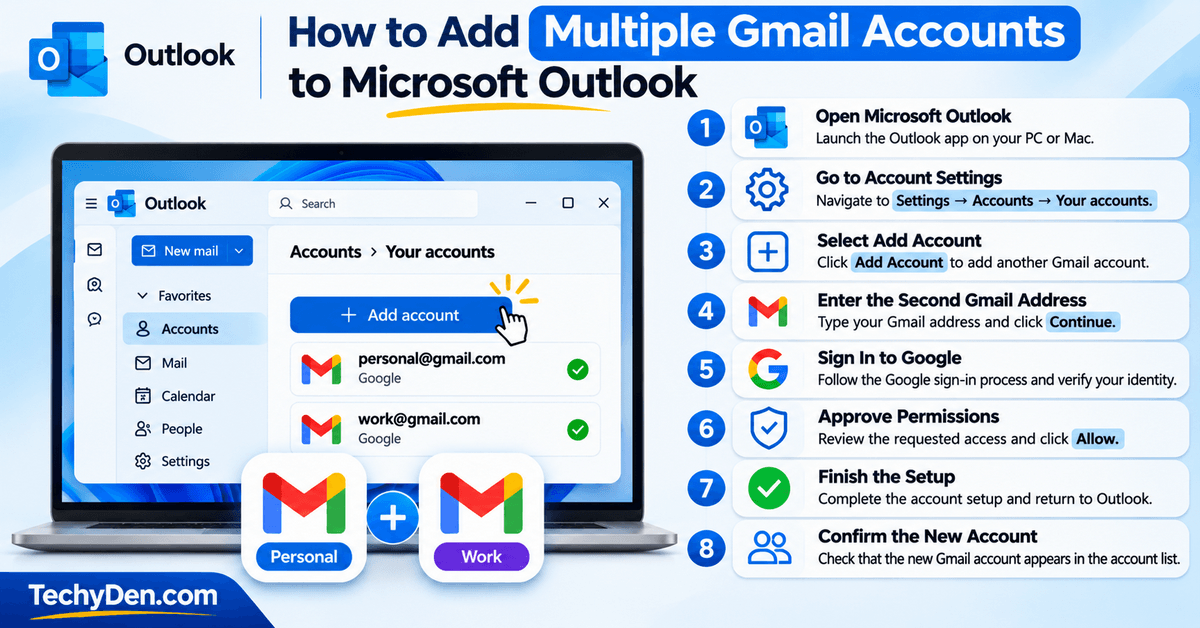
Here’s how to add another Gmail account to Outlook.
- Open Microsoft Outlook.
- Navigate to the account settings area.
- Select Add Account.
- Enter the second Gmail address.
- Complete Google’s sign-in and verification process.
- Review and approve the requested permissions.
- Finish the setup and return to Outlook.
- Confirm that the new account appears in the account list.
Repeat these steps for any additional accounts supported by your Outlook version and configuration.
How to Manage Multiple Gmail Accounts in Outlook
Once you’ve added multiple Gmail accounts, use the account or folder pane to switch between them.
For example, you might use one Gmail account for personal messages and another for professional communication.
To avoid confusion:
- Check the sender address before sending an email.
- Use meaningful account names where Outlook supports them.
- Keep work and personal messages organized in their respective accounts.
- Review the selected sending account before composing important messages.
Adding multiple Gmail accounts to Outlook can make email management easier without requiring you to sign in and out of different Gmail accounts repeatedly.
How to Add Gmail to the Outlook Mobile App
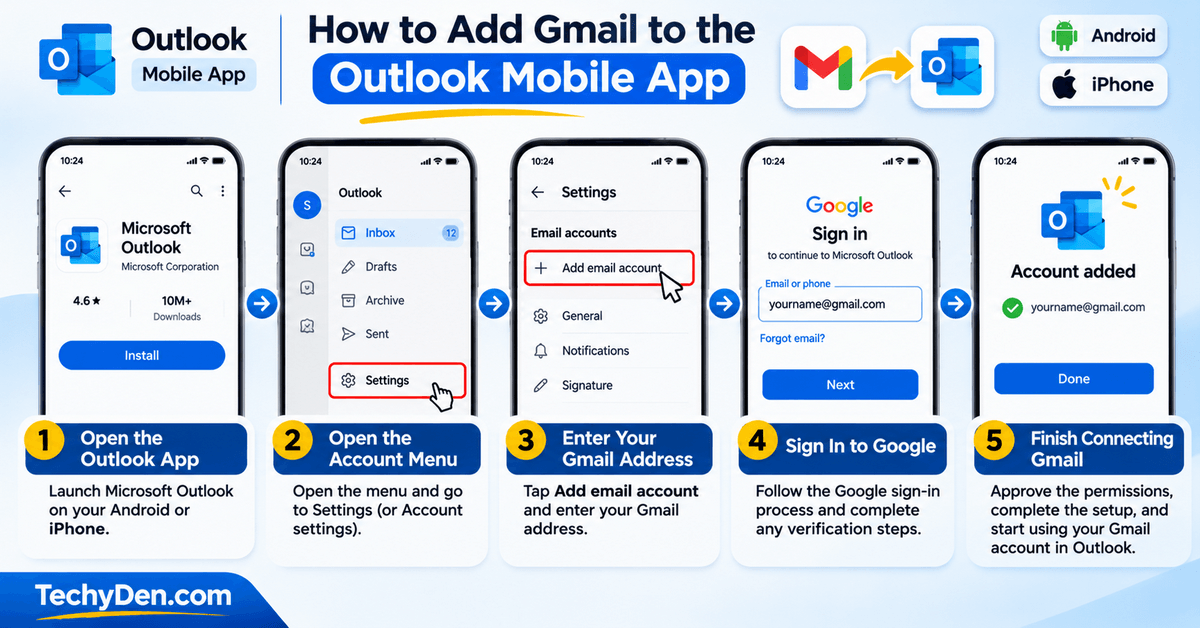
You can also add Gmail to Microsoft Outlook on an Android phone or iPhone.
Although the interface can change with app updates, the general process is similar on both platforms.
Step 1: Open the Outlook App
- Launch the Microsoft Outlook app on your phone.
- If you haven’t installed it, get it from your device’s official app store.
Step 2: Open the Account Menu
- Open the profile or account menu and navigate to the app’s settings.
- Look for an option to add an email account.
Step 3: Enter Your Gmail Address
- Choose the option to add an email account and enter your Gmail address.
- Continue to the next screen.
Step 4: Sign In to Google
- Follow the Google authentication prompts.
- Complete any required verification steps and review the permissions requested by Outlook.
Step 5: Finish Connecting Gmail
- Approve the connection if you agree to the requested permissions.
- Return to Outlook and check whether your Gmail inbox appears.
- You should now be able to access your Gmail messages through the Outlook mobile app.
Note: The precise navigation can differ between Android, iOS, and Outlook app versions. If the menus don’t match these instructions, look for the account management or email account setup option in the current app.
How to Sync Gmail Messages, Contacts, and Calendar With Outlook
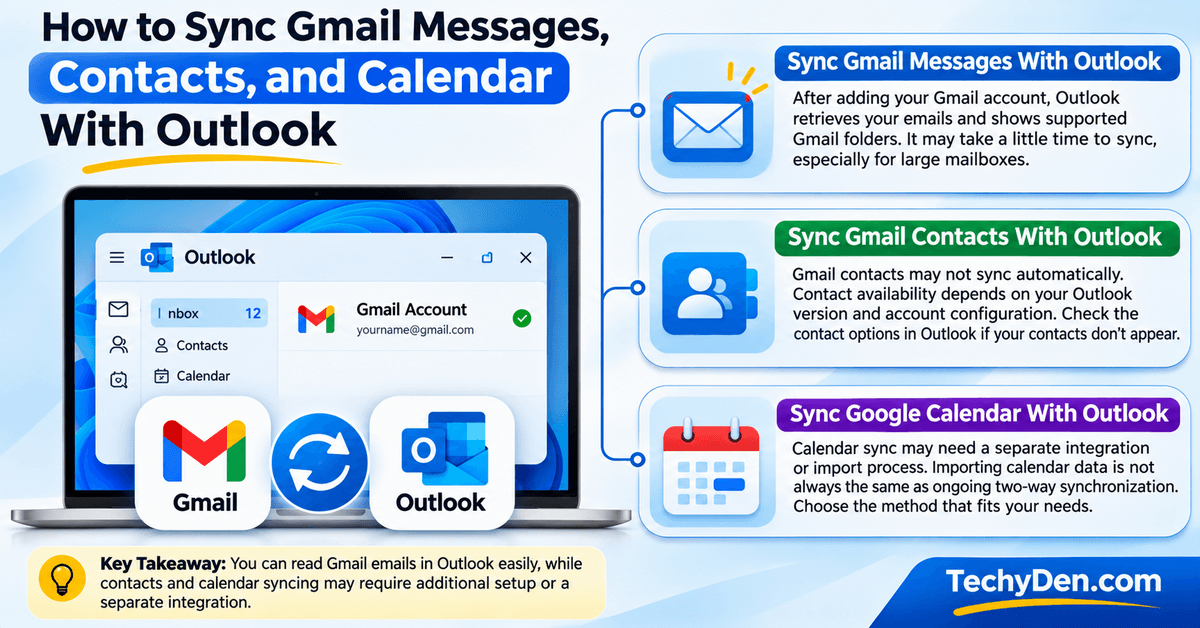
Adding Gmail to Outlook is primarily an email account setup process. Contact and calendar integration may require additional steps.
Understanding the differences can help you avoid synchronization problems.
1. Sync Gmail Messages With Outlook
- After connecting your account, Outlook should begin retrieving messages and displaying supported Gmail folders.
- Synchronization may take some time, particularly if your mailbox contains many messages.
- If emails don’t appear immediately, check your internet connection and confirm that the messages are available when you sign in to Gmail through a web browser.
2. Sync Gmail Contacts With Outlook
- Gmail contacts don’t necessarily synchronize automatically just because you add your email account to Outlook.
- Contact availability depends on the Outlook version, account configuration, and supported Google integration.
- If your contacts don’t appear, check the contact management options available in your version of Outlook and consult Microsoft’s current guidance for Google account integration.
3. Sync Google Calendar With Outlook
- Calendar synchronization is also different from email synchronization.
- Depending on your setup, you may need to use a separate Google Calendar integration or import process.
- Be aware that importing calendar data is not necessarily the same as maintaining ongoing two-way synchronization.
Before choosing a method, decide whether you need a one-time calendar import or continuous access to your Google Calendar.
How to Fix Gmail Not Working in Microsoft Outlook
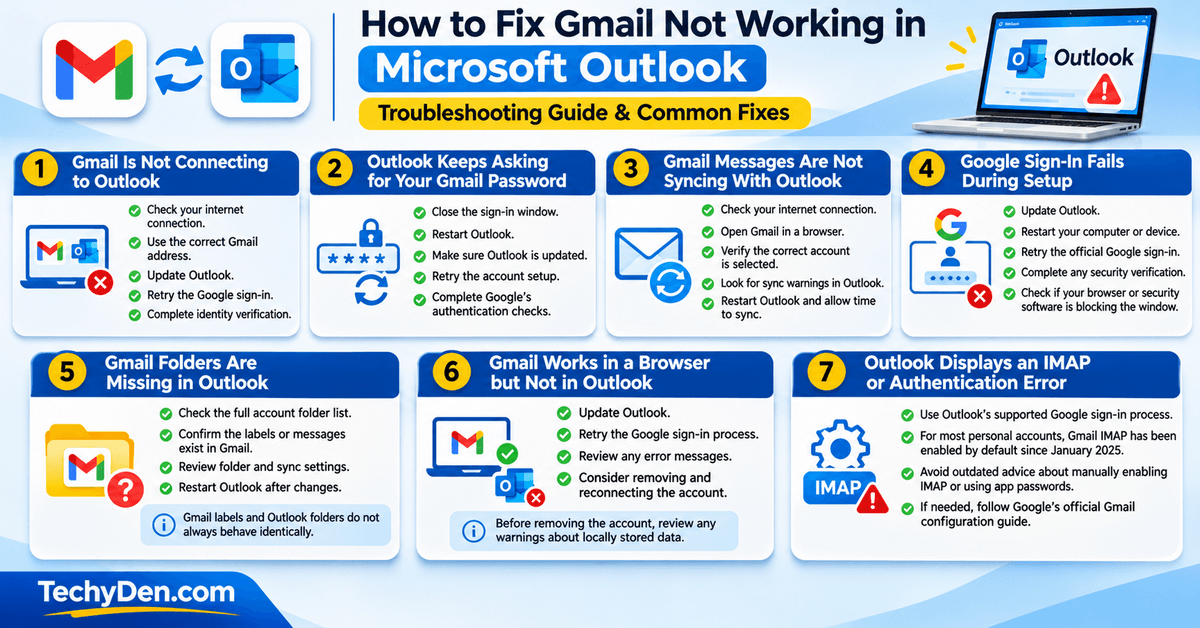
Sometimes Gmail fails to connect to Outlook, messages don’t synchronize, or Google repeatedly asks you to sign in.
The following troubleshooting steps can help you identify the problem.
1. Gmail Is Not Connecting to Outlook
If Outlook can’t add your Gmail account, try these checks:
- Confirm that your internet connection is working.
- Verify that you entered the correct Gmail address.
- Update Outlook to the latest available version.
- Retry the Google sign-in process.
- Complete any requested identity verification.
- Check whether your organization restricts third-party email applications.
If the problem continues, record the exact error message and use it to identify the cause.
2. Outlook Keeps Asking for Your Gmail Password
Repeated password prompts can indicate an authentication problem rather than an incorrect password.
Try the following:
- Close the failed sign-in window.
- Restart Outlook.
- Make sure Outlook is updated.
- Retry the account setup process.
- Complete Google’s authentication and security checks.
If the issue persists, check whether your Google account or organization has restrictions that affect the connection.
Don’t disable two-step verification or other security protections just to bypass an authentication error.
3. Gmail Messages Are Not Syncing With Outlook
If your Gmail account is connected but new messages aren’t appearing, check the following:
- Confirm that your internet connection is stable.
- Open Gmail in a browser to check whether new messages have arrived.
- Verify that the correct Gmail account is selected in Outlook.
- Check Outlook for synchronization warnings or connection errors.
- Restart Outlook and allow time for messages to synchronize.
If messages appear in Gmail but not Outlook, the problem may be related to Outlook’s account connection or synchronization settings.
A slow or unstable internet connection can interrupt email synchronization. Follow our guide on how to fix a slow internet connection to improve your connectivity.
4. Google Sign-In Fails During Setup
Google sign-in may fail because of an outdated application, browser problems, blocked authentication windows, or account security restrictions.
To troubleshoot:
- Update Outlook.
- Restart your computer or device.
- Retry the setup using the official Google sign-in process.
- Complete any security verification prompts.
- Check whether your browser or security software is blocking the authentication window.
If you use a work or school account, contact the relevant administrator if organizational policies prevent the connection.
5. Gmail Folders Are Missing in Outlook
Gmail uses labels to organize messages, while Outlook displays messages through its own folder interface.
As a result, some Gmail labels may appear differently in Outlook.
If a folder is missing:
- Check the full account folder list.
- Confirm that the relevant messages or labels exist in Gmail.
- Review the available folder and synchronization settings.
- Restart Outlook after making any changes.
Remember that Gmail labels and Outlook folders do not always behave identically.
6. Gmail Works in a Browser but Not in Outlook
If you can access Gmail through a browser but not through Outlook, your Google account itself may be working correctly.
The issue could involve Outlook’s account connection or authentication.
Try updating Outlook, retrying the Google sign-in process, and reviewing any displayed error messages.
If necessary, you can consider removing and reconnecting the account.
Before removing the account, review any warnings about locally stored data and make sure important information is safely available.
If Outlook or other applications frequently become unresponsive, read our guide on how to fix Windows 11 freezing issues for additional solutions.
7. Outlook Displays an IMAP or Authentication Error
Older setup guides may recommend manually entering IMAP settings or creating an app password.
However, the correct solution depends on the Outlook version and the authentication method supported by your account.
For personal Google accounts, Gmail’s IMAP access has been enabled by default since January 2025, and the old setting to enable or disable IMAP is no longer available.
If you’re experiencing Gmail authentication or IMAP connection problems, refer to Google’s official Gmail configuration instructions for information about supported email client connections and account settings.
Start with Outlook’s supported Google sign-in process. If manual configuration is necessary in your particular setup, consult Google’s official Gmail configuration instructions rather than relying on outdated authentication methods.
If you’re experiencing other application errors, connectivity problems, or unexpected system issues, check out our guide on how to fix common Windows 11 problems for additional troubleshooting solutions.
How to Remove a Gmail Account From Outlook
If you no longer want to access Gmail through Outlook, you can remove the account from the application.
The steps vary by Outlook version, but the general process is straightforward.
- Open Outlook.
- Navigate to the account settings area.
- Select the Gmail account you want to disconnect.
- Choose the available account removal option.
- Review any warnings about locally stored information.
- Confirm the removal if you’re sure.
- Check the account list to verify that the Gmail account is no longer connected.
Removing Gmail from Outlook does not delete your Google account.
Your Gmail account remains available through Gmail’s website and other applications that you use to access it.
However, some locally stored or cached content may be removed when you disconnect the account. Review the confirmation message carefully before proceeding.
Is It Safe to Add Gmail to Microsoft Outlook?
Connecting Gmail to Outlook can be convenient, but it’s important to follow good security practices.
Keep these recommendations in mind:
- Use Google’s official sign-in process. Authenticate through the Google interface presented during account setup.
- Review requested permissions. Make sure you understand the access you’re granting before approving the connection.
- Enable two-step verification. This adds another layer of protection to your Google account.
- Keep Outlook updated. Application updates can include security fixes and improvements to account authentication.
- Avoid untrusted applications. Don’t enter your Google password into an unfamiliar window or application.
- Protect your device. Use a screen lock and keep your operating system updated.
- Check the selected sending account. If you’ve added multiple Gmail accounts, confirm the sender address before sending sensitive messages.
Following these practices can help you manage Gmail through Outlook while maintaining appropriate account security.
Frequently Asked Questions
Can I Add Gmail to Microsoft Outlook for Free?
Yes. You can generally connect a Gmail account to supported versions of Outlook without paying Google for the connection itself. However, access to certain Outlook features may depend on your Microsoft subscription, license, or application version.
Why Can’t I Add My Gmail Account to Outlook?
Common causes include outdated Outlook software, authentication errors, blocked sign-in windows, internet connectivity problems, and organizational security restrictions. Update Outlook, retry Google’s sign-in process, and check the exact error message if the issue continues.
Can I Add Two Gmail Accounts to Outlook?
Yes. Supported versions of Outlook generally allow you to add multiple Gmail accounts through the account settings area. Repeat the setup process for each account.
Will Adding Gmail to Outlook Delete My Gmail Messages?
No. Connecting Gmail to Outlook does not ordinarily delete messages from your Google account. However, actions such as deleting or moving messages can affect the mailbox depending on how the account is configured and how the action is synchronized.
Does Outlook Automatically Sync Gmail?
Outlook generally synchronizes messages for a successfully connected Gmail account. The timing and availability of features can vary depending on your application, account configuration, and connection.
Do I Need to Enable IMAP to Connect Gmail to Outlook?
For personal Google accounts, IMAP access has been enabled by default since January 2025, and the old Gmail setting for enabling or disabling IMAP is no longer available. Use the supported account setup process for your Outlook version. Consult Google’s current documentation if you encounter an IMAP-related error.
Can I Use Gmail and Outlook at the Same Time?
Yes. You can generally access the same Gmail account through Gmail’s website or app and a supported Outlook application. Changes made to synchronized email may appear in both places, depending on the action and account configuration.
Can I Sync Google Calendar With Outlook?
Calendar integration depends on the Outlook version and the method used. You may need a separate integration or import process. Check whether your chosen method supports ongoing synchronization or only a one-time import.
How Do I Make Gmail My Default Account in Outlook?
The process depends on your Outlook version. Open the account settings and check the available options for selecting a primary or default account. Also verify the sending account when composing a new message.
Final Thoughts on How to Add Gmail account to Outlook
Adding Gmail to Microsoft Outlook is a practical way to manage your email accounts from one application. Whether you use the new Outlook app, classic Outlook for Windows, Outlook for Mac, or the mobile app, the process generally involves entering your Gmail address and completing Google’s secure sign-in and authorization steps.
If you want to add multiple Gmail accounts to Outlook, repeat the account setup process for each address. If messages fail to synchronize or authentication errors appear, update Outlook, retry Google sign-in, and check the relevant account settings.
If Outlook becomes unusually slow or unresponsive while you’re working, check whether other applications are consuming excessive system resources. Our guide explains how to fix high CPU usage in Windows 11.
For the smoothest experience, use the setup instructions that match your Outlook version and consult Microsoft’s or Google’s official documentation whenever an error requires additional troubleshooting.