If you regularly type in Telugu for office documents, educational materials, newspapers, or desktop publishing projects, you may have come across Anu Script Manager.
It is a popular name in traditional Indian-language typing and publishing workflows, particularly among users working with Telugu fonts.
However, installing older language-typing software on a modern operating system such as Windows 11 can sometimes be challenging.
You may encounter compatibility issues, missing fonts, keyboard configuration problems, or incorrectly displayed Telugu characters.
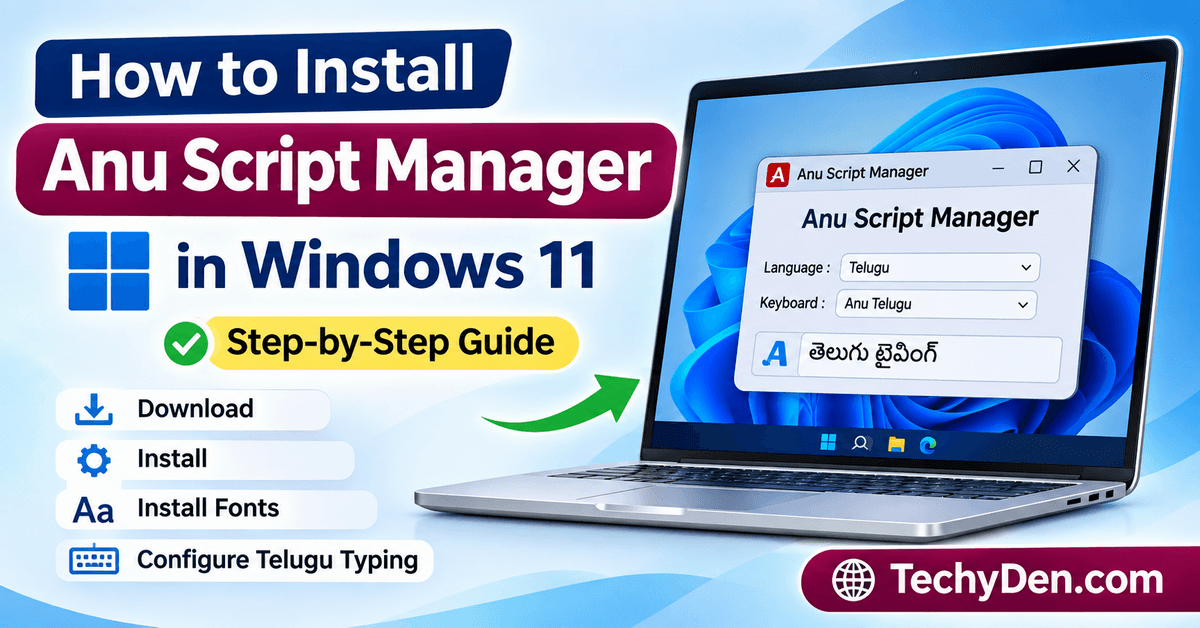
In this guide, you will learn how to install Anu Script Manager in Windows 11, download its installation files safely, install the required fonts, configure Telugu typing, and troubleshoot common problems. We will also explain how to use Anu Script Manager with Microsoft Word.
Let’s get started.
What Is Anu Script Manager?
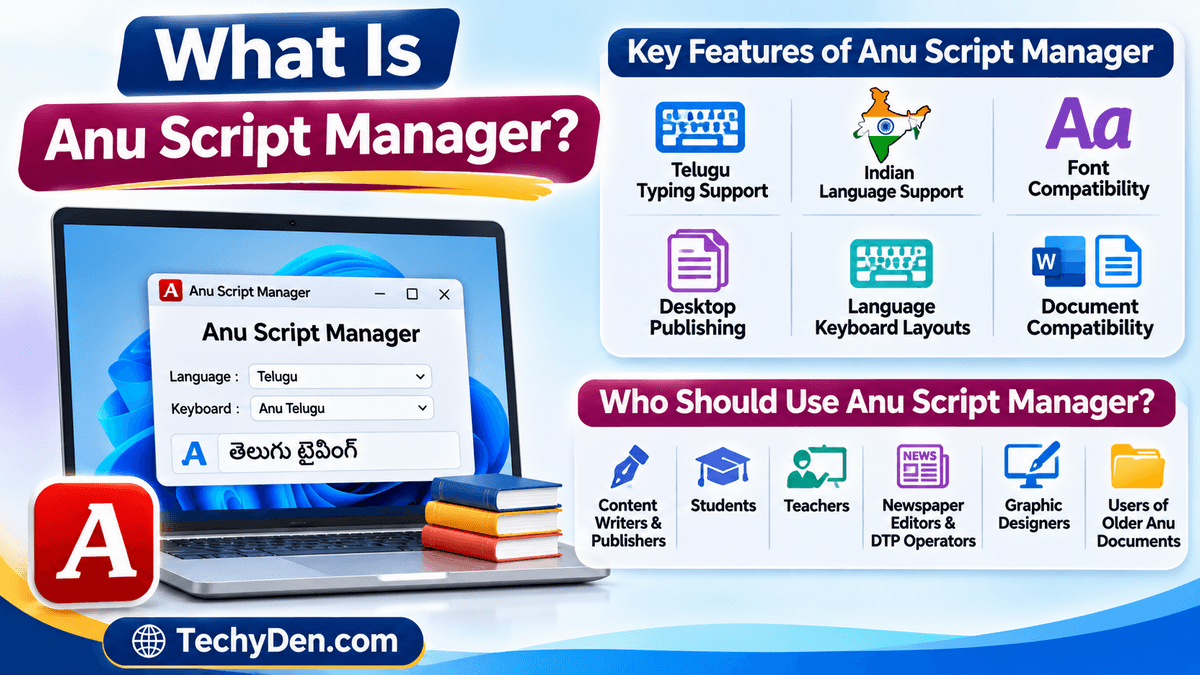
Anu Script Manager is a language-typing and publishing software application designed to help users work with Indian scripts, including Telugu, depending on the installed version and supported language packages.
It is particularly useful for people who create regional-language documents, newspapers, books, advertisements, educational materials, and other publishing content.
Unlike standard Unicode-based typing methods, some older Anu Script Manager workflows rely on proprietary or legacy fonts and keyboard layouts.
This means the correct font and keyboard configuration are important for displaying Telugu characters properly.
Key Features of Anu Script Manager
Depending on the version and installed language package, Anu Script Manager may provide the following features:
- Telugu typing support: Type Telugu characters using supported keyboard layouts.
- Indian language support: Work with other supported Indian scripts.
- Font compatibility: Use compatible Anu fonts for traditional publishing workflows.
- Desktop publishing: Prepare regional-language documents for printing and publishing.
- Keyboard layouts: Use language-specific keyboard configurations.
- Document compatibility: Work with supported word-processing and publishing applications.
Remember that available features may differ between older and newer versions.
Who Should Use Anu Script Manager?
Anu Script Manager may be useful for:
- Telugu-language content writers and publishers.
- Students preparing Telugu assignments and projects.
- Teachers creating Telugu educational materials.
- Newspaper editors and DTP operators.
- Graphic designers working with Telugu text.
- Users who need to edit older documents created using Anu fonts.
If you primarily create modern web content, Unicode-based Telugu typing may be more convenient because Unicode text is generally more portable between applications and websites.
System Requirements for Anu Script Manager on Windows 11
Before downloading and installing Anu Script Manager, check whether your computer meets the software’s requirements.
The exact system requirements depend on the version you intend to install. Older releases may have been designed for earlier versions of Windows and might not have official Windows 11 support.
Here are a few things to check before proceeding.
Check Your Windows 11 Version
First, confirm that your computer is running Windows 11.
Follow these steps:
- Press Windows + R on your keyboard.
- Type
winverin the Run dialog box. - Press Enter.
- A window will display your Windows version and OS build information.
This information can help you determine whether your software version is compatible with your operating system.
Check Available Storage and Permissions
Make sure your computer has sufficient free storage space for the installation files and required fonts.
You may also need administrator permissions to install applications or system-wide fonts.
If you are using a work or college computer, contact your system administrator if you do not have permission to install software.
Check Anu Script Manager Compatibility
Before installing the application, verify the following:
- Whether the software version supports Windows 11.
- Whether the installer supports your Windows system architecture.
- Whether the required Telugu fonts are included.
- Whether the software requires additional components.
- Whether the publisher provides installation instructions for your version.
Do not assume that an older Anu Script Manager installer will work perfectly on Windows 11.
If you are also interested in Windows installation and compatibility topics, check our tutorial on installing Windows 11 on unsupported PCs.
How to Download Anu Script Manager for Windows 11
The first step is obtaining a legitimate Anu Script Manager installation package.
Because some versions of this software have been distributed through different channels, you should verify the download source before running any installer.
Find a Verified Download Source
Follow these recommendations when looking for the Anu Script Manager download:
- Identify the original software publisher or an authorized distributor.
- Check the available software version.
- Confirm the supported Windows versions.
- Review the installation instructions.
- Check the applicable software license.
- Download the installation package from the verified source.
Avoid downloading executable files from unfamiliar websites, suspicious advertisements, or unofficial file-sharing platforms.
An older installation guide may describe a different installation procedure from the one used by a newer release. Therefore, always follow the documentation supplied with your particular version.
Check the Downloaded Installation File
After downloading Anu Script Manager, check the installation file before opening it.
- Open File Explorer.
- Navigate to your Downloads folder.
- Right-click the downloaded file.
- Select Properties.
- Check the file details and available publisher information.
- If a Digital Signatures tab is available, review the signature information.
You can also scan the downloaded file using Windows Security.
If the file appears suspicious, its publisher cannot be verified, or Windows Security identifies a threat, do not proceed with installation.
How to Install Anu Script Manager in Windows 11
Once you have obtained a verified installation package, follow the steps below.
Important: The exact installation process may differ depending on the Anu Script Manager version. Some older packages may contain separate setup files for different components, while other versions may use a single installer.
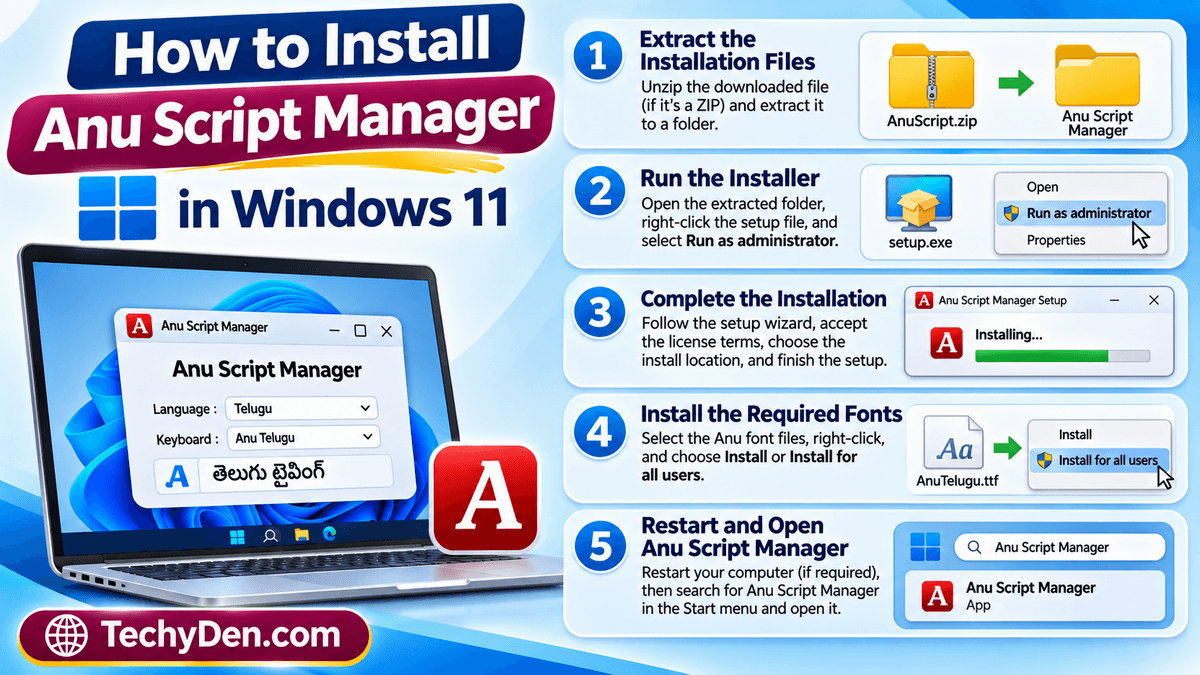
Step 1: Extract the Installation Files
If you downloaded Anu Script Manager as a ZIP or compressed archive, extract its contents first.
Follow these steps:
- Open the Downloads folder.
- Locate the downloaded ZIP file.
- Right-click the file.
- Select Extract All.
- Choose a destination folder.
- Click Extract.
Windows will create a folder containing the extracted installation files.
If your download already contains an executable setup file, you can skip this step.
Step 2: Run the Anu Script Manager Installer
Open the extracted folder and locate the installation file.
Follow these instructions:
- Find the appropriate setup or installer file.
- Right-click the file.
- Select Run as administrator if the installer requires elevated permissions.
- Wait for the installation wizard to open.
- Review the installation instructions and license terms.
- Follow the on-screen prompts.
If Windows displays a security warning, verify the publisher and source before deciding whether to continue.
Do not bypass Windows security warnings for an unverified installer.
Step 3: Complete the Installation
After starting the installer, follow the instructions displayed on the screen.
Depending on your software version, you may need to:
- Select an installation location.
- Choose the required components.
- Accept the software license.
- Confirm the installation.
- Wait for the setup process to finish.
Once the installation is complete, click Finish if that option appears.
Restart your computer if the installer requests it.
Step 4: Install the Required Anu Fonts
Installing Anu Script Manager may not be sufficient to display Telugu text correctly. Some workflows also require compatible Anu fonts.
If your installation package includes font files, follow the instructions supplied with that version.
For supported Windows font files, you can generally install them using the following procedure:
- Open File Explorer.
- Navigate to the folder containing the required font files.
- Select the font files.
- Right-click the selected files.
- Choose Install or Install for all users, depending on your requirements and available permissions.
- Wait for Windows to complete the installation.
Why are Anu fonts important?
Traditional Anu typing workflows may depend on specific fonts to display characters correctly. If the required font is missing, Telugu text may appear as symbols, incorrect characters, or unreadable text.
Make sure you install only fonts that belong to a verified software package or an authorized font distribution.
For additional information about installing, viewing, and removing fonts, refer to Microsoft’s official guide on how to install and manage fonts in Windows 11.
Step 5: Restart and Open Anu Script Manager
After installing the software and required fonts, restart Windows if necessary.
To open Anu Script Manager:
- Click the Windows Start button.
- Select Search.
- Type Anu Script Manager.
- Check whether the application appears in the search results.
- Click the application to open it.
If the application does not appear, check whether the installation completed successfully.
You can also look for the application in the folder selected during installation.
If you want to capture each installation step for future reference, learn how to take screenshots in Windows 11.
How to Configure Anu Script Manager for Telugu Typing
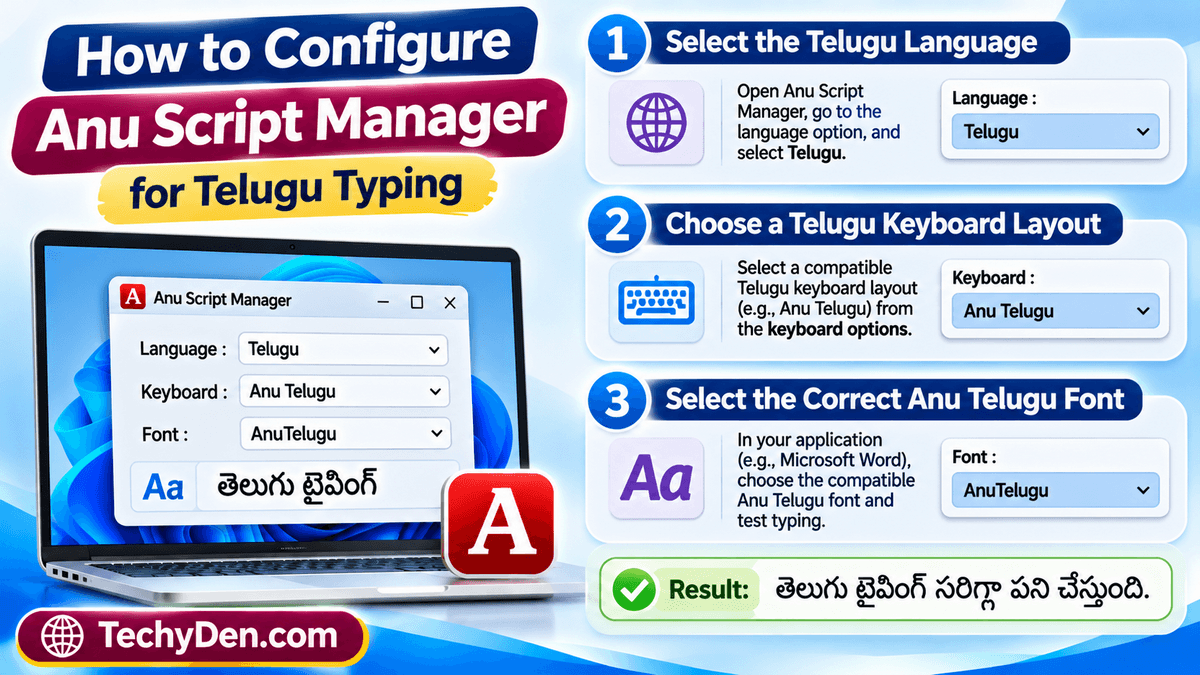
After installing Anu Script Manager, you need to configure the appropriate language, keyboard layout, and font.
The available configuration options depend on your installed version.
Select the Telugu Language
Open Anu Script Manager and look for its language-selection options.
If Telugu is available in your installed language package:
- Open the application.
- Locate the language or script selection option.
- Select Telugu.
- Apply the available configuration.
If Telugu is not listed, check whether you installed the correct language package.
Choose a Telugu Keyboard Layout
Anu Script Manager versions may support different Telugu keyboard layouts.
Select the keyboard layout that matches your typing requirements and the software documentation.
If you are already familiar with a particular Telugu typing arrangement, choose a compatible layout to make the transition easier.
Avoid assuming that the keyboard layout used by Windows’ built-in Telugu input method will match the layout used by Anu Script Manager.
Select the Correct Anu Telugu Font
Font selection is important when working with traditional Anu-based Telugu documents.
Follow these steps:
- Open the application in which you want to type.
- Locate the font-selection menu.
- Choose the compatible Anu Telugu font.
- Activate the corresponding keyboard layout.
- Type a few Telugu characters to test the configuration.
If the text appears incorrectly, verify that the font and keyboard layout belong to the same supported workflow.
You can also refer to Microsoft’s documentation on managing language and keyboard settings in Windows to learn how to add and switch between supported keyboard layouts.
How to Use Anu Script Manager in Microsoft Word
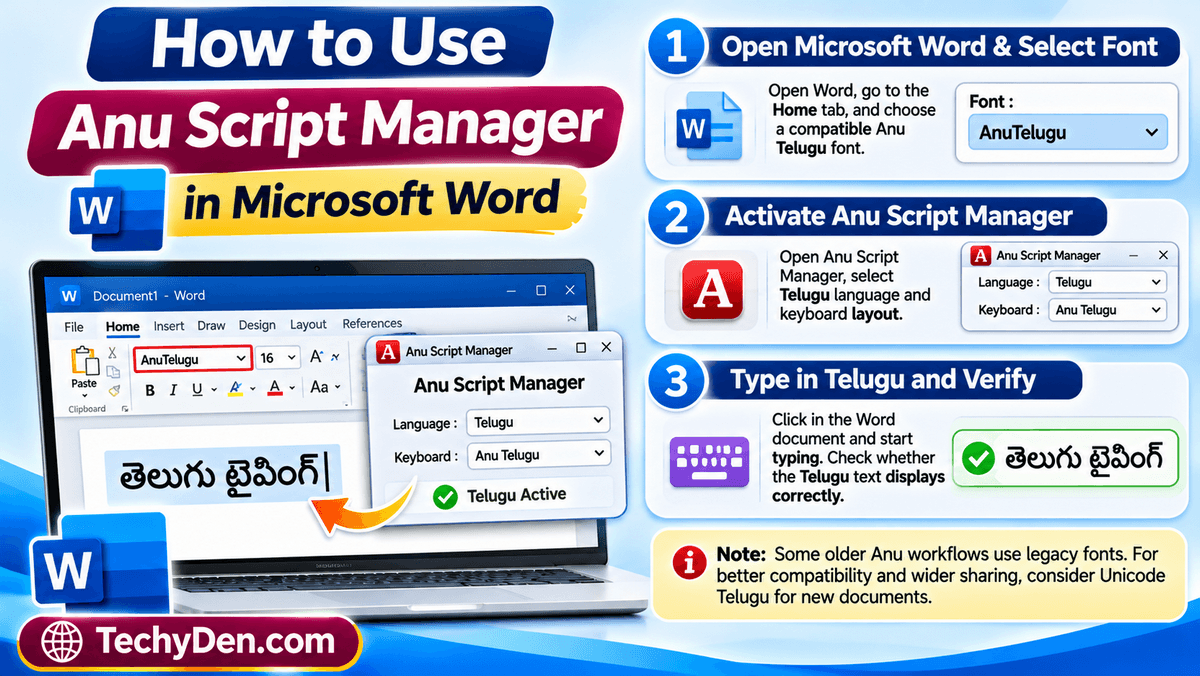
Microsoft Word is commonly used to prepare documents, assignments, letters, and other text-based materials.
If your installed Anu Script Manager version supports Microsoft Word, you can use the compatible language and font configuration to type Telugu text.
Open Microsoft Word and Select a Compatible Font
First, open Microsoft Word and create a blank document.
Then:
- Click the Home tab.
- Locate the Font selection box.
- Select the appropriate installed Anu Telugu font.
- Choose a suitable font size.
- Prepare the document for Telugu typing.
The font name will depend on the Anu font package installed on your computer.
Activate Anu Script Manager and Start Typing
Open Anu Script Manager and select the required Telugu language and keyboard layout.
Next:
- Keep Microsoft Word open.
- Activate the appropriate Anu typing configuration.
- Click inside the Word document.
- Start typing using the selected keyboard layout.
- Check whether Telugu characters appear correctly.
If the application requires a particular activation method, follow the instructions provided with your version.
Check Whether Telugu Text Displays Correctly
After typing, verify that the Telugu characters appear correctly.
If the text looks like random symbols or unrelated characters, check the following:
- Whether the correct Anu font is selected.
- Whether the keyboard layout is configured correctly.
- Whether the required fonts are installed.
- Whether the software version supports your Microsoft Word installation.
Important: Some older Anu workflows use legacy font encoding rather than standard Unicode Telugu. Text created using these fonts may not display correctly when copied into other applications or opened on computers without the same fonts.
For documents that need to be shared online or across different devices, Unicode Telugu is generally a better choice.
How to Fix Anu Script Manager Not Working in Windows 11
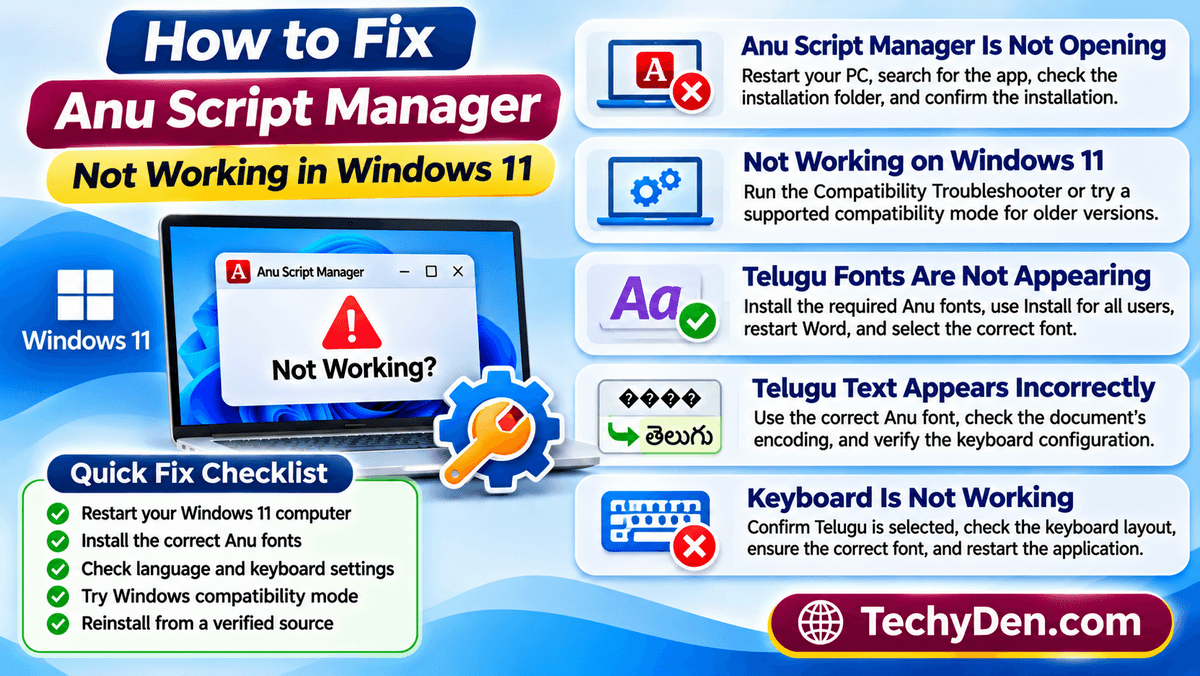
Sometimes Anu Script Manager may not work as expected after installation.
The problem could be related to software compatibility, missing fonts, incorrect keyboard settings, or incomplete installation.
Here are some troubleshooting methods you can try.
Anu Script Manager Is Not Opening
If Anu Script Manager does not open after installation, try these steps:
- Restart your Windows 11 computer.
- Search for the application using Windows Search.
- Check whether the installation folder contains the application executable.
- Verify that the installation completed successfully.
- Check the software publisher’s compatibility documentation.
If you are using an older version, check whether the publisher provides a Windows 11-compatible release.
Anu Script Manager Is Not Working on Windows 11
Older software may experience compatibility problems on newer Windows versions.
Try the following:
- Right-click the application shortcut.
- Select Properties.
- Open the Compatibility tab, if available.
- Select Run compatibility troubleshooter.
- Follow the instructions displayed by Windows.
You can also test a compatibility mode supported by the software publisher.
However, compatibility mode does not guarantee that every feature of an older application will work correctly.
Telugu Fonts Are Not Appearing
If Telugu fonts are missing from Microsoft Word or another application, check the font installation.
Try these solutions:
- Confirm that the required Anu fonts are installed.
- Reinstall the fonts using a verified font package.
- Use Install for all users if appropriate.
- Close and reopen Microsoft Word.
- Select the correct font from the font menu.
If the problem continues, check whether the installed Anu Script Manager version requires additional fonts.
Telugu Text Appears Incorrectly
Incorrect Telugu characters are often associated with font or encoding problems.
For example, a document created using an older Anu font may not display properly when opened using a standard Unicode Telugu font.
To troubleshoot this problem:
- Identify the font used in the original document.
- Install the corresponding compatible font.
- Open the document in a supported application.
- Select the correct font.
- Check the keyboard and encoding configuration.
If you need to convert legacy Anu text into Unicode Telugu, use a conversion tool that explicitly supports the relevant Anu font encoding. Do not assume that simply changing the font will convert the text.
Anu Script Manager Keyboard Is Not Working
If the keyboard does not produce the expected Telugu characters, check the configuration.
Try these steps:
- Confirm that Telugu is selected in Anu Script Manager.
- Check the active keyboard layout.
- Make sure the application has keyboard focus.
- Verify that the selected font matches the keyboard layout.
- Restart the target application.
- Check the publisher’s documentation for any additional activation requirements.
If the problem continues, reinstalling the application from a verified package may help.
How to Uninstall Anu Script Manager from Windows 11
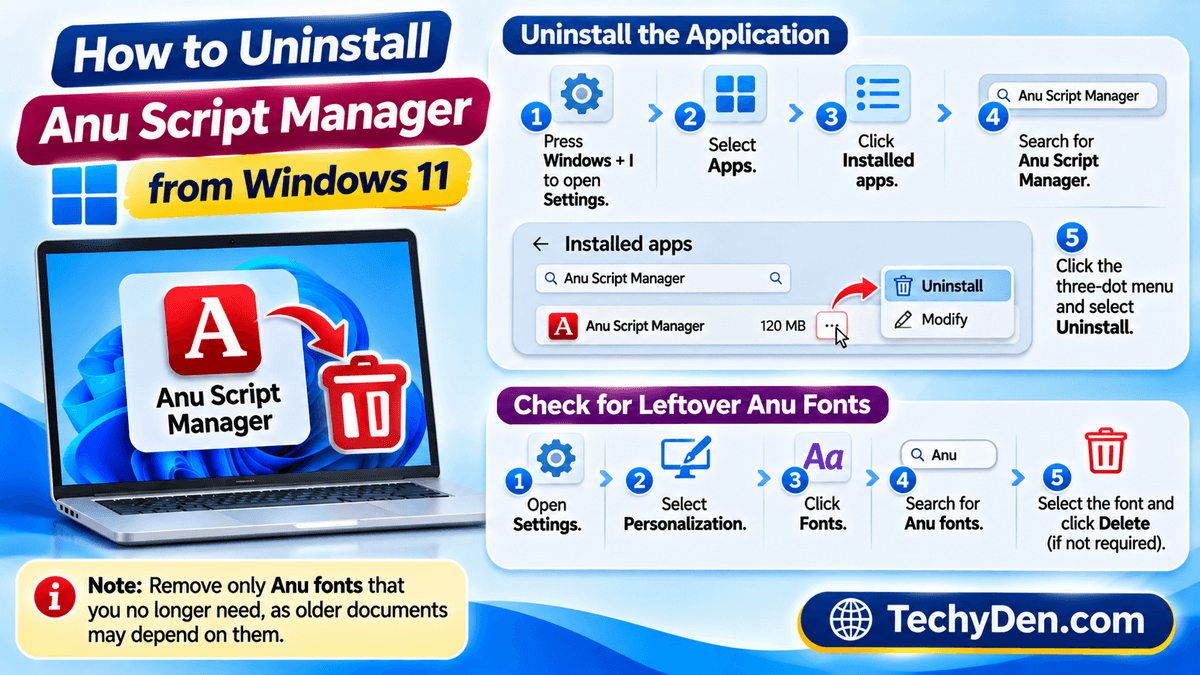
If you no longer need Anu Script Manager or want to reinstall it, you can remove the application through Windows Settings.
Uninstall the Application
Follow these steps:
- Press Windows + I to open Settings.
- Select Apps.
- Click Installed apps.
- Search for Anu Script Manager.
- Click the three-dot menu beside the application, if available.
- Select Uninstall.
- Follow the on-screen instructions.
Restart your computer if required.
Check for Leftover Anu Fonts
Uninstalling the application may not automatically remove separately installed fonts.
If you no longer need those fonts, you can review them through Windows Settings.
- Open Settings.
- Select Personalization.
- Click Fonts.
- Search for the relevant Anu fonts.
- Confirm that they are not needed by your existing documents or applications.
- Remove only the fonts you have positively identified and no longer require.
Be careful when deleting fonts because older documents may depend on them for correct text display.
You can also explore our guide on how to run Android apps on Windows 11 to discover more ways to use applications on your computer.
Frequently Asked Questions About Anu Script Manager
Is Anu Script Manager compatible with Windows 11?
Compatibility depends on the specific Anu Script Manager version. Some older releases were designed for previous Windows versions and may not work correctly on Windows 11. Before installing, check the publisher’s compatibility information and test the software with the required fonts and applications.
Is Anu Script Manager free to download?
Anu Script Manager availability and pricing depend on the software version and distribution channel. Some download websites may offer installation files, but that does not necessarily mean the software is free or officially authorized for distribution. Always check the publisher’s licensing information before downloading or using it.
How do I install Anu fonts in Windows 11?
Download the required Anu fonts from a verified source. Extract the font files if necessary, select the supported font files, right-click, and choose Install or Install for all users. Once installation is complete, restart applications such as Microsoft Word and select the appropriate Anu font.
Can I use Anu Script Manager in Microsoft Word?
Yes, you may be able to use Anu Script Manager with Microsoft Word if your installed version supports it. Install the required Anu fonts, configure the Telugu keyboard layout, and select the compatible font in Word. Test the setup with a short document before preparing important files.
Why is Anu Script Manager not working on Windows 11?
Common reasons include an incompatible software version, incomplete installation, missing Telugu fonts, incorrect keyboard configuration, or application conflicts. Check the software’s compatibility information, verify the installed fonts, and restart the application. If necessary, use Windows’ compatibility troubleshooter.
Can I type Telugu in Windows 11 without Anu Script Manager?
Yes. Windows 11 supports Telugu language input through its language and keyboard settings. You can also use Unicode-based Telugu typing tools. These methods are useful for everyday typing, creating documents, and publishing online content without depending on older proprietary fonts.
How do I fix Anu Telugu fonts not displaying correctly?
First, confirm that the required Anu font is installed and selected in your application. Then check whether the document uses a legacy Anu encoding or Unicode Telugu. If the original document uses a legacy font, you may need the matching font or a compatible conversion tool to display or convert the text correctly.
Can I install Anu Script Manager on a 64-bit Windows 11 computer?
It depends on the software release. Some older 32-bit Windows applications can run on 64-bit Windows through its compatibility support, but this does not guarantee that every installer, driver, or component will work. Check the publisher’s system requirements before installing the software.
Conclusion
Installing Anu Script Manager in Windows 11 can help users continue working with traditional Telugu typing and publishing workflows, provided they have a compatible software version and the required fonts.
The most important steps are obtaining a legitimate installation package, checking Windows compatibility, completing the installation, installing the required Anu fonts, and configuring the correct Telugu keyboard layout.
If you encounter problems, check the software version, font installation, and keyboard configuration before attempting to reinstall the application.
Want to explore more capabilities of Microsoft’s operating system? Read our complete guide to Windows 11 features and capabilities.
For users who primarily type Telugu for modern documents, websites, and online communication, Windows 11’s built-in Telugu input options and Unicode-based typing tools are also worth considering.
Follow these steps carefully, and you can choose the Telugu typing method that best suits your requirements.