The Windows 11 October 2026 Update brings important security improvements, bug fixes, accessibility enhancements, and new features to supported Windows 11 PCs. Microsoft released the October 13 security update, KB5127648, followed by additional updates on October 26 and October 28.
If you want to understand the broader changes in Microsoft’s latest Windows release, read our guide to Windows 11 26H2 features and how to install the update.
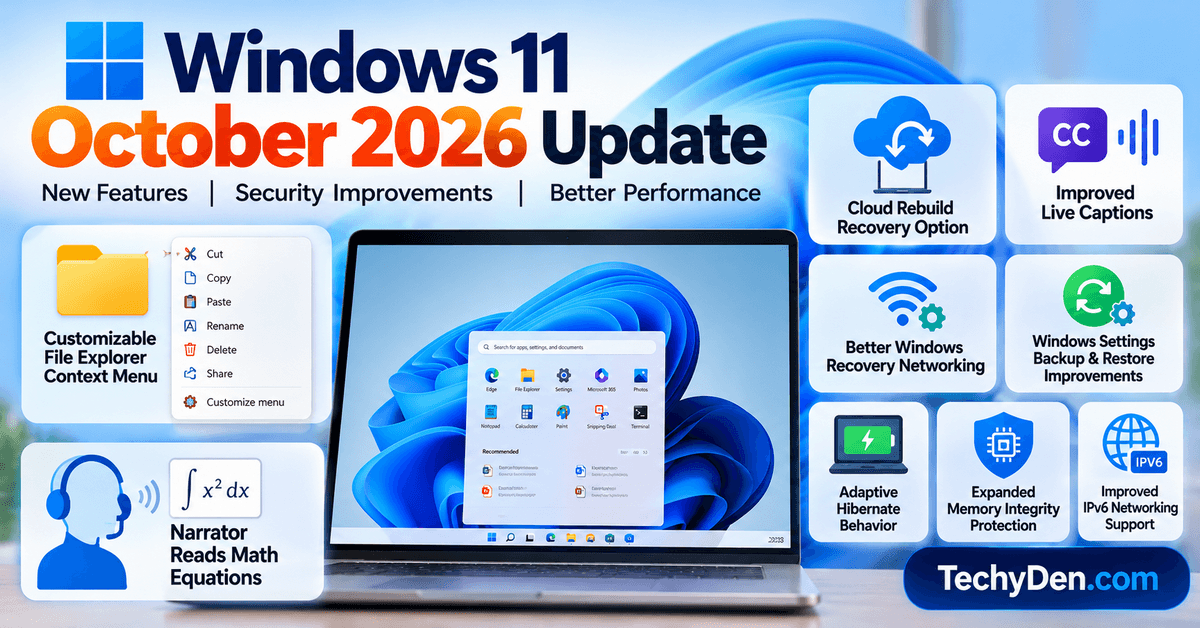
The October 28 update, KB5127936, introduces several notable improvements, including a customizable File Explorer context menu, enhanced Narrator support for mathematical equations, a new Cloud rebuild recovery option, and improvements to Windows security and networking. It also fixes certain Remote Desktop and Smart App Control problems.
In this guide, you’ll learn what’s new in the Windows 11 October 2026 update, which KB numbers apply to your PC, how to install the latest applicable update, and how to troubleshoot common installation problems.
Windows 11 October 2026 Update: At a Glance
Microsoft released multiple Windows 11 updates during October 2026. The correct update depends on your Windows version and the features or fixes you need.
| Update | Release date | Windows version | OS build |
|---|---|---|---|
| KB5127648 | October 13, 2026 | Windows 11 26H2 | 26300.9711 |
| KB5127648 | October 13, 2026 | Windows 11 25H2 | 26200.9711 |
| KB5127648 | October 13, 2026 | Windows 11 24H2 | 26100.9711 |
| KB5127936 | October 28, 2026 | Windows 11 26H2 | 26300.9818 |
| KB5127936 | October 28, 2026 | Windows 11 25H2 | 26200.9818 |
| KB5127653 | October 28, 2026 | Windows 11 26H1 | 28000.3365 |
Microsoft also released out-of-band updates on October 26, including KB5134133 for versions 25H2 and 26H2 and KB5134134 for version 26H1.
Important: KB5127648 is the October security update, while KB5127936 and KB5127653 are later cumulative preview updates for their respective Windows versions. They have different purposes and applicability.
To verify the latest Windows 11 versions, OS builds, servicing dates, and cumulative update history, consult Microsoft’s official Windows 11 release information and update history.
What’s New in the Windows 11 October 2026 Update?
The October updates include both security improvements and changes designed to make Windows 11 easier to use.
Some features are being introduced through a gradual rollout, meaning they might not appear on every eligible computer immediately after installation.
Here are the most important changes to know about.
1. Customizable File Explorer Context Menu
One of the notable additions in KB5127936 is an updated context menu in File Explorer.
The context menu appears when you right-click a file, folder, or other supported item. Microsoft is making this menu faster, simpler, and more customizable.
The updated experience lets you:
- Customize which built-in Windows commands appear.
- Add supported commands, such as Print.
- Choose where application extensions appear.
- Hide the application extensions submenu when you don’t need it.
- Display Cut, Copy, Paste, Rename, Delete, and Share directly in the menu.
- Move Properties to the bottom of the context menu.
To customize the menu, right-click an item in File Explorer and select Customize menu when that option is available.
You can then choose which commands and application extensions appear in the menu.
These changes should make everyday file management more convenient, particularly for users who regularly work with documents, images, downloads, and other files.
2. Narrator Can Read Mathematical Equations
The October 28 update improves accessibility by adding support for reading and navigating mathematical equations in supported applications and web content.
The updated Narrator experience can help users who are blind or have low vision understand mathematical expressions, formulas, and scientific notation.
The feature supports selected Microsoft 365 applications, including Word and PowerPoint, as well as supported web content in compatible versions of Microsoft Edge and Google Chrome.
To enable math navigation, use the Narrator shortcut:
Narrator key + Alt + N
You can then use the arrow keys to explore parts of a supported equation and press Esc to exit math navigation.
Supported languages include English (United States), English (United Kingdom), Traditional Chinese, Finnish, German, and Spanish.
This is a useful accessibility improvement for students, educators, and professionals who need to work with mathematical content.
3. New Cloud Rebuild Recovery Option
Windows recovery is another important area receiving improvements.
The October 28 update introduces Cloud rebuild, a recovery option that reinstalls Windows 11 using a Windows image and device drivers downloaded from Windows Update.
Unlike a traditional clean installation that relies on USB installation media, this option can download the required Windows image when a supported recovery environment and network connection are available.
The process can be useful when Windows becomes unstable or cannot start normally.
Depending on the recovery scenario, users can choose whether to remove their files or sanitize the drive using supported storage hardware capabilities before reinstalling Windows.
Warning: Drive sanitization is irreversible. Carefully review the options and back up important files before proceeding.
To start Cloud rebuild from Windows, when the option is available:
- Open Settings.
- Select System.
- Open Recovery.
- Select Rebuild PC.
- Follow the on-screen instructions.
If Windows cannot start, the recovery environment may offer the option through its recovery menus.
Feature availability can vary, so the option might not appear on every device immediately.
4. Improved Live Captions
The October update also improves Live Captions for users who rely on captions to understand spoken content.
A new setting called Include screen reader audio gives users more control over whether audio from screen readers such as Narrator, JAWS, and NVDA is included in captions.
The setting is off by default, helping keep captions focused on microphone and system audio unless the user chooses otherwise.
To find the option, navigate to:
Settings > Accessibility > Captions
This improvement gives users greater control over their captioning experience.
5. Better Windows Recovery Networking
The October 28 update improves how Windows Recovery Environment (WinRE) handles network connectivity.
Windows recovery can now reuse eligible Wi-Fi profiles already saved in Windows, including supported certificate-based networks.
This can help compatible devices connect to the network automatically during recovery operations, such as Quick Machine Recovery or Cloud rebuild.
Previously, certain recovery scenarios could require additional network configuration before Windows could download recovery resources.
For supported devices, the updated behavior should make recovery less complicated.
6. Windows Settings Backup and Restore Improvements
Microsoft is also improving the backup and restore experience.
A new Restore Summary appears after restoring a backup profile to a new device.
The summary provides an overview of what was successfully restored, including Windows settings and a list of Microsoft Store applications.
This makes it easier to check the results when moving to a new Windows PC or restoring a previous configuration.
Remember that restoring settings and an application list does not necessarily mean every application’s data or configuration has been recovered. Check important applications individually after completing a restore.
7. Improved Adaptive Hibernate Behavior
The October update improves Windows’ adaptive hibernate policy on supported devices.
The changes are intended to balance faster resume experiences with battery preservation.
Among the documented adjustments, Windows can reduce hibernation while the battery charge is above 80% and enter hibernation sooner when the charge falls below 10%.
To learn how to enable this power-saving feature, follow our guide on how to enable Hibernate on Windows 11.
The practical effect depends on the device’s hardware, power configuration, and supported Modern Standby behavior.
This is particularly relevant for laptop users who want their PCs to resume quickly while maintaining battery life.
8. Expanded Memory Integrity Protection
The October 28 update expands memory integrity protection across eligible Windows devices.
Memory integrity, also known as Hypervisor-Protected Code Integrity (HVCI), helps protect Windows by using virtualization-based security to safeguard important system processes.
Supported PCs may have memory integrity enabled during updates as part of Microsoft’s ongoing security improvements.
The change respects existing user and IT administrator choices, so the experience can vary by device and configuration.
If you manage a business computer, check your organization’s security policies before changing memory integrity settings.
9. Improved IPv6 Networking Support
The October update adds IPv6 CLAT support for Wi-Fi and Ethernet network interfaces.
CLAT, or Customer-side Translator, helps compatible Windows devices access IPv4 services when connected to IPv6-only networks.
This can improve compatibility for legacy applications in organizations transitioning to IPv6-only network environments.
The feature is mainly relevant to IT administrators and users working in specialized network configurations. Most home users won’t need to configure it manually.
10. Additional Fixes and Improvements
The October updates include several other changes that may be important depending on how you use Windows 11.
| Area | Improvement |
|---|---|
| Microsoft Edge | Accelerated App Launch can improve launch responsiveness when Edge is already running in the background. |
| Remote Desktop | KB5127936 fixes a connection issue affecting certain non-administrator users. |
| Smart App Control | The October 28 update resolves an issue that could prevent users from turning Smart App Control back on. |
| HDMI and DisplayPort audio | The update addresses audio playback failures on certain AMD graphics cards. |
| Windows Sandbox | A fix addresses unexpected Sandbox closures with error 0x80370106. |
| Always On VPN | Improvements address certain VPN connection failures following earlier updates. |
| Windows Subsystem for Linux | A fix addresses missing nested virtualization support in WSL 2 on certain AMD-powered devices. |
| BitLocker | Improvements help prevent unintended repeated pre-boot PIN submissions from causing TPM lockout and recovery. |
| Unicode | Windows text shaping support is updated for Unicode 17.0. |
Microsoft’s official KB5127936 release notes for Windows 11 versions 25H2 and 26H2 provide the complete list of new features, fixes, and improvements included in the October 28, 2026 update.
Keep in mind that the October 28 update is a cumulative preview update. Some features are delivered gradually, and their availability can depend on the Windows version, hardware, and rollout status.
Windows 11 KB5127648: October 13 Security Update
KB5127648 is Microsoft’s October 13, 2026, security update for Windows 11 versions 26H2, 25H2, and 24H2.
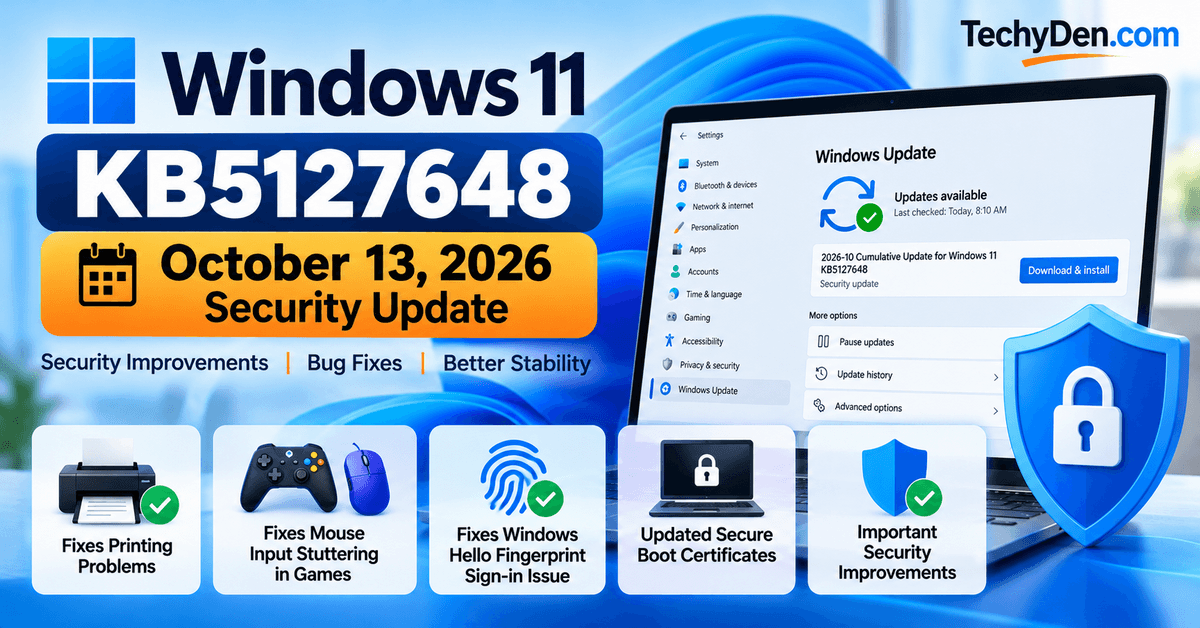
It includes security improvements and quality fixes, along with improvements from earlier applicable updates.
Key fixes in KB5127648
- Printing problems: Microsoft addressed printing failures affecting certain applications and devices using RAW or Generic Text Only printer drivers after an earlier security update. If you experienced printing problems with an affected configuration, installing the applicable update may help resolve them.
- Mouse input stuttering in games: The update fixes an issue that could cause mouse input to stutter in some games. This does not mean every gaming performance issue will be resolved, but it addresses a specific input problem documented by Microsoft.
- Windows Hello fingerprint sign-in: Microsoft fixed an issue where fingerprint sign-in might not work after a cold boot on certain devices. Users experiencing this particular problem should check whether the applicable update is installed.
- Secure Boot certificate updates: The update continues Microsoft’s rollout of updated Secure Boot certificates. These certificates are part of the process of maintaining trust during the system startup sequence. Microsoft is delivering replacements to eligible devices as part of its broader certificate transition.
- Security improvements: KB5127648 includes security fixes and changes to authentication behavior.
One important change affects certain configurations using NTLMv1-derived credentials for single sign-on. Administrators should review Microsoft’s documentation if their networks depend on legacy authentication configurations.
Windows 11 build numbers after KB5127648
| Windows version | Build after October 13 update |
|---|---|
| Windows 11 26H2 | 26300.9711 |
| Windows 11 25H2 | 26200.9711 |
| Windows 11 24H2 | 26100.9711 |
To review the full list of changes, visit Microsoft’s KB5127648 security update page.
Windows 11 KB5127936: October 28 Update
KB5127936 is the October 28, 2026, cumulative preview update for Windows 11 versions 26H2 and 25H2.
Unlike the October 13 security update, this release focuses on additional production-quality improvements, new features, and fixes.
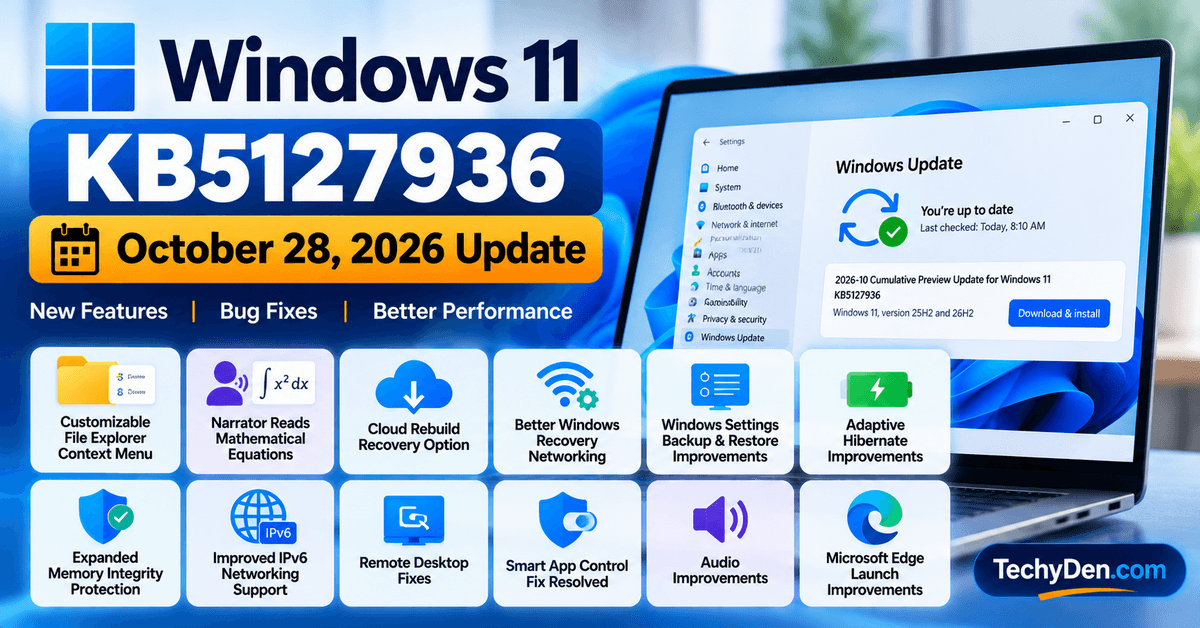
What’s included in KB5127936?
Some of its most important changes include:
- A customizable File Explorer context menu.
- Improved Narrator support for mathematical equations.
- Cloud rebuild recovery capabilities.
- Better Windows recovery network connectivity.
- A Restore Summary for Windows settings backup and restore.
- Adaptive hibernate improvements.
- Expanded memory integrity protection on eligible devices.
- IPv6 CLAT networking support.
- A fix for certain Remote Desktop connection failures.
- A fix for the Smart App Control activation problem.
- Audio and Windows Sandbox fixes.
The update also includes improvements to Microsoft Edge launch behavior, BitLocker, Always On VPN, and Windows Subsystem for Linux.
KB5127936 build numbers
| Windows version | OS build |
|---|---|
| Windows 11 26H2 | 26300.9818 |
| Windows 11 25H2 | 26200.9818 |
The update is available through Microsoft’s update channels, subject to eligibility and rollout conditions.
If you have already installed earlier cumulative updates, Windows generally downloads only the additional changes required for the applicable package.
Before installing the latest cumulative update, explore our Windows 11 September 2026 Update guide to review the previous month’s releases and fixes.
For full details, see the official KB5127936 documentation.
Which Windows 11 Versions Received the October 2026 Update?
Not every Windows 11 version receives the same update package. Microsoft maintains separate update tracks for different releases.
Here’s how the October updates apply to the main versions.
| Windows version | October update | Latest listed October build | Important information |
|---|---|---|---|
| Windows 11 26H2 | KB5127648 and KB5127936 | 26300.9818 | Receives the October security update and later cumulative preview update. |
| Windows 11 25H2 | KB5127648 and KB5127936 | 26200.9818 | Receives the October security update and later cumulative preview update. |
| Windows 11 24H2 | KB5127648 and applicable updates | 26100.9711 for KB5127648 | Home and Pro have reached the end of updates. |
| Windows 11 26H1 | KB5127646 and KB5127653 | 28000.3365 | Uses a separate update track for supported devices. |
Microsoft’s Windows 11 release history provides the official release dates, build numbers, and KB references.
Is Windows 11 24H2 Still Supported?
There is an important distinction between Windows 11 editions.
Microsoft states that Windows 11 version 24H2 Home and Pro reached the end of updates with the October 2026 monthly security update.
For these editions, KB5127648 is the final monthly security update. Users should upgrade to a supported Windows 11 version to continue receiving regular security and quality updates.
Other editions can have different servicing timelines. Check the support status for your specific edition before deciding whether an upgrade is required.
How to Download and Install the Windows 11 October 2026 Update
The easiest way to install an applicable Windows 11 update is through Windows Update.
You can also review our Windows 11 settings guide for beginners to learn how to navigate Settings and manage important system options.
Before starting, save your work, connect your laptop to power if necessary, and back up important files.
Method 1: Install Through Windows Update
Follow these steps to check for the latest applicable update.
- Step 1: Open Windows Settings – Press Windows + I to open the Settings application.
- Step 2: Select Windows Update – Click Windows Update in the left sidebar.
- Step 3: Check for updates – Select Check for updates and allow Windows to search for available updates.
- Step 4: Download and install – If an applicable update is available, follow the on-screen instructions to download and install it. Some non-security preview updates may appear under optional updates rather than being installed automatically.
- Step 5: Restart your PC – Restart the computer if Windows asks you to do so.
- Step 6: Check again – After restarting, return to Windows Update and check whether additional applicable updates are available.
Update availability can vary by Windows version, device eligibility, rollout phase, and organizational policies.
Method 2: Download a Specific Update From Microsoft Update Catalog
If you need a particular KB package, you can use the official Microsoft Update Catalog.
- Open the Microsoft Update Catalog.
- Search for the relevant KB number, such as KB5127648 or KB5127936.
- Find the package that matches your Windows version and device architecture.
- Review the package details and applicability.
- Download the appropriate package.
- Follow Microsoft’s installation instructions.
Do not install an update package intended for a different Windows version or architecture.
Some standalone cumulative updates require prerequisite checkpoint packages or servicing stack updates. Follow the instructions on the corresponding Microsoft support page rather than assuming every downloaded file can be installed independently.
Method 3: Check Your Windows Version and Build Number
After installing an update, verify the version and build number.
- Press Windows + R.
- Type
winver. - Press Enter.
- Review the Windows version and OS build in the dialog.
You can compare the displayed build with Microsoft’s release history.
For example, the October 28 KB5127936 update lists build 26300.9818 for Windows 11 26H2 and 26200.9818 for Windows 11 25H2.
If your computer displays a different build, it does not automatically mean something is wrong. You may be using another Windows version, an update may not yet be offered, or the latest package may not have been installed.
Known Issues in the Windows 11 October 2026 Update
Before installing a Windows update, it’s worth checking Microsoft’s known-issues documentation.
Some problems affect only specific devices or enterprise-managed environments. Others may be resolved by a later cumulative update.
1. USB Audio Devices May Fail to Start
Microsoft has documented an issue affecting some USB Audio Class 1.0 devices following the September 8, 2026, update.
Symptoms may include:
- A Code 10 error in Device Manager.
- No audio output.
- Unresponsive volume controls.
- Volume remaining at zero.
- Problems opening or using sound settings.
The problem is limited to certain USB Audio Class 1.0 devices rather than all USB audio hardware.
Microsoft’s documentation lists the issue as mitigated, but that does not mean every affected configuration is guaranteed to work correctly.
If you experience this problem, check Microsoft’s latest Windows 11 26H2 known-issues page and consult the device manufacturer’s troubleshooting guidance.
2. Remote Desktop Connection Errors
Some non-administrator users experienced Remote Desktop connection failures when connecting to devices with Administrator protection enabled.
Affected connections could fail with error 0xC000000D and display the message:
“The token that was passed to the function is invalid.”
Microsoft lists this issue as resolved for Windows 11 versions 26H2 and 25H2 by KB5127936.
If you continue to experience the error, confirm that the applicable update has been installed. Enterprise users should also check with their IT administrator before changing security policies.
3. Smart App Control Activation Problems
Microsoft documented an issue that could prevent some users from turning Smart App Control back on after it had been disabled.
On affected devices, the option in Windows Security could appear grayed out.
The October 28 KB5127936 update resolves this issue for Windows 11 versions 26H2 and 25H2.
If the problem continues, check your Windows version and installed updates before attempting registry modifications or other advanced troubleshooting.
4. Black Screen or Desktop Loading Problems
Some virtual desktop environments experienced problems loading the Windows desktop after sign-in.
Affected users could see a black screen, while Windows Explorer might fail to start correctly.
Microsoft states that this issue was resolved by the October 13 update, KB5127648, and subsequent updates.
The problem was primarily observed in certain Azure Virtual Desktop environments using FSLogix, rather than being a universal issue affecting all Windows 11 computers.
5. AC-3 Audio and Domain-Joined Device Problems
Microsoft previously documented two other problems:
- Some applications requiring AC-3 audio decoding could close unexpectedly.
- Certain domain-joined devices could lose their secure trust relationship with the domain.
Microsoft’s release-health documentation lists the AC-3 problem as resolved by KB5127648 and the domain-trust issue as resolved by an earlier update.
Enterprise administrators should verify the current status and recommended remediation for their specific Windows version.
If you need help managing Windows features or diagnosing common problems, check our complete Windows 11 guide to features, settings, tips, and troubleshooting.
Important: Known issues can change as Microsoft releases additional updates. Check the relevant version-specific release-health page before publishing or relying on a troubleshooting recommendation.
How to Fix Windows 11 October Update Installation Problems
If the Windows 11 October 2026 update fails to download or install, try the following troubleshooting steps.
1. Restart Your Computer
A restart can complete a pending installation and clear temporary problems affecting Windows Update.
Save your work, restart the computer, and check for updates again.
2. Check Your Internet Connection
Make sure your internet connection is stable.
If you’re using Wi-Fi, try moving closer to the router or temporarily switching to a reliable wired connection if available.
Also check whether a VPN, proxy, or organizational network policy is interfering with access to Windows Update.
3. Free Up Disk Space
Windows needs sufficient free storage to download, unpack, and install updates.
Open Settings and select System > Storage to review disk usage.
Remove unnecessary temporary files and applications where appropriate. Avoid deleting system files manually.
4. Run the Windows Update Troubleshooter
Windows includes troubleshooting tools that can help identify common update problems.
- Open Settings.
- Select System.
- Open Troubleshoot.
- Select Other troubleshooters.
- Find Windows Update.
- Select Run and follow the instructions.
The available menu labels may vary slightly between Windows versions.
5. Repair Windows System Files
If updates continue to fail, damaged Windows system files may be one possible cause.
Open Terminal or Command Prompt as an administrator.
First, run:
DISM /Online /Cleanup-Image /RestoreHealthWait for the process to finish.
Then run:
sfc /scannowDISM checks and repairs the Windows component store, while System File Checker scans protected system files and attempts to repair detected problems.
Restart your computer after the scans complete, then try Windows Update again.
These commands can help with certain system-corruption problems, but they will not resolve every update failure.
6. Check Windows Update History
If installation fails repeatedly, review the update history to identify the affected package.
Navigate to:
Settings > Windows Update > Update history
Look for the relevant KB number and any error information.
Record the error code before attempting advanced troubleshooting. This can help you identify whether the problem relates to storage, servicing prerequisites, system corruption, or another issue.
7. Uninstall a Problematic Update if Necessary
If a recently installed update causes a serious problem, uninstalling it may be an option.
However, removing a security update can leave your computer exposed to vulnerabilities that the update was intended to address.
Before uninstalling an update, review Microsoft’s support guidance and back up important data. Enterprise users should follow their organization’s update-management procedures.
Should You Install the Windows 11 October 2026 Update?
Yes, you should generally install applicable security updates and keep Windows 11 up to date.
The October updates include important security improvements, reliability fixes, and changes affecting printing, audio, authentication, and other Windows components.
The October 28 cumulative preview update also introduces useful features, including a customizable File Explorer context menu, enhanced accessibility support, and Cloud rebuild recovery.
However, the best approach depends on your needs.
- For home users: Install the security updates offered for your Windows version. Check Windows Update regularly and review any compatibility problems affecting your hardware or applications.
- For business users: Follow your organization’s deployment policies and review Microsoft’s release-health information before deploying updates broadly.
- For users with older Windows installations: Check your edition’s support status. Windows 11 24H2 Home and Pro have reached the end of updates, so upgrading to a supported release is important for continued security coverage.
- For users who need a specific fix: Check whether the relevant KB package addresses your problem and whether a later cumulative update is required.
Back up important files before major troubleshooting or recovery operations, and avoid manually installing packages that do not apply to your system.
Frequently Asked Questions
What is the Windows 11 October 2026 Update?
The Windows 11 October 2026 Update refers to Microsoft’s October security and quality updates. Important releases include KB5127648 on October 13 and KB5127936 on October 28 for supported versions. The updates include security fixes, bug fixes, accessibility improvements, recovery enhancements, and additional Windows features.
What is the KB number for the Windows 11 October 2026 update?
The October 13 security update is KB5127648. The October 28 cumulative preview update is KB5127936 for Windows 11 versions 26H2 and 25H2. Windows 11 version 26H1 has a separate October 28 update, KB5127653.
What is the latest Windows 11 update in October 2026?
As of October 30, 2026, Microsoft’s release history lists KB5127936 as the October 28 update for Windows 11 versions 26H2 and 25H2. For version 26H1, the corresponding October 28 update is KB5127653. The appropriate update depends on your Windows version and edition.
What is new in Windows 11 KB5127936?
KB5127936 introduces a customizable File Explorer context menu, improved Narrator support for mathematical equations, Cloud rebuild recovery, improved recovery networking, a Restore Summary for Windows backup and restore, and additional security and reliability improvements. It also fixes certain Remote Desktop and Smart App Control problems.
How do I install the Windows 11 October 2026 update?
Open Settings, select Windows Update, and click Check for updates. Install the applicable update when it becomes available and restart your PC if prompted. You can also use the Microsoft Update Catalog to download a specific package, provided it matches your Windows version and device architecture.
Is the Windows 11 October 2026 update safe?
Microsoft’s applicable security updates are generally recommended because they provide important security and reliability improvements. Before installing, check for known issues affecting your device and applications. Back up important files, and follow your organization’s policies if you use a business-managed computer.
Does the October update improve gaming performance?
The October 13 security update fixes a specific issue that could cause mouse input to stutter in some games. This does not guarantee higher frame rates or resolve every gaming problem. Results depend on the hardware, game, drivers, and other system settings.
Why is the Windows 11 October update not showing up?
An update may not appear because it does not apply to your Windows version, has not yet reached your device, is subject to a compatibility safeguard, or is available through an optional update channel. Check your Windows version, open Windows Update, and review Microsoft’s release notes for the applicable KB package.
What should I do if Windows 11 fails to install the October update?
Restart your computer, check your internet connection, free up storage, and run the Windows Update troubleshooter. If the problem continues, review Update history for the failed KB number and error code. You can also use DISM and System File Checker to investigate certain system-file problems.
Is Windows 11 24H2 still supported?
Windows 11 version 24H2 Home and Pro reached the end of updates with the October 2026 monthly security release. Users running these editions should upgrade to a supported Windows 11 version to continue receiving regular security and quality updates. Other editions may have different servicing dates.
Final Verdict
The Windows 11 October 2026 Update delivers a combination of security fixes, reliability improvements, accessibility enhancements, and new recovery features.
The October 13 update, KB5127648, addresses important issues involving printing, mouse input in some games, fingerprint sign-in, authentication, and other Windows components.
The later KB5127936 update adds a customizable File Explorer context menu, improved Narrator support for mathematical equations, Cloud rebuild recovery, enhanced backup and restore information, and additional fixes for Remote Desktop and Smart App Control.
Windows 11 version 26H1 follows a separate update track, so always confirm your Windows version before installing a specific package.
For most users, the recommended next step is simple: open Settings, check Windows Update, and install the latest applicable updates offered for your PC.
If you encounter problems, consult Microsoft’s official release notes and known-issues documentation before trying advanced troubleshooting.
Stay tuned to TechyDen for more Windows 11 updates, practical troubleshooting guides, and technology tips.