
How to BackUp Windows 11 Securely: Complete Guide
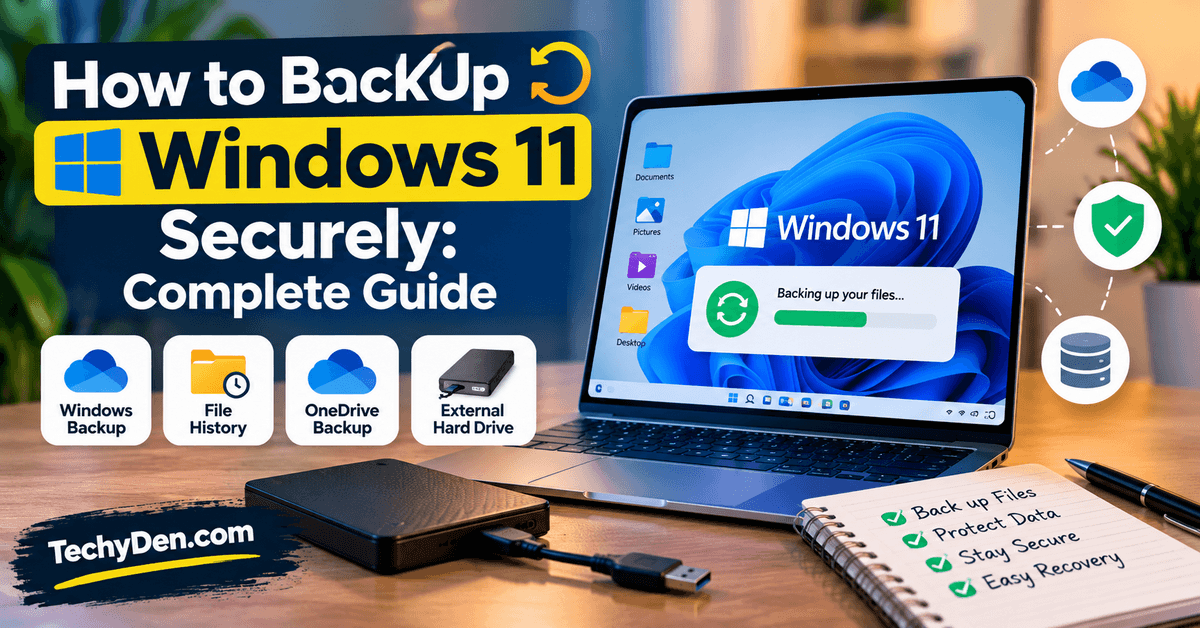
Backing up your computer is one of the simplest ways to protect your important files, documents, photos, and other personal data. Although most people understand the importance of backups, they often postpone the task until it is too late.
A sudden hardware failure, malware infection, accidental deletion, or Windows problem can result in the loss of valuable data.
If you use Windows 10 or Windows 11, creating regular backups can help you recover important files when something goes wrong.
In this guide, we explain how to backup Windows 10, including the available backup options and the steps you can follow to protect your data.
If you are using Microsoft’s newer operating system, you can also apply many of these backup principles to backup Windows 11, depending on the feature you choose.
When managing important documents alongside backups, free PDF tools can help you edit and organize PDF files.
f you are also configuring power options on your Windows 11 PC, see our guide to enabling Hibernate in Windows 11.
Whether you want to backup your entire system, save essential documents to an external drive, or prepare for unexpected computer problems, taking a few minutes to set up a reliable backup routine can save you time and frustration later.
How to Backup Windows 11 on Your PC Securely
Backing up Windows 11 is essential for protecting your personal files, photos, documents, installed-app information, and important system settings. A reliable backup can help you recover data after accidental deletion, hardware failure, malware attacks, or other unexpected problems.
Windows 11 offers several backup options, including Windows Backup, OneDrive cloud storage, File History, and external hard drives. The best method depends on whether you want to protect individual files, synchronize folders online, or prepare for a more extensive system recovery.
1. Use Windows Backup to Protect Files and Settings
Windows Backup is a built-in tool that helps you backup selected folders, Windows settings, app information, and other preferences using your personal Microsoft account.
Follow these steps:
- Open the Start menu and search for Windows Backup.
- Open the app and sign in with your personal Microsoft account if prompted.
- Expand Folders and select the folders you want to backup, such as Desktop, Documents, Pictures, Videos, and Music.
- Enable the available options under Apps and Settings to backup supported preferences.
- Click backup and check the backup status when the process finishes.
Windows Backup uses OneDrive for folder backup, so make sure you have enough cloud storage available. A free Microsoft account includes 5 GB of OneDrive storage, which may not be enough for large photo libraries or extensive backups. Windows Backup is primarily designed for personal Microsoft accounts rather than work or school accounts.
For more detailed instructions, see Microsoft’s official guide to Windows Backup, including how to back up supported folders, settings, and app information.
Important: Windows Backup does not create a complete copy of your Windows installation or replace a full system recovery backup. It is mainly intended to help protect supported files and settings and make it easier to move to another PC.
2. Backup Windows 11 Files to an External Hard Drive
An external hard drive or USB storage device is a practical option if you want to keep a local copy of important files without relying entirely on an internet connection.
- Connect an external hard drive or USB storage device to your PC.
- Open File Explorer and locate your important files and folders.
- Select the files you want to protect, including documents, photos, videos, and work-related files.
- Right-click and choose Copy.
- Open the external drive, create a folder named
Windows 11 Backup, and select Paste. - Wait for the transfer to finish, then open a few copied files to verify that they work correctly.
For larger collections of files, an external hard drive or SSD is usually more convenient than a small USB flash drive. Disconnect the drive safely after the backup is complete and store it in a secure location.
3. Enable File History for Automatic File Backups
File History can automatically save copies of personal files to an external drive or supported network location. It is especially useful when you need to recover an earlier version of a document or restore a file that was accidentally changed or deleted.
- Connect an external drive to your Windows 11 PC.
- Open Control Panel.
- Select System and Security and open File History.
- Choose Select drive if necessary, then select your backup drive.
- Click Turn on to enable File History.
- Check that your important folders are included in the backup libraries.
File History is different from Windows Backup: it focuses on personal files and their previous versions rather than backing up all Windows system files and installed applications.
If File History is unavailable or does not detect your drive, check the drive connection and available storage, then reopen the File History settings.
To learn how to configure automatic backups and recover earlier versions of your files, follow Microsoft’s Backup and restore with File History instructions.
4. Use OneDrive for Cloud Backup
OneDrive lets you store supported files in the cloud and access them from other devices. It can also help protect important files if your computer is damaged or lost.
To configure OneDrive:
- Open OneDrive from the Start menu or system tray.
- Sign in with your Microsoft account.
- Open OneDrive settings and locate the folder backup or synchronization options.
- Choose the supported folders you want to protect, such as Desktop, Documents, and Pictures.
- Wait for synchronization to complete and confirm that the files appear in your OneDrive account.
Remember that cloud synchronization is not the same as an independent backup. If you delete or modify a synchronized file, that change may also appear in the cloud. Keep an additional copy of irreplaceable files on an external drive or another suitable backup destination.
Before upgrading Windows 11, create a backup of your important files and verify that you can restore them.
5. Follow These Security Tips for Windows 11 Backups
To make your Windows 11 backup routine more secure:
- Backup regularly: Choose a schedule that matches how frequently your files change.
- Use more than one backup location: Keep an external copy as well as a cloud backup when practical.
- Protect your Microsoft account: Use a strong, unique password and enable multifactor authentication.
- Encrypt sensitive backups: Use an appropriate encryption method, such as BitLocker where available, and store recovery keys separately.
- Disconnect external backup drives: Keep the drive disconnected when it is not being used to reduce exposure to malware or ransomware.
- Verify your backups: Open sample files and periodically test whether you can restore them.
- Keep enough storage available: Check both external-drive capacity and your cloud-storage allowance.
For valuable data, a combination of cloud storage and an external drive provides stronger protection than relying on only one location.
Before installing major Windows 11 updates, back up your important files and check for known issues.
Which Windows 11 Backup Method Should You Choose?
| Backup method | Best for |
|---|---|
| Windows Backup | Backing up supported files, settings, and app information |
| OneDrive | Cloud storage and access across devices |
| File History | Automatically preserving file versions |
| External hard drive or SSD | Keeping a separate local copy of important data |
| Full system image or recovery solution | Preparing for broader system recovery |
Final recommendation: Start by enabling Windows Backup or OneDrive for supported folders, then create an additional copy of your most important files on an external drive. If you need to recover Windows itself after a serious failure, investigate a suitable full-system backup or recovery solution rather than relying on file synchronization alone.
Frequently Asked Questions About Backing Up Windows 11
How do I backup Windows 11 on my PC?
You can backup Windows 11 using the built-in Windows Backup app, OneDrive, File History, or an external hard drive. Open Windows Backup from the Start menu and select the available files and settings you want to protect. For better protection, keep an additional copy of your important files on an external drive.
Does Windows 11 have a built-in backup tool?
Yes, Windows 11 includes Windows Backup, which helps backup supported files, settings, and app information using a personal Microsoft account. Windows also supports File History for preserving previous versions of personal files. These tools serve different purposes, so choose the option that matches your backup needs.
How do I backup Windows 11 to an external hard drive?
Connect an external hard drive to your PC, open File Explorer, and copy your important documents, photos, videos, and other files to the drive. You can also configure File History for automatic file backups. After copying, open a few files to verify the backup and safely disconnect the drive.
Is Windows Backup free in Windows 11?
Windows Backup is included with Windows 11, so you do not need to purchase a separate backup app to use its supported features. However, cloud backups through OneDrive have storage limits. A personal Microsoft account typically includes 5 GB of free OneDrive storage, and additional storage may require a paid plan.
How often should I backup my Windows 11 PC?
backup your PC whenever you create or change important files. For frequently updated work documents, daily backups are a sensible choice. Less frequently changed files may need fewer updates. Using automatic backup features and keeping a separate copy on an external drive can reduce the risk of losing important data.
Does Windows 11 Backup save all my files?
No. Windows Backup does not automatically create a complete copy of everything on your PC. It backs up supported folders, settings, and app information, depending on your configuration. If you need to protect additional files, copy them to an external drive or use another suitable backup solution.
How do I backup Windows 11 before resetting my PC?
Before resetting Windows 11, copy your important files to an external drive or confirm that they are safely backed up to the cloud. Check Desktop, Documents, Downloads, Pictures, and other folders where you store data. Verify that your backups open correctly and make sure you have any necessary recovery keys before proceeding.
Can I backup Windows 11 to a USB flash drive?
Yes, you can copy important files to a USB flash drive if it has enough free space. Connect the drive, open File Explorer, and copy your documents, photos, and other essential data. For large backups or long-term storage, an external hard drive or SSD is generally more practical.
What is the difference between Windows Backup and File History?
Windows Backup helps protect supported files, settings, and app information through your Microsoft account. File History focuses on saving copies of personal files so you can restore earlier versions. If you want both migration assistance and file-version recovery, understand each tool’s limitations and configure the appropriate options.
Is OneDrive a good option for backing up Windows 11?
OneDrive is useful for storing supported files online and accessing them across devices. It can help protect files if your computer is lost or damaged. However, synchronization is not a complete replacement for an independent backup. Keep another copy of important files on an external drive for additional protection.
How can I backup Windows 11 without an internet connection?
You can backup files without an internet connection by copying them to an external hard drive, SSD, or USB flash drive. File History can also create local backups when configured with a suitable drive. Cloud services such as OneDrive require an internet connection to synchronize files online.
Can I create a full system backup in Windows 11?
A full system backup aims to preserve Windows, installed applications, settings, and other system data for broader recovery. Windows Backup is not a complete system-image tool. You may need a compatible system-imaging or recovery solution, depending on your PC and recovery requirements. Test your recovery process before relying on it.
How do I restore files from a Windows 11 backup?
The restoration method depends on how you created the backup. For files stored on an external drive, connect it and copy the files back to your PC. For OneDrive, sign in to your account and download or synchronize the required files. File History provides options for restoring supported earlier file versions.
How can I protect my Windows 11 backup from ransomware?
Keep an additional backup on an external drive and disconnect it when the backup is complete. Use a secure cloud account with multifactor authentication, keep Windows updated, and avoid suspicious downloads. Where appropriate, encrypt sensitive backup drives and store recovery keys securely. Multiple independent copies help reduce the risk of losing everything.
What is the best way to backup Windows 11 securely?
A strong approach is to combine cloud storage with a separate local backup. Use Windows Backup or OneDrive for supported files and settings, and keep another copy of important data on an external drive. backup regularly, protect your accounts, encrypt sensitive data where appropriate, and periodically test whether you can restore your files.
Conclusion: backup Windows 11 to Protect Your Important Data
Learning how to backup Windows 11 is essential for protecting your files, documents, photos, and important settings against accidental deletion, hardware failure, malware, and unexpected system problems. Whether you want to backup Windows 11 to an external hard drive, use the Windows Backup app, enable File History, or store files in OneDrive, choose a method that suits your storage needs and recovery requirements.
For better protection, combine Windows 11 file backup with a separate copy of your most important data on an external hard drive or SSD. If you are preparing to reset your PC, upgrade your system, or troubleshoot a Windows problem, verify your backup before making changes. Remember that Windows Backup, OneDrive synchronization, and a full system backup serve different purposes.
If you are wondering how to backup Windows 11 before resetting, start by checking your Documents, Desktop, Pictures, Downloads, and other important folders. Keep your backup secure, use encryption for sensitive data when appropriate, and test file restoration regularly.
Ultimately, the best way to backup Windows 11 securely is to maintain multiple copies of important files, including at least one copy stored separately from your computer. A consistent backup routine can help you recover your data more confidently when something goes wrong.