How to Enable Hibernate on Windows 11 and Add It to the Power Menu
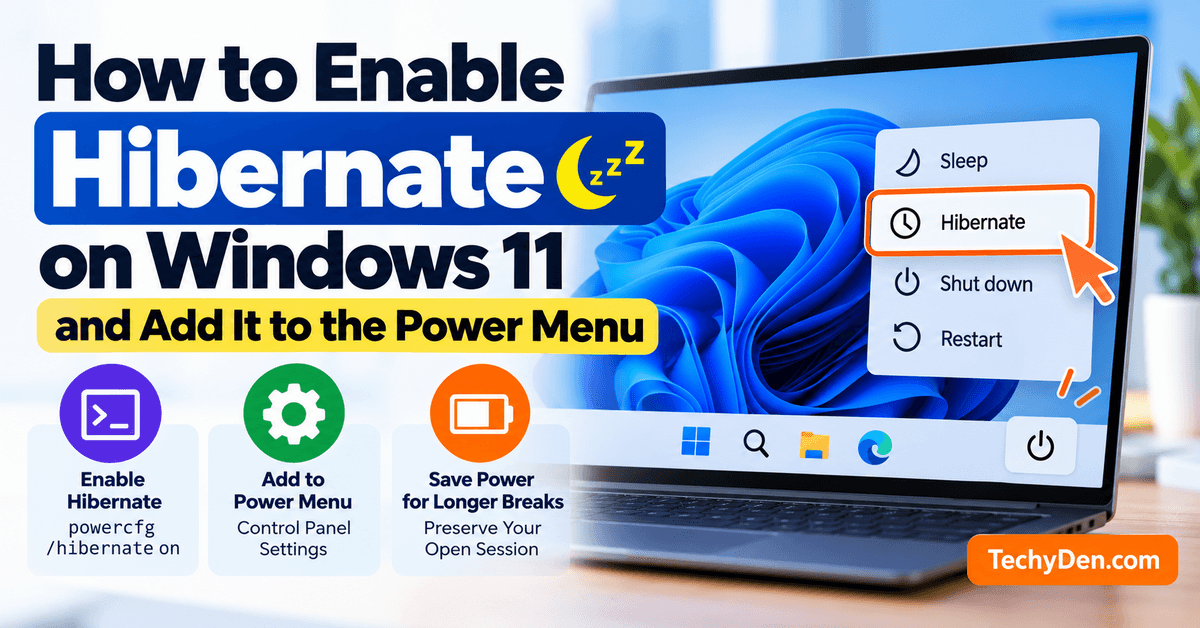
Hibernate is a useful Windows 11 power-saving feature that lets you turn off your computer while preserving your current work. Instead of keeping your apps and files active in memory like Sleep mode, Windows saves your current session to the hard drive or SSD and completely powers down the PC. When you turn it back on, Windows restores your previous session so you can continue where you left off.
However, Hibernate may not appear in the Windows 11 Power menu by default. This can happen because the feature is disabled in the system’s power settings or because Windows does not currently display it as an available shutdown option.
The good news is that enabling Hibernate is straightforward. You can turn it on using Command Prompt and then add the Hibernate option to the Windows 11 Power menu through Control Panel → Power Options.
Windows 11 continues to receive regular feature and security improvements, so check out our guide to Windows 11 September 2026 Update for the latest changes, fixes, and known issues.
In this guide, you’ll learn how to enable Hibernate on Windows 11, add it to the Power menu, check whether Hibernate is supported on your PC, and troubleshoot the feature if the Hibernate option is missing.
Quick Answer: How Do I Enable Hibernate in Windows 11?
The quickest way to enable Hibernate is to use the built-in powercfg command.
- Open Command Prompt as administrator.
- Run the following command:
powercfg /hibernate on- Open Control Panel → Power Options.
- Select Choose what the power buttons do.
- Click Change settings that are currently unavailable.
- Under Shutdown settings, select Hibernate.
- Click Save changes.
Now open Start → Power. You should see Hibernate alongside options such as Sleep, Shut down, and Restart.
What Is Hibernate in Windows 11?
Hibernate is a Windows 11 power-saving feature that allows you to turn off your computer while preserving your current work session. Before shutting down the PC, Windows saves the contents of system memory to the system drive. When you turn the computer on again, Windows loads that saved information and restores your previous session.
Unlike Sleep, which keeps the computer in a low-power state and continues using a small amount of electricity, Hibernate essentially powers down the computer. This makes Hibernate particularly useful when you won’t be using your PC for several hours but don’t want to close your open applications and documents.
Windows stores the hibernation data in a protected system file called hiberfil.sys, located on the Windows system drive. The file is normally hidden, so you won’t see it in File Explorer unless you change the appropriate folder and file visibility settings.
When you resume from Hibernate, Windows reads the saved session data and restores your open applications, windows, and other information to approximately the state they were in before hibernation. You can then continue working without reopening everything manually.
Hibernate can be especially useful on laptops. If you’re traveling or leaving your laptop unused for an extended period, Hibernate uses significantly less power than Sleep while still preserving your work session. This can help reduce battery drain when the computer is not connected to a charger.
When Should You Use Hibernate Instead of Sleep?
Hibernate is generally more useful when you expect to be away from your computer for a longer period.
Use Sleep when you’re taking a short break and want to resume work quickly. Sleep resumes faster because the computer remains in a low-power state.
Use Hibernate when you’re finished using the PC for several hours, traveling with a laptop, or want to minimize power consumption while keeping your current session.
How Hibernate Works
The Hibernate process can be summarized in five simple steps:
Open apps → Windows saves session → PC powers down → Turn PC on → Previous session restored
Here’s what happens at each stage:
- Open apps: You continue working with your applications, documents, browser tabs, and other files.
- Windows saves the session: When you select Hibernate, Windows saves the contents of system memory to the hibernation file on the system drive.
- PC powers down: After saving the session, Windows turns off the computer rather than keeping it in a low-power state.
- Turn the PC on: When you press the power button, Windows starts normally and detects the saved hibernation session.
- The previous session is restored: Windows loads the saved data and restores your previous working environment.
Because the entire session has been saved to storage, the computer doesn’t need to keep the RAM powered while it is hibernating.
Does Hibernate Close Your Apps?
No. Hibernate does not normally close your applications. Instead, Windows saves the current session, including the state of your open applications, to the hibernation file before powering off the computer.
For example, if you have a Word document open, several browser tabs running, and other applications in use when you select Hibernate, Windows saves the session. When you turn the PC back on and Windows resumes from Hibernate, those applications and windows can be restored so you can continue working.
However, Hibernate should not be treated as a replacement for saving your files. It’s always a good idea to save important documents before putting your computer into Hibernate mode. Unexpected shutdowns, system problems, or other interruptions can potentially affect unsaved work.
The main advantage of Hibernate is convenience: instead of closing everything and reopening your applications later, you can preserve your working session and resume it after the computer has been powered down.
Hibernate vs Sleep vs Shut Down in Windows 11
Windows 11 provides several ways to stop using your computer without necessarily losing your current work session. Sleep, Hibernate, and Shut down serve different purposes, so choosing the right option depends on how long you plan to be away from your PC and whether you want to preserve your open applications.
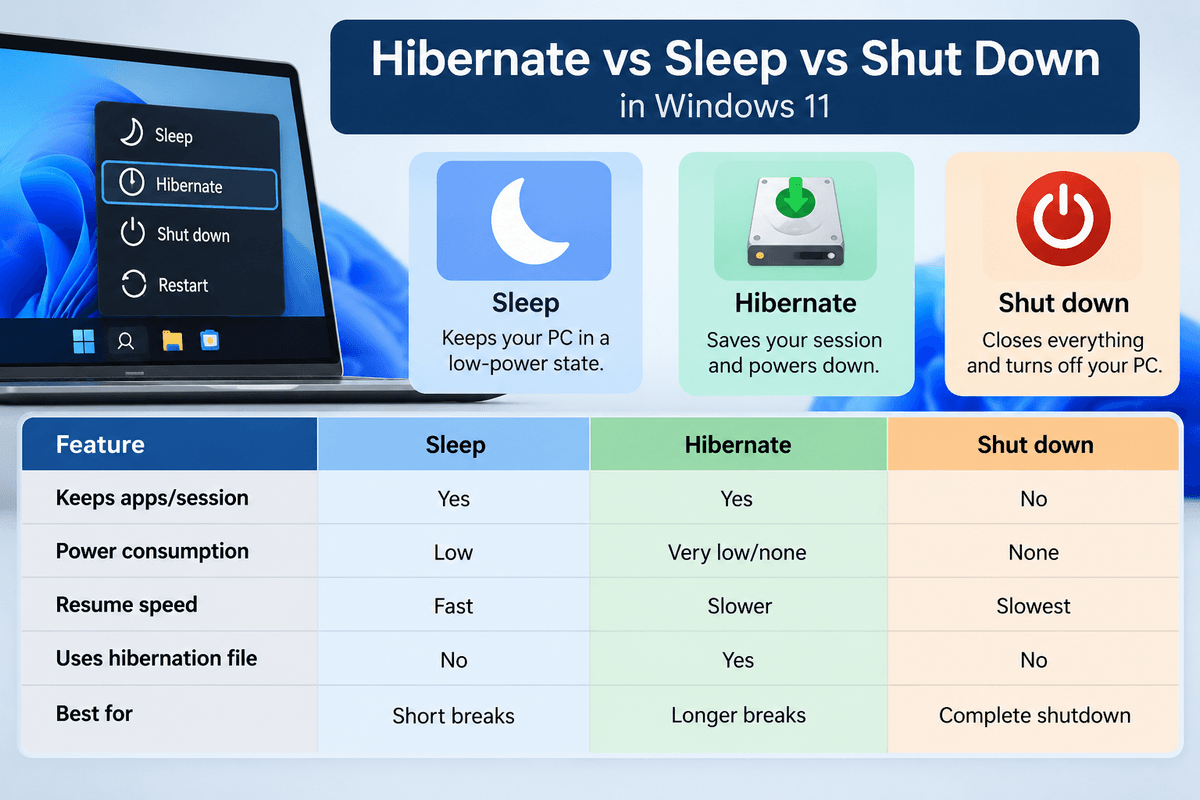
Here is a quick comparison:
| Feature | Sleep | Hibernate | Shut down |
|---|---|---|---|
| Keeps apps/session | Yes | Yes | No |
| Power consumption | Low | Very low/none | None |
| Resume speed | Fast | Slower | Slowest |
| Uses hibernation file | No | Yes | No |
| Best for | Short breaks | Longer breaks | Complete shutdown |
Microsoft explains the differences between Sleep, Hibernate, and Shut down, including when to use Hibernate for longer periods when you may not have an opportunity to charge your device.
When Should You Use Sleep?
Sleep is best when you are taking a short break and expect to return to your computer soon. Windows keeps your current session in memory while placing the PC into a low-power state.
You should consider using Sleep when:
- You’re stepping away from your PC for a short period.
- You want to return to your work quickly.
- You don’t mind the computer using a small amount of power while it is sleeping.
For example, if you’re taking a 15- or 30-minute break, Sleep is generally more convenient because your computer can resume much faster than it would from Hibernate.
When Should You Use Hibernate?
Hibernate is a better choice when you plan to leave your computer for several hours but want to keep your current session. Windows saves your session to the hibernation file and then powers down the computer.
Hibernate is useful when:
- You’re leaving your PC unused for several hours.
- You’re traveling with a laptop and want to minimize battery drain.
- You have several applications or documents open and don’t want to reopen everything later.
- You want to preserve your current work session while using very little power.
For laptop users, Hibernate can be particularly useful before putting the computer into a bag or carrying it somewhere for an extended period.
When Should You Shut Down?
Shut down completely turns off Windows and closes your current applications and session. It is the best choice when you have finished working and don’t need to preserve your current session.
You should consider shutting down your PC when:
- You’ve reached the end of your workday.
- You’re troubleshooting a Windows or hardware problem.
- You don’t need your current applications or documents to remain open.
- You want to start with a fresh Windows session the next time you use the computer.
In general, there isn’t one option that is always better than the others. Sleep is convenient for short breaks, Hibernate is useful for longer periods away from the PC, and Shut down is appropriate when you’re finished using the computer.
How to Enable Hibernate on Windows 11
If Hibernate is missing from the Windows 11 Power menu, you can usually enable it using one of two methods. The easiest approach is to use Command Prompt with administrator privileges and then configure Windows to display Hibernate in the Power menu if necessary.
Tip: If Hibernate is missing from your Power menu, start with the Command Prompt method. The
powercfgcommand is quick and can enable the Hibernate feature without relying on the Hibernate checkbox being visible in Power Options.
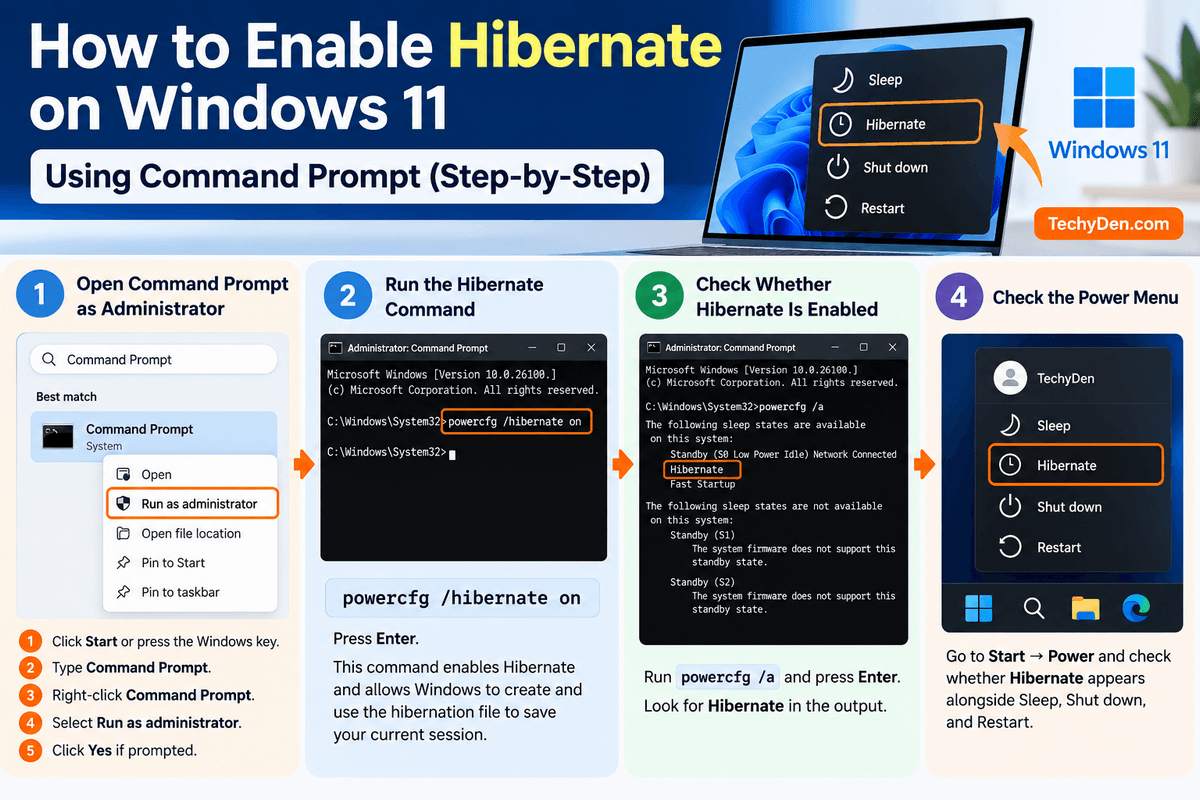
Method 1: Enable Hibernate Using Command Prompt
Command Prompt provides a quick way to enable Hibernate in Windows 11 using the built-in powercfg utility.
Step 1: Open Command Prompt as Administrator
First, open an elevated Command Prompt:
- Click Start or press the Windows key.
- Type Command Prompt in the search box.
- Right-click Command Prompt in the search results.
- Select Run as administrator.
- If Windows displays a User Account Control prompt, select Yes.
You need administrator privileges because changing system power settings requires elevated permissions.
Step 2: Run the Hibernate Command
In the Administrator Command Prompt window, enter the following command:
powercfg /hibernate onPress Enter.
The powercfg utility is a built-in Windows command-line tool for managing power settings. The /hibernate on option enables Hibernate and allows Windows to create and use the hibernation file required to save your current session when you hibernate the PC.
If the command completes successfully, you normally won’t see a confirmation message. You can continue to the next step to verify that Hibernate is available.
For a complete list of supported powercfg options, see Microsoft’s Powercfg command-line options documentation.
Step 3: Check Whether Hibernate Is Enabled
To check the power states supported and currently available on your Windows 11 PC, run:
powercfg /aPress Enter.
Windows will display the available sleep and power states on your computer.
Look through the output for Hibernate. If Hibernate is listed as an available sleep state, Windows has successfully enabled it.
If Hibernate is shown as unavailable, the output may also provide information about why the power state cannot be used. Hardware support, firmware settings, drivers, or other system configurations can affect which power states are available.
Tip: Keep the Command Prompt window open if Hibernate is not listed. The
powercfg /aoutput can help identify the next troubleshooting step.
Step 4: Check the Windows 11 Power Menu
Once Hibernate is enabled, check whether Windows has added it to the Power menu.
Go to: Start → Power
Look for Hibernate alongside options such as Sleep, Shut down, and Restart.
If Hibernate appears, you can select it whenever you want Windows to save your current session and power down the computer.
If Hibernate is enabled but doesn’t appear in the Power menu, don’t worry. Windows may simply need the Hibernate option enabled under its Power Options settings. The next section explains how to add Hibernate to the Power menu.
How to Add Hibernate to the Windows 11 Power Menu
Enabling Hibernate with the powercfg command makes the feature available in Windows, but you may still need to add Hibernate to the Power menu before it appears alongside Sleep, Shut down, and Restart.
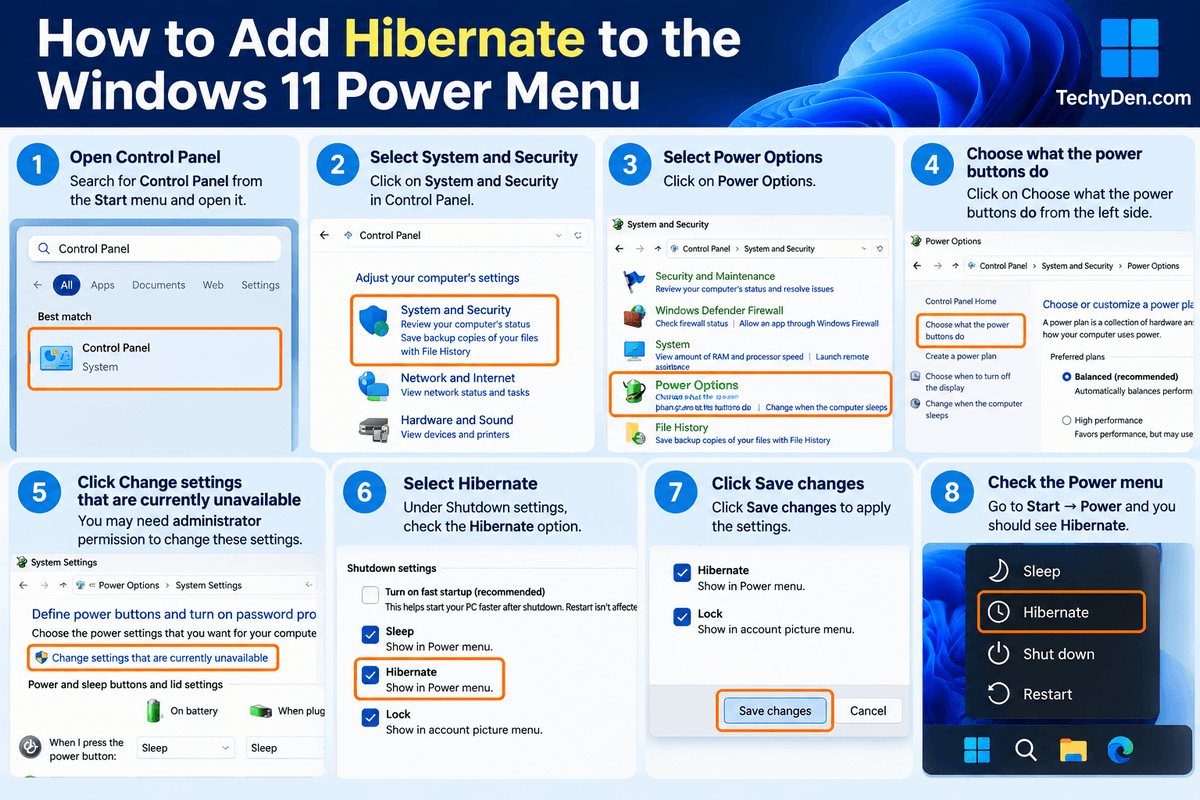
Windows provides a setting in Control Panel that lets you choose which power options are displayed. If Hibernate is enabled but isn’t visible in the Power menu, follow the steps below.
Step-by-Step Instructions
- Open Control Panel. You can search for Control Panel from the Windows 11 Start menu.
- Select System and Security.
- Click Power Options.
- From the left side of the Power Options window, select Choose what the power buttons do.
- Click Change settings that are currently unavailable. You may need administrator permission to change these settings.
- Scroll down to the Shutdown settings section.
- Look for the Hibernate option and select its checkbox.
- Click Save changes.
Once you save the settings, Windows should add Hibernate to the Power menu.
Note: If the Hibernate option isn’t listed under Shutdown settings, make sure you have already enabled Hibernate using
powercfg /hibernate on. You can also runpowercfg /ain an Administrator Command Prompt to check whether Hibernate is available on your system.
Where to Find Hibernate After Enabling It
After saving the changes, you can access Hibernate directly from the Windows 11 Start menu.
Go to: Start → Power → Hibernate
You should see Hibernate listed alongside Sleep, Shut down, and Restart.
Click Hibernate when you want Windows to save your current session and power down the PC. When you turn the computer on again, Windows can restore your previous session.
Tip: If Hibernate still doesn’t appear after enabling it, restart your PC and check the Power menu again. If it remains missing, continue to the troubleshooting steps in the next section.
Windows 11 Hibernate Option Missing? Here’s How to Fix It
If you enabled Hibernate but still can’t find it in the Windows 11 Power menu, there are several troubleshooting steps you can try. The problem may be related to the Hibernate configuration, available power states, Windows settings, outdated drivers, or a pending system update.
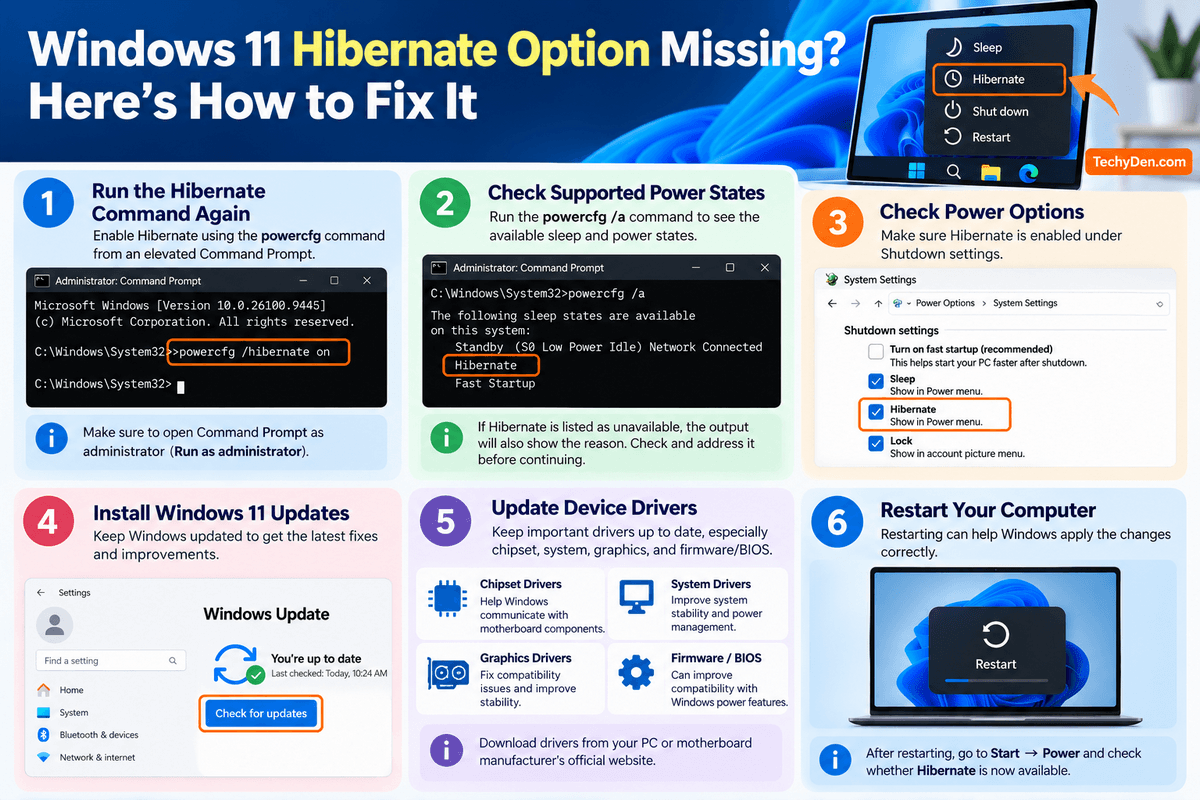
Work through the following fixes in order. In many cases, the first two or three steps are enough to restore the Hibernate option.
Fix 1: Run the Hibernate Command Again
The first thing to try is enabling Hibernate again using the built-in powercfg command.
Open Command Prompt as administrator and run:
powercfg /hibernate onPress Enter after entering the command.
Make sure you open Command Prompt with Run as administrator. A standard Command Prompt may not have sufficient permissions to change system-level power settings.
After running the command, check Control Panel → Power Options → Choose what the power buttons do and see whether Hibernate is available under Shutdown settings.
Fix 2: Check Supported Power States
Windows 11 includes the powercfg /a command to show the sleep and power states supported by your computer.
Open Command Prompt as administrator and run:
powercfg /aPress Enter.
Windows will display the power states that are available and those that aren’t available on your system.
Look for Hibernate in the output. If it appears as an available state, Hibernate is supported and enabled on your PC.
If Windows reports that Hibernate is unavailable, read the explanation provided below the unavailable power state. The reason may be related to your system’s hardware, firmware, drivers, or power-state configuration.
If Hibernate isn’t supported by the current system configuration, simply enabling the Power menu checkbox may not be enough. In that situation, address the reason shown by powercfg /a before continuing.
Fix 3: Check Power Options
If Hibernate is enabled but doesn’t appear in the Start menu, check the Power Options settings again.
- Go to: Control Panel → Power Options → Choose what the power buttons do
- Select Change settings that are currently unavailable if necessary.
- Under Shutdown settings, look for Hibernate and make sure its checkbox is selected.
- Click Save changes and then check: Start → Power
The Hibernate option should now appear alongside the other power options.
Fix 4: Install Windows 11 Updates
An outdated Windows installation can sometimes contribute to system configuration and power-management problems. Keeping Windows 11 updated also ensures that you have the latest available system fixes and compatibility improvements.
- To check for updates: Settings → Windows Update
- Click Check for updates and install any available updates that Windows recommends.
- After installing updates, restart your computer and check the Power menu again.
Tip: If Hibernate stopped working after a Windows update, check Microsoft’s documentation for the specific Windows version and update before making major system changes.
Fix 5: Update Device Drivers
Power-management features can also depend on your computer’s hardware drivers and firmware. If Hibernate isn’t working correctly, check for updates from your PC or motherboard manufacturer’s official website.
Pay particular attention to:
- Chipset drivers — These help Windows communicate correctly with core motherboard components.
- System drivers — Manufacturer-provided system or platform drivers can affect power-management functionality.
- Graphics drivers — Updated graphics drivers can resolve certain Windows power-state and resume issues.
- Firmware/BIOS — On some computers, firmware updates can improve compatibility with Windows power-management features.
Whenever possible, download drivers and firmware from the official manufacturer website for your specific PC, laptop, motherboard, or hardware.
If your Windows 11 PC is also experiencing freezing or becoming unresponsive, see our guide on how to fix Windows 11 freezing issues for additional troubleshooting steps.
Avoid using random third-party driver-download websites, as they may provide incorrect, outdated, or potentially unsafe drivers.
Fix 6: Restart Your Computer
Finally, restart your Windows 11 PC after making changes to Hibernate, Power Options, Windows updates, or device drivers.
- A restart gives Windows an opportunity to reload system components and apply configuration changes correctly.
- After restarting, go to: Start → Power
- Check whether Hibernate is now available.
If the option is still missing, run:
powercfg /aagain and examine the reported power states. The output can provide a useful clue about why Hibernate isn’t available on your particular PC.
How to Check if Hibernate Is Available on Your PC
Before troubleshooting a missing Hibernate option, it’s useful to check whether your Windows 11 PC currently supports the Hibernate power state.
Windows includes a built-in powercfg command that displays the sleep and power states available on your computer. This can help you determine whether Hibernate is supported, enabled, or unavailable because of a system configuration.
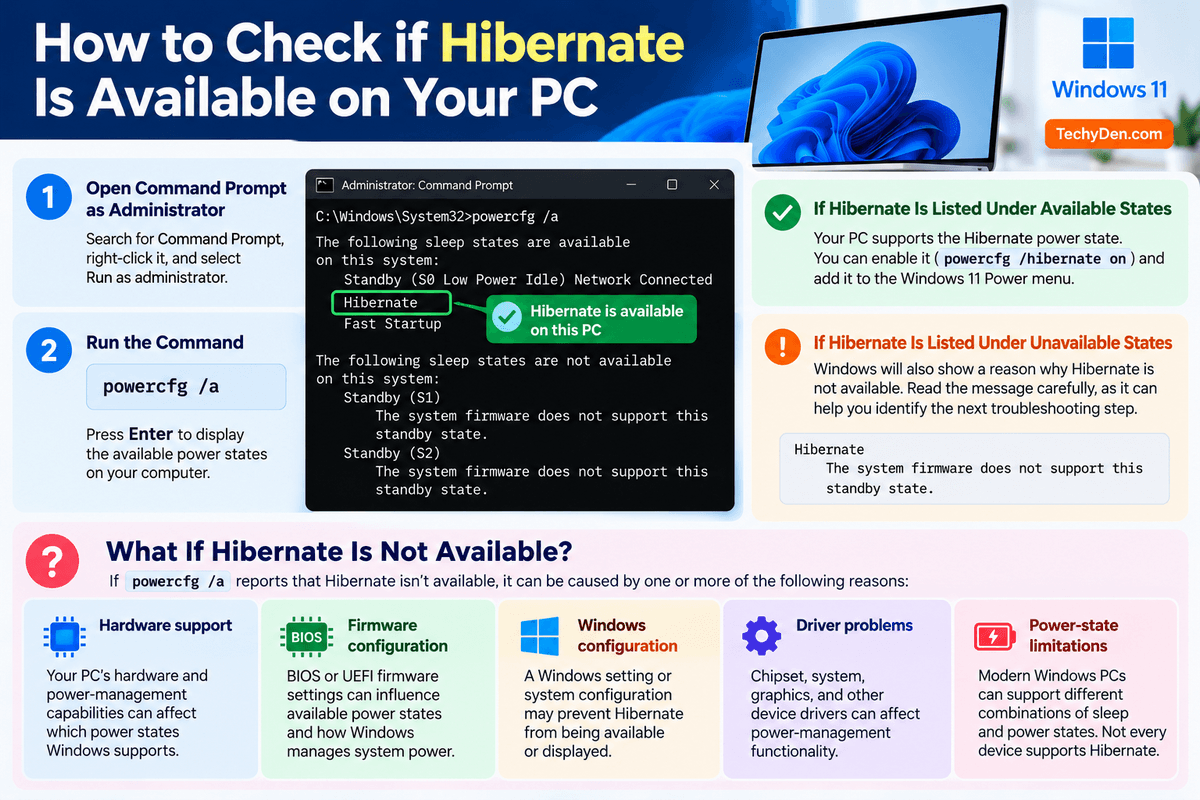
Open Command Prompt as administrator and run:
powercfg /aPress Enter to display the available power states.
Windows will typically divide the results into two categories:
- The following sleep states are available on this system: These are the power states your PC can currently use.
- The following sleep states are not available on this system: These are power states that Windows cannot currently use, along with a reason when Windows can identify one.
Look for Hibernate in the output. If Hibernate appears under the available states, your PC supports the feature and you can enable or add it to the Power menu using the steps described earlier in this guide.
If Hibernate appears under the unavailable states, read the explanation shown next to it. That message can provide an important clue about why Hibernate isn’t currently available.
What If Hibernate Is Not Available?
If powercfg /a reports that Hibernate isn’t available, don’t assume that the Power menu setting alone will fix the problem. Hibernate availability can depend on several parts of your computer’s hardware and software configuration.
Common factors include:
- Hardware support: The computer’s hardware and power-management capabilities can affect which power states Windows supports.
- Firmware configuration: BIOS or UEFI firmware settings can influence available power states and how Windows manages system power.
- Windows configuration: A Windows setting or system configuration may prevent Hibernate from being available or displayed.
- Driver problems: Chipset, system, graphics, and other device drivers can affect power-management functionality.
- Power-state limitations: Modern Windows PCs can support different combinations of sleep and power states. Your system may not expose every state available on other computers.
The most useful information is usually the reason displayed by powercfg /a. Use that message to determine the appropriate troubleshooting step rather than repeatedly enabling the Hibernate checkbox.
Also, keep in mind that not every Windows 11 PC is guaranteed to support Hibernate in every configuration. If the underlying hardware, firmware, or power-state configuration doesn’t support Hibernate, enabling it through a command or Control Panel setting may not be enough.
If Hibernate is supported but simply disabled, however, running powercfg /hibernate on and then enabling the option under Power Options → Shutdown settings should normally make it available.
How to Disable Hibernate in Windows 11
Although Hibernate is useful for preserving your work session while powering down your PC, you may not need the feature. If you never use Hibernate, disabling it can remove the associated hibernation file and free up some storage space on your Windows system drive.
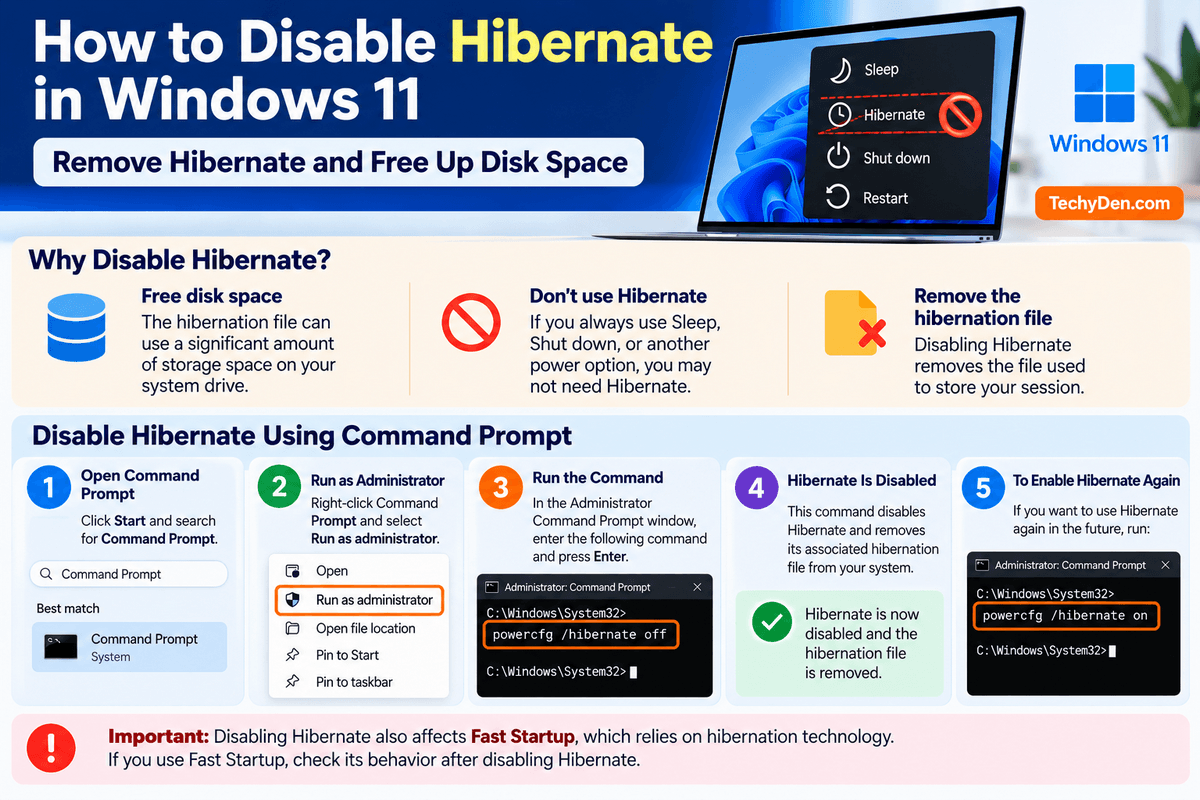
You might want to disable Hibernate if:
- You need to free up disk space: Windows uses a system hibernation file to store the contents of your session. Its size can be significant on some PCs.
- You don’t use Hibernate: If you always use Sleep, Shut down, or another power option, you may not need Hibernate enabled.
- You want to remove the hibernation file: Disabling Hibernate removes the file used for traditional hibernation.
Disable Hibernate Using Command Prompt
The easiest way to disable Hibernate is to use the built-in powercfg command.
- Open Start.
- Search for Command Prompt.
- Right-click Command Prompt.
- Select Run as administrator.
- At the command prompt, enter:
powercfg /hibernate off- Press Enter.
The command disables Hibernate in Windows and removes the hibernation file used by the feature. As a result, the Hibernate option will no longer be available in the Windows 11 Power menu.
If you later decide that you want to use Hibernate again, you can re-enable it by opening an Administrator Command Prompt and running:
powercfg /hibernate onImportant: Disabling Hibernate also affects Fast Startup, which relies on hibernation technology. If you use Fast Startup, check its behavior after disabling Hibernate.
Is Hibernate Better Than Sleep in Windows 11?
Hibernate isn’t necessarily better than Sleep for every situation. Both options preserve your current session, but they work differently and are designed for different circumstances.
The best choice depends mainly on how long you’ll be away from your PC, how quickly you want to resume your work, and how much power you want the computer to use.
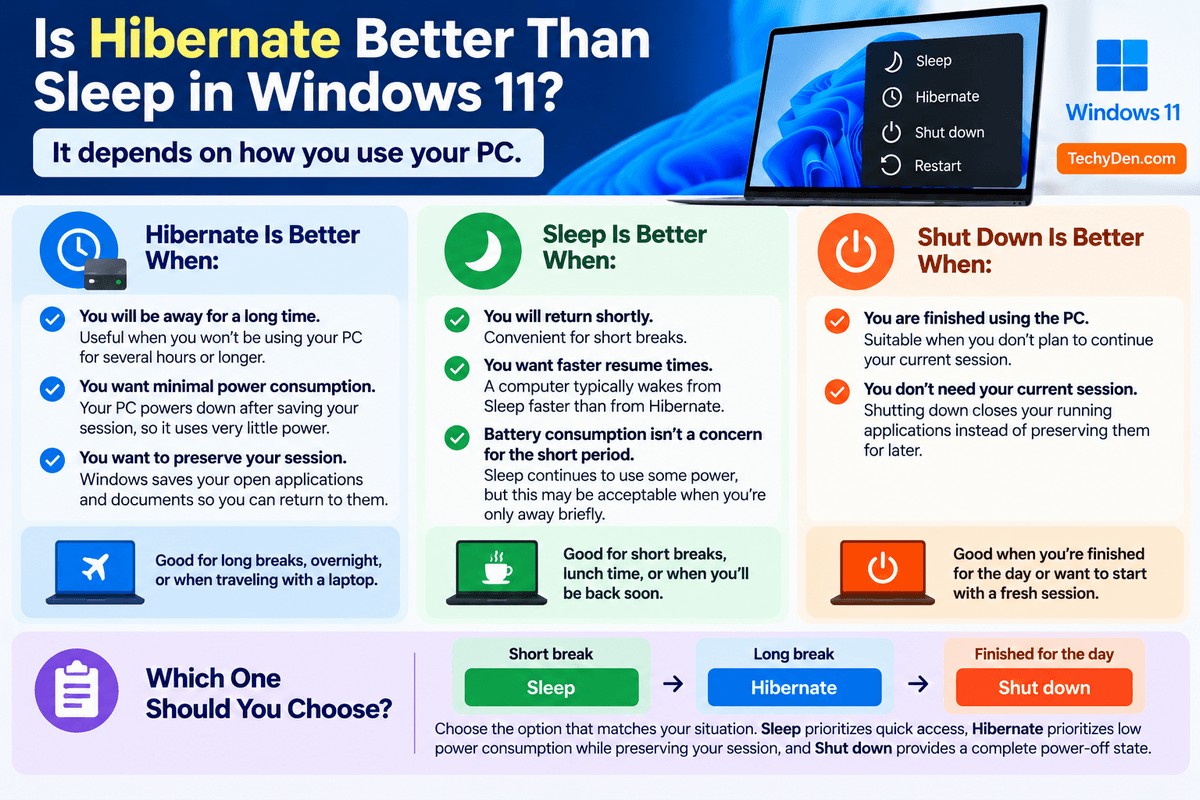
Hibernate Is Better When:
- You will be away for a long time: Hibernate is useful when you won’t be using your PC for several hours or longer.
- You want minimal power consumption: Hibernate powers the computer down after saving your session, so it uses very little power while the PC is hibernating.
- You want to preserve your session: Windows saves the current session so you can return to your open applications and documents when the computer resumes.
For example, Hibernate is a good choice before traveling with a laptop or leaving your computer unused overnight.
Sleep Is Better When:
- You will return shortly: Sleep is convenient for short breaks because the PC remains in a low-power state and can resume quickly.
- You want faster resume times: A computer typically wakes from Sleep faster than it resumes from Hibernate.
- Battery consumption isn’t a concern for the short period: Sleep continues to use some power, but this may be acceptable when you’re only away briefly.
For example, if you’re stepping away for lunch or taking a short break, Sleep is usually more convenient than Hibernate.
Shut Down Is Better When:
- You are finished using the PC: Shut down is appropriate when you don’t plan to continue your current session.
- You don’t need your current session: Shutting down closes your running applications instead of preserving them for later.
A complete shutdown can also be a sensible choice when troubleshooting certain Windows problems or when you simply want to start with a fresh session the next time you use the computer.
Which One Should You Choose?
A simple rule is:
Short break → Sleep | Long break → Hibernate | Finished for the day → Shut down
So, rather than asking whether Hibernate is better than Sleep, choose the option that matches your situation. Sleep prioritizes quick access, Hibernate prioritizes low power consumption while preserving your session, and Shut down provides a complete power-off state.
Does Hibernate Drain Battery on a Windows 11 Laptop?
Hibernate uses substantially less power than Sleep because Windows saves your current session to the system drive and then powers down the computer. In Sleep mode, the computer remains in a low-power state and continues using some battery power to keep the system ready to resume quickly.
This makes Hibernate particularly useful for Windows 11 laptops when you expect to be away from the computer for an extended period. For example, if you’re traveling with your laptop or leaving it unused overnight, Hibernate can help minimize battery drain while preserving your current session.
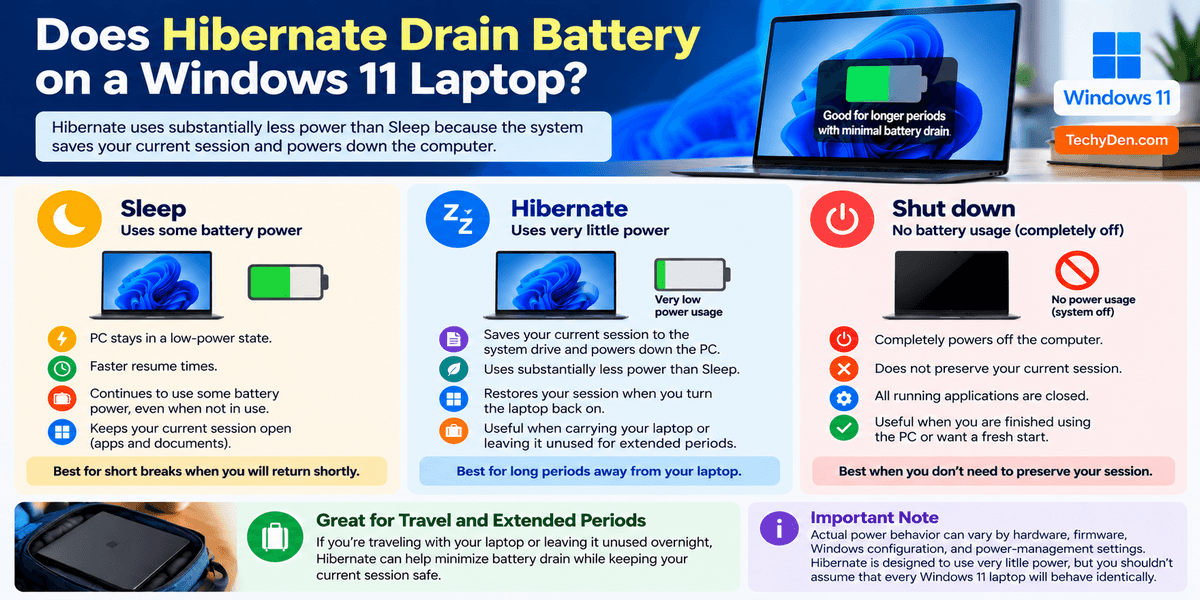
When you turn the laptop back on, Windows can restore the saved session so you can continue working without reopening your applications manually.
However, the exact power behavior can vary depending on your laptop hardware, firmware, Windows configuration, and power-management settings. Hibernate is designed to use very little power, but you shouldn’t assume that every Windows 11 laptop will behave identically.
Hibernate vs Sleep for Battery Life
As a general rule:
- Sleep: Better for short breaks when you want fast resume times, but it continues to consume some battery.
- Hibernate: Better for longer periods away from the laptop because the system powers down after saving your session.
- Shut down: Best when you don’t need to preserve your current session and want the computer completely powered off.
If you’re putting your laptop into a bag or carrying it for several hours, Hibernate can be a better choice than Sleep because it reduces the chance of significant battery drain while the laptop is not being used.
Windows has changed significantly across generations, and features such as power management have evolved along with it. Read our guide to Microsoft Windows Evolution to learn how Windows has developed over the years.
Frequently Asked Questions (FAQs) How to Enable Hibernate on Windows 11
Is Hibernate available in Windows 11?
Yes, Hibernate is available in Windows 11 on supported PCs, but it may not be enabled or displayed by default. If you cannot find Hibernate in the Power menu, you can enable it using the powercfg command and then add it through Windows Power Options.
Why is Hibernate missing from Windows 11?
Hibernate may be missing because it is disabled, hidden from the Power menu, or unavailable because of your system’s hardware, firmware, or power configuration. Start by running powercfg /hibernate on in an elevated Command Prompt. Then check Power Options to see whether Hibernate can be added to the menu.
How do I enable Hibernate in Windows 11?
The quickest way to enable Hibernate is to open Command Prompt as administrator and run: powercfg /hibernate on. Press Enter to enable the feature. To display Hibernate in the Power menu, open Control Panel → Power Options → Choose what the power buttons do, enable Hibernate under Shutdown settings, and save the changes.
How do I add Hibernate to the Power menu?
Open Control Panel → System and Security → Power Options. Select Choose what the power buttons do, then click Change settings that are currently unavailable. Under Shutdown settings, select Hibernate and click Save changes. Windows 11 should then show Hibernate under Start → Power.
Is Hibernate better than Sleep?
Hibernate is better for longer periods away from your PC because it uses much less power while preserving your session. Sleep is better for short breaks because it resumes faster. Use Sleep when you will return soon, Hibernate when you need to save your session for several hours, and Shut down when you are finished.
Does Hibernate close my programs?
No. Hibernate saves your current Windows session to the system drive before powering down. When you turn the computer back on, Windows restores the saved session, including open applications and documents. However, you should always save important work manually before using Hibernate to reduce the risk of losing unsaved changes.
Does Hibernate use battery?
Hibernate uses very little power compared with Sleep because Windows saves the current session and powers down the PC. This makes Hibernate particularly useful for laptops when traveling or leaving the computer unused for several hours. Actual battery usage can vary depending on your laptop’s hardware, firmware, and power-management configuration.
Can I disable Hibernate?
Yes. You can disable Hibernate from an elevated Command Prompt by running: powercfg /hibernate off. Press Enter to apply the change. This disables Hibernate and removes its hibernation file. If you want to enable it again later, run powercfg /hibernate on.
Where is the Hibernate file in Windows 11?
Windows 11 stores Hibernate data in a protected system file named hiberfil.sys, located in the root of the Windows system drive, normally C:\hiberfil.sys. The file is hidden by default because it is a system-managed file. Its size depends on Windows configuration and the type of hibernation file being used.
What does powercfg /a do?
The powercfg /a command shows which sleep and power states are available on your Windows 11 PC. It also identifies states that are unavailable and usually provides a reason. Run it in Command Prompt to check whether Hibernate is supported before troubleshooting a missing Hibernate option.
Final Verdict: Should You Enable Hibernate on Windows 11?
Hibernate is a useful Windows 11 feature when you need to step away from your PC for several hours while keeping your open session. It uses very little power while hibernated and lets you resume where you left off.
The quickest way to enable it is:
powercfg /hibernate onYou can then use Control Panel → Power Options to add Hibernate to the Windows 11 Power menu.
Did you successfully enable Hibernate on your Windows 11 PC? Let us know in the comments if you encountered any problems.