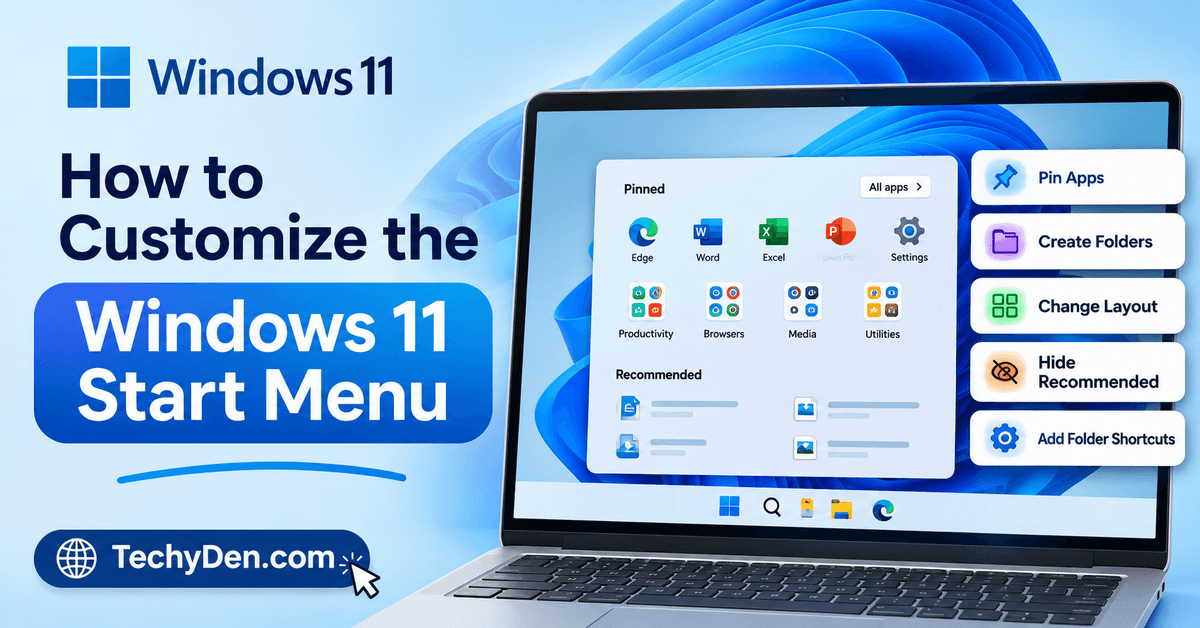
The Windows 11 Start menu gives you quick access to your favorite apps, recently opened files, recommended content, and essential system features. However, its default layout may not suit everyone. Fortunately, you can customize the Windows 11 Start menu to make it cleaner, more organized, and easier to use.
Whether you want to pin your favorite apps, create folders, hide unwanted recommendations, or change the taskbar alignment, Windows 11 offers several built-in personalization options.
In this guide, you will learn how to customize the Windows 11 Start menu step by step, organize applications, adjust available layout settings, and troubleshoot common customization problems without installing additional software.
If you want to explore more personalization options beyond the Start menu, read our Windows 11 Settings Guide for Beginners to learn how to customize your desktop, manage privacy settings, and configure essential Windows features.
How to Open Windows 11 Start Menu Settings
The easiest way to customize the Start menu is through the Windows Settings app. It provides access to the available options for arranging apps, controlling recommendations, and personalizing the Start experience.
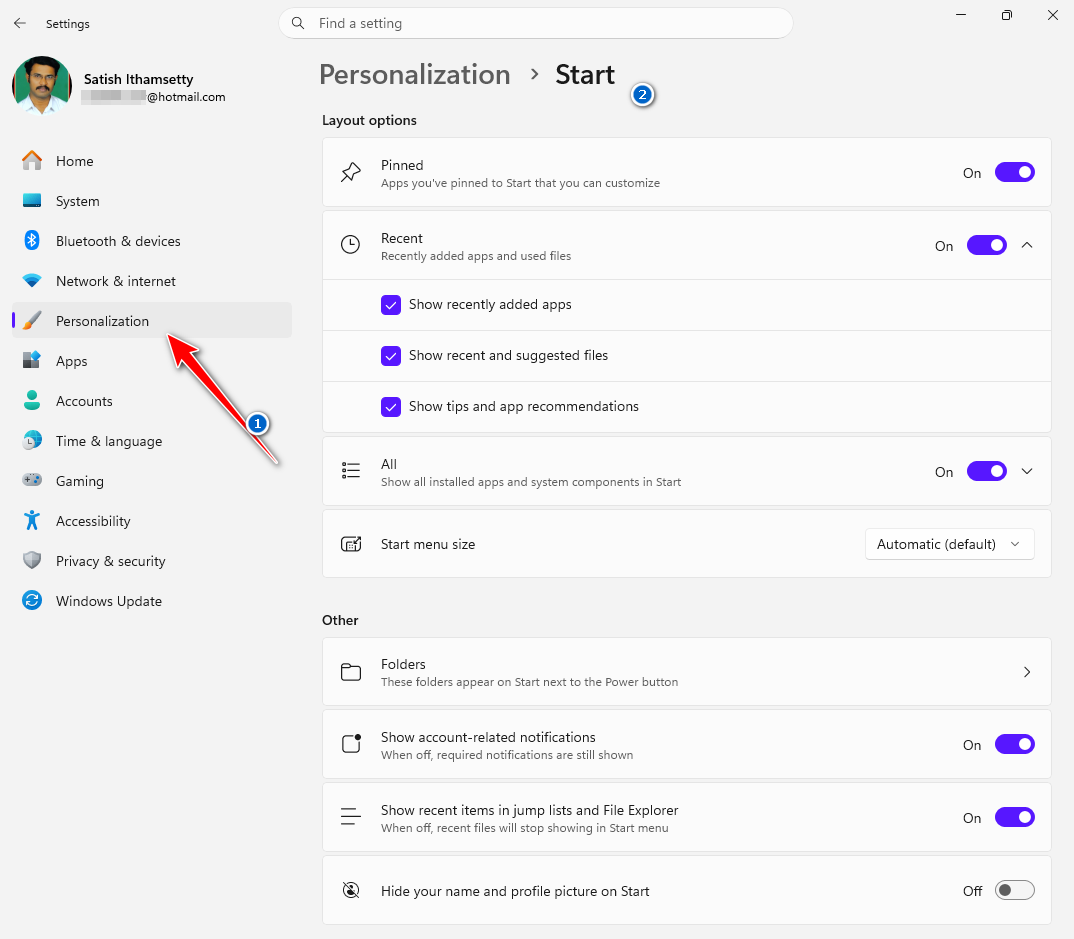
Follow these steps to open the Start menu settings:
- Press Windows + I to open Settings.
- Select Personalization from the left sidebar.
- Click Start.
- Review the available customization options.
- Change the settings according to your preferences.
Depending on your Windows 11 version and installed updates, you may see options for layout preferences, recommendations, recently added apps, frequently used apps, and shortcuts to folders.
You can return to this page whenever you want to change your Start menu configuration.
Tip: If an option mentioned in this guide is missing, check your Windows version and install available updates. Microsoft may introduce or change customization options through feature updates and servicing updates.
How to Pin Apps to the Windows 11 Start Menu
Pinning apps to the Start menu is one of the simplest ways to improve productivity. Instead of searching for frequently used applications every time, you can place them in the Pinned section for quick access.
Steps to pin an app to Start
- Click the Start button on the taskbar.
- Select All apps to view your installed applications.
- Find the application you want to pin.
- Right-click the application.
- Select Pin to Start, if available.
Windows will add the application to the Pinned section of the Start menu.
You can also search for an application using the Start menu search box. Right-click the search result and select Pin to Start if the option is available.
Which apps should you pin?
Consider pinning applications you use regularly, such as:
- Your preferred web browser
- File Explorer
- Microsoft Word or other office applications
- Calculator and Notepad
- Email and communication apps
- Frequently used work or educational tools
Avoid pinning every installed application. Keeping only your essential shortcuts makes the Start menu easier to navigate.
How to Remove Unwanted Apps from the Start Menu
If your Start menu contains applications you rarely use, you can remove their shortcuts from the Pinned section without uninstalling them.
Follow these steps:
- Open the Start menu.
- Locate the application under Pinned.
- Right-click its icon.
- Select Unpin from Start.
Windows will remove the shortcut from the Pinned section.
Important: Unpinning an application does not uninstall it from your computer. The application remains installed and can usually be opened through All apps or Windows Search.
If you want to remove an application completely, you must uninstall it separately through Settings or another supported uninstall method.
Regularly reviewing your pinned apps is an easy way to keep your Windows 11 Start menu organized.
How to Organize Start Menu Apps into Folders
Windows 11 allows you to group pinned applications into folders on supported versions. This feature is useful when you have several apps related to work, education, entertainment, or everyday tasks.
Steps to create an app folder
- Open the Start menu.
- Locate two applications in the Pinned section.
- Drag one application onto another.
- Release the application when Windows indicates that a folder will be created.
- Open the folder to view the grouped applications.
- Rename the folder if your Windows version provides the option.
You can then drag additional applications into the folder.
Examples of useful Start menu folders
| Folder name | Applications to include |
|---|---|
| Productivity | Word, Excel, PowerPoint |
| Browsers | Chrome, Edge, Firefox |
| Communication | Teams, Zoom, messaging apps |
| Media | Music players, photo editors, video players |
| Utilities | Calculator, Notepad, other system tools |
Choose folder names that help you identify their contents quickly.
For example, keeping your office applications together makes it easier to access documents and spreadsheets without searching through a long list of pinned apps.
If folder creation is unavailable, check whether your Windows 11 installation supports this feature and whether the apps are located in the Pinned section.
Organizing your frequently used applications is one way to work more efficiently. For additional ideas, explore our guide to improving productivity with Windows 11, which covers practical features and shortcuts that can help you work smarter.
How to Change the Windows 11 Start Menu Layout
Windows 11 provides several ways to adjust how pinned applications and other content appear in the Start menu. The exact options depend on your installed Windows build.
1. Arrange pinned applications
You can change the order of pinned apps to place your most important applications where they are easiest to find.
- Open Start.
- Find the application you want to move.
- Drag it to your preferred position within the Pinned section.
- Repeat for other applications.
Place your most frequently used apps near the beginning of the section for convenient access.
2. Expand the Pinned section
Some Windows 11 versions offer a Show all option that expands the Pinned section so you can see more application shortcuts.
Open Start and look for Show all near the Pinned heading. Select it if available.
This is particularly useful when you have several pinned applications and want to access them without scrolling through other content.
3. Adjust the Start menu layout
Open Settings → Personalization → Start and review the available layout controls.
Depending on your Windows version, you may find options for changing the balance between pinned applications and recommendations or adjusting how apps are displayed.
Some newer versions also offer additional ways to change the Start menu’s size or presentation.
Do not assume that every layout option is available on every Windows 11 PC. Check the settings on your device before following instructions intended for a different build.
For more ways to personalize your computer, explore our Windows 11 guide, which covers additional features and practical tips.
The Start menu is just one of the useful features available in Windows 11. Check out our Windows 11 Features Guide to discover more built-in tools and capabilities that can improve your everyday computing experience.
How to Customize or Hide Recommended Items in Windows 11
The Recommended section can display recently added apps, recently opened files, and other suggested content. While these recommendations can be useful, some users prefer a cleaner Start menu with fewer suggestions.
Windows 11 provides controls for managing some recommendation sources, although the available settings vary by version.
Steps to adjust Start menu recommendations
- Press Windows + I to open Settings.
- Select Personalization → Start.
- Review the recommendation-related options.
- Turn off the options you do not want, where available.
- Open Start again to check the changes.
Depending on your Windows build, you may find controls related to recently added apps, frequently used apps, recently opened items, or other recommendations.
Can you completely remove the Recommended section?
This depends on your Windows 11 version.
Some newer builds provide more direct controls for showing or hiding Start menu sections. Other versions allow you to disable individual recommendation sources but may continue displaying the Recommended heading or section.
If your PC does not have a dedicated control to hide the entire section, do not assume that disabling every recommendation setting will remove it completely.
Microsoft documents the available Start menu options in its Windows Start menu customization guide.
Privacy tip: If you share your computer with other people, review the recent-item settings and consider whether displaying recently opened files on Start is appropriate for your needs.
How to Add Folders to the Windows 11 Start Menu
Windows 11 can display shortcuts to selected folders near the power button at the bottom of the Start menu. These shortcuts provide convenient access to commonly used locations.
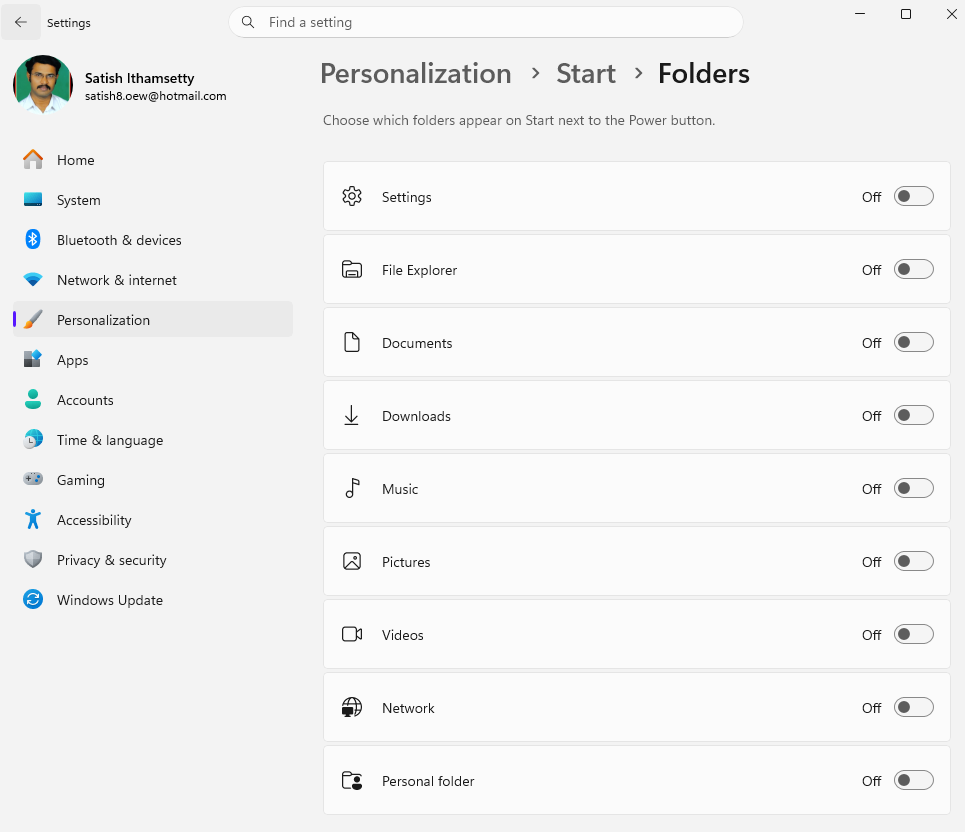
Steps to add folder shortcuts
- Open Settings using Windows + I.
- Select Personalization → Start.
- Look for the Folders option, if available.
- Open it to view the available folder shortcuts.
- Enable the folders you want to display.
- Open Start and check the shortcuts near the power button.
Depending on your Windows version, the available options may include Documents, Downloads, Music, Pictures, Videos, your personal folder, or other system locations.
Choose only the shortcuts you use regularly. Adding too many unnecessary shortcuts may make the Start menu less convenient.
Note: Folder shortcuts in the Start menu are different from pinned applications and folders in File Explorer. If you cannot find the Folders option, verify your Windows build and the settings available on your device.
How to Pin Websites to the Windows 11 Start Menu
If you regularly visit a particular website, you may be able to create a shortcut for quicker access from Windows.
For example, you could create a shortcut for an educational website, work dashboard, online document service, or frequently visited web application.
Steps using Microsoft Edge
- Open Microsoft Edge.
- Visit the website you want to access quickly.
- Open the browser menu using the three-dot button.
- Look for the available website-pinning or shortcut-creation option.
- Select the option that allows you to pin the website to Start, if available.
- Follow the prompts to finish creating the shortcut.
The precise menu names and available options can vary between Edge versions and Windows configurations.
If your browser does not provide a direct pinning option, check whether it supports creating a website shortcut or installing the site as an app. You can then check whether Windows allows the resulting shortcut to be pinned to Start.
After creating the shortcut, open Start and confirm that it appears as expected.
How to Change the Position of the Start Button
By default, Windows 11 places the taskbar icons, including the Start button, near the center of the taskbar. If you prefer the traditional Windows layout, you can move them to the left.
This changes the position of the Start button on the taskbar rather than changing the internal layout of the Start menu.
Steps to move the Start button to the left
- Open Settings.
- Select Personalization → Taskbar.
- Expand Taskbar behaviors.
- Find Taskbar alignment.
- Select Left instead of Center.
Your taskbar icons should now align to the left.
If you prefer the default Windows 11 appearance, you can return to the same setting and select Center.
For more information about taskbar personalization, see Microsoft’s Windows taskbar customization guide.
How to Personalize the Start Menu for Privacy
Your Start menu may display recently opened files, frequently used applications, and other recommendations. These features can be helpful, but you may prefer not to show certain information on a shared computer.
Here are a few ways to improve privacy:
- Review recent-item recommendations: Open Settings → Personalization → Start and review the options related to recently opened items. Disable the available controls that you do not want.
- Review app-launch tracking: Windows includes privacy controls related to app-launch tracking and personalized experiences. Review the relevant settings in Settings → Privacy & security. The precise setting names and locations may vary by Windows version.
- Check where recent files appear: Recent files may appear in multiple Windows interfaces, including Start, File Explorer, and application-specific lists. Changing one Start menu setting does not necessarily remove recent activity from all these locations.
- Review your account information: If you share your computer, check the information and shortcuts displayed around the Start menu and user profile. Use the available settings to reduce unwanted visibility where supported.
For more information about Windows features and privacy-related controls, see our Windows 11 features guide.
How to Fix Windows 11 Start Menu Customization Problems
Sometimes, Start menu customization options may be missing, changes may not appear, or certain actions may not work as expected.
Try the following troubleshooting steps before considering more advanced fixes.
| Problem | What to try |
|---|---|
| Start menu settings are missing | Check your Windows version and install available updates. |
| Cannot pin an app | Find the application through Start or Windows Search and check whether Pin to Start is available. |
| Cannot create an app folder | Try dragging one pinned app directly onto another, provided your version supports folders. |
| Recommended items still appear | Review the available recommendation settings and check whether your version supports hiding the entire section. |
| Start menu changes do not appear | Restart Windows Explorer or restart your PC. |
| Some customization options are disabled | Check whether administrator policies or organizational settings restrict changes. |
| Start menu freezes or becomes unresponsive | Restart Windows and install available updates. Investigate further if the problem persists. |
Restart Windows Explorer
If the Start menu or taskbar does not respond correctly, restarting Windows Explorer may help.
- Press Ctrl + Shift + Esc to open Task Manager.
- Find Windows Explorer in the processes list.
- Right-click it.
- Select Restart, if available.
Your taskbar and desktop may disappear briefly before returning.
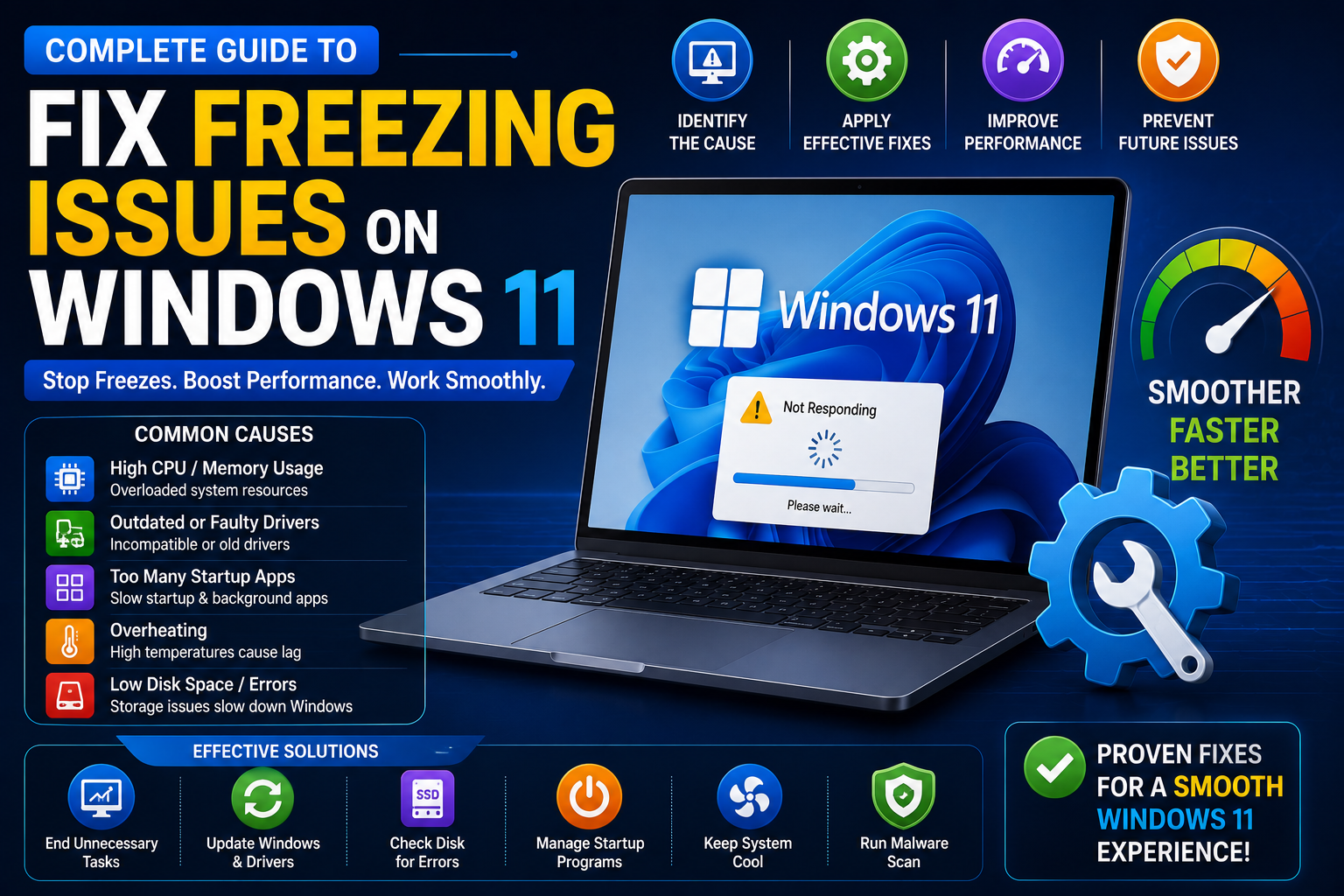
If the problem continues, see our guide on fixing Windows 11 freezing issues.
For persistent performance problems, you can also read our tutorial on how to speed up Windows 11.
Avoid editing the Windows Registry simply to change a Start menu setting. Use the built-in controls first, and investigate advanced fixes only when there is a clear reason to do so.
Frequently Asked Questions About Windows 11 Start Menu Customization
How do I customize the Start menu in Windows 11?
To customize the Windows 11 Start menu, open Settings by pressing Windows + I, then select Personalization and Start. From there, review the available layout and recommendation settings. You can also pin frequently used applications, remove unwanted shortcuts, organize apps into folders, and add supported folder shortcuts.
Can I change the Windows 11 Start menu layout?
Yes, Windows 11 offers several ways to adjust the Start menu. You can rearrange pinned applications and use available layout controls under Settings → Personalization → Start. Some Windows versions also offer additional controls for displaying apps or changing the menu’s presentation. The exact options depend on your installed Windows build.
How do I remove recommended items from the Windows 11 Start menu?
Open Settings, select Personalization, and click Start. Disable the available options related to recently added apps, frequently used apps, or recently opened items. Some Windows 11 versions offer a dedicated control for hiding the Recommended section, while others allow you to manage individual recommendation sources without removing the entire section.
Can I group apps into folders in Windows 11?
Yes, supported Windows 11 versions let you organize pinned applications into folders. Open Start and drag one pinned app onto another to create a folder. You can then add related applications and rename the folder if that option is available. This makes frequently used apps easier to find and keeps the Start menu organized.
How do I add folders to the Windows 11 Start menu?
Open Settings and navigate to Personalization → Start. Select Folders if the option is available, then enable the shortcuts you want to display. Depending on your Windows version, you may be able to add shortcuts to Documents, Downloads, Pictures, Music, Videos, and other locations near the power button.
Can I move the Start button to the left in Windows 11?
Yes, you can move the Start button to the left side of the taskbar. Open Settings → Personalization → Taskbar, expand Taskbar behaviors, and change Taskbar alignment from Center to Left. This changes the position of the taskbar icons, not the internal arrangement of pinned applications or other Start menu sections.
Can I pin a website to the Windows 11 Start menu?
Yes, you may be able to pin a website to Start using your browser’s available shortcut or pinning options. In Microsoft Edge, open the website and check the browser menu for a relevant option. If direct pinning is unavailable, check whether your browser supports creating a website shortcut or installing the website as an app.
Why can’t I customize my Windows 11 Start menu?
You may be unable to customize the Start menu because your Windows version does not support a particular option, an update has not been installed, or administrator policies restrict changes. Check Settings → Personalization → Start, install available Windows updates, and restart your PC. If only certain options are missing, your build may simply offer different controls.
Final Thoughts
Customizing the Windows 11 Start menu is a simple way to make your computer more organized and convenient. Start by pinning your essential applications, arranging them in a useful order, and creating folders for related apps. You can also adjust recommendations, add supported folder shortcuts, and move the Start button to the left.
Remember that some customization options vary by Windows version. If a setting is missing, check your installed updates and Microsoft’s documentation before attempting advanced changes.
With a few adjustments, you can create a Start menu that better suits your everyday workflow.