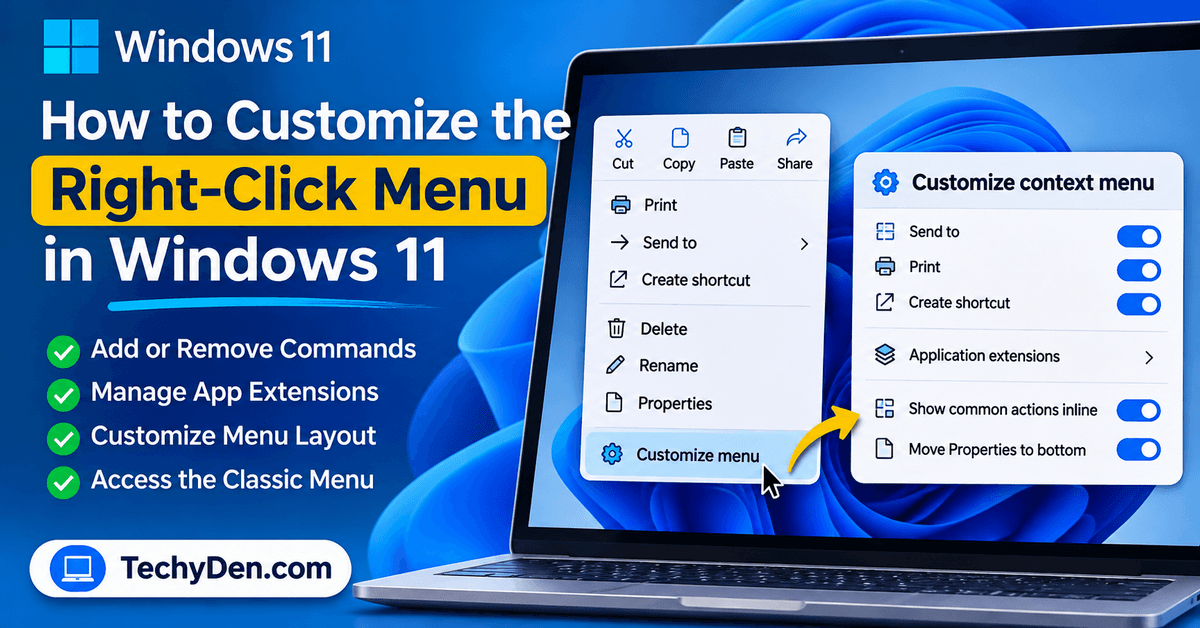
The right-click menu in Windows 11 gives you quick access to essential commands such as Copy, Paste, Rename, Delete, and Properties. However, the default menu may not include all the options you need, and shortcuts added by installed applications can make it feel cluttered.
Microsoft is addressing this problem with a redesigned File Explorer context menu that offers more control over built-in commands, application extensions, and menu layout.
If you’re exploring other Windows features, our complete Windows 11 guide covers essential settings, useful features, and troubleshooting tips to help you get more from your PC.
The October 28, 2026, preview update, KB5127936, introduces these improvements for Windows 11 versions 25H2 and 26H2 through a gradual rollout.
In this guide, you’ll learn how to customize the right-click menu in Windows 11, add or remove commands, manage application shortcuts, display common actions as text, and access the classic context menu.
For more tutorials, troubleshooting advice, and practical tips, explore our Windows 11 guides and tutorials.
You’ll also find solutions for situations where the new customization settings aren’t available on your PC.
What’s New in the Windows 11 Right-Click Menu?
Microsoft has redesigned the Windows 11 context menu to make it faster, simpler, and easier to personalize. The updated interface reduces unnecessary clutter while giving users more control over the commands and application extensions that appear when they right-click a file or folder.
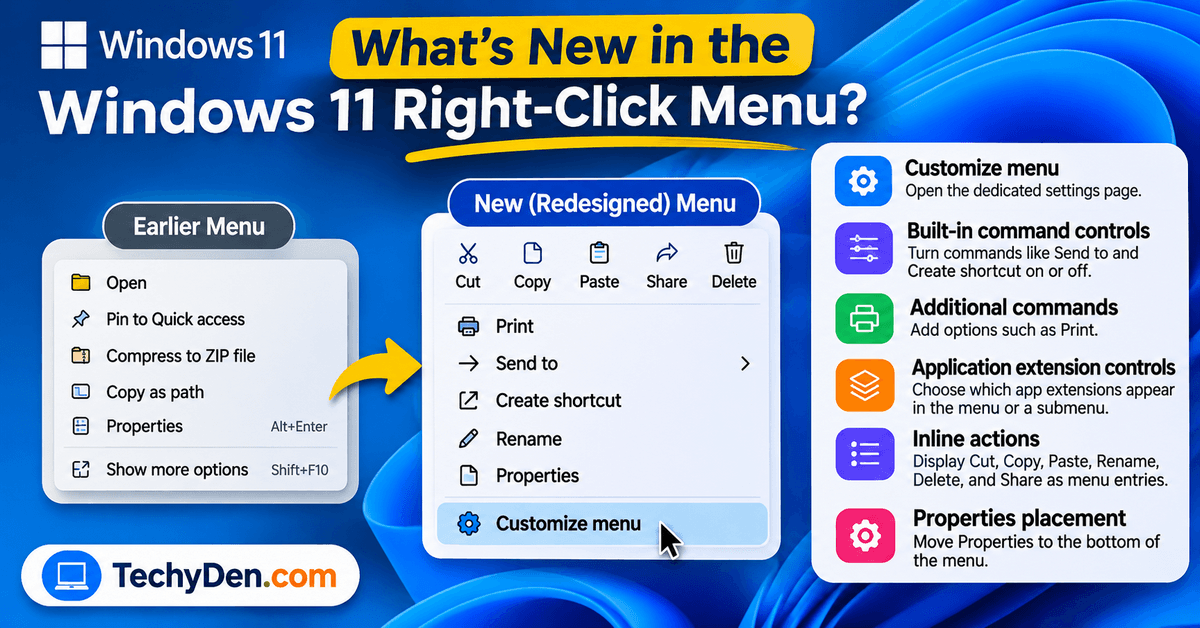
The new customization experience includes several useful improvements:
- Customize menu: Opens the dedicated context menu settings page.
- Built-in command controls: Turn supported commands, such as Send to and Create shortcut, on or off.
- Additional commands: Add options such as Print where supported.
- Application extension controls: Choose which app extensions appear in the main menu or a submenu.
- Inline actions: Display Cut, Copy, Paste, Rename, Delete, and Share as individual menu entries instead of a row of icons.
- Properties placement: Move Properties to the bottom of the context menu.
These changes are part of Microsoft’s broader effort to improve File Explorer performance and usability.
Microsoft continues to improve the operating system through regular updates. Read our guide to the Windows 11 October 2026 update to learn about other changes, fixes, and features introduced during the same update cycle.
The updated interface is being rolled out gradually through Windows updates. Therefore, you might not see all these options even if your PC has a compatible Windows 11 version.
Microsoft introduced the redesigned context menu experience to make File Explorer faster, simpler, and easier to personalize. You can read the official Windows Insider Blog announcement about the redesigned context menu for additional background on the changes.
How to Customize the Right-Click Menu in Windows 11
The easiest way to personalize the context menu is to use Microsoft’s new built-in customization settings, if they’re available on your computer.
Follow these steps.
- Press Windows + E to open File Explorer.
- Navigate to a file or folder.
- Right-click the item to open its context menu.
- Look for Customize menu at the bottom of the menu.
- Select Customize menu to open the context menu settings page.
- Review the available commands, application extensions, and layout options.
- Enable or disable the settings you want to change.
- Close Settings and right-click a file again to check the updated menu.
You can use these settings to remove unnecessary commands, make frequently used actions easier to access, and organize application shortcuts.
You can also personalize other parts of your computer through Windows Settings. See our Windows 11 settings guide for beginners for instructions on adjusting personalization, display, privacy, power, and other settings.
What if you don’t see Customize menu?
The new interface is being distributed through a gradual rollout. Check your Windows version and available updates before assuming that something is wrong with your installation.
The customization page might not be available on every device yet.
How to Add or Remove Options From the Windows 11 Context Menu
The redesigned context menu allows you to control supported built-in Windows commands. This is particularly useful if you frequently work with documents, images, folders, or other files.
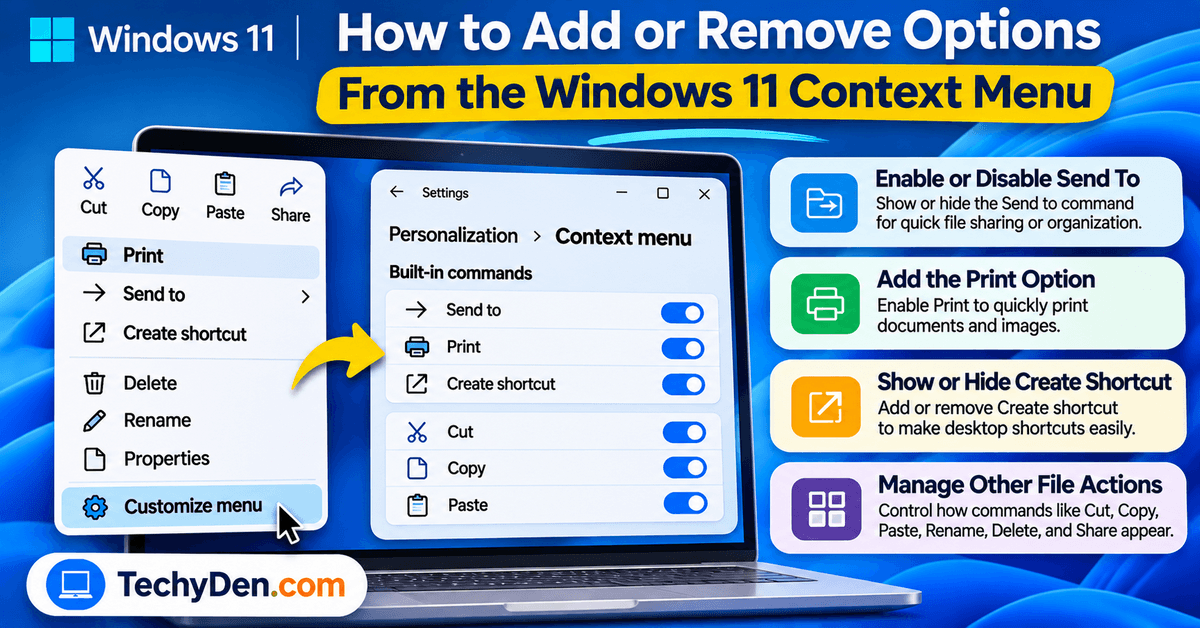
1. Enable or Disable Send To
The Send to command provides shortcuts for sending files to supported destinations, such as a compressed folder or another location.
To change its visibility:
- Open the context menu settings using Customize menu.
- Find the built-in Windows commands section.
- Locate Send to.
- Turn the command on or off, if the option is available.
Keep this command enabled if you regularly use it to organize or share files.
2. Add the Print Option
The Print command is useful when you frequently print documents and supported image files.
On a PC with the new customization settings:
- Open File Explorer.
- Right-click a supported file.
- Select Customize menu.
- Locate the Print command in the available settings.
- Enable it if you want the command to appear.
The availability and behavior of Print depend on the file type and the applications installed on your computer. Enabling the command does not guarantee that every file can be printed.
3. Show or Hide Create Shortcut
Create shortcut lets you create a shortcut to a file or folder without moving the original item.
To control this option, open the context menu settings and locate Create shortcut under the built-in commands section. Turn it on or off according to your preferences.
If you frequently create desktop shortcuts, keeping this command enabled can save time.
4. Manage Other File Actions
The new interface also gives you greater control over how frequently used actions are presented.
Depending on the available settings and the selected file, you can customize the presentation of commands such as Cut, Copy, Paste, Rename, Delete, and Share.
Some commands only appear for particular file types. For example, image-related actions might be available when you right-click a photograph but not when you select a text document.
How to Remove Unwanted Apps From the Windows 11 Right-Click Menu
Some applications add their own commands to the Windows 11 context menu during installation. These integrations can be useful, but too many of them can make the menu difficult to navigate.
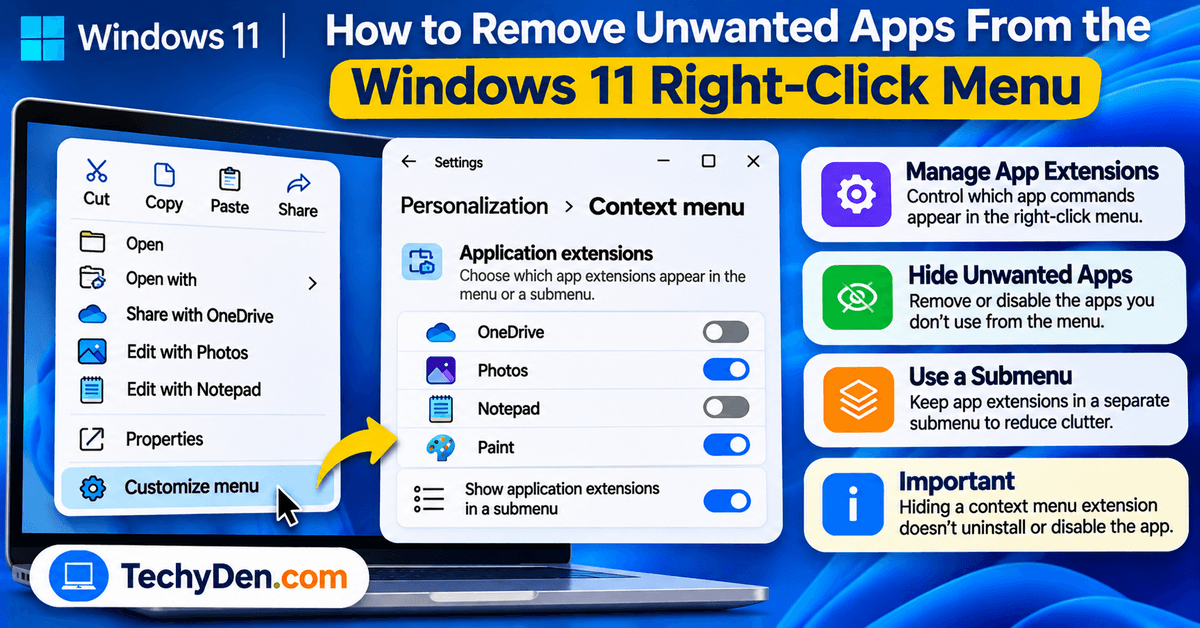
The new customization settings allow you to manage supported application extensions without necessarily uninstalling the applications themselves.
Here’s how to do it:
- Open File Explorer.
- Right-click a file or folder.
- Select Customize menu, if available.
- Find the application extensions section.
- Review the extensions listed in the settings.
- Choose which supported extensions should appear in the main menu or a submenu.
- Hide the application extensions submenu if you don’t want it displayed.
- Test the changes by opening the context menu again.
The available extensions depend on the software installed on your computer.
For example, a cloud storage application might add options for sharing or synchronizing files. An image editor might provide a shortcut for opening an image directly in the application.
Important: Hiding a context menu extension doesn’t necessarily uninstall, disable, or remove the associated application. It only changes how supported extensions are displayed in the context menu.
If an application doesn’t appear in the customization settings, check whether it provides its own context menu preferences.
How to Restore the Windows 10-Style Right-Click Menu in Windows 11
Many users prefer the traditional Windows context menu because it displays commands as a vertical list rather than grouping some actions into an icon row.
Windows 11 provides ways to access a more familiar menu layout, although the new interface doesn’t reproduce every detail of Windows 10.
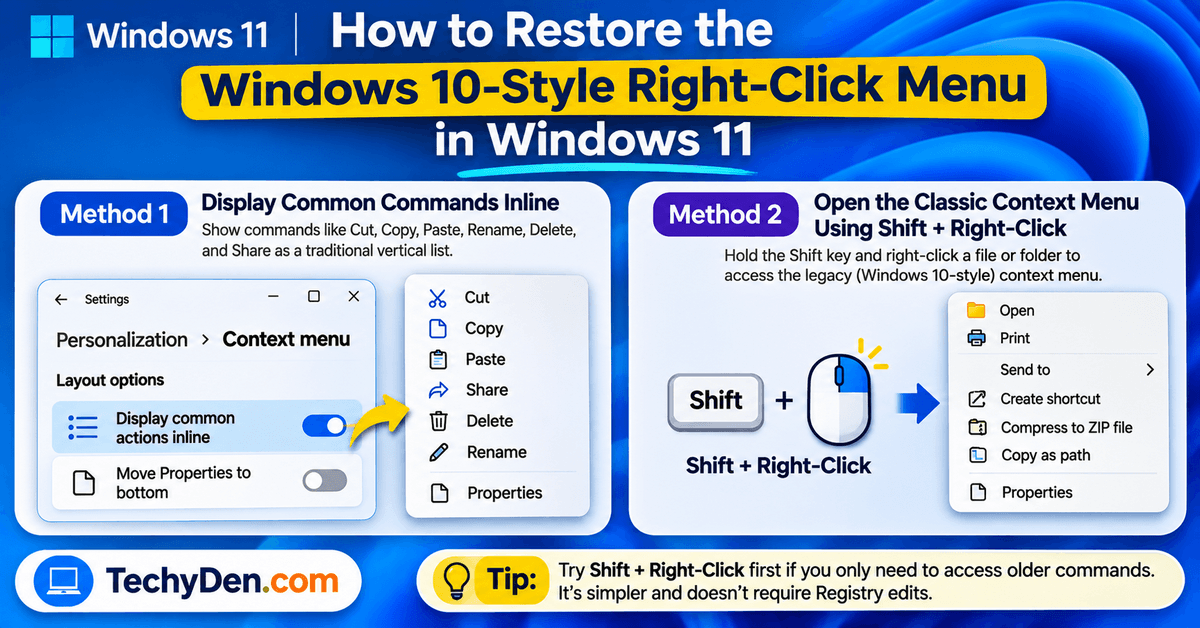
Method 1: Display Common Commands Inline
If the new customization settings are available, you can change how frequently used actions appear.
Follow these steps:
- Open File Explorer.
- Right-click a file or folder.
- Select Customize menu.
- Find the layout settings.
- Enable the option to display common actions inline.
- Close Settings and test the context menu.
This setting can display Cut, Copy, Paste, Rename, Delete, and Share as individual text entries instead of a horizontal row of icons.
It can make the menu feel more familiar, particularly if you prefer seeing the full command names.
Keeping frequently used commands easy to access can simplify everyday file management. For more practical advice, read our guide on how to improve productivity with Windows 11.
The exact appearance depends on the Windows build and available settings.
Method 2: Open the Classic Context Menu Using Shift + Right-Click
You can access the legacy context menu without editing the Windows Registry.
Follow these steps:
- Open File Explorer.
- Navigate to the file or folder you want to manage.
- Hold down the Shift key.
- While holding Shift, right-click the item.
- Review the available legacy commands.
This shortcut is useful when an older application adds a command that isn’t immediately visible in the modern context menu.
You can also use the Show more options entry where it is available.
Tip: Try Shift + right-click first if you only need to access an older command occasionally. It is simpler than changing system settings or installing a third-party customization tool.
How to Customize the Context Menu Layout
Beyond adding or removing commands, the redesigned Windows 11 context menu provides options for organizing the menu around your workflow.
Here are some settings worth considering.
| Setting | Recommended use | Benefit |
|---|---|---|
| Common actions inline | Enable if you prefer text labels | Makes familiar commands easier to identify |
| Built-in Windows commands | Enable only the commands you use | Reduces unnecessary menu entries |
| Application extensions | Keep useful extensions in the main menu | Makes frequently used app actions easier to access |
| Application extensions submenu | Use it when you have several extensions | Keeps secondary commands organized |
| Cloud storage actions | Separate them if you frequently use cloud storage | Helps reduce clutter |
| Show more options | Keep it available if you rely on legacy commands | Provides access to older context menu entries |
| Properties at the bottom | Enable if you prefer this arrangement | Makes the menu layout more familiar |
These are suggested configurations rather than mandatory settings. Your ideal layout depends on how you use Windows.
For example, someone who regularly manages documents might prioritize Print, Rename, Copy, and Paste. A user who frequently works with images might prefer easy access to image-related commands.
If you rarely use third-party context menu extensions, keeping the main menu simple can make everyday file management easier.
What to Do If Customize Menu Is Missing in Windows 11
If you cannot find Customize menu, the problem might be related to update availability or the gradual rollout rather than an issue with your computer.
Try the following troubleshooting steps.
1. Check Your Windows 11 Version
First, check which version of Windows 11 you are running.
- Press Windows + R.
- Type
winver. - Press Enter.
- Review the Windows version information.
The October 2026 preview update introduces the redesigned context menu for Windows 11 versions 25H2 and 26H2.
If you’re using another version, the new customization interface might not be available to you through this update.
If File Explorer or your computer feels slow, the issue may extend beyond the context menu. Follow our guide on how to speed up Windows 11 for additional performance troubleshooting steps.
2. Check for Windows Updates
You can check for available updates through Windows Settings.
- Open Start.
- Select Settings.
- Open Windows Update.
- Select Check for updates.
- Review the available updates and follow the instructions.
The October 28, 2026, optional preview update is KB5127936.
For eligible Windows 11 25H2 and 26H2 devices, this update introduces the redesigned context menu. However, Microsoft is using a gradual rollout, so installing the update does not guarantee that every new feature will immediately appear.
You can also review Microsoft’s official KB5127936 release notes for compatibility details and the latest availability information.
3. Use Shift + Right-Click
If you need access to legacy commands immediately, try holding Shift while right-clicking a file or folder.
This provides an alternative to waiting for the new customization settings to become available.
4. Check Application-Specific Settings
If a particular application’s command is missing, open the application’s settings and look for options related to file associations or context menu integration.
Some applications manage their own menu entries independently of Windows’ built-in settings.
5. Avoid Unnecessary Registry Changes
You might find online instructions that recommend editing the Registry to change the Windows 11 context menu.
However, Registry modifications can change system behavior and may cause unexpected problems if applied incorrectly.
Use the built-in settings and supported keyboard shortcuts first. Consider advanced modifications only when necessary, and back up the relevant Registry keys before making changes.
According to Microsoft’s KB5127936 update notes, the redesigned context menu introduces additional customization options, including the ability to enable Print, manage application extensions, and change how common commands appear. Microsoft notes that the feature is being rolled out gradually, so availability may vary by device.
Can You Customize the Windows 11 Context Menu Without Registry Edits?
Yes. Microsoft’s redesigned context menu settings allow you to personalize many common commands and application extensions without editing the Windows Registry.
You can use the built-in settings, where available, to:
- Enable or disable supported Windows commands.
- Add commands such as Print.
- Manage supported application extensions.
- Change the presentation of common actions.
- Adjust certain context menu layout options.
However, the built-in settings might not cover every customization you want.
For example, adding an entirely new custom command or changing an older application’s context menu integration may require application-specific settings or a compatible third-party utility.
For most everyday users, the native customization options should be the first choice because they avoid unnecessary system modifications.
If you’re also configuring your PC’s power options, see our tutorial on how to enable Hibernate on Windows 11 for step-by-step instructions.
Best Practices for a Cleaner Windows 11 Right-Click Menu
A well-organized context menu can make everyday tasks easier by reducing the time spent searching for commands.
Follow these recommendations to create a more practical layout:
- Keep frequently used commands accessible: Make sure essential actions such as Copy, Paste, Rename, and Delete are easy to find.
- Remove unnecessary extensions: Hide supported application shortcuts you rarely use.
- Use submenus for secondary actions: If you have several application integrations, keeping less important ones in a submenu can reduce clutter.
- Retain useful legacy commands: Keep access to older commands if you rely on applications that use them.
- Avoid unnecessary utilities: Don’t install unknown software just to change a few context menu entries.
- Review new application integrations: Check your menu after installing software that adds file management or cloud storage features.
Remember that the best context menu is the one that fits your workflow. You don’t need to disable every optional command to make the menu more useful.
Frequently Asked Questions on Customize Windows 11 context menu
How do I customize the right-click menu in Windows 11?
Right-click a file or folder in File Explorer and select Customize menu if the option is available. This opens the new context menu settings page, where you can manage supported Windows commands, application extensions, and layout preferences. If the option is missing, check your Windows version and available updates.
Can I remove unwanted options from the Windows 11 context menu?
Yes, the new customization settings let you disable supported built-in commands and control which application extensions appear in the main menu or a submenu. The available options depend on your Windows version and installed applications. Hiding an extension does not necessarily uninstall or disable the associated application.
How do I restore the classic right-click menu in Windows 11?
To access the legacy context menu, open File Explorer, hold down Shift, and right-click a file or folder. You can also use Show more options where available. The new layout settings can make common commands appear as individual text entries, although this does not completely recreate the Windows 10 interface.
How do I add Print to the Windows 11 right-click menu?
If your PC has the new customization interface, right-click a supported file, select Customize menu, and enable Print in the available built-in command settings. The command’s availability and behavior depend on the file type and installed applications. If Print is missing, check the relevant application’s printing options.
Why is Customize menu missing in Windows 11?
The new context menu is being rolled out gradually, so it might not be available on every PC. Check your Windows version by running winver, then review available updates in Settings → Windows Update. Even after installing the relevant update, the feature might take additional time to reach your device.
Can I remove Copilot from the Windows 11 right-click menu?
Whether you can remove a Copilot-related entry depends on how it is integrated into Windows or the associated application. If it appears as a supported application extension, check the new context menu settings. There is no guarantee that every Copilot-related command can be removed through one universal toggle.
Do I need a third-party application to customize the Windows 11 context menu?
No, not for many common changes. The built-in customization settings can manage supported commands, application extensions, and layout options. However, advanced custom commands or older application integrations may require other methods. Start with native Windows settings before considering third-party utilities or Registry modifications.
Does customizing the context menu improve Windows 11 performance?
Removing unnecessary extensions can make the context menu less cluttered and may improve responsiveness in some situations. However, hiding a few commands does not guarantee a measurable performance improvement. Microsoft’s redesigned context menu also includes underlying performance improvements that go beyond simply changing which options appear.
How to Add Print to the Windows 11 Right-Click Menu?
To add Print to the Windows 11 right-click menu, right-click a supported file and select Customize menu, if available. Find the Print option in the context menu settings and enable it. The availability of this option depends on your Windows version, file type, and installed applications. If Print is missing, check the application’s own settings.
How to Show Cut, Copy, and Paste as Menu Items in Windows 11?
To show Cut, Copy, and Paste as text commands in Windows 11, open the context menu settings by selecting Customize menu, if available. Look for the layout option that displays common actions inline and enable it. This changes how supported commands appear instead of grouping them into an icon row. The setting may not be available on every PC.
How to Customize the Windows 11 Context Menu Without Registry Edits?
You can customize the Windows 11 context menu without Registry edits by using the built-in Customize menu settings, when available. These settings let you manage supported Windows commands, control application extensions, and adjust the menu layout. If the new interface isn’t available on your computer, check Windows Update or use application-specific settings where supported.
How to Enable the New Windows 11 Context Menu Settings?
To enable the new Windows 11 context menu settings, open Settings → Windows Update and check for available updates. Install applicable updates for your Windows version, then check File Explorer for the Customize menu option. Microsoft is rolling out the redesigned interface gradually, so installing an update does not guarantee immediate access on every compatible device.
Why Is Customize Menu Missing in Windows 11?
The Customize menu option may be missing because Microsoft’s redesigned Windows 11 context menu is being rolled out gradually. First, press Windows + R, type winver, and check your Windows version. Then open Settings → Windows Update to check for available updates. In the meantime, hold Shift while right-clicking a file to access legacy commands.
Final Thoughts on Windows 11 right-click menu settings
Customizing the right-click menu in Windows 11 can make everyday file management more convenient. By controlling built-in commands, managing application extensions, and adjusting the layout, you can create a context menu that better matches your needs.
The redesigned customization settings introduced through the October 2026 preview update provide a more straightforward way to manage these options without editing the Registry. However, the feature is rolling out gradually, so some users might need to wait before it becomes available.
If you cannot find Customize menu, check for available Windows updates or use Shift + right-click to access the legacy context menu.
Our recommendation: Start with the built-in customization settings, keep essential commands accessible, and remove only the options you don’t need. This approach helps you maintain a cleaner, more practical Windows 11 experience without unnecessary system modifications.