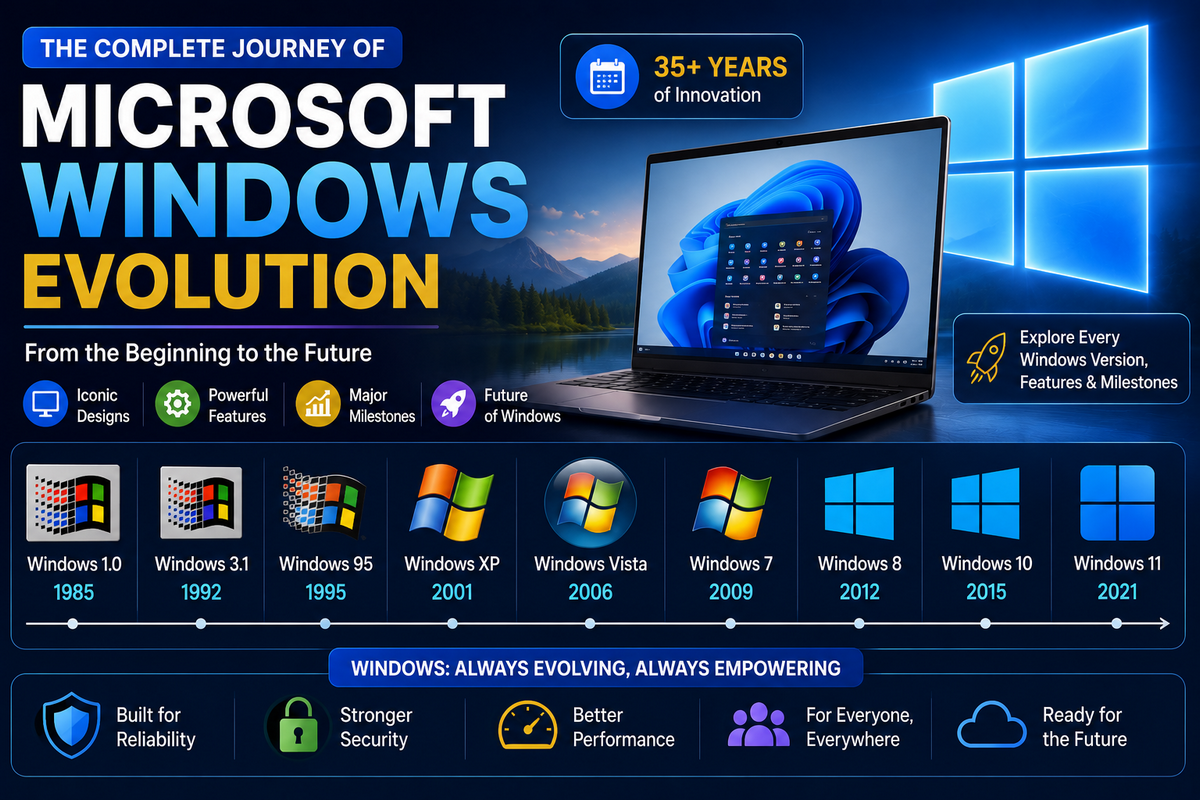
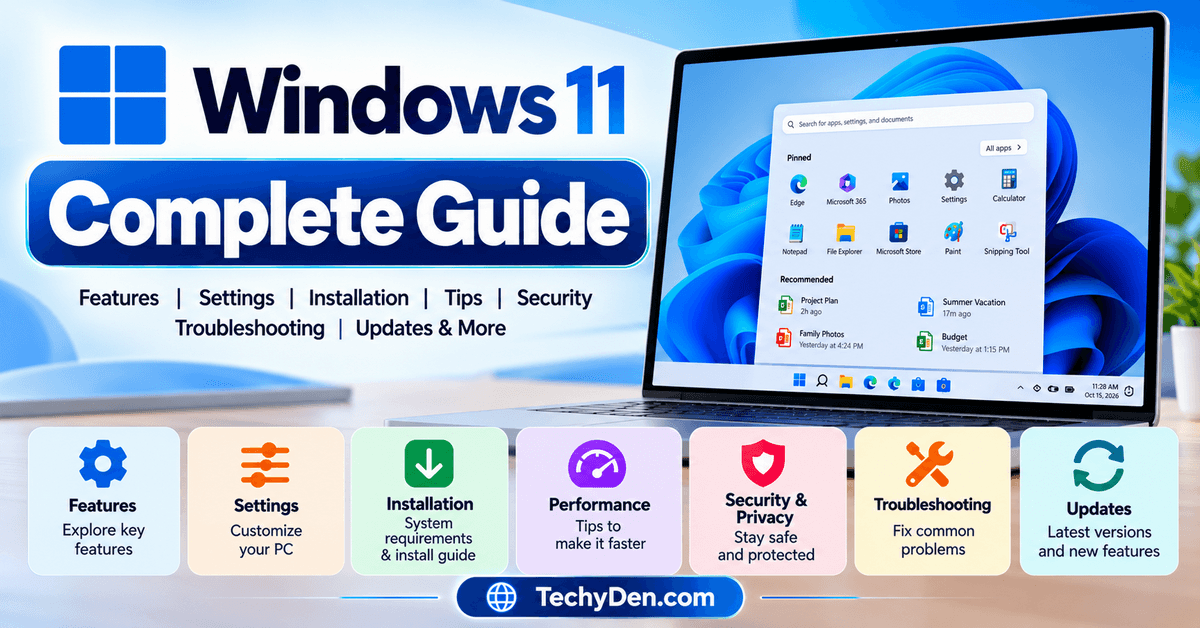
Windows 11 is Microsoft’s modern operating system for PCs, offering a redesigned desktop, improved multitasking tools, built-in security features, and productivity options for everyday users. Whether you’re setting up a new laptop, upgrading your computer, or trying to fix a Windows problem, understanding its essential features and settings can help you get more from your device.
This Windows 11 guide covers the most important features, customization options, installation requirements, performance improvements, security settings, and troubleshooting solutions. You’ll also find practical tips and links to detailed tutorials to help you complete specific tasks.
If you’re new to Windows 11, start with the basics. If you’re already using it, jump to the section that addresses your needs.
What Is Windows 11?
Windows 11 is a desktop operating system developed by Microsoft. It provides the environment for running applications, browsing the internet, managing files, playing games, attending online meetings, and performing work or educational tasks.
It introduced a redesigned interface compared with Windows 10, including a centered taskbar layout, an updated Start menu, new window-management tools, and improvements to security and accessibility.
Windows 11 is available in several editions, including Home and Pro. The edition you use determines which features and management tools are available.
Who should use Windows 11?
Windows 11 is suitable for a wide range of users:
- Students: Attend online classes, write assignments, and manage study materials.
- Professionals: Work with productivity applications, video meetings, and multiple windows.
- Gamers: Use supported gaming technologies, game settings, and Xbox-related features.
- Content creators: Edit videos, manage images, and work with creative applications.
- Everyday users: Browse the web, stream videos, organize files, and communicate online.
Your experience will depend on your computer’s hardware, installed applications, drivers, and the Windows edition you use.
Windows 11 vs. Windows 10
Windows 11 offers a more modern interface and additional multitasking and security capabilities. However, upgrading does not automatically make every computer faster; hardware and software compatibility remain important.
Microsoft ended standard support for Windows 10 on October 14, 2025. Eligible users should consider supported upgrade options or another appropriate support arrangement rather than relying on an operating system that no longer receives standard security updates.
Windows 11 Features You Should Know
Windows 11 includes several features designed to make everyday computing easier. Some are available on most compatible PCs, while others depend on your hardware, Windows edition, region, or installed updates.
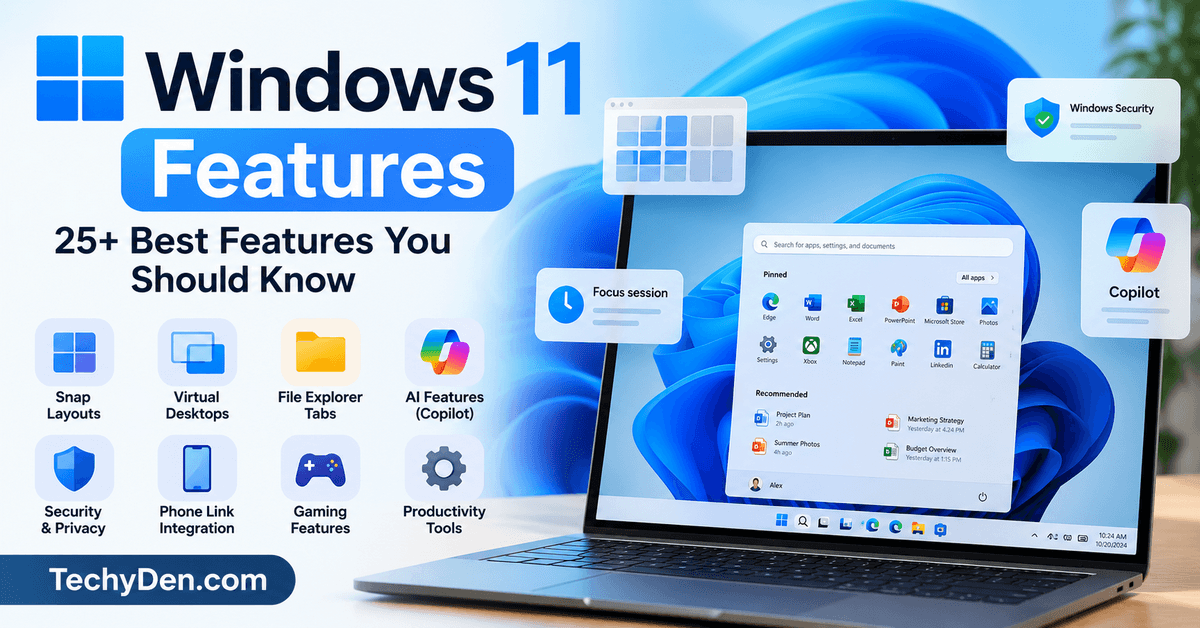
Here are the most useful Windows 11 features to learn first.
1. Redesigned Start menu and taskbar
The Start menu provides quick access to installed applications, recommended items, and search. The taskbar lets you launch frequently used apps and switch between open windows.
You can customize taskbar alignment and other available settings to make the desktop more comfortable to use.
2. Snap Layouts and Snap Groups
Snap Layouts help you arrange multiple application windows on the screen. Instead of manually resizing each window, you can choose a layout that suits your workflow.
This is especially useful when you need to view a browser, document, spreadsheet, or messaging application at the same time.
3. Virtual desktops
Virtual desktops let you create separate desktop workspaces for different activities. For example, you could keep study applications on one desktop and personal applications on another.
Press Windows + Tab to open Task View and manage your desktops.
4. Improved File Explorer
File Explorer helps you browse folders, search for documents, move files, and organize your storage. Its modern interface includes tabs on supported versions, making it easier to work with multiple folder locations.
5. Widgets and accessibility tools
Widgets can provide information such as weather, news, and other supported content. Windows 11 also includes accessibility features such as Magnifier, Narrator, captions, voice typing, and other tools that help people interact with their computers.
6. Windows Security
Windows Security brings together important protection features, including virus and threat protection, firewall controls, and other security settings.
Keeping these protections enabled and installing security updates can help reduce common risks.
7. Gaming and AI capabilities
Windows 11 supports features such as Auto HDR and DirectStorage on compatible hardware and games. Certain newer AI experiences are available only on eligible devices and may require specific hardware, software, or regional availability.
For a deeper explanation of the interface, productivity tools, and supported capabilities, read our dedicated Windows 11 features guide.
Essential Windows 11 Settings
The Settings app is the central place to configure your computer. Learning a few important options can help you personalize your desktop, improve usability, and manage updates and privacy.
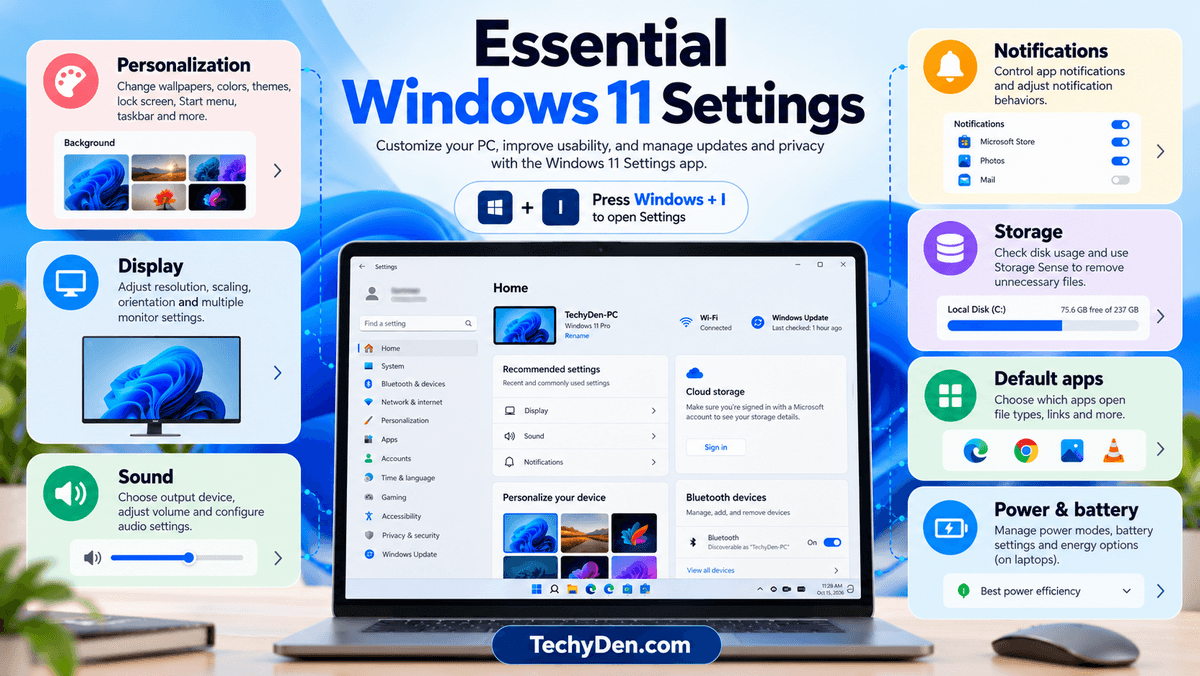
To open Settings, press Windows + I.
Personalize your desktop
Navigate to Settings → Personalization to explore options such as:
- Background images and wallpapers
- Colors and themes
- Lock screen settings
- Start menu and taskbar options
- Available fonts and other visual settings
Choose settings that make the desktop easier to navigate without sacrificing readability.
Adjust display and sound
Open Settings → System → Display to change the resolution, display scaling, orientation, and other supported display options.
For sound, open Settings → System → Sound to choose an output device, adjust volume, and configure available audio options.
If you use multiple monitors, review display arrangement and scaling so that windows move between screens as expected.
Manage notifications
Notifications can help you stay informed, but too many alerts can interrupt your work.
Go to Settings → System → Notifications to control notifications from individual applications and adjust available notification behaviors.
Manage storage
Open Settings → System → Storage to review how your disk space is being used.
Depending on your Windows version and configuration, you may be able to use Storage Sense to remove certain temporary files automatically. Review the available cleanup options before deleting anything you may need.
Configure default applications
Windows lets you select which applications open supported file types and links. If you prefer a different browser, media player, or image viewer, review Settings → Apps → Default apps.
Review power settings
Open Settings → System → Power & battery on supported laptops to explore power modes, energy-related options, and available battery settings.
A more performance-oriented mode may increase power consumption, while an energy-saving configuration can help extend battery life.
For a deeper walkthrough, consider creating a dedicated Windows 11 settings tutorial and linking it here once published.
Windows 11 System Requirements and Installation
Before installing Windows 11, make sure your computer meets Microsoft’s requirements. Attempting an unsupported installation can create compatibility, stability, and update problems.
Minimum Windows 11 system requirements
Microsoft’s published minimum requirements include the following specifications.
| Component | Minimum requirement |
|---|---|
| Processor | Compatible 64-bit CPU or SoC, 1 GHz or faster, with at least two cores |
| RAM | 4 GB |
| Storage | 64 GB or larger storage device |
| Firmware | UEFI with Secure Boot capability |
| TPM | Trusted Platform Module (TPM) 2.0 |
| Graphics | DirectX 12-compatible graphics with a WDDM 2.0 driver |
| Display | At least 720p, greater than 9 inches diagonally |
| Internet | Required for updates and certain features |
These are minimum requirements, not a guarantee of smooth performance. Specific applications and advanced features may require more powerful hardware.
How to check Windows 11 compatibility
Follow these steps before upgrading:
- Visit Microsoft’s official Windows 11 system requirements page.
- Review the requirements for your computer.
- Use Microsoft’s PC Health Check tool if available for your device.
- Check whether your processor, TPM, and Secure Boot configuration are supported.
- Back up important files before starting an operating system upgrade.
Do not assume that every computer with 4 GB of RAM will run Windows 11 comfortably. More memory and an SSD can make a noticeable difference in everyday use.
How to install Windows 11
If your computer is eligible, you can generally use Windows Update or Microsoft’s official installation tools.
A safe installation workflow is:
- Back up your important documents and photos.
- Check the available disk space.
- Connect your laptop to power.
- Visit the official Windows 11 download page.
- Choose the appropriate installation or upgrade method.
- Follow Microsoft’s instructions and allow the process to complete.
Avoid unofficial installation files and unknown activation tools. They can expose your computer to malware or create reliability problems.
If you are upgrading an existing installation, wait until Windows Update offers the update for your device unless Microsoft’s guidance indicates another supported method is appropriate.
How to Improve Windows 11 Performance
If your computer feels sluggish, takes too long to start, or freezes while opening applications, several Windows 11 settings may help improve responsiveness.
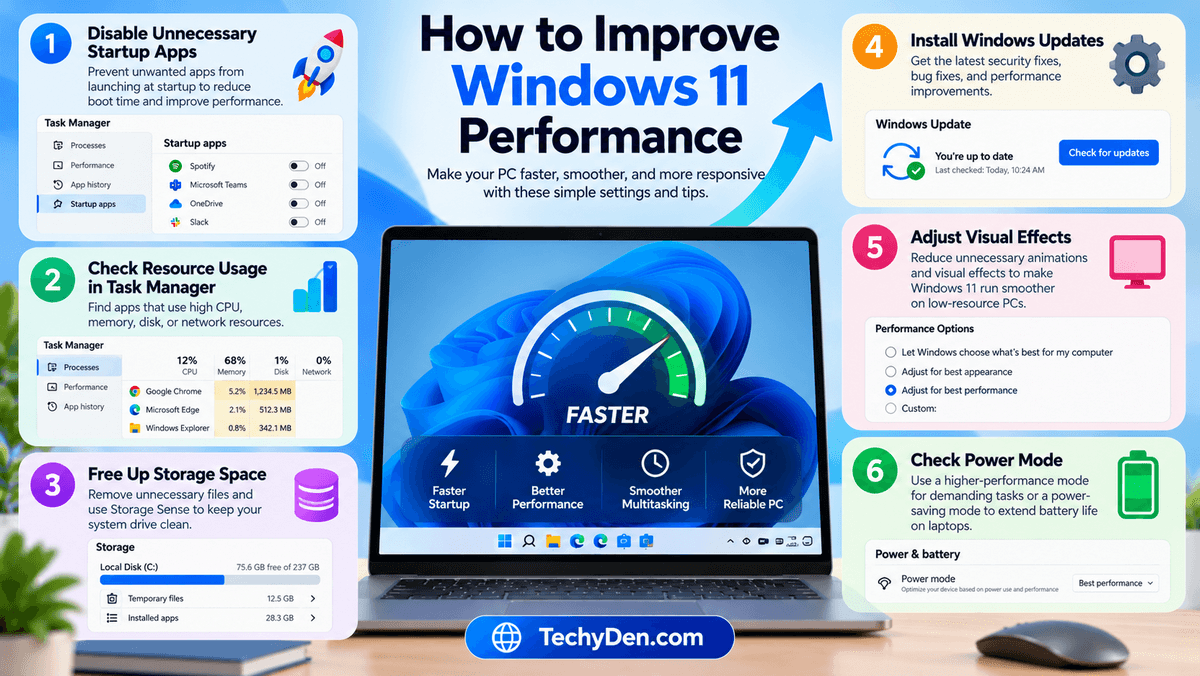
Before changing anything, identify whether the problem is caused by high resource usage, limited storage, outdated drivers, or hardware limitations.
1. Disable unnecessary startup apps
Applications that launch automatically can increase startup time and consume resources in the background.
To review them:
- Press
Ctrl + Shift + Escto open Task Manager. - Select Startup apps.
- Review the applications listed.
- Disable unnecessary applications that you recognize and do not need at startup.
Avoid disabling security software or unfamiliar system components without understanding their purpose.
2. Check resource usage in Task Manager
Task Manager shows how applications use CPU, memory, disk, and network resources.
Press Ctrl + Shift + Esc, select the Processes tab, and review which applications consume the most resources.
Close an application only when you know it is safe to do so. Saving your work first can prevent data loss.
3. Free up storage space
A nearly full system drive can interfere with updates and leave less space for temporary files.
Open Settings → System → Storage and review temporary files, installed applications, and other storage categories. Remove only items you no longer need.
4. Install appropriate updates
Windows updates can include security fixes, bug fixes, and compatibility improvements. Open Settings → Windows Update and check for available updates.
For hardware-related problems, also check for appropriate drivers from Windows Update or your computer manufacturer’s official support page.
5. Adjust visual effects
If your computer has limited resources, reducing some visual effects may improve responsiveness.
Search for Adjust the appearance and performance of Windows in the Start menu and review the available effects. Disabling unnecessary animations and effects may make the interface feel faster.
6. Check power mode
On compatible devices, open Settings → System → Power & battery and review the power mode. A higher-performance setting may help demanding tasks, but it can use more energy and produce additional heat.
For more troubleshooting steps, read our detailed guide on how to fix Windows 11 slow performance.
For an expanded walkthrough covering additional performance adjustments, see how to speed up Windows 11.
Windows 11 Security and Privacy
Windows 11 includes several built-in tools to protect your device and help you control how applications access information.
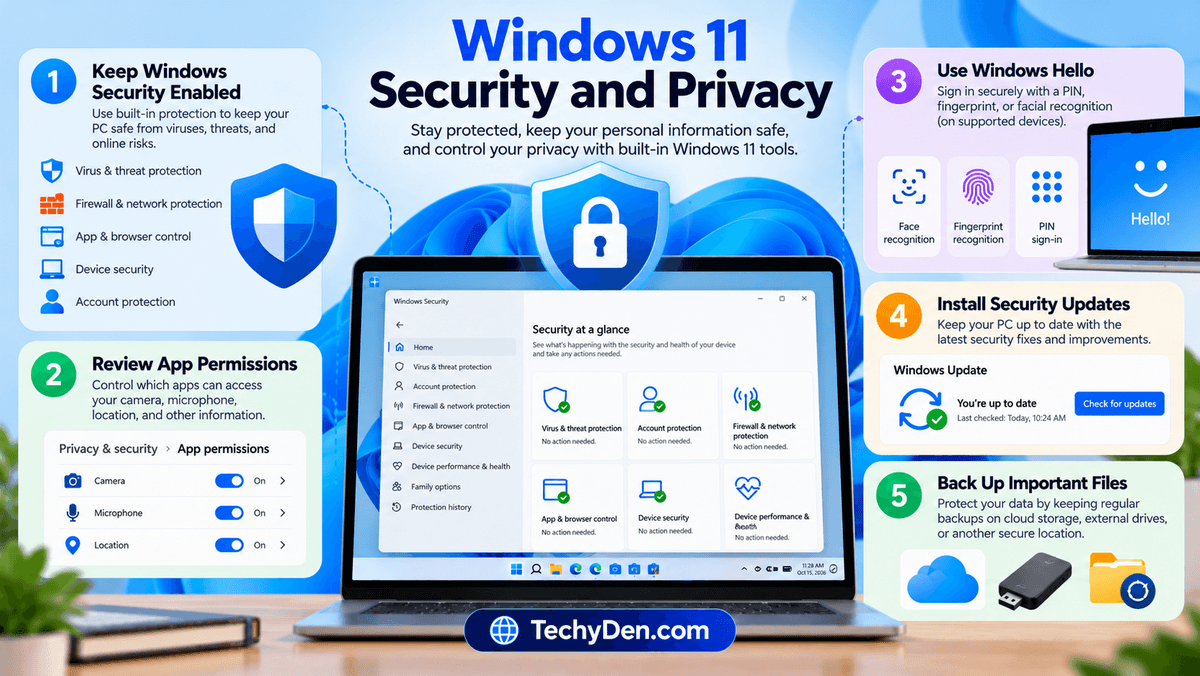
Good security habits are just as important as the available settings.
Keep Windows Security enabled
Open the Start menu and search for Windows Security. Depending on your configuration, you can review:
- Virus & threat protection
- Firewall & network protection
- App & browser control
- Device security
- Account protection
Check for warnings and follow Microsoft’s recommended actions. If you use a compatible third-party antivirus, check its status before making changes to avoid leaving your computer unprotected.
Review app permissions
Some applications request access to your camera, microphone, location, or other resources.
Open Settings → Privacy & security and review the available permissions. Turn off access that an application does not need, while keeping necessary permissions enabled for applications you trust.
Use Windows Hello when supported
Windows Hello supports sign-in options such as facial recognition, fingerprint recognition, and a PIN on compatible devices.
A PIN is tied to your device and is not simply the same thing as your Microsoft account password. Configure the sign-in methods available on your computer and keep your account recovery information secure.
Install security updates
Security updates address known vulnerabilities and help protect supported Windows installations.
Visit Windows Update regularly, review available updates, and restart your computer when necessary. For release-specific problems, consult Microsoft’s Windows release health documentation.
Back up important files
Security tools cannot prevent every form of data loss. Maintain backups of important files using an appropriate cloud service, external drive, or another secure location.
Never assume that files stored only on your computer will survive a drive failure, theft, or serious operating system problem.
Common Windows 11 Problems and Fixes
Windows 11 problems can result from incompatible applications, hardware faults, driver issues, insufficient storage, or problematic updates. The best solution depends on the symptoms.
Use this table to identify a sensible starting point.
| Problem | What to try first |
|---|---|
| Windows 11 is running slowly | Check Task Manager, startup apps, and storage space |
| Windows Update fails | Restart the PC, check connectivity, and run the Windows Update troubleshooter if available |
| Wi-Fi is not working | Check airplane mode, restart the router, and inspect the network adapter |
| Bluetooth is not connecting | Check Bluetooth settings, device pairing, and available drivers |
| No sound in Windows 11 | Verify the selected output device, volume, and audio settings |
| PC freezes or crashes | Check recent changes, updates, temperatures, and hardware diagnostics |
| PC will not start normally | Disconnect unnecessary peripherals and use Windows recovery options |
| Disk space is low | Review Storage settings and remove unnecessary files |
Fix Windows Update problems
Start with the basics:
- Restart your computer.
- Check your internet connection.
- Open Settings → Windows Update.
- Review the displayed error or update status.
- Use the available troubleshooter or Microsoft’s official troubleshooting guidance.
If the update continues to fail, record the error code before trying advanced repair steps. Avoid deleting system folders or manually modifying the registry without a specific, reliable procedure.
Fix Wi-Fi and Bluetooth issues
For Wi-Fi, verify that airplane mode is disabled and that your network is available. Restart your router if other devices also have connectivity problems.
For Bluetooth, make sure the device is charged, discoverable, and within range. Remove and pair the device again if appropriate.
If the problem persists, check your computer manufacturer’s official driver support page.
Troubleshoot startup problems
If Windows repeatedly fails to start, its recovery environment may provide Startup Repair and other troubleshooting options.
Do not immediately reset or reinstall Windows. First, consider whether the problem began after a recent update, driver installation, or hardware change. Back up data whenever possible before performing recovery operations.
For more information, consult Microsoft’s official Windows recovery environment guide.
Windows 11 Tips, Tricks, and Keyboard Shortcuts
Learning a few shortcuts and productivity features can save time every day.
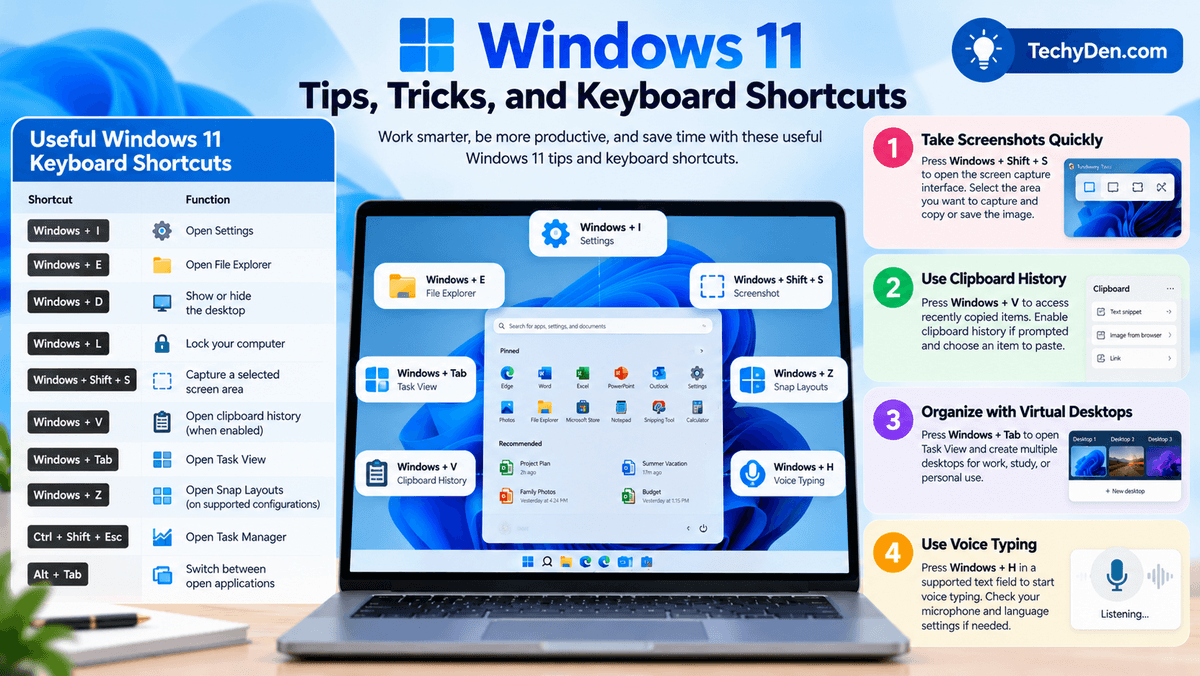
Useful Windows 11 keyboard shortcuts
| Shortcut | Function |
|---|---|
Windows + I | Open Settings |
Windows + E | Open File Explorer |
Windows + D | Show or hide the desktop |
Windows + L | Lock your computer |
Windows + Shift + S | Capture a selected screen area |
Windows + V | Open clipboard history, when enabled |
Windows + Tab | Open Task View |
Windows + Z | Open Snap Layouts on supported configurations |
Ctrl + Shift + Esc | Open Task Manager |
Alt + Tab | Switch between open applications |
Some shortcuts behave differently depending on the application and Windows configuration.
Take screenshots quickly
Press Windows + Shift + S to open the screen capture interface. Select the area you want to capture and use the available options to copy or save the image.
For more methods, including full-screen screenshots, read our guide on how to take screenshots in Windows 11.
Use clipboard history
Clipboard history can help you access recently copied items instead of relying on a single copied entry.
Press Windows + V. If prompted, enable clipboard history. Review the items before pasting, especially when working with passwords or other sensitive information.
Organize work with virtual desktops
Press Windows + Tab to open Task View, then create another desktop if needed. You can use different desktops for work, study, or personal activities.
This feature is especially useful when you frequently switch between many applications.
Use voice typing
Press Windows + H in a supported text field to open voice typing. Check the language, microphone, and privacy settings if it does not work as expected.
Voice typing can help with drafting notes and documents, but you should proofread the result for punctuation and recognition errors.
Windows 11 Backup, Recovery, and Maintenance
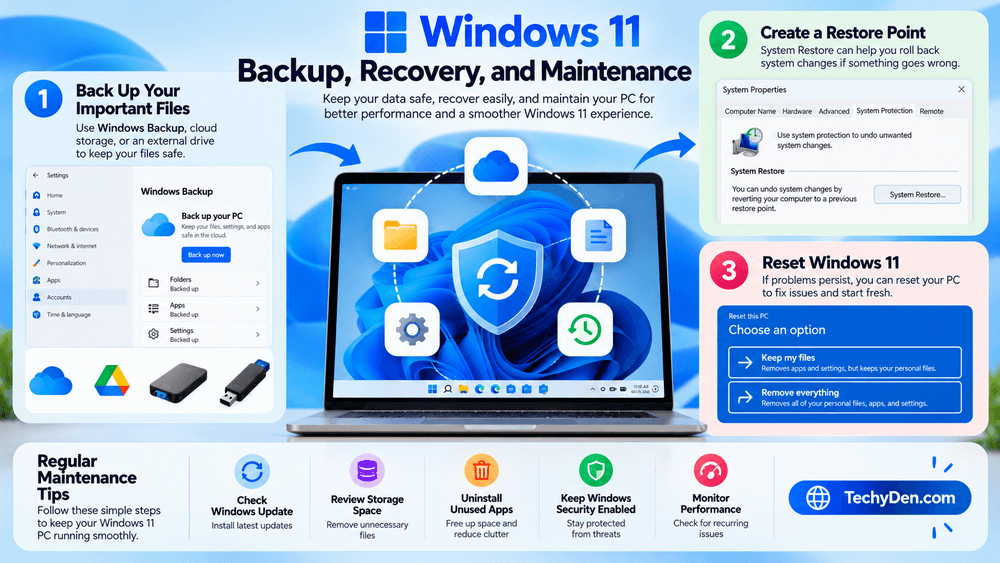
Regular maintenance can help prevent avoidable problems and make recovery easier when something goes wrong.
1. Back up your important files
Windows offers backup options through Windows Backup and supported cloud services. You can also copy important files to an external storage device.
To review Windows Backup, open Settings → Accounts → Windows Backup where available.
Confirm which files, settings, and applications are covered by your chosen backup method. A synchronization service is not always a complete substitute for an independent backup.
Read Microsoft’s backup, restore, and recovery guide before performing a major recovery operation.
2. Create a restore point
System Restore can help reverse certain system changes by returning supported system settings and configuration to an earlier state.
Search for Create a restore point in the Start menu. If System Protection is available and configured, you can review its settings and create a restore point before making significant system changes.
A restore point is not a replacement for backing up personal documents.
3. Reset Windows 11
If persistent software problems remain after less disruptive fixes, consider resetting your PC.
Navigate to Settings → System → Recovery → Reset this PC.
Depending on the options offered, you may be able to choose:
- Keep my files: Retains personal files but removes applications and resets settings.
- Remove everything: Removes personal files, applications, and settings.
Available options and behavior can vary. Back up your files first, ensure you have access to important account credentials, and locate your BitLocker recovery key if device encryption is enabled.
You can read my guide on reset Windows 11 without losing your files.
Maintain your computer regularly
Use this simple maintenance routine:
- Check Windows Update for relevant updates.
- Review storage space and remove unnecessary files.
- Uninstall applications you no longer use.
- Back up important files.
- Review Windows Security alerts.
- Check for recurring performance or hardware problems.
Routine maintenance should focus on genuine issues rather than installing unnecessary registry cleaners or third-party optimization utilities.
Latest Windows 11 Updates and Versions
Microsoft continues to update Windows 11 with security fixes, reliability improvements, feature changes, and compatibility updates. Keeping track of your installed version can help you understand which features and fixes are available on your computer.
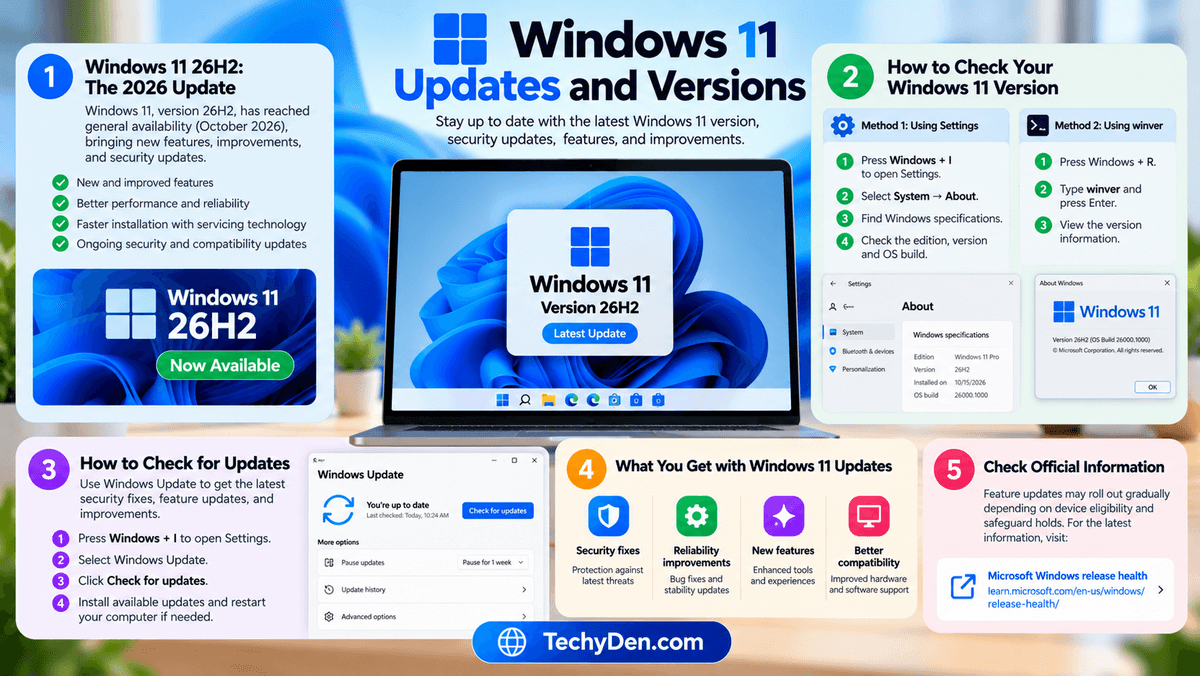
Windows 11 26H2: The 2026 Update
As of October 2026, Windows 11, version 26H2, has reached general availability, according to Microsoft’s release-health documentation. Its availability may still depend on your device’s eligibility and Microsoft’s rollout safeguards.
The update uses servicing technology on eligible devices, which can make installation faster than a traditional full feature upgrade.
For detailed information about its availability, features, installation process, and known issues, read our dedicated Windows 11 26H2 guide.
How to check your Windows 11 version
You can check your installed Windows version in two ways.
Method 1: Use the About page
- Press
Windows + Ito open Settings. - Select System → About.
- Find the Windows specifications section.
- Review the edition, version, and OS build.
Method 2: Use the winver command
- Press
Windows + R. - Type “winWindows 11 includes security tools such as Windows Security, firewall protection, and support for hardware-based security features. However, no operating system is completely immune to threats. Install updates, use trusted applications, protect your accounts, and back up important files.ver” .
- Press Enter.
- Review the version information displayed.
How to check for updates
- Open Settings using
Windows + I. - Select Windows Update.
- Click Check for updates.
- Review any available updates and follow the instructions.
Windows Update may not offer every feature update immediately. If your computer has a compatibility issue or a safeguard hold, follow Microsoft’s current guidance rather than forcing an installation.
For current rollout information and known issues, use the official Windows release health page.
Frequently Asked Questions About Windows 11
What is the Windows 11 guide for?
A Windows 11 guide helps users understand the operating system, configure settings, discover useful features, install updates, improve performance, and resolve common problems. It is useful for beginners as well as experienced users who want to get more from their computers.
Is Windows 11 free?
Windows 11 may be available as a free upgrade for eligible devices with qualifying Windows licenses. New installations, licensing requirements, and upgrade eligibility depend on the device and license. Check Microsoft’s official Windows information before purchasing a license or upgrading.
What are the minimum system requirements for Windows 11?
The minimum requirements include a compatible 64-bit processor with at least two cores, 4 GB of RAM, 64 GB of storage, UEFI firmware with Secure Boot capability, TPM 2.0, and compatible graphics. Certain features need additional hardware. Check Microsoft’s official system requirements for details.
How can I make Windows 11 faster?
Review startup applications, check CPU and memory usage in Task Manager, free up storage space, install appropriate updates, and remove applications you no longer need. If performance remains poor, investigate hardware limitations or specific software problems before making major system changes.
How do I update Windows 11 to the latest version?
Open Settings → Windows Update → Check for updates. Install available updates and follow the instructions. Feature updates are rolled out according to compatibility and availability, so the latest version may not appear on every device immediately.
How do I fix Windows 11 update errors?
Restart the PC, check your internet connection, confirm that sufficient storage is available, and run the Windows Update troubleshooter if offered. Record the error code and consult Microsoft’s official troubleshooting guidance if the issue continues.
Is Windows 11 sescure?
Windows 11 includes security tools such as Windows Security, firewall protection, and support for hardware-based security features. However, no operating system is completely immune to threats. Install updates, use trusted applications, protect your accounts, and back up important files.
How do I reset Windows 11 without losing my files?
Open Settings → System → Recovery → Reset this PC and select Keep my files, if available. This option retains personal files but removes installed applications and resets settings. Back up your data before proceeding.
How do I take a screenshot in Windows 11?
Press Windows + Shift + S to capture a selected area of your screen. Alternatively, use the Snipping Tool or other available screenshot options. You can then copy, annotate, or save the captured image.
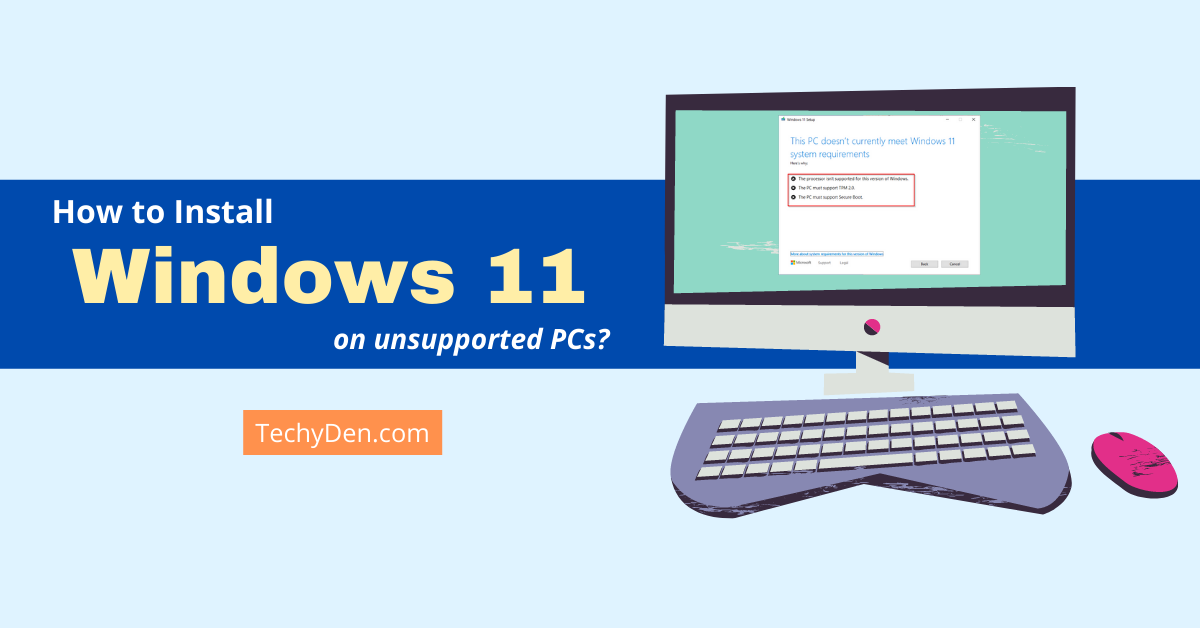
Can I install Windows 11 on an unsupported PC?
Microsoft recommends installing Windows 11 on devices that meet its minimum system requirements. Installing it on unsupported hardware can cause compatibility problems, and Microsoft does not guarantee support or updates for such installations. Review the official requirements before
Conclusion
This Windows 11 guide covers the essentials you need to use, customize, maintain, and troubleshoot your computer. From learning the Start menu and keyboard shortcuts to managing security, improving performance, and installing updates, a few practical skills can make Windows 11 easier to use every day.
Start by exploring the settings and features you use most often. If you encounter a specific problem, follow the relevant troubleshooting steps and visit the linked tutorials for more detailed instructions.
For the latest changes, always verify version-specific information against Microsoft’s official documentation.