Is your Windows 11 PC running slowly, taking too long to start, or freezing while you open applications? You don’t necessarily need a new computer to fix these problems. In many cases, a few changes to Windows settings, startup programs, storage, and background processes can improve your computer’s performance.
If you want to know how to speed up Windows 11, this guide explains 15 practical methods to make your PC faster, reduce unnecessary resource usage, and improve overall responsiveness.
Whether you’re using a Windows 11 desktop, laptop, or older computer, these tips can help you identify common performance problems and fix them safely.
Quick Answer: How to Speed Up Windows 11
You can speed up Windows 11 by disabling unnecessary startup apps, freeing up disk space, uninstalling unused programs, updating Windows and drivers, adjusting visual effects, and choosing an appropriate power mode. You should also check Task Manager for applications consuming excessive CPU, RAM, or disk resources.
Start with these quick fixes:
- Disable unnecessary startup applications.
- Remove temporary files and unused programs.
- Restart your computer regularly.
- Close applications you don’t need.
- Install available Windows updates.
- Scan your PC for malware.
- Use an SSD if your computer still has a slow mechanical hard drive.
Try these methods one at a time and check whether performance improves before making additional changes.
Why Is Windows 11 Running Slow?
Before optimizing your computer, it’s important to understand why Windows 11 may be performing poorly.
Common causes include:
- Too many applications launching at startup.
- Insufficient RAM for your workload.
- Low available storage space.
- High CPU, memory, or disk usage.
- Unnecessary applications running in the background.
- Outdated Windows updates or device drivers.
- Malware or unwanted software.
- Power-saving settings that limit performance.
- Excessive visual effects on older hardware.
- An ageing hard drive or failing hardware.
Not every slow PC has the same problem. A computer with insufficient memory needs a different solution from one with a nearly full drive. Identifying the cause helps you choose the right optimization method.
If your computer continues to lag after applying these tips, read our guide on Windows 11 running slowly to explore additional troubleshooting methods.
1. Disable Unnecessary Startup Apps
One of the easiest ways to speed up Windows 11 is to prevent unnecessary applications from launching automatically when you sign in.
Programs such as messaging apps, game launchers, cloud utilities, and update assistants may run at startup. Too many startup applications can increase boot time and consume memory in the background.
Steps to disable startup apps
- Press Ctrl + Shift + Esc to open Task Manager.
- Select Startup apps from the sidebar. On some Windows 11 versions, you may find the startup list under the corresponding tab.
- Review the applications listed.
- Select an application you don’t need immediately after startup.
- Click Disable.
Prioritise applications with a high startup impact that you don’t use regularly.
Do not disable security software or essential hardware utilities unless you understand their purpose. Disabling a startup app generally prevents automatic launching; it does not uninstall the program.
Tip: Restart your computer after changing startup settings to see whether boot time improves.
2. Free Up Disk Space
A nearly full system drive can make it harder to manage temporary files, install updates, and maintain normal system operations. Removing unnecessary files is a useful part of Windows 11 performance optimization.
Use Windows Storage settings
- Press Windows + I to open Settings.
- Navigate to System > Storage.
- Allow Windows to calculate storage usage.
- Review categories such as Temporary files, Installed apps, and Other.
- Select files you no longer need.
- Click the appropriate removal option.
Check the selected files carefully before deleting them. For example, the Downloads folder may contain documents you want to keep.
To improve your computer’s performance, free up disk space by removing unnecessary temporary files, uninstalling unused applications, and cleaning up files you no longer need.
Enable Storage Sense
Storage Sense automatically removes certain unnecessary files when configured.

- Open Settings > System > Storage.
- Select Storage Sense.
- Turn it on.
- Configure the cleanup schedule and options according to your needs.

Storage Sense can help prevent unnecessary storage buildup over time. To automate routine cleanup, learn how to configure Storage Sense using Microsoft’s official instructions.
3. Uninstall Unused Applications
Applications you no longer use can occupy valuable storage space. Some may also install background services or startup processes that consume system resources.
To remove unnecessary applications:
- Open Settings.
- Select Apps > Installed apps.
- Review the list of installed programs.
- Find an application you no longer need.
- Open its menu and select Uninstall, if available.
- Follow the on-screen instructions.
Remove software you recognise and no longer use. Avoid uninstalling unfamiliar drivers, Microsoft components, or system utilities simply because you don’t recognise their names.
For better results, review applications that run automatically or consume substantial resources, not just those that occupy the most disk space.
4. Adjust Visual Effects for Better Performance
Windows 11 includes animations, shadows, transparency, and other visual effects. These features improve the interface’s appearance, but reducing some effects may help older or low-powered computers feel more responsive.
Adjust Windows performance settings

- Press Windows + R.
- Type
sysdm.cpland press Enter. - Open the Advanced tab.
- Under Performance, click Settings.
- Select Adjust for best performance to disable most visual effects.
- Alternatively, choose Custom and keep the effects you prefer.
- Click Apply, then OK.

The best-performance setting makes Windows look simpler. If you prefer the normal appearance, selectively disable animations and shadows instead.
This adjustment is generally more useful on older hardware than on modern computers with capable graphics hardware.
5. Choose the Right Power Mode
Windows power settings can affect how quickly your processor responds to demanding workloads.
If your computer is using an efficiency-focused power mode, changing the setting may improve responsiveness during intensive tasks.
Change the power mode
- Open Settings.
- Select System > Power & battery.
- Find Power mode.
- Choose an available option, such as Balanced or Best performance.
The exact options depend on your device and Windows configuration.
Best performance may help during demanding tasks, including video editing and other CPU-intensive work. However, it can increase electricity consumption, heat, fan noise, and battery drain.
For most laptops, Balanced is a sensible everyday choice. Switch to Best performance when you need extra responsiveness and have sufficient cooling or access to power.
6. Update Windows 11
Windows updates can include security improvements, reliability fixes, and driver or compatibility updates that help resolve certain performance problems.

To check for updates:
- Open Settings.
- Select Windows Update.
- Click Check for updates.
- Install suitable available updates.
- Restart your PC if Windows requests it.
After a major update, your computer may temporarily use additional resources while it completes background tasks. Give the system time to finish before deciding whether performance has improved.
Installing the latest Windows 11 updates can help improve system security, fix known bugs, and resolve certain compatibility or performance issues.
Keep in mind that an update is not guaranteed to make every PC faster. If a performance problem begins immediately after an update, investigate the specific issue rather than repeatedly installing updates.
Before updating your operating system, learn about Windows 11 26H2 to understand its features, release information, and installation options.
7. Update Device Drivers
Device drivers help Windows communicate with your graphics card, network adapter, storage controller, and other hardware.
Outdated, incompatible, or faulty drivers can sometimes contribute to freezes, crashes, display problems, or poor performance.
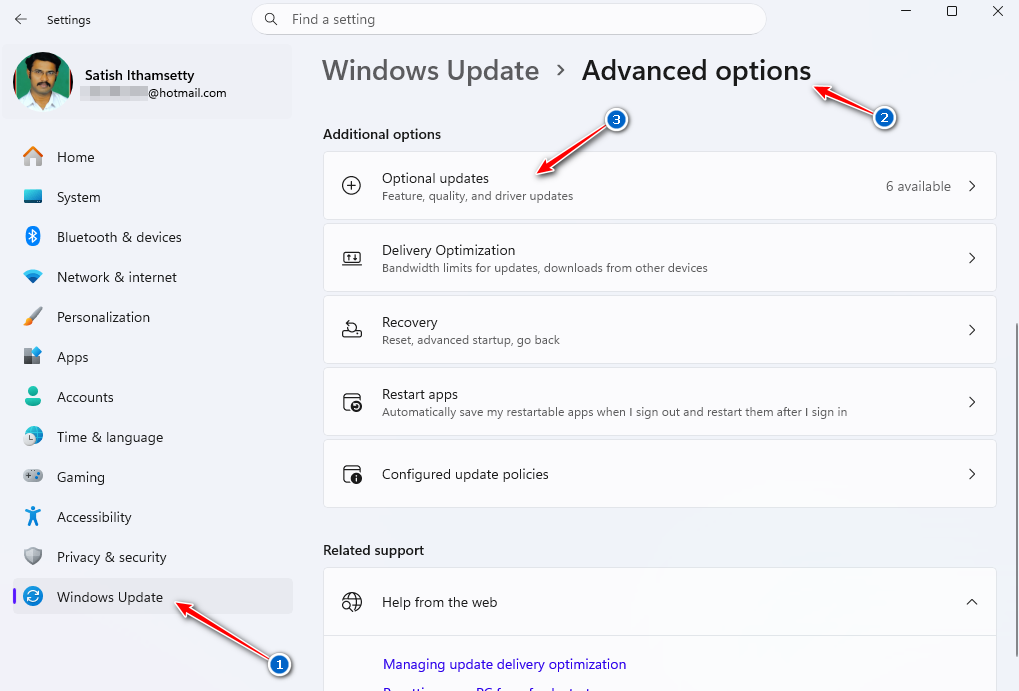
Update drivers safely
- Open Settings > Windows Update.
- Select Advanced options.
- Open Optional updates, if available.
- Review any listed driver updates.
- Install updates appropriate for your hardware.
You can also obtain drivers directly from your PC manufacturer’s official support website.
For graphics cards, use the official support resources provided by the relevant hardware manufacturer.
Avoid downloading drivers from unfamiliar websites or installing multiple third-party driver updater utilities. Installing an incorrect driver can cause additional problems.
8. Find Resource-Hungry Apps in Task Manager
If Windows 11 becomes slow while you’re working, Task Manager can help you determine which applications are consuming system resources.
Check CPU, memory, and disk usage
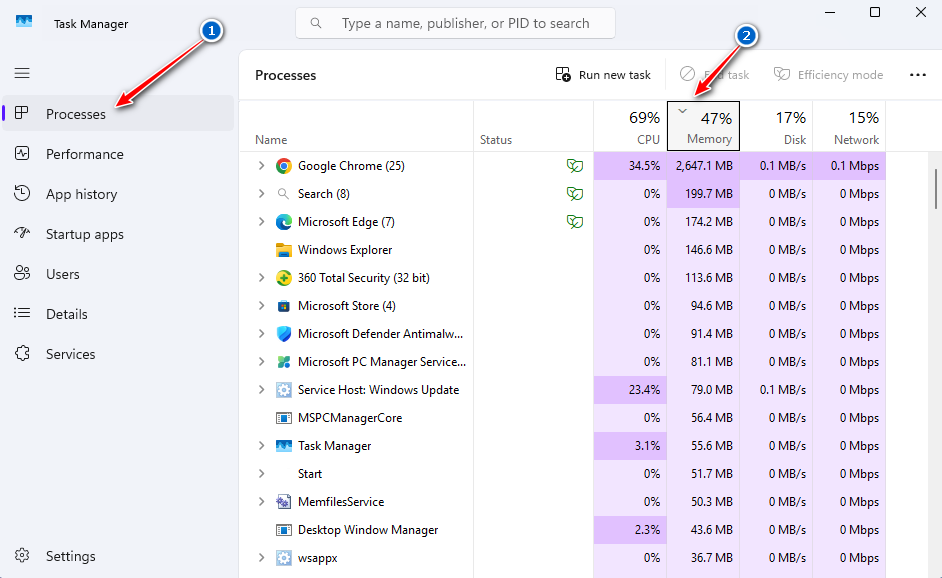
- Press Ctrl + Shift + Esc.
- Select Processes.
- Review the CPU, Memory, and Disk columns.
- Click a column heading to sort applications by resource usage.
- Identify applications using unusually high resources.
- Close applications you recognise and no longer need.
For example, a browser with dozens of open tabs may consume substantial memory. A file-syncing application may temporarily use disk or CPU resources while processing a large number of files.
Do not automatically end every process showing high usage. Windows services and essential processes may legitimately require resources, and some workloads naturally create temporary spikes.
If an application consistently uses excessive resources even when idle, update it, review its settings, or consider reinstalling it.
9. Reduce Unnecessary Background Activity
Some applications continue performing tasks even when you are not actively using them. Depending on the application, this may include notifications, synchronization, downloads, and other background operations.
To reduce unnecessary activity:
- Open Settings > Apps > Installed apps.
- Locate an application that supports background activity controls.
- Open its advanced options, if available.
- Look for a background-app permissions setting.
- Select an appropriate option, such as Never, when offered and suitable.
Not every desktop application exposes this setting. Some applications manage their background activity independently.
You can also open an application’s own settings to disable automatic startup, unnecessary synchronization, or features you don’t use.
Avoid disabling background activity for applications that must receive notifications or synchronize important files.
10. Scan for Malware and Unwanted Software
Malware, adware, and unwanted applications can consume CPU resources, memory, and network bandwidth. They may also cause unexpected pop-ups, crashes, or other unusual behavior.
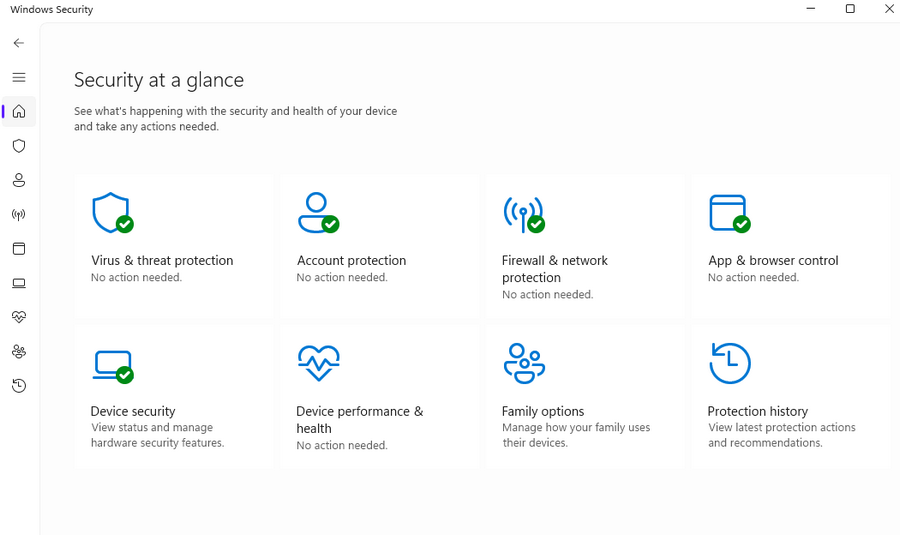
Windows Security provides built-in protection for Windows 11.
Run a security scan
- Open the Start menu.
- Search for Windows Security.
- Select Virus & threat protection.
- Click Quick scan.
If you suspect a persistent infection, review the available scan options and consider a full scan. Microsoft Defender Offline can help investigate certain threats that are difficult to remove while Windows is running.
Keep security protection enabled and avoid installing multiple real-time antivirus products that may conflict with one another.
A malware scan may not improve performance if malware is not the cause, but it is an important troubleshooting step when the computer behaves unusually.
11. Restart Your Computer Regularly
Leaving a computer running for long periods can sometimes lead to accumulated application activity, pending updates, or temporary software problems.
Restarting Windows can close running applications, refresh system processes, and complete updates that require a reboot.
To restart your PC:
- Save your work.
- Close important applications.
- Open the Start menu.
- Select the Power icon.
- Click Restart.
Choose Restart rather than relying exclusively on shutting down and turning the computer back on, particularly when troubleshooting a persistent issue.
If your PC repeatedly becomes slow shortly after restarting, investigate the applications and processes responsible instead of treating restarts as a permanent fix.
12. Optimize Your Drive and Check Its Health
Storage performance can have a significant effect on Windows responsiveness.
Traditional hard disk drives (HDDs) are generally slower than solid-state drives (SSDs), particularly when Windows is loading many small files or launching applications.
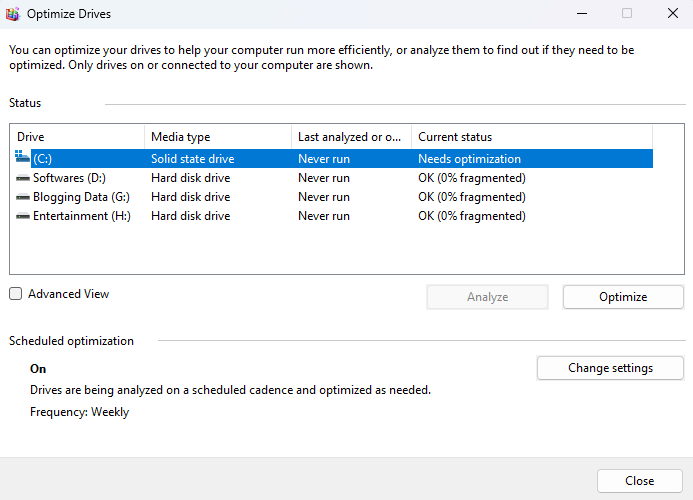
Optimize a drive in Windows 11
- Open the Start menu.
- Search for Defragment and Optimize Drives.
- Open the utility.
- Select the drive you want to check.
- Click Analyze, if available, or review the displayed status.
- Select Optimize when appropriate.
Windows normally handles optimization according to drive type. It defragments suitable HDDs and performs the appropriate optimization, including retrim where supported, for SSDs.
Do not repeatedly force manual defragmentation of an SSD using third-party tools.
Check for storage problems
If your PC regularly freezes, takes unusually long to access files, or produces disk-related errors, check the drive’s health using Windows tools or the manufacturer’s diagnostic utility.
Back up important files before performing extensive troubleshooting on a drive that may be failing.
If you still use an HDD as your Windows system drive, upgrading to an SSD can provide a substantial improvement in startup and application-loading times, provided the computer supports the upgrade.
13. Manage Browser Tabs and Extensions
Web browsers can consume considerable memory and CPU resources, especially when many tabs, extensions, or demanding websites are open.
If your computer slows down while browsing, try these steps:
- Close tabs you no longer need.
- Remove extensions you don’t recognize or use.
- Update your browser.
- Enable the browser’s built-in memory-saving feature, if available.
- Avoid running multiple resource-intensive browser sessions simultaneously.
- Check Task Manager to identify browser-related resource usage.
You don’t necessarily need to switch browsers to improve performance. Start by identifying whether a particular tab, extension, or website is responsible for excessive resource consumption.
If the slowdown happens only in your browser, focus on browser troubleshooting before changing system-wide settings.
14. Improve Gaming and Graphics Performance
If Windows 11 feels slow primarily during games, the issue may involve graphics settings, GPU drivers, thermal limitations, or insufficient system resources.
Try the following adjustments:
- Install suitable graphics drivers from the official GPU manufacturer’s website.
- Close unnecessary background applications before launching games.
- Reduce demanding graphics settings, such as shadows and rendering quality.
- Check that your computer is using the intended graphics processor when applicable.
- Use an appropriate power mode while gaming.
- Ensure the laptop or desktop has adequate ventilation.
- Check whether the game supports Windows 11’s available gaming features.
You can also open Settings > Gaming > Game Mode and review the available setting.
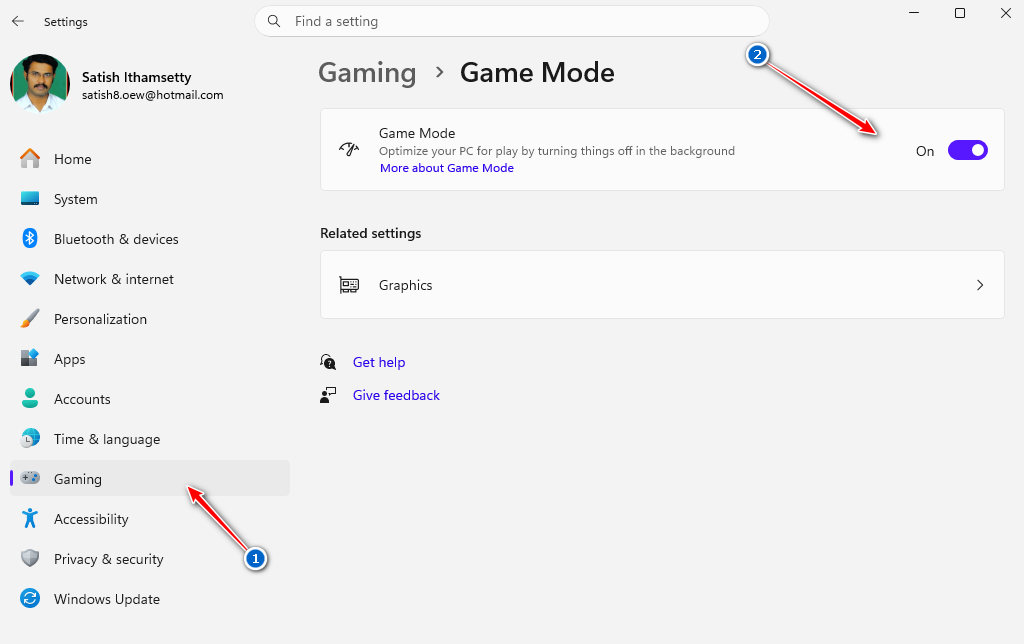
Lowering resolution or graphics quality may improve frame rates on hardware that struggles with a game’s requirements.
Do not expect Windows optimization alone to overcome major hardware limitations. A game may require a more capable graphics card, additional RAM, or a faster processor.
15. Upgrade RAM or Switch to an SSD When Necessary
Software optimization can only do so much if your computer’s hardware is the main limitation.
If Windows 11 remains slow after you’ve removed unnecessary applications and addressed common configuration problems, consider whether a hardware upgrade is appropriate.
When should you upgrade RAM?
More RAM may help when:
- Memory usage frequently approaches capacity.
- Your browser slows down with several tabs open.
- Switching between applications causes delays.
- Task Manager shows sustained high memory pressure.
Before purchasing memory, verify your motherboard or laptop’s supported capacity, memory type, available slots, and upgrade restrictions.
When should you upgrade to an SSD?
An SSD upgrade may help when:
- Windows takes a long time to start.
- Applications take a long time to open.
- File access is consistently slow.
- The current Windows installation runs from a mechanical HDD.
Check your computer’s storage interface, physical compatibility, and available upgrade options before purchasing a drive.
If the processor or graphics hardware is too limited for your workload, additional RAM or an SSD may not resolve every performance issue.
Bonus Tip: Use Windows Troubleshooting Tools
If Windows 11 continues to run slowly, use its built-in troubleshooting and diagnostic tools to identify the underlying cause.
Check system files
Corrupted Windows system files can contribute to errors or instability. You can use System File Checker to check for and repair supported system-file problems.
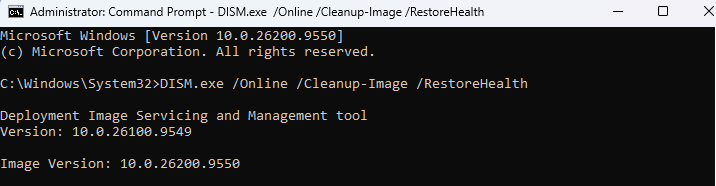
- Search for Command Prompt.
- Select Run as administrator.
- Run this command:
DISM.exe /Online /Cleanup-Image /RestoreHealth
- After it completes, run:
sfc /scannow
- Wait for both commands to finish and follow any reported instructions.
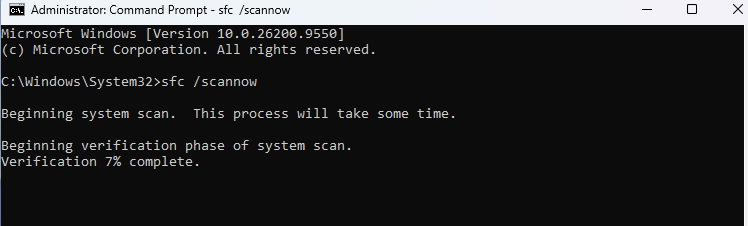
These commands may take some time. Do not close the command window while they are running.
Check reliability history
Search the Start menu for View reliability history. This tool can help you identify recurring application crashes, Windows errors, and other reliability problems that may coincide with slow performance.
If a specific application repeatedly fails, update or troubleshoot that application rather than applying unrelated system tweaks.
Windows 11 Performance Optimization Checklist
Use this checklist to work through the most useful improvements.
- Disable unnecessary startup apps.
- Remove temporary files and free up storage.
- Uninstall unused applications.
- Adjust visual effects if your PC is older.
- Choose an appropriate power mode.
- Install relevant Windows updates.
- Update suitable device drivers.
- Investigate high CPU, RAM, and disk usage.
- Reduce unnecessary background activity.
- Scan for malware if you suspect an infection.
- Restart your PC after making changes.
- Check storage health and optimize the drive appropriately.
- Reduce unnecessary browser tabs and extensions.
- Adjust game settings if gaming performance is poor.
- Consider an SSD or RAM upgrade when hardware is the bottleneck.
You do not need to apply every setting. Start with the changes most relevant to your computer’s symptoms, then check the results.
Frequently Asked Questions
How can I speed up Windows 11 quickly?
Disable unnecessary startup apps, close resource-intensive applications, free up disk space, and restart your PC. These are useful first steps when Windows 11 becomes slow.
Why is Windows 11 so slow on my laptop?
Common causes include insufficient RAM, too many startup apps, low storage space, background processes, overheating, outdated drivers, and a slow HDD. Check Task Manager and Windows Storage settings to narrow down the problem.
Does Windows 11 have a built-in performance mode?
Windows 11 offers power modes through Settings, including Balanced and, on supported devices, Best performance. The available choices depend on your hardware and configuration.
How do I make Windows 11 boot faster?
Disable unnecessary startup applications, remove unwanted software, keep Windows updated, and check whether storage performance is limiting startup. If Windows runs from an HDD, an SSD upgrade may help substantially.
Will increasing RAM make Windows 11 faster?
Additional RAM can improve responsiveness when your current memory capacity is insufficient. However, it may provide little benefit if the actual bottleneck is CPU performance, storage, or another issu
Does disabling visual effects improve Windows 11 performance?
Reducing animations, transparency, and other visual effects may improve responsiveness on some older or lower-powered computers. The improvement may be minimal on modern PCs.
Is it safe to disable startup apps in Windows 11?
Generally, yes, when you disable applications you recognize and do not need at startup. Avoid disabling security software or essential hardware utilities without understanding their purpose.
Should I use a PC cleaner to speed up Windows 11?
You usually do not need a third-party cleaner to perform basic maintenance. Windows Storage settings and Storage Sense can remove many unnecessary files. Avoid tools that promise unrealistic performance gains or make aggressive changes to Windows.
How much free storage should Windows 11 have?
There is no single amount that guarantees optimal performance for every computer. Keep sufficient free space for updates, temporary files, applications, and your workload. If the system drive is nearly full, remove unnecessary files or consider a suitable storage upgrade.
What is the best way to optimize Windows 11 for gaming?
Update graphics drivers, close unnecessary applications, check temperatures, select appropriate power settings, and adjust demanding game graphics options. Hardware limitations can still restrict performance.
Final Verdict
Learning how to speed up Windows 11 starts with identifying the cause of slow performance rather than applying every possible tweak.
For most users, the best starting points are disabling unnecessary startup apps, cleaning up storage, reviewing Task Manager, installing relevant updates, and reducing unnecessary background activity.
If your computer still struggles, investigate its RAM, storage drive, cooling, and other hardware limitations. An SSD or RAM upgrade may be more effective than further software changes when hardware is the bottleneck.
Explore our complete collection of Windows 11 guides for more tutorials, troubleshooting solutions, updates, and practical tips to get the most out of your PC.
Apply these Windows 11 performance optimization tips gradually, check the results, and keep your system secure. A few targeted changes can make everyday computing more responsive without resorting to risky registry edits or aggressive system modifications.