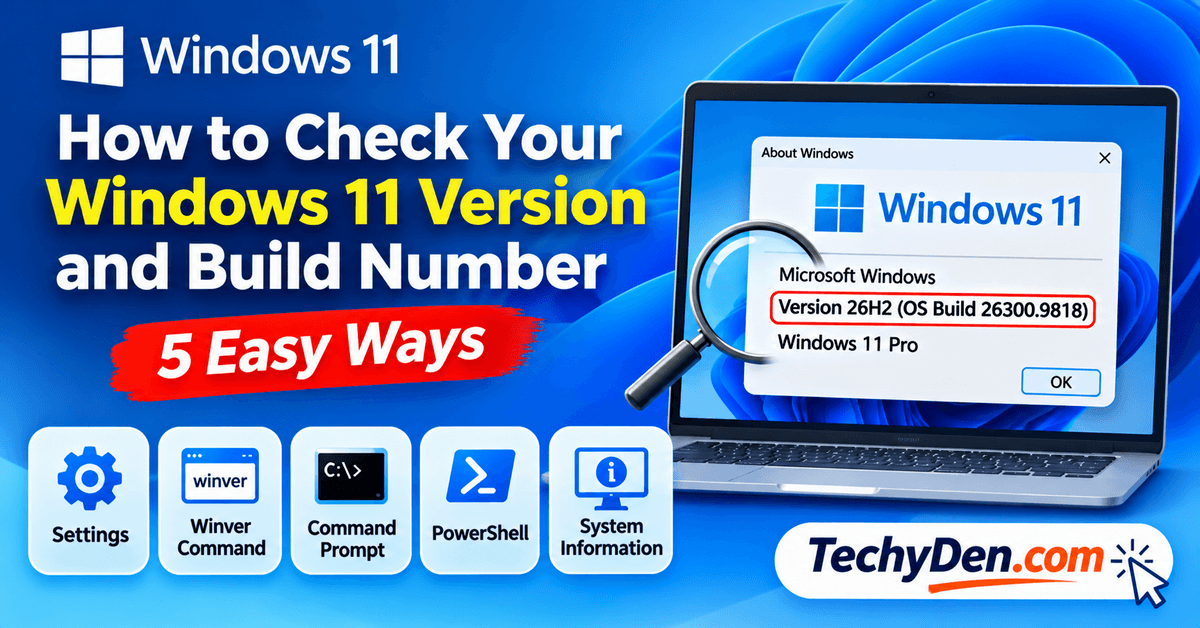
Do you know which version of Windows 11 is running on your computer? Whether you are using Windows 11 24H2, 25H2, or 26H2, knowing your Windows version and build number can help you troubleshoot problems, check software compatibility, and determine whether your PC has received the latest updates.
Microsoft regularly releases Windows 11 feature updates and cumulative security updates. These updates can change your operating system’s build number even when the main Windows version remains the same.
Fortunately, you don’t need any third-party software to find this information. Windows 11 includes several built-in tools that let you check your installed version, edition, and OS build.
In this guide, you’ll learn how to check Windows 11 version and build number using five different methods, including the Winver command, Settings, Command Prompt, PowerShell, and System Information.
If you want to explore more about Microsoft’s operating system, check out our guide to Windows 11 features and improvements to learn about its latest capabilities and enhancements.
Quick answer: Press Windows + R, type winver, and press Enter. The About Windows dialog box displays your Windows 11 version and OS build number.
How to Check Your Windows 11 Version Using the Winver Command
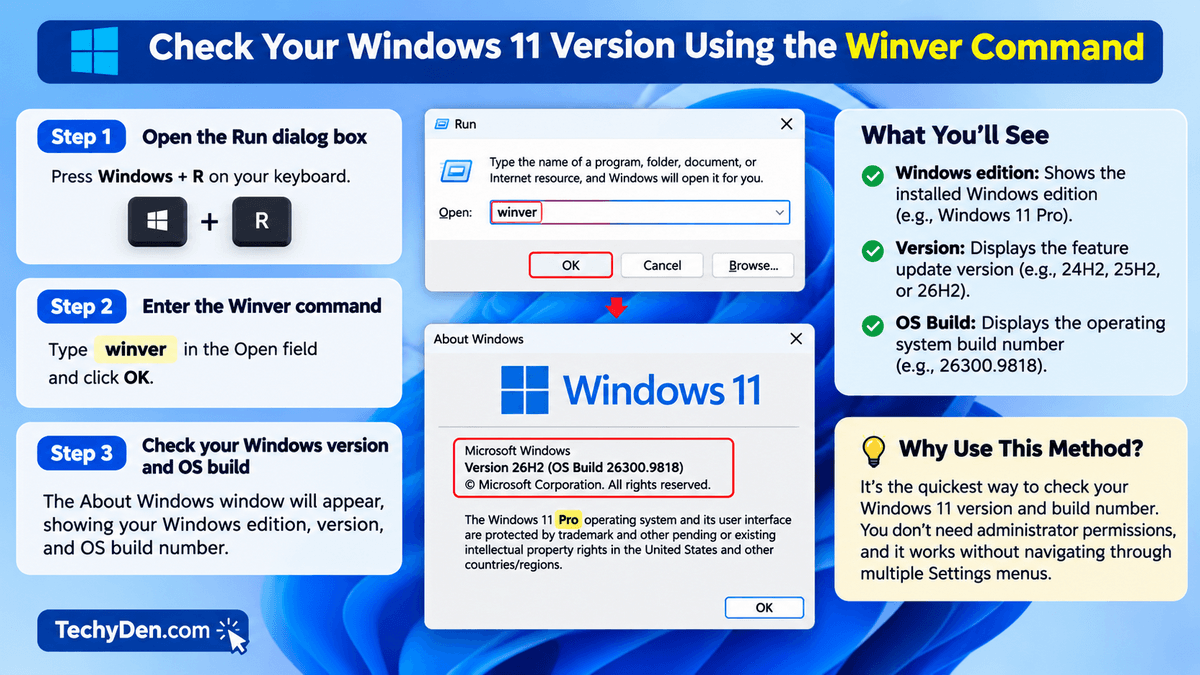
The easiest way to check your Windows 11 version and build number is by using the Winver command. It opens the About Windows dialog box, which displays your installed Windows version and OS build.
Follow these simple steps:
Step 1: Open the Run dialog box
Press Windows + R on your keyboard to open the Run dialog box.
Step 2: Enter the Winver command
Type the following command in the Open field:
winverPress Enter or click OK.
Step 3: Check your Windows version and OS build
A window titled About Windows will appear on your screen. It displays information about your installed Windows operating system.
Look for these details:
- Windows edition: Shows the installed Windows edition.
- Version: Displays the feature update version, such as 24H2, 25H2, or 26H2.
- OS Build: Displays the operating system build number.
For example, if the dialog displays Version 26H2 (OS Build 26300.xxxx), your computer is running Windows 11 version 26H2. The final digits depend on the cumulative updates installed on your device.
Why use this method?
The Winver command is the quickest way to check your Windows 11 version and build number. You don’t need administrator permissions, and it works without navigating through multiple Settings menus.
For additional information about identifying your installed Windows version, visit Microsoft’s official guide on what version of Windows you are running.
How to Check Windows 11 Version and Build Number in Settings
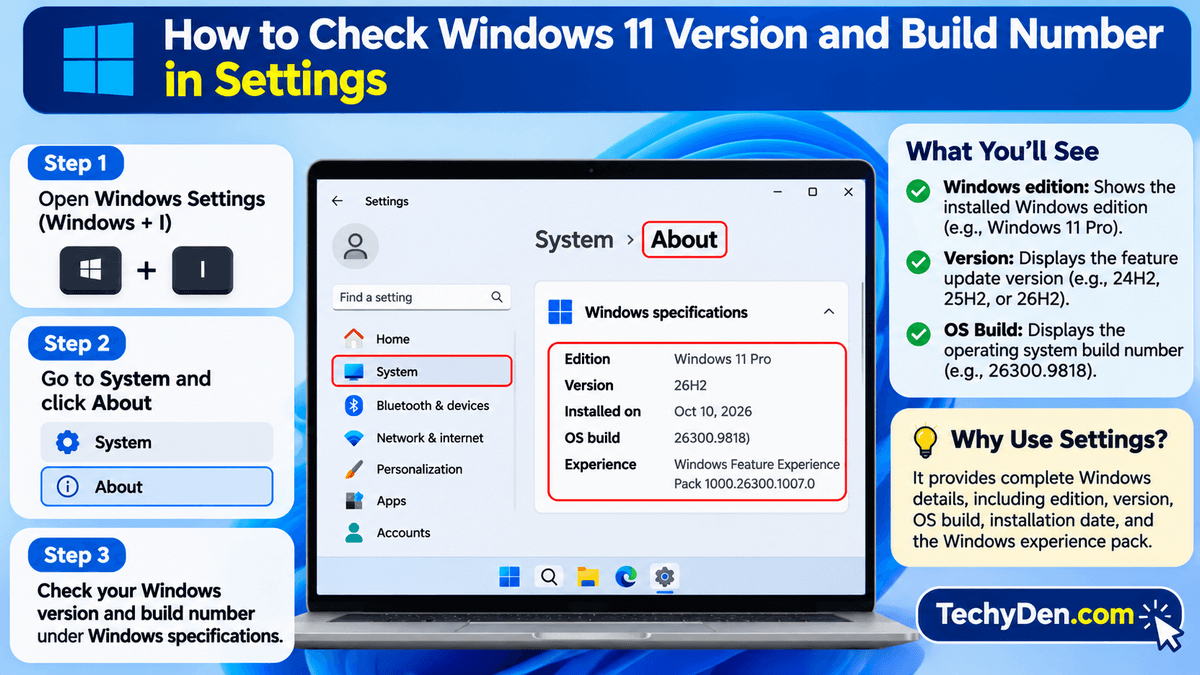
The easiest way to check your Windows 11 version and build number is by using the Winver command. It opens the About Windows dialog box, which displays your installed Windows version and OS build.
Follow these simple steps:
Step 1: Open the Run dialog box
Press Windows + R on your keyboard to open the Run dialog box.
Step 2: Enter the Winver command
Type the following command in the Open field:
winverPress Enter or click OK.
Step 3: Check your Windows version and OS build
A window titled About Windows will appear on your screen. It displays information about your installed Windows operating system.
Look for these details:
- Windows edition: Shows the installed Windows edition.
- Version: Displays the feature update version, such as 24H2, 25H2, or 26H2.
- OS Build: Displays the operating system build number.
For example, if the dialog displays Version 26H2 (OS Build 26300.xxxx), your computer is running Windows 11 version 26H2. The final digits depend on the cumulative updates installed on your device.
Why use this method?
The Winver command is the quickest way to check your Windows 11 version and build number. You don’t need administrator permissions, and it works without navigating through multiple Settings menus.
How to Check Windows 11 Build Number Using Command Prompt (CMD)
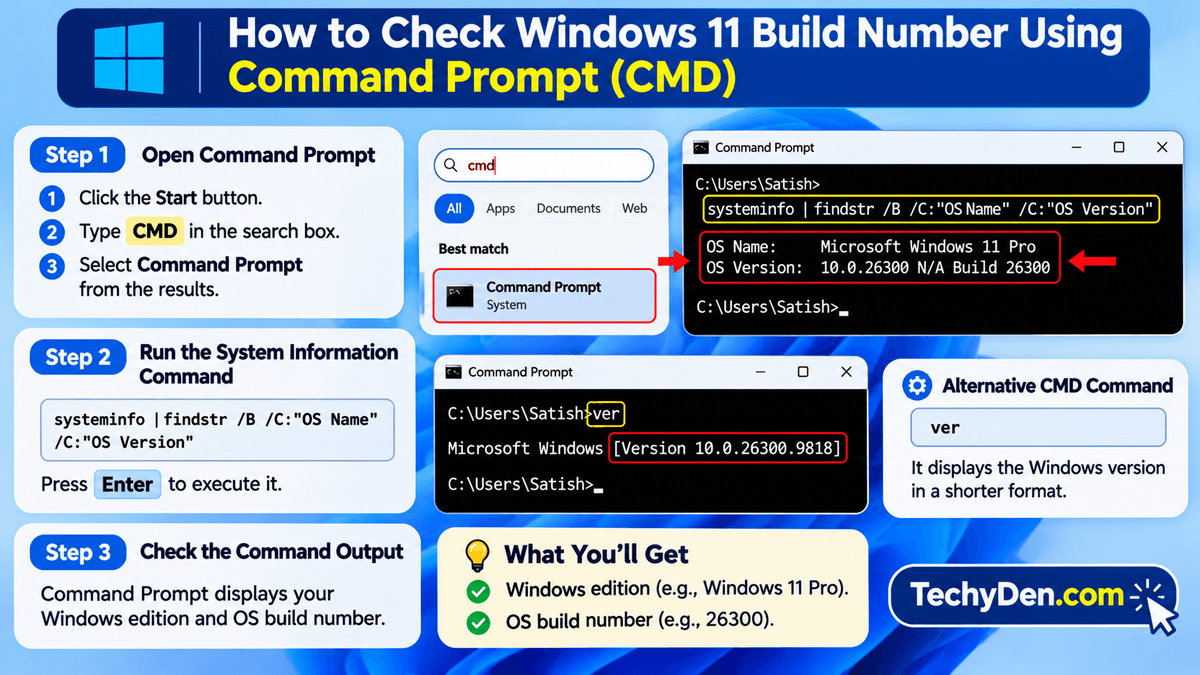
Command Prompt is another useful way to check your Windows 11 version and OS build number. This method is suitable for users who prefer command-line tools or want to retrieve operating system information quickly.
Step 1: Open Command Prompt
- Click the Start button.
- Type
CMDin the Windows Search box. - Select Command Prompt from the search results.
You don’t need to run Command Prompt as an administrator for this basic information.
Step 2: Run the System Information Command
Copy and paste the following command into Command Prompt:
systeminfo | findstr /B /C:"OS Name" /C:"OS Version"Press Enter to execute it.
Step 3: Understand the Command Output
Command Prompt displays your Windows operating system name and version information.
For example, the output may look like this:
OS Name: Microsoft Windows 11 Pro
OS Version: 10.0.26300 N/A Build 26300
The output helps you identify your Windows edition and base OS build number.
Alternative CMD command
You can also use the following command:
verIt displays the Windows version information in a shorter format.
However, ver does not provide the same detailed information as the systeminfo command.
How to Find Windows 11 Version Using PowerShell
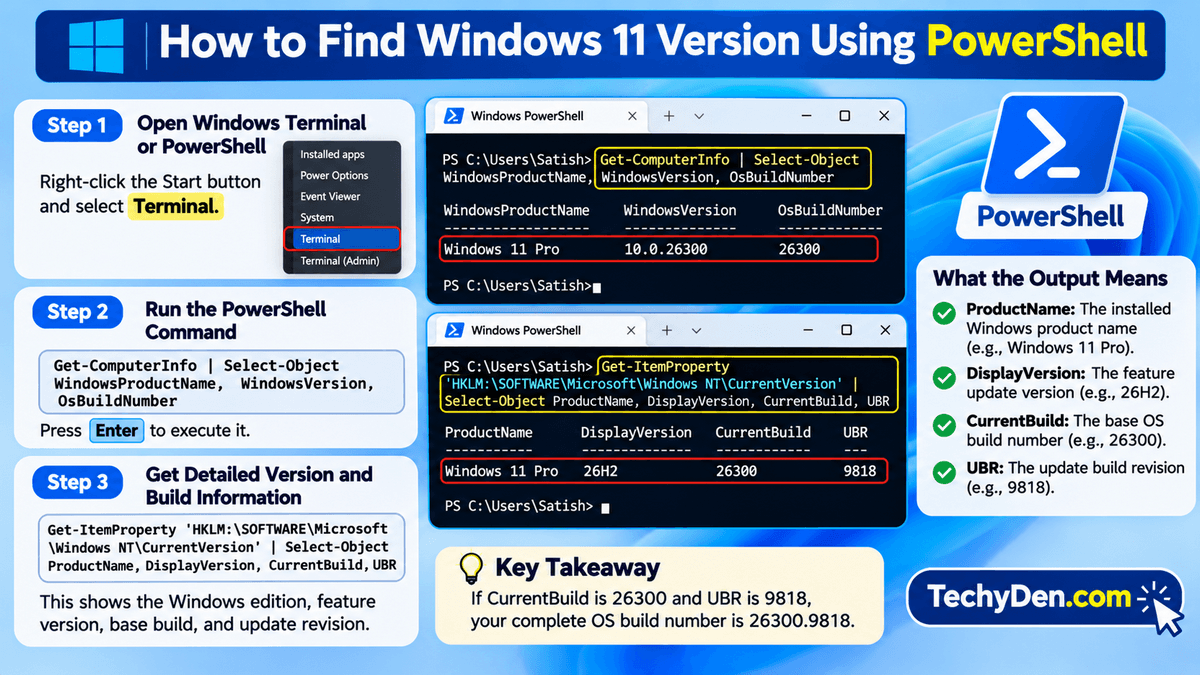
PowerShell provides another way to check your Windows 11 version and build number. It is particularly useful for advanced users, system administrators, and people who want to automate system information checks.
Step 1: Open Windows Terminal or PowerShell
Right-click the Start button and select Terminal.
You can also search for PowerShell in Windows Search and open the application.
Step 2: Run the PowerShell Command
Copy and paste the following command:
Get-ComputerInfo | Select-Object WindowsProductName, WindowsVersion, OsBuildNumberPress Enter.
Step 3: Read the PowerShell Results
PowerShell displays information about your Windows installation.
For more precise version and build details, including the update revision, use this command:
Get-ItemProperty 'HKLM:\SOFTWARE\Microsoft\Windows NT\CurrentVersion' |
Select-Object ProductName, DisplayVersion, CurrentBuild, UBR
The output includes the following information:
- ProductName: The installed Windows product name.
- DisplayVersion: Your Windows feature update version, such as 26H2.
- CurrentBuild: The base operating system build number.
- UBR: The update build revision.
For example, if the output shows CurrentBuild as 26300 and UBR as 9818, your complete OS build is 26300.9818.
Why use PowerShell?
PowerShell is useful when you need more detailed Windows system information. You can also use its commands in scripts to check the Windows version and build numbers across multiple computers.
How to Check Windows 11 Version Using System Information
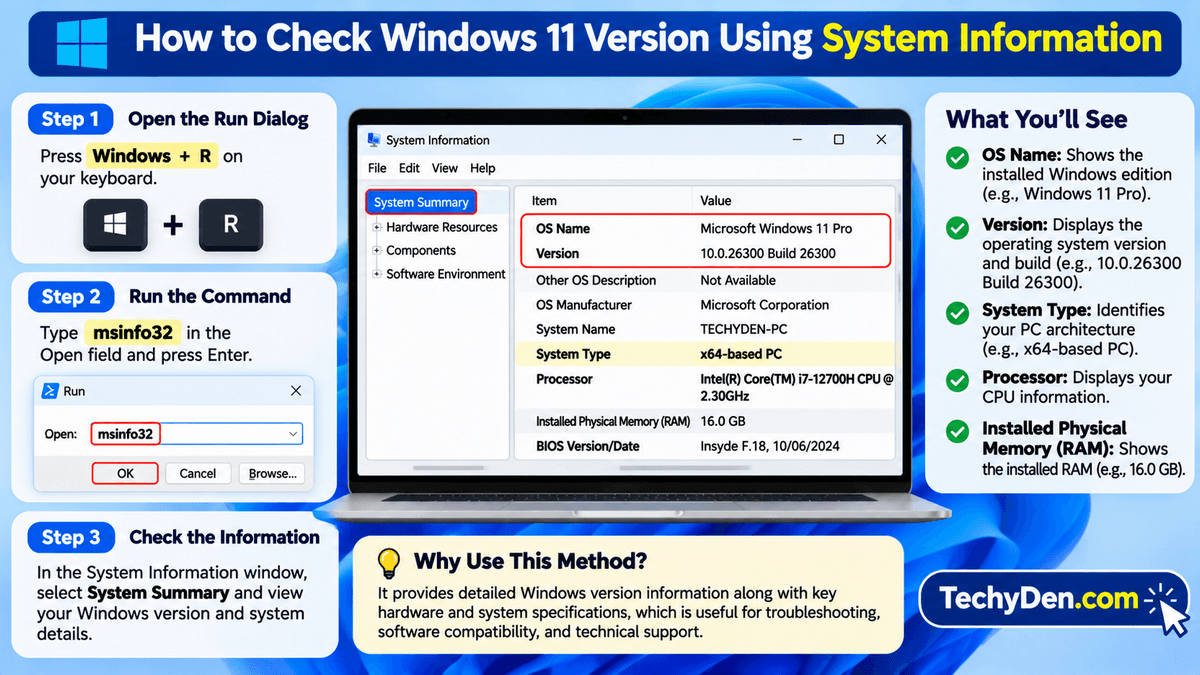
System Information is a built-in Windows utility that displays detailed information about your computer’s hardware, software environment, and operating system.
You can use it to identify your Windows 11 version without opening Settings or Command Prompt.
Step 1: Open the System Information Tool
Press Windows + R to open the Run dialog box.
Type the following command:
msinfo32Press Enter.
Step 2: Find OS Name and Version
The System Information window will open.
Make sure System Summary is selected from the left sidebar.
Look for the following details:
- OS Name: Displays your installed Windows edition.
- Version: Shows the operating system version and build information.
- System Type: Identifies whether your PC uses an x64-based or ARM64-based system.
- Processor: Displays your computer’s CPU information.
- Installed Physical Memory (RAM): Shows the installed RAM capacity.
Why use this method?
System information is helpful when you want to check your Windows version alongside hardware specifications. It is particularly useful when troubleshooting software compatibility, identifying system configurations, or sharing technical information with support professionals.
Difference Between Windows 11 Version, Edition, and Build Number
Windows 11 version, edition, and build number are related, but they represent different aspects of your operating system.
Understanding these terms helps you identify exactly which Windows installation is running on your computer.
| Term | Meaning | Example |
|---|---|---|
| Windows Edition | Identifies the installed Windows product edition | Windows 11 Pro |
| Windows Version | Identifies the feature release | 26H2 |
| OS Build | Identifies the underlying operating system build | 26300 |
| Build Revision | Identifies the specific servicing update | 9818 |
Windows Edition
The Windows edition identifies which version of the Windows product you have installed. Common editions include Windows 11 Home, Pro, Education, and Enterprise.
Different editions offer different features, licensing options, and management capabilities.
Windows Version
The Windows version identifies the feature release installed on your computer.
Examples include
- Windows 11 23H2
- Windows 11 24H2
- Windows 11 25H2
- Windows 11 26H2
Microsoft uses these version labels to identify major Windows feature releases.
OS Build Number
The OS build number identifies the underlying Windows operating system build. For example, Windows 11 version 26H2 uses the base OS build 26300.
Build Revision
The build revision identifies subsequent servicing changes delivered through Windows updates.
For example, 26300.9818 consists of:
- 26300 – Base OS build number.
- 9818 – Update revision number.
This is why your Windows 11 build number may change after installing a cumulative update, even though the feature version remains unchanged.
Windows 11 Versions and Build Numbers Explained
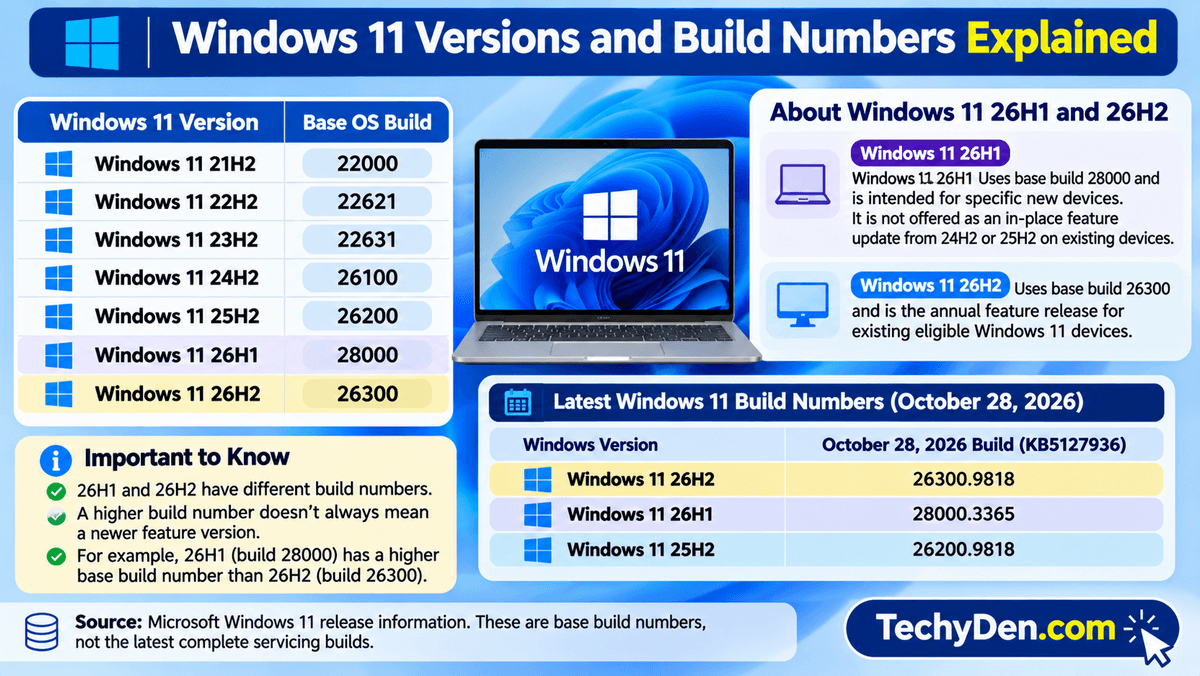
Microsoft releases Windows 11 feature updates periodically. Each feature release has a corresponding base OS build number.
The following table lists the major Windows 11 versions and their corresponding base builds.
| Windows 11 version | Base OS build |
|---|---|
| Windows 11 21H2 | 22000 |
| Windows 11 22H2 | 22621 |
| Windows 11 23H2 | 22631 |
| Windows 11 24H2 | 26100 |
| Windows 11 25H2 | 26200 |
| Windows 11 26H1 | 28000 |
| Windows 11 26H2 | 26300 |
Source: Microsoft Windows 11 release information. These are base build numbers, not the latest complete servicing builds. Microsoft Learn+1
Important information about Windows 11 26H1 and 26H2
Windows 11 26H1 and 26H2 have different build numbers.
- Windows 11 26H1: Uses base build 28000 and is intended for specific new devices. It is not offered as an in-place feature update from 24H2 or 25H2 on existing devices.
- Windows 11 26H2: Uses base build 26300 and is the annual feature release for existing eligible Windows 11 devices.
You should not assume that a higher build number always means a newer feature version. For example, 26H1 has a higher base build number than 26H2.
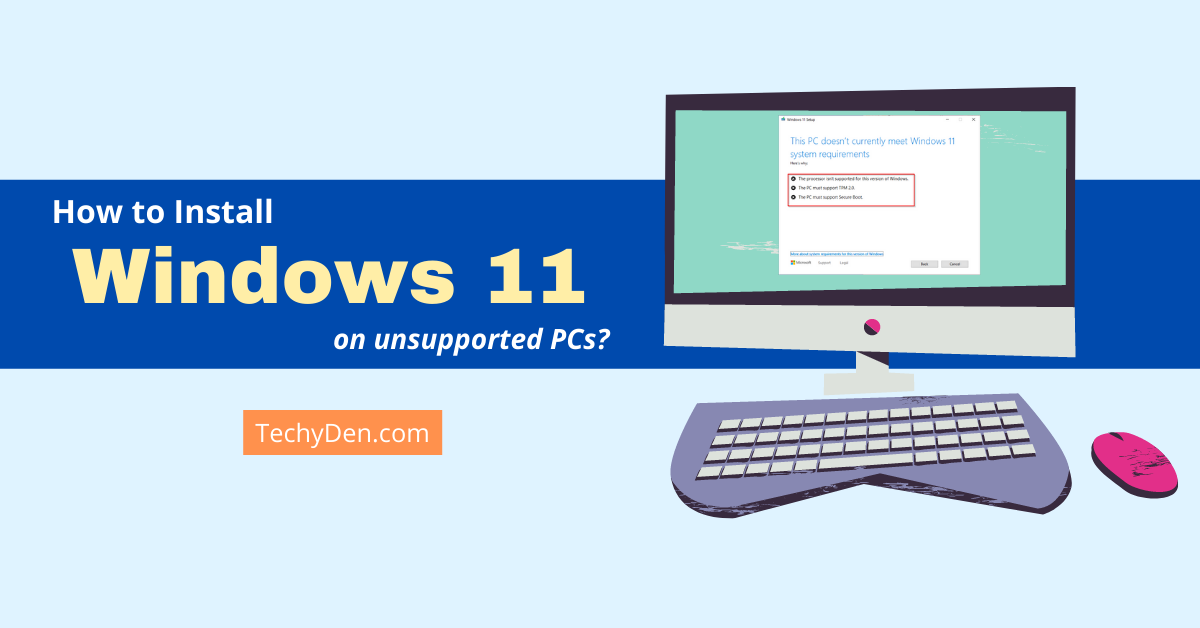
If your computer does not meet Microsoft’s minimum system requirements, follow our guide on how to install Windows 11 on an unsupported PC to understand the available installation options and limitations.
Latest Windows 11 build numbers (October 2026)
According to Microsoft’s release information, the October 28, 2026 cumulative preview update KB5127936 brought the following versions to these builds:
| Windows version | October 28 build |
|---|---|
| Windows 11 26H2 | 26300.9818 |
| Windows 11 26H1 | 28000.3365 |
| Windows 11 25H2 | 26200.9818 |
These are published October 28 builds, not a guarantee that every device has installed them. Check Microsoft’s official Windows 11 release information for newer releases and servicing updates.
If your computer is running Windows 11 26H2, read our detailed guide to Windows 11 26H2 and its new features to learn about its improvements, changes, and latest updates.
How to Check Whether Your Windows 11 Is Up to Date
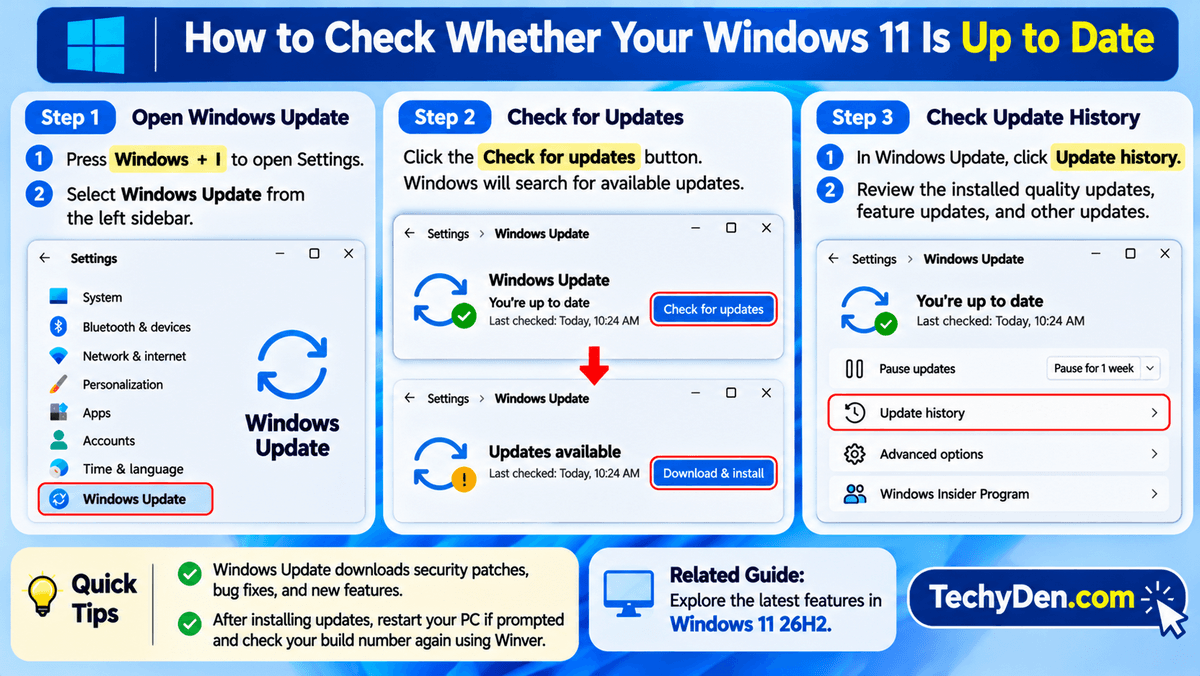
After checking your Windows 11 version and build number, you may also want to know whether your computer has installed the latest available updates.
Windows Update helps you download and install security patches, bug fixes, and feature improvements.
Follow these steps to check for updates.
Step 1: Open Windows Update
Press Windows + I to open Settings.
Select Windows Update from the left sidebar.
Step 2: Check for Updates
Click the Check for updates button.
Windows will search for available updates.
If updates are available, Windows will display an option to download and install them.
Step 3: Check Your Installed Update History
To see which updates are already installed:
- Open Settings.
- Select Windows Update.
- Click Update history.
- Review the installed quality updates, feature updates, and other updates.
You can also identify the KB numbers associated with installed updates.
After installing an update, restart your computer if Windows requests it. You can then use the Winver command again to check whether your OS build number has changed.
If you continue experiencing Windows update problems or system errors after troubleshooting, you may consider learning how to reset your Windows 11 PC to restore Windows to a fresh state.
Related guide: If you want to explore the latest Windows feature release, read our guide to Windows 11 26H2 and its new features.
Which Method Is Best for Checking Your Windows 11 Version?
Windows 11 offers several ways to check your operating system version and build number. The best method depends on how much information you need.
Here is a quick comparison:
| Method | Best for | Difficulty |
|---|---|---|
| Winver | Quick version and build check | Very easy |
| Settings | Edition, version, and complete build | Very easy |
| Command Prompt | Command-line system information | Easy |
| PowerShell | Advanced system information | Intermediate |
| System Information | Detailed hardware and OS details | Easy |
My recommendation: Use the Winver command if you only want to identify your Windows 11 version and build number. If you need additional information, such as your Windows edition and installation date, use Settings.
Microsoft regularly publishes information about Windows 11 feature releases, cumulative updates, and operating system builds. Visit the official Windows 11 release information page to verify the latest available build numbers.
Frequently Asked Questions About Windows 11 Version and Build Number
Here are answers to some common questions about checking Windows 11 versions, editions, and build numbers.
How do I check which version of Windows 11 I have?
Press Windows + R on your keyboard to open the Run dialog box. Type winver and press Enter. A new window will display your Windows 11 version and OS build number. You can also find this information by navigating to Settings > System > About > Windows speNo. Windows 11 24H2 and 25H2 are different feature releases. Version 24H2 uses base OS build 26100, while 25H2 uses base OS build 26200. Although they share much of their underlying servicing technology, they have different version identifiers and support timelines.cifications.
How do I find my Windows 11 build number?
You can find your Windows 11 build number using the Winver command. Press Windows + R, type winver, and press Enter. Alternatively, open Settings > System > About and scroll to Windows specifications. Look for the OS build field to identify your complete operating system build number.
What is the latest version of Windows 11?
As of November 6, 2026, Windows 11 26H2 is the latest annual feature release for existing eligible devices. Windows 11 26H1 is also available for specific new devices. Microsoft publishes the latest servicing builds through its official Windows release information page.
Is Windows 11 24H2 the same as 25H2?
No. Windows 11 24H2 and 25H2 are different feature releases. Version 24H2 uses base OS build 26100, while 25H2 uses base OS build 26200. Although they share much of their underlying servicing technology, they have different version identifiers and support timelines.
How do I check Windows 11 version using CMD?
Open Command Prompt by searching for CMD in Windows Search. Enter systeminfo | findstr /B /C:"OS Name" /C:"OS Version" and press Enter. Windows will display your operating system name and version information, including the base OS build number.
What is the difference between Windows 11 version and build number?
The Windows 11 version identifies the feature release, such as 24H2, 25H2, or 26H2. The build number identifies the underlying operating system build. Its revision number changes when Microsoft releases servicing updates, meaning your build can change without changing your feature version.
Can I check my Windows 11 version without opening Settings?
Yes. You can check your Windows 11 version without opening Settings. Press Windows + R, type winver, and press Enter. The About Windows dialog box displays your Windows version and OS build. You can also use Command Prompt, PowerShell, or the System Information utility.
Does updating Windows 11 change the build number?
Yes. Installing cumulative Windows updates can change your OS build revision number. For example, Windows 11 26H2 uses base build 26300, but its complete build number can increase as Microsoft releases updates. The feature version, such as 26H2, usually remains unchanged after these monthly updates.
Final Thoughts
Knowing how to check your Windows 11 version and build number is useful for troubleshooting, software compatibility, security updates, and general system maintenance.
The Winver command is the fastest option for most users. However, Windows Settings provides additional details about your installed edition, version, and OS build. Command Prompt, PowerShell, and System Information are useful alternatives for users who need more technical information.
I recommend checking your Windows version occasionally, especially before installing new software, troubleshooting operating system problems, or following Windows update guides.
After checking your Windows version and installing the latest updates, explore our practical tips to improve Windows 11 performance and make your computer run more efficiently.
For more Windows tutorials, explore our Windows 11 guides on TechyDen.