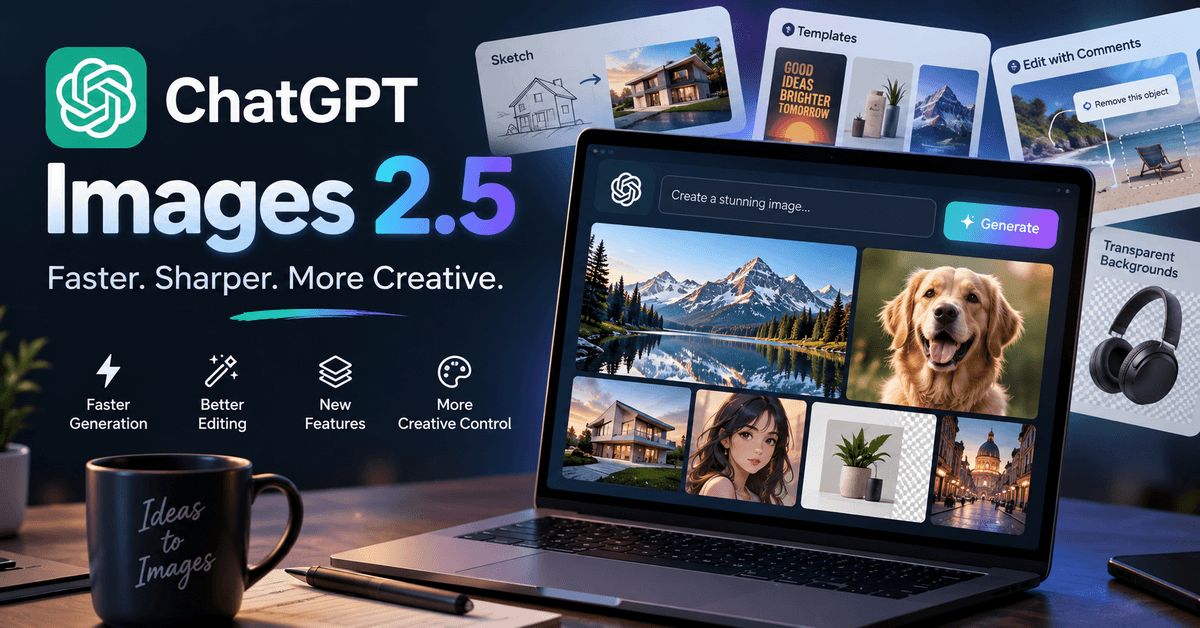
ChatGPT Images 2.5 is the latest update to OpenAI’s AI image-generation experience, bringing faster image creation, better editing, improved visual quality, and new creative tools. It is designed to help users generate and refine images through natural-language prompts, making AI-powered design more accessible to bloggers, content creators, marketers, and everyday users.
OpenAI has introduced several improvements with ChatGPT Images 2.5, including better image fidelity, more precise edits, improved consistency across multiple editing turns, and new features such as Sketch and Templates.
Whether you want to create a professional blog featured image, edit an existing photo, design a social media graphic, or explore creative ideas, ChatGPT Images 2.5 offers a more flexible way to work with AI-generated visuals.
In this guide, we will explain what ChatGPT Images 2.5 is, its key features, how to use it, how it compares with previous versions, and how bloggers and content creators can benefit from it.
What Is ChatGPT Images 2.5?
ChatGPT Images 2.5 is OpenAI’s latest image-generation and editing model available through ChatGPT.
It is designed to create images from text prompts and help users modify existing images using natural-language instructions. Instead of learning complicated design software, users can simply describe what they want and let ChatGPT generate or edit the visual.
The model focuses on improving several important aspects of AI image generation, including
- Faster image generation.
- Sharper visual details.
- More natural lighting.
- Richer textures.
- Better preservation of reference subjects.
- More precise image editing.
- Improved consistency across multiple edits.
- Better understanding of complex prompts.
- Improved visual-style adherence.
- More capable layouts and transparent backgrounds.
One of the main advantages of ChatGPT Images 2.5 is its conversational editing workflow. You can create an image, ask for changes, review the result, and continue refining it through multiple prompts.
This makes ChatGPT more than just a text-to-image generator. It can also work as an AI-powered creative assistant for different visual projects. Read the official document page.
What’s New in ChatGPT Images 2.5?
ChatGPT Images 2.5 introduces several improvements that make AI image generation more useful for everyday users and professional creators.
Let’s explore the most important features and improvements.
1. Faster Image Generation
One of the biggest improvements in ChatGPT Images 2.5 is faster image generation.
OpenAI says Images 2.5 reduces image-generation latency by up to 50% compared with Images 2.0.
This improvement is useful because creating a high-quality image often requires multiple attempts. You may need to change the background, adjust the lighting, move an object, or try a different style before getting the result you want.
Faster generation helps reduce the time required for these experiments.
For example, a blogger creating a featured image for a new article can generate several concepts, compare them, and refine the best one more quickly.
Why Faster Generation Matters
Faster image generation is especially useful for:
- Bloggers creating article images.
- YouTubers designing thumbnails.
- Social media creators.
- Marketing teams.
- E-commerce businesses.
- Graphic designers.
- Digital agencies.
The advantage is not just getting the first image faster. It also makes the entire editing and experimentation process more efficient.
2. Better Image Quality and Fidelity
ChatGPT Images 2.5 focuses on improving the quality and fidelity of generated images.
The model is designed to produce sharper details, more natural lighting, and richer textures. These improvements can make images look more polished and suitable for a wider range of creative projects.
For example, you can generate:
- Realistic product photographs.
- Professional technology illustrations.
- Creative blog graphics.
- Portraits.
- Digital artwork.
- Modern workspace scenes.
- Marketing visuals.
The model also focuses on preserving important characteristics from reference images.
If you upload a reference photo and ask ChatGPT to place the subject in a different environment, the goal is to maintain recognizable details while changing the background or overall composition.
This is useful when working with personal photographs, product images, and branded visuals.
3. More Precise Image Editing
AI image generators often have a common problem: changing one part of an image may accidentally change other elements.
ChatGPT Images 2.5 is designed to improve this editing experience.
You can ask ChatGPT to modify a specific object or area while keeping the rest of the image unchanged.
Example Prompt
"Change the laptop from silver to black, but keep the person, background, lighting, and composition unchanged."
This type of instruction tells ChatGPT exactly what you want to modify.
The model is designed to make targeted changes without unnecessarily rebuilding the entire image.
Why Precise Editing Is Useful
Precise image editing can help with:
- Product photography.
- Website graphics.
- Marketing creatives.
- Social media designs.
- Blog illustrations.
- Photo corrections.
- E-commerce visuals.
Instead of creating a completely new image every time, you can continue editing the same visual until it meets your requirements.
4. Better Multi-Turn Editing
Another important improvement in ChatGPT Images 2.5 is multi-turn editing consistency.
Multi-turn editing means you can continue refining an image through several prompts in the same conversation.
For example:
| Step | Prompt |
|---|
| Prompt 1 | Create a modern home office with a large desk, laptop, chair, and indoor plant. |
| Prompt 2 | Change the wall color to light gray. |
| Prompt 3 | Add a bookshelf behind the desk. |
| Prompt 4 | Make the laptop screen display a technology blog. |
| Prompt 5 | Add warm natural lighting and make the image look more realistic. |
With this workflow, you do not need to start from scratch after every change.
ChatGPT Images 2.5 is designed to preserve previous edits more reliably across multiple turns.
This makes the process feel more like working with an AI design assistant.
Benefits of Multi-Turn Editing
- Saves time.
- Reduces repeated prompts.
- Makes image refinement easier.
- Helps maintain a consistent visual style.
- Allows gradual improvements.
- Makes complex designs easier to manage.
For bloggers and content creators, this can be particularly useful when developing a featured image or illustration that needs several revisions.
5. Improved Understanding of Complex Prompts
ChatGPT Images 2.5 is designed to better understand detailed and complicated image-generation instructions.
Modern image prompts often include multiple requirements related to the subject, lighting, composition, colors, style, and layout.
For example:
“Create a professional technology blog featured image showing a laptop on a desk, with a dark blue background, glowing AI elements, realistic lighting, subtle gradients, and enough empty space on the left for a headline.”
This prompt includes several instructions:
- Main subject: Laptop.
- Environment: Desk.
- Background: Dark blue.
- Design elements: AI-inspired visuals.
- Lighting: Realistic.
- Composition: Space for headline.
- Overall style: Professional technology design.
A model needs to understand how these requirements work together.
ChatGPT Images 2.5 is designed to improve its ability to follow complex visual instructions and produce more coherent results.
Where Complex Prompt Understanding Helps
This feature is useful for creating:
- Blog featured images.
- Social media graphics.
- Product advertisements.
- Presentation visuals.
- Website illustrations.
- Marketing campaigns.
- Product concepts.
- Digital artwork.
The more clearly you describe your requirements, the easier it becomes to guide the image-generation process.
6. Better Visual Style Control
ChatGPT Images 2.5 also improves the ability to follow requested visual styles.
You can ask ChatGPT to create images in different artistic and professional styles.
Some examples include:
- Photorealistic.
- Cinematic.
- Minimalist.
- Cartoon.
- Watercolor.
- Editorial.
- 3D render.
- Digital illustration.
- Product photography.
- Modern technology design.
- Vintage photography.
For example, you can ask:
“Create a realistic 1980s family photograph with warm lighting, slightly faded colors, natural film grain, and an authentic printed-photo appearance.”
Or:
“Create a futuristic AI illustration with a dark background, glowing blue elements, and a professional technology aesthetic.”
ChatGPT Images 2.5 is designed to better reflect the requested style and maintain the visual direction of the prompt.
This makes it useful for creators who want images that match a particular brand or creative theme.
7. Transparent Background Support
Transparent backgrounds are useful when you want to reuse an image in different designs.
ChatGPT Images 2.5 supports image workflows involving transparent backgrounds, making it useful for creating individual visual assets.
Examples include:
- Product cutouts.
- Character illustrations.
- Icons.
- Stickers.
- Website assets.
- Marketing elements.
- Product mockups.
- E-commerce images.
For example, you could ask:
“Create a realistic pair of wireless headphones on a transparent background, suitable for a technology blog.”
A transparent background allows you to place the object on different colors, layouts, or designs.
This can be useful when working with Canva, Photoshop, WordPress, presentations, and other design tools.
8. New Sketch Feature
One of the interesting features introduced with ChatGPT Images 2.5 is Sketch.
Sketch allows users to create a rough drawing or visual concept and use it as a reference for image generation.
This is useful when words alone are not enough to explain the composition you want.
For example, you might draw a rough layout showing:
- A person.
- A laptop.
- A coffee cup.
- A plant.
- A desk.
You can then ask ChatGPT to turn that rough sketch into a realistic image.
Example Prompt
"Turn this sketch into a realistic modern home-office photograph with warm natural lighting, detailed textures, and a professional editorial style."
The sketch helps communicate the approximate placement and structure of the objects.
Who Can Benefit From Sketch?
- Designers.
- Students.
- Bloggers.
- Product creators.
- Architects.
- Artists.
- Content creators.
- Beginners learning visual design.
Sketches can make the creative process easier for people who prefer drawing a rough idea instead of writing a long description.
9. Templates for Faster Image Creation
ChatGPT Images 2.5 also introduces templates for popular creative formats.
Templates can help users start with a particular design direction rather than creating everything from a blank prompt.
Examples of creative formats include:
- Posters.
- Merchandise.
- Flyers.
- Product photos.
- Promotional graphics.
Templates are useful for beginners who know what they want to create but may not know how to write an effective image prompt.
For example, a user could start with a poster-style template and customize the subject, colors, text, and overall design.
Benefits of Templates
- Easier for beginners.
- Faster creative workflow.
- Useful for marketing designs.
- Helps organize visual ideas.
- Reduces the need for complicated prompts.
Templates can make ChatGPT more approachable for users who want to create practical designs without learning professional design software.
10. Comment Directly on Images
ChatGPT Images 2.5 also supports a more focused editing workflow through image comments and visual feedback.
Instead of explaining the entire image again, you can point out what needs to be changed.
For example:
- “Remove this object.”
- “Change the color of this section.”
- “Make the laptop screen brighter.”
- “Move this element to the right.”
This type of instruction can help ChatGPT understand the specific area or object you want to edit.
Why Image Comments Are Useful
Image comments can help with:
- Faster revisions.
- More focused editing.
- Easier design feedback.
- Product image corrections.
- Marketing graphic improvements.
- Collaborative creative workflows.
This is especially useful when you are working on a visual that requires several small changes.
11. Share Image Prompts
ChatGPT Images 2.5 also makes it easier to share the creative process behind an image.
When sharing an image, users can choose to include the prompt that generated it.
This allows others to understand how the image was created and experiment with similar ideas.
For example, a content creator could share an AI-generated image along with the prompt used to create it.
This is useful for:
- AI image prompt communities.
- Tutorials.
- Social media content.
- Design inspiration.
- Educational content.
- Creative experiments.
Instead of sharing only the final image, creators can also share the instructions behind the image.
This makes it easier for others to learn and develop their own prompting skills.
ChatGPT Images 2.5 vs Images 2.0
ChatGPT Images 2.5 builds on the previous image-generation experience with improvements in speed, quality, editing, and creative workflows.
Here is a simplified comparison:
| Feature | ChatGPT Images 2.0 | ChatGPT Images 2.5 |
|---|---|---|
| Image generation | Supported | Supported |
| Image quality | Strong | Improved |
| Generation speed | Baseline | Up to 50% lower latency |
| Lighting | Good | More natural |
| Textures | Good | Richer |
| Reference-image fidelity | Supported | Improved |
| Precise editing | Available | More reliable |
| Multi-turn editing | Supported | Improved consistency |
| Complex prompts | Supported | Better instruction following |
| Visual styles | Supported | Improved style adherence |
| Transparent backgrounds | Supported | Improved handling |
| Sketch workflow | Not a core feature | Available |
| Templates | Not a core feature | Available |
| Prompt sharing | Supported | Improved sharing workflow |
The biggest advantage of ChatGPT Images 2.5 is the combination of faster generation, better image quality, more precise editing, and new creative tools.
It is designed to make the complete image-generation workflow more efficient.
How to Use ChatGPT Images 2.5
Using ChatGPT Images 2.5 is straightforward.
You can create images by describing what you want in a ChatGPT conversation and then refine the result through additional prompts.
Step 1: Open ChatGPT
Open ChatGPT on your desktop, iPhone, or Android device.
Make sure you are using the latest available ChatGPT experience.
Step 2: Start an Image Request
Describe the image you want to create.
For example:
"Create a professional 1200 × 628 featured image for a technology blog article about AI image generation. Show a laptop displaying an AI-generated image, a modern futuristic interface, a dark background, realistic lighting, and enough empty space for a headline."
Try to include details such as:
- Image subject.
- Background.
- Style.
- Lighting.
- Colors.
- Composition.
- Image dimensions.
- Intended use.
Step 3: Review the Generated Image
Once ChatGPT creates the image, review it carefully.
Check whether:
- The main subject looks correct.
- The composition matches your requirements.
- The colors are suitable.
- The background looks professional.
- The image contains unwanted objects.
- Any text is readable and accurate.
Step 4: Ask for Changes
If you want to change something, describe the modification.
For example:
“Make the laptop larger and move it toward the right side. Keep the background, lighting, and overall composition unchanged.”
You can continue refining the image through multiple prompts.
Step 5: Save or Share the Image
Once you are satisfied with the result, save or share it using the available ChatGPT image options.
For bloggers, the final image can be uploaded to WordPress and used as a featured image or article illustration.
Best ChatGPT Images 2.5 Prompts
A well-written prompt can help you get better results.
Here are some useful prompt examples for different creative tasks.
1. Blog Featured Image Prompt
"Create a professional technology blog featured image about [TOPIC]. Show [MAIN SUBJECT]. Use a modern editorial style, realistic lighting, clean composition, subtle technology elements, and leave negative space for a headline. Use a 1200 × 628 pixel landscape format."
2. Product Image Prompt
"Create a premium product photograph of [PRODUCT] on a clean studio background. Use realistic materials, soft professional lighting, accurate proportions, subtle shadows, and a commercial advertising style."
3. Social Media Graphic Prompt
"Create a modern social media graphic about [TOPIC]. Use a bold visual hierarchy, minimal clutter, a strong focal point, professional typography, and a clean technology aesthetic."
4. Image Editing Prompt
"Keep the original subject, composition, lighting, and background unchanged. Only [DESCRIBE THE CHANGE]. Do not modify any other elements."
5. Realistic Photo Prompt
"Create a realistic photograph of [SUBJECT] in [LOCATION]. Use natural lighting, authentic details, realistic textures, accurate proportions, and a professional photography style."
6. Transparent Background Prompt
"Create a high-quality image of [OBJECT] with a transparent background. Keep the object centered, detailed, and suitable for use in website graphics and marketing designs."
7. Sketch-to-Image Prompt
"Use this sketch as a reference for object placement and composition. Turn it into a polished, realistic image with [DESCRIBE STYLE, LIGHTING, AND BACKGROUND]."
8. Consistent Editing Prompt
"Continue editing the existing image. Preserve the subject, composition, and previous changes. Only make the following modification: [DESCRIBE CHANGE]."
These prompts provide a starting point. You can customize them based on your project and desired output.
ChatGPT Images 2.5 for Bloggers
ChatGPT Images 2.5 can be especially useful for bloggers who regularly publish articles and need original visual content.
A professional image can improve the appearance of a blog post and make it more attractive when shared on social media.
You can use ChatGPT Images 2.5 to create:
- Featured images.
- Blog illustrations.
- Tutorial graphics.
- Comparison graphics.
- Product mockups.
- Social media images.
- Pinterest graphics.
- Infographics.
- Section illustrations.
Example: Technology Blog Workflow
Suppose you are publishing an article about Windows 11.
You can use ChatGPT Images 2.5 to create:
- A featured image showing Windows 11 on a laptop.
- An illustration explaining Windows storage management.
- A comparison graphic showing different cleanup tools.
- A social media image promoting the article.
You can also refine the images to match your website’s branding.
For example, you might ask ChatGPT to use a consistent color palette, modern technology elements, and a clean editorial style.
Benefits for Bloggers
- Faster visual content creation.
- Less dependence on stock images.
- Easier customization.
- Better control over composition.
- Useful for branded blog designs.
- More flexibility for social media promotion.
However, AI-generated images should still be reviewed carefully before publication.
ChatGPT Images 2.5 for Content Creators
Content creators can use ChatGPT Images 2.5 for many different visual projects.
Whether you create YouTube videos, Instagram posts, blog content, or digital marketing campaigns, AI-generated images can help you explore creative ideas faster.
- YouTube Thumbnails: Create thumbnail concepts with bold visual subjects, professional lighting, and space for readable text.
- Instagram Posts: Generate square or portrait-oriented visual concepts for social media content.
- Podcast Artwork: Create cover-art ideas based on your podcast topic, theme, and audience.
- Promotional Graphics: Develop promotional visuals for products, services, events, or campaigns.
- Story Concepts: Create character concepts, environments, and scenes for creative storytelling.
- Background Images: Generate backgrounds for videos, presentations, websites, and social media graphics.
The ability to refine an image through multiple turns can be useful when you want to keep the same subject or visual style across a series of content pieces.
ChatGPT Images 2.5 for Businesses
Businesses can use ChatGPT Images 2.5 to support different marketing and creative workflows.
- Marketing: Generate visual concepts for advertising campaigns, promotional materials, and brand communication.
- E-commerce: Create product imagery, variations, and visual concepts for online stores.
- Advertising: Develop early ideas for advertisements and campaign designs.
- Branding: Explore different visual directions, colors, and design concepts.
- Presentations: Create illustrations and supporting visuals for business presentations.
- Product Design: Generate early concepts and mockups for new products.
- Website Design: Create visual assets for landing pages, blog posts, and marketing websites.
The improved editing workflow can be useful when a business needs to maintain consistency across multiple images.
For example, a company could generate several product visuals and refine them to use a similar background, lighting style, and composition.
ChatGPT Images 2.5 API Models
ChatGPT Images 2.5 is not limited to the ChatGPT application.
OpenAI has also introduced API models associated with the Images 2.5 generation.
These models are intended for developers and businesses that want to integrate AI image generation into their own applications and workflows.
GPT-Image-2.5 Flare
Flare is positioned as the default choice for many applications.
It is designed for high-quality image generation with lower latency and is intended for use cases such as
- Creator content.
- Social media.
- Product experiences.
- Visual search.
- Rapid prototyping.
- High-volume image generation.
Flare may be useful for developers who want to generate images quickly and efficiently.
GPT-Image-2.5 Sunburst
Sunburst is designed for premium visual workflows that require greater precision and tighter creative control.
Potential use cases include:
- Production-ready campaign creative.
- Polished product imagery.
- High-quality marketing visuals.
- Complex image-editing workflows.
The two API models provide developers with additional options depending on the requirements of their application.
If your goal is to create images manually inside ChatGPT, you may not need to work with the API.
Is ChatGPT Images 2.5 Free?
ChatGPT Images 2.5 is being made available across ChatGPT tiers, including desktop and mobile experiences.
However, access to image generation, usage limits, and certain advanced features may vary depending on your ChatGPT plan and the current product rollout.
Free users may have different usage limits from paid users.
For developers, API image generation is a separate service with its own pricing and usage requirements.
Before using the API for a business application, check the current pricing and model availability.
Is ChatGPT Images 2.5 Better Than DALL-E?
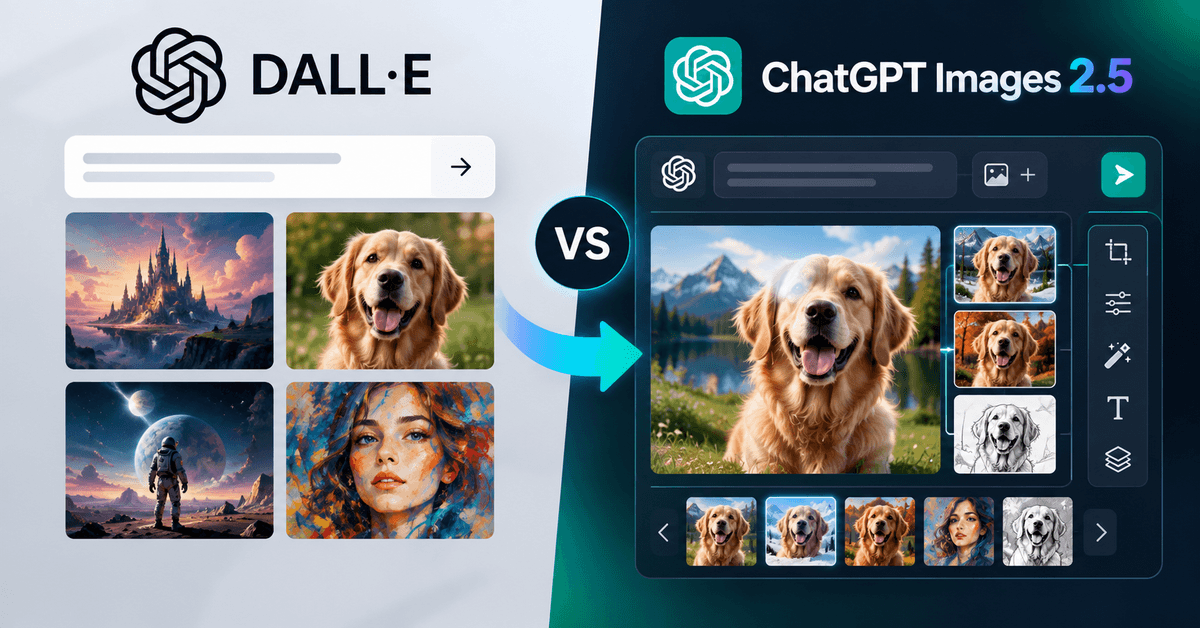
ChatGPT’s image-generation experience has evolved beyond the older DALL-E workflow.
For users creating images inside ChatGPT, the current ChatGPT Images experience is the more relevant option.
ChatGPT Images focuses on natural-language image creation, editing, and iterative workflows.
If you previously used DALL-E to generate images, you can explore ChatGPT Images for similar creative tasks with additional editing capabilities.
The most important difference is the overall workflow.
ChatGPT Images is designed to help users create an image and continue refining it through conversation.
Is ChatGPT Images 2.5 Good for SEO Images?
Yes, ChatGPT Images 2.5 can be useful for creating visual content for SEO-focused blog posts.
For bloggers, original and relevant images can improve the presentation of articles and support content marketing.
However, generating an image is only one part of image SEO.
You should also optimize the image before uploading it to your website.
Image SEO Best Practices
- Use Descriptive File Names: Instead of uploading an image named: “
IMG_8392.png“. Use a descriptive filename such as “chatgpt-images-2-5-features.png“. - Add Useful Alt Text: Write alt text that accurately describes the image. Example: “ChatGPT Images 2.5 image generation interface showing AI-generated visuals on a laptop.”
- Compress Images: Large image files can affect page loading speed. Use appropriate compression while maintaining good visual quality.
- Choose Suitable Dimensions: For blog featured images, choose dimensions that match your website’s layout and theme. For example, a 1200 × 628 pixel image is commonly used for blog and social media graphics.
- Use Relevant Images: The image should support the content of your article. Avoid adding unrelated visuals just to increase the number of images on a page.
- Maintain Consistent Branding: Use consistent colors, visual styles, and layouts across your blog images. This helps create a recognizable brand identity.
- Important SEO Note:
- AI-generated images do not automatically guarantee better rankings.
- Your article should still provide useful information, match search intent, and follow good SEO practices.
- Images should support the content rather than replace it.
ChatGPT Images 2.5 Pros and Cons
Like any AI image-generation tool, ChatGPT Images 2.5 has advantages and limitations.
Pros of ChatGPT Images 2.5
- Faster image generation.
- Improved image quality.
- More natural lighting.
- Richer textures.
- Better reference-image fidelity.
- More precise editing.
- Improved multi-turn consistency.
- Better complex prompt understanding.
- Improved style adherence.
- Sketch-to-image workflow.
- Templates.
- Prompt sharing.
- Transparent-background support.
- API options for developers.
Cons of ChatGPT Images 2.5
- Some images may still require multiple attempts.
- Complex edits may not always be perfect.
- Generated text should be checked carefully.
- Real-world details may need verification.
- Feature availability may vary by plan.
- API usage has separate pricing.
- It is not a complete replacement for professional design software.
Who Should Use ChatGPT Images 2.5?
ChatGPT Images 2.5 is useful for different types of users.
- Best for Bloggers: Yes. Bloggers can use it to create featured images, illustrations, comparison graphics, and social media visuals.
- Best for Content Creators: Yes. The faster generation and editing workflow can help creators produce visual content more efficiently.
- Best for Designers: Useful as a creative assistant. It can help with brainstorming, concept creation, and generating visual assets. However, professional designers may still need tools such as Photoshop, Illustrator, or other design software for advanced editing and production work.
- Best for Businesses: Yes. Businesses can use AI image generation for marketing concepts, product imagery, advertising, and creative experimentation. Developers can also explore the API for integrating image-generation capabilities into their products.
- Best for Beginners: Definitely. The conversational interface, templates, and sketch-based workflows can make image generation easier for people without advanced design skills.
ChatGPT Images 2.5 Tips for Better Results
If you want better results from ChatGPT Images 2.5, follow these practical tips.
- Describe the Main Subject Clearly: Tell ChatGPT exactly what should appear in the image. Example: “Create a professional laptop on a modern desk.”
- Specify the Style: Mention whether you want a realistic photograph, illustration, 3D render, or another style.
- Explain the Composition: Tell ChatGPT where you want the main subject to appear. Example: “Place the laptop on the right side and leave empty space on the left for text.”
- Mention Lighting: Lighting can significantly affect the appearance of an image. Example: “Use soft natural lighting with realistic shadows.”
- Specify Colors: Use specific colors if you have a branding requirement. Example: “Use dark blue, white, and cyan as the main colors.”
- Request the Correct Dimensions: For blog featured images, specify the desired dimensions or aspect ratio. Example: “Create a 1200 × 628 pixel landscape image.”
- Edit Instead of Starting Over: If the generated image is close to what you want, ask ChatGPT to make targeted changes. This can save time and help preserve the parts of the image you already like.
- Check Text Carefully: AI-generated text may contain spelling mistakes or inaccurate wording. If your image includes important text, review it carefully before publication.
Frequently Asked Questions
Can ChatGPT Images 2.5 create images in different aspect ratios?
Yes, ChatGPT Images 2.5 can be used to create images in different aspect ratios, depending on the available image-generation options. You can request landscape images for blog banners, square images for social media, or portrait images for mobile content. Mention your preferred dimensions or aspect ratio in the prompt to guide the composition.
Can ChatGPT Images 2.5 create images from reference photos?
Yes, you can use reference photos to guide image creation and editing. Upload a photo and describe the visual changes you want. For example, you can request a different background, clothing style, or artistic appearance. The result may vary, so review the generated image to check whether important details are preserved accurately.
Can ChatGPT Images 2.5 create images for commercial projects?
ChatGPT Images 2.5 can help create visual concepts for commercial projects such as advertisements, blog graphics, product presentations, and marketing campaigns. Before using generated images commercially, review OpenAI’s current terms, usage rights, and any applicable restrictions. Also check trademarks, recognizable people, and product details to avoid potential legal or branding issues.
How can users improve the accuracy of text in AI-generated images?
To improve text accuracy, provide the exact wording and explain where it should appear in the image. Keep the text short and use clear layout instructions. After generation, carefully check spelling, numbers, and brand names. If the text is incorrect, request an edit or consider adding final text using a design tool.
Can ChatGPT Images 2.5 create consistent images for a brand?
Yes, ChatGPT Images 2.5 can help create visually consistent brand assets by using similar prompts, colors, layouts, and design styles. You can provide brand guidelines and reference images to guide the results. However, AI-generated visuals may vary between generations. Review each image and make final adjustments to maintain consistent branding across your website and marketing materials.
Can ChatGPT Images 2.5 help create images for online courses?
Yes, ChatGPT Images 2.5 can help educators and course creators design visual materials for online lessons. You can create illustrations, concept diagrams, educational scenes, and presentation backgrounds. Describe the topic, target learners, and preferred style in your prompt. Always verify scientific or educational details before publishing, especially when explaining complex concepts.
Can ChatGPT Images 2.5 remove unwanted objects from photos?
Yes, you can ask ChatGPT to remove unwanted objects from an existing image. Upload the photo and describe the object you want removed. You can also request that the background be reconstructed naturally. Results depend on the image and editing request, so inspect the edited photo for visual errors before using it publicly.
Can ChatGPT Images 2.5 help create a series of matching blog images?
Yes, ChatGPT Images 2.5 can help you develop a series of matching blog images by using a consistent visual style, color palette, and composition. Start with one design concept and reuse its key instructions for other images. Review each result to ensure the images look cohesive and support the content of your blog.
Final Verdict: Is ChatGPT Images 2.5 Worth Using?
ChatGPT Images 2.5 is a significant improvement to the AI image-generation experience, focusing on faster creation, better visual quality, and more flexible editing.
The combination of improved image fidelity, up to 50% lower generation latency compared with Images 2.0, more precise edits, better multi-turn consistency, and new creative features such as Sketch and Templates makes it useful for a wide range of users.
For bloggers and content creators, the ability to quickly generate and refine featured images, social media graphics, and article illustrations is one of the biggest advantages.
For businesses and developers, the availability of API models provides additional options for integrating AI image generation into creative workflows.
For beginners, the conversational interface makes it possible to create professional-looking visual concepts without learning complicated design software.
However, ChatGPT Images 2.5 is not a complete replacement for professional graphic design tools. Complex projects, advanced layouts, branding, and final production work may still require additional software.
Overall, ChatGPT Images 2.5 is worth exploring if you want a faster and more flexible way to create AI-generated images. Whether you are a blogger, designer, marketer, or casual user, it can help turn creative ideas into visual content with less effort.