What Is Airplane Mode on Android? What It Does & How It Works
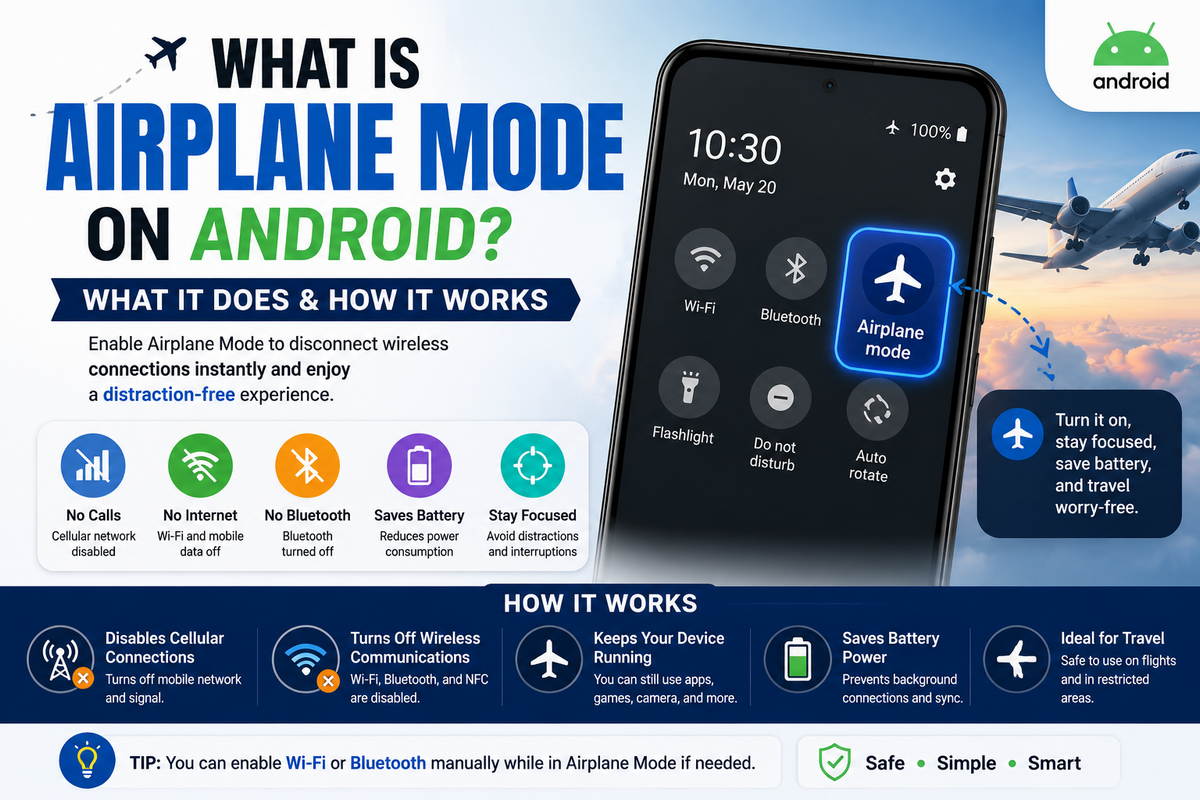
Airplane mode is a setting on Android phones that temporarily disables cellular and other wireless connections. It was designed primarily for use during flights to prevent cellular communication while allowing you to continue using your phone’s offline features.
The airplane mode meaning is therefore more about controlling wireless connectivity than turning off your phone.
On Android, enabling airplane mode typically disconnects your phone from the cellular network and disables mobile data, while Wi-Fi and Bluetooth may also be turned off initially.
You can usually turn Wi-Fi or Bluetooth back on while keeping airplane mode enabled. Calls and SMS normally require cellular connectivity, while GPS and location behavior can vary by device.
Airplane mode can also help conserve battery and troubleshoot temporary network problems.
Airplane mode (Aeroplane mode) is an Android setting that temporarily disables cellular and other wireless connections. It is mainly used during flights, but it can also help save battery, reduce connectivity interruptions, and troubleshoot network problems.
What Is Airplane Mode?
Airplane mode is a smartphone setting that temporarily disables the device’s wireless communication features, particularly its connection to cellular networks.
When you turn on airplane mode, your phone stops communicating with cellular towers, which normally means you cannot make or receive regular phone calls, send or receive SMS messages, or use mobile data.
The meaning of airplane mode comes from its original purpose: allowing passengers to use electronic devices during a flight without maintaining a cellular connection.
Airlines may require passengers to enable airplane mode during certain stages of a flight, while specific rules can vary by airline and aviation authority.
Airplane mode is also commonly called flight mode. Although the name suggests that it is only useful on an airplane, you can enable it whenever you want to temporarily disconnect your phone from cellular networks.
What Is Airplane Mode on Android?
On Android phones, airplane mode is a system setting that controls the phone’s wireless connections.
When enabled, it typically disconnects the device from the cellular network and disables mobile data. Wi-Fi and Bluetooth may also be turned off initially, although Android generally allows you to turn them back on manually while keeping airplane mode enabled.
Importantly, airplane mode does not turn off your Android phone. You can still use many of its normal features, including the camera, calculator, alarm, downloaded music and videos, offline games, notes, and other apps that do not require an internet connection.
In simple terms, airplane mode on Android lets you keep using your phone while temporarily limiting its wireless communication.
This makes it useful not only during flights but also when saving battery, avoiding interruptions, or troubleshooting temporary network connection problems.
What Does Airplane Mode Do on Android?
What does airplane mode do? On Android, airplane mode temporarily disconnects your phone from cellular networks and typically disables mobile data.
It may also turn off Wi-Fi and Bluetooth when first enabled. However, these wireless connections can usually be turned back on manually while airplane mode remains active.
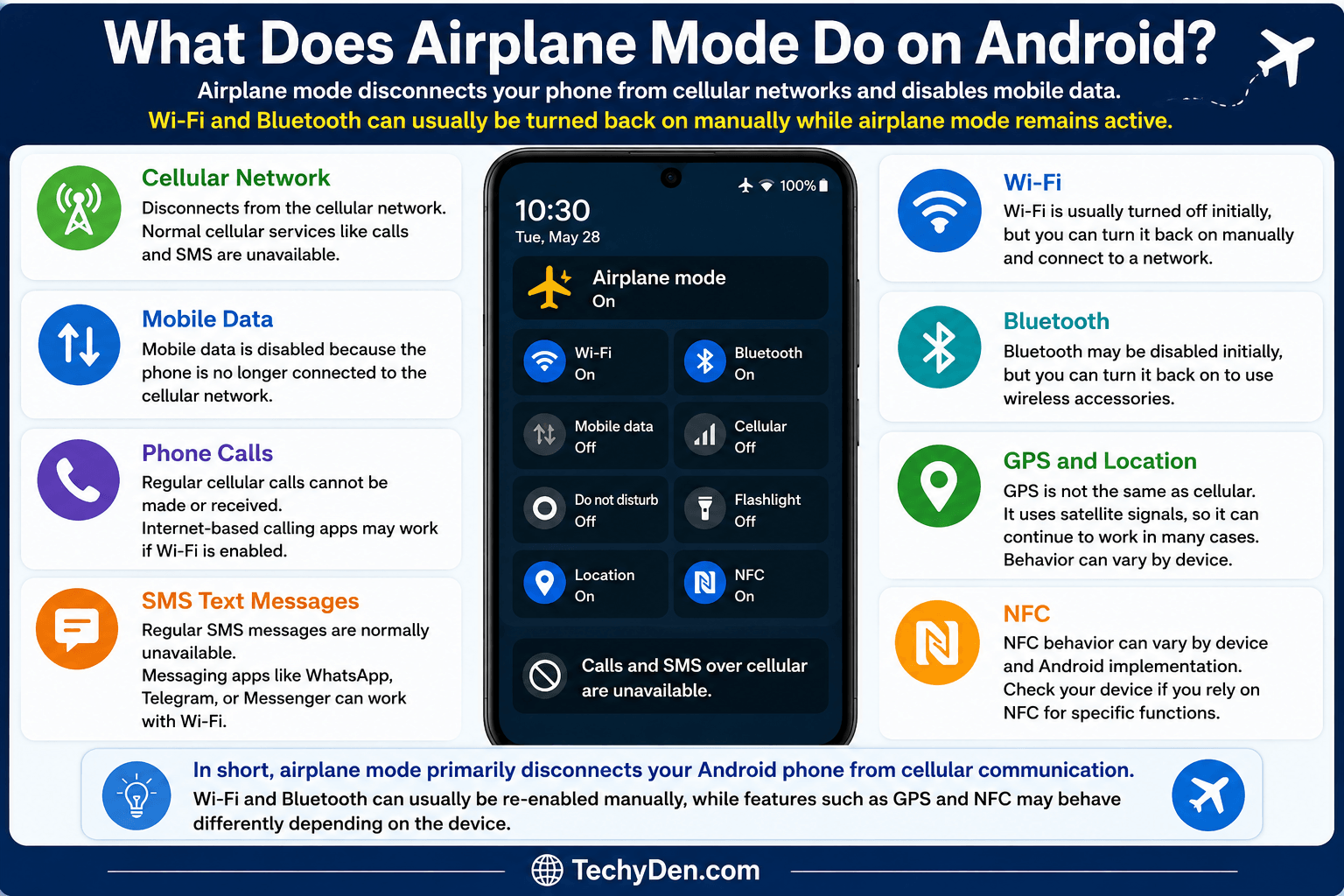
Understanding how airplane mode works is useful because it does not simply switch off your entire phone.
Instead, it limits wireless communication while allowing you to continue using many offline features. Here is what happens when you turn on airplane mode on an Android device.
1. Cellular Network
- When you enable airplane mode, your Android phone normally disconnects from the cellular network.
- The phone stops communicating with nearby cellular towers, so normal cellular services become unavailable.
- This means your device generally cannot make or receive regular cellular calls or communicate through the mobile network until airplane mode is turned off.
2. Mobile Data
- Airplane mode and mobile data are closely connected. When airplane mode is enabled, mobile data is normally disabled because the phone is no longer connected to the cellular network.
- As a result, apps cannot access the internet through your carrier’s mobile data connection.
- If you need internet access, you can usually enable Wi-Fi manually while leaving airplane mode on.
3. Phone Calls
- With the cellular connection disabled, regular phone calls normally cannot be made or received while airplane mode is active.
- However, this does not necessarily prevent every type of internet-based communication.
- If you manually enable Wi-Fi and have an appropriate service available, apps such as WhatsApp or other internet calling services may continue to work.
4. SMS Text Messages
- Regular SMS messages depend on the cellular network. Therefore, airplane mode SMS functionality is normally unavailable while your phone is disconnected from the network.
- Internet-based messaging services are different.
- If Wi-Fi is enabled, services such as WhatsApp, Telegram, or Messenger can potentially continue sending and receiving messages.
5. Wi-Fi
- When you first enable airplane mode, Wi-Fi is usually turned off.
- However, Android generally allows you to turn airplane mode Wi-Fi back on manually.
- This means you can connect to a Wi-Fi network, browse the internet, stream content, or use online apps without reconnecting to the cellular network.
6. Bluetooth
- Bluetooth may also be disabled when airplane mode is first activated.
- You can generally turn airplane mode Bluetooth back on if you want to use wireless accessories such as earbuds, headphones, keyboards, or smartwatches.
- The exact behavior can vary between Android devices and software versions.
7. GPS and Location
- Airplane mode and GPS are not the same thing.
- GPS primarily receives location signals from satellites and does not depend on a cellular connection in the same way that mobile calls and mobile data do.
- Therefore, it is not accurate to say that airplane mode universally turns off GPS.
- Airplane mode GPS behavior can vary depending on the Android device, software version, and location settings.
- Some location-based functions may continue working even when cellular connectivity is disabled.
8. NFC
- NFC (Near Field Communication) is another wireless technology found on many Android phones.
- Its behavior when airplane mode is enabled can vary depending on the device and Android implementation.
- If you need NFC for a specific function, such as contactless communication, check whether it remains available on your particular phone.
In short, airplane mode primarily disconnects your Android phone from cellular communication. Wi-Fi and Bluetooth can usually be re-enabled manually, while features such as GPS and NFC may behave differently depending on the device.
What Happens When You Turn On Airplane Mode?
When you turn on airplane mode on Android, your phone changes how it handles wireless connections.
It temporarily disconnects from cellular networks and usually disables mobile data, while Wi-Fi and Bluetooth may also be turned off initially.
However, your phone itself remains powered on, so you can continue using apps and features that do not require a wireless connection.
Here is what happens step by step:
Step 1: Airplane Mode Is Enabled
When you tap the airplane mode button in Quick Settings or Android Settings, the phone changes its connectivity state.
An airplane icon usually appears in the status bar, indicating that the feature is active.
Step 2: The Cellular Connection Is Disconnected
Your phone normally disconnects from the cellular network. As a result:
- Regular phone calls cannot normally be made or received.
- SMS text messaging is unavailable through the cellular network.
- Mobile data is disabled, so cellular internet access stops.
Your phone can reconnect to the cellular network after you turn airplane mode off.
Step 3: Wireless Connections May Be Disabled
Android may also disable Wi-Fi and Bluetooth when airplane mode is first enabled. This behavior can vary depending on your device and Android version.
If Wi-Fi or Bluetooth is important to you, you don’t necessarily have to turn airplane mode off.
Step 4: You Can Re-enable Certain Connections
On most modern Android devices, you can manually turn Wi-Fi or Bluetooth back on while keeping airplane mode enabled.
For example, you can use airplane mode with Wi-Fi to browse the internet, stream content, or use messaging apps. Similarly, you can enable Bluetooth to connect wireless earbuds, headphones, or other accessories.
Airplane Mode Does Not Turn Off Your Phone
One important distinction is
Airplane Mode ≠ Power Off
Airplane mode only changes your phone’s wireless connectivity. It does not shut down Android or turn off the device. You can still use the camera, calculator, alarm, downloaded videos and music, offline games, notes, and other offline features.
In other words, airplane mode disconnects your phone from wireless networks; it does not switch the phone itself off.
Airplane Mode vs Normal Phone Mode
The easiest way to understand airplane mode is to compare it with your phone’s normal connectivity state. In normal phone mode, your Android device stays connected to the cellular network and can use mobile data, calls, and SMS. Wi-Fi and Bluetooth are also available.
When you enable airplane mode, the phone remains powered on, but its cellular connectivity is disabled, and some wireless connections are initially turned off. You can usually re-enable Wi-Fi and Bluetooth manually without disabling airplane mode.
| Feature | Normal Mode | Airplane Mode |
|---|---|---|
| Cellular network | Available | Disabled |
| Mobile data | Available | Disabled |
| Phone calls | Available | Normally unavailable |
| SMS text messages | Available | Normally unavailable |
| Wi-Fi | Available | Usually disabled initially; can generally be re-enabled |
| Bluetooth | Available | Usually disabled initially; can generally be re-enabled |
| Offline apps | Available | Available |
| Camera | Available | Available |
| Downloaded music/videos | Available | Available |
The Main Difference
The biggest difference is wireless connectivity. Normal mode allows your phone to communicate with cellular networks and other wireless services. Airplane mode temporarily limits those connections while keeping the phone itself operational.
For example, you can enable airplane mode before a flight and still use your camera, listen to downloaded music, watch offline videos, read downloaded documents, or play offline games. If the airline permits Wi-Fi or Bluetooth use, you can generally enable those connections again while leaving airplane mode active.
Remember: Airplane mode is a connectivity setting, not a power-off setting. Your Android phone continues running normally, but its access to wireless networks is restricted.
What Still Works in Airplane Mode?
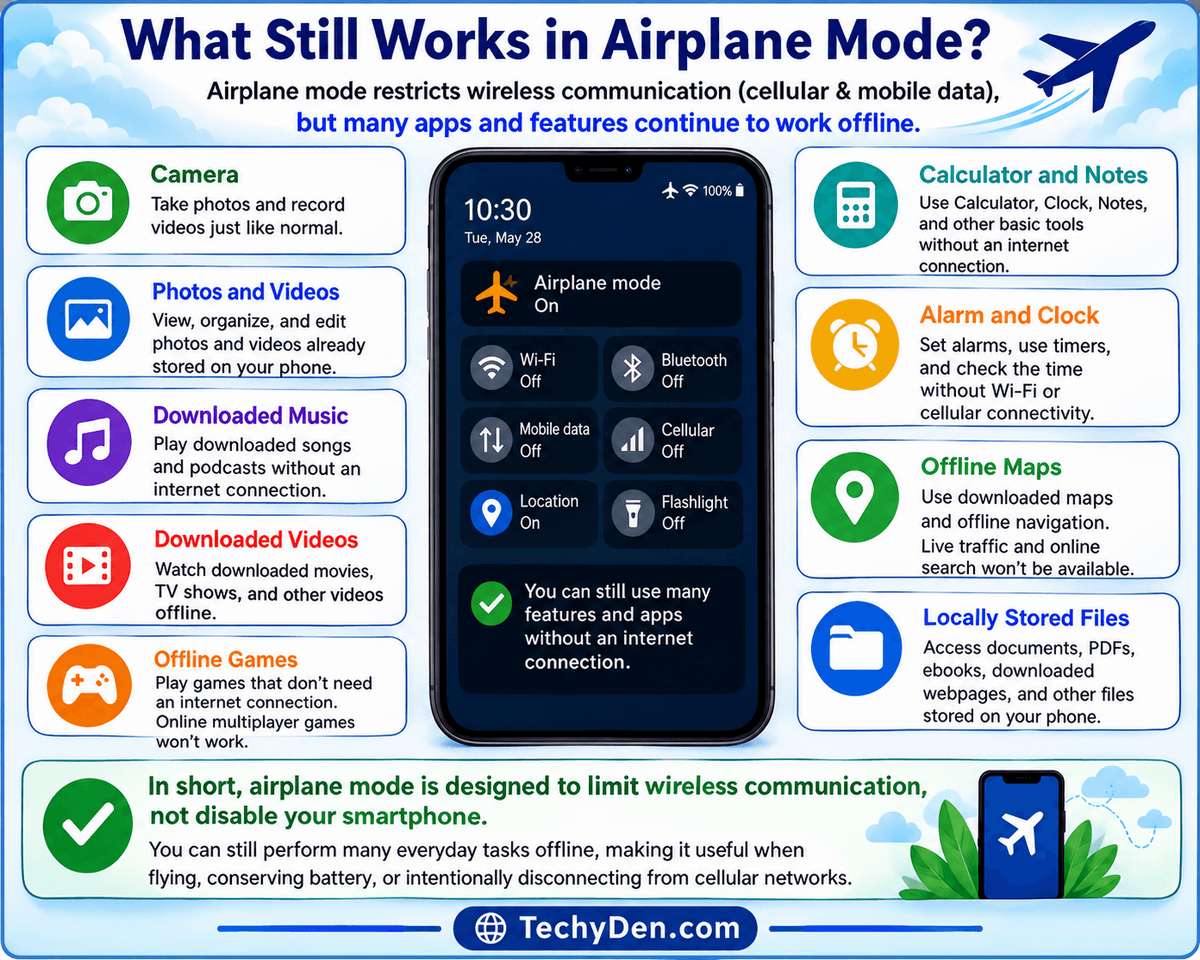
Turning on airplane mode does not shut down your Android phone or prevent you from using its basic features. Instead, airplane mode primarily restricts wireless communication, such as cellular networks and mobile data. Many apps and phone functions continue to work normally as long as they do not require an internet connection.
Here are some examples of what works in airplane mode.
- Camera: ou can continue using your Android phone’s camera while airplane mode is enabled. You can take photos and record videos just as you normally would.
- Photos and Videos: Photos and videos already stored on your phone remain accessible. You can open the Gallery or Photos app, view your media, organize files, and edit supported content without a cellular connection.
- Downloaded Music: Downloaded songs and podcasts can usually be played without an internet connection. This makes airplane mode useful when traveling by plane or in areas with limited connectivity.
- Downloaded Videos: Movies, TV shows, and other videos downloaded to your device can still be watched offline. Streaming services, however, generally require an internet connection unless the content has already been downloaded.
- Offline Games: Many games that do not require an internet connection can continue working in airplane mode. Online multiplayer games and games that require a constant connection will not work unless you reconnect through Wi-Fi.
- Calculator and Notes: Basic tools such as the Calculator, Clock, and Notes apps generally continue working. You can perform calculations, write notes, and manage other locally stored information without an internet connection.
- Alarm and Clock: Your alarm and clock functions continue working in airplane mode. You can set alarms, use timers, and check the time without cellular or Wi-Fi connectivity.
- Offline Maps: Downloaded maps can remain useful while airplane mode is enabled. You can view previously downloaded map areas and use supported offline navigation features, although online traffic information, live searches, and other internet-based features may not be available.
- Locally Stored Files: Documents, PDFs, downloaded webpages, ebooks, and other files stored directly on your phone remain accessible.
In short, airplane mode is designed to limit wireless communication, not disable your smartphone. You can still perform many everyday tasks offline, making it useful when flying, conserving battery, or intentionally disconnecting from cellular networks.
Can You Use Wi-Fi in Airplane Mode?
Yes, you can use Wi-Fi in airplane mode on most modern Android phones. When you initially turn on airplane mode, Wi-Fi is usually disabled. However, Android generally allows you to manually turn Wi-Fi back on while keeping airplane mode enabled. Once connected to a Wi-Fi network, you can browse the internet and use online apps without reconnecting to the cellular network.
How to Enable Wi-Fi While Airplane Mode Is On
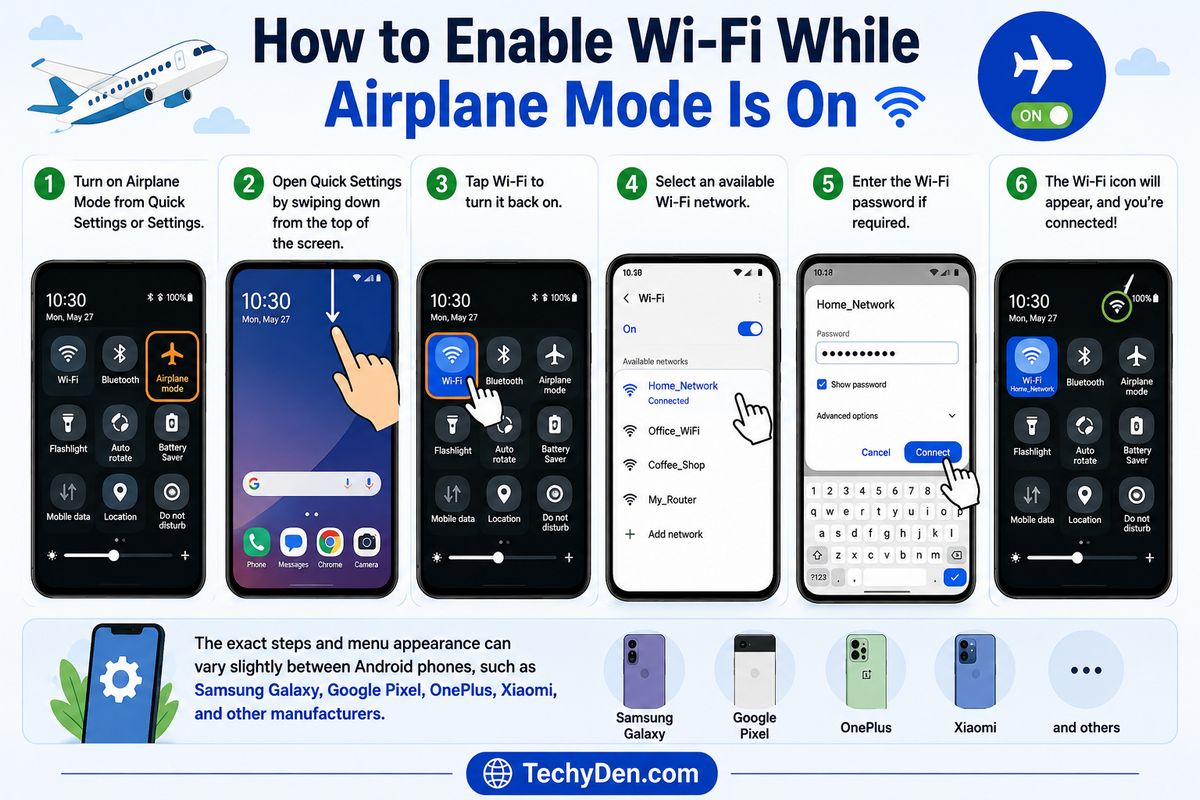
Follow these steps:
- Turn on Airplane Mode from Quick Settings or Settings.
- Open Quick Settings by swiping down from the top of the screen.
- Tap Wi-Fi to turn it back on.
- Select an available Wi-Fi network.
- Enter the Wi-Fi password if required.
The exact steps and menu appearance can vary slightly between Android phones, such as Samsung Galaxy, Google Pixel, OnePlus, Xiaomi, and other manufacturers.
Can You Browse the Internet in Airplane Mode?
Yes. If Wi-Fi is manually enabled and connected to a working internet connection, you can use the internet while airplane mode is on.
For example, you can browse websites, check email, watch online videos, download files, or use cloud-based apps over Wi-Fi. Your phone remains disconnected from the cellular network, so these activities use the Wi-Fi connection instead of mobile data.
This makes Wi-Fi while airplane mode is on particularly useful during flights when an airline provides in-flight Wi-Fi.
Can You Use WhatsApp in Airplane Mode?
Yes. WhatsApp in airplane mode can work when Wi-Fi is turned back on and connected to the internet. The same applies to other internet-based services, including
- Telegram
- Messenger
- Gmail
- YouTube
- Web browsers
However, airplane mode does not provide an internet connection by itself. You need an available Wi-Fi network with internet access.
In simple terms, airplane mode disables cellular connectivity, while Wi-Fi can provide internet access if you manually turn it back on.
Can You Use Bluetooth in Airplane Mode?
Yes, you can generally use Bluetooth in airplane mode on modern Android phones. When you first enable airplane mode, Bluetooth may be turned off along with other wireless connections. However, Android usually allows you to manually turn Bluetooth back on while keeping airplane mode enabled. This lets you continue using compatible wireless accessories without restoring the cellular connection.
How to Turn Bluetooth Back On
If Bluetooth is disabled after enabling airplane mode:
- Enable Airplane Mode on your Android phone.
- Open Quick Settings by swiping down from the top of the screen.
- Tap Bluetooth to turn it back on.
- Select a previously paired device or pair a new Bluetooth device.
The exact appearance and steps may vary slightly depending on your Android version and phone manufacturer.
What Can You Connect?
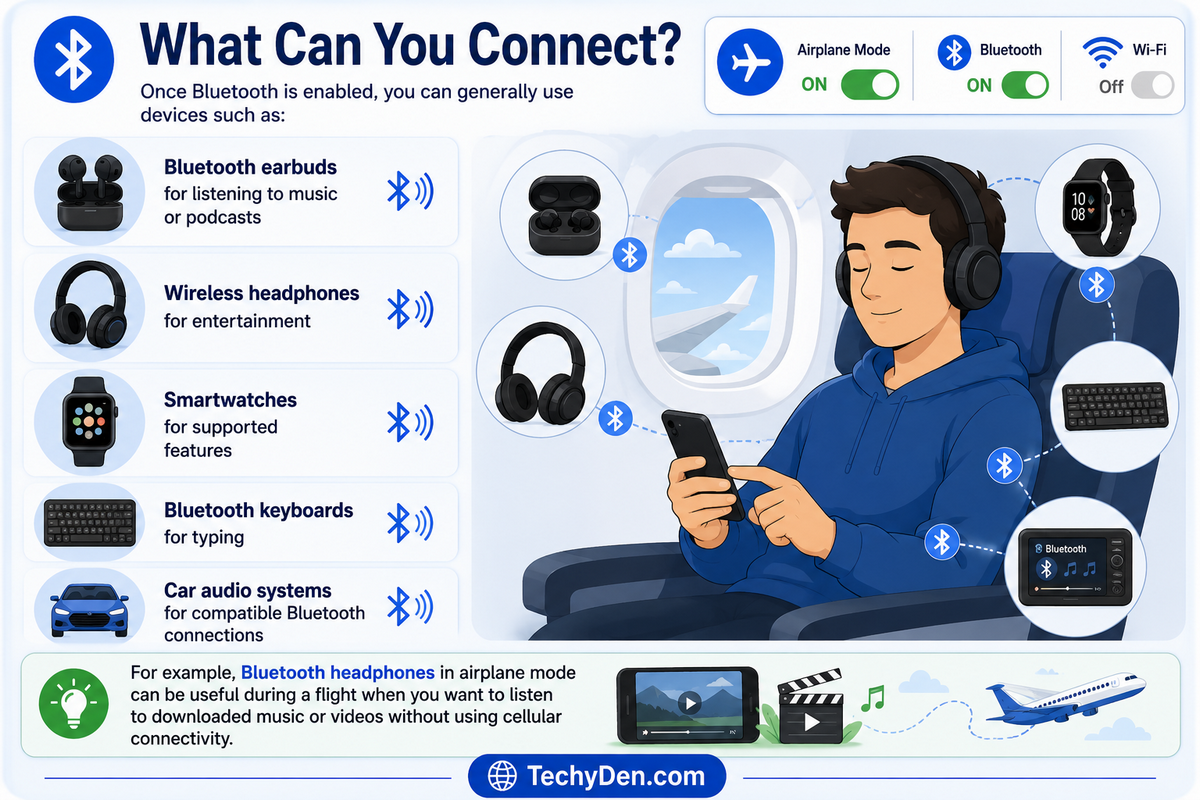
Once Bluetooth is enabled, you can generally use devices such as:
- Bluetooth earbuds for listening to music or podcasts
- Wireless headphones for entertainment
- Smartwatches for supported features
- Bluetooth keyboards for typing
- Car audio systems for compatible Bluetooth connections
For example, Bluetooth headphones in airplane mode can be useful during a flight when you want to listen to downloaded music or videos without using cellular connectivity.
Does Bluetooth Stay On in Airplane Mode?
Bluetooth behavior can vary between Android devices and software versions. On many modern Android phones, Bluetooth is initially disabled when airplane mode is activated but can then be manually enabled again.
Therefore, Bluetooth while airplane mode is on is generally possible, but airplane mode itself does not guarantee that Bluetooth will remain enabled.
If you need Bluetooth accessories during a flight, enable airplane mode first and then turn Bluetooth back on if necessary. Always follow the airline’s instructions regarding Bluetooth and other wireless devices.
Can You Receive Calls in Airplane Mode?
Can you receive calls in airplane mode? Normally, no. When airplane mode is enabled, your Android phone disconnects from the cellular network. Because regular phone calls depend on that cellular connection, incoming cellular calls generally cannot reach your phone, and you normally cannot make regular cellular calls either.
What Happens to Airplane Mode Calls?
While airplane mode is active, the phone is not registered with the cellular network. As a result, callers may hear a message that your number is unavailable, switched off, or out of coverage, depending on your carrier.
Can You Make Calls in Airplane Mode?
Regular cellular calls normally won’t work. However, airplane mode does not necessarily prevent internet-based calling.
If you turn Wi-Fi back on and connect to a working internet connection, you may be able to make and receive calls through apps such as WhatsApp, Messenger, Telegram, or other VoIP services.
What About Wi-Fi Calling in Airplane Mode?
Wi-Fi calling in airplane mode can work on some Android phones, but it depends on your device, mobile carrier, Wi-Fi Calling support, and network settings. Some phones and carriers allow Wi-Fi Calling to remain available after airplane mode is enabled, while others may require additional settings.
Therefore, if you need to make calls while airplane mode is enabled, check whether your carrier and Android device support Wi-Fi Calling or use an internet-based calling service over Wi-Fi.
Can You Receive Text Messages in Airplane Mode?
Can you receive texts in airplane mode? Normally, no. When airplane mode is enabled, your Android phone disconnects from the cellular network. Since traditional SMS messages rely on the cellular network, your phone generally cannot receive or send SMS while it remains disconnected.
What Happens to SMS?
When airplane mode text messages are involved, the important distinction is between SMS and internet-based messaging. With the cellular connection disabled, incoming SMS messages normally cannot reach your phone, and outgoing SMS messages will generally remain unsent until cellular connectivity is restored.
Once you turn airplane mode off and your phone reconnects to the cellular network, pending messages may be delivered depending on your carrier and messaging service.
What About WhatsApp and Other Messaging Apps?
WhatsApp in airplane mode can still work if you manually enable Wi-Fi and connect to a working internet connection. Unlike SMS, internet-based messaging services don’t require your phone to be connected to a cellular network.
You can potentially use services such as
- Telegram
- Messenger
- Signal
- Other internet-based messaging apps
For example, you can turn on airplane mode, enable Wi-Fi, and continue chatting through WhatsApp without restoring your cellular connection.
In short, SMS normally doesn’t work while airplane mode is active, but internet-based messaging can work over Wi-Fi.
Does Airplane Mode Turn Off GPS?
Does airplane mode turn off GPS? Not necessarily. Airplane mode primarily disables wireless communications such as cellular networks and mobile data. GPS works differently because the phone’s GPS receiver receives signals from satellites rather than connecting to cellular towers.
Airplane Mode and GPS
When you enable airplane mode GPS functionality, the exact behavior can vary depending on your Android phone, software version, and location settings. Airplane mode does not automatically mean that the GPS receiver or all location services are completely unavailable.
Your Android phone may still be able to determine its location using GPS or other available location technologies. However, some location-based features may work differently because cellular data and other network connections are unavailable.
For example, an app may be able to determine your location but may not be able to download live traffic information, search for places online, or retrieve updated map data without an internet connection.
Can You Use Maps in Airplane Mode?
Yes, you can use maps in airplane mode if the required map data has already been downloaded for offline use. Offline maps can allow you to view previously downloaded areas and use supported navigation features without a cellular connection.
However, features that require online access—such as live traffic updates, online searches, real-time route changes, and newly loaded map information—generally require an internet connection.
If Wi-Fi is available, you can manually enable it while airplane mode remains active and use online map services over Wi-Fi.
In short, GPS in airplane mode can still work on many Android devices, but online map features require an internet connection.
Does Airplane Mode Save Battery?
Does airplane mode save battery? Yes, airplane mode can help extend your Android phone’s battery life by reducing wireless communication and network activity. The amount of battery saved depends on your device, signal strength, apps, and how you use your phone.
Why Airplane Mode Can Save Battery
When airplane mode is enabled, your phone disconnects from the cellular network and stops using mobile data. This reduces activity from the cellular radio and can lower the power consumed by maintaining a network connection.
Airplane mode can be particularly useful when your phone is continuously searching for a cellular signal. Searching for or maintaining a connection to a weak network can consume additional battery power.
It can also reduce some background connectivity and network activity from apps that normally communicate over mobile data.
When Does Airplane Mode Save the Most Battery?
Airplane mode battery saving can be most noticeable in situations where your phone would otherwise spend significant time maintaining or searching for a network, such as:
- Weak-signal areas: Your phone may repeatedly search for a stronger cellular connection.
- Traveling: Moving between different network areas can increase cellular activity.
- Overnight: If you don’t need calls or mobile connectivity, airplane mode can reduce unnecessary wireless activity.
- Emergency or low-battery situations: Airplane mode can help conserve remaining battery when you need your phone to stay powered on for essential offline functions.
Does Wi-Fi Reduce the Battery-Saving Benefit?
Yes. If you turn Wi-Fi or Bluetooth back on while airplane mode is active, those wireless radios continue consuming some power. However, this does not restore the cellular connection unless you separately turn airplane mode off.
For example, airplane mode to save battery can still be useful with Wi-Fi enabled if you need internet access but don’t need cellular connectivity.
In short, airplane mode can improve battery life, especially when cellular signal is weak or you don’t need wireless connectivity. It isn’t a dedicated battery-saving mode, but reducing unnecessary network activity can help your phone use less power.
Can Airplane Mode Fix Network Problems?
Can airplane mode fix network problems? Sometimes. Turning airplane mode on and then off can quickly refresh your Android phone’s cellular connection. When you enable it, the phone disconnects from the cellular network. Turning it off allows the device to search for available networks and establish a fresh connection.
This simple airplane mode network reset can resolve temporary connectivity issues without requiring you to restart the phone or change network settings.
Why Airplane Mode Can Fix Connectivity Problems
Airplane mode temporarily disconnects your phone from cellular networks and mobile data. When you turn it off again, Android attempts to reconnect to the available network.
This can help when your phone has a temporary connection problem, is showing an incorrect network status, or isn’t properly reconnecting after moving between coverage areas.
However, airplane mode cannot fix problems caused by a damaged SIM card, carrier outage, poor coverage, account restrictions, or hardware problems.
How to Reset Your Connection With Airplane Mode
If you’re experiencing connectivity problems, try these steps:
- Turn on Airplane Mode.
- Wait about 10–30 seconds.
- Turn Airplane Mode off.
- Wait for your phone to reconnect to the cellular network.
- Test mobile data and make a phone call to check whether the connection has been restored.
Problems It May Help Fix
Using airplane mode to fix network problems may help with temporary issues such as
- No mobile data
- Mobile network not connecting
- Weak or unstable connectivity
- Temporary cellular network glitches
- Mobile internet not working
- Connection problems after traveling between coverage areas
If airplane mode is not connecting your phone after you turn it off, try restarting the device and checking your SIM, network settings, and carrier coverage.
Airplane mode can refresh a temporary cellular connection, but it is not a complete network repair tool. If the problem persists, the underlying issue may require additional troubleshooting.
Why Should You Use Airplane Mode?
Airplane mode is not only useful when you’re on an airplane. It can be a convenient way to temporarily disconnect your Android phone from cellular networks while keeping the device powered on and many offline features available. Understanding the airplane mode benefits can help you decide when you should use airplane mode in everyday situations.
1. During Flights
The primary reason airplane mode exists is for use during air travel. Enabling it disables your phone’s normal cellular connectivity, helping you follow airline requirements regarding wireless communication.
Always follow the specific instructions provided by the airline and flight crew. If in-flight Wi-Fi or Bluetooth is permitted, you can generally enable those connections separately while keeping airplane mode on.
2. To Save Battery
One of the useful airplane mode uses is reducing wireless activity when you don’t need cellular connectivity. This can be particularly helpful in areas with weak or unstable cellular signals, where your phone may use additional power searching for or maintaining a network connection.
3. To Troubleshoot Network Problems
Airplane mode can also work as a quick connectivity reset. Turning it on, waiting a few seconds, and then turning it off forces your phone to disconnect and reconnect to the cellular network.
This may resolve temporary problems with mobile data, signal, or network connectivity.
4. To Avoid Roaming Charges
When traveling internationally, airplane mode can help prevent your phone from connecting to a foreign cellular network and using mobile data. This can be useful for avoiding unexpected roaming charges.
If you need internet access, you can manually enable Wi-Fi and connect to a trusted network while keeping airplane mode active.
5. To Reduce Distractions
Airplane mode can provide a simple way to disconnect from cellular calls and SMS while continuing to use offline features. You can still use your camera, read downloaded content, listen to downloaded music, or work with locally stored files.
In short, the main reasons why you might use airplane mode include following flight requirements, conserving battery, troubleshooting connectivity, avoiding roaming costs, and temporarily disconnecting from cellular communication.
How to Turn On Airplane Mode on Android
If you want to temporarily disconnect your Android phone from cellular networks and mobile data, you can enable airplane mode in just a few taps. The exact appearance and menu names may vary slightly depending on your Android version and phone manufacturer, but the basic process is similar.
Method 1: Using Quick Settings
The fastest way to turn on airplane mode on Android is through Quick Settings:
- Swipe down from the top of the screen to open Quick Settings.
- Look for Airplane Mode or the airplane icon.
- Tap Airplane Mode to enable it.
- Check the status bar for the airplane icon to confirm that it is active.
If you don’t see Airplane Mode, swipe down again or edit the Quick Settings panel to find the missing tile.
Method 2: Using Android Settings
You can also enable airplane mode on Android through the Settings app.
Depending on your phone, you may find the option under a path such as
Settings → Network & Internet → Airplane mode
Samsung Galaxy and other Android manufacturers may use different menu names or locations. If you cannot find it, use the search option within Settings and search for Airplane Mode or Flight Mode.
How to Know Airplane Mode Is On
After you turn on flight mode on Android, look for these signs:
- An airplane mode icon appears in the status bar.
- Your cellular signal may disappear or change.
- Mobile data becomes unavailable.
- Wi-Fi and Bluetooth may initially be disconnected.
Remember that airplane mode does not turn off your phone. You can still use offline apps and, where supported, manually turn Wi-Fi or Bluetooth back on while airplane mode remains active.
How to Turn Off Airplane Mode on Android
If you want to restore your Android phone’s normal cellular connectivity, you need to turn off airplane mode. The process is quick, and you can use either Quick Settings or the Settings app.
Method 1: Using Quick Settings
- Swipe down from the top of the screen to open Quick Settings.
- Tap the Airplane Mode or airplane icon to disable it.
- Wait a few seconds for your phone to reconnect to the cellular network.
Method 2: Using Settings
- Open the Settings app.
- Search for Airplane Mode or Flight Mode.
- Turn the setting off.
What Happens After You Turn It Off?
After disabling airplane mode, your Android phone will attempt to reconnect to the cellular network. Mobile data becomes available again, and regular phone calls and SMS messaging can resume once the network connection is restored.
Wi-Fi and Bluetooth may or may not return to their previous state automatically, depending on your Android device and settings. If either connection remains off, you can manually enable it from Quick Settings.
If the cellular network does not return immediately, wait a few seconds or restart your phone and check your network connection again.
How to Enable Airplane Mode on iPhone, Mac, and Windows
Airplane mode is available on smartphones and Windows PCs, but the way you enable it depends on the device. iPhone and iPad have a dedicated Airplane Mode setting, Windows PCs include an Airplane Mode switch, while macOS does not provide a dedicated system-wide Airplane Mode option. On a Mac, you can manually turn off Wi-Fi and Bluetooth instead.
How to Enable Airplane Mode on iPhone and iPad
On an iPhone or iPad, you can enable Airplane Mode from Control Center:
- Open Control Center by swiping down from the top-right corner of the screen.
- Tap the Airplane Mode button.
- The airplane icon will appear to indicate that Airplane Mode is active.
You can also enable it through Settings:
Settings → Airplane Mode → Turn On
When Airplane Mode is first enabled, cellular connectivity and Wi-Fi are turned off. Depending on your settings, you can manually turn Wi-Fi or Bluetooth back on while keeping Airplane Mode active.
How to Enable Airplane Mode on Mac
Unlike iPhones and iPads, Mac computers do not have a dedicated Airplane Mode setting in macOS. If you want to disconnect your Mac from wireless networks before a flight, you can manually turn off Wi-Fi and Bluetooth.
Turn off Wi-Fi on Mac
- Click the Wi-Fi icon in the menu bar or open Control Center.
- Select Wi-Fi.
- Turn Wi-Fi off.
You can also manage Wi-Fi from:
Apple menu → System Settings → Wi-Fi
Apple provides separate Wi-Fi controls in macOS rather than a single Airplane Mode switch.
Turn Off Bluetooth on Mac
- Open Apple menu → System Settings.
- Select Bluetooth.
- Turn Bluetooth off.
You can also access Bluetooth controls through Control Center.
If your Mac is connected through Ethernet or another network connection, disconnect that connection separately if you need the Mac completely disconnected from networks.
How to Enable Airplane Mode on Windows
Windows PCs have a dedicated Airplane Mode setting that can quickly disable wireless communications such as Wi-Fi, Bluetooth, and supported cellular connections.
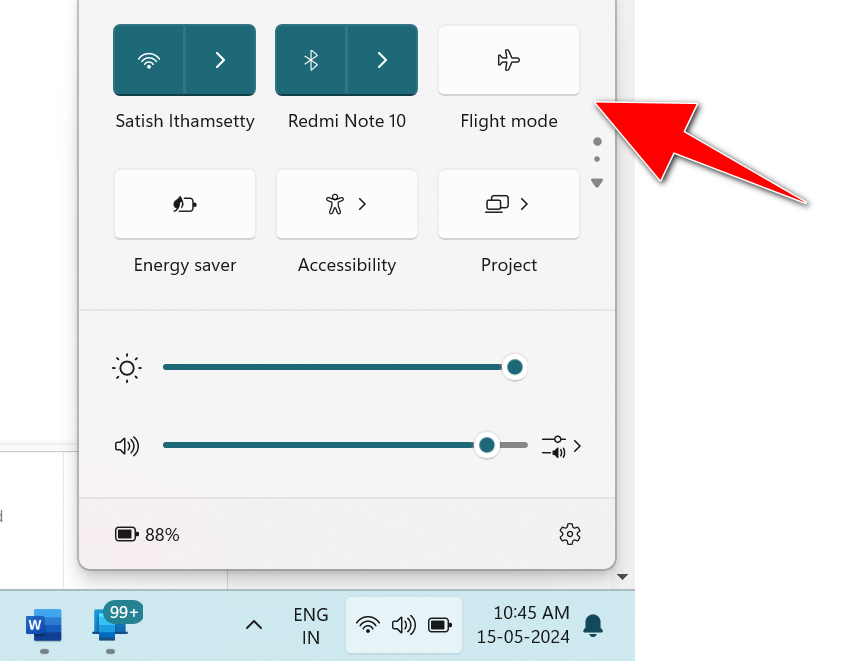
Method 1: Using Quick Settings
- Click the Network, volume, or battery icon on the Windows taskbar.
- Find Airplane mode in Quick Settings.
- Click Airplane mode to turn it on.
- The Airplane Mode icon indicates that the setting is active.
Method 2: Using Windows Settings
- Open Settings.
- Select Network & internet.
- Select Airplane mode.
- Turn Airplane mode on.
Windows can remember the Wi-Fi and Bluetooth state you used with Airplane Mode, so these connections may behave differently when you enable it again.
Airplane Mode on iPhone vs Mac vs Windows
| Device | Dedicated Airplane Mode? | How to Enable |
|---|---|---|
| iPhone | Yes | Control Center or Settings |
| iPad | Yes | Control Center or Settings |
| Mac | No | Manually turn off Wi-Fi/Bluetooth |
| Windows PC | Yes | Quick Settings or Settings |
In short, use Airplane Mode directly on iPhone, iPad, and Windows PCs. On a Mac, there is no dedicated Airplane Mode switch, so manually disable Wi-Fi, Bluetooth, and any other network connections you don’t need.
Airplane Mode vs Do Not Disturb
Airplane Mode and Do Not Disturb serve very different purposes on Android. Airplane Mode primarily controls your phone’s wireless connectivity, while Do Not Disturb controls interruptions such as calls, notifications, and alerts.
| Feature | Airplane Mode | Do Not Disturb |
|---|---|---|
| Cellular connection | Disabled | Remains available |
| Mobile data | Disabled | Remains available |
| Calls | Normally unavailable | Can be silenced or filtered |
| Notifications | Not its primary purpose | Controls or limits notifications |
| Wi-Fi | Usually disabled initially | Remains available |
| Bluetooth | Usually disabled initially | Remains available |
| Main purpose | Control wireless connectivity. | Reduce interruptions. |
What Is the Difference Between Airplane Mode and Do Not Disturb?
The main difference between airplane mode and Do Not Disturb is what each feature controls.
When you enable Airplane Mode, your phone disconnects from cellular networks and normally disables mobile data. Wi-Fi and Bluetooth may also be disabled initially. You can usually turn them back on manually.
Do Not Disturb does not disconnect your phone from the cellular network. Your phone can remain connected to mobile data, Wi-Fi, and Bluetooth, while Android limits or silences selected calls, notifications, and alerts according to your settings.
Which One Should You Use?
Choose Airplane Mode when you want to disconnect your phone from cellular networks—for example, during a flight, while troubleshooting network problems, or when you want to reduce cellular activity.
Choose Do Not Disturb when you still need your phone to remain connected but want fewer interruptions, such as while sleeping, working, studying, or attending a meeting.
In simple terms:
Airplane Mode = disconnect from wireless networks.
Do Not Disturb = stay connected but reduce interruptions.
Knowing airplane mode vs Do Not Disturb makes it easier to choose the right Android setting for your situation.
Airplane Mode vs Turning Off Mobile Data
Understanding the difference between airplane mode and mobile data is important because these Android settings control different aspects of your phone’s connectivity. Turning off mobile data only stops your phone from accessing the internet through your cellular network, while airplane mode temporarily disconnects the phone from the cellular network itself.
| Feature | Turning Off Mobile Data | Airplane Mode |
|---|---|---|
| Cellular network | Remains connected | Disabled |
| Mobile data | Disabled | Disabled |
| Phone calls | Available | Normally unavailable |
| SMS | Available | Normally unavailable |
| Wi-Fi | Remains available | Usually disabled initially |
| Bluetooth | Remains available | May be disabled initially |
Turning Off Mobile Data
When you turn off mobile data, your phone remains connected to the cellular network. You can still make and receive regular phone calls and SMS messages. Wi-Fi also continues to work normally.
This is useful when you want to stop cellular internet usage while keeping your phone available for calls and texts.
Airplane Mode
With airplane mode enabled, your Android phone disconnects from the cellular network. As a result, regular calls and SMS normally become unavailable, in addition to mobile data.
Wi-Fi and Bluetooth may initially disconnect, although you can generally turn them back on manually.
In simple terms, airplane mode vs turning off mobile data comes down to connectivity: turn off mobile data when you only want to stop cellular internet access; use airplane mode when you want to temporarily disconnect from the cellular network altogether.
Common Airplane Mode Problems and Solutions
Although airplane mode is usually straightforward to use, you may occasionally experience connectivity problems after enabling or disabling it. Most issues are temporary and can be resolved with a few basic troubleshooting steps.
Airplane Mode Won’t Turn Off
If airplane mode remains enabled after tapping the airplane icon:
- Open Quick Settings and tap the Airplane Mode icon again.
- Open Settings and search for Airplane Mode, then turn it off.
- Restart your Android phone and check the setting again.
If the problem continues, install any available Android system updates and check whether the device has a software issue.
Mobile Network Doesn’t Return
Sometimes your phone may not immediately reconnect to the cellular network after turning off airplane mode.
Try the following:
- Wait a few seconds for the network to reconnect.
- Restart your phone.
- Check that the SIM or eSIM is active and properly configured.
- Move to an area with better network coverage.
- Check whether your mobile carrier is experiencing an outage.
If your phone continues showing No Service or Emergency calls only, the problem may not be related to airplane mode.
Wi-Fi Won’t Turn On
If Wi-Fi doesn’t reconnect after disabling airplane mode:
- Open Quick Settings and manually turn Wi-Fi on.
- Turn Wi-Fi off and back on.
- Restart your phone.
- Try connecting to another Wi-Fi network to determine whether the problem is with your phone or the network.
Remember that airplane mode may leave Wi-Fi disabled depending on your device and previous settings.
Bluetooth Won’t Connect
If Bluetooth devices don’t reconnect after using airplane mode:
- Turn Bluetooth off and back on.
- Make sure the Bluetooth accessory is powered on and within range.
- Disconnect and re-pair the device.
- Restart both your Android phone and the Bluetooth accessory.
Mobile Data Still Doesn’t Work
If mobile data remains unavailable after turning airplane mode off:
- Confirm that mobile data is enabled.
- Check whether your phone has a cellular signal.
- Restart the device.
- Check your SIM/eSIM and network settings.
- Verify the APN settings if your carrier requires specific configuration.
- Check whether your carrier is experiencing an outage.
If these steps don’t resolve the problem, airplane mode may not be the cause. Persistent cellular problems can be related to your carrier, SIM/eSIM, account, network coverage, or phone hardware.
Airplane Mode Tips for Android Users
Airplane mode can be useful beyond air travel. These practical tips can help you get more from the feature while avoiding common connectivity issues.
- Use it in weak-signal areas: If your phone is constantly searching for a cellular network and your battery is running low, airplane mode can reduce wireless activity and help conserve power.
- Re-enable Wi-Fi when you need internet: You can usually turn Wi-Fi back on while keeping airplane mode enabled. This allows you to browse the web and use online apps over a Wi-Fi connection.
- Re-enable Bluetooth for accessories: Turn Bluetooth back on if you want to use wireless earbuds, headphones, a smartwatch, a keyboard, or another compatible accessory.
- Download entertainment before flights: Download movies, music, podcasts, ebooks, or games before traveling so you can enjoy them without an internet connection.
- Download offline maps: Save maps for your destination before traveling. Offline maps can remain useful when cellular data isn’t available.
- Don’t confuse Airplane Mode with Do Not Disturb: Airplane Mode controls wireless connectivity, while Do Not Disturb primarily controls calls, notifications, and other interruptions.
- Follow airline instructions: Always follow the airline’s and flight crew’s instructions regarding airplane mode, Wi-Fi, Bluetooth, and other electronic-device features.
The best way to think about airplane mode is as a quick connectivity control—not simply a setting for flights. It can help with battery conservation, travel preparation, network troubleshooting, and temporarily disconnecting from cellular communication.
Frequently Asked Questions About Airplane Mode
What is airplane mode?
Airplane mode is an Android setting that temporarily disables cellular communication and mobile data. Wi-Fi and Bluetooth may also be disabled initially, but you can generally turn them back on manually. It is primarily designed for use during flights, but it can also help save battery and troubleshoot temporary network problems.
What does airplane mode do on Android?
When airplane mode is enabled, your Android phone normally disconnects from the cellular network and disables mobile data. Regular calls and SMS become unavailable, while Wi-Fi and Bluetooth may initially disconnect. You can usually re-enable Wi-Fi or Bluetooth while keeping airplane mode active.
Can I use Wi-Fi in airplane mode?
Yes. On most modern Android phones, you can manually turn Wi-Fi back on after enabling airplane mode. Once connected to a Wi-Fi network, you can browse websites, use apps, stream content, check email, and access internet-based messaging services without restoring cellular connectivity.
Can I use Bluetooth in airplane mode?
Yes, Bluetooth can generally be used in airplane mode. Bluetooth may initially turn off when airplane mode is enabled, but you can usually turn it back on manually. This allows you to connect compatible accessories such as earbuds, headphones, smartwatches, keyboards, and car audio systems.
Can I receive calls in airplane mode?
Regular cellular calls normally cannot be received while airplane mode is active because the phone is disconnected from the cellular network. However, if you enable Wi-Fi, internet-based calling apps may work. Wi-Fi Calling may also work on some devices and carriers, depending on their settings and support.
Can I receive text messages in airplane mode?
Traditional SMS messages normally cannot be received while airplane mode is active because they depend on the cellular network. However, internet-based messaging apps such as WhatsApp, Telegram, or Messenger can continue working if you manually enable Wi-Fi and connect to a working internet connection.
Does airplane mode turn off GPS?
Not necessarily. GPS works differently from cellular communication because it receives signals from satellites. Airplane mode does not universally disable GPS or all location functions. The exact behavior can vary by Android device and settings. Offline navigation may still work if the necessary map data is already downloaded.
Does airplane mode save battery?
Yes, airplane mode can help save battery by reducing cellular radio activity and mobile network communication. The benefit can be greater in areas with weak cellular coverage, where a phone may repeatedly search for a network. Re-enabling Wi-Fi or Bluetooth will continue to use some battery power.
Can airplane mode fix network problems?
Sometimes. Turning airplane mode on, waiting about 10–30 seconds, and turning it off can refresh your phone’s cellular connection. This may resolve temporary mobile data, signal, or network connection problems. It won’t fix issues caused by carrier outages, damaged SIMs, poor coverage, or hardware problems.
Can I use WhatsApp in airplane mode?
Yes, WhatsApp can work in airplane mode if you manually enable Wi-Fi and connect to the internet. Airplane mode disables cellular connectivity, but it does not prevent you from using an available Wi-Fi connection. You can then send messages, make calls, and use other supported WhatsApp features.
Can I use the internet in airplane mode?
Yes, but you need a Wi-Fi connection. Airplane mode disables mobile data, so cellular internet access won’t work. However, you can manually enable Wi-Fi and connect to an available network. Once connected, you can browse websites, use apps, stream content, check email, and access online services.
Does airplane mode stop location tracking?
Airplane mode does not necessarily stop all location tracking. GPS and other location technologies can continue functioning depending on your Android device and settings. However, disabling cellular and internet connectivity can prevent apps or services from sending location information online until a suitable network connection becomes available.
Is airplane mode necessary during a flight?
Airplane mode is designed to disable cellular communication during air travel, but specific requirements can vary by airline, aircraft, and aviation regulations. Always follow the instructions provided by the airline and flight crew. If in-flight Wi-Fi or Bluetooth is permitted, you may be able to enable those connections separately.
What is the difference between airplane mode and Do Not Disturb?
Airplane mode primarily controls wireless connectivity by disabling cellular communication and mobile data. Do Not Disturb primarily controls interruptions such as calls, notifications, and alerts while keeping the phone connected to networks. Use airplane mode to disconnect from wireless networks and Do Not Disturb to reduce interruptions.
Final Verdict: What Is Airplane Mode?
Airplane Mode is an Android feature designed to control your phone’s wireless connectivity without turning the device off. When enabled, it normally disconnects your phone from the cellular network and disables mobile data, while Wi-Fi and Bluetooth may initially be turned off as well. You can generally re-enable Wi-Fi or Bluetooth manually when needed.
Your phone’s offline features, such as the camera, downloaded music and videos, offline games, alarms, and locally stored files, continue to work.
Airplane mode is useful during flights, when conserving battery in weak-signal areas, when traveling internationally, and when troubleshooting temporary network problems.
If you want to temporarily disconnect your Android phone from cellular networks without turning the phone off, Airplane Mode is the simplest option.