Microsoft PC Manager is a free Windows maintenance tool developed by Microsoft to help users manage common PC performance, storage, security, and maintenance tasks from one place. It is designed for Windows 10 and Windows 11, making it particularly useful for users who want a simpler way to keep their computer running smoothly.
The Microsoft PC Manager app combines several useful tools, including PC Boost, Health Check, Deep Cleanup, Storage Management, startup app controls, process management, and access to Windows security features. Instead of requiring users to search through different Windows settings, PC Manager puts many of these maintenance options behind a single, beginner-friendly interface.
But can Microsoft PC Manager actually make a slow PC faster? It can help in certain situations, particularly when low storage, unnecessary startup apps, temporary files, or background processes are affecting performance. However, it cannot overcome hardware limitations such as an aging processor, insufficient RAM, or a failing drive.
In this Microsoft PC Manager review, we’ll examine its features, safety, performance benefits, download and installation process, practical uses, and limitations. We’ll also compare it with Windows’ built-in tools and CCleaner to determine whether Microsoft PC Manager is worth installing.
Quick Verdict: Microsoft PC Manager is a free Windows maintenance tool that brings cleanup, storage management, startup controls, performance tools, and Windows security features into one simple interface. It’s useful for beginners, but it doesn’t magically transform slow hardware into a fast PC.
Microsoft PC Manager at a Glance
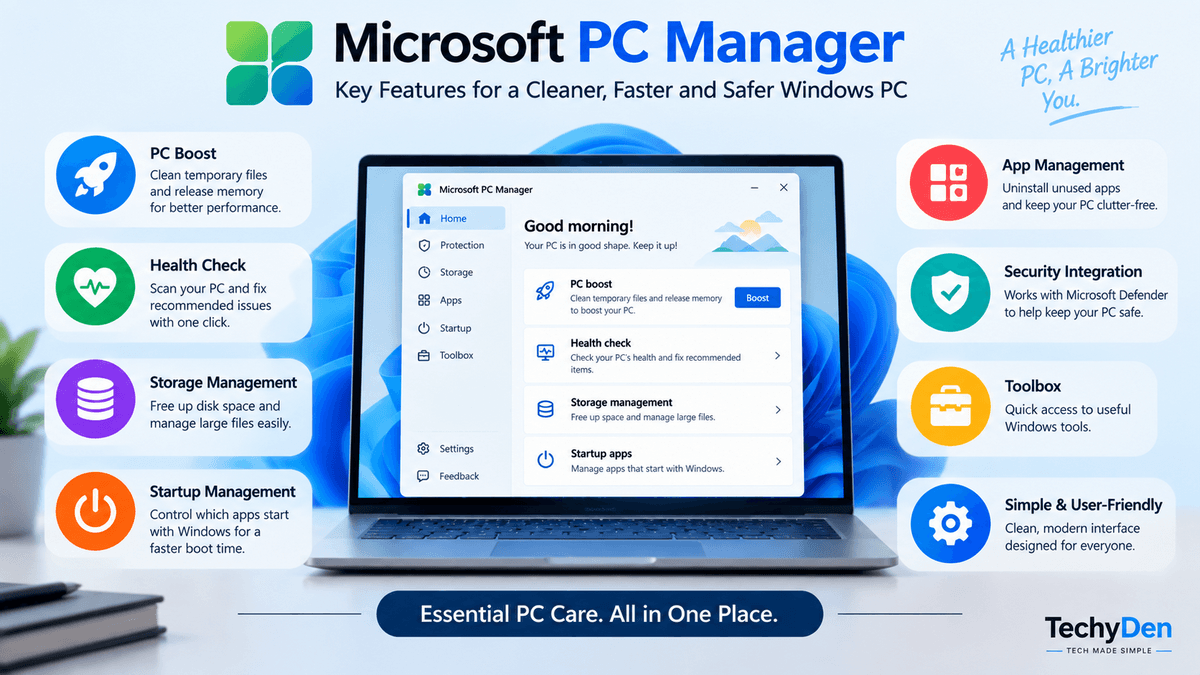
Before exploring individual tools, here’s a quick overview of the Microsoft PC Manager features and what you can expect from the app. Microsoft PC Manager is primarily designed to simplify routine Windows maintenance by bringing several existing Windows utilities into one convenient interface.
| Feature | Details |
|---|---|
| Developer | Microsoft |
| Price | Free |
| Supported OS | Windows 10 and Windows 11 |
| Main purpose | PC maintenance, cleanup, storage management, and performance optimization |
| PC Boost | Yes |
| Health Check | Yes |
| Deep Cleanup | Yes |
| Storage Management | Yes |
| Startup Management | Yes |
| Process Management | Yes |
| Security Integration | Microsoft Defender / Windows Security |
| Toolbox | Yes |
| Registry Cleaner | No |
| Mac Support | No |
What Does This Mean for Windows Users?
The Microsoft PC Manager app doesn’t replace Windows’ built-in maintenance tools. Instead, it provides a simpler way to access and manage many of them from a single dashboard.
For Microsoft PC Manager Windows 11 users, the app can help with tasks such as removing unnecessary files, finding large files, managing startup applications, checking PC health, and quickly accessing useful Windows tools. Microsoft PC Manager Windows 10 users can also use the application on supported versions of the operating system.
One important limitation is that PC Manager is not a registry cleaner. It also isn’t available for macOS. Therefore, users looking for a Mac cleanup utility or advanced registry optimization software will need a different solution.
Overall, the PC Manager features are focused on making everyday Windows maintenance easier rather than providing advanced system-level optimization. This makes it particularly appealing to beginners and users who prefer having common maintenance options available in one place.
What Is Microsoft PC Manager?
Microsoft PC Manager is a free Windows maintenance and management application developed by Microsoft. It brings several useful tools for cleaning up your computer, managing storage, controlling startup apps, checking system health, and improving everyday PC performance into a single, easy-to-use interface.
So, what is Microsoft PC Manager designed to do? Its main purpose is to make routine Windows maintenance easier. Instead of opening different areas of Windows Settings, Task Manager, Storage Settings, and Windows Security, users can access many common maintenance functions through the Microsoft PC Manager app.
The utility is particularly useful for people who want a simple way to keep their Windows computer maintained without learning where every individual Windows tool is located. For example, you can use PC Manager to remove unnecessary files, identify large files taking up storage space, manage startup applications, review running processes, and access security-related features.
How Does Microsoft PC Manager Work?
PC Manager works primarily as a centralized interface for Windows maintenance functions. Many of the tasks it performs rely on Windows’ existing capabilities rather than replacing them with an entirely separate optimization system.
This is an important distinction. Microsoft PC Manager is not a magic performance booster or a replacement for Windows itself. Cleaning unnecessary files or reducing unwanted startup applications may improve responsiveness on some computers, but the application cannot overcome hardware limitations such as an older processor, insufficient RAM, or a failing storage drive.
Who Is Microsoft PC Manager Designed For?
The Microsoft PC Manager utility is especially suitable for:
- Windows beginners who want simple maintenance tools
- Users who frequently run low on storage
- People who want to manage startup applications easily
- Users looking for a straightforward PC cleanup solution
- Windows 10 and Windows 11 users who prefer Microsoft’s own tools
Does PC Manager Replace Windows Settings or Task Manager?
No. Microsoft PC Manager Windows 11 users can still use Windows Settings, Task Manager, Windows Security, and other built-in utilities whenever they need more detailed controls.
Think of PC Manager as a convenient maintenance dashboard rather than a replacement for Windows’ built-in tools. Its biggest advantage is bringing several everyday PC management functions together in one beginner-friendly application.
Is Microsoft PC Manager Safe?
Yes, Microsoft PC Manager is a legitimate Windows maintenance application developed by Microsoft. It is designed to work with Windows 10 and Windows 11 and provides tools for system cleanup, storage management, performance maintenance, startup management, and security-related tasks. Microsoft distributes PC Manager through its official website and Microsoft Store.
So, is Microsoft PC Manager safe to use? For most Windows users, yes. However, as with any system-maintenance application, you should understand what a cleanup action will remove before confirming it.
When you use features such as Health Check, Deep Cleanup, or Storage Management, PC Manager can identify temporary files, browser and application caches, unnecessary system files, large files, and other items that may be suitable for removal. Microsoft says that the application accesses certain file and system information to make cleanup recommendations and processes relevant cleanup data on the device.
Does Microsoft PC Manager Delete Important Files?
PC Manager is designed to recommend files and data that can be cleaned, but you should review the cleanup results before deleting anything you may need. Pay particular attention to downloads, large personal files, browser data, and application-related files.
Before running a cleanup, make sure that:
- Important documents and photos are backed up.
- You recognize files selected for deletion.
- You don’t need anything listed under downloads or large files.
- You understand that clearing certain browser or application data may remove cached information or other stored data.
- You download PC Manager from an official Microsoft source.
Microsoft specifically warns that software obtained from unauthorized third-party sources may not function correctly and isn’t covered by Microsoft’s guarantees.
For that reason, avoid downloading a supposed Microsoft PC Manager installer from unfamiliar software-download websites when the official Microsoft source is available.
Does Microsoft PC Manager Remove Viruses?
Microsoft PC Manager includes a Virus and Threat Protection function that works with the Windows Security infrastructure. Microsoft’s PC Manager documentation describes this feature as using Windows Security Center to scan for and isolate potential threats.
However, it is important not to describe PC Manager as a separate antivirus program. Microsoft Defender Antivirus and Windows Security provide the underlying malware protection, while PC Manager provides convenient access to some of these security functions.
For example, Windows Security can perform Quick, Full, Custom, and Microsoft Defender Offline scans, depending on the situation.
Therefore, if you’re specifically looking for a Microsoft PC Manager virus scan, think of PC Manager as a convenient gateway to Microsoft’s existing Windows security capabilities rather than an independent antivirus engine.
Microsoft PC Manager Safety Verdict
Microsoft PC Manager is safe for normal Windows maintenance when obtained from Microsoft and used appropriately. It can simplify routine cleanup and management, but it shouldn’t replace good security practices such as keeping Windows updated, maintaining Microsoft Defender protection, backing up important files, and reviewing cleanup recommendations before deleting personal data.
Is Microsoft PC Manager Free?
Yes, Microsoft PC Manager is free to download and use. You don’t need a paid subscription or premium license to access its core PC maintenance features. Microsoft provides the application for supported Windows 10 and Windows 11 computers.
The free version includes key tools such as PC Boost, Health Check, Deep Cleanup, Storage Management, startup app management, process management, and access to security-related Windows features. You can use these tools without purchasing a separate Pro version.
If you’re searching for a PC Manager free download, it’s best to get the installer directly from Microsoft’s official PC Manager website or through the Microsoft Store. Avoid unofficial download sites that may bundle modified installers or unwanted software.
There is no paid version required for the basic Microsoft PC Manager features. Its main value is convenience: it puts several Windows maintenance functions into one simple application rather than charging users for access to individual cleanup or optimization tools.
In short, Microsoft PC Manager is a genuinely free Windows utility, making it a useful option for users who want a simple way to perform routine PC maintenance without paying for third-party optimization software.
Microsoft PC Manager Download and Installation
If you want to try Microsoft PC Manager, download it from an official Microsoft source rather than a third-party software website. Microsoft provides PC Manager through its official website and Microsoft Store. Microsoft also recommends obtaining the software through these official channels because installers from unauthorized third parties may not work correctly.
Where to Download Microsoft PC Manager
The safest option for a Microsoft PC Manager download is Microsoft’s official PC Manager website or the Microsoft Store.
Download Microsoft PC Manager from Microsoft
Avoid websites offering modified installers, “cracked” versions, or outdated copies. The official version is free and receives updates directly from Microsoft.
Microsoft PC Manager System Requirements
Microsoft currently lists PC Manager as compatible with:
- Windows 10 version 19042.0 or later
- Windows 11
Therefore, users searching for a Microsoft PC Manager Windows 10 download should make sure their Windows 10 installation meets the minimum version requirement. The application is also compatible with current Windows 11 installations.
Microsoft doesn’t list a separate Mac version of PC Manager, so this is a Windows-only utility.
How to Install Microsoft PC Manager
The PC Manager installation process is straightforward:
- Download PC Manager from Microsoft’s official website or Microsoft Store.
- Open the installer after the download finishes.
- Review and accept the applicable terms.
- Follow the installation instructions displayed by the installer.
- Launch Microsoft PC Manager after installation.
- Open the available maintenance tools and choose the features you want to use.
Microsoft notes that users should follow the steps provided by the installation program to install the software correctly. It also periodically updates PC Manager, so the interface and available features may change over time.
Is Microsoft PC Manager Available for Mac?
No. Microsoft PC Manager is not available for macOS. It is designed for Windows 10 and Windows 11 PCs. If you’re using a Mac, you’ll need a different Mac-compatible system maintenance application.
In short: If you’re looking for a download of the Microsoft PC Manager option, use Microsoft’s official source. The current supported versions are Windows 10 (19042.0 or later) and Windows 11, and the application is free to download and use.
Microsoft PC Manager Features
Microsoft PC Manager brings several Windows maintenance and management tools together in one application. Its main features are designed to help users clean unnecessary files, manage storage, reduce background resource usage, control startup applications, check system health, access Windows security tools, and quickly launch useful Windows utilities.
One thing to keep in mind is that many of these functions already exist elsewhere in Windows. The main advantage of PC Manager is convenience: instead of searching through different Windows Settings pages and system utilities, you can access many common maintenance tasks from a single interface.
Here are the most useful Microsoft PC Manager features and what each one does.
1. PC Boost
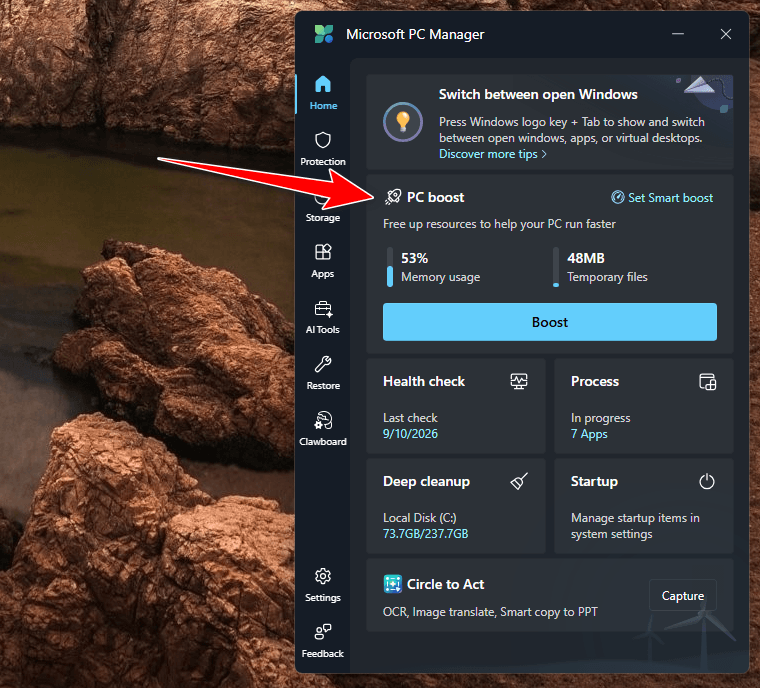
PC Manager Boost is one of the quickest ways to free up system resources through the application. The Boost feature can remove temporary files and release memory by closing unnecessary background processes.
When Windows has accumulated temporary files or too many applications and processes are consuming memory, using Microsoft PC Manager Boost can make the system feel more responsive. It can be particularly useful when you’re experiencing high memory usage or when an application has left unnecessary processes running in the background.
However, you shouldn’t expect PC Boost to dramatically upgrade the performance of every computer. If your PC is slow because of an old processor, insufficient RAM, an aging hard drive, overheating, or other hardware limitations, cleaning temporary files won’t solve the underlying problem.
In other words, PC Boost is best viewed as a quick maintenance tool, not a replacement for a hardware upgrade.
For someone looking for ways to improve PC performance, Boost can be useful when unnecessary processes and temporary files are contributing to the problem.
2. Health Check
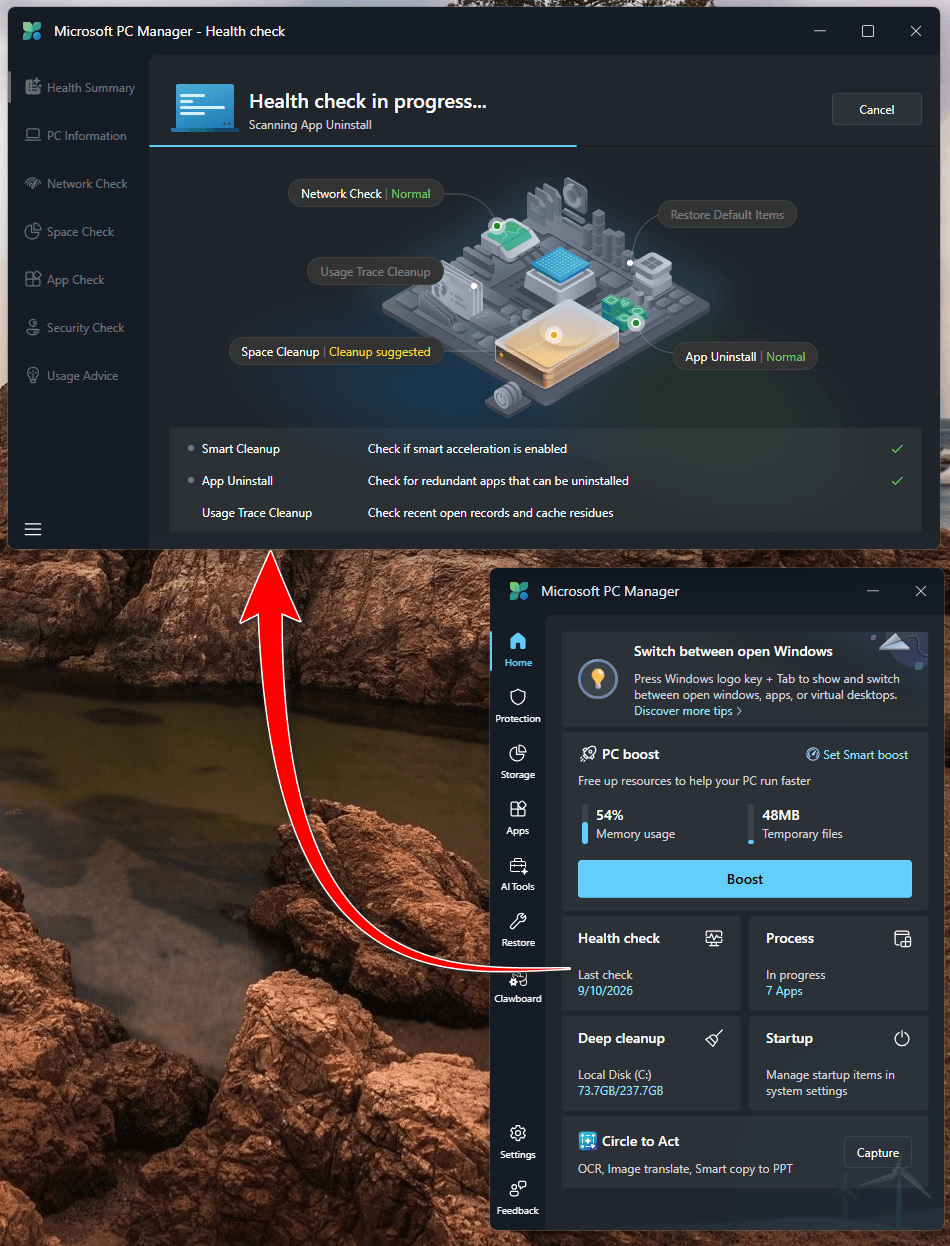
PC Manager Health Check provides a quick overview of potential maintenance and security issues on your computer. It is designed to scan the system and provide recommendations for actions that may improve its overall condition.
Depending on the current PC Manager version and configuration, Health Check can identify items such as unnecessary files, startup applications, security issues, and other system recommendations.
For example, it can suggest removing temporary or unnecessary files and highlight applications that are configured to start with Windows. Reducing unnecessary startup applications can help shorten the time it takes for Windows to become usable after you sign in.
Health Check can also provide access to system protection and other Windows maintenance functions. This makes it useful for beginners who aren’t sure which Windows settings they should check.
If you’re searching for a simple PC health check Windows 11 tool, PC Manager provides a convenient starting point. However, advanced users may still want to investigate individual recommendations using Windows Settings, Task Manager, or Windows Security.
3. Deep Cleanup
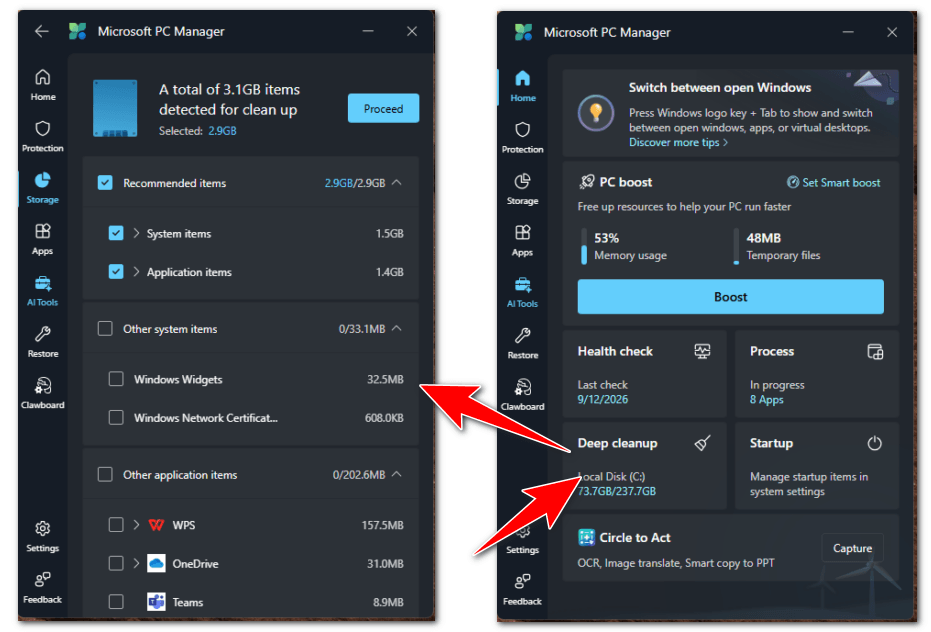
PC Manager Deep Cleanup is designed to find unnecessary data that can occupy valuable storage space. It can scan areas such as temporary system files, browser caches, application caches, and other types of junk data.
This makes Deep Cleanup particularly useful when your Windows drive is running low on storage.
For example, if you’ve accumulated temporary files from applications and web browsing over time, PC Manager can identify some of that data and allow you to remove it. Clearing unnecessary files can recover storage space and may also reduce the amount of clutter maintained on the system.
The feature can be useful for people searching for a Windows junk file cleaner or a simple way to clean temporary files in Windows 11.
However, don’t blindly select every item presented by a cleanup utility. Review the categories and make sure you don’t need any personal files or application data before deleting them. Files in locations such as Downloads should receive particular attention because they may contain documents, installers, photos, videos, or other files you intentionally saved.
4. Storage Management
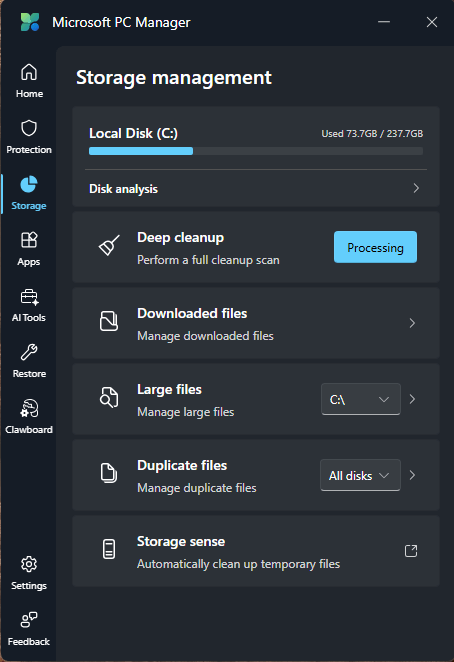
PC Manager Storage Management provides a central place to investigate and manage storage usage. It can help identify unnecessary files and provide access to tools for cleaning storage and managing large files.
Storage management can be especially useful when your C: drive is nearly full. Low free space can cause Windows and applications to behave poorly, so identifying files you no longer need can be an easy first step toward improving the situation.
PC Manager can also provide access to Storage Sense, Windows’ built-in feature for automatically managing certain types of temporary and unnecessary files.
The advantage is convenience. Rather than manually navigating through several Windows Settings pages, PC Manager provides shortcuts to relevant storage functions.
If you’re trying to free up disk space in Windows 11, PC Manager can therefore be a useful starting point.
Related: If your Windows computer is running out of storage, see our guide on how to free up disk space in Windows for additional methods beyond PC Manager.
5. Manage Large Files
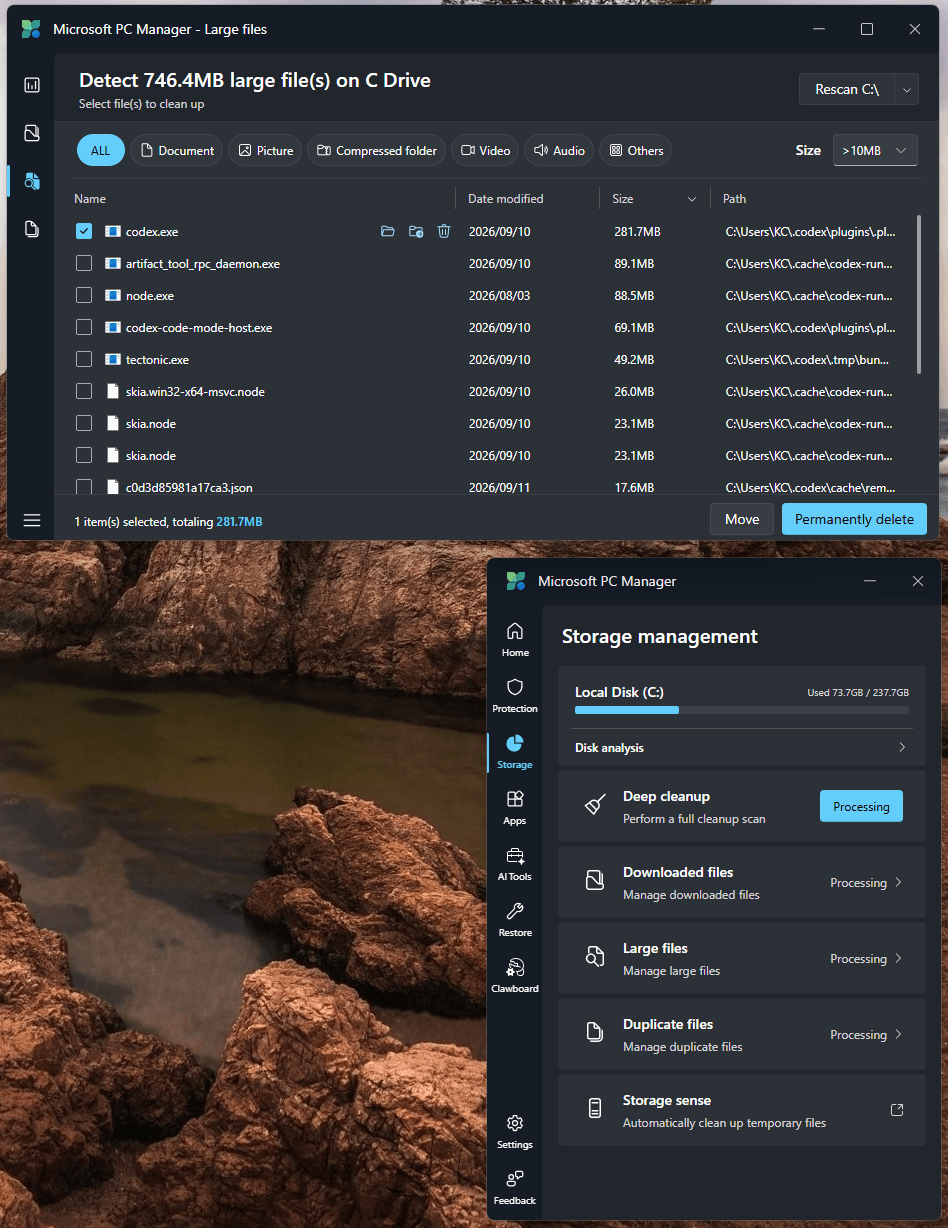
The Manage Large Files feature helps you locate files that are consuming significant amounts of storage.
Large files can be difficult to identify manually, especially when a drive contains years of downloads, videos, application files, installers, and other data. PC Manager makes it easier to search for files based on their size so you can determine which items may be worth removing or moving to another drive.
This can be particularly useful if you’re trying to find large files in Windows or free up disk space quickly.
Before deleting anything, however, check the file’s name, location, and purpose. A large file isn’t necessarily an unnecessary file. Personal videos, project files, backups, software installers, and other important data can all consume substantial storage.
The safest approach is to use PC Manager to find large files and then decide yourself whether each file should be deleted, moved, or retained.
6. Manage Apps
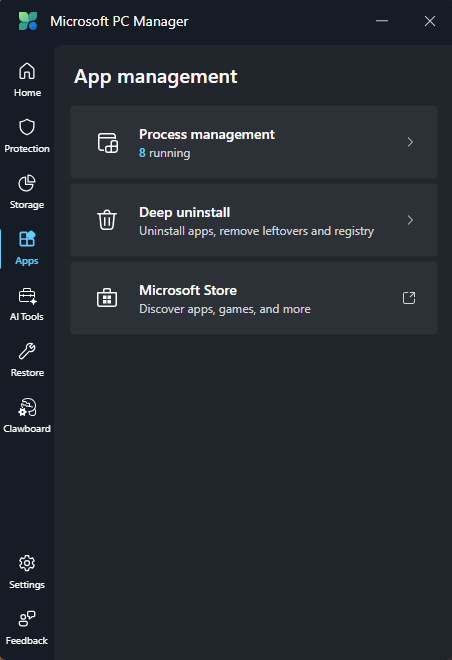
PC Manager also provides tools for managing applications installed on your computer.
The app management functions can help you identify installed applications and access Windows’ uninstall functionality. This is useful for finding programs you no longer use, particularly when you’re trying to recover storage space.
If you’ve installed many applications over time, reviewing them periodically can help reduce unnecessary storage usage and clutter.
The feature is essentially a simplified approach to Windows app management. For more detailed control, Windows also provides its own Installed Apps section under Settings.
If you’re searching for how to uninstall apps in Windows 11, PC Manager can provide a convenient route to the relevant Windows functionality. Keep in mind that some Windows components and applications cannot be removed because Windows requires them for normal operation.
7. Process Management
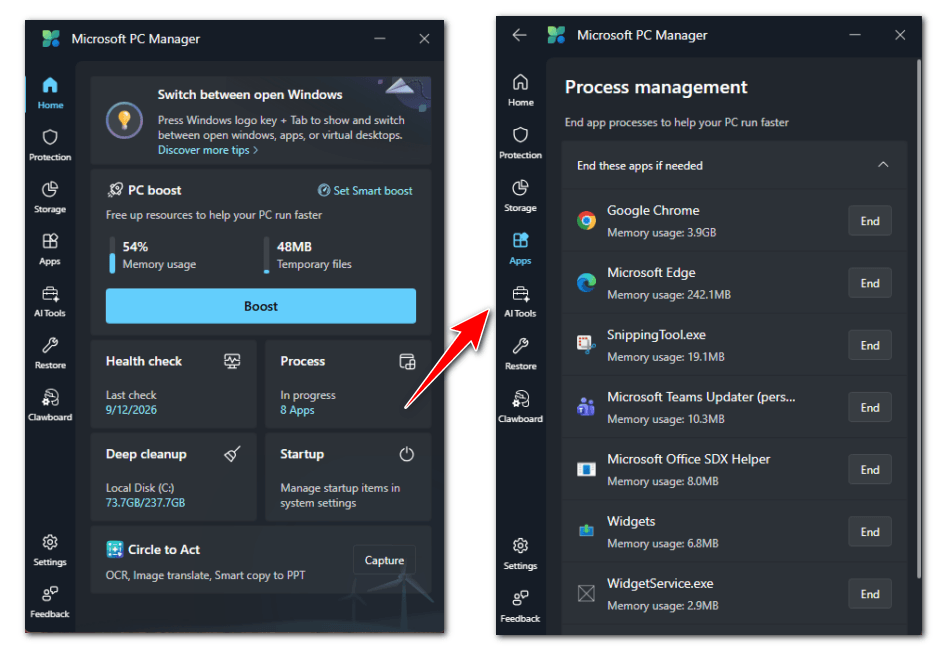
PC Manager Process Management provides a simpler way to view and close unnecessary application processes.
Background processes can consume CPU, memory, and other system resources. If an application is frozen or consuming unusually high resources, closing its process can sometimes restore responsiveness.
This can be useful when troubleshooting high RAM usage in Windows 11 or when an application continues running in the background after you no longer need it.
However, process management should be used carefully.
You shouldn’t randomly terminate Windows system processes simply because they appear unfamiliar. Some processes are essential for Windows or other applications to function correctly. Closing the wrong process can cause an application to stop responding or, in some cases, make Windows behave unexpectedly.
Use PC Manager to end processes you recognize and understand, particularly applications that you deliberately opened or that are clearly consuming excessive resources.
8. Startup Apps
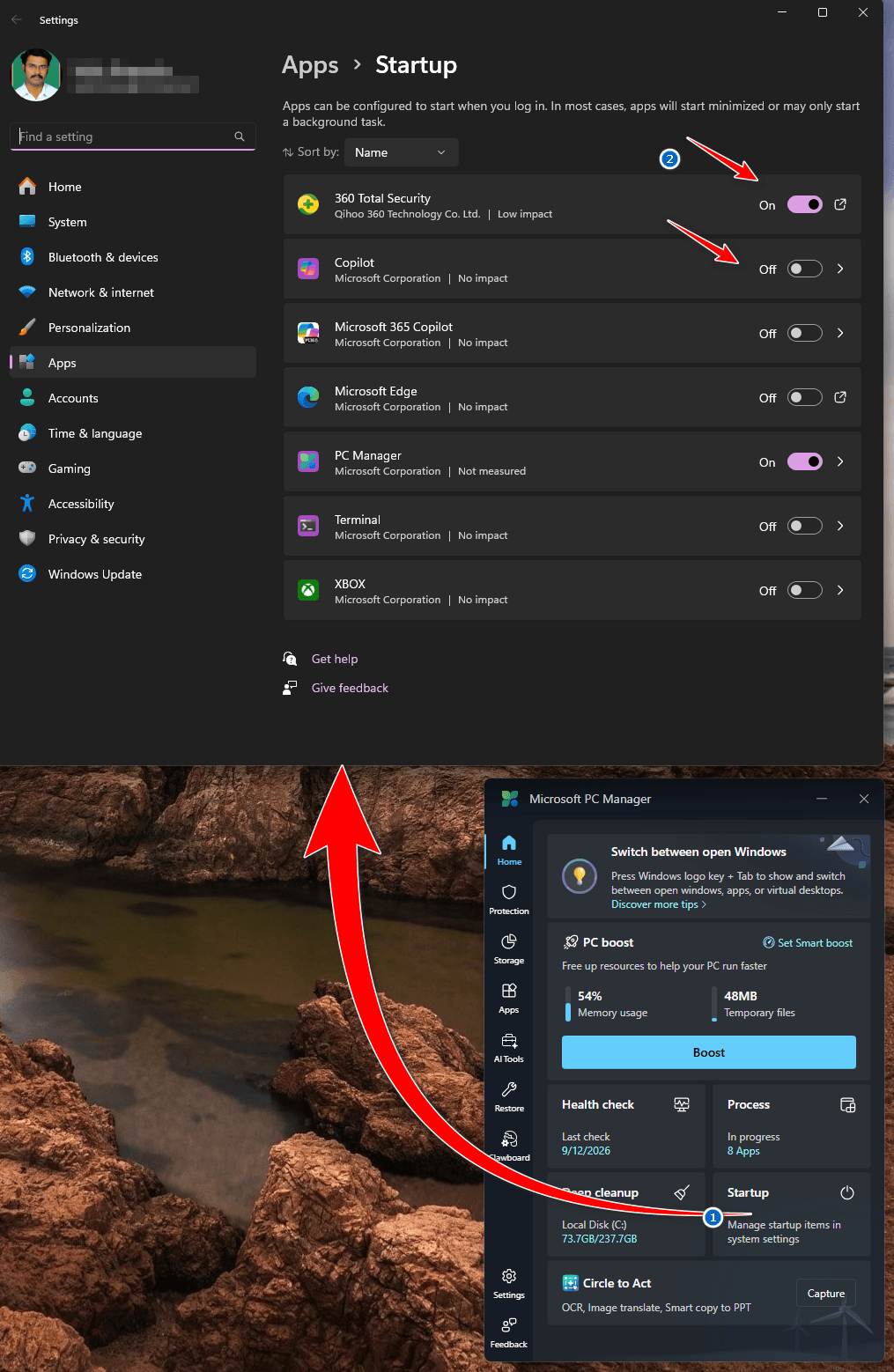
PC Manager Startup Apps helps you control applications that automatically launch when Windows starts.
Having too many startup programs can increase the amount of time Windows needs to become fully usable after you sign in. Some applications also continue running in the background even when you don’t use them frequently.
Disabling unnecessary startup programs can therefore help reduce Windows startup time and lower background resource usage.
For example, if a messaging application, game launcher, cloud utility, or other program doesn’t need to start every time you turn on your PC, you may choose to disable its automatic startup.
However, don’t disable every startup entry. Some applications and system components may need to launch automatically for features such as synchronization, security, hardware controls, or other services to work correctly.
If you’re unsure about a particular startup item, research what it does before disabling it.
9. Microsoft PC Manager Security Features
PC Manager also provides access to several Windows security and protection functions.
Its security-related features work with the existing Windows Security and Microsoft Defender infrastructure rather than turning PC Manager into a completely separate antivirus product.
Depending on the feature and current version, PC Manager can provide access to functions such as virus and threat scanning, Windows Update, and other security-related settings.
The Microsoft PC Manager virus scan feature is therefore best understood as a convenient way to access Microsoft’s built-in security protection.
This distinction is important: PC Manager itself isn’t an independent antivirus engine. Microsoft Defender Antivirus provides the underlying malware protection on supported Windows systems.
PC Manager can make security maintenance easier for beginners, while Windows Security remains the more comprehensive place to manage antivirus and other security settings.
10. Pop-Up Management
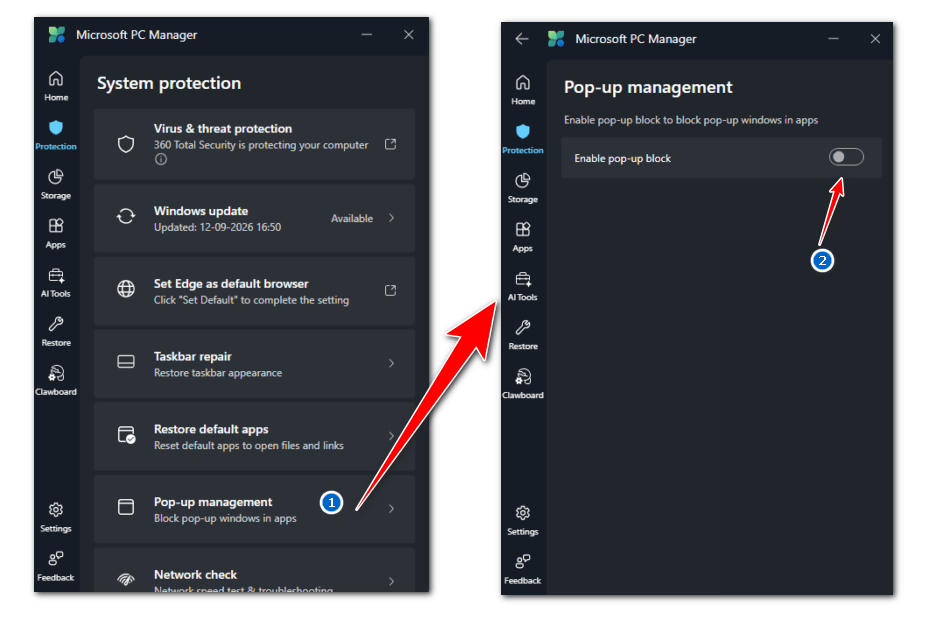
PC Manager Pop-Up Management is designed to reduce unwanted advertising and application pop-ups.
The feature can help users block certain pop-up interruptions from supported applications, creating a less distracting Windows experience.
This can be useful if a particular application frequently displays unwanted advertising or notification-style pop-ups. Rather than treating every Windows notification as a problem, the feature focuses on supported application pop-ups that users choose to manage.
If you’re searching for a Microsoft PC Manager pop-up blocker or a way to block pop-ups in Windows, this feature is worth exploring.
Its effectiveness can depend on the application and the type of pop-up being displayed, so it shouldn’t be considered a universal ad blocker for every website and Windows notification.
11. PC Manager Toolbox
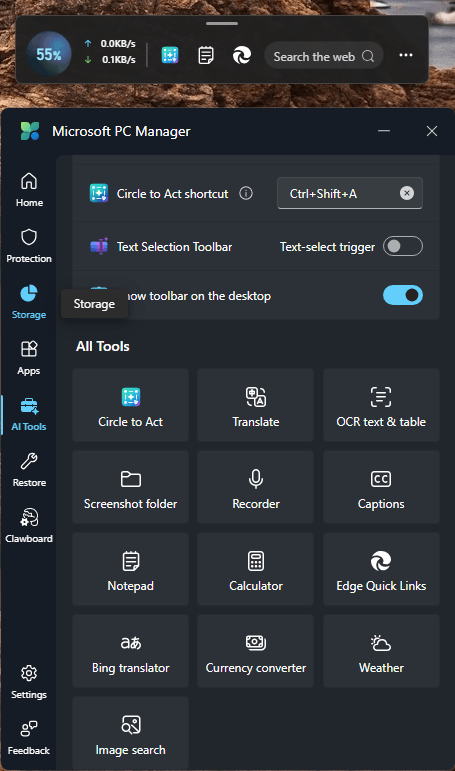
The Microsoft PC Manager Toolbox is essentially a collection of shortcuts to useful Windows tools and utilities. Instead of opening each application individually from the Start menu, users can access selected tools from the PC Manager interface.
The current PC Manager experience also includes a Mini toolbar, which provides quick access to selected functions and applications.
The exact tools available in the Toolbox can vary as Microsoft updates PC Manager and may differ by region or version. Current Microsoft documentation describes the Toolbox as providing a variety of built-in Windows tools and quick-access functions.
Depending on the version you’re using, the Toolbox can provide convenient access to utilities such as screenshots, Windows applications, and other commonly used tools.
The important point is that the Toolbox is primarily about quick access, rather than providing an entirely new collection of system utilities. Many of the tools are already available independently in Windows.
For beginners, however, having these Windows utility tools available from one location can be convenient.
Which Microsoft PC Manager Features Are Most Useful?
Not every feature will be equally valuable for every user. In my view, the most useful functions are:
- PC Boost — Quickly releases memory and clears temporary files.
- Deep Cleanup — Helps identify unnecessary files and recover storage.
- Storage Management — Makes it easier to investigate disk usage.
- Manage Large Files — Helps find files consuming significant storage.
- Startup Apps — Provides a simple way to reduce unnecessary startup programs.
- Health Check — Gives beginners a convenient overview of common maintenance tasks.
- Process Management — Makes it easier to close unnecessary application processes.
- Security tools — Provides convenient access to Windows security functions.
- Pop-Up Management — Can reduce supported application pop-up interruptions.
- Toolbox — Provides quick access to selected Windows utilities.
Overall, Microsoft PC Manager’s biggest strength isn’t that it introduces completely new Windows optimization technology. Its strength is convenience. It combines several existing Windows maintenance functions into a simpler dashboard, making routine PC management easier for people who don’t want to navigate through multiple Windows settings and utilities.
Does Microsoft PC Manager Really Improve PC Performance?
Microsoft PC Manager can improve the responsiveness of some Windows PCs, but it should not be considered a magic performance booster. The amount of improvement you see depends on what’s slowing down your computer in the first place.
PC Manager can help when your system is affected by unnecessary temporary files, too many startup applications, excessive background processes, or limited free storage. In these situations, cleaning up the system and reducing unnecessary resource usage can make Windows feel more responsive.
However, PC Manager cannot turn outdated hardware into a modern high-performance computer. If your PC has an aging processor, insufficient RAM, a failing storage drive, overheating problems, or another hardware-related issue, cleaning files alone is unlikely to produce a significant improvement.
When Microsoft PC Manager Can Help
PC Manager is most useful when your computer’s performance problems are related to software clutter or resource usage.
- Low disk space: A nearly full system drive can affect Windows performance and leave little room for temporary files and normal system operations. PC Manager’s Deep Cleanup and Storage Management tools can help identify files that can be safely removed.
- Too many startup apps: Applications that automatically launch when Windows starts can increase startup time and consume resources in the background. Disabling unnecessary startup programs can make the system feel quicker after signing in.
- Excessive temporary files: Temporary files and caches can accumulate over time. Removing unnecessary data can recover storage space and reduce system clutter.
- Unnecessary background processes: Applications running in the background can consume RAM and CPU resources. PC Manager can help you identify and close certain unnecessary processes.
- Poor PC maintenance: If you rarely clean temporary files, review startup applications, or manage storage, PC Manager provides a convenient way to perform several routine maintenance tasks from one place.
When PC Manager Won’t Make Much Difference
There are situations where Microsoft PC Manager won’t produce a noticeable performance improvement.
- Old CPU: If the processor itself is the performance bottleneck, software cleanup won’t make it substantially faster.
- Insufficient RAM: When a computer regularly runs out of available memory, adding more RAM may provide a much larger improvement than using a cleanup utility.
- Failing SSD or HDD: Storage hardware that is degrading or experiencing errors needs to be diagnosed and replaced rather than optimized with PC Manager.
- Overheating: A CPU or GPU that becomes too hot may reduce its clock speed to protect the hardware. Cleaning temporary files won’t solve an overheating problem.
- Hardware limitations: An older computer may simply lack the processing power required by modern applications and Windows workloads.
- Severe software problems: Malware, corrupted Windows files, incompatible drivers, or serious application problems require targeted troubleshooting rather than routine cleanup.
How Much Faster Can Microsoft PC Manager Make Your PC?
There is no universal percentage or multiplier that accurately describes how much faster PC Manager can make a computer.
The improvement depends entirely on the condition of the PC. A computer with a nearly full drive and dozens of unnecessary startup applications could feel noticeably better after maintenance. A relatively clean PC with plenty of free storage and adequate hardware may show little or no noticeable difference.
That’s why claims such as “Microsoft PC Manager makes your PC 200 times faster” should be avoided. There is no meaningful way to apply such a number to every Windows computer.
Instead, evaluate the results using measurable changes such as available storage, startup time, RAM usage, background processes, and application responsiveness.
Ultimately, Microsoft PC Manager is best viewed as a Windows maintenance and optimization convenience tool. It can remove some sources of unnecessary resource usage, but the biggest performance improvements often come from addressing the actual cause of a slow PC—whether that’s insufficient storage, too many startup applications, problematic software, overheating, or outdated hardware.
My Microsoft PC Manager Performance Test
To see whether Microsoft PC Manager actually improves Windows performance, I tested its cleanup and optimization features on a Windows PC and compared the system before and after using the application.
Rather than relying on generic claims about how much faster PC Manager can make a computer, this test focuses on measurable changes in free storage, RAM usage, startup applications, and boot time.
Test PC
The test was performed on the following system:
| Component | Test Configuration |
|---|---|
| Processor | Intel 13 |
| RAM | 16 GB |
| Storage | SSD 256 GB |
| Operating system | Windows 11 Pro |
| Available storage before test | 162 GB / 237 GB |
| Startup applications before test | [Enter number] |
Before starting the test, I recorded the system’s baseline performance. I then used Microsoft PC Manager to perform the recommended maintenance tasks, including cleaning unnecessary files, reviewing startup applications, and managing unnecessary background processes.
Before Using Microsoft PC Manager
Before making any changes, I recorded the following measurements:
- Free storage: [162 GB]
- RAM usage: [42% / 16 GB]
- Startup applications: [7]
- Boot time: [43 seconds]
For a more detailed comparison, you can also record an optional benchmark score using the same benchmarking application before and after the test.
After Using Microsoft PC Manager
After completing the PC Manager maintenance tasks, I restarted the computer and repeated the same measurements under similar conditions.
The results were:
| Metric | Before | After | Difference |
|---|---|---|---|
| Free storage | [162 GB] | [166 GB] | [+XX GB] |
| RAM usage | [42%] | [29%] | [±13%] |
| Startup apps | [6] | [2] | [-4] |
| Boot time | [1.22 sec] | [0.49 sec] | [±0.73 sec] |
What Did the Test Show?
The results show that the biggest benefit of Microsoft PC Manager depends on the condition of the computer before maintenance.
If the test shows a meaningful increase in available storage, that demonstrates that PC Manager successfully removed unnecessary files. Similarly, a reduction in startup applications can potentially improve the time required for Windows to become fully usable after startup.
RAM usage can be more difficult to interpret. Windows dynamically manages memory, so a lower RAM percentage immediately after cleanup doesn’t necessarily mean that the computer has permanently gained additional memory. Likewise, a small change in boot time may fall within normal variation between individual startups.
For a fair comparison, I recommend performing several boot-time measurements rather than relying on a single startup. Keep the test conditions as consistent as possible, including the same Windows configuration and applications running in the background.
My Verdict From the Performance Test
Microsoft PC Manager should be viewed as a maintenance tool rather than a dramatic performance upgrade. Its most measurable benefits are likely to come from freeing storage, reducing unnecessary startup applications, and cleaning up system clutter.
If your PC is already well maintained and has sufficient storage, RAM, and modern hardware, you may see only a modest performance difference.
Most importantly, this test demonstrates why claims such as “Microsoft PC Manager makes your PC 200 times faster” are misleading. There isn’t a universal performance multiplier that applies to every Windows computer. The real-world result depends on what was slowing the particular PC down before the cleanup.
For TechyDen readers, the best way to judge PC Manager is therefore to compare before-and-after measurements on their own system, rather than expecting a guaranteed percentage improvement.
How to Use Microsoft PC Manager
Microsoft PC Manager is designed to make routine Windows maintenance easier by putting several cleanup, storage, performance, and management tools in one place. The exact interface can change as Microsoft updates the app, but the basic workflow remains straightforward. Microsoft currently lists Health Check, Boost, storage management, process management, startup management, application uninstall, and other maintenance functions among its PC Manager services.
Note: Use screenshots from the latest version of Microsoft PC Manager in this section. Avoid reusing screenshots from the older 2023 version because Microsoft continues to update the application and its interface.
How to Run a Health Check
Health Check provides a quick way to identify common maintenance and security issues and receive recommendations.
- Open Microsoft PC Manager.
- Select Health Check from the main screen.
- Allow PC Manager to scan your computer.
- Review the files, startup items, security issues, or other recommendations it identifies.
- Review each recommendation before applying it.
- Select the available cleanup or optimization option to apply the changes you want.
Microsoft describes Health Check as a one-click checkup that can identify unnecessary files and potential system problems and provide optimization recommendations.
Screenshot to add: Microsoft PC Manager Health Check results screen.
How to Boost Your PC
The Boost feature can clean temporary system files and help release memory used by unnecessary processes.
- Open Microsoft PC Manager.
- From the main dashboard, select Boost.
- Review the cleanup and memory information displayed by PC Manager.
- Select Boost to perform the recommended quick optimization.
- Wait for the process to finish.
- Check whether the system feels more responsive afterward.
Microsoft describes One Click Acceleration as a way to clean temporary system files and release or optimize system memory usage.
Don’t expect a dramatic speed increase if your PC is already well maintained. Boost is most useful when temporary files or unnecessary resource usage are contributing to sluggish performance.
Screenshot to add: PC Manager’s Boost interface before and after optimization.
How to Clean Junk Files
If your Windows drive is running low on space, Deep Cleanup can identify several categories of unnecessary data.
- Open PC Manager.
- Select Storage Management.
- Choose Deep Cleanup.
- Allow PC Manager to scan your system.
- Review the categories of files it identifies.
- Select the items you no longer need.
- Click the cleanup option to remove the selected files.
Microsoft says Deep Cleanup can scan for junk such as unnecessary files, browser caches, and application caches.
Important: Always review the results before deleting files. Pay particular attention to downloaded files and personal data that you may want to keep.
Screenshot to add: Deep Cleanup scan results showing the categories available for removal.
How to Free Up Storage
PC Manager’s Storage Management tools can help you determine where your disk space is being used and identify opportunities to recover space.
- Open Microsoft PC Manager.
- Select Storage Management.
- Review the available storage information.
- Open Deep Cleanup to remove unnecessary files.
- Select Manage Large Files to locate files consuming significant space.
- Review unused applications and uninstall programs you no longer need.
- Use Storage Sense if you want Windows to automatically manage certain temporary files.
Microsoft specifically describes Storage Management as a way to manage large files and use Storage Sense to help Windows free up storage.
For more detailed Windows storage-cleanup methods, see our guide on how to free up disk space in Windows.
Screenshot to add: PC Manager Storage Management dashboard.
How to Find and Remove Large Files
Large videos, installers, archives, backups, and other files can quickly consume available storage.
- Open PC Manager.
- Go to Storage Management.
- Select Manage Large Files.
- Choose the drive or location you want to analyze, if prompted.
- Use the available size or file-type filters to narrow the results.
- Review the files listed.
- Open or locate any file you’re unsure about before deleting it.
- Select files you no longer need and remove them.
PC Manager’s Space Management functionality is designed to help identify files that take up significant amounts of storage, including large and downloaded files.
Don’t delete a large file simply because it’s large. A large personal video, project archive, backup, or work document may be important.
Screenshot to add: Manage Large Files results with the available filtering options.
How to Disable Startup Apps
Startup applications launch automatically when you sign in to Windows. Too many unnecessary startup programs can increase startup time and consume resources in the background.
- Open Microsoft PC Manager.
- Go to the Startup or Startup Management section.
- Review the applications configured to start with Windows.
- Identify applications you don’t need immediately after signing in.
- Disable unnecessary startup applications.
- Restart Windows and check whether startup responsiveness improves.
Microsoft confirms that startup applications can affect startup speed and overall system performance. Windows also provides startup controls through Settings > Apps > Startup and Task Manager.
Avoid disabling security software, hardware utilities, or applications whose startup function you actually need.
Screenshot to add: PC Manager’s Startup Apps management screen.
How to Manage Running Processes
PC Manager can also help you close unnecessary application processes.
- Open Microsoft PC Manager.
- Find Process Management.
- Review the applications and processes currently running.
- Identify an application you recognize and no longer need.
- Select the option to end or close the process.
- Confirm the action if PC Manager asks for confirmation.
- Check whether CPU or memory usage improves.
Microsoft describes process management as a way to quickly close unnecessary application processes and reduce resource consumption.
Be careful when ending processes. Don’t terminate unfamiliar Windows system processes simply because they appear in the list. Closing an essential process can cause an application or Windows component to stop working correctly.
A Simple Microsoft PC Manager Maintenance Routine
For most users, you don’t need to run every feature every day. A practical routine is to run Health Check periodically, clean unnecessary files when storage becomes limited, review startup applications when Windows starts slowly, and use process management when a particular application is consuming excessive resources.
PC Manager is most useful when you treat it as a convenient Windows maintenance dashboard rather than an automatic solution for every performance problem.
Microsoft PC Manager vs Windows Built-In Tools
One of the most important things to understand about Microsoft PC Manager is that it doesn’t necessarily provide capabilities that Windows users couldn’t access elsewhere. Windows already includes many tools for cleaning files, managing storage, controlling startup applications, monitoring processes, and protecting the system.
The main advantage of PC Manager is convenience. It brings several of these functions together in a simpler interface, which can be particularly helpful for beginners who don’t know where to find individual Windows utilities.
Here’s how Microsoft PC Manager compares with the built-in Windows tools.
| Task | Microsoft PC Manager | Windows Built-In Tool |
|---|---|---|
| Clean temporary files | Yes | Yes — Settings / Disk Cleanup |
| Manage startup apps | Yes | Yes — Settings / Task Manager |
| Manage processes | Yes | Yes — Task Manager |
| Storage management | Yes | Yes — Settings |
| Virus protection | Microsoft Defender integration | Windows Security / Microsoft Defender |
| Storage Sense | Accessible | Native Windows feature |
| Health checks | Yes | Available through various Windows tools |
| Manage installed apps | Yes | Settings > Apps |
| Large file management | Yes | Available through Windows Search and storage tools |
| Ease of use | Excellent | Good |
| Advanced controls | Limited | More options |
Microsoft PC Manager vs Windows Settings
Windows Settings is the central location for configuring Windows, and it already includes many of the functions offered through PC Manager.
For example, you can manage installed applications, storage, startup applications, Windows updates, and other system settings directly from Windows Settings.
The difference is that PC Manager puts selected maintenance functions into a more focused dashboard. Instead of navigating through several Settings pages, a beginner can open PC Manager and access commonly needed maintenance options from one application.
Microsoft PC Manager vs Storage Sense
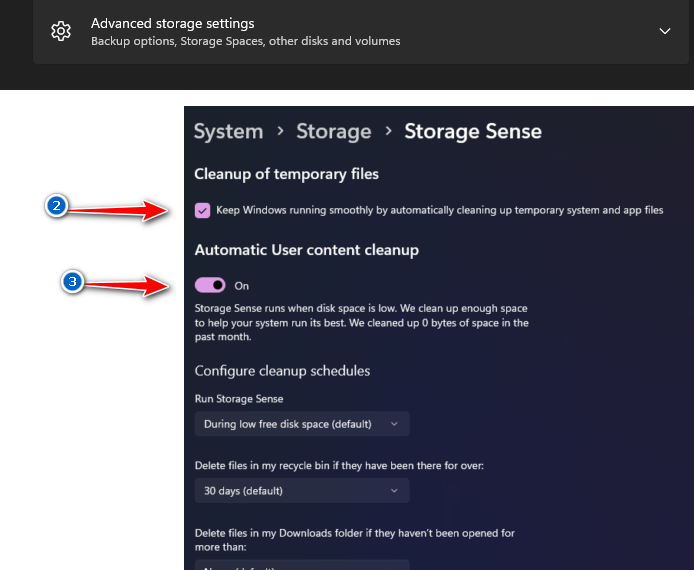
Storage Sense is a native Windows feature that automatically manages certain temporary and unnecessary files to help maintain available storage.
PC Manager can provide convenient access to Storage Sense alongside other storage-management functions such as Deep Cleanup and large-file management.
If you already have Storage Sense configured correctly, you may not need PC Manager solely for automatic storage maintenance. However, PC Manager can make manual cleanup and related storage tasks easier to discover.
Microsoft PC Manager vs Task Manager
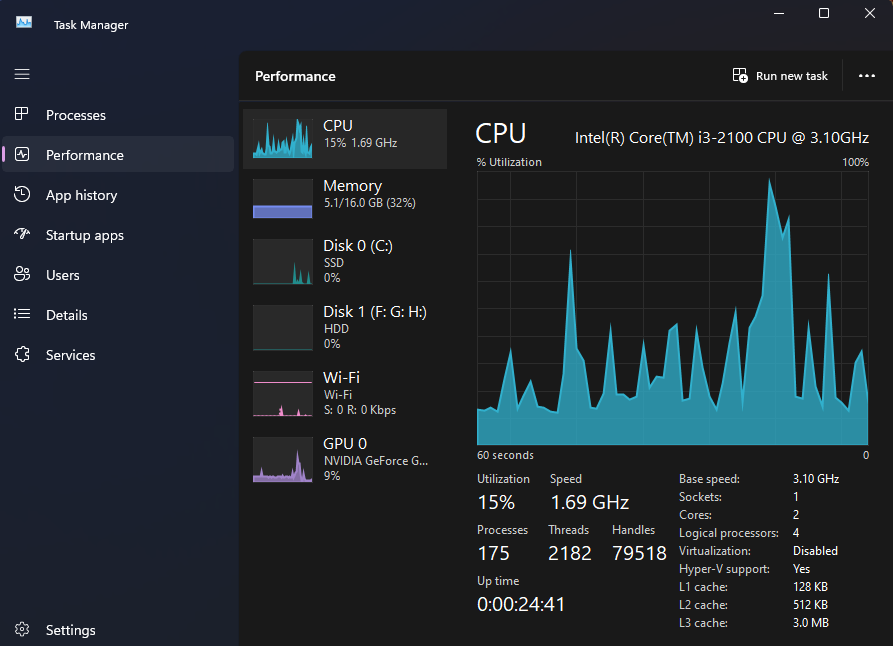
Task Manager provides considerably more detailed information about running applications, processes, CPU usage, memory usage, disk activity, network activity, performance, users, and startup applications.
PC Manager’s process-management features are simpler and more focused on quickly closing unnecessary applications.
Therefore, beginners may prefer PC Manager for basic process management, while advanced users will generally find Task Manager more useful when troubleshooting resource usage or identifying problematic processes.
Microsoft PC Manager vs Windows Security
PC Manager integrates with Microsoft’s existing security infrastructure rather than replacing Windows Security.
Windows Security remains the more comprehensive destination for managing Microsoft Defender Antivirus, firewall settings, account protection, device security, and other Windows security features.
PC Manager can provide a simpler route to selected security-related functions, but you shouldn’t consider it a standalone antivirus replacement.
Microsoft PC Manager vs Disk Cleanup
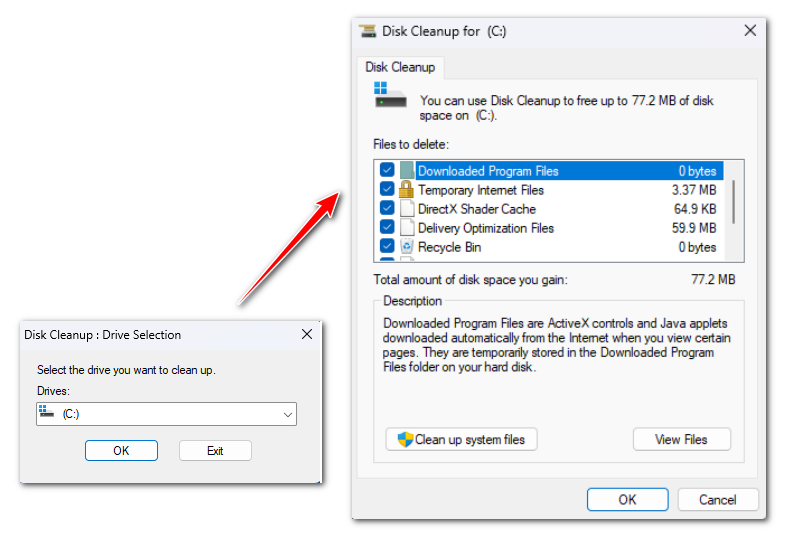
Windows has long included Disk Cleanup, a utility for removing certain unnecessary files from a Windows installation.
PC Manager provides a more modern interface for cleanup and storage management, including features such as Deep Cleanup and Manage Large Files.
For users who simply want to recover storage without navigating older Windows utilities, PC Manager can be more convenient. However, experienced Windows users can continue using Microsoft’s native cleanup tools.
Which Is Better: PC Manager or Windows Built-In Tools?
There isn’t a universal winner.
Choose Microsoft PC Manager if you:
- Want a simple maintenance dashboard
- Prefer having common tools in one place
- Are less familiar with Windows’ advanced settings
- Regularly perform cleanup and storage maintenance
- Want a straightforward way to manage startup apps and processes
Stick with Windows’ built-in tools if you:
- Already know how to use Windows Settings and Task Manager
- Want detailed system information
- Need advanced process and performance controls
- Prefer not to install additional software
- Are comfortable managing Storage Sense and Windows Security yourself
The Key Advantage of Microsoft PC Manager
PC Manager’s biggest advantage isn’t necessarily adding new Windows capabilities—it makes several maintenance tools easier to find and use.
For beginners, that convenience can make a meaningful difference. Instead of remembering where Windows stores every maintenance option, users can open one application and perform many routine tasks from a single dashboard.
For advanced users, however, the built-in Windows utilities may offer everything they need, along with more detailed controls. In that situation, Microsoft PC Manager is better viewed as an optional convenience tool rather than an essential Windows utility.
Microsoft PC Manager vs CCleaner
Microsoft PC Manager and CCleaner are both designed to help Windows users perform routine maintenance, clean unnecessary files, manage applications, and control certain system settings. However, they take different approaches.
Microsoft PC Manager focuses on simplicity and integration with Windows, while CCleaner provides a broader selection of system-cleaning and customization features, including options that aren’t available in PC Manager.
Neither tool is universally better. The right choice depends on how much control you want over your Windows system and which features you actually need.
| Feature | Microsoft PC Manager | CCleaner |
|---|---|---|
| Free version | Yes | Yes |
| Windows integration | Excellent | Good |
| Junk cleanup | Yes | Yes |
| Startup management | Yes | Yes |
| Process management | Yes | Yes |
| Storage management | Yes | Yes |
| Registry cleaning | No | Yes |
| Microsoft Defender integration | Yes | No |
| Beginner friendly | Excellent | Good |
| Advanced options | Limited | More extensive |
Microsoft PC Manager vs CCleaner: Key Differences
The biggest difference is the level of control each application provides.
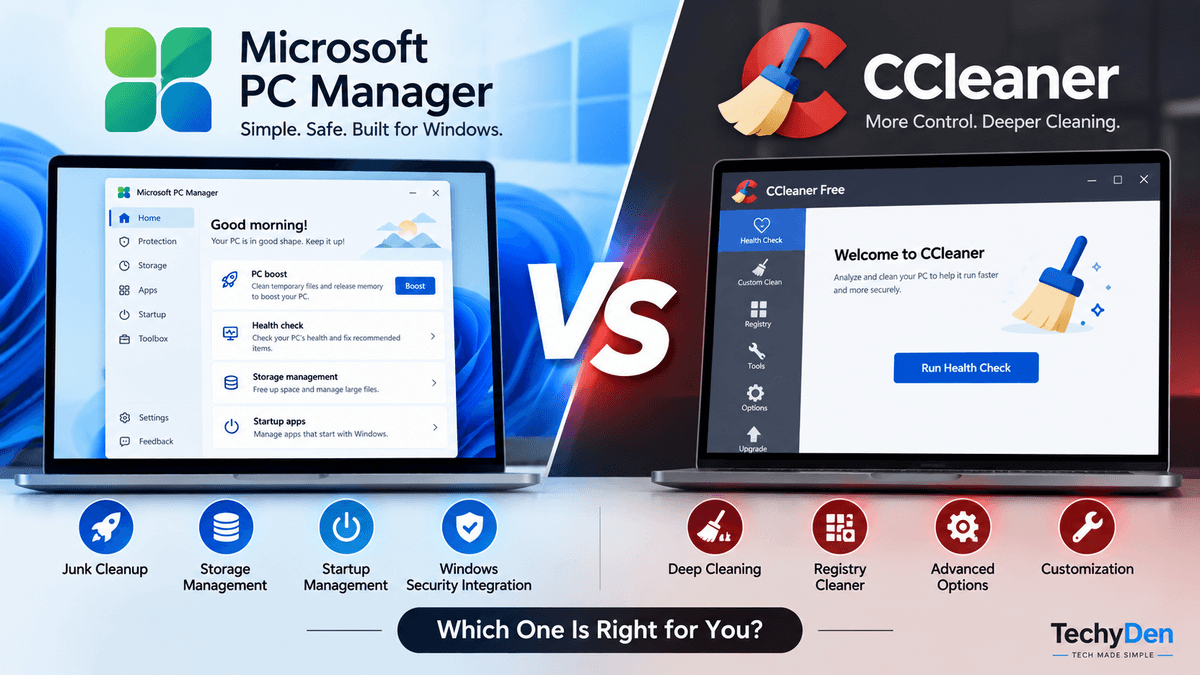
- Microsoft PC Manager takes a relatively simple approach. It focuses on common Windows maintenance tasks such as cleaning unnecessary files, managing storage, controlling startup applications, and accessing Windows security features. Its close relationship with Windows makes it a natural choice for users who prefer Microsoft’s own utilities.
- CCleaner, meanwhile, has been built around system cleaning and maintenance for many years and provides more configuration options. Depending on the version, users can access additional cleaning, application management, privacy, and system maintenance features.
One notable difference is registry cleaning. CCleaner provides registry-related functionality, while Microsoft PC Manager does not include a registry cleaner. This isn’t necessarily a disadvantage for PC Manager.
Windows users should be cautious about registry-cleaning tools because incorrectly modifying the Windows Registry can create system problems, and routine registry cleaning isn’t generally necessary for maintaining a modern Windows PC.
Another difference is security integration. PC Manager works with Microsoft’s Windows security ecosystem, including Microsoft Defender-related functionality. CCleaner isn’t a replacement for Microsoft Defender or Windows Security, so Windows users should continue using their normal security protection regardless of which maintenance application they choose.
Which One Should You Use?
There is no single answer for everyone.
Choose Microsoft PC Manager if:
- You want a simple Microsoft-made maintenance tool.
- You’re a beginner or prefer a straightforward interface.
- You want close integration with Windows.
- You want cleanup, storage, startup, and basic process-management features in one place.
- You don’t want to rely on a third-party PC-cleaning application.
- You primarily need routine Windows maintenance rather than advanced controls.
Choose CCleaner if:
- You want more advanced system-maintenance options.
- You prefer having greater control over cleanup settings.
- You specifically need features that Microsoft PC Manager doesn’t provide.
- You’re comfortable reviewing and configuring additional maintenance options yourself.
Microsoft PC Manager or CCleaner: Final Comparison
For most beginners, Microsoft PC Manager is the simpler choice because it provides essential maintenance features through a familiar Windows-focused interface. It is particularly appealing if you want to avoid installing a third-party cleaner.
CCleaner may be more appropriate for experienced users who want additional customization and advanced maintenance features.
Ultimately, you don’t need to install both simply because they offer overlapping functions. Choose the application that matches your requirements, and remember that many basic cleanup, storage, startup, process, and security functions are already available directly within Windows.
The important takeaway is that Microsoft PC Manager isn’t automatically better than CCleaner, and CCleaner isn’t automatically better than PC Manager. Their strengths are different. Your choice should depend on whether you prioritize simplicity and Windows integration or greater customization and advanced options.
Microsoft PC Manager Pros and Cons
Microsoft PC Manager is a useful option for routine Windows maintenance, but it isn’t essential for every user. Its biggest advantage is convenience, while its main limitation is that many of its functions are already available through Windows.
Pros of Microsoft PC Manager
- Free to use: The core PC Manager features are available without requiring a paid subscription.
- Developed by Microsoft: It is designed specifically for Windows and works within Microsoft’s ecosystem.
- Easy to use: The straightforward interface makes common maintenance tasks accessible to beginners.
- Windows 10 and Windows 11 support: PC Manager is designed for supported versions of both operating systems.
- Storage cleanup: Tools such as Deep Cleanup and Storage Management can help identify unnecessary files and recover storage space.
- Startup management: You can review and disable unnecessary applications that automatically launch with Windows.
- Process management: The application provides a convenient way to close certain unnecessary running applications and processes.
- Security integration: PC Manager works with Windows security features, including Microsoft Defender-related functionality.
- Useful for beginners: Users who aren’t familiar with Windows Settings, Task Manager, and other utilities can access several maintenance functions from one dashboard.
Cons of Microsoft PC Manager
- Many functions already exist in Windows: Windows Settings, Storage Sense, Task Manager, and Windows Security already provide many of the same capabilities.
- Limited advanced controls: PC Manager focuses on simplicity, so experienced users may find its controls less detailed than dedicated system utilities.
- Not a registry cleaner: Users looking specifically for registry-cleaning functionality won’t find it in PC Manager.
- Won’t solve hardware limitations: Cleaning files or managing startup applications cannot fix problems caused by insufficient RAM, an outdated processor, failing storage hardware, or overheating.
- Performance improvements vary: Some computers may feel more responsive after maintenance, while well-maintained systems may show little noticeable improvement.
- Advanced users may prefer Windows utilities: Experienced users who already know how to use Task Manager, Storage Sense, Windows Settings, and Windows Security may have little reason to install another maintenance interface.
Microsoft PC Manager: The Bottom Line
The biggest strength of Microsoft PC Manager is simplicity rather than advanced optimization. It provides a convenient central location for several common Windows maintenance tasks, making it particularly useful for beginners.
However, if you’re already comfortable managing storage, startup applications, processes, and security directly through Windows, PC Manager may not add much functionality to your existing workflow.
Who Should Use Microsoft PC Manager?
Microsoft PC Manager isn’t a necessary application for every Windows computer. Its value depends largely on how comfortable you are with Windows’ built-in maintenance tools and what you want to accomplish. For some users, it provides a convenient all-in-one dashboard; for others, the same tasks can be handled directly through Windows.
Who Should Use Microsoft PC Manager?
- Windows beginners: PC Manager is particularly useful if you’re not familiar with Windows Settings, Task Manager, Storage Sense, and other system utilities. Its simplified interface makes common maintenance tasks easier to find.
- Students: Students who use Windows laptops for studying, browsing, documents, and other everyday tasks can use PC Manager to periodically clean unnecessary files, manage startup applications, and keep an eye on available storage.
- General PC users: If you simply want an easy way to perform routine maintenance without learning multiple Windows utilities, PC Manager can put many useful functions in one place.
- Users running low on storage: Deep Cleanup, Storage Management, and Manage Large Files can help identify unnecessary data and files consuming significant amounts of disk space.
- Users with many startup programs: If numerous applications launch whenever Windows starts, PC Manager can make it easier to review and disable programs you don’t need running automatically.
- Users wanting simple PC maintenance: PC Manager is a good fit for anyone who prefers a straightforward maintenance workflow rather than manually navigating through different Windows settings.
- Users who prefer Microsoft utilities: If you prefer using software developed and maintained by Microsoft, PC Manager offers a convenient way to access several Windows maintenance functions from one application.
Who Doesn’t Necessarily Need Microsoft PC Manager?
- Advanced Windows users: Experienced users who already know how to use Task Manager, Windows Settings, Storage Sense, Windows Security, and other utilities may find PC Manager unnecessary.
- Users already comfortable with Windows Settings: If you can already manage storage, startup applications, installed apps, and system maintenance directly through Windows, PC Manager may simply duplicate tools you already use.
- Users who prefer specialized utilities: Users who need advanced system diagnostics, detailed monitoring, or specialized cleanup features may prefer dedicated applications that provide more granular controls.
- Users expecting dramatic performance improvements: PC Manager isn’t designed to overcome hardware limitations. If your computer is slow because of an outdated CPU, insufficient RAM, overheating, a failing SSD/HDD, or another fundamental hardware problem, a maintenance application won’t provide a dramatic transformation.
Is Microsoft PC Manager Right for You?
For most beginners and general Windows users, Microsoft PC Manager is a convenient optional utility rather than an essential application. It can simplify routine cleanup and maintenance without requiring users to understand every Windows system tool.
For experienced users, however, the decision is different. If you already maintain your computer effectively using Windows’ built-in utilities, there may be little additional benefit from installing PC Manager.
The best reason to use Microsoft PC Manager is convenience—not the promise of dramatically faster hardware.
Is Microsoft PC Manager Worth It?
Yes, Microsoft PC Manager is worth trying if you want a simple and free way to perform routine Windows maintenance. It brings cleanup, storage management, startup controls, process management, health checks, and security-related functions into a single interface.
Its biggest advantage is convenience. Instead of opening Windows Settings, Task Manager, Storage Sense, and Windows Security separately, you can access several commonly used maintenance functions through the PC Manager dashboard.
Microsoft PC Manager Is Worth It If You:
- Want simple PC maintenance: Its straightforward interface makes routine cleanup and management easier, especially for beginners.
- Frequently need to clean storage: Deep Cleanup, Storage Management, and Manage Large Files can help identify unnecessary data and recover disk space.
- Want startup and process controls in one interface: PC Manager provides convenient access to commonly needed performance-management functions.
- Prefer Microsoft software: If you would rather use a Microsoft-developed utility than install a third-party PC cleaner, PC Manager is a practical option.
Microsoft PC Manager Isn’t Essential If You:
- Already know Windows maintenance tools: Experienced users can perform many of the same tasks using Windows Settings, Task Manager, Storage Sense, and Windows Security.
- Already have a well-maintained PC: If your computer has plenty of free storage, few unnecessary startup programs, and no significant software-related performance issues, PC Manager may provide only limited additional value.
- Expect major performance improvements: PC Manager cannot upgrade your processor, add RAM, fix failing storage hardware, or resolve overheating. It can help with software-related clutter, but it isn’t a substitute for hardware upgrades or proper troubleshooting.
Is Microsoft PC Manager Worth Installing?
For beginners and general Windows users, I’d say yes. Its free price, simple interface, and collection of maintenance tools make it a useful optional utility.
For advanced users, the answer is less clear because most of the underlying functions are already available in Windows. In that case, PC Manager’s primary benefit is convenience rather than additional functionality.
TechyDen Rating
TechyDen Rating: To be finalized after hands-on testing
The final rating should be based on the actual performance test documented earlier in this review, along with factors such as ease of use, cleanup effectiveness, storage recovery, performance impact, feature quality, and overall usefulness.
⭐⭐⭐⭐⭐ 4.7/5
Current assessment: Microsoft PC Manager is a useful optional Windows maintenance tool, particularly for users who value simplicity. It shouldn’t be marketed as a guaranteed performance booster or as something every Windows PC needs.
Frequently Asked Questions About Microsoft PC Manager
Does Microsoft PC Manager run automatically in the background?
Microsoft PC Manager may run background services or remain available through the Windows system tray, depending on your settings and installed version. Its background activity is generally designed to support maintenance features and quick access. If you prefer fewer background processes, check PC Manager settings and disable options you do not need.
Can Microsoft PC Manager reduce battery usage on laptops?
Microsoft PC Manager is not a dedicated battery-saving application. However, managing startup apps, closing unnecessary background processes, and removing junk files may help reduce avoidable system activity. The battery improvement will usually be limited and depends on your laptop’s hardware, workload, screen brightness, power plan, and the applications running in the background.
Does Microsoft PC Manager work without an internet connection?
Many Microsoft PC Manager maintenance features can work without a continuous internet connection because they manage local Windows files, storage, apps, and processes. However, downloading updates, accessing certain online services, and receiving the latest recommendations may require internet access. Availability can also depend on the installed version and Windows configuration.
Can Microsoft PC Manager fix Windows errors?
Microsoft PC Manager can identify some common maintenance issues and provide recommendations, but it is not a complete Windows repair tool. It may help with temporary files, startup problems, storage pressure, and selected system settings. Serious errors involving damaged system files, drivers, hardware, or Windows installation problems may require Windows repair tools.
Does Microsoft PC Manager use a lot of RAM?
Microsoft PC Manager is designed to be a lightweight Windows utility, but its memory usage can vary according to the version, active features, and background services. Most users should not expect major RAM consumption. If your computer has limited memory, compare Task Manager readings before and after launching PC Manager.
Can Microsoft PC Manager improve gaming performance?
Microsoft PC Manager may provide a small improvement before gaming by clearing temporary files, closing unnecessary processes, and reducing startup-related clutter. However, it does not directly upgrade graphics performance or increase your computer’s physical RAM. For better gaming results, prioritize updated graphics drivers, suitable game settings, cooling, and adequate hardware.
Final Verdict — Is Microsoft PC Manager Worth Using?
After looking at its features, performance expectations, ease of use, and limitations, Microsoft PC Manager is a useful but optional Windows maintenance tool. Its biggest strength is simplicity: it puts several common Windows maintenance functions into one interface instead of requiring users to navigate through different system utilities.
For beginners and general PC users, that convenience makes PC Manager an appealing choice. It can help with routine cleanup, storage management, startup applications, background processes, and access to Windows security features without requiring advanced Windows knowledge.
- Best Overall: Microsoft PC Manager – For everyday Windows maintenance, Microsoft PC Manager offers a good balance of simplicity, useful features, and Windows integration.
- Best for Beginners: Microsoft PC Manager: If you’re not comfortable using Task Manager, Storage Sense, Windows Settings, and Windows Security individually, PC Manager provides an easier starting point.
- Best for Advanced Users: Windows Built-In Tools + Specialized Utilities – Experienced Windows users may get more value from Task Manager, Windows Settings, Storage Sense, and Windows Security, combined with specialized tools when a particular problem requires deeper analysis or control.
- Best for Simple Cleanup: Microsoft PC Manager– For straightforward cleanup and storage management, PC Manager is a convenient option. Features such as Deep Cleanup and Manage Large Files can make it easier to identify unnecessary data.
- Best for Advanced System Cleaning: Consider Alternatives – Users looking for more extensive cleaning and customization options can consider alternatives such as CCleaner or BleachBit, depending on their requirements. However, advanced cleaning features should always be used carefully, particularly when they involve system files or sensitive application data.
Final Recommendation
Microsoft PC Manager is worth installing if you want a simple, free way to access common Windows maintenance tools from one place. It’s particularly useful for beginners, users with limited storage, and people who prefer Microsoft’s own utilities.
- How to Install Windows 11 on Unsupported PCs?
- How to Install Mac OS Ventura on VirtualBox on Windows 11
- How to Lock Your Windows PC?
Just don’t expect it to dramatically upgrade the performance of aging hardware. PC Manager can address certain software-related sources of sluggishness, but it can’t replace additional RAM, a faster processor, a healthier SSD, better cooling, or other hardware improvements when those are the actual bottlenecks.
TechyDen Verdict: Microsoft PC Manager is a convenient Windows maintenance companion—not a magic PC speed booster.
Microsoft PC Manager
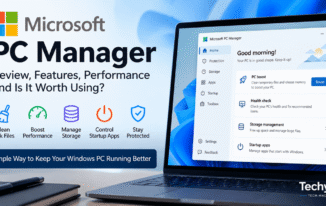
Microsoft PC Manager is a free Windows maintenance tool that combines PC Boost, Health Check, storage cleanup, startup management, process control, app management, and Microsoft Defender integration in one simple interface.
Price: FREE
Operating System: Windows10, 11
Application Category: Software
4.7
Pros
- Free to use.
- Developed by Microsoft.
- Simple and beginner-friendly interface.
- Supports Windows 10 and Windows 11.
- Combines several maintenance tools in one place.
- Helps clean junk files and free up storage.
- Includes startup and process management.
- Integrates with Microsoft Defender and Windows Security.
Cons
- Many features are already available in Windows.
- Does not provide a major hardware-level performance boost.
- No registry cleaning feature.
- Advanced users may prefer built-in Windows tools.
- Performance improvements vary by computer.
- Some features may vary by version or region.