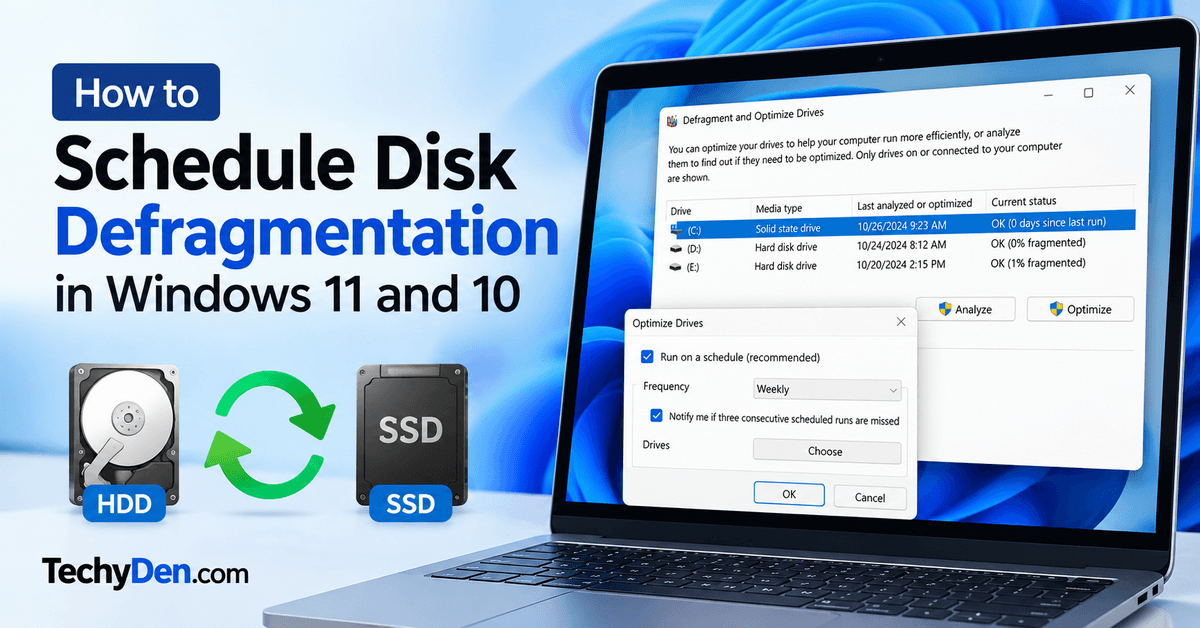
Is your Windows PC using an older hard disk drive, or do you want to ensure your storage drives receive regular maintenance? Learning how to schedule disk defragmentation can help you keep your computer’s storage optimized without manually running the process every time.
Windows 11 and Windows 10 include a built-in utility called Defragment and Optimize Drives. It allows you to configure automatic drive optimization, choose how frequently it runs, and select the drives to maintain.
The good news is that Windows already optimizes supported drives automatically, usually once a week. You only need to change the schedule if your requirements are different or you want to verify your settings.
If your computer is still slow after optimizing the drive, explore our guide to Windows 11 performance optimization for additional ways to improve system responsiveness.
In this guide, you’ll learn how to schedule disk defragmentation in Windows 11 and 10, optimize a drive manually, manage SSD maintenance, and troubleshoot common scheduling problems.
What Is Disk Defragmentation?
Disk defragmentation is a maintenance process that reorganizes fragmented files on a traditional hard disk drive (HDD). When files are stored in separate locations across an HDD, the drive may need to move its mechanical read head between those locations to access the data.
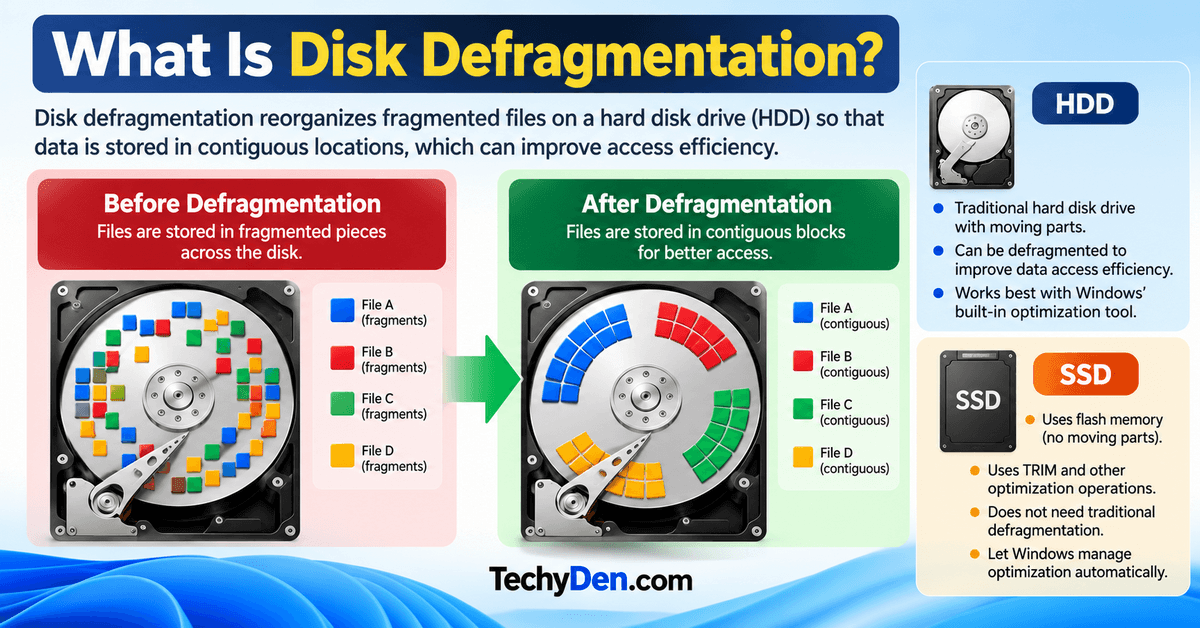
Defragmentation reorganizes fragmented file data into more contiguous locations, potentially improving access efficiency for HDDs.
Modern versions of Windows use a broader process called drive optimization. The operation depends on the type of storage device:
- HDD: Windows can defragment fragmented files to improve data access efficiency.
- SSD: Windows uses appropriate optimization operations, including TRIM when supported, rather than treating the SSD like a traditional mechanical hard drive.
You should therefore use Windows’ built-in optimization utility instead of assuming every drive needs conventional defragmentation.
How to Schedule Disk Defragmentation in Windows 11
Windows 11 includes a built-in scheduling feature that lets you choose how often your drives are optimized. Follow these steps to check or change the schedule.
Step 1: Open Defragment and Optimize Drives

- Click the Search icon on the Windows 11 taskbar.
- Type Defragment and Optimize Drives.
- Select the matching result to open the utility.
You can also search for defrag to find the same tool.
Screenshot suggestion: Add a screenshot showing the Windows 11 search results for Defragment and Optimize Drives.
Step 2: Open the Scheduling Settings
In the Optimize Drives window, look for the Scheduled optimization section.
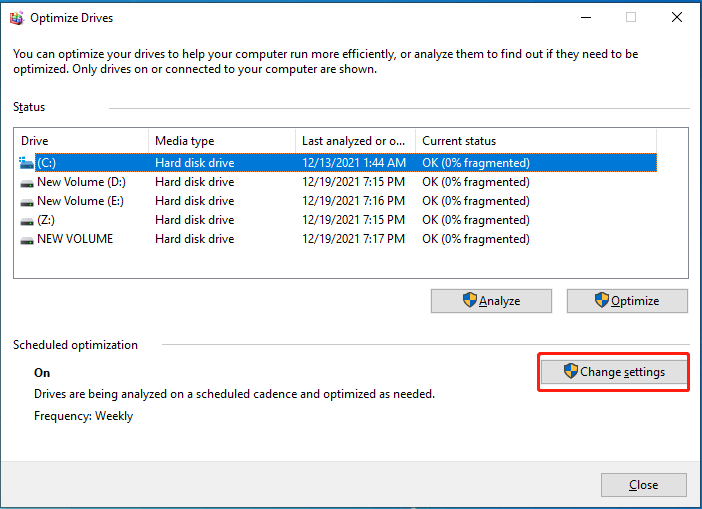
- Find the Scheduled optimization area.
- Click Change settings.
- Review the available scheduling options.
If scheduled optimization is already enabled, Windows is configured to perform routine drive maintenance automatically.
Step 3: Enable Scheduled Optimization
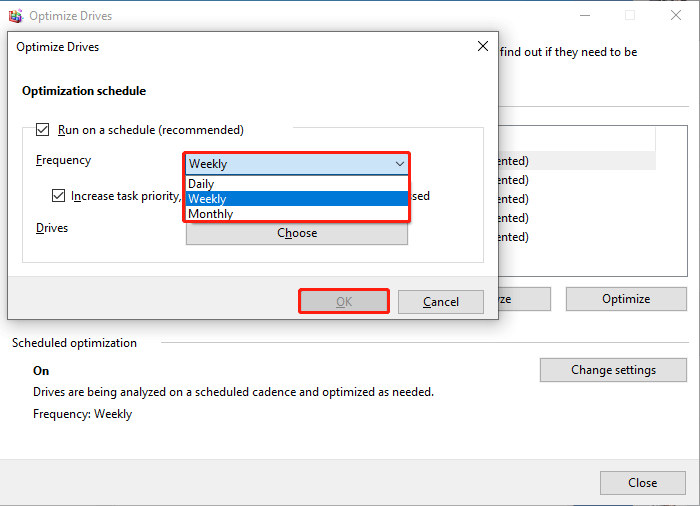
In the scheduling settings dialog, locate the option labeled Run on a schedule (recommended).
- Select the checkbox if it is not already enabled.
- Review the available frequency options.
- Choose the schedule that best suits your needs.
Windows provides daily, weekly, and monthly scheduling options. For most users, the default weekly schedule is a sensible choice.
Step 4: Choose the Optimization Frequency
Select one of the available frequencies:
| Frequency | Best suited for |
|---|---|
| Daily | Systems that require more frequent maintenance |
| Weekly | Most everyday Windows PCs |
| Monthly | Users who prefer less frequent scheduled maintenance |
For most home computers, leaving the default weekly schedule enabled is sufficient. You generally do not need to schedule manual defragmentation every day.
Step 5: Select the Drives to Optimize
Click the option to choose which drives are included in the schedule. Depending on your Windows version, the control may be labeled Choose or appear as a drive-selection button.
- Select the drives you want Windows to optimize.
- Confirm your selections.
- Enable the option to increase the task frequency if scheduled optimization is missed three times, if available and appropriate.
- Click OK to save your settings.
Windows will use the appropriate maintenance operation for each supported drive type.
Step 6: Verify the Schedule
Return to the main Optimize Drives window.
Check the Scheduled optimization status and review the Last run and Current status columns, where available.
If scheduling is enabled, Windows will handle future maintenance according to the configured schedule and system conditions. A scheduled task may not run at the exact expected time if the computer is unavailable.
You have now configured scheduled disk optimization in Windows 11.
For more detailed instructions on managing scheduled drive maintenance, analyzing a drive, and optimizing HDDs and SSDs, refer to Microsoft’s official guide to optimizing drives in Windows.
How to Schedule Disk Defragmentation in Windows 10
Windows 10 also includes the Defragment and Optimize Drives utility. The procedure is very similar to Windows 11.
Follow these steps:
- Click the Start button or taskbar search box.
- Type Defragment and Optimize Drives.
- Open the utility from the search results.
- Find the Scheduled optimization section.
- Click Change settings.
- Enable Run on a schedule (recommended) if it is disabled.
- Choose Daily, Weekly, or Monthly.
- Select the drives you want to include.
- Click OK to save the changes.
Windows will use the configured schedule to optimize supported drives automatically.
Important: Windows 10 reached the end of standard support on October 14, 2025. If your PC still runs Windows 10, consider whether your device is eligible for Windows 11 or an applicable extended security update program.
How to Manually Defragment or Optimize a Drive
You may want to run drive optimization immediately rather than waiting for the next scheduled maintenance.
Here’s how to do it.
Step 1: Open the Optimize Drives Utility
Search for defrag from the taskbar and open Defragment and Optimize Drives.
Step 2: Select Your Drive
Choose the drive you want to check, such as C: or D:.
Review the Media type column, if displayed, to determine whether the selected drive is an HDD or SSD.
Step 3: Analyze or Optimize the Drive
For a traditional HDD, select Analyze if you want Windows to assess its fragmentation status. If maintenance is appropriate, select Optimize.
For an SSD, use the built-in Optimize button. Windows will perform the appropriate operation for the device rather than requiring you to force conventional defragmentation.
Step 4: Check the Result
Wait for the process to finish. Review the status information to see whether the operation completed.
The duration depends on the drive, its capacity, its condition, and the amount of work required.
Should You Defragment an SSD?
No, you should not routinely force conventional HDD-style defragmentation on an SSD. However, you should not disable Windows’ automatic drive optimization just because your PC has an SSD.
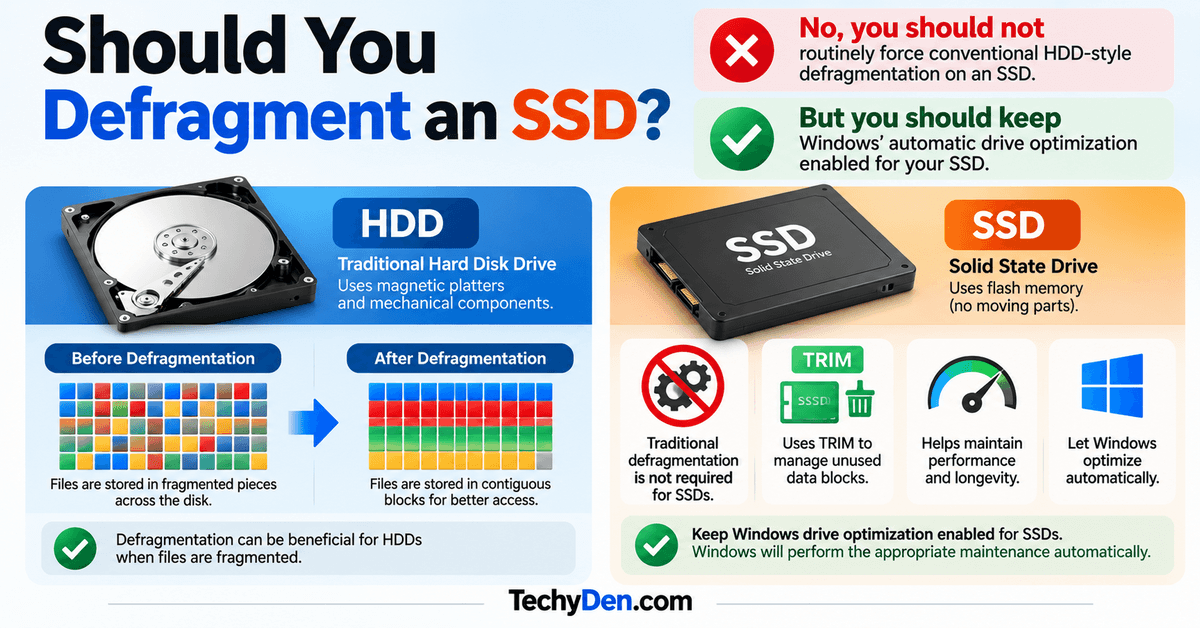
Solid-state drives use flash memory rather than mechanical read heads. Consequently, they do not benefit from traditional defragmentation in the same way that HDDs can.
Windows recognizes supported SSDs and performs appropriate maintenance, including TRIM operations where supported.
HDD vs. SSD: What’s the Difference?
| Feature | HDD | SSD |
|---|---|---|
| Storage technology | Magnetic platters and mechanical components | Flash memory |
| Traditional defragmentation | Can be beneficial when files are fragmented | Not the primary maintenance method |
| TRIM | Not applicable in the same way as SSDs | Helps the drive manage unused data blocks |
| Recommended approach | Let Windows optimize automatically | Keep Windows drive optimization enabled |
| Manual maintenance | Analyze and optimize when appropriate | Use the built-in Optimize function |
For most users, the best approach is to leave Windows’ automatic drive optimization enabled and allow the operating system to select the appropriate operation.
How to Check Drive Optimization Using Command Prompt
Advanced users can check drive status using the built-in defrag command.
Analyze a Drive
- Open Start and search for Command Prompt.
- Select Run as administrator.
- Enter the following command:
defrag C: /A- Press Enter.
To learn more about the available parameters, command syntax, and supported operations, consult Microsoft’s documentation for the defrag command.
This command analyzes the C: volume and reports its optimization status without performing a defragmentation operation.
Replace C: with the appropriate drive letter if necessary.
Optimize a Drive Manually
To request optimization of the C: drive, run:
defrag C: /OThe /O parameter instructs Windows to perform the appropriate optimization for the media type. It is preferable to using a conventional defragmentation command indiscriminately across different drive types.
Note: These commands perform an immediate analysis or optimization. They do not, by themselves, configure a recurring schedule. Use the built-in Optimize Drives scheduling interface for routine maintenance.
How to Optimize a Drive Using PowerShell
Windows also provides the Optimize-Volume PowerShell cmdlet for storage management.
Check the Drive’s Optimization Status
Open PowerShell as an administrator and run:
Optimize-Volume -DriveLetter C -Analyze -VerboseThis requests an analysis of the selected volume and displays additional status information.
Optimize a Drive
To let Windows select the default optimization operation for the drive type, run:
Optimize-Volume -DriveLetter C -VerboseThe operation depends on the storage configuration. For example, supported HDD volumes can receive defragmentation, while supported SSDs can receive TRIM-related optimization.
Only use explicit parameters such as -Defrag or -ReTrim when you understand the drive type and the operation required.
For routine home use, the graphical Optimize Drives utility is generally easier and less error-prone.
Third-Party Disk Defragmenters and Schedulers for Windows
Windows includes a built-in Defragment and Optimize Drives utility that handles routine drive maintenance automatically. For most users, this tool is sufficient to schedule drive optimization in Windows 10 and Windows 11.
However, if you need additional scheduling controls, detailed reports, or advanced HDD management features, you may consider a third-party disk utility. Here are three options to evaluate.
1. Auslogics Disk Defrag
Auslogics Disk Defrag is a disk maintenance utility designed primarily for traditional hard disk drives. Its features include drive analysis, scheduled defragmentation, free-space consolidation, and defragmentation of individual files or folders.
Key features include:
- Scheduled defragmentation for supported HDDs
- Drive analysis and fragmentation reports
- Individual file and folder defragmentation
- Free-space consolidation
- Additional options in paid editions
Auslogics offers separate products for HDD defragmentation and SSD optimization, so check that you select the appropriate utility for your storage device.
Best for: Users who want additional scheduling and file-management options for a traditional HDD.
Visit the official Auslogics Disk Defrag website for current features and compatibility information.
2. O&O Defrag
O&O Defrag is a commercial Windows disk optimization utility with automated maintenance and additional drive-management features. Depending on the edition, it can provide optimization scheduling, reporting, and SSD maintenance options such as TRIM.
Key features include:
- Automated drive maintenance
- Drive optimization and analysis
- Scheduling and reporting options
- SSD TRIM maintenance where supported
- Additional controls for advanced users
Before installing it, review the current edition’s features, supported Windows versions, and licensing requirements. You should also avoid running overlapping maintenance schedules unnecessarily.
Best for: Users who need more advanced drive-management controls than the standard Windows utility provides.
Visit the official O&O Defrag website for current product details.
3. IObit Smart Defrag
IObit Smart Defrag is another Windows utility that provides drive analysis and defragmentation features, along with additional optimization options for HDDs.
Its available features vary by version and edition, so check the current documentation before relying on a specific scheduling or SSD maintenance feature.
Key features include:
- HDD fragmentation analysis
- Multiple defragmentation and optimization modes
- File-placement options for supported drives
- Additional controls for experienced users
- Features that vary between free and paid editions
As with any third-party disk utility, make sure the selected operation matches your storage device. Do not force conventional HDD-style defragmentation on an SSD when Windows’ built-in optimization is sufficient.
Best for: Users who want to explore additional HDD optimization methods and drive-management controls.
Visit the official IObit Smart Defrag website to review the latest features and compatibility details.
Should You Use a Third-Party Disk Defragmenter?
For most Windows 10 and Windows 11 users, the built-in Optimize Drives utility remains the recommended starting point. Microsoft enables automatic drive optimization by default in typical configurations and allows you to change the schedule when necessary.
A third-party tool may be useful if you have a specific requirement, such as additional HDD scheduling controls or detailed optimization reports. However, installing another utility solely to schedule routine maintenance is usually unnecessary.
Important: Keep Windows’ automatic drive optimization enabled unless you have a specific reason to change it. Windows can select the appropriate maintenance operation for supported HDDs and SSDs. Before installing third-party software, download it from the developer’s official website and review its current features, compatibility, and licensing terms.
Why Is Scheduled Disk Defragmentation Not Working?
If Windows does not appear to optimize your drives automatically, check the following potential causes.
1. Scheduled Optimization Is Disabled
Open Defragment and Optimize Drives, click Change settings, and verify that Run on a schedule (recommended) is enabled.
Check that the correct drives are selected and save any changes.
2. Your Computer Is Turned Off or Unavailable
Scheduled maintenance cannot run normally when the PC is shut down. Depending on the task and power settings, it may also be postponed when the computer is unavailable.
Leave your PC powered on and allow it to enter its normal idle state when practical.
3. Your Computer Missed Several Scheduled Runs
If your computer is rarely available during scheduled maintenance, optimization may not occur as expected.
Check the Last run and Current status information. Where available, enable the setting to increase the task frequency after three missed optimizations.
You can also run Optimize manually to check the drive’s status.
4. The Drive Has Errors
A drive reporting errors may need additional troubleshooting before normal maintenance can complete.
Back up important files before running repair operations, especially if you suspect the drive is failing. You can use Windows’ built-in error-checking tools or seek professional assistance if the drive produces unusual noises, repeatedly disconnects, or becomes inaccessible.
Before attempting extensive storage repairs, protect your important files and review these free data recovery software options if you need help recovering lost data.
5. You Are Using an SSD
An SSD may not display a conventional fragmentation percentage or behave like an HDD during optimization. This is normal.
Check the optimization status and let Windows manage the supported SSD maintenance operations.
6. Windows Is Showing an Unexpected Error
Restart your PC and reopen Optimize Drives. If the problem persists, check Windows updates, drive health, and relevant system logs before attempting advanced repairs.
If your computer frequently freezes or becomes unresponsive during maintenance, follow our guide to Windows 11 troubleshooting methods to identify possible software, hardware, or storage problems.
Avoid downloading unknown third-party utilities simply to force scheduled defragmentation.
Frequently Asked Questions
How often should you schedule disk defragmentation?
For most Windows users, the default weekly optimization schedule is appropriate. Windows automatically chooses the suitable operation for supported HDDs and SSDs. More frequent scheduling is not automatically better.
Is automatic disk defragmentation enabled by default?
Windows 10 and Windows 11 generally enable automatic drive optimization by default, usually on a weekly schedule. You can verify this in Defragment and Optimize Drives.
Can you schedule disk defragmentation on an SSD?
Yes, you can keep scheduled drive optimization enabled for an SSD. Windows performs appropriate supported maintenance, including TRIM where applicable. You should not force conventional HDD-style defragmentation on an SSD without a specific technical reason.
Does disk defragmentation make a computer faster?
Defragmentation can improve data access efficiency on a fragmented HDD. However, it is not a guaranteed solution for every performance problem. A slow computer may also be affected by insufficient memory, background applications, storage issues, or limited free space.
Can you use your PC while a drive is being optimized?
Generally, yes. Windows manages routine optimization as a background maintenance task. For a large manual operation, performance may temporarily be affected, particularly on an older HDD.
How do you turn off scheduled disk optimization?
Open Defragment and Optimize Drives, select Change settings, and clear the Run on a schedule (recommended) checkbox. Confirm the change. Disabling automatic optimization is generally unnecessary for most users, including those with SSDs.
Is a third-party defragmentation tool necessary?
Usually not. Windows already includes a drive optimization utility that supports routine maintenance for common HDD and SSD configurations. Consider a third-party product only if you have a specific requirement that the built-in tools cannot meet.
Final Verdict
Scheduling disk defragmentation is a simple way to manage routine storage maintenance on Windows computers. The built-in Optimize Drives utility lets you select a schedule, choose the drives to maintain, and review optimization status.
For most Windows 11 and Windows 10 users, leaving automatic drive optimization enabled on its default weekly schedule is the best starting point. Windows can then choose the appropriate maintenance operation for each supported drive.
Remember that HDD defragmentation and SSD optimization are different processes. Use Windows’ built-in tools, avoid unnecessary forced defragmentation, and investigate drive errors separately if your computer continues to perform poorly.
For more practical Windows tutorials, visit our Windows 11 guides on TechyDen to learn about system maintenance, troubleshooting, and performance improvements.