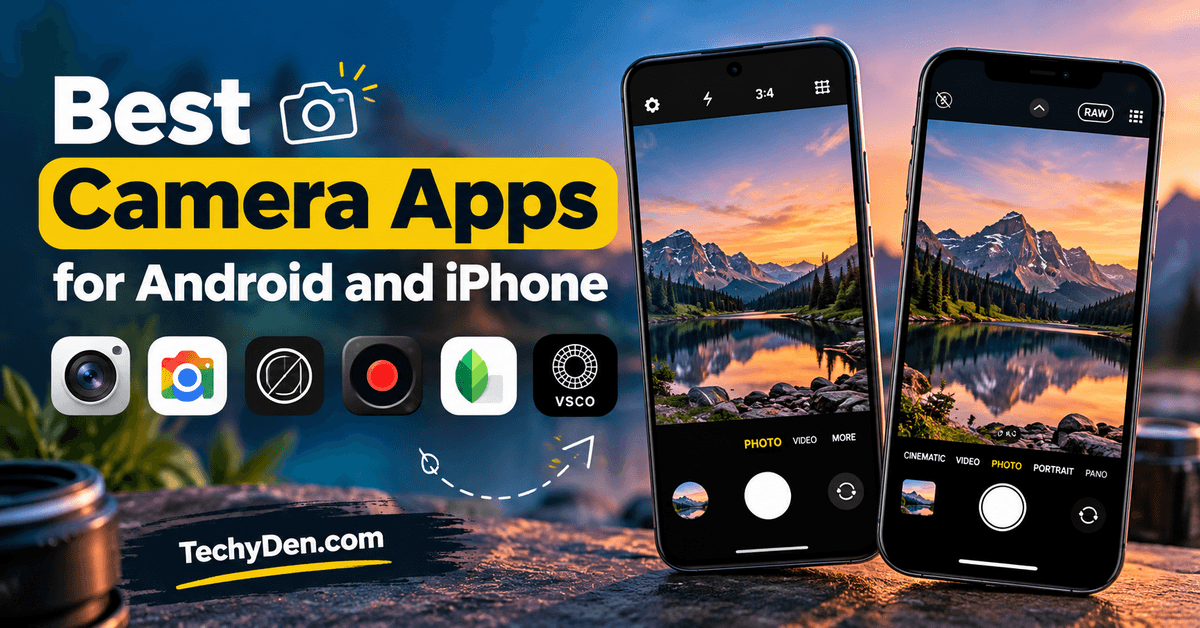
Smartphone cameras are getting better every year, but the right camera app can unlock even more creative possibilities. While your phone’s default camera app may be sufficient for everyday photography, third-party camera apps can offer additional controls, shooting modes, and features for capturing better photos and videos. Depending on your device, these may include manual ISO and shutter speed adjustments, RAW image capture, night photography, long-exposure shots, and other advanced settings that give you greater control over your images.
Camera apps and photo editing apps for mobile can work together to help you capture and improve images directly from your phone.
In this guide, we’ve rounded up the best camera apps for Android in 2026, along with useful options for iPhone users. Whether you want manual camera controls, better selfies, professional-looking photos, or reliable video recording for vlogging, choosing the right app can make a difference. We also cover free and paid options to help you find an app that suits your photography needs and budget.
Some camera apps focus on advanced photography features, while others prioritize simple controls, beauty filters, portrait effects, or video creation. If you prefer a lightweight app, want to capture images without added watermarks, or need more control over exposure and focus, this list will help you compare your options.
Before choosing an app, remember that available features depend on your smartphone model, operating system, and camera hardware. RAW capture, manual controls, and long-exposure photography may not be supported on every device.
Let’s explore the best camera apps for Android and other smartphones to help you capture, create, and improve photos and videos in 2026.
Why Use a Third-Party Camera App?
Most smartphones come with a built-in camera app that handles everyday photography well. However, if you are serious about mobile photography, content creation, or vlogging, a third-party camera app can give you additional creative controls and specialized features.
The best camera apps for Android can help you take greater control of exposure, capture RAW images, experiment with night photography, and record videos with settings suited to your needs. However, the benefits depend on your smartphone’s camera hardware, operating system, and the features supported by each app.
Here are six reasons to consider using a third-party camera app.
1. Unlock Professional Camera Controls
Some third-party camera apps offer manual controls that may not be available in your phone’s default camera interface. These can include ISO, shutter speed, white balance, manual focus, and exposure compensation.
For Android users, Open Camera is worth exploring for its manual controls and other advanced capture options. iPhone users can consider apps such as Halide and ProCamera for additional control over photography. These tools can provide a more DSLR-like shooting experience, although they cannot replace the capabilities of dedicated camera hardware.
2. Capture RAW Photos for Better Editing
RAW photography preserves more image data for post-processing than a typical JPEG file, giving you greater flexibility when adjusting exposure, shadows, highlights, and colors.
Depending on your device, apps such as Open Camera and ProCamera support RAW capture. iPhone users should also check whether an app supports Apple ProRAW on their particular device.
RAW files are especially useful if you edit images in Adobe Lightroom or other photo-editing apps. Keep in mind that RAW files usually require more storage space and additional editing.
3. Improve Low-Light and Night Photography
Taking clear photos in dim lighting can be challenging, particularly when photographing moving subjects. Dedicated night modes and computational photography can combine multiple frames to improve brightness and reduce visible noise.
Google’s Pixel Camera, for example, offers Night Sight and supported astrophotography features on compatible Pixel devices. Some third-party camera apps also provide manual exposure controls for challenging lighting conditions.
Results vary by smartphone, so compare the app’s capabilities with your device’s built-in night mode before switching.
4. Explore Specialized Photography and Vlogging Features
Different camera apps serve different creative purposes. Depending on your needs, you can look for:
- Long-exposure photography: Capture light trails, moving water, and other motion effects.
- Vlogging camera apps: Access video controls, supported high-resolution recording, and exposure adjustments.
- Selfie camera apps: Apply filters, portrait effects, and beauty enhancements.
- Manual video controls: Adjust supported recording settings for more consistent footage.
Always check the available resolution, frame rates, stabilization, and audio options before selecting a video app.
5. Choose Between Free and Paid Camera Apps
You do not necessarily need to pay for a better camera experience. Free camera apps for Android, including Open Camera, can provide useful controls without requiring a premium subscription.
Paid apps may offer specialized interfaces, advanced capture modes, or integrated photography tools. Before purchasing, check the pricing model, in-app purchases, supported devices, and whether exported photos or videos contain watermarks.
6. Experiment With Creative Styles and Editing
Some apps focus on capturing images, while others concentrate on filters, presets, color grading, and AI-assisted editing. Tools such as VSCO can help you develop a consistent visual style for social media, photography portfolios, and creator content.
Remember that a photo-editing app is not always a replacement for a dedicated camera app. You may get the best results by capturing the image with one app and refining it with another.
Ultimately, the right third-party camera app depends on what you want to achieve. Whether you need manual camera controls, RAW photography, better low-light shots, selfie filters, or vlogging features, choose an app that works with your device and complements its built-in camera.
Key Features to Look for in the Best Camera App
Not all camera apps offer the same features. When choosing the best camera apps for Android or iPhone, consider how you plan to take photos and record videos. Some apps focus on manual photography controls, while others specialize in night photography, creative filters, selfies, or professional video recording.
Camera apps and photo editing apps work together to help you capture better images and enhance them with creative effects.
For more creative ideas after capturing a photo, explore these AI photo editing prompts for transforming portraits and other images.
Before installing a camera app, look for these essential features.
1. Manual Camera Controls (ISO, Shutter Speed, White Balance, and Focus)
Manual controls give you greater control over exposure, focus, and color. Depending on your device, a manual camera app may let you adjust ISO, shutter speed, white balance, focus, and exposure compensation.
- Android: Open Camera is a useful free option for supported manual controls.
- iPhone: Halide and ProCamera offer advanced photography controls on compatible devices.
These features are particularly useful for landscape photography, product shots, portraits, and other situations where automatic settings do not deliver the desired result.
2. RAW and Apple ProRAW Support
RAW photography preserves more image information for editing than standard JPEG files, providing greater flexibility when adjusting exposure, shadows, highlights, and colors.
Look for a camera app that supports RAW capture on your smartphone. iPhone users with compatible devices can also consider Apple ProRAW, which combines computational photography with the editing flexibility of a RAW file.
Apps such as Open Camera and Halide offer RAW-related capabilities on supported devices. Before downloading an app, confirm the supported file formats and device requirements.
3. Low-Light and Night Photography
A good night photography app can help you capture clearer images in dim environments. Look for features such as multi-frame night modes, exposure controls, and support for longer exposures.
Google’s Pixel Camera includes Night Sight on supported Pixel devices. Other camera apps may offer manual exposure settings that help you photograph nighttime scenes, city lights, or landscapes.
Remember that results depend on your phone’s sensor, lens, image processing, and the app’s compatibility. A third-party app will not automatically outperform your phone’s built-in night mode.
4. Built-in Filters, Presets, and AI Photo Enhancements
If you frequently share photos on Instagram, TikTok, or other social platforms, consider apps with filters, color presets, portrait effects, and AI-assisted editing features.
Apps such as VSCO are useful for applying creative looks and maintaining a consistent visual style. For more advanced editing, you may prefer a dedicated photo editor after capturing the image.
Check whether the effects are available for free, require a subscription, or add watermarks to exported images.
5. Lightweight Performance and Watermark-Free Photos
The best free camera apps should be easy to use, responsive, and compatible with your smartphone. Consider app size, startup speed, advertisements, privacy permissions, and whether the app adds a watermark.
Open Camera is a free, open-source Android camera app with no in-app advertisements in its standard distribution. Its available features still depend on your device and Android implementation.
If you want a watermark-free camera app, check the export settings and current app terms before relying on it for professional work.
6. Advanced Video Recording for Vlogging
If you create YouTube videos, tutorials, product reviews, or social media content, prioritize video features alongside photography controls.
Useful features include:
- 4K video recording: For detailed footage on supported devices.
- Frame-rate controls: To select suitable recording speeds.
- Video stabilization: To reduce unwanted camera movement when supported.
- Manual exposure and focus: For consistent footage.
- Slow motion and time-lapse: For creative video sequences.
- Audio controls: To monitor or improve recording quality where supported.
Apps such as FiLMiC Pro and compatible professional video camera apps may provide additional controls, but features, subscription terms, recording limits, and device support can change.
Before choosing a vlogging camera app, verify its current compatibility with your smartphone and the recording features you actually need.
Which Camera App Features Matter Most?
For most users, the ideal camera app is not necessarily the one with the largest number of features. Choose based on your priorities: manual controls and RAW support for photography enthusiasts, night photography for travelers, filters for social media users, or advanced video controls for vloggers.
When comparing the best camera apps for Android in 2026, prioritize device compatibility, image quality, ease of use, privacy, and value for money. The right combination of camera and editing apps can help you get more from your smartphone without requiring a dedicated camera.
Best Camera Apps for Android
Looking for the best camera apps for Android to improve your smartphone photography? The right app can give you greater control over exposure, focus, image quality, and video recording. Some apps prioritize manual camera settings and RAW photography, while others focus on natural-looking images or easy everyday shooting.
If you want to explore more ways to use Android applications beyond your phone, see our guide on how to run Android apps on Windows 11.
Here are five Android camera apps worth considering in 2026, including free, paid, and specialized options. Remember that advanced features depend on your phone’s hardware, Android version, and camera API support.
1. Open Camera
Open Camera is a free, open-source Android camera app designed for users who want more control over photography and video recording. It offers features such as ISO adjustments, white balance, exposure compensation, HDR, exposure bracketing, and RAW capture on compatible devices.
Unlike many basic camera apps, Open Camera includes practical tools such as a configurable interface, grid overlays, timers, auto-leveling, and remote shutter controls. Its feature set makes it a useful option for beginners learning manual photography and enthusiasts who want to experiment with advanced settings.
Key features
- Manual camera controls on supported devices
- RAW/DNG capture where supported
- HDR and exposure bracketing
- ISO, white balance, and exposure adjustments
- Grid overlays and auto-leveling
- Timer, voice countdown, and remote controls
- Video recording with supported quality settings
- Histogram, focus peaking, and zebra stripes on compatible devices
- Optional GPS geotagging
- Free and open-source software
Pros
- Free to install and use
- Extensive photography controls
- RAW capture on compatible devices
- Useful tools for composition and exposure
- Highly customizable interface
- Suitable for older phones that support its requirements
Cons
- The interface may feel dated or complicated to beginners
- Some controls depend on Camera2 API support
- Image processing may differ from the manufacturer’s camera app
- Advanced stabilization and processing may be limited
- Device-specific bugs can occur
- It does not focus on beauty filters or creative presets
Best for: Android users who want a free manual camera app for photography, RAW capture, and everyday video recording.
Download Open Camera from Google Play
2. Camera FV-5
Camera FV-5 is a paid Android camera app aimed at photography enthusiasts who want DSLR-like manual controls. Its interface exposes important photographic settings, including ISO, focus mode, white balance, exposure compensation, and supported shutter-speed controls.
The app is particularly useful for users who want to understand exposure and take more deliberate photographs. Its capabilities include exposure bracketing and RAW photography on compatible devices, although you should check the current app version and your phone’s supported camera features before purchasing.
Key features
- Manual ISO and exposure controls
- Focus and white balance settings
- Shutter-speed controls where supported
- RAW photography on compatible devices
- Exposure bracketing
- Viewfinder exposure information
- Configurable photographic settings
- Tools for more deliberate landscape and low-light photography
Pros
- Designed for manual photography
- Useful exposure controls
- RAW support on compatible devices
- Helpful for learning photography techniques
- Available as a paid app on Google Play
Cons
- More complicated than a standard camera app
- Some features depend on device compatibility
- Not primarily designed for video creators
- May require practice to use effectively
- Check the current price and feature support before purchasing
Best for: Photography enthusiasts who want more manual control over their Android camera.
Download Camera FV-5 from Google Play
3. Google Pixel Camera
Google’s Pixel Camera is the official camera app for supported Google Pixel devices. It combines Google’s computational photography with shooting modes designed to make everyday photography easier.
Features such as Night Sight can help capture photos in low light, while supported Pixel models provide additional photography and video capabilities. Some features vary by phone model and software version, so Pixel Camera should not be treated as a universally compatible replacement for every Android manufacturer’s camera app.
You may also encounter unofficial Google Camera ports, commonly called GCam ports, for other Android devices. These are separate from the official app and can have compatibility, stability, and security differences.
Key features
- HDR+ computational photography
- Night Sight on supported Pixel devices
- Portrait photography
- Astrophotography on compatible models
- Video recording modes that vary by device
- Automatic image processing
- Integration with supported Pixel camera hardware
Pros
- Convenient automatic photography
- Strong computational photography on supported devices
- Useful low-light modes
- Simple interface
- Designed to work with Pixel hardware
Cons
- Official support is focused on compatible Pixel devices
- Features vary between Pixel models
- Not every Android user can install or use all features
- Unofficial ports may be unreliable
- Less focused on extensive manual controls than dedicated apps
Best for: Google Pixel owners who want Google’s official camera features without installing an unofficial port.
Find Pixel Camera on Google Play
4. ProCam X
ProCam X is an Android camera app worth considering if you want additional manual controls and recording options beyond your phone’s basic camera interface. Its available controls can include ISO, exposure, focus, white balance, and image or video quality settings, depending on the device.
It is important to check the exact app listing before installing, because similarly named camera apps are available on Google Play. Advanced controls also require compatible hardware and Android camera APIs.
Key features
- Manual photography settings on compatible devices
- ISO and exposure adjustments
- Focus and white balance controls where supported
- Customizable photo and video quality
- Timer and composition tools
- Additional recording settings on compatible phones
Pros
- Offers an alternative to the stock camera interface
- Useful controls for photography enthusiasts
- Can provide additional video settings
- Suitable for users who prefer a dedicated camera interface
Cons
- Feature availability varies by phone
- The interface may take time to learn
- Paid features and app versions may differ
- It may not improve image quality over the manufacturer’s camera app
Best for: Android users who want additional capture controls and prefer a dedicated third-party camera interface.
5. Zerocam
Zerocam is a minimalist Android camera app for users who prefer a more natural photographic look without aggressive image processing. Its approach is different from that of manual camera apps: instead of exposing many settings, it emphasizes a simple point-and-shoot experience and reduced computational processing.
The current Android version advertises RAW and JPEG capture, natural color profiles, multi-exposure photography, and lens selection on compatible devices. However, Zerocam deliberately limits manual controls, so it is not the right choice if you need to adjust every exposure setting yourself.
Key features
- Minimalist camera interface
- RAW and JPEG capture on supported devices
- Natural-looking image processing
- Optional creative color profiles
- Multi-exposure mode
- Lens selection where supported
- Foldable-device interface improvements
Pros
- Simple and distraction-free
- Designed for users who dislike aggressive processing
- RAW capture is available in the current Android version
- Offers a different look from heavily processed smartphone images
Cons
- Some features require in-app purchases
- Manual ISO, focus, and shutter controls are limited
- Lens support varies by device
- Its minimalist approach may not suit every photographer
- Processing choices may not produce better results in every scene
Best for: Android photographers who prefer natural-looking photos and a simple shooting experience rather than extensive manual settings.
Download Zerocam from Google Play
Best Camera Apps for iPhone
iPhone users can also benefit from third-party camera apps, particularly when they want more manual controls, RAW capture, specialized video recording, or creative image styles. Some apps concentrate on photography, while others combine camera functions with editing tools.
6. Halide Mark II
Halide Mark II is a premium iPhone camera app designed for photographers who want greater control over image capture. It provides a photography-focused interface with manual controls and visual tools for evaluating exposure and focus.
One of its distinctive features is Process Zero, which is designed to offer a more minimally processed capture option. Halide also supports RAW photography and Apple ProRAW on compatible devices. These capabilities make it useful for people who prefer to control how their photographs look rather than relying entirely on automatic processing.
Key features
- Manual exposure and focus controls
- RAW and Apple ProRAW support on compatible devices
- Focus peaking
- Exposure histogram
- Process Zero capture mode
- Tools for evaluating exposure and composition
- Photography-focused interface
Pros
- Extensive photography controls
- Useful focus and exposure tools
- Supports RAW workflows
- Offers an alternative to heavily processed images
- Designed for serious iPhone photographers
Cons
- Premium pricing or subscription options may apply
- Some features require compatible iPhone hardware
- Advanced controls may overwhelm beginners
- Not primarily designed as a comprehensive video-production app
Best for: iPhone users who want manual photography controls and greater control over image processing.
Download Halide Mark II from the App Store
7. ProCamera
ProCamera is a photography and video app for iPhone and iPad that combines manual controls, RAW capture, image editing, and advanced recording options.
Its official feature list includes independent focus and exposure controls, RAW and ProRAW capture on compatible devices, histograms, anti-shake features, interval shooting, and video recording options. Some advanced video capabilities and professional formats require supported hardware or an optional upgrade.
Key features
- Manual, semi-automatic, and automatic shooting modes
- RAW and ProRAW support on compatible devices
- Focus peaking and live histogram
- White balance and exposure adjustments
- Anti-shake and interval shooting tools
- Multiple video resolutions and frame rates
- Video recording options that vary by device
- Built-in editing tools
- Optional advanced features through ProCamera Up
Pros
- Combines photo and video tools
- Extensive manual controls
- Supports advanced RAW workflows
- Useful for photography and creator projects
- Offers additional features through optional upgrades
Cons
- Paid app and optional upgrade costs
- Advanced tools require some learning
- Certain features require specific iPhone models
- Professional video formats can use substantial storage
Best for: iPhone photographers and content creators who want a versatile camera app for both photos and videos.
Download ProCamera from the App Store
8. Pro Camera by Moment
Pro Camera by Moment is designed for creators who want greater control over capturing photos and videos on an iPhone. It belongs to the Moment ecosystem of mobile photography accessories and creator tools.
Before recommending it to readers, verify the current App Store listing and supported features. Availability and functionality can change, and it should not be assumed to offer every manual control, RAW format, or video capability on every iPhone.
Potential reasons to consider it
- Manual capture controls where supported
- Photography-focused interface
- Creator-oriented shooting workflows
- Compatibility with supported mobile photography accessories
- Options intended for more deliberate photo and video capture
Pros
- Relevant to mobile photography enthusiasts
- Designed around creator workflows
- May suit users who prefer more control over capture
Cons
- Verify current availability and compatibility
- Features can vary by device and app version
- Some advanced capabilities may require compatible accessories
- Compare it with other currently supported iPhone camera apps before purchasing
Best for: iPhone creators who already use or are interested in the Moment mobile photography ecosystem.
Find Pro Camera by Moment on the App Store
9. FiLMiC Firstlight
FiLMiC Firstlight is a creative photography app for iPhone that combines manual exposure controls with film-inspired looks. It is designed for people who want to make creative decisions while capturing a photo instead of relying entirely on editing afterward.
The app offers shutter and ISO priority modes, focus and exposure controls, custom film simulations, and adaptive film grain. Its availability and pricing should be checked in the App Store before installation.
Key features
- Manual focus and exposure adjustments
- Shutter-speed and ISO priority modes
- Film-inspired looks
- Adaptive film grain
- Live image analysis tools
- Creative capture controls
- Options for quick photo sharing
Pros
- Good for creative photography
- Offers film-inspired image styles
- Includes useful exposure controls
- Helps establish a consistent visual aesthetic
- Suitable for social media and lifestyle photography
Cons
- Not a replacement for a dedicated professional video app
- Advanced features may require in-app purchases
- Its creative style may not suit every photographer
- Check current subscription terms before committing
Best for: iPhone users who want creative camera controls and film-inspired photographs.
Download FiLMiC Firstlight from the App Store
10. VSCO
VSCO is best known as a photo and video editing app rather than a fully manual camera replacement. It offers film-inspired presets, color adjustments, cropping, and other editing tools for creating a consistent visual style.
The current app supports RAW editing on compatible iOS devices, but VSCO’s documentation states that RAW capture within the app is no longer available. This distinction matters: you can capture an image with your iPhone’s camera or another compatible app, then import and edit the RAW file in VSCO.
Key features
- Film-inspired photo presets
- Exposure, contrast, saturation, and color adjustments
- Crop and perspective tools
- RAW photo editing on supported iOS devices
- Custom editing recipes
- Creative photo and video tools
- Optional paid membership for additional features
Pros
- Excellent for creative photo editing
- Offers a broad selection of visual styles
- Useful for consistent social media aesthetics
- Supports RAW editing on compatible iPhones
- Provides free editing tools with optional paid features
Cons
- Not a full manual camera app
- Some presets and editing tools require membership
- RAW capture is no longer available within VSCO
- Some features differ between iOS, Android, and web versions
Best for: iPhone photographers and social media creators who want polished photos, creative presets, and consistent editing styles.
Download VSCO from the App Store
Which Camera App Should You Choose?
The best camera app depends on your smartphone and photography goals. You do not necessarily need a paid app to capture better photos; start by checking the capabilities of your phone’s built-in camera.
- Best free camera app for Android: Open Camera
- Best for manual Android photography: Camera FV-5
- Best official camera app for Pixel phones: Pixel Camera
- Best minimalist Android camera: Zerocam
- Best advanced iPhone camera: Halide Mark II
- Best all-in-one iPhone photo and video app: ProCamera
- Best for creative iPhone photography: FiLMiC Firstlight
- Best for photo filters and editing: VSCO
Before installing any app, verify its current price, compatibility, privacy information, and supported features in the official app store. RAW capture, manual controls, stabilization, and advanced video recording depend on the device as well as the app.
Specialty Camera Apps by Use Case
The best camera app depends on what you want to capture. Selfies, vlogging, night photography, and RAW image editing require different features. Here are some of the best camera apps for Android and iPhone to consider for specific photography needs.
a. Best Selfie Camera Apps for Android and iPhone
If you want better selfies, look for beauty filters, portrait retouching, skin-tone adjustments, and AI photo enhancement.
- Android: YouCam Perfect offers selfie retouching, beauty tools, filters, and AI editing features.
- iPhone: YouCam Perfect provides similar selfie-enhancement and photo-editing tools.
YouCam Perfect is primarily a selfie and photo editor rather than a full manual camera replacement. <Cite refs={[“turn654528search4″,”turn654528search7”]}/>
Best for: Social media users, portrait photography, and anyone who wants polished selfies.
b. Best Camera Apps for Vlogging and Video Creators
Vloggers should prioritize video resolution, frame-rate controls, exposure adjustment, stabilization, and reliable audio recording.
- Android: Open Camera provides video-recording options on compatible devices.
- iPhone: VSCO Capture offers video recording with live creative presets, while ProCamera provides additional video controls.
Check the supported resolution and frame rate on your particular phone before choosing a vlogging camera app. <Cite refs={[“turn654528search2″,”turn0search1”]}/>
Best for: YouTubers, vloggers, mobile journalists, and social media creators.
c. Best Camera Apps for Low-Light and Night Photography
For night photography, look for multi-frame processing, exposure controls, and dedicated night modes.
- Android: Pixel Camera offers Night Sight on supported Google Pixel devices. Open Camera is another option for manual exposure adjustments.
- iPhone: Halide and ProCamera provide photography controls that can help you manage challenging lighting conditions.
A third-party app will not necessarily outperform your phone’s default night mode; results depend on the sensor, processing, and available features.
Best for: Travelers, night photographers, and people capturing cityscapes or dimly lit scenes.
d. Best Apps for RAW and ProRAW Photography
RAW files provide greater flexibility when adjusting exposure, shadows, highlights, and color during editing.
- Android: Open Camera and Camera FV-5 offer RAW capture on compatible devices.
- iPhone: Halide and ProCamera support RAW workflows, including ProRAW on compatible devices.
You can then edit supported RAW files in applications such as Lightroom or VSCO. VSCO supports RAW and ProRAW editing on compatible iPhones, but RAW capture within its main editing app is no longer available. <Cite refs={[“turn654528search0″,”turn654528search1”]}/>
Best for: Photography enthusiasts, advanced editors, and creators who want greater post-processing flexibility.
e. Best Camera Apps Without Watermarks
If you want clean photos for blogs, social media, or professional portfolios, check whether the app adds a watermark during capture or export.
- Android: Open Camera is a useful option for watermark-free camera capture.
- iPhone: Apple’s built-in Camera app, Halide, and ProCamera are worth considering.
Always verify current export settings and paid-feature restrictions. A camera app and a photo editor may have different watermark policies.
Best for: Bloggers, influencers, photographers, and creators who want clean images without added branding.
Tips for Taking Better Photos With Any Camera App
Even the best camera apps for Android and iPhone cannot replace good photography techniques. Whether you use your phone’s default camera or a third-party camera app, a few simple adjustments can help you capture sharper photos, improve composition, and get better results in different lighting conditions.
Here are seven practical smartphone photography tips to help you make the most of your camera app.
1. Keep Your Phone Steady
Camera shake can make photos look blurry, especially in low light or when using longer exposure times.
- Hold your smartphone with both hands and keep your elbows close to your body.
- Use a tripod or stable surface for night photography and long-exposure shots.
- Enable your phone’s supported stabilization features when recording video.
- Use a timer or remote shutter to reduce movement when taking photos.
A steady phone is particularly important when capturing landscapes, nighttime scenes, and detailed product photographs.
2. Improve Lighting and Composition
Good lighting is one of the most important factors in mobile photography. Whenever possible, use soft natural light and avoid harsh lighting that creates unwanted shadows.
Apply basic composition techniques such as the rule of thirds, leading lines, symmetry, and natural framing to make your photos more engaging. Tap your subject on the screen to set focus, and adjust exposure if the image looks too bright or too dark.
3. Use RAW Mode When You Need More Editing Control
RAW photography preserves more image data for post-processing than a standard JPEG file. On supported smartphones, RAW or Apple ProRAW can provide greater flexibility when adjusting highlights, shadows, exposure, and color.
However, RAW files usually require more storage and editing. For everyday photos that you want to share immediately, JPEG or HEIF may be more convenient.
You can edit compatible RAW files using tools such as Adobe Lightroom. Choose RAW capture when you expect to make substantial adjustments rather than enabling it for every photograph.
4. Apply Filters and Presets Carefully
Filters can improve the appearance of your images, but excessive editing may produce unnatural colors and skin tones.
Use adjustable presets in apps such as VSCO to develop a consistent visual style. Fine-tune brightness, contrast, saturation, and white balance instead of relying entirely on automatic effects.
For product reviews, tutorials, and technology blogs, prioritize accurate colors so that the photographs represent the subject realistically.
5. Capture Multiple Shots
Take several photographs when capturing moving subjects, portraits, or difficult lighting conditions. Slight changes in focus, timing, and composition can make a significant difference.
Use burst shooting or your phone’s equivalent of a best-shot selection feature when available. Google’s Top Shot feature is available on supported Pixel Camera configurations, but it should not be assumed to exist on every Android phone.
Review your images and select the sharpest frame before deleting the alternatives.
6. Experiment With Manual Camera Settings
If your camera app supports manual controls, experiment with ISO, shutter speed, white balance, and focus.
- ISO: Lower values generally produce cleaner images in good lighting.
- Shutter speed: Faster speeds help freeze movement, while slower speeds can create motion blur when the phone is stable.
- White balance: Adjusts the image’s color temperature.
- Focus: Helps you control which part of the scene appears sharp.
Apps such as Open Camera and Camera FV-5 offer manual photography controls on compatible Android devices, while Halide and ProCamera provide advanced controls for supported iPhones.
7. Clean Your Camera Lens
Fingerprints, dust, and smudges can reduce contrast, create glare, and make photos appear hazy. Gently clean the camera lens with a soft microfiber cloth before taking pictures.
This simple habit is particularly useful for night photography, close-up shots, portraits, and product images.
Final Tip: Match the Camera App to Your Needs
The best camera app for Android or iPhone is the one that suits your device and photography style. Start with the built-in camera, then consider a third-party app if you need manual controls, RAW capture, specialized night photography features, or advanced video settings.
Combine the right camera app with good lighting, steady shooting, thoughtful composition, and careful editing. These techniques can help you capture better smartphone photos without buying an expensive camera.
Frequently Asked Questions About the Best Camera Apps
What is the best camera app for Android in 2026?
Open Camera is one of the best free camera apps for Android because it offers manual controls, customizable settings, and RAW capture on compatible devices. Google Pixel Camera is another excellent option for supported Pixel phones. The best choice depends on your smartphone, photography needs, and whether you prefer automatic shooting or manual controls.
Which is the best free camera app for Android?
Open Camera is a strong choice if you want a free, open-source Android camera app with manual settings and useful photography tools. It supports features such as exposure adjustments, white balance, and RAW capture on compatible devices. However, your phone’s camera hardware and software can affect which features are available.
Is Google Camera better than the default camera app?
Google Pixel Camera can produce excellent results on supported Pixel devices, particularly with computational photography features such as Night Sight. However, it is not necessarily better than every manufacturer’s camera app. Smartphone brands optimize their native camera software for their own hardware, so compare image quality and features on your specific device.
Which camera app is best for professional photography?
Open Camera and Camera FV-5 are useful Android options for photographers who want manual controls and RAW capture on compatible devices. For iPhone users, Halide and ProCamera offer advanced photography tools. These apps provide greater control over exposure and focus, but results still depend on your phone’s camera hardware and photography skills.
Which camera app is best for low-light photography?
Google Pixel Camera offers Night Sight on supported Pixel devices, making it a good option for low-light photography. Other apps, including Open Camera, provide exposure controls that can help in challenging lighting conditions. For sharper night photos, keep your phone steady, use available night modes, and avoid unnecessarily high ISO settings.
Which camera apps support RAW photography?
Open Camera and Camera FV-5 support RAW capture on compatible Android devices. On iPhones, Halide and ProCamera offer RAW photography features, including Apple ProRAW support on compatible devices. RAW files provide greater flexibility when editing exposure, shadows, and colors, but they generally require more storage and post-processing than JPEG images.
What is the best camera app for selfies?
YouCam Perfect is a popular option for enhancing selfies with beauty tools, filters, portrait adjustments, and AI-assisted editing features. Your smartphone’s built-in camera may also offer excellent portrait and selfie modes. Choose an app that provides adjustable effects so you can improve lighting and skin tones without making photos look unnatural.
Which camera app is best for vlogging?
The best vlogging camera app depends on your phone and recording requirements. Open Camera offers video settings on compatible Android devices, while ProCamera provides additional video controls for supported iPhones. Before choosing an app, check its available resolution, frame rates, stabilization, audio options, and compatibility with your device.
Are third-party camera apps better than built-in camera apps?
Third-party camera apps can offer extra manual controls, RAW capture, specialized shooting modes, and creative features. However, built-in camera apps often provide better integration with the phone’s hardware and image processing. If your default camera already produces excellent photos, you may only need another app for specific photography or video-recording tasks.
Which camera app takes the highest-quality photos?
No single camera app produces the highest-quality photos on every smartphone. Image quality depends on the camera sensor, lens, image processing, lighting, and the app’s compatibility with your device. A manufacturer’s built-in camera may outperform a third-party app in automatic mode, while a manual app can provide greater control in specific situations.
Can I use a DSLR camera app on my Android phone?
Yes. Some Android camera apps offer DSLR-like controls, including ISO, shutter speed, focus, and white balance. Open Camera and Camera FV-5 are examples. However, these apps cannot turn a smartphone into a physical DSLR camera. Their results remain limited by your phone’s sensor, lens, and supported camera features.
Which camera apps do not add watermarks?
Open Camera is a useful Android option for capturing photos without an added watermark. On iPhone, Apple’s built-in Camera app and several third-party camera apps also provide clean image capture. If you use a separate editing app, check its export settings and subscription restrictions because watermark policies may differ between capture and editing features.
Is Open Camera safe to use?
Open Camera is a free, open-source Android camera app. You can review its official Google Play listing and privacy information before installing it. As with any camera app, review requested permissions and enable optional features, such as location tagging, only when needed. Download it from a trusted source to reduce the risk of installing an altered version.
Do I need a paid camera app to take better photos?
No. Free camera apps such as Open Camera provide useful photography controls without requiring a paid subscription. Your phone’s built-in camera may also be sufficient for everyday photos. Consider paying for an app only when its additional features, interface, or professional controls solve a specific problem in your photography workflow.
What should I look for when choosing a camera app?
Look for compatibility with your phone, reliable image quality, manual exposure controls, RAW support, useful night photography features, and an interface you can operate comfortably. If you record videos, check stabilization, supported resolutions, frame rates, and audio options. Also review privacy permissions, pricing, advertisements, and watermark restrictions before installing an app.
Conclusion
Choosing the best camera apps for Android and iPhone can help you get more from your smartphone camera. Whether you want manual camera controls, RAW photography, better low-light shots, creative filters, or advanced video recording, the right app can make your photography workflow more flexible.
For Android users, Open Camera is a strong free option for manual controls and RAW capture on compatible devices, while Google Pixel Camera is worth considering if you own a supported Pixel phone. If you prefer a minimalist photography experience, Zerocam is another option to explore. On iPhone, Halide Mark II and ProCamera offer advanced photography controls, while VSCO is useful for creative photo editing and presets.
The best choice depends on your smartphone, budget, and photography goals. Some apps are better suited to night photography and long exposures, while others focus on selfies, RAW image editing, or video creation. Remember that features such as ProRAW, manual shutter speed, stabilization, and high-resolution recording depend on your device and the app’s compatibility.
You don’t necessarily need a paid camera app to capture better photos. Start with your phone’s built-in camera, experiment with a reliable free option, and consider premium features only when they meet a specific need.
Explore the best camera apps for Android, try the features that matter most to you, and combine the right app with good lighting, composition, and editing techniques to capture better photos and videos.