Your online accounts contain valuable personal information, financial details, work documents, and private conversations. A strong password is essential, but it may not be enough to protect your accounts from phishing, password theft, and data breaches.
That’s where authenticator apps come in. They add another layer of security by generating temporary verification codes or helping you approve sign-in requests. Even if someone obtains your password, they may still need a second authentication factor to access your account.
But which is the best authenticator app for your needs?
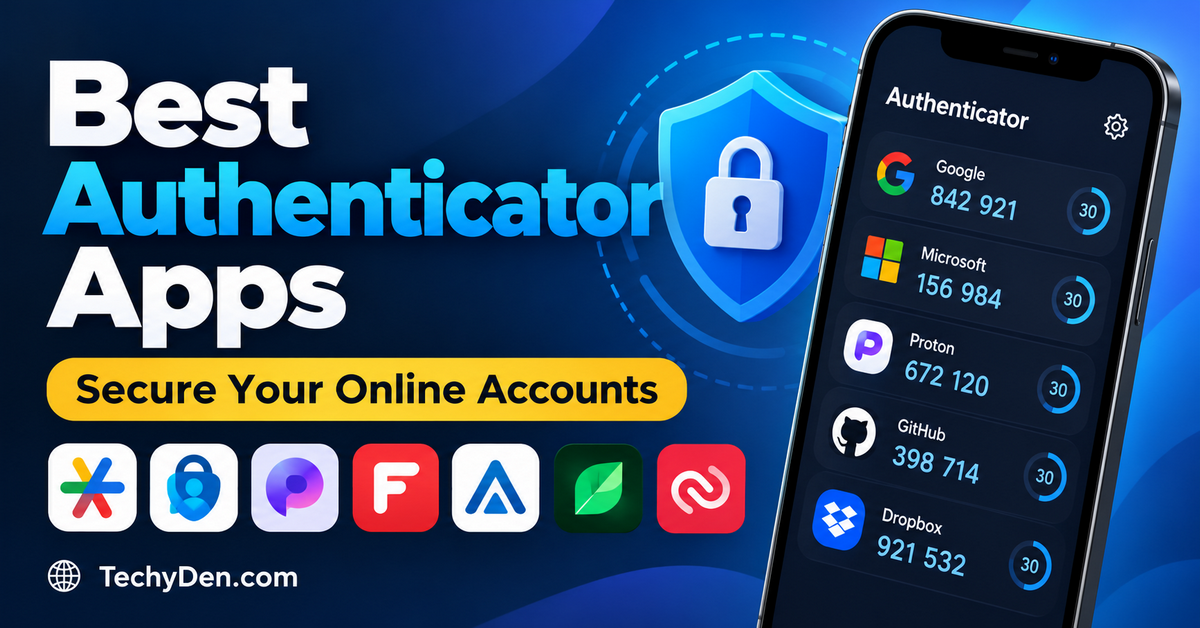
The best authenticator apps in 2026 include Google Authenticator, Microsoft Authenticator, Proton Authenticator, 2FAS, Aegis Authenticator, Ente Auth, and Authy. Each offers a different balance of convenience, privacy, backup options, and device compatibility.
Google Authenticator is an excellent starting point for most users, Microsoft Authenticator is particularly useful for Microsoft accounts and workplace sign-ins, and Proton Authenticator is worth considering if you want a privacy-focused option with desktop support.
In this guide, we’ll compare these apps, explain their advantages and disadvantages, and help you choose the right option for protecting your online accounts.
Quick Comparison: Best Authenticator Apps
| Authenticator app | Best for | Platforms | Key advantage |
|---|---|---|---|
| Google Authenticator | Most everyday users | Android, iOS | Simple setup and Google Account sync |
| Microsoft Authenticator | Microsoft and work accounts | Android, iOS | Sign-in approvals and Microsoft account integration |
| Proton Authenticator | Privacy-conscious users | Android, iOS, Windows, macOS, Linux | Open-source design and encrypted sync options |
| 2FAS | Mobile and browser convenience | Android, iOS, browser extensions | Convenient browser-assisted authentication |
| Aegis Authenticator | Android power users | Android | Local control and encrypted backups |
| Ente Auth | Cross-device authentication | Android, iOS, desktop platforms | Encrypted synchronization and account recovery options |
| Authy | Users who prefer multi-device access | Mobile platforms; desktop availability should be checked | Encrypted backups and multi-device functionality |
Our recommendation: Start with Google Authenticator if you want a straightforward solution. Choose Proton Authenticator if desktop compatibility and privacy matter to you, Microsoft Authenticator if you rely on Microsoft sign-in features, or Aegis if you prefer managing encrypted backups yourself.
Platform support and features can change between releases, so check the official app pages before installing. The availability of a particular authentication method also depends on the website or service you’re protecting.
What Is an Authenticator App?
An authenticator app is a security application that provides an additional way to verify your identity when signing in to an online account.
Most authenticator apps support time-based one-time passwords (TOTP). After you connect an app to a compatible account, the app generates a short verification code that changes periodically, usually every 30 seconds.
When you sign in, you enter your password and the current code from your authenticator app. The service checks whether the code is valid before allowing access.
Some apps also support push notifications, passwordless authentication, or passkeys. These features are different from traditional six-digit verification codes but serve the broader purpose of making account access more secure.
How Do Authenticator Apps Work?
The setup usually follows these steps:
- Open the security settings of the website or application you want to protect.
- Enable two-factor authentication (2FA) or authenticator-based verification.
- Scan the displayed QR code using your authenticator app.
- Enter the generated verification code to confirm the setup.
- Save the account’s recovery codes in a secure location.
After setup, the app can generate verification codes without a mobile network connection or internet access. However, features such as cloud synchronization and push-based sign-in approval may require connectivity.
Why Should You Use an Authenticator App?
Authenticator apps provide several advantages over relying only on passwords or text-message verification.
- Better account security: A stolen password alone may not be enough to access your account.
- Reduced dependence on SMS: Authenticator-generated codes do not rely on your mobile carrier delivering a text message.
- Offline code generation: Compatible TOTP codes work without internet connectivity.
- Protection across multiple accounts: One app can store codes for email, social media, cloud services, work accounts, and other supported websites.
- Convenient sign-in: Some apps provide sign-in notifications or support passwordless authentication.
Authenticator apps are not completely phishing-proof. An attacker may still trick you into entering a valid code on a fraudulent website. For stronger protection against phishing, use passkeys or hardware security keys whenever the service supports them.
1. Google Authenticator
Best for Most Users
Google Authenticator is one of the simplest ways to add two-factor authentication to your online accounts. Its straightforward interface and support for common TOTP codes make it suitable for beginners and experienced users alike.
The app works with Google accounts and many third-party services that support authenticator-based verification.
Key features
- Generates one-time verification codes.
- Supports offline code generation.
- Synchronizes supported codes through your Google Account when sync is enabled.
- Allows manual transfer of codes between devices.
- Supports multiple accounts and services.
- Includes an optional privacy screen.
Google documents its synchronization, transfer, and offline-code features in its official support guide.
Pros
- Easy to set up and use.
- Free to use.
- Works with many services that support TOTP.
- Offers account synchronization and manual transfer options.
Cons
- Cloud synchronization depends on your Google Account.
- Users who prefer avoiding cloud accounts must manage local storage and transfers carefully.
- It does not provide the same broad desktop experience as some cross-platform alternatives.
Best for: Beginners, everyday users, and anyone who wants a simple authenticator for email, social media, and other online accounts.
Our verdict: Google Authenticator is a strong default choice because it combines simplicity with useful synchronization and transfer options.
Get Google Authenticator App ->
2. Microsoft Authenticator
Best for Microsoft and Work Accounts
Microsoft Authenticator is particularly useful if you use Microsoft 365, Outlook, Microsoft Entra ID, or a Microsoft work or school account.
In addition to generating verification codes, it supports push-based authentication and certain passwordless sign-in methods. Depending on the account and configuration, you may be able to approve a sign-in request directly from your phone.
Key features
- Generates verification codes for compatible services.
- Supports Microsoft account sign-in and multifactor authentication.
- Offers push notifications for supported sign-in requests.
- Supports passwordless authentication and eligible passkey workflows.
- Provides backup and restore features for supported account entries.
Microsoft explains these authentication methods in its official documentation.
Pros
- Particularly useful for Microsoft accounts.
- Supports multiple authentication methods.
- Convenient for eligible workplace and school accounts.
- Offers verification codes that do not require an internet connection.
Cons
- Some workplace accounts require additional setup after restoration.
- Backup and restore behavior varies by platform and account type.
- It is a mobile app rather than a general-purpose desktop authenticator.
Best for: Microsoft 365 users, Windows users with Microsoft accounts, and employees or students who use Microsoft work or school sign-in systems.
Our verdict: Choose Microsoft Authenticator if your digital life revolves around Microsoft’s services. However, don’t assume that restoring the app automatically restores every work account or passkey.
Get Microsoft Authenticator ->
3. Proton Authenticator
Best for Privacy and Desktop Support
Proton Authenticator is a privacy-focused authentication app from Proton, the company known for services such as Proton Mail and Proton VPN.
It is an appealing alternative for users who want a dedicated authenticator with open-source software, support for multiple operating systems, and options for managing their verification codes.
Key features
- Generates standard two-factor authentication codes.
- Supports Android and iOS.
- Offers desktop applications for Windows, macOS, and Linux.
- Supports encrypted synchronization and backup options.
- Provides import and export capabilities to help users migrate their accounts.
- Uses an open-source approach that allows its code to be inspected.
Proton Authenticator is especially useful if you regularly switch between a phone and a computer and prefer a dedicated authentication app.
Pros
- Broad platform compatibility.
- Privacy-focused approach.
- Useful options for moving codes between apps.
- Convenient for people who use both mobile and desktop devices.
Cons
- Users should understand which synchronization and backup options they have enabled.
- Desktop availability alone does not guarantee that every account’s codes are synchronized automatically.
- You should test the recovery process before relying on it for critical accounts.
Best for: Privacy-conscious users, people who use multiple operating systems, and anyone who wants a dedicated authenticator beyond a mobile-only workflow.
Our verdict: Proton Authenticator is one of the strongest alternatives to consider if privacy, portability, and desktop access are priorities.
4. 2FA Authenticator (2FAS)
Best for Browser-Assisted Authentication
2FAS is a two-factor authentication solution designed to make verification convenient while retaining control over your authentication setup.
Its mobile app can work alongside supported browser extensions, allowing you to use your phone to assist with sign-in verification on a computer.
Key features
- Generates time-based authentication codes.
- Offers mobile apps for Android and iOS.
- Provides companion browser extensions.
- Supports backup and migration workflows.
- Does not require you to create a traditional 2FAS account to use the basic mobile app.
Pros
- Useful for people who sign in to websites on desktop browsers.
- Provides a mobile-first authentication workflow.
- A practical alternative to mainstream authenticator apps.
- Supports common TOTP-compatible services.
Cons
- Browser integration requires compatible extensions and configuration.
- The extension is a companion to the mobile app rather than a replacement for every desktop authentication workflow.
- Backup and synchronization behavior should be checked against your chosen setup.
Best for: Users who frequently log in to websites on a computer and want their phone to assist with authentication.
Our verdict: Consider 2FAS if you value browser convenience and prefer keeping authentication centered on your mobile device.
5. Aegis Authenticator
Best for Android Users Who Want Local Control
Aegis Authenticator is an open-source authentication app for Android. It is particularly attractive to users who want to manage their own encrypted backups instead of relying on a cloud account.
The app supports common TOTP and HOTP authentication workflows, with features for organizing accounts and protecting stored authentication secrets.
Key features
- Generates TOTP and HOTP verification codes.
- Supports encrypted vaults.
- Allows users to export and import authentication data.
- Supports encrypted backups that users can store themselves.
- Offers account organization and app-lock options.
Pros
- Open-source software.
- Useful local backup and restore options.
- Good control over how authentication data is stored.
- Suitable for users who prefer managing their own recovery process.
Cons
- Designed primarily for Android.
- Does not offer an official iOS counterpart.
- You must take responsibility for creating and protecting backups.
Best for: Android users who prefer open-source tools, local storage, and hands-on control over their authentication data.
Our verdict: Aegis is an excellent option if you use Android and want more control over your authentication vault and backup files.
6. Ente Auth
Best for Cross-Device Synchronization
Ente Auth is a dedicated two-factor authentication app from Ente. It focuses on protecting authentication secrets while providing synchronization and backup options for users who want to access their codes across devices.
It is worth considering if you want to move away from a single-device setup without giving up the convenience of a dedicated authenticator.
Key features
- Generates standard TOTP codes.
- Supports Android and iOS.
- Provides desktop access on supported platforms.
- Offers encrypted synchronization and backup options.
- Supports importing and exporting authentication entries.
- Uses an open-source approach.
Pros
- Useful for people with multiple devices.
- Provides backup and synchronization options.
- Supports migration from compatible authenticator apps.
- Suitable for users who prefer open-source software.
Cons
- Some synchronization workflows depend on an Ente account.
- You should verify how your selected backup and recovery settings work before changing devices.
- Users who prefer purely local storage may prefer a different setup.
Best for: Users who want to access their authentication codes across multiple devices and value encrypted synchronization.
Our verdict: Ente Auth is a strong choice if backup and cross-device access are more important to you than maintaining a strictly local-only vault.
7. Twilio Authy Authenticator
Best for Users Familiar With Multi-Device Authentication
Twilio Authy Authenticator is a long-established two-factor authentication service known for its encrypted backup and multi-device approach.
Its backup model is designed to help users recover supported authentication tokens when changing devices. This can be convenient, but it also makes it important to understand how your backup password and recovery setup work.
Key features
- Generates authentication codes for compatible services.
- Supports encrypted backups.
- Has offered multi-device authentication functionality.
- Helps users manage multiple authentication tokens.
Pros
- Familiar to users who already use Authy.
- Encrypted backup options can simplify migration.
- Supports common authenticator-code workflows.
Cons
- Check current device support and service availability before choosing it for a new setup.
- Losing the backup password can complicate recovery.
- Users should verify current account and device policies before migrating critical tokens.
Best for: Existing Authy users who understand its backup model and want to continue using a supported setup.
Our verdict: Authy remains worth evaluating for users familiar with its multi-device approach, but verify current platform support before selecting it as your primary authenticator.
Which Authenticator App Should You Choose?
The best authenticator app depends on your devices, preferred backup method, privacy requirements, and the accounts you need to protect.
| Your requirement | Recommended app |
|---|---|
| Simple setup for everyday accounts | Google Authenticator |
| Microsoft 365 and work sign-ins | Microsoft Authenticator |
| Privacy-focused authentication with desktop apps | Proton Authenticator |
| Mobile authentication with browser assistance | 2FAS |
| Android with local, encrypted backups | Aegis Authenticator |
| Encrypted synchronization across devices | Ente Auth |
| Continuing an existing multi-device setup | Authy, after checking current support |
For most people, choosing an app with a reliable recovery process is more important than choosing one with the longest feature list.
Before committing to an app, confirm that it supports your important accounts, offers a backup method you understand, and provides a practical way to migrate your tokens if your phone is lost or replaced.
How to Choose the Best Authenticator App
Before installing an authenticator app, consider these six factors.
1. Security and Privacy
Choose a reputable app that protects stored authentication secrets and offers appropriate access controls. Review the developer’s privacy policy and understand whether your codes remain on your device or are synchronized through a cloud account.
An open-source app can provide greater transparency, but open-source status alone does not guarantee that an app is secure.
2. Backup and Recovery
Your backup strategy matters because your authenticator may contain the second factor for your email, banking, social media, and work accounts.
Look for a backup method that suits your needs, such as encrypted cloud synchronization or encrypted local exports.
Before switching phones, verify that you can restore your important accounts. Do not assume that every account type will restore in the same way.
3. Device Compatibility
Check whether the app supports your devices.
- Android: Google Authenticator, Microsoft Authenticator, Proton Authenticator, 2FAS, Aegis, and Ente Auth.
- iPhone: Google Authenticator, Microsoft Authenticator, Proton Authenticator, 2FAS, and Ente Auth.
- Windows, macOS, or Linux: Proton Authenticator and Ente Auth offer desktop options.
Desktop availability and specific operating-system support can change, so verify the current requirements on the official website.
4. Ease of Use
A good authenticator should make it easy to identify the correct account, copy or read the verification code, and complete the sign-in process without unnecessary steps.
If you have many accounts, features such as search, account organization, and recognizable labels can make everyday use easier.
5. Offline Code Generation
Standard TOTP codes can generally be generated offline because the app calculates them using a shared secret and the device’s time.
This is useful when you have no mobile signal or are traveling. However, synchronization, cloud backups, and push-based approval may require an internet connection.
6. Migration Options
If you expect to change phones or use several devices, consider how easily the app lets you export, import, or restore your accounts.
Some apps support encrypted backups, while others provide manual QR-code transfers. Your choice should reflect how much control you want over the migration process.
Authenticator Apps vs. SMS Verification
SMS verification sends a one-time code to your phone number. An authenticator app generates a code on your device instead.
Both methods can add a second verification step, but authenticator apps avoid several weaknesses associated with text messages, including risks from SIM swapping and mobile-network interception.
| Feature | Authenticator app | SMS verification |
|---|---|---|
| Requires a mobile signal to generate a code | Usually no | Yes, to receive the message |
| Depends on a phone number | Usually no | Yes |
| Vulnerable to SIM-swap attacks | Not directly through SMS delivery | Yes |
| Can work offline | Yes, for standard TOTP codes | No |
| Requires initial setup | Yes | Usually just a phone number |
| Phishing-resistant by default | No | No |
Which is better? An authenticator app is generally preferable to SMS-based verification when the service supports it. For stronger phishing resistance, use a passkey or hardware security key where available.
Authenticator Apps vs. Password Managers
Authenticator apps and password managers solve different security problems, although some products combine both functions.
A password manager stores and generates passwords. An authenticator app generates or manages additional authentication factors.
Some password managers also support TOTP codes and passkeys, allowing you to manage more credentials in one place.
| Feature | Authenticator app | Password manager |
|---|---|---|
| Main purpose | Additional authentication | Password storage and management |
| Generates TOTP codes | Usually | Some do |
| Stores passwords | Usually not its main purpose | Yes |
| Supports passkeys | Depends on the app | Many modern password managers do |
| Main benefit | Adds another layer to sign-in | Helps create and manage strong, unique passwords |
For many users, a password manager combined with a separate authenticator app offers a useful balance between convenience and security. However, separating these tools is not an absolute requirement, and a reputable password manager with integrated authentication can also be a reasonable choice.
How to Set Up an Authenticator App
The following instructions apply to most websites and authenticator apps that support TOTP.
Step 1: Install a Trusted App
Download the authenticator from its official website or the relevant app store. Verify the developer’s name and avoid unfamiliar applications that imitate popular products.
Step 2: Open Your Account’s Security Settings
Sign in to the account you want to protect. Open its security settings and look for options such as:
- Two-factor authentication
- Two-step verification
- Authenticator app
- Multi-factor authentication
The exact wording depends on the service.
Step 3: Scan the QR Code
Select the authenticator-app option. The service should display a QR code or provide a setup key.
Open your authenticator app and scan the QR code. If scanning is unavailable, you may be able to enter the setup key manually.
Security tip: Treat the setup key like a password. Anyone who obtains it may be able to generate verification codes for that account.
Step 4: Verify the Code
The authenticator will display a verification code. Enter it into the website to confirm that the app is configured correctly.
Step 5: Save Your Recovery Codes
Many services provide recovery codes when you enable two-factor authentication.
Save these codes in a secure location, such as an encrypted password manager or another protected offline location. Do not store them only on the same phone as your authenticator.
Step 6: Test Your Backup
If the app supports synchronization or encrypted exports, configure your preferred backup method.
Make sure you understand how restoration works before deleting the app, resetting the phone, or moving to another device.
What Happens If You Lose Your Phone?
Losing your phone does not necessarily mean losing access to every account, but your recovery options depend on the authenticator app and the service.
If your phone is lost, stolen, damaged, or reset, follow these steps:
- Restore your authenticator: Use the app’s supported backup or transfer method, if available.
- Use recovery codes: Enter a saved recovery code if the account offers that option.
- Use another registered factor: A passkey, security key, or alternative authentication method may let you sign in.
- Recover the account: Follow the service’s official account-recovery procedure if other options fail.
- Secure the lost device: Use your phone’s remote-lock or erase features when appropriate, and review the security of accounts stored on it.
- Review active sessions: Once you regain access, sign out unfamiliar devices and replace compromised authentication methods.
For important accounts, maintain more than one supported recovery method. Keep your old phone until you have confirmed that your new device can access your critical accounts.
Are Authenticator Apps Safe?
Authenticator apps from reputable developers are generally a good way to improve account security, particularly compared with relying on passwords alone.
However, an authenticator app cannot eliminate every security risk.
Consider these precautions:
- Download apps from official sources.
- Use a strong device PIN and enable biometric protection where appropriate.
- Enable an app lock or privacy screen if available.
- Protect cloud accounts used for synchronization with strong authentication.
- Keep the operating system and app updated.
- Never share your verification codes with someone who contacts you unexpectedly.
- Store recovery codes separately from your phone.
- Review account sign-in alerts and remove devices you no longer use.
For highly sensitive accounts, consider using passkeys or hardware security keys because standard one-time codes can still be stolen through real-time phishing.
Frequently Asked Questions
What is the best authenticator app in 2026?
Google Authenticator is an excellent general-purpose option for most users. Microsoft Authenticator is particularly useful for Microsoft accounts, while Proton Authenticator is worth considering for privacy-focused users who want desktop support. Aegis is a strong alternative for Android users who prefer local control.
What is the best free authenticator app?
Google Authenticator, Microsoft Authenticator, Proton Authenticator, 2FAS, Aegis, and Ente Auth offer free authenticator functionality. Compare their backup options, platform support, and privacy features before deciding which one is best for you.
Which authenticator app is best for Android?
Google Authenticator is a straightforward choice for Android beginners. Aegis is especially attractive for users who want encrypted local backups and greater control over their authentication data.
Which authenticator app is best for iPhone?
Google Authenticator, Microsoft Authenticator, Proton Authenticator, 2FAS, and Ente Auth are options for iPhone users. Choose based on your preferred ecosystem, backup requirements, and whether you also need desktop access.
Can authenticator apps work without the internet?
Yes. Standard TOTP codes can generally be generated offline. However, cloud synchronization, backup restoration, and push-notification approvals may require an internet connection.
Are authenticator apps better than SMS codes?
Generally, yes. Authenticator apps avoid relying on text-message delivery and reduce exposure to SIM-swap attacks. Nevertheless, standard authenticator codes can still be phished, so passkeys or hardware security keys offer stronger protection against many phishing attacks.
Can I use an authenticator app for multiple accounts?
Yes. Most authenticator apps can store codes for multiple compatible services, including email, social media, cloud storage, and work accounts.
Can I transfer authenticator codes to a new phone?
Many apps provide cloud synchronization, encrypted backup and restore, or manual transfer options. The process varies by app, operating system, and account type. Always confirm that your codes work on the new device before wiping your old phone.
What is the difference between an authenticator app and a passkey?
An authenticator app commonly generates a one-time code that you enter during sign-in. A passkey uses cryptographic credentials to authenticate you, often through your device’s PIN or biometrics. Passkeys are designed to resist phishing more effectively than passwords and one-time codes.
Should I use more than one authenticator app?
You can use more than one app, but doing so requires careful account management. If you choose to maintain a secondary authenticator, register it through the account’s official security settings and verify that both methods work. Do not assume that copying a code entry alone registers a second authenticator with the website.
What happens if my authenticator app stops working?
Check that your device’s date and time are set automatically, confirm that you selected the correct account entry, and ensure that you are entering the current code. If the problem continues, use a recovery method provided by the service and follow the app’s official troubleshooting instructions.
Are open-source authenticator apps safer?
Open-source apps allow their code to be inspected, which can improve transparency. However, security also depends on implementation, maintenance, distribution, device security, and the way authentication secrets are stored. Open-source status alone does not guarantee that an app is secure.
Final Verdict: Which Authenticator App Is Best?
The best authenticator app is the one that combines dependable security with a backup process you can manage confidently.
For most everyday users, Google Authenticator is our general recommendation because it is simple and supports common verification-code workflows. Microsoft Authenticator is the natural choice for users who rely heavily on Microsoft sign-in features.
If you prioritize privacy and want access across desktop and mobile platforms, consider Proton Authenticator. Android users who want local control and encrypted backup files should look at Aegis, while 2FAS is a useful option for browser-assisted authentication.
Ente Auth is worth considering for encrypted cross-device synchronization, and existing Authy users should verify current platform support before making it their primary choice.
Regardless of which app you choose, enable two-factor authentication on your most important accounts, save your recovery codes securely, and test your backup before changing devices.
Our final advice: Start by securing your primary email account, password manager, social media profiles, and other accounts that could be used to reset your passwords. A well-configured authenticator and a reliable recovery plan can make a meaningful difference to your online security.