
Is your Android phone running out of battery before the end of the day? You’re not alone. High screen brightness, background apps, location services, poor network signals, and demanding applications can all contribute to faster battery drain.
The good news is that you don’t necessarily need a new phone to solve the problem. A few changes to your Android settings and everyday habits can help you improve Android battery life, reduce unnecessary power consumption, and get more hours from a single charge.
In this guide, you’ll learn 15 practical ways to save battery on Android phones, identify apps that consume too much power, fix common battery-drain problems, and maintain your battery’s long-term health.
The exact settings may vary depending on your Android version and phone manufacturer, including Samsung Galaxy, Google Pixel, OnePlus, Xiaomi, and Redmi.
Battery life can vary depending on your device, software version, and usage habits, so choosing the right operating system for your Android phone can also influence your overall experience.
Quick Answer: How to Improve Android Battery Life
If you want to improve your Android phone’s battery life quickly, start with these changes:
- Reduce screen brightness or enable adaptive brightness.
- Shorten the screen timeout duration.
- Enable Battery Saver or Power Saving mode when needed.
- Check battery usage and restrict apps that consume excessive power.
- Turn on Adaptive Battery if your phone supports it.
- Disable unnecessary location access, Bluetooth, and hotspot connections.
- Use Wi-Fi when available and reliable.
- Avoid excessive heat while charging or using your phone.
- Update Android and your installed apps.
- Reduce unnecessary notifications and background activity.
These adjustments can help reduce battery consumption, although the actual improvement depends on your phone, battery condition, apps, and usage habits.
For additional device-specific recommendations, consult Google’s official guide to improve Android battery life and follow the instructions that apply to your phone.
1. Reduce Your Screen Brightness
Your phone’s display can be one of its biggest power consumers, especially when you use it for extended periods at high brightness.
Keeping the screen brighter than necessary can drain your battery faster.
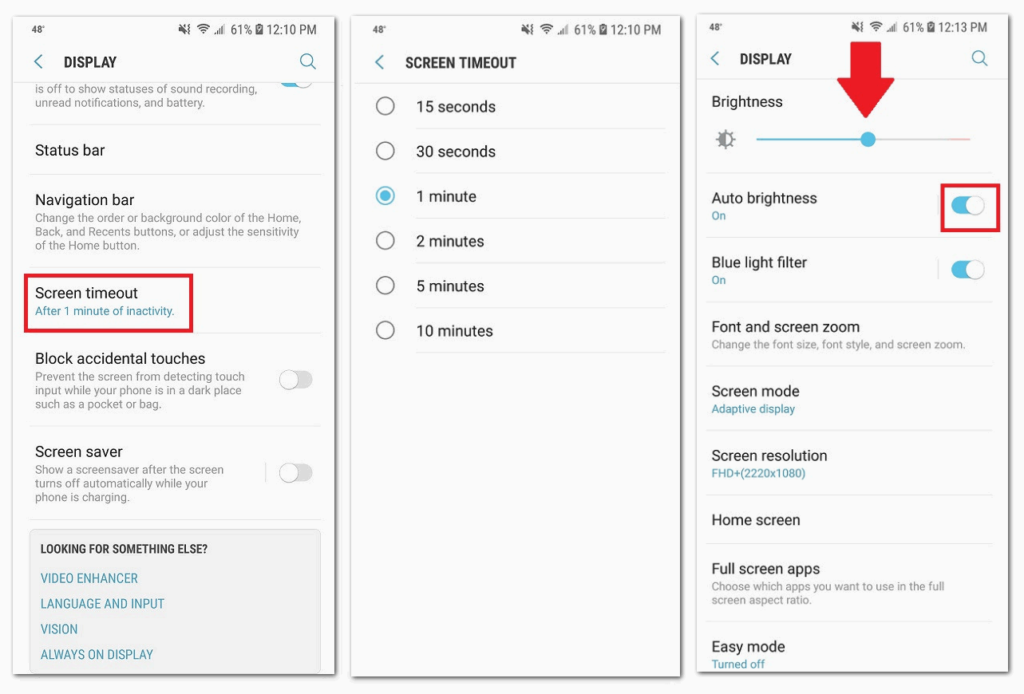
How to reduce screen brightness:
- Swipe down from the top of your screen to open Quick Settings.
- Find the brightness slider.
- Move the slider to a comfortable, lower level.
- Enable Adaptive Brightness if available.
Adaptive Brightness automatically adjusts your display based on surrounding lighting conditions.
You can usually find this option under Settings → Display → Adaptive Brightness or a similarly named menu.
Battery-saving tip: Avoid using maximum brightness indoors. Increase it only when necessary, such as when viewing your screen outdoors.
2. Reduce Your Screen Timeout
Screen timeout determines how long your display remains on after you stop interacting with your phone.
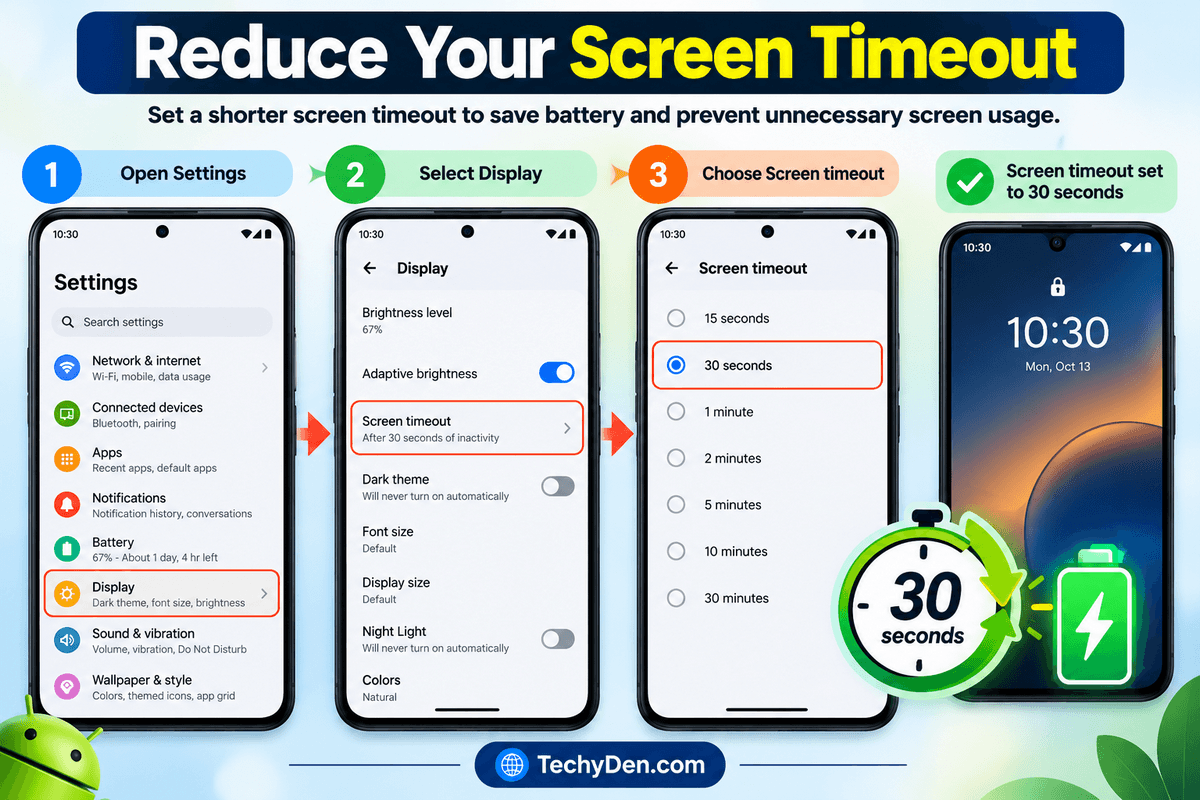
If your screen stays on for several minutes while your phone is idle, it wastes power unnecessarily.
How to change screen timeout:
- Open Settings.
- Select Display.
- Find Screen timeout or Screen sleep.
- Choose a shorter duration, such as 30 seconds.
The exact options depend on your device.
A shorter screen timeout is especially useful if you frequently check messages, read notifications, or put your phone down without locking it.
3. Enable Battery Saver Mode
Battery Saver is one of the easiest ways to extend Android battery life when your charge is running low.
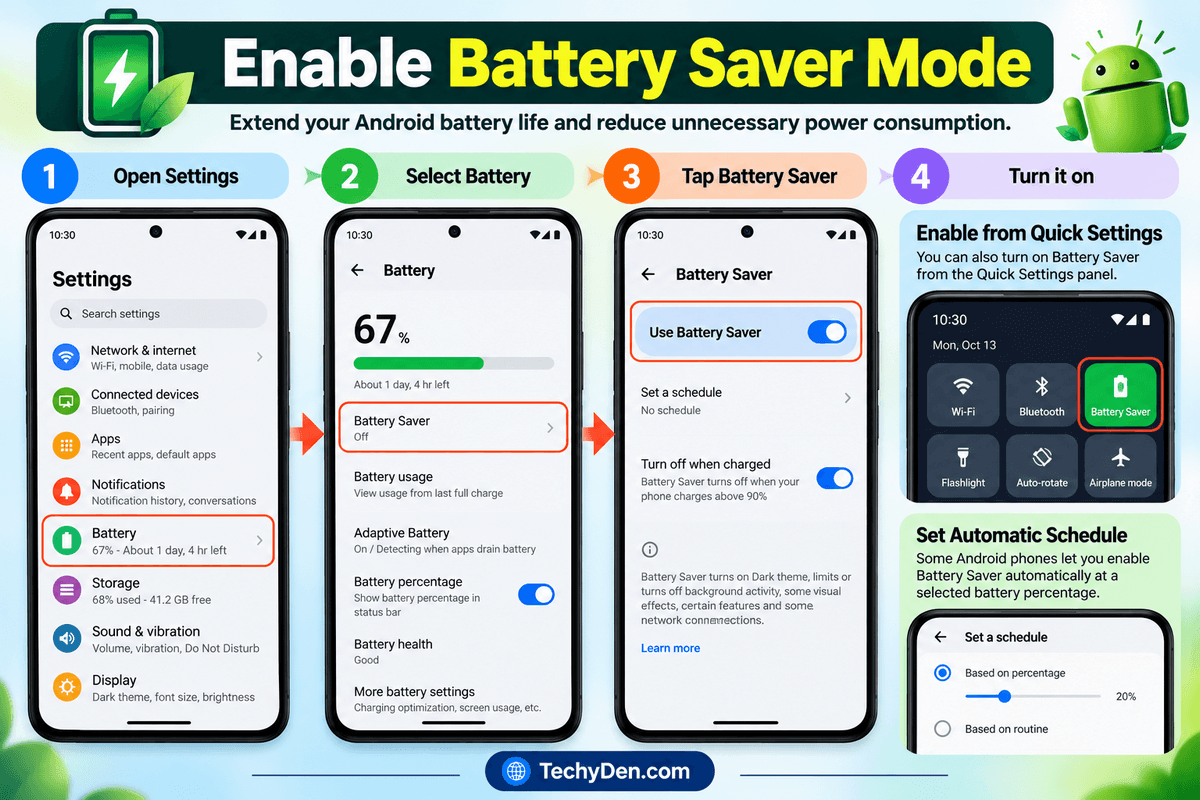
Depending on your device, it may reduce background activity, limit certain visual effects, restrict location services, and delay some background updates.
How to enable Battery Saver:
- Open Settings.
- Select Battery.
- Tap Battery Saver, Power Saving, or the equivalent option.
- Turn it on.
Some Android phones also let you enable Battery Saver from Quick Settings.
You can configure it to activate automatically when the battery reaches a selected percentage, if your device supports that feature.
When should you use Battery Saver?
Use it when you’re traveling, away from a charger, attending an event, or trying to keep your phone running until the end of the day.
Keep in mind that some notifications, background synchronization, and app functions may be delayed while this mode is active.
4. Check Which Apps Are Draining Your Battery
An app that consumes excessive power in the background can be responsible for poor battery life.
Instead of disabling features randomly, identify the apps that are actually using the most energy.
How to check battery usage on Android:
- Open Settings.
- Tap Battery.
- Select Battery Usage or View details.
- Review the apps listed and their battery consumption.
- Open an app’s details to review available background-usage options.
Menu names vary by Android version and manufacturer.
Apps involving video streaming, gaming, navigation, video calls, and continuous location tracking can consume considerable power during active use.
If an app uses an unusually high amount of battery even when you barely use it, consider updating it, restricting its background activity, or uninstalling it if you no longer need it.
Some apps may consume more power than others when they run in the background, so check their battery usage regularly before deciding which apps to restrict. If you need a call-recording solution, compare these apps and review their features and background activity before installing one.
Important: High battery usage does not automatically mean an app is faulty. An application you use frequently may legitimately consume more energy than other apps.
5. Enable Adaptive Battery
Adaptive Battery is an Android feature designed to learn your usage patterns and limit battery consumption from apps you rarely use.
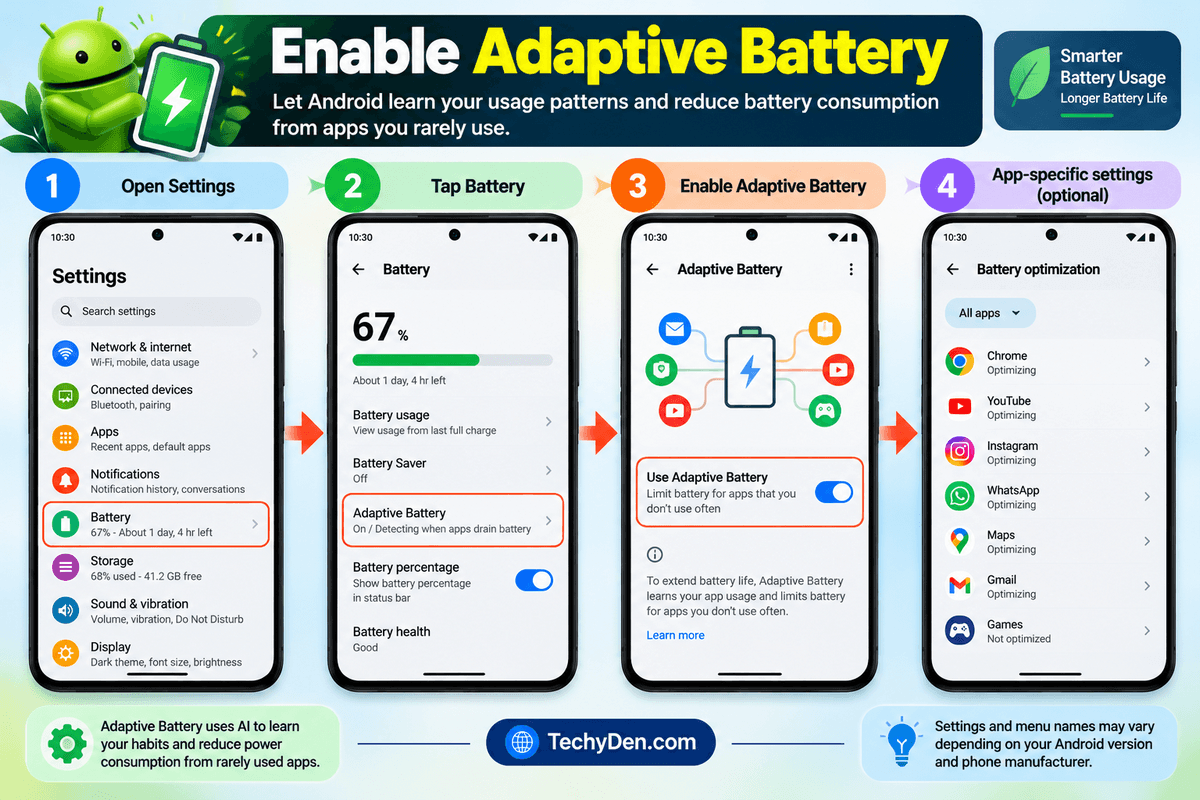
Availability and behavior vary by Android version and device manufacturer.
How to enable Adaptive Battery:
- Open Settings.
- Tap Battery.
- Look for Adaptive Battery or Battery optimization.
- Enable the relevant option if available.
On some phones, battery optimization settings are managed separately for individual applications.
Allow the feature time to adapt to your habits. Its benefits may not be immediate, and it cannot overcome every source of battery drain.
If you rely on timely alerts from messaging, email, or work applications, check whether any restrictions affect their background activity.
6. Turn Off Unnecessary Location Services
Location services help navigation, weather, delivery, fitness, and other applications provide useful features. However, continuous location access can increase battery consumption.
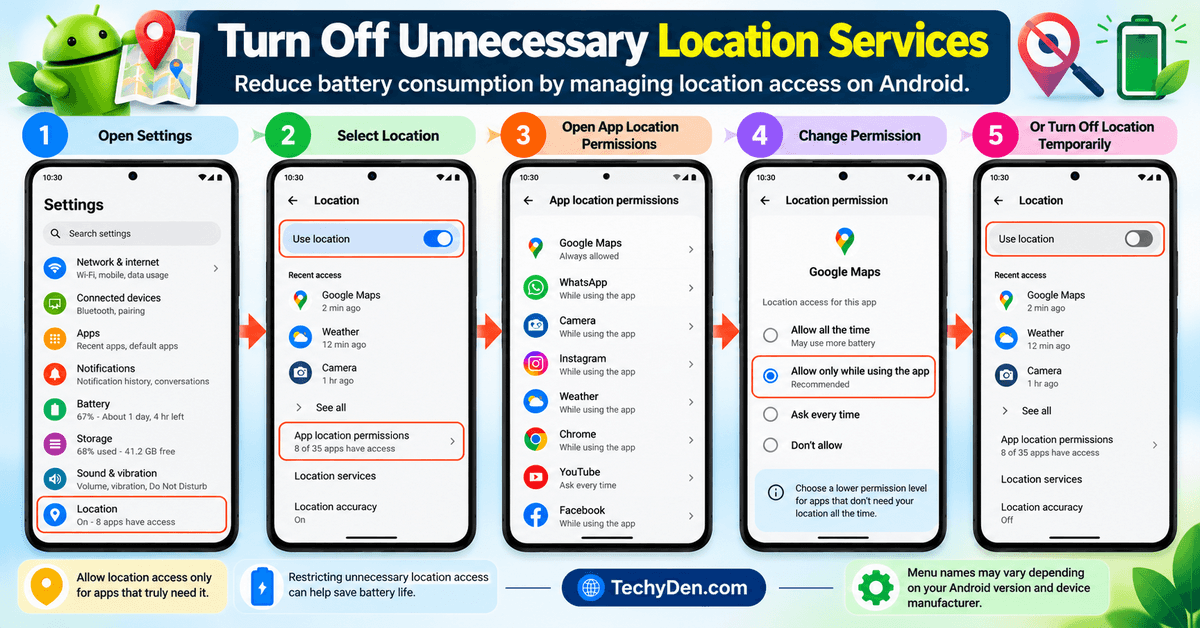
You don’t need to disable location services permanently. Instead, review which apps can access your location and when.
How to manage location permissions:
- Open Settings.
- Select Location.
- Open App location permissions.
- Review the applications with location access.
- Change unnecessary permissions to Allow only while using the app or another appropriate option.
You can also turn off device location temporarily when you don’t need it.
Remember that location settings may affect navigation, device-finding features, weather updates, and location-based services.
To control which apps can access your location, review Google’s guide to App location permissions and select “Allow only while using the app” for applications that don’t need continuous location access.
Best practice: Give location access only to applications that genuinely need it.
7. Use Dark Mode on OLED Displays
Dark Mode changes supported interfaces from light backgrounds to darker colors.
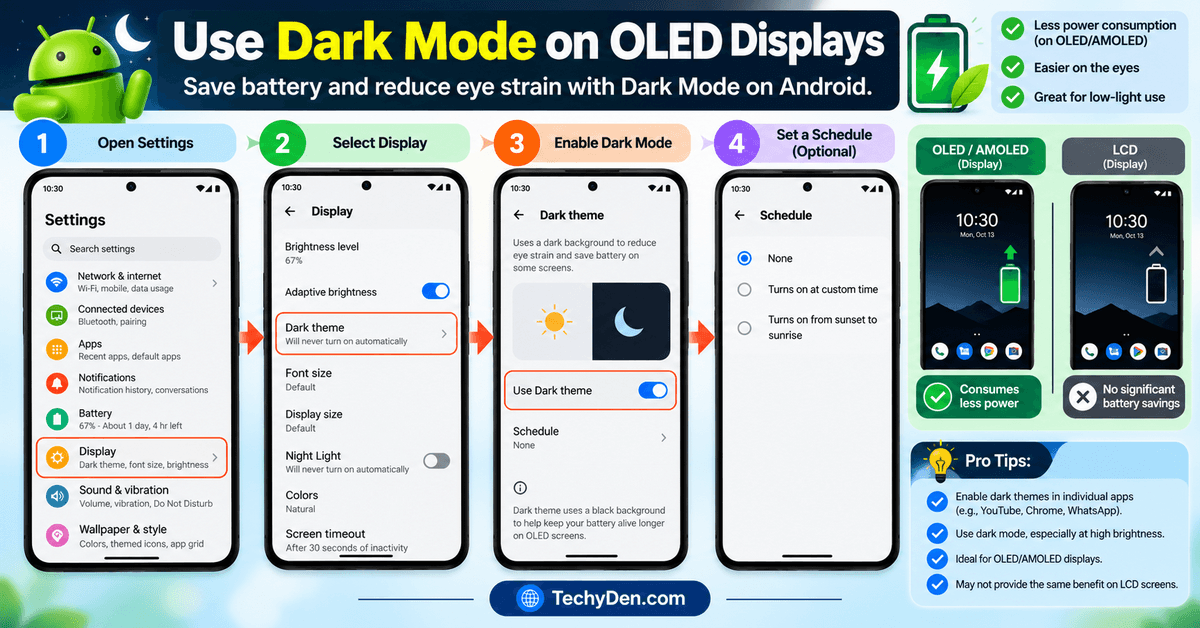
On phones with OLED or AMOLED displays, dark pixels generally consume less power than bright pixels. This can help reduce display energy consumption, particularly when using dark interfaces at high brightness.
On LCD screens, dark mode generally does not provide the same display-related battery advantage.
How to enable Dark Mode:
- Open Settings.
- Select Display.
- Tap the dark theme or Dark mode.
- Enable it or configure a schedule if supported.
You can also enable dark themes inside individual apps.
Dark Mode is especially worth trying if you have an OLED phone and spend a lot of time reading messages, browsing websites, or using supported apps.
8. Turn Off Connectivity Features You Don’t Need
Bluetooth, mobile hotspots, Wi-Fi, and other wireless features can consume power depending on how they’re used.
You don’t need to disable every connection all the time. Focus on features that are active without providing any benefit.
For example:
- Turn off your mobile hotspot when nobody needs it.
- Disable Bluetooth when you are not using connected accessories, if appropriate.
- Disconnect from unnecessary wireless devices.
- Turn off tethering after sharing your internet connection.
- Disable NFC when you do not need it, if your phone provides a convenient option.
Wi-Fi itself is not necessarily a battery drain. A reliable Wi-Fi connection can be more energy-efficient than a weak cellular connection.
The goal is to avoid unnecessary wireless activity rather than routinely switching off every connection.
9. Manage Background App Activity
Some apps continue performing tasks after you leave them. Depending on the application, these tasks may include synchronization, uploading files, refreshing content, or processing location data.
Restricting unnecessary background activity can help improve battery life.
How to restrict an app:
- Open Settings.
- Select Apps.
- Choose the application you want to review.
- Tap Battery or App Battery Usage.
- Select an appropriate background-usage option, if available.
Some devices provide options such as unrestricted, optimized, and restricted.
Choose restrictions carefully. They may delay notifications, prevent background synchronization, or interfere with important functions.
Avoid force-stopping essential applications repeatedly as a routine battery-saving technique. Android manages background processes automatically, and constantly closing apps is not a reliable universal solution.
10. Reduce the Screen Refresh Rate
Some Android smartphones support high refresh rates such as 90Hz, 120Hz, or higher.
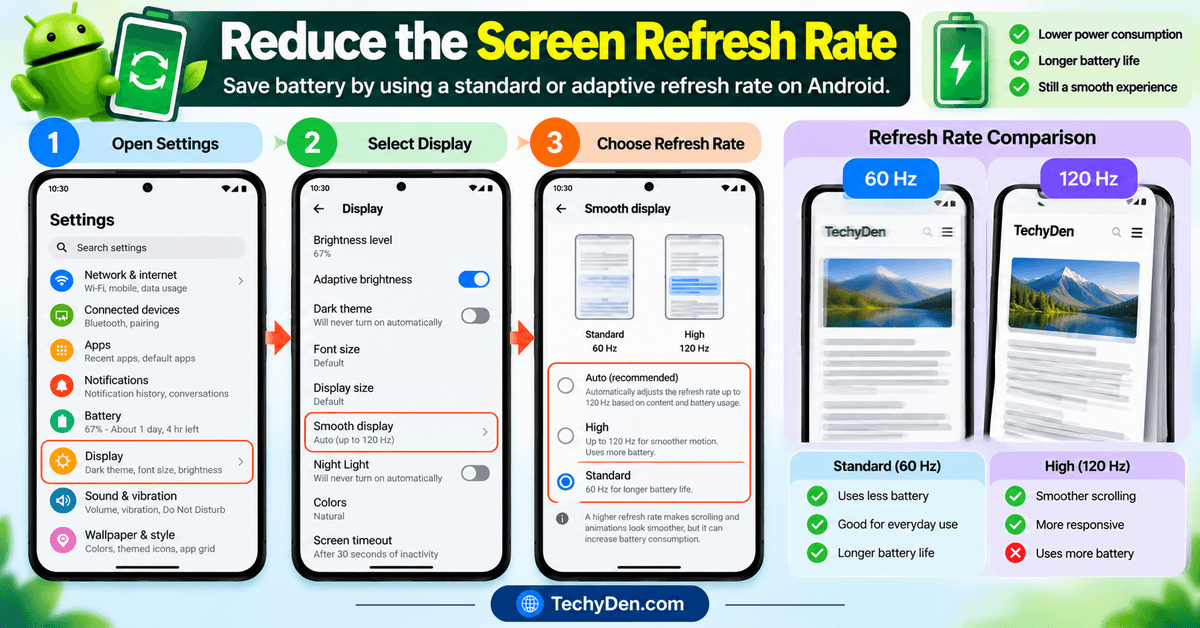
A high refresh rate makes scrolling and animations appear smoother, but it can increase power consumption in some circumstances.
If battery life matters more to you than maximum scrolling smoothness, try a standard or adaptive refresh-rate setting.
How to change the refresh rate:
- Open Settings.
- Select Display.
- Look for Smooth Display, Motion smoothness, or Refresh rate.
- Choose a lower or adaptive option if available.
Samsung, Google Pixel, OnePlus, Xiaomi, and other manufacturers may use different names for these settings.
An adaptive refresh rate can offer a useful balance between responsiveness and power efficiency.
11. Keep Your Android Phone Cool
Heat is an important factor in battery performance and long-term battery health.
A hot phone may consume more power, reduce charging speed, or temporarily limit performance. Repeated exposure to excessive heat can also accelerate battery aging.
How to prevent overheating:
- Avoid leaving your phone in direct sunlight.
- Don’t leave it inside a hot parked car.
- Avoid demanding games while charging if they make the device excessively hot.
- Use a compatible charger and cable.
- Remove an insulating case temporarily if the phone becomes unusually hot during charging and the manufacturer recommends doing so.
- Close or troubleshoot apps that cause persistent overheating.
A warm phone during charging or heavy use is not always a sign of a problem. However, repeated or extreme overheating deserves attention.
If the battery swells, stop using and charging the device and seek professional service.
12. Update Android and Your Apps
Software bugs, compatibility problems, and inefficient app behavior can sometimes contribute to excessive battery drain.
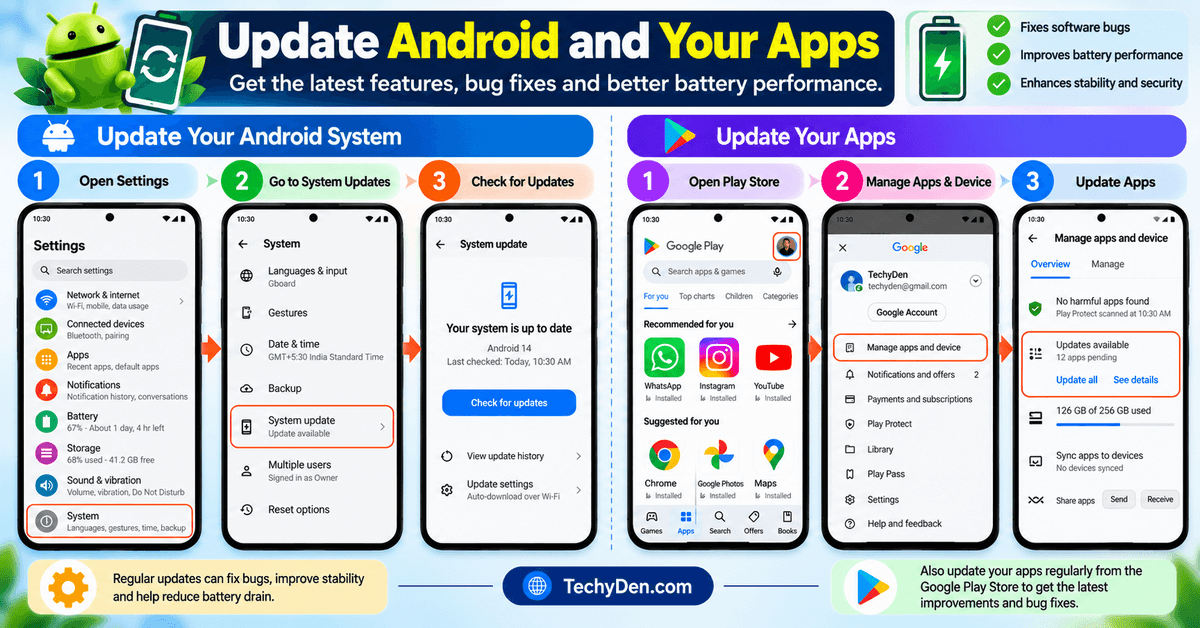
Keeping your phone and apps updated can resolve known issues and improve stability.
To check for an Android update:
- Open Settings.
- Go to System or Software update.
- Select Software update or Check for updates.
- Install an available update after reviewing its requirements.
The menu may differ by manufacturer.
To update apps, open Google Play Store, select your profile icon, and look for the app-management section and available updates.
Keeping your device updated can help resolve software bugs and improve stability. Follow our guide to Update Android and Your Apps for step-by-step instructions on checking for available updates.
One thing to remember: Battery consumption can temporarily increase after a major system update while the phone completes background tasks. If the drain persists, review battery usage and check for further updates.
13. Reduce Unnecessary Notifications
Every notification doesn’t necessarily consume a significant amount of battery, but frequent alerts can repeatedly wake your display and trigger app activity.
Reducing unnecessary notifications may help, particularly if many applications send alerts throughout the day.
How to manage notifications:
- Open Settings.
- Select Notifications.
- Open App notifications.
- Turn off alerts from apps that don’t need your attention.
- Keep notifications enabled for important messages, security alerts, and work applications.
You can also use Do Not Disturb when you don’t need immediate alerts.
This approach reduces interruptions as well as unnecessary screen activity.
14. Use Wi-Fi When the Cellular Signal Is Weak
Your phone may use more energy to maintain a cellular connection when the signal is weak.
This can happen in basements, elevators, remote areas, or buildings with poor network coverage.
When reliable Wi-Fi is available, connecting to it may reduce power consumption compared with maintaining a weak cellular connection.
Try these steps:
- Connect to a trusted Wi-Fi network when available.
- Avoid leaving your phone searching for a network in areas with no coverage.
- Use Airplane mode when you do not need cellular connectivity, such as during offline activities.
- If supported, enable Wi-Fi Calling when cellular reception is poor and your carrier offers the feature.
Airplane mode disables cellular connectivity and may also disable other radios depending on the device and your settings. You can often re-enable Wi-Fi manually afterward.
Don’t use Airplane mode if you need to receive calls, messages, or emergency alerts through your normal cellular connection.
15. Maintain Your Battery’s Long-Term Health
There is an important difference between extending battery life on a single charge and maintaining battery health over several years.
A battery naturally loses capacity as it ages and goes through charging cycles. If your phone is several years old, software adjustments may not fully restore its original battery life.
To help maintain battery health:
- Avoid prolonged exposure to excessive heat.
- Use a compatible, reputable charger.
- Enable optimized charging or a charging limit if your phone supports it.
- Avoid repeatedly draining the battery to zero as a routine habit.
- Check battery health or service recommendations when your manufacturer provides them.
- Replace a degraded battery through an authorized or qualified repair service when appropriate.
You do not need to follow a rigid charging ritual. Modern phones manage charging electronically, and the most important practical habits are avoiding excessive heat and using the charging protections available on your device.
How to Fix Android Battery Draining Fast
If your Android battery is draining unusually quickly, use this troubleshooting checklist before considering a battery replacement.
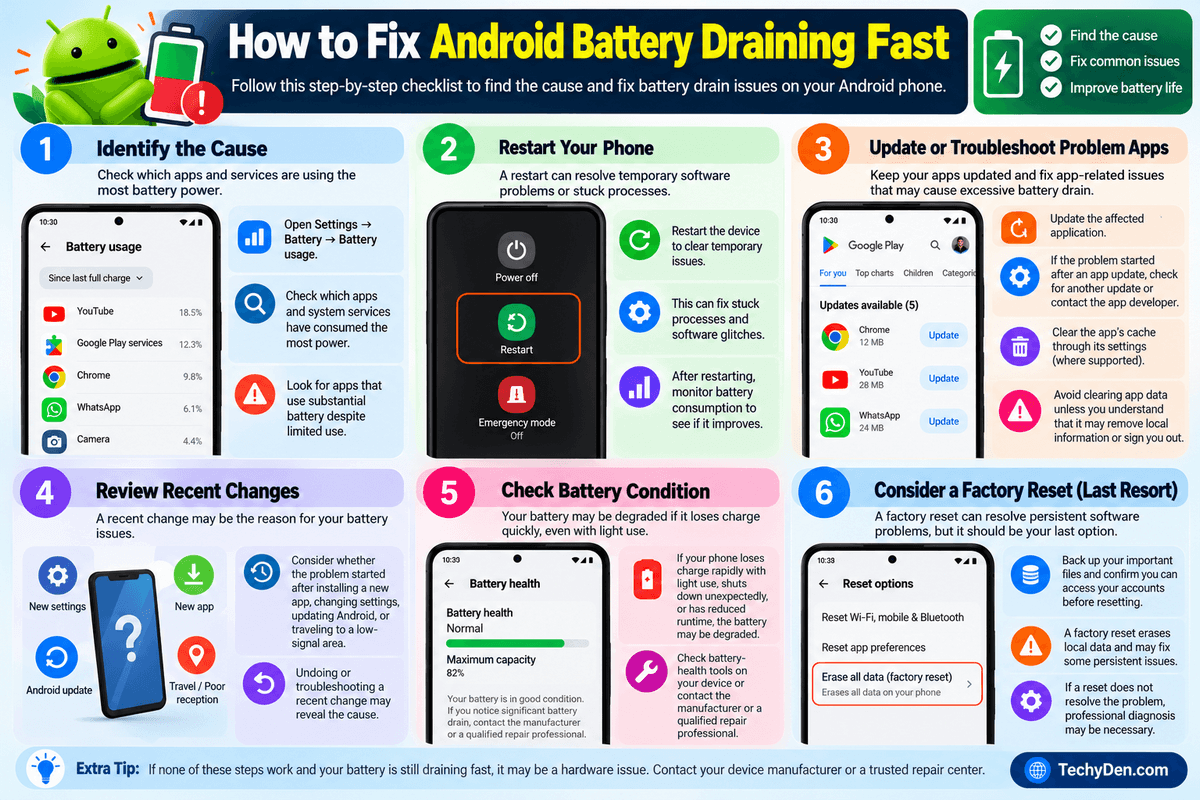
Step 1: Identify the cause
Open Settings → Battery → Battery usage. Check which apps and system services have consumed the most power.
Look for apps that use substantial battery despite limited use.
Step 2: Restart your phone
A restart can resolve temporary software problems or stuck processes.
Restart the device and monitor battery consumption afterward.
Step 3: Update or troubleshoot problem apps
Update the affected application. If the problem started immediately after an app update, check whether another update is available or consult the app developer’s guidance.
If necessary, clear the app’s cache through its settings, where supported. Avoid clearing app data unless you understand that doing so may remove local information or sign you out.
Step 4: Review recent changes
Consider whether the problem started after installing a new app, changing settings, updating Android, or traveling to an area with poor reception.
Undoing or troubleshooting a recent change may reveal the cause.
Step 5: Check battery condition
If the phone loses charge rapidly even with light use, shuts down unexpectedly, or has significantly reduced runtime, the battery may have degraded.
Check the battery-health tools available for your phone or contact the manufacturer or a qualified repair professional.
Step 6: Consider a factory reset only as a last resort
A factory reset erases local data and may resolve some persistent software problems, but it should not be your first battery-saving step.
Back up your important files and confirm that you can access your accounts before resetting the phone. If a reset does not resolve the problem, professional diagnosis may be necessary.
Common Battery-Saving Mistakes to Avoid
Not every popular battery-saving trick works as expected. Keep these points in mind:
- Don’t constantly force-stop every app. Android already manages most background processes.
- Don’t disable all notifications blindly. You may miss important alerts.
- Don’t assume Wi-Fi always drains more battery than mobile data. Signal strength and usage patterns matter.
- Don’t install unknown battery-optimizer apps. They may introduce advertisements, unnecessary permissions, or additional background activity.
- Don’t expect Dark Mode to save the same amount of power on every screen. Its display benefits depend on the screen technology and content.
- Don’t ignore excessive heat or a swollen battery. These issues require more than ordinary battery-saving adjustments.
Frequently Asked Questions on Android Battery Life
How can I improve Android battery life quickly?
Reduce screen brightness, shorten screen timeout, enable Battery Saver, review battery usage, and restrict unnecessary background activity. These are good first steps when you need your phone to last longer.
Why is my Android battery draining so fast?
Common causes include heavy app usage, high display brightness, background synchronization, weak cellular signals, location activity, software problems, and an aging battery. Check your phone’s battery-usage screen to identify the most likely cause.
Does Dark Mode save battery on Android?
Dark Mode can reduce display power consumption on OLED and AMOLED screens, particularly at higher brightness levels. Its effect is generally smaller on LCD displays and varies with the content being displayed.
Should I keep Battery Saver on all the time?
You can use Battery Saver frequently if its restrictions suit your needs. However, it may limit background activity, performance, or timely notifications. Try it and check whether essential apps continue working as expected.
Does closing background apps save battery?
Not necessarily. Android manages background applications automatically, and repeatedly closing apps can be counterproductive in some cases. Focus on applications that show unusually high battery usage and adjust their settings when appropriate.
How do I check which app is using the most battery?
Open Settings, select Battery, and tap Battery usage or a similarly named option. Review the listed apps and their consumption. The exact path varies by Android version and manufacturer.
Can I improve the battery health of an old Android phone?
You can reduce unnecessary power consumption and help slow further battery aging by avoiding excessive heat and using optimized charging features. However, you cannot restore a physically degraded battery to its original capacity through software settings alone.
Does fast charging damage an Android battery?
Fast charging is designed to work within the phone’s supported charging limits. Battery aging is influenced by factors such as heat, charging behavior, and time. Use compatible chargers and avoid excessive heat rather than assuming all fast charging is harmful.
Is it safe to charge my Android phone overnight?
Modern phones include charging-management protections, but prolonged exposure to heat can still affect battery longevity. Use a compatible charger, keep the device in a well-ventilated location, and enable optimized charging or a charging limit if available.
How much battery can these tips save?
There is no universal percentage. Results depend on the phone, battery condition, signal strength, screen usage, apps, and settings. The most effective changes are usually those that address the biggest sources of power consumption on your particular device.
Final Verdict
Learning how to improve Android battery life doesn’t require complicated tools or expensive accessories. Start with the settings that have the biggest impact on your usage: screen brightness, screen timeout, Battery Saver, battery-hungry apps, and background activity.
If your phone continues to lose charge unusually quickly, investigate overheating, weak network reception, recent software changes, and battery condition instead of applying every possible restriction.
The best approach is to identify what consumes power on your device and make targeted adjustments. With sensible settings and good charging habits, you can reduce unnecessary battery drain and get more useful time from your Android phone.
If you also want to explore ways to use mobile applications on your computer, read our guide on Android apps and Windows 11.
For more practical ways to improve battery life, explore our related Android optimization guide, which covers additional steps for improving your phone’s everyday performance.
Which Android battery-saving tip worked best for you? Share your experience in the comments.