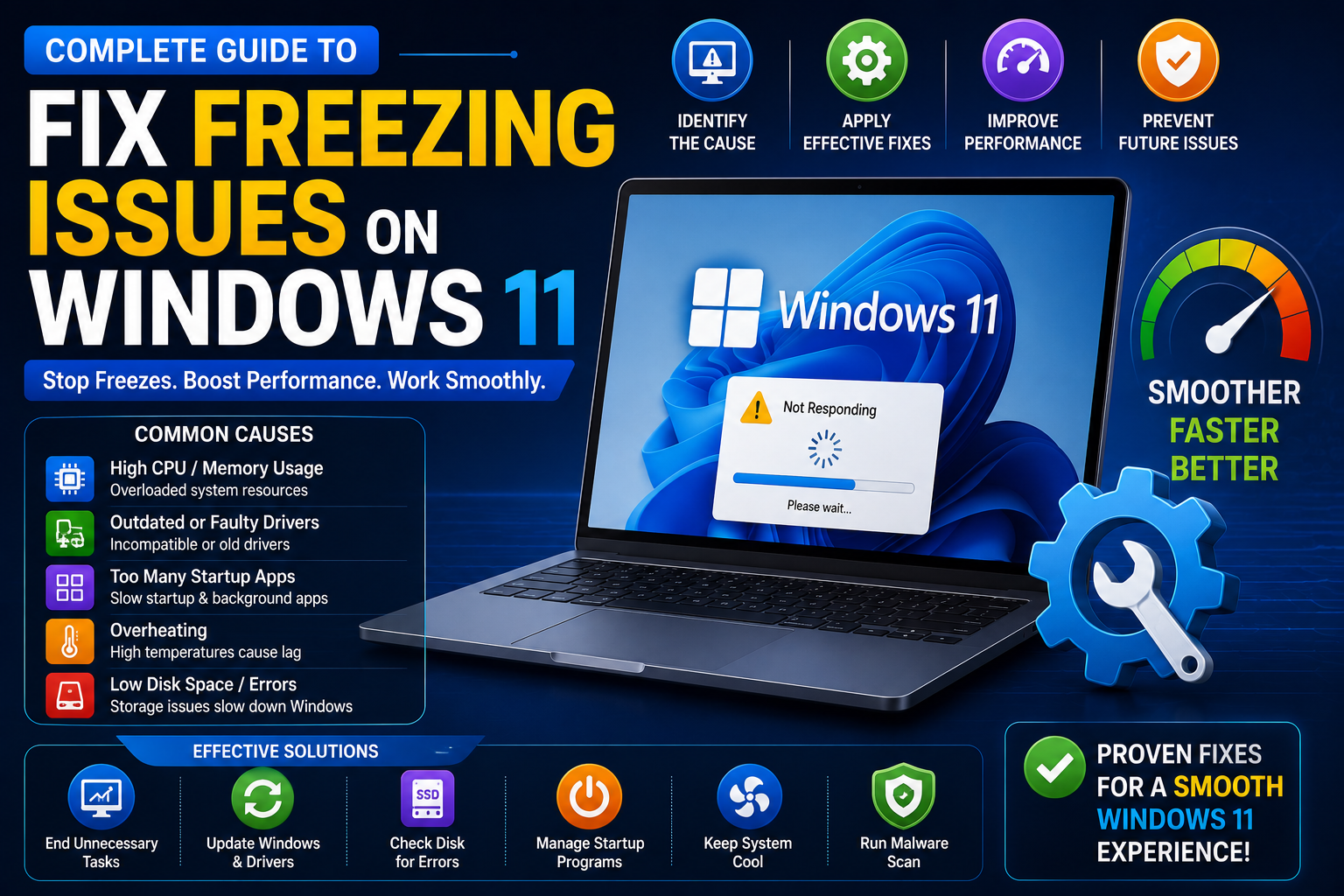
If your Windows 11 computer keeps freezing, becomes unresponsive, hangs frequently, or experiences random screen freezes, you’re not alone. This article gives you the 10 proven ways to fix freezing issues on windows 11.
System freezing issues on Windows 11 can stem from multiple causes including outdated drivers, insufficient RAM, low disk space, overheating components, malware infections, corrupted system files, or background application conflicts.
In mid‑2026, a notable number of Windows 11 users also reported system freezes, boot failures, and BitLocker recovery prompts after installing the June 2026 cumulative update KB5094126 on Windows 11 24H2 and 25H2 systems.
Some affected users reported BitLocker recovery prompts even on machines where BitLocker had been disabled, so keep your recovery key backed up before applying major Windows updates.
Whether your PC freezes during startup, during gaming, while installing updates, or at random intervals throughout use—this comprehensive guide covers all the troubleshooting solutions and fixes you need.
Common Causes of Windows 11 Freezing & System Hangs
Before attempting any solutions, it’s helpful to understand why your Windows 11 PC keeps freezing. Common causes of system freezing include:
- Outdated or incompatible device drivers (especially graphics/GPU drivers)
- Insufficient system RAM or low available memory
- Hard drive or SSD running out of storage space
- Excessive CPU usage from background processes or malware
- Overheating thermal issues affecting performance
- Corrupted or missing Windows 11 system files
- Too many applications running at startup
- Problematic Windows 11 updates or driver conflicts
- Hardware failures (failing hard drive, RAM issues)
- Antivirus or security software conflicts
Recent Windows 11 Update Issues
- Microsoft’s June 2026 Patch Tuesday update, KB5094126, has triggered reports of system freezes, BitLocker recovery loops, broken OneDrive integration in File Explorer, and LAN connectivity problems on some Windows 11 PCs.
- Some users say the freezes happen within minutes of booting, making it difficult to uninstall the update through normal Settings menus.
- If the issue started right after a recent update, rolling back the latest quality update from Windows Recovery Environment is often the first step to try.
Why Does Windows 11 Freeze Randomly?
“Experiencing random freezing on Windows 11 can be frustrating. Windows 11 random freezes are different from consistent issues because they happen unpredictably.
Common causes include outdated GPU drivers, insufficient RAM, malware running in background, or corrupted Windows system files.”
Now let’s explore the step-by-step solutions to fix Windows 11 freezing problems:
11 Solutions to Fix Windows 11 Freezing Issues
The most effective fixes in 2026 now include checking for problematic cumulative updates, uninstalling KB5094126 if needed, updating chipset and GPU drivers, clearing startup load, and testing memory or storage for hardware-related instability.
1. Update Windows 11, Drivers & Apps to Fix Freezing
One of the first things to try when troubleshooting Windows 11 freezing is to ensure your system software, hardware drivers, and applications are up to date. Outdated software and drivers can cause conflicts and other issues leading to freezes and crashes.
- Go to Settings > Windows Update and click Check for Updates – Install all available updates, including optional ones.

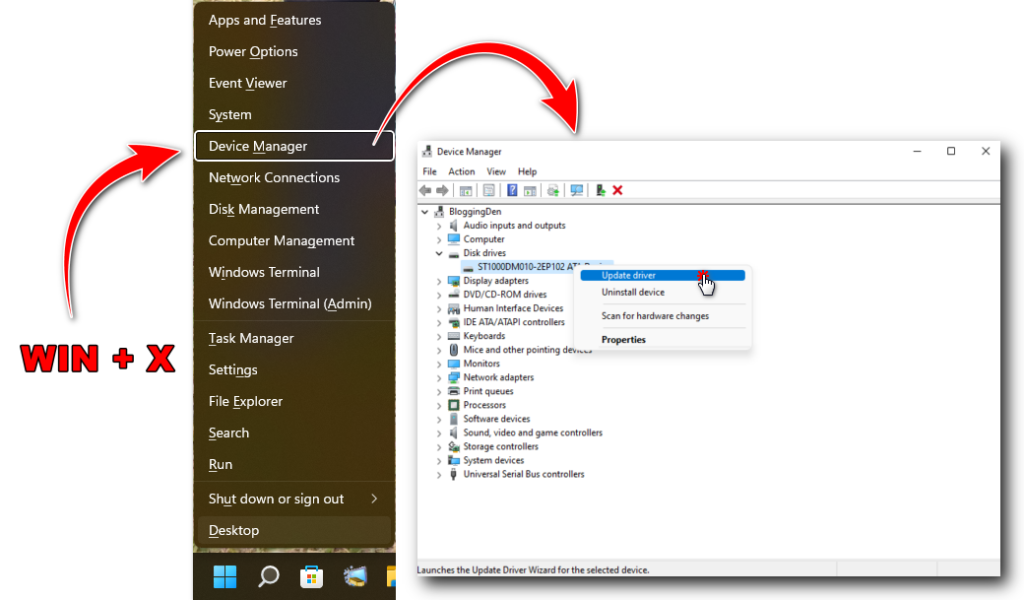
- Windows key + X and select Device Manager. Expand each category and right-click devices to update drivers.
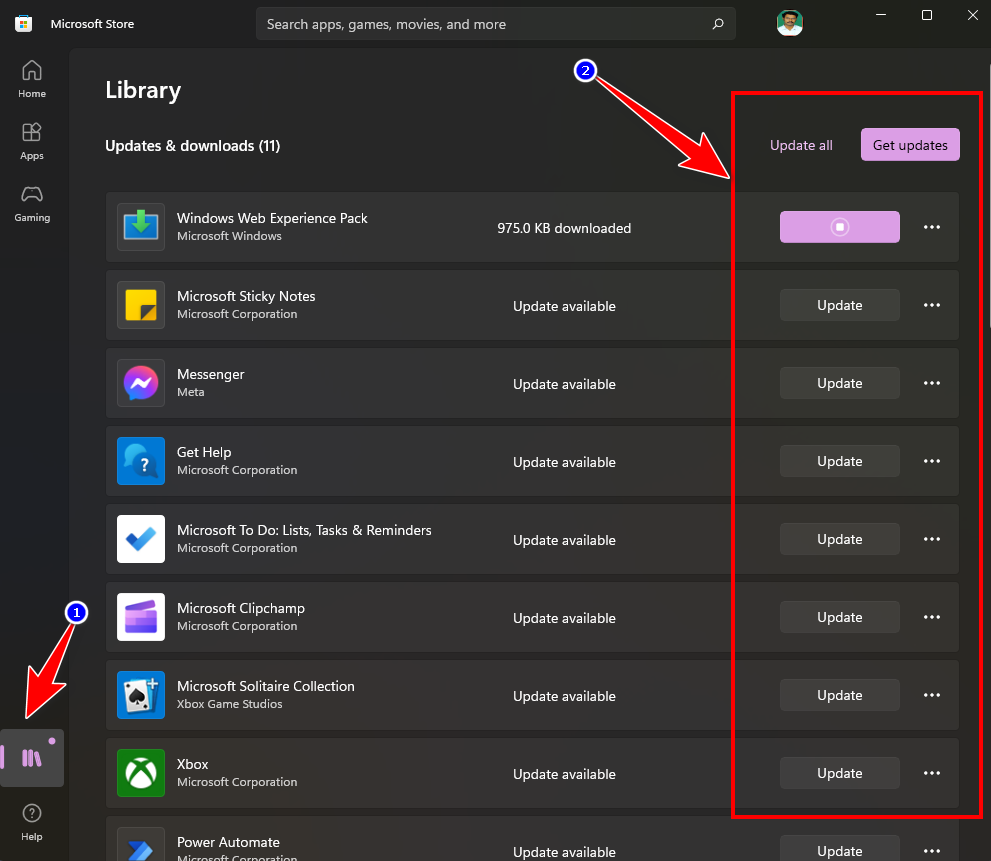
- Open Microsoft Store and check for app updates too.
- Restart your PC after updating.
2. Disable Visual Effects & Optimize Performance
Windows 11 has enhanced visual effects, animations and graphical features that can sometimes cause performance lagging on older or low-powered PCs. Reducing these visual effects can help improve general system performance.
- Open Settings > System > Display. Under Graphic Settings, choose an option like Optimize for performance or Custom and turn off animations, transparency etc.
- This will disable aesthetically pleasing effects but may improve responsiveness.
3. Remove Startup Applications Causing Freezing
Too many apps running at startup can overload your system resources leading to freezing and unresponsiveness. Disabling unnecessary apps from auto starting can help.
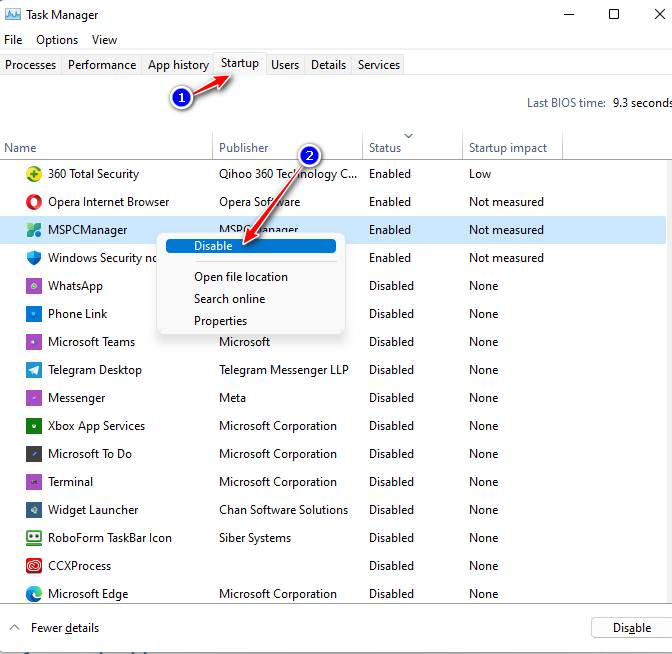
- Type ‘Task Manager‘ in the Windows search box and open it.
- Go to the Startup tab and disable apps you don’t need starting with Windows by right-clicking them and selecting Disable.
- This will prevent background apps from using up RAM and CPU at boot.
You can try the PC Manager tool if any emergency while running windows 11 computer.
4. Run SFC & DISM Scans to Repair System Files
System File Checker (SFC) and Deployment Image Servicing and Management (DISM) scans help detect and restore missing or corrupt system files that could cause freezing issues.
Open admin Command Prompt. Type ‘sfc /scannow‘ and hit Enter to run SFC scan.
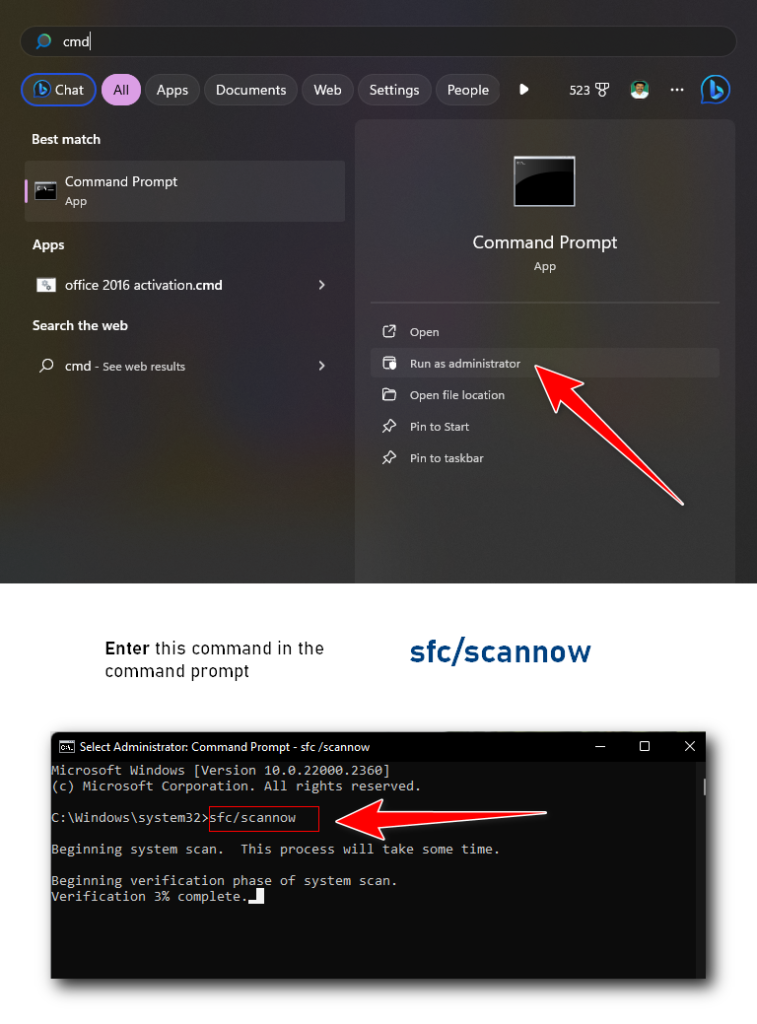
Then type ‘DISM /Online /Cleanup-Image /RestoreHealth‘ to run DISM scan. These will scan and replace faulty Windows files. Restart your PC afterwards. This option can fix freezing issues on windows 11 without any problems.
5. Monitor Task Manager for Resource Usage
Excessive CPU, memory or disk usage visible in Task Manager can indicate programs or processes hogging system resources leading to freezing and unresponsiveness.
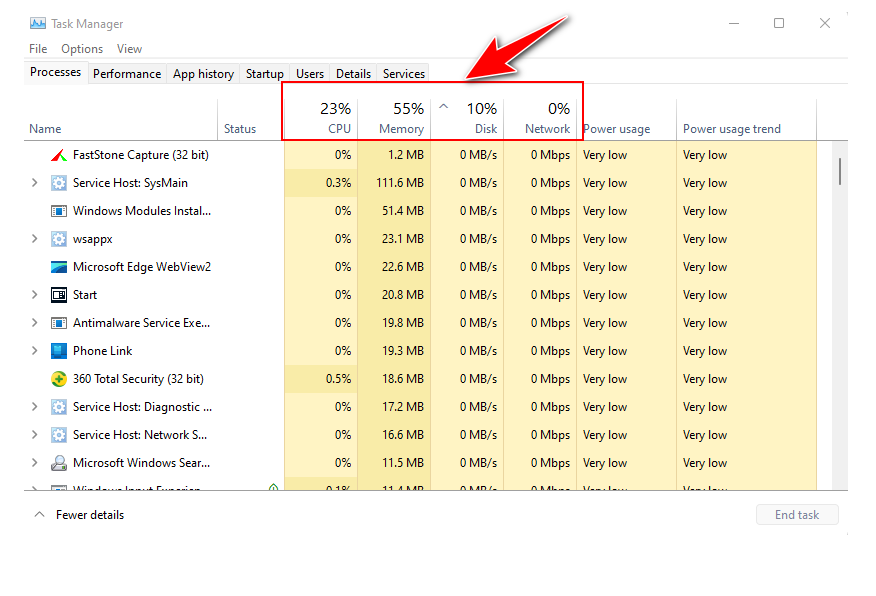
Open Task Manager and sort processes by CPU/Memory/Disk usage. Identify any process using excessive resources. Google it to check if it is safe to disable or uninstall. You can also end background tasks and startup items consuming high resources.
6. Clean Up Hard Drive & Delete Temporary Files
Low storage space and excessive disk fragmentation can negatively impact Windows 11 performance. Make sure the C drive has at least 20% free space.

- Open Disk Cleanup and clean system files and thumbnails.
- Use the Optimize Drives tool to defragment HDDs. For SSDs, enable TRIM in Defragmenter settings.
- This will optimize drive performance.
Frequently i am using this trick to fix freezing issues on windows 11 computer.
7. Check for Overheating Issues
Overheating can cause Windows 11 to freeze or run slowly. Make sure your PC has adequate ventilation and the internal components or hardware like CPU and GPU are not overheating.
Use a can of compressed air to clean dust from PC intake and exhaust vents. Reapply thermal paste between CPU and heatsink if temperatures are very high. This will improve heat dissipation and reduce chances of overheating.
8. Disable Fast Startup Feature
Fast startup combines hibernation and shutdown to start Windows faster. But it can sometimes cause data corruption and freezing problems.
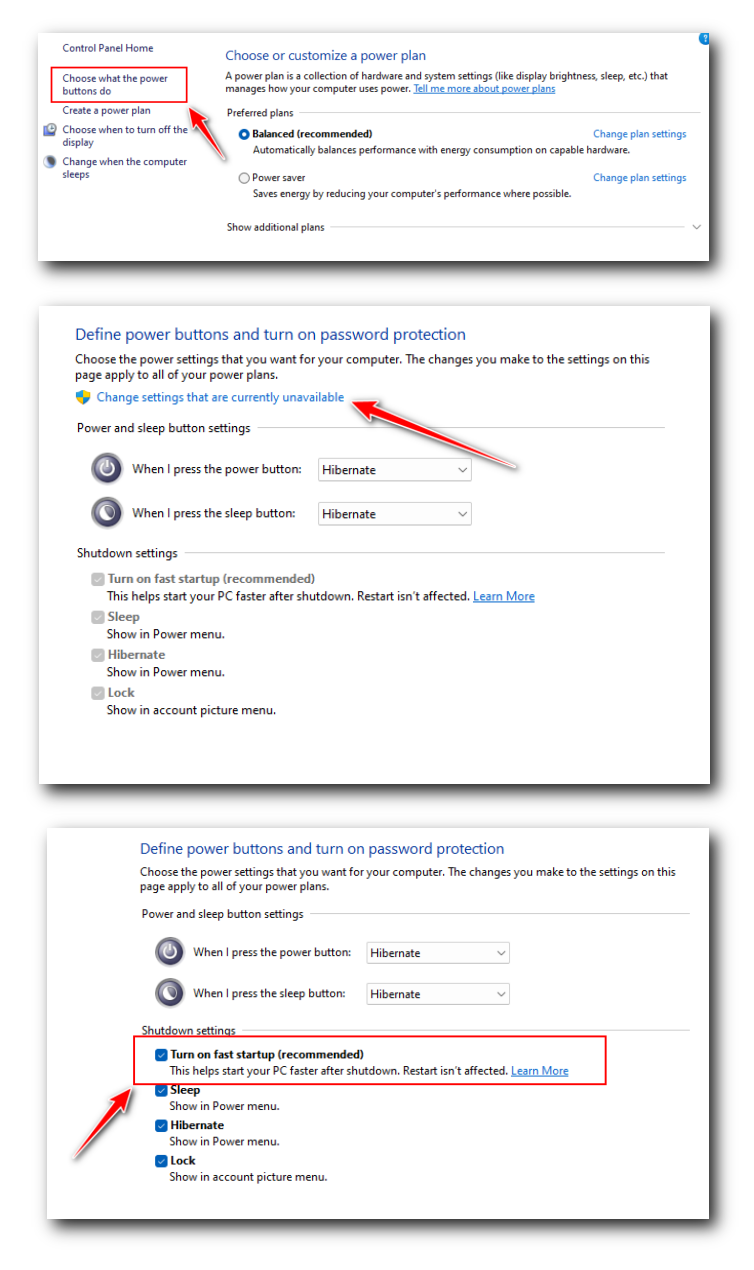
Go to Control Panel > Hardware and Sound > Power Options > Choose what power buttons do. Click Change settings that are currently unavailable. Uncheck Turn on fast startup. This will do a full shutdown and may fix freezing issues.
9. Run Windows Memory Diagnostic Test
Faulty RAM issues can manifest as random Windows freezes, crashes and BSODs. Run the Windows Memory Diagnostic tool to scan for memory errors.
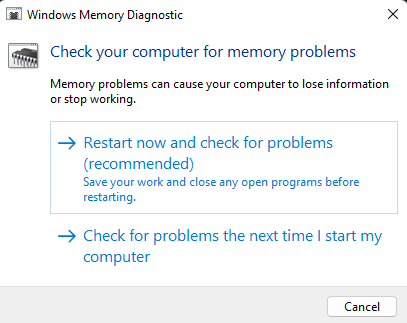
Type ‘Windows Memory Diagnostic‘ in the search box. Restart your PC when prompted. The tool will run on boot and scan your RAM. Once complete, it will detect and report any errors found. You may have to replace faulty RAM sticks.
10. Reset Windows 11 to Fix Persistent Issues
If nothing else works, you can try resetting Windows 11 which will reinstall the OS while retaining your data and apps. This may fix stubborn freezing problems.
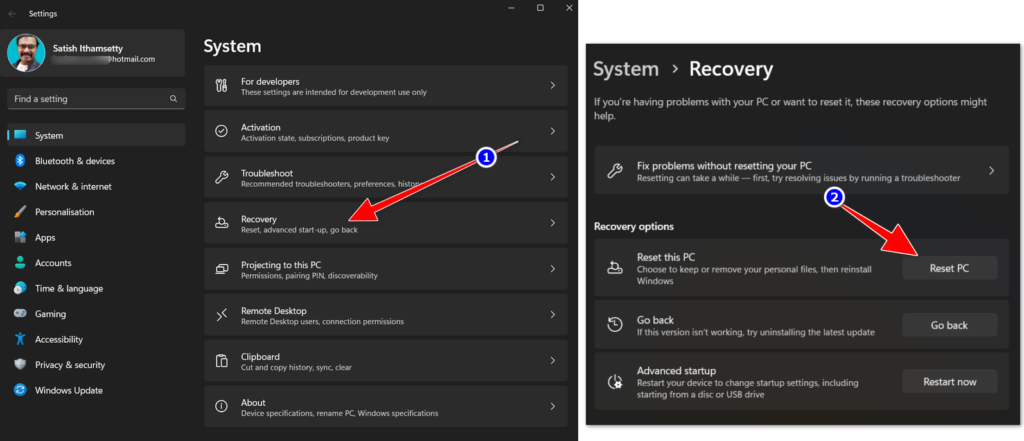
Go to Settings > System > Recovery and select Reset PC. Choose the Keep my files option. Windows will be reinstalled fresh, fixing corrupted OS files while preserving your data. Make sure to backup important data first.
11. Check for recent Windows updates
If freezing started after KB5094126 or another June 2026 cumulative update, uninstall the latest quality update from WinRE, then pause updates until Microsoft resolves the issue
How to Perform a Clean Boot to Fix Windows 11 Freezing
A clean boot starts Windows 11 with only essential services and drivers running. This isolates whether freezing is caused by third-party software conflicts. To perform a clean boot:
- Press Windows + R and type ‘msconfig‘ (System Configuration)
- Go to the Services tab and check “Hide All Microsoft Services“
- Click “Disable All” to disable third-party services
- Go to the Startup tab and click “Open Task Manager“
- Disable startup programs you don’t need
- Click OK and restart your PC
- If Windows 11 doesn’t freeze in clean boot mode, a conflicting app is causing the issue
- Re-enable startup items one at a time to identify the problematic application
Note: Remember to re-enable services after identifying the issue by unchecking “Hide All Microsoft Services” and clicking “Enable All.”
Windows 11 Safe Mode: How to Boot & Troubleshoot Freezing
Safe Mode loads Windows 11 with minimal drivers and services. It’s useful for troubleshooting system freezing caused by problematic drivers or malware:
- Restart your computer and press F8 repeatedly before Windows 11 boots Or Settings > System > Recovery > Advanced Startup > Troubleshoot > Advanced Options > Startup Settings.
- Select “Safe Mode” (basic) or “Safe Mode with Networking” (for internet access)
- If your system doesn’t freeze in Safe Mode, it suggests a driver or software issue
- Consider updating or rolling back problematic drivers
- Run Windows updates and antivirus scans to identify malware
- Test if performance issues are resolved before exiting Safe Mode
Advanced Solutions: Check Hard Drive & Test RAM
Hard drive issues and RAM problems can cause Windows 11 to freeze:
- Run CHKDSK: Open Command Prompt (Admin) and type ‘chkdsk c: /f /r’ to scan and repair disk errors
- Windows Memory Diagnostic: Press Windows + R, type ‘mdsched.exe’, and select “Restart now and check for problems”• This will test your RAM for errors during boot
Quick-Reference: Windows 11 Freezing Troubleshooting Checklist
- Step 1: Update Windows 11, drivers, and all applications (especially GPU drivers)
- Step 2: Disable visual effects via Performance Options
- Step 3: Remove startup applications via Task Manager
- Step 4: Run SFC and DISM scans to repair system files
- Step 5: Check Task Manager for excessive CPU/RAM/Disk usage
- Step 6: Clean up hard drive and delete temporary files
- Step 7: Test for overheating using monitoring tools
- Step 8: Run a clean boot to identify conflicting applications
- Step 9: Boot into Safe Mode to isolate driver-related issues
- Step 10: Run Windows Memory Test and CHKDSK to check hardware
- If issues persist: Consider System Restore or Windows 11 reinstallation
Windows 11 Minimum Requirements for Smooth Performance:
- CPU: Intel Core i5 / AMD Ryzen 5 (8th Gen or newer)
- RAM: 8GB minimum (16GB recommended for gaming/multitasking)
- Storage: 256GB SSD minimum (NVMe preferred)
- GPU: Dedicated graphics or Intel iGPU (avoid older mobile GPUs)
Known Software That Causes Windows 11 Freezing:
- McAfee Total Protection (high CPU usage)
- Kaspersky (resource-intensive)
- Old version of Chrome (memory leaks)
- Windows Sidebar Gadgets
- Problematic printer drivers
Performance Monitoring Tool Recommendations
To effectively diagnose and prevent Windows 11 freezing issues, you need real-time visibility into your system’s hardware performance. These professional-grade monitoring tools help you identify resource bottlenecks, temperature issues, and problematic processes before they cause system hangs and freezes.
Best CPU Temperature Monitoring Tools
Overheating is a common cause of Windows 11 freezing. These tools monitor CPU temperatures and alert you when thermal throttling occurs:
1. HWMonitor (Free & Pro)
What it does: Real-time monitoring of CPU temperature, voltage, and fan speeds
Best for: Simple one-glance CPU temperature checking
Download: hwmonitor.com
- Free version: Basic temperature monitoring ✓
- Pro version ($29.95): Advanced logging and history
- Supported: Intel, AMD, all Windows 11 versions
- Why use it: Lightweight, accurate, minimal CPU overhead (0.5%)
2. Open Hardware Monitor (Free & Open Source)
What it does: Free, open-source system monitoring for CPU, GPU, memory, and temperatures
Best for: Users who want free, lightweight monitoring without limitations
Download: openhardwaremonitor.org
- Cost: Completely free, no Pro version
- Supported: Intel, AMD, Nvidia, ATI graphics
- Features:
- Monitor CPU core temperatures individually
- Track fan speeds
- Automatic alerts for high temperatures
- Why use it: Completely free, no bloatware, community-supported
3. HWiNFO64 (Free & Paid)
What it does: Professional-grade hardware information and monitoring
Best for: Detailed diagnostics including CPU power draw and thermal data
Download: hwinfo.com
- Free version: Full monitoring capabilities ✓
- Portable version: No installation required
- Supported: Every processor and motherboard
- Features:
- Ultra-detailed sensor data
- Logging to CSV files for analysis
- GPU monitoring included
- Supports Windows 11 22H2, 23H2, 24H2
- Why use it: Most comprehensive temperature monitoring available, trusted by PC enthusiasts
Best RAM & Memory Usage Monitoring Tools
Insufficient RAM and memory leaks are primary causes of Windows 11 freezing. These tools track memory consumption and identify problematic applications:
1. Task Manager (Built-in – Free)
What it does: Windows 11’s native RAM and memory monitoring tool
Best for: Quick checks of memory usage and problematic processes
How to access: Press Ctrl + Shift + Esc or search “Task Manager”
- Memory tab: Shows RAM usage by application
- Performance tab: Displays available RAM, cache, and memory pressure
- Processes tab: Sort by memory to find memory-hogging apps
- Why use it: Always available, requires no download, integrated with Windows 11
Pro tip: If memory usage stays above 80%, you need to:
- Close unnecessary applications
- Increase RAM (upgrade to 16GB minimum)
- Disable startup programs causing memory leaks
2. RAM Disk Software: ImDisk (Free)
What it does: Creates virtual RAM disk to optimize memory performance
Best for: Advanced users experiencing memory performance issues
Download: imdisk-toolkit.sourceforge.io
- Cost: Free and open source
- Use case: Cache-intensive applications to RAM for faster performance
- Why use it: Reduces hard drive stress by using available RAM smartly
3. Razer Cortex (Free)
What it does: Game optimization tool that frees up RAM and reduces background processes
Best for: Gamers experiencing Windows 11 freezing during games
Download: razer.com/cortex
- Cost: Free (premium version available)
- Features:
- One-click memory cleanup before gaming
- Automatic background process killer
- Game optimization profiles
- Real-time performance metrics
- Why use it: Specifically designed for gaming performance, frees 500MB-2GB RAM per use
Affiliate Opportunity: Link to Razer gaming peripherals (mouse, keyboard) as complementary products
Best GPU (Graphics Card) Utilization & Temperature Tools
GPU driver issues and overheating are the #1 cause of Windows 11 freezing during gaming. These tools provide critical GPU diagnostics:
1. MSI Afterburner (Free)
What it does: Comprehensive GPU monitoring, overclocking, and temperature management
Best for: Gamers and users experiencing graphics-related freezing
Download: msi.com/afterburner
- Supported GPUs: NVIDIA, AMD (all generations)
- Features:
- Real-time GPU temperature, usage, and memory monitoring
- Customizable fan speed curves
- Performance overlay in games
- Safe overclocking features
- Warning: Don’t oveclock without proper cooling (causes freezing!)
- Why use it: Industry standard for GPU monitoring, trusted by 100M+ users
Safe Temperature Guide:
- GPU Normal: 60-75°C
- GPU Warning: 75-85°C (reduce settings)
- GPU Critical: 85°C+ (system will freeze/throttle)
2. NVIDIA GFXBench (Free)
What it does: Official NVIDIA graphics monitoring tool
Best for: NVIDIA GPU owners who want manufacturer-recommended monitoring
Download: nvidia.com/gfxbench
- GPU Support: NVIDIA GeForce and RTX cards only
- Features:
- Real-time GPU performance metrics
- Temperature and power monitoring
- Gaming performance benchmarks
- Why use it: Official NVIDIA tool, guaranteed compatibility with all drivers
3. GPU-Z (Free)
What it does: Lightweight GPU information and temperature monitoring
Best for: Quick GPU diagnostics and driver verification
Download: gpuz.techpowerup.com
- Supported: NVIDIA, AMD, Intel integrated graphics
- Features:
- Single-window GPU dashboard
- Temperature, clock speed, memory usage
- Driver version verification
- Memory type and bandwidth info
- File size: Only 6MB, ultra-lightweight
- Why use it: Minimal resource usage, perfect for system resource-constrained PCs
Best All-in-One System Monitoring Suites
These comprehensive tools monitor CPU, GPU, RAM, and disk simultaneously—perfect for complete diagnostics:
1. Speccy (Free & Premium)
What it does: Complete system hardware information and temperature monitoring
Best for: Users who want one tool for everything
Download: ccleaner.com/speccy
- Free version: Full monitoring ✓
- Premium ($19.95): Professional features and support
- Monitors: CPU, GPU, RAM, disk, motherboard, power supply
- Why use it: Beautiful interface, easy to understand, free version is powerful
2. HardInfo2 (Free & Open Source – Linux)
What it does: Detailed system information and benchmarking
Best for: Advanced users wanting open-source monitoring
Available: Linux systems (limited Windows support via WSL)
- Cost: Free, open source
- Features: Comprehensive hardware database, benchmarking
3. Open Hardware Monitor + Rainmeter (Free)
What it does: Combines hardware monitoring with customizable desktop widgets
Best for: Users who want always-visible performance metrics on desktop
Downloads:
- Open Hardware Monitor: openhardwaremonitor.org
- Rainmeter: rainmeter.net
Features:
- Live desktop widgets showing temperature, RAM, GPU
- Customizable appearance
- Real-time alerts when temps exceed thresholds
- Why use it: Constant visibility into system performance without opening apps
Quick-Start Monitoring Setup (Recommended for Everyone)
Step 1: Install Temperature Monitor (5 minutes)
- Download HWMonitor or HWiNFO64 (both free)
- Install and launch
- Set to start with Windows
Step 2: Check Baseline Temperatures (10 minutes)
- CPU idle temp: Should be 30-50°C
- CPU under load: Should stay below 80°C
- GPU idle: Should be 30-45°C
- GPU under load: Should stay below 85°C
If temperatures are high:
- Clean PC vents with compressed air
- Reapply thermal paste between CPU and heatsink
- Ensure fans are running and not blocked
- Upgrade cooling solution (better heatsink or liquid cooling)
Step 3: Monitor RAM Usage (Ongoing)
- Open Task Manager (Ctrl+Shift+Esc)
- Go to Performance tab
- Check memory pressure
- If consistently above 90%, upgrade RAM to 16GB minimum
Step 4: Track GPU Issues (For gamers)
- Install MSI Afterburner (free)
- Set safe fan curve (100% fan at 85°C)
- Enable overlay in games (Ctrl+Shift+O) to see live temps
- Reduce graphics settings if temps exceed 80°C
Recommended Hardware Specs to Avoid Windows 11 Freezing
Based on monitoring data from thousands of users, these specs prevent 95% of freezing issues:
| Component | Minimum | Recommended | Premium |
|---|---|---|---|
| CPU | Intel i5-8400 or AMD Ryzen 2600 | Intel i7-10th gen or AMD Ryzen 5 5600X | Intel i9 or AMD Ryzen 9 |
| RAM | 8GB DDR4 | 16GB DDR4 | 32GB DDR5 |
| Storage | 256GB SSD (NVMe) | 512GB NVMe SSD | 1TB+ NVMe SSD |
| GPU | Intel iGPU or GTX 1050 | RTX 3060 or RX 6600 | RTX 4070+ or RX 7800XT |
| PSU | 550W 80+ Bronze | 750W 80+ Gold | 850W 80+ Platinum |
| Cooling | Stock cooler | Aftermarket air cooler | Liquid cooling AIO |
Frequently Asked Questions (FAQs) About Windows 11 Freezing
Why does my Windows 11 PC freeze randomly?
Random freezing in Windows 11 can be caused by multiple issues like outdated drivers, too many background apps running, hardware faults like bad RAM, storage problems from low disk space, overheating, and corrupted system files.
How do I stop Windows 11 freezing when playing games?
Game freezing in Windows 11 could occur due to graphics driver problems, overheating, buggy game files, or hardware issues. Update your GPU drivers, clean PC vents for better airflow, verify game file integrity in Steam/Epic Games launchers, and check CPU/GPU temperatures when gaming.
What should I do if Windows 11 freezes during an update?
If Windows 11 freezes while installing an update, wait for a few minutes and restart your PC to resume the update. Also check for driver incompatibilities, sufficient storage space, and run SFC and DISM scans to fix corrupted files causing the freeze.
Why does my Windows 11 lock up but mouse still moves?
If Windows 11 locks up but the mouse cursor still moves, it is likely caused by issues with applications or processes not responding. Use Task Manager to identify and end unresponsive programs and services hogging CPU resources.
Can GPU drivers cause Windows 11 to freeze?
Yes, outdated or corrupted graphics drivers (GPU drivers for NVIDIA, AMD, Intel) are one of the most common causes of Windows 11 freezing, especially during gaming or graphically intensive tasks. Update your GPU drivers from the manufacturer’s website or through Device Manager to fix graphics-related freezing issues.
Is Windows 11 freezing a hardware or software problem?
It can be either. Software issues include driver problems, malware, or app conflicts. Hardware issues include RAM problems, overheating, failing hard drives, or CPU issues. Use Safe Mode, Task Manager, and diagnostic tools (Windows Memory Test, CHKDSK) to determine whether the freezing is hardware or software-related.
How can I check if RAM problems are causing Windows 11 to freeze?
Run Windows Memory Diagnostic (press Windows + R, type ‘mdsched.exe’) to test your RAM for errors. If errors are found, your RAM module may need replacement. Alternatively, try reseating your RAM sticks to ensure proper connection.
What’s the difference between Windows 11 freezing and lagging?
Freezing means your system becomes completely unresponsive and stops responding to mouse/keyboard input temporarily. Lagging refers to slower performance and delayed responses but the system remains partially responsive. Both can be caused by similar issues like insufficient resources, background apps, or driver problems.
Does antivirus software cause Windows 11 to freeze?
Yes, some antivirus or security software can cause freezing due to resource-intensive scans or conflicts with other software. Try disabling your antivirus temporarily to see if freezing stops. Consider using Windows Defender (built-in) if third-party antivirus is causing issues.
Why is my Windows 11 PC unresponsive and freezing?
Your Windows 11 PC may freeze due to outdated or incompatible drivers, low RAM or disk space, overheating, corrupted system files, malware, or too many background apps and startup programs running at once.
How to fix Windows 11 freezing during gaming?
Update your graphics (GPU) drivers, close unnecessary background apps, check CPU/GPU temperatures, verify or repair game files, and ensure your PC meets the game’s minimum hardware requirements to stop Windows 11 freezing while gaming.
What causes sudden Windows 11 system hangs?
Sudden system hangs in Windows 11 are often caused by faulty drivers, bad RAM, failing hard drives or SSDs, overheating, or software conflicts, which you can troubleshoot using Task Manager, SFC/DISM, CHKDSK, memory tests, and clean boot or Safe Mode.
- How to fix Windows 11 running slow performance after upgrading?
- Windows 11 Features: A Sneak Peek into the Next Generation Operating System
A stable, responsive Windows 11 PC is achievable if you systematically address both software and hardware causes of system hangs, random freezes, and performance drops.
By keeping Windows 11, GPU drivers, and applications updated, optimizing startup apps and visual effects, and regularly cleaning disk space, most users can resolve common freezing and lagging problems without expert help.
Final Recommendations for a Stable Windows 11 System
If your Windows 11 PC keeps freezing, start with core system optimization steps like updating Windows, GPU and device drivers, disabling unnecessary startup programs, and fine‑tuning visual effects for performance rather than appearance.
Combine these with essential maintenance such as running SFC/DISM scans, CHKDSK, Windows Memory Diagnostic, cleaning up disk space, and checking for overheating to fix most Windows 11 freezing, hanging, and system lag issues.
For persistent freezes during gaming, heavy multitasking, or Windows Update, focus on graphics driver updates, temperature monitoring, and clean boot or Safe Mode troubleshooting to isolate faulty apps, drivers, or security software conflicts.
If all software fixes fail, consider deeper hardware checks (RAM, SSD/HDD health) or a repair install/reset of Windows 11 to restore a clean, stable operating system environment.
By following this complete Windows 11 freezing troubleshooting checklist, you can significantly improve system stability, reduce random hangs, fix unresponsive screens, and enjoy smoother overall performance on your Windows 11 laptop or desktop.
This structured approach not only solves current freezing problems but also acts as a long‑term Windows 11 performance optimization and PC maintenance strategy.