Windows 11 26H2: What’s New, Features, Release Date & How to Install
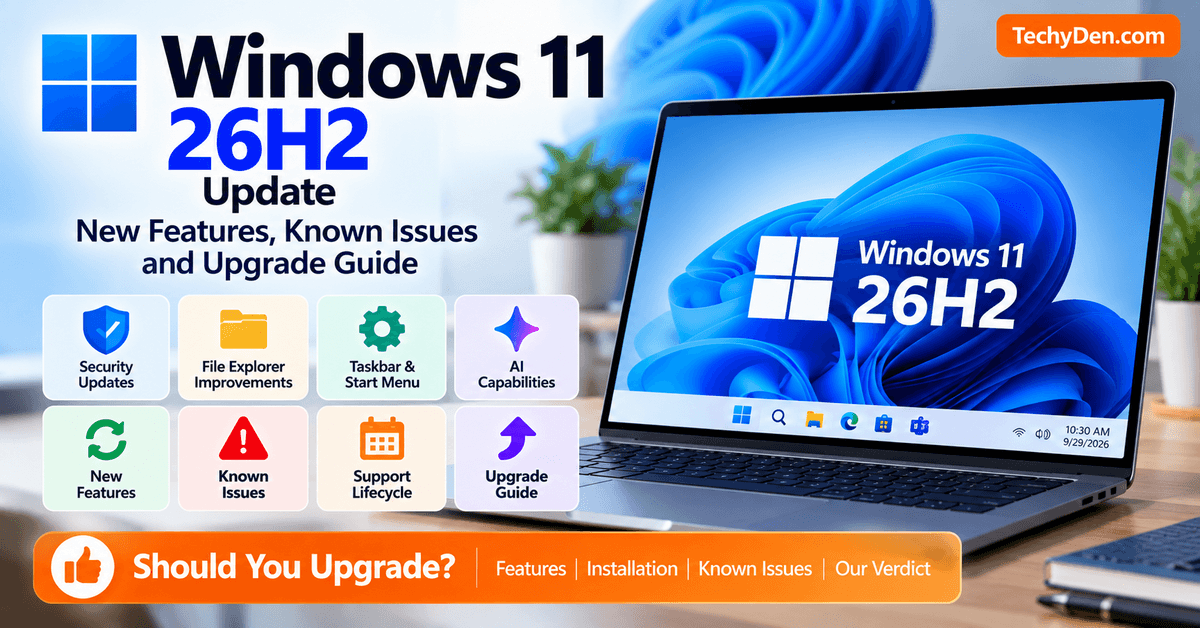
Windows 11 26H2, also known as the Windows 11 2026 Update, is Microsoft’s latest annual feature update for Windows 11. Microsoft announced its availability on September 29, 2026, and the update is now rolling out gradually to eligible PCs running Windows 11 24H2 and 25H2.
Unlike a traditional major Windows upgrade, Windows 11 26H2 uses Microsoft’s modern enablement package technology on eligible devices. This means the upgrade can involve a relatively small download and a quick restart because much of the underlying technology is already present through previous Windows updates.
Windows 11 26H2 is particularly important for users who want the latest Windows features, security improvements, and a longer support lifecycle. Microsoft lists October 10, 2028, as the end of updates for Home and Pro editions.
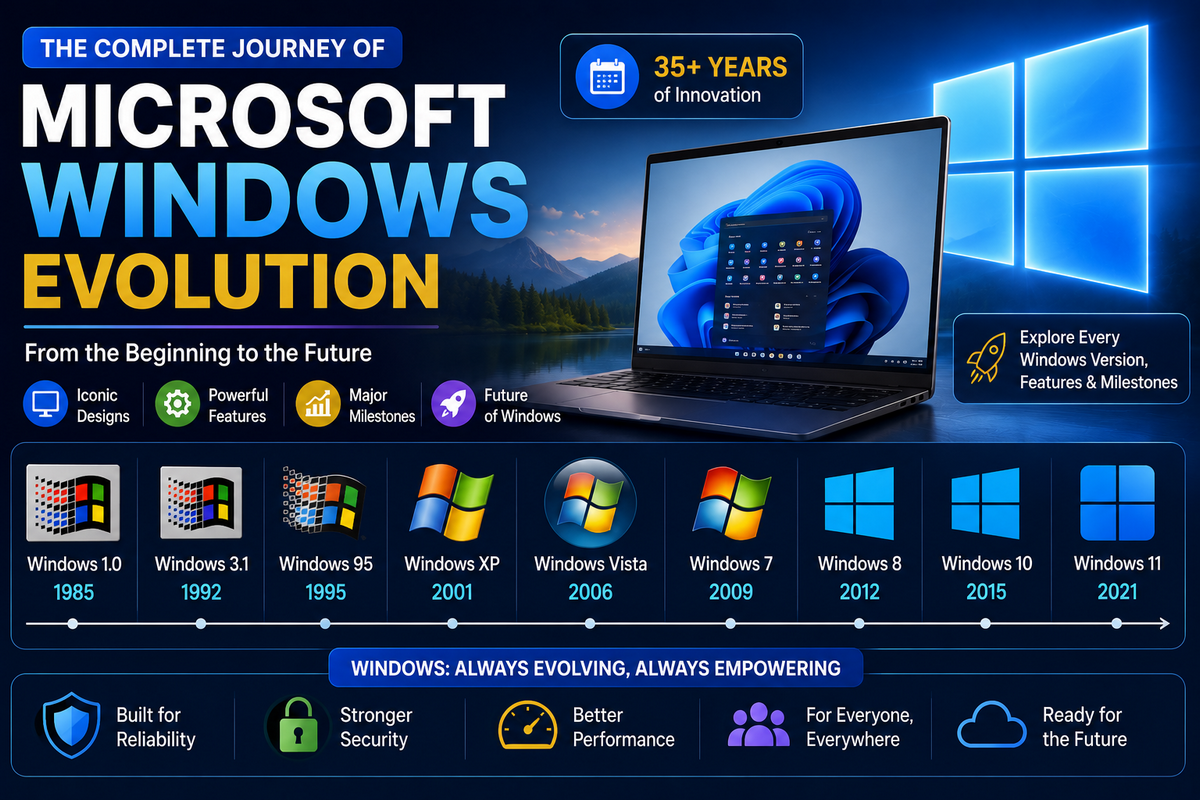
Windows 11 26H2 is part of Microsoft’s ongoing Windows feature-release cycle, building on the changes introduced in earlier versions of the operating system; for a broader look at how Windows has evolved over the years, see our Microsoft Windows Evolution guide.
If you want to compare these changes with the latest monthly release, see our guide to the Windows 11 September 2026 Update.
In this guide, we’ll explain what Windows 11 26H2 is, its release date, new features, system requirements, supported devices, known issues, how to install the update, and whether you should upgrade. For most eligible users, upgrading when the update is offered through Windows Update is a sensible choice, provided there are no compatibility issues affecting your PC.
What Is Windows 11 26H2?
Windows 11 26H2 is Microsoft’s latest annual feature update for Windows 11, officially known as the Windows 11 2026 Update. The “26H2” naming follows Microsoft’s version convention: 26 refers to the 2026 release year, while H2 indicates the second half of the year. Microsoft announced the update on September 29, 2026.
Windows 11 26H2 builds on the same underlying servicing foundation used by Windows 11 24H2 and 25H2. This shared foundation is important because eligible PCs running either 24H2 or 25H2 can move to 26H2 through a relatively small enablement package (eKB) rather than downloading and installing an entirely new operating system. Many of the components and improvements associated with 26H2 have already been delivered through previous monthly Windows updates. The enablement package activates the appropriate features and moves the device to the new release.
In most eligible cases, installing 26H2 requires only a small download and a single restart, making the transition faster and less disruptive than a traditional full Windows upgrade. Microsoft is also using a controlled, phased rollout, so the update may not appear on every compatible PC immediately.
Windows 11 26H2 Quick Facts
| Detail | Information |
|---|---|
| Version | Windows 11 26H2 |
| Release | September 29, 2026 |
| Also known as | Windows 11 2026 Update |
| OS build | 26300 branch |
| Previous versions | Windows 11 25H2 / 24H2 |
| Upgrade method | Enablement package for eligible systems |
| Rollout | Controlled/phased |
| Home/Pro support | Through October 10, 2028 |
Microsoft’s current release information identifies 26H2 as OS build 26300, with the September 29 general-availability release listed as build 26300.9550 (KB5124010).
SEO note: This section naturally targets searches such as “Windows 11 26H2 version,” “Windows 11 26H2 build,” “what is Windows 11 26H2,” and “Windows 11 2026 Update.”
Windows 11 26H2 Release Date and Availability
Microsoft officially announced the Windows 11 26H2 update on September 29, 2026, making it generally available as the Windows 11 2026 Update. However, Microsoft is not making the update available to every compatible PC at the same time. Instead, 26H2 is being released through a controlled, phased rollout that will expand over the following months.
The update is currently available to eligible devices running Windows 11 24H2 or 25H2. Microsoft uses device compatibility and quality data during the rollout, so two PCs with similar hardware may receive the update at different times. If your device is eligible and you have enabled “Get the latest updates as soon as they’re available” under Windows Update, you may see 26H2 earlier.
Microsoft may also place a safeguard hold on a device when it identifies a known compatibility problem that could cause installation failures, rollbacks, loss of functionality, or other significant issues. The update becomes available once the underlying issue has been resolved and the hold is removed.
When Did Windows 11 26H2 Come Out?
Windows 11 26H2 was officially released on September 29, 2026. Microsoft lists September 29 as the general availability date for version 26H2.
Is Windows 11 26H2 Available Now?
Yes. Windows 11 26H2 is currently available for eligible Windows 11 24H2 and 25H2 devices, but the rollout is phased. Microsoft says availability will continue expanding over the next few months.
To check whether it’s available for your PC, go to:
Settings → Windows Update
You can also enable Get the latest updates as soon as they’re available to be among the first users offered the update. Once your device is eligible, Windows Update should provide the option to download and install 26H2.
Why Can’t I See Windows 11 26H2 Yet?
If Windows 11 26H2 isn’t showing on your PC, it doesn’t necessarily mean there’s a problem. Possible reasons include:
- Your device isn’t currently eligible for the update.
- Microsoft hasn’t included your device in the current rollout phase.
- A compatibility issue has been detected.
- A safeguard hold is preventing the update from being offered.
- Pending Windows updates may need to be installed first.
- Microsoft may still be collecting rollout data before expanding availability to your device.
If a safeguard hold is responsible, Microsoft recommends waiting rather than attempting to bypass the protection. Safeguard holds are specifically designed to prevent devices with known compatibility problems from receiving a feature update until a suitable fix has been validated.
TechyDen tip: If 26H2 doesn’t appear yet, keep Windows Update current and check again later rather than forcing the installation. A delayed update can be preferable to encountering a compatibility problem that Microsoft has already identified.
What’s New in Windows 11 26H2?
Windows 11 26H2 brings the latest set of Windows improvements under Microsoft’s annual 2026 feature release. However, there is an important detail to understand before looking at the feature list: not everything associated with Windows 11 26H2 was introduced on September 29, 2026.
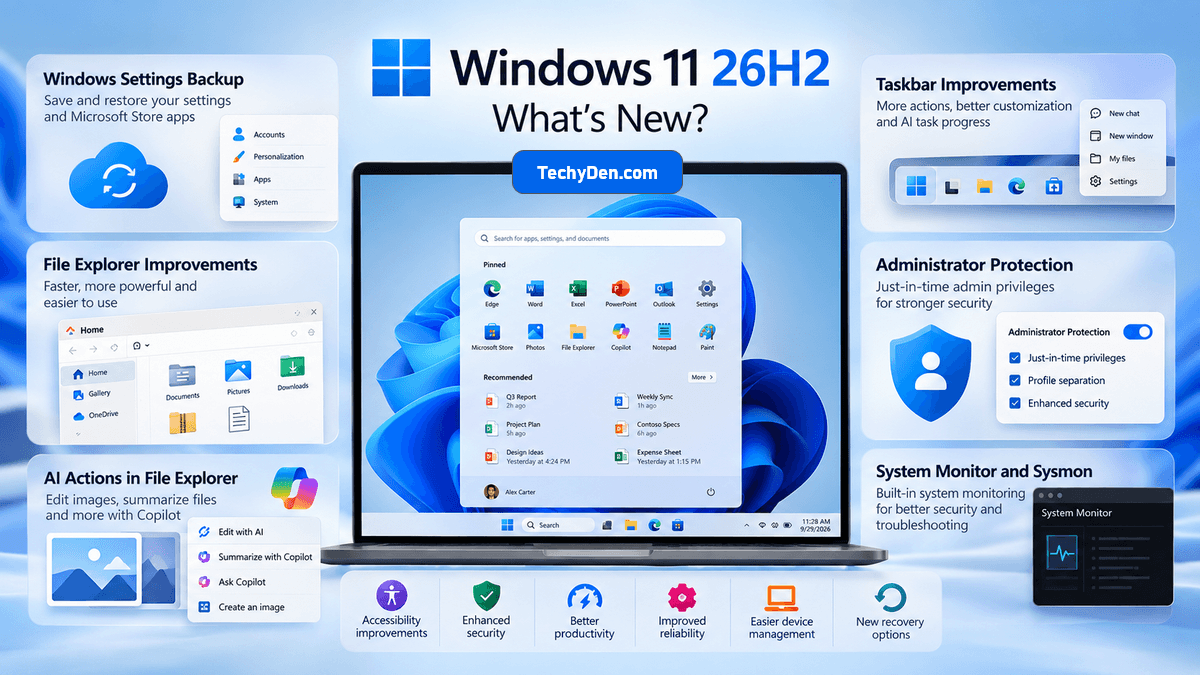
Because Windows 11 24H2, 25H2, and 26H2 share the same servicing foundation, Microsoft has been delivering many new features and improvements through monthly updates throughout the year. The 26H2 release activates, consolidates, or enables selected capabilities as part of the new annual release. Some features may therefore already be available on a PC before it officially moves to 26H2.
Microsoft also distinguishes between features available broadly and capabilities aimed at commercial, managed, or Copilot+ PCs. Some AI features require a Microsoft 365 subscription or Copilot license, while security and management features may need to be enabled by an administrator. So, your experience with Windows 11 26H2 can vary depending on your PC, Windows edition, account type, hardware, and organizational policies.
Here are the most important Windows 11 26H2 improvements to know.
1. Windows Settings Backup
One of the notable changes is Windows Settings Backup, which is enabled by default for eligible commercial devices unless an administrator has already configured a different policy. It can preserve supported Windows settings and a list of Microsoft Store apps, helping organizations restore a user’s environment during PC replacement, recovery, refreshes, upgrades, or migrations.
The backup system can preserve various supported preferences, including certain File Explorer, desktop, and other Windows settings. Microsoft maintains a detailed catalog of which settings are supported.
This feature is particularly useful for businesses and organizations managing multiple Windows PCs. If an employee receives a replacement computer, restoring supported settings and the Microsoft Store app list can reduce the amount of manual configuration required.
It’s worth noting that this isn’t simply a consumer “backup everything” feature. Restore behavior remains administrator-controlled in managed environments, and existing administrator policies continue to be respected.
2. File Explorer Improvements
Windows 11 26H2 includes several File Explorer productivity and usability improvements. Microsoft says some of these improvements were previously delivered through monthly updates and controlled through temporary commercial controls before being enabled as part of 26H2.
File Explorer can now work with additional archive formats, including
uucpioxar- NuGet packages (
.nupkg)
Microsoft has also improved File Explorer’s responsiveness and navigation. For example, File Explorer Home launches faster, while View and Sort preferences can be preserved when applications open folders such as Downloads or Documents directly. Users can also use voice typing when renaming files.
These aren’t dramatic visual changes, but they can make everyday file management more convenient, particularly for users who frequently work with compressed archives, development packages, documents, and large collections of files.
3. AI Actions in File Explorer
AI integration is another important part of the Windows 11 26H2 experience. AI Actions in File Explorer can provide actions for supported files, including image editing and document summarization.
For supported images, AI actions can provide options for tasks such as editing or modifying the image. Microsoft has also integrated AI-powered document functionality into File Explorer.
One particularly useful feature is the Summarize action in Copilot. It can summarize supported files stored in OneDrive and SharePoint without requiring the user to open the files first.
However, there is an important licensing distinction here.
The availability of AI features does not mean every Windows 11 26H2 user automatically gets every Copilot capability. Microsoft’s documentation says the Microsoft 365 AI summarization action requires an active Microsoft 365 subscription and Copilot license. Work and school users may also see additional actions such as Open file location and Ask Copilot when interacting with files in File Explorer Home.
So, when evaluating Windows 11 26H2, it’s better to think of AI Actions as a collection of capabilities whose availability depends on the file type, account, hardware, Microsoft services, and licensing rather than a single universal AI feature.
4. Taskbar Improvements
Windows 11 26H2 also expands what users can do from the taskbar.
One improvement is app-specific taskbar actions, allowing users to access common actions directly from taskbar experiences. Microsoft identifies these as capabilities enabled by default for eligible commercial devices.
Windows 11 also provides additional taskbar customization, including options to position the taskbar at the bottom, top, left, or right of the screen. A smaller taskbar option can also reduce icon size and taskbar height.
Another interesting addition is the ability to monitor supported AI-agent tasks from the taskbar. Microsoft identifies Researcher in Microsoft Copilot as the first supported experience. Users can see progress and receive a notification when the AI task is complete.
This is an important example of Microsoft’s broader shift from Windows simply launching applications to becoming an interface for AI-assisted and agentic workflows.
5. Administrator Protection
For security-conscious users and IT administrators, Administrator Protection is one of the more significant Windows 11 26H2 capabilities.
The feature is designed to reduce the security risks associated with persistent administrator privileges. Instead of giving administrative tasks unrestricted, always-available administrator rights, Administrator Protection uses just-in-time privileges when elevated permissions are required. It also introduces profile separation to help harden Windows against elevation-of-privilege attacks.
Administrator Protection is off by default and can be enabled through management tools such as Microsoft Intune or Group Policy.
This feature is particularly relevant to:
- Business users
- IT administrators
- Security teams
- Managed Windows environments
- Power users concerned about privilege escalation
For an ordinary home user, it may not be something you need to configure immediately. For organizations managing many Windows devices, however, it can become an important part of a broader least-privilege security strategy.
6. System Monitor and Sysmon
Another significant security improvement is that System Monitor (Sysmon) is now built into Windows.
Sysmon records system events that can be useful for threat detection, security monitoring, investigation, and troubleshooting. It supports custom configuration files so administrators can control which events they want to monitor, while captured events are made available through Windows Event Log for security tools and other applications.
The built-in Sysmon capability is off by default, so simply installing Windows 11 26H2 does not mean Sysmon is automatically running and collecting events. Administrators need to enable and configure it when they want to use it.
For most casual Windows users, this feature may operate entirely in the background unless enabled. For security professionals and IT administrators, native Sysmon integration can simplify deployment and provide another useful source of telemetry for investigating suspicious activity.
7. Accessibility and Other Improvements
Windows 11 26H2 also includes a broader collection of accessibility, security, reliability, recovery, and management improvements.
- Accessibility: Microsoft has improved tools such as Magnifier and Narrator. Voice Access also supports more natural-language commands on supported Copilot+ PCs and adds additional language support.
- Security: In addition to Administrator Protection and built-in Sysmon, Windows 11 26H2 adds or expands capabilities around Smart App Control, passkey credential managers, and Windows Hello Enhanced Sign-in Security on compatible hardware.
- Recovery: Windows settings backup and restore can help with device migration, while Point-in-time restore provides an option to roll a PC back to a recent automatic restore point. Microsoft also provides Quick Machine Recovery capabilities for supported recovery scenarios.
- Bluetooth and USB reliability: Microsoft has improved Bluetooth reliability and performance, including Bluetooth LE Audio, voice calls, microphone mute synchronization, and reconnection after hibernation. USB improvements also target display reliability through USB4 docks and hubs, particularly after standby.
- Task Manager: Users and administrators with PCs containing an NPU can get additional visibility into NPU and NPU memory usage through optional Task Manager columns.
Overall, Windows 11 26H2 is less about one dramatic visual redesign and more about bringing together Microsoft’s continuous stream of Windows improvements across AI, security, File Explorer, taskbar, accessibility, recovery, and device management into the 2026 annual release.
Windows 11 26H2 vs 25H2: What’s Changed?
Windows 11 25H2 and 26H2 use Microsoft’s modern servicing approach, so the transition between them is different from the traditional full-version Windows upgrades of the past. Microsoft says Windows 11 26H2 builds on the same servicing foundation as 25H2 and 24H2, allowing eligible devices to upgrade through a relatively small enablement package rather than reinstalling the entire operating system.
Windows 11 25H2 was released on September 30, 2025, while Windows 11 26H2 became available on September 29, 2026. Both releases use an enablement-package model for supported upgrade paths.
The biggest difference is therefore not a completely redesigned Windows experience. Instead, 26H2 represents the next annual Windows 11 feature release, bringing together newer features and improvements delivered through Microsoft’s ongoing monthly servicing process and establishing a new support lifecycle. Microsoft specifically notes that many improvements associated with 26H2 were already delivered through monthly updates before being enabled or consolidated into the annual release.
Windows 11 26H2 vs 25H2 Comparison Table
| Feature | Windows 11 25H2 | Windows 11 26H2 |
|---|---|---|
| Release year | 2025 | 2026 |
| Release date | September 30, 2025 | September 29, 2026 |
| OS build branch | 26200 | 26300 |
| Servicing model | Enablement package | Enablement package |
| Feature consolidation | Yes | Yes |
| Latest feature set | 25H2 | 26H2 |
| Home/Pro support | Through October 13, 2027 | Through October 10, 2028 |
Microsoft’s current release information lists 25H2 as build 26200 and 26H2 as build 26300. For Home and Pro editions, Microsoft lists October 13, 2027, as the end of updates for 25H2 and October 10, 2028, for 26H2.
Should You Upgrade From 25H2 to 26H2?
For most eligible Windows 11 25H2 users, upgrading to 26H2 is a sensible choice, but there is no need to treat it as an emergency upgrade.
The most obvious benefit is that 26H2 is the newer feature release. It includes the latest Windows capabilities and continues Microsoft’s development around AI, File Explorer, taskbar functionality, security, accessibility, recovery and device management. Some of these capabilities were introduced through earlier monthly updates, while 26H2 enables or consolidates them as part of the new release.
The second major advantage is the longer support lifecycle. Windows 11 25H2 Home and Pro editions receive updates through October 13, 2027, while 26H2 is supported through October 10, 2028. Moving to 26H2 therefore gives you roughly another year of support compared with remaining on 25H2.
However, compatibility should still be considered. Home users can generally wait until Windows Update offers 26H2 normally, while businesses should test important applications, drivers, peripherals and management tools before deploying the update broadly.
If your PC is working reliably on 25H2 and 26H2 has not yet been offered, there is no need to force the upgrade. Microsoft uses controlled availability and compatibility safeguards to reduce problems during the rollout.
TechyDen recommendation: If you’re already running Windows 11 25H2, upgrade to 26H2 when Windows Update offers it and your hardware and software are compatible. The newer feature set and longer support lifecycle make 26H2 the better long-term choice.
- Windows 11 26H2 vs 25H2: What’s Changed?
Windows 11 26H2 vs 24H2
If your PC is still running Windows 11 24H2, the move to Windows 11 26H2 deserves more attention than a routine feature update. Windows 11 24H2 was released in 2024, while 26H2 is the newer 2026 annual feature update with a longer support lifecycle and a newer set of Windows features.
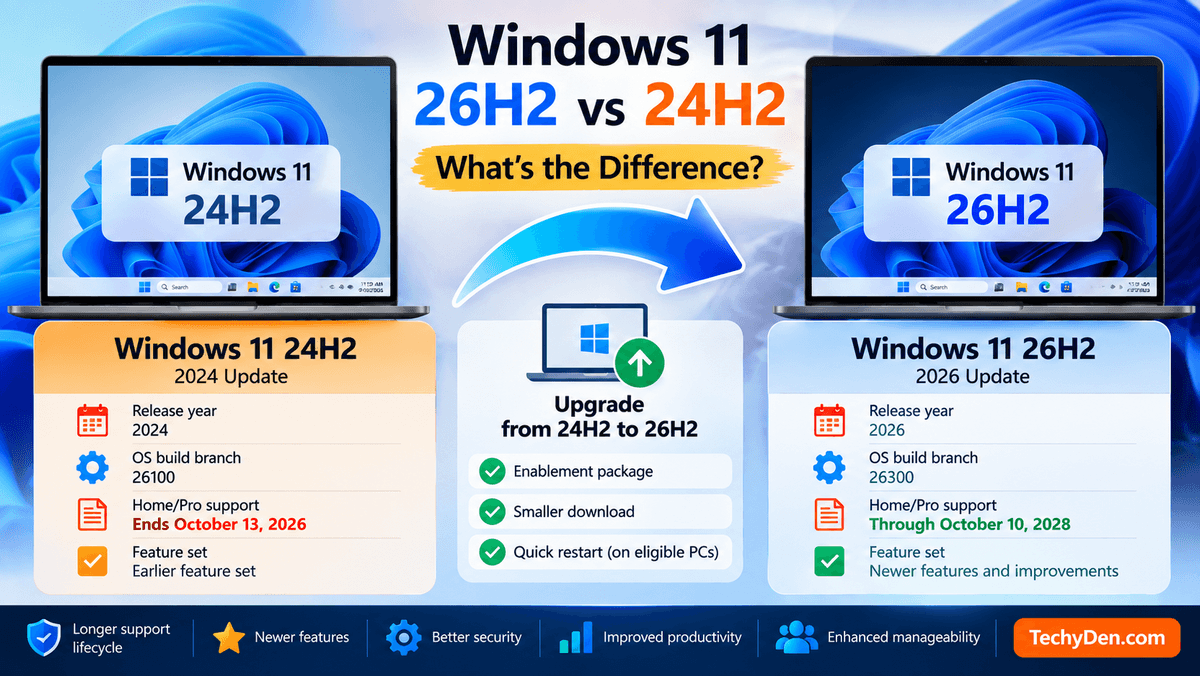
The upgrade path is also relatively straightforward for eligible systems. Microsoft’s modern servicing model allows supported Windows 11 versions to move to newer releases using an enablement package in applicable scenarios, rather than requiring every device to go through a completely different full operating-system installation. Windows 11 26H2 builds on the same servicing foundation used by 24H2 and 25H2.
The biggest difference for 24H2 users, however, is support lifecycle. Windows 11 24H2 Home and Pro editions reach end of support in October 2026, while Windows 11 26H2 Home and Pro are supported until October 10, 2028. Here is the Windows 11 24H2 End of Support details.
| Feature | Windows 11 24H2 | Windows 11 26H2 |
|---|---|---|
| Release year | 2024 | 2026 |
| Feature update | 2024 Update | 2026 Update |
| OS build branch | 26100 | 26300 |
| Home/Pro support | Ends October 2026 | Ends October 10, 2028 |
| Newer Windows features | Earlier feature set | Newer feature set |
| Recommended for long-term use | Nearing end of support | Yes, on compatible PCs |
Windows 11 26H2 also introduces or activates newer improvements across File Explorer, Windows Settings Backup, Taskbar, AI Actions, Administrator Protection, System Monitor/Sysmon, accessibility, security, recovery, and device management. Some of these capabilities were delivered through Windows servicing updates before the 26H2 release and are subsequently enabled or consolidated as part of the new feature release.
Windows 11 24H2 End of Support
For Windows 11 24H2 Home and Pro users, October 2026 is the important deadline. Microsoft lists October 13, 2026 as the end-of-support date for these editions.
After that date, continuing to use 24H2 means missing the normal security and quality updates provided during the supported lifecycle. If your PC is compatible with 26H2, upgrading before the deadline is the sensible approach.
Should 24H2 Users Upgrade to 26H2?
Yes, most eligible Home and Pro users should plan to upgrade to Windows 11 26H2. There is little reason to remain on 24H2 as its support deadline approaches, particularly when 26H2 provides a substantially longer support window.
Before upgrading, check your important applications, drivers, peripherals, and available storage. If Windows Update offers 26H2 to your PC, that is generally a good indication that the device has passed Microsoft’s applicable compatibility checks. If the update isn’t offered yet, don’t force the installation; a compatibility safeguard or phased rollout may be preventing it.
For a detailed look at the deadline, preparation steps, and what happens when 24H2 reaches end of support, see our guide: Windows 11 24H2 End of Support: What You Need to Do
Windows 11 26H2 System Requirements
Windows 11 26H2 does not introduce a separate set of minimum hardware requirements from the standard Windows 11 requirements. It is an annual feature update built on the same servicing foundation as Windows 11 24H2 and 25H2, and eligible devices can move to 26H2 through an enablement package.
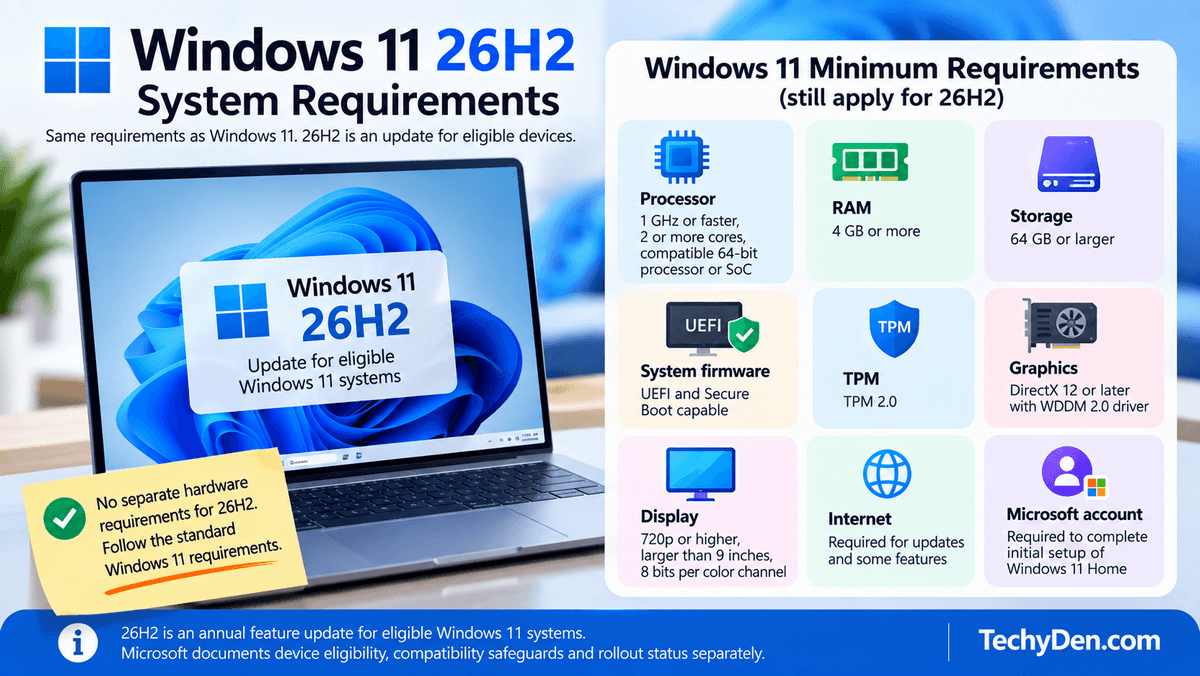
Therefore, if your PC already runs a supported version of Windows 11, you generally should not think of 26H2 as requiring a completely new hardware configuration. Microsoft documents the normal Windows 11 hardware requirements separately from the eligibility and servicing path for moving to 26H2.
Windows 11 hardware requirements
| Requirement | Minimum specification |
|---|---|
| Processor | 1 GHz or faster, 2 or more cores, compatible 64-bit processor or SoC |
| RAM | 4 GB or more |
| Storage | 64 GB or larger |
| System firmware | UEFI and Secure Boot capable |
| TPM | TPM 2.0 |
| Graphics | DirectX 12 or later with WDDM 2.0 driver |
| Display | 720p or higher, larger than 9 inches, 8 bits per color channel |
| Internet | Required for updates and some features |
| Microsoft account | Required to complete initial setup of Windows 11 Home |
These are Microsoft’s published Windows 11 minimum requirements; they should not be presented as a newly introduced “26H2 requirements” list.
The processor requirement is particularly important because Microsoft maintains supported processor lists and evaluates newer processor generations over time. TPM 2.0 and UEFI firmware also remain important parts of Windows 11’s security baseline.
For 24H2 and 25H2 users: the more important question is whether Microsoft considers your particular PC eligible for the 26H2 update. Eligibility, compatibility safeguards, and rollout status can affect whether Windows Update offers the upgrade. If 26H2 is not yet offered, avoid bypassing Microsoft’s compatibility checks simply to force the update.
How to Check Your Windows 11 Version
Before installing Windows 11 26H2, it is useful to check which Windows 11 version and OS build your PC is currently running. This helps you determine whether you are on 24H2, 25H2, or another release and makes it easier to troubleshoot update problems.
Method 1: Check Windows Version from Settings
- Open Settings.
- Select System.
- Scroll down and click About.
- Under Windows specifications, look for:
- Edition — such as Windows 11 Home or Windows 11 Pro
- Version — such as 24H2, 25H2, or 26H2
- OS build — the specific Windows build installed on your PC
This is the easiest method if you want to see your Windows edition and other system information in one place.
Method 2: Use the winver Command
You can also check your Windows version using the built-in winver command.
- Press Windows + R to open the Run dialog.
- Type
winver. - Press Enter.
- A window will display your Windows edition, version, and OS build.
Screenshot opportunity: Capture the winver window showing the Windows 11 version and build number. This is particularly useful for readers who want to confirm whether Windows 11 26H2 is already installed.
How to Install Windows 11 26H2
For eligible Windows 11 24H2 and 25H2 devices, Windows Update is the recommended way to install Windows 11 26H2. Microsoft is delivering 26H2 using modern servicing technology, so eligible PCs can receive it as a relatively small enablement package followed by a quick restart.
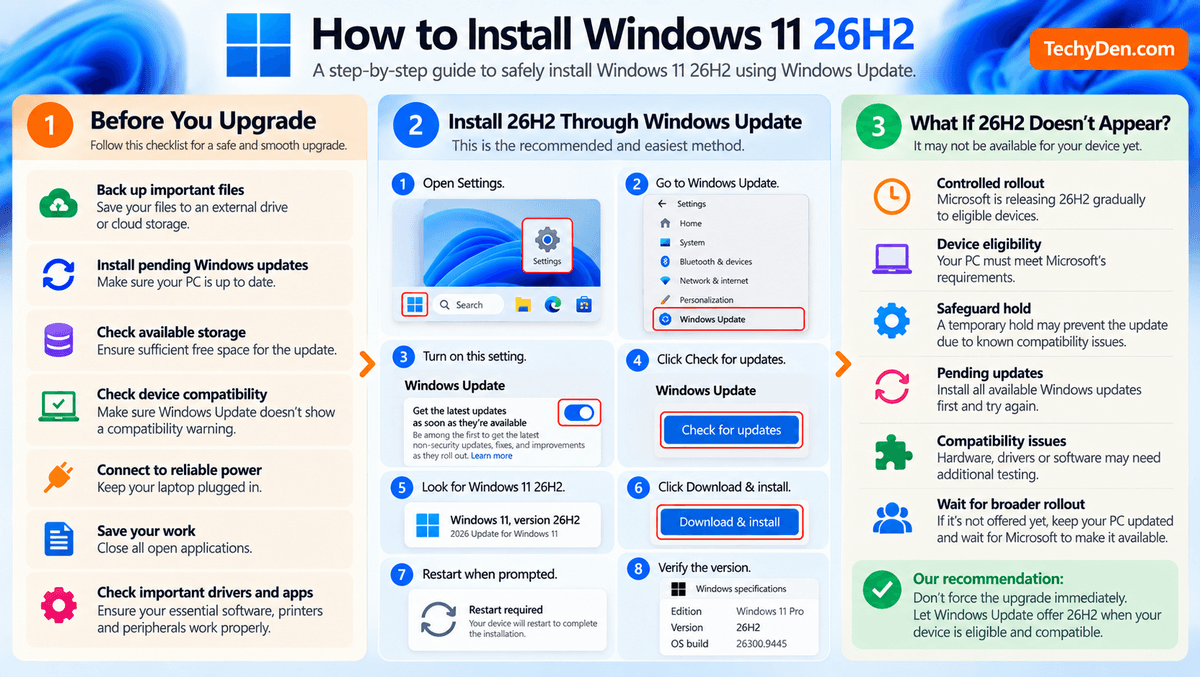
Before You Upgrade
Before starting the update, use this quick checklist:
- Back up important files to an external drive or cloud storage.
- Install pending Windows updates before checking for 26H2.
- Check available storage and make sure there is sufficient free space.
- Confirm device compatibility and make sure Windows Update does not show a compatibility warning.
- Connect your laptop to reliable power or keep the AC adapter connected.
- Save your work and close open applications before restarting.
- Check important drivers and applications, particularly if you rely on specialized software, printers, scanners, or other peripherals.
For business PCs, Microsoft recommends validating applications, devices, and business-critical workflows before expanding deployment across an organization.
Install 26H2 Through Windows Update
Follow these steps:
- Open Settings.
- Select Windows Update.
- Turn on Get the latest updates as soon as they’re available.
- Select Check for updates.
- If your PC is eligible and the update has been offered, look for Windows 11, version 26H2.
- Select Download & install.
- Wait for Windows to complete the installation and restart your PC when prompted.
- After restarting, check your Windows version to confirm that 26H2 is installed.
Microsoft says Windows 11 26H2 is initially available to eligible 24H2 and 25H2 devices with the “Get the latest updates as soon as they’re available” setting enabled.
What If 26H2 Doesn’t Appear?
Don’t assume that something is wrong if Windows 11 26H2 isn’t listed immediately. Microsoft is using a controlled, phased rollout, so availability is expanding gradually.
Several factors can affect when you receive the update:
- Your device may not yet be included in the rollout.
- The PC may not meet the applicable eligibility requirements.
- Pending Windows updates may need to be installed first.
- Microsoft may have identified a compatibility problem with your hardware, drivers, or software.
- A safeguard hold may temporarily prevent Windows Update from offering 26H2.
Safeguard holds are specifically designed to prevent devices with known compatibility problems from receiving a feature update until Microsoft has verified a solution. Microsoft recommends not attempting to manually bypass a safeguard hold for normal consumer installations.
If your PC does not meet Windows 11 requirements, see our guide on How to Install Windows 11 on Unsupported PCs.
Our recommendation: If 26H2 isn’t offered yet, keep Windows fully updated and wait for Microsoft to make it available rather than forcing the upgrade immediately.
How to Check If Windows 11 26H2 Is Installed
After upgrading, you can quickly confirm whether your PC is running Windows 11 26H2 by checking the Windows version and OS build.
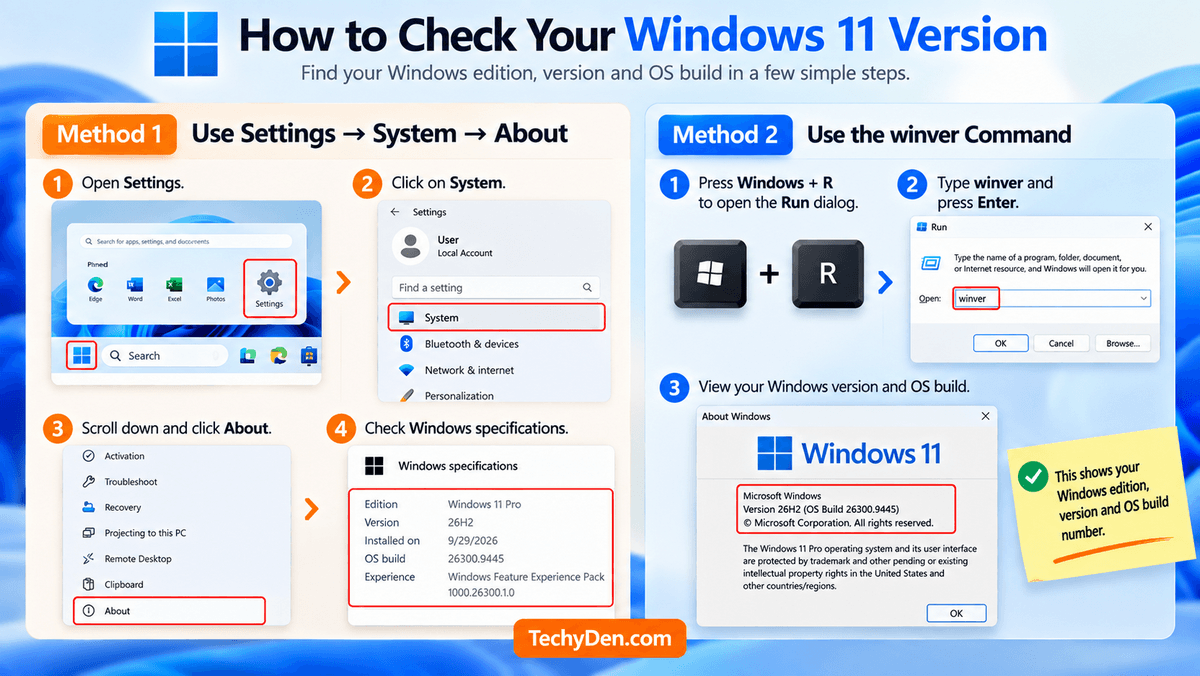
Method 1: Use winver
- Press Windows + R to open the Run dialog.
- Type
winverand press Enter. - The About Windows window will appear.
- Check the displayed information for your Windows edition, version, and OS build.
Look for Version 26H2 to confirm that the feature update has been installed.
Method 2: Check Settings
You can also verify the installation through Windows Settings:
Settings → System → About
Under Windows specifications, check:
- Edition: Windows 11 Home, Pro, or another edition
- Version: Should show 26H2
- OS build: Shows the specific build currently installed
If the Version field says 26H2, your PC has successfully moved to Windows 11 26H2. The OS build is useful when troubleshooting update problems or checking whether your system has received the latest cumulative updates.
Windows 11 26H2 Known Issues and Problems
Microsoft maintains a dedicated Windows 11 26H2 release-health page for known problems, safeguard holds, and their current status. Because this information can change as Microsoft releases new updates, check the official release-health page before publishing or updating this section. As of the latest Microsoft status information available, the currently listed 26H2 issues are mitigated, rather than fully resolved.
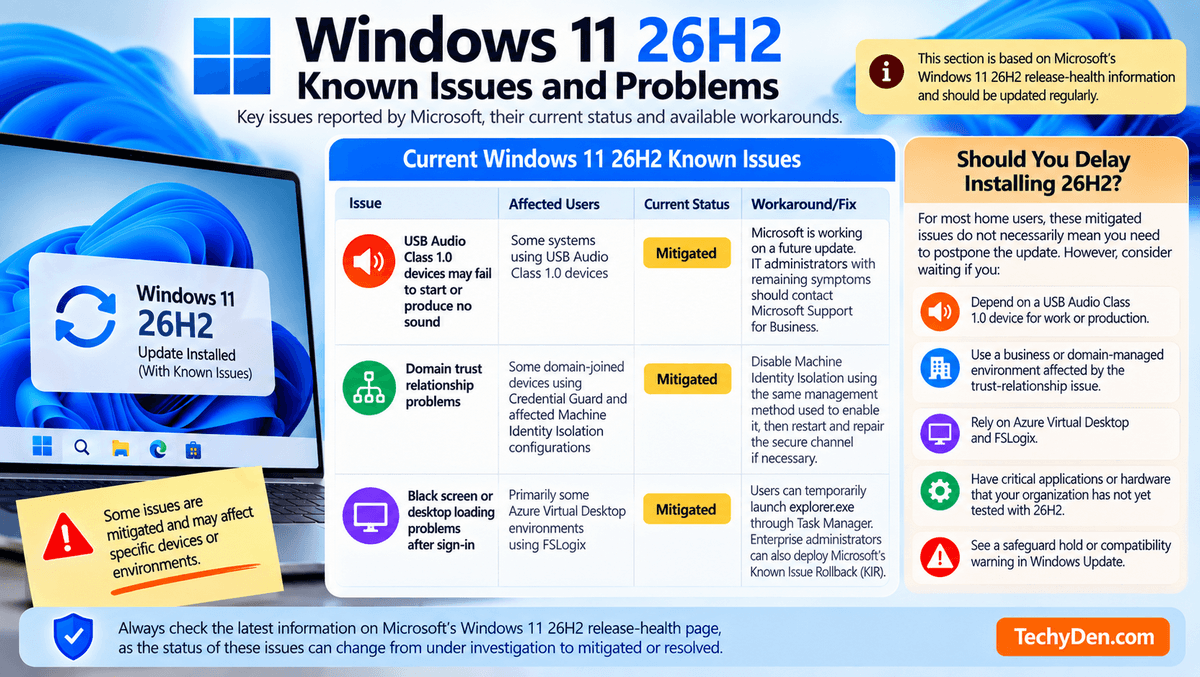
Current Windows 11 26H2 Known Issues
| Issue | Affected Users | Current Status | Workaround/Fix |
|---|---|---|---|
| USB Audio Class 1.0 devices may fail to start or produce no sound | Some systems using USB Audio Class 1.0 devices | Mitigated | Microsoft is working on a future update. IT administrators with remaining symptoms should contact Microsoft Support for Business. |
| Domain trust relationship problems | Some domain-joined devices using Credential Guard and affected Machine Identity Isolation configurations | Mitigated | Disable Machine Identity Isolation using the same management method used to enable it, then restart and repair the secure channel if necessary. |
| Black screen or desktop loading problems after sign-in | Primarily some Azure Virtual Desktop environments using FSLogix | Mitigated | Users can temporarily launch explorer.exe through Task Manager. Enterprise administrators can also deploy Microsoft’s Known Issue Rollback (KIR). |
Microsoft’s release-health documentation currently lists all three issues as Mitigated, with the latest updates dated September 29, 2026.
The USB audio problem affects a specific category of USB Audio Class 1.0 devices and can result in Code 10 errors, missing audio output, unresponsive volume controls, or unavailable sound settings.
The domain issue is primarily relevant to managed business environments. Microsoft says some Credential Guard-protected machine accounts can lose their secure relationship with an on-premises Active Directory domain under certain Machine Identity Isolation configurations.
The black-screen issue is mainly associated with Azure Virtual Desktop (AVD) hosts using FSLogix rather than typical home PCs. Microsoft provides a Known Issue Rollback mitigation for managed environments.
Important: Do not add generic claims about driver problems, application compatibility, or other Windows 11 issues to this table unless Microsoft specifically lists them on the current 26H2 release-health page.
Should You Delay Installing 26H2?
For most home users whose compatible PCs are being offered Windows 11 26H2 through Windows Update, these mitigated issues alone do not necessarily mean you need to postpone the upgrade.
However, consider waiting if you:
- Depend on a USB Audio Class 1.0 device for work or production.
- Use a business/domain-managed Windows environment affected by the trust-relationship issue.
- Rely on Azure Virtual Desktop and FSLogix.
- Have critical applications or hardware that your organization has not yet tested with 26H2.
- See a safeguard hold or compatibility warning in Windows Update.
For ordinary users, the safest approach is to keep Windows updated and install 26H2 when Microsoft offers it through Windows Update rather than bypassing compatibility safeguards.
f your PC becomes unresponsive after an update, see our guide to fixing Windows 11 freezing issues.
Editorial note: This section should be reviewed whenever Microsoft updates the Windows 11 26H2 release-health page, because an issue can move from under investigation → mitigated → resolved, or new issues can be added.
Windows 11 26H2 for Home Users, Gamers and Businesses
Windows 11 26H2 can be a useful upgrade for different types of users, but the right approach depends on how the PC is used. Home users can generally follow the normal Windows Update process, gamers should pay closer attention to drivers and game compatibility, while businesses should test and deploy the update in stages.
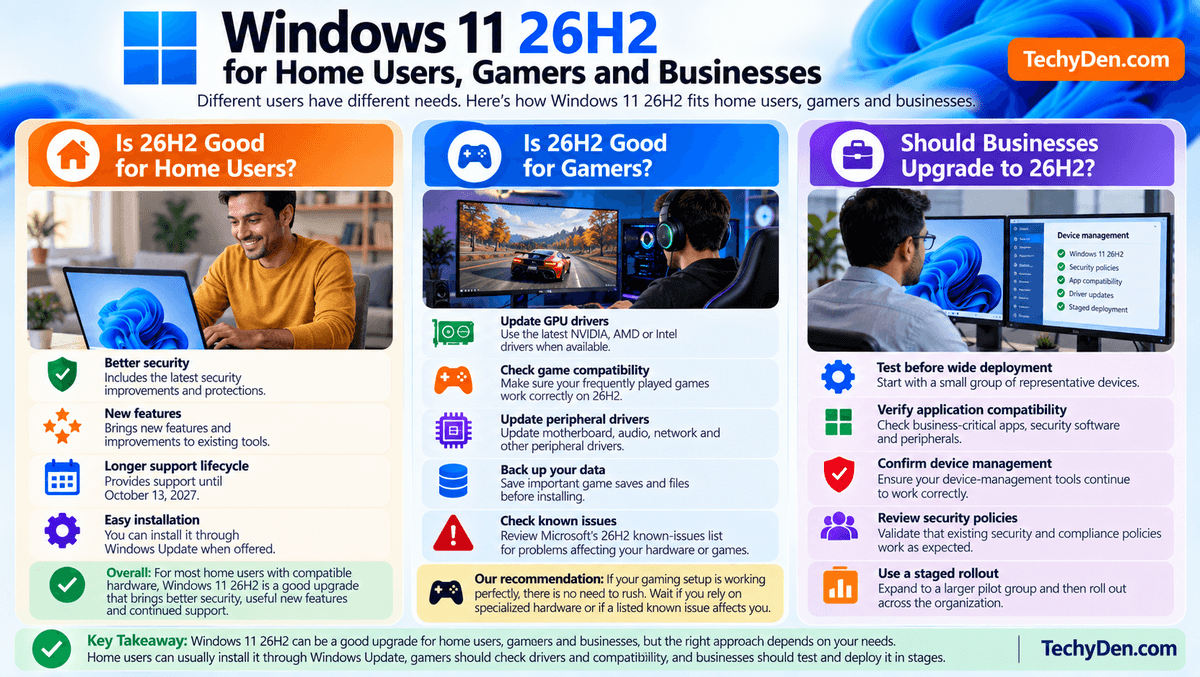
Is 26H2 Good for Home Users?
For most home users with compatible hardware, Windows 11 26H2 is a sensible upgrade. It provides the latest Windows security improvements, newer features, and a longer support lifecycle than 24H2.
The safest installation method is through Windows Update. If Microsoft offers 26H2 for your PC without a compatibility warning or safeguard hold, you can normally install it after backing up important files and checking that your essential applications and peripherals work correctly.
Users who depend on specific hardware or software should consider waiting until compatibility has been confirmed.
Is 26H2 Good for Gamers?
Gamers should take a little more care before upgrading a primary gaming PC. Windows feature updates can sometimes require updated GPU, chipset, audio, network, or peripheral drivers, and compatibility can vary between games and hardware configurations.
Before installing 26H2:
- Update your NVIDIA, AMD, or Intel GPU drivers when appropriate.
- Check that your frequently played games support the new Windows release.
- Update important motherboard and peripheral drivers.
- Back up important game saves and other data.
- Check Microsoft’s current 26H2 known-issues list for problems affecting your hardware or software.
If your gaming setup is working perfectly and you rely on specialized hardware, there is no need to rush the installation if 26H2 has not yet been offered to your PC.
Should Businesses Upgrade to 26H2?
Businesses should treat Windows 11 26H2 as a managed deployment rather than an immediate upgrade for every PC.
IT teams should first test the release with business-critical applications, security software, device drivers, printers, VPN clients, and other peripherals. They should also verify that existing device-management tools and security policies continue to work correctly.
A staged rollout is usually the safer approach:
- Test 26H2 on a small group of representative devices.
- Validate business applications and hardware.
- Monitor Microsoft’s release-health information for new issues.
- Expand deployment to a larger pilot group.
- Roll out to the wider organization once compatibility is confirmed.
This approach gives organizations time to identify application or driver problems before they affect a large number of employees.
Should You Upgrade to Windows 11 26H2?
For most users running a compatible Windows 11 PC, Windows 11 26H2 is a recommended upgrade, particularly for systems approaching the end of their current support lifecycle. However, the best timing depends on how important your PC is, what applications and hardware you use, and whether Microsoft has already offered 26H2 through Windows Update.
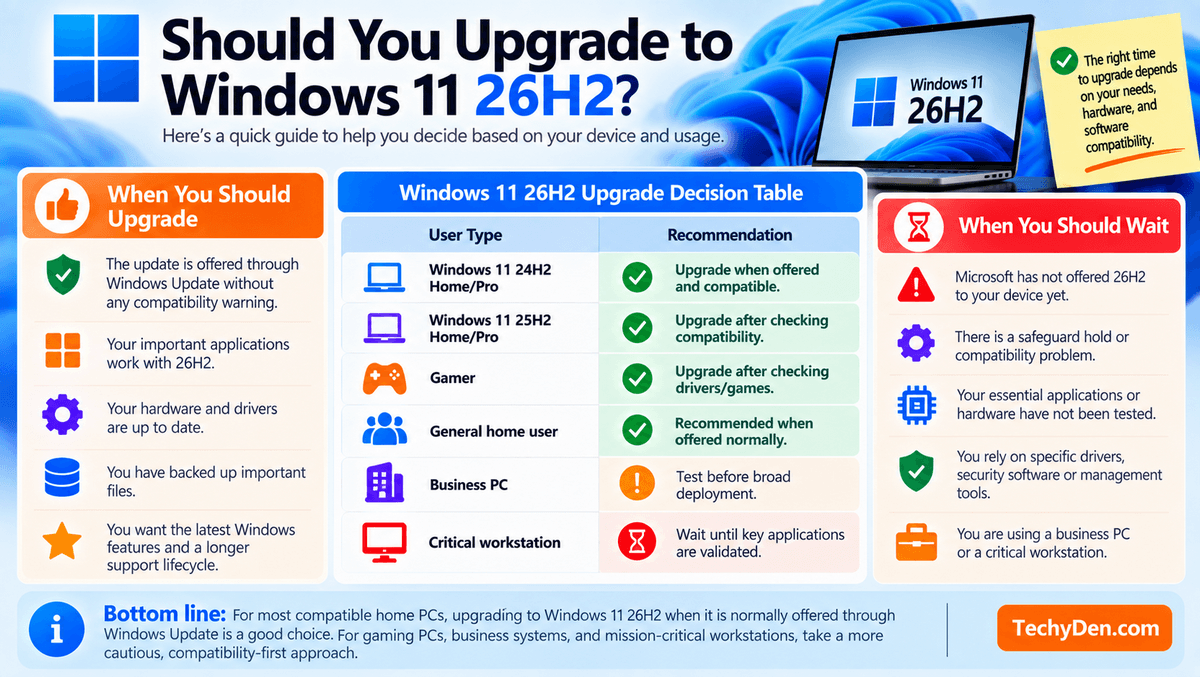
Windows 11 24H2 Home and Pro users should pay particular attention because their support deadline is approaching. If 26H2 is offered normally through Windows Update and your important applications and devices are compatible, upgrading is generally the sensible choice.
Users on Windows 11 25H2 have less urgency, but upgrading provides access to the newer feature set and a fresh support lifecycle. Gamers should first verify GPU, chipset, peripheral drivers, and compatibility with their frequently played games.
Before upgrading an older PC, you can also follow our Windows 11 performance optimization tips.
Windows 11 26H2 Upgrade Decision Table
| User Type | Recommendation |
|---|---|
| Windows 11 24H2 Home/Pro | Upgrade when offered and compatible |
| Windows 11 25H2 Home/Pro | Upgrade after checking compatibility |
| Gamer | Upgrade after checking drivers/games |
| General home user | Recommended when offered normally |
| Business PC | Test before broad deployment |
| Critical workstation | Wait until key applications are validated |
When You Should Upgrade
Consider installing 26H2 when:
- Windows Update offers the update without a compatibility warning.
- Your important applications are confirmed to work with the new release.
- Your hardware and peripheral drivers are up to date.
- You have backed up important files.
- You want the latest Windows features and a longer support lifecycle.
When You Should Wait
There is no need to force the upgrade if Microsoft has not offered it to your device. Safeguard holds, compatibility problems, pending updates, or unsupported hardware can all affect availability.
For business systems and critical workstations, waiting until essential applications, drivers, security software, and management tools have been validated is the safer approach.
Bottom line: For most compatible home PCs, upgrading to Windows 11 26H2 when it is normally offered through Windows Update is a good choice. For gaming PCs, business systems, and mission-critical workstations, take a more cautious, compatibility-first approach.
Is Windows 11 26H2 Worth Installing?
Yes. Windows 11 26H2 is worth installing for most eligible users, particularly those still running Windows 11 24H2 and approaching its end-of-support deadline. It provides a newer supported Windows release, a longer support lifecycle, security improvements, and a range of new and updated Windows features.
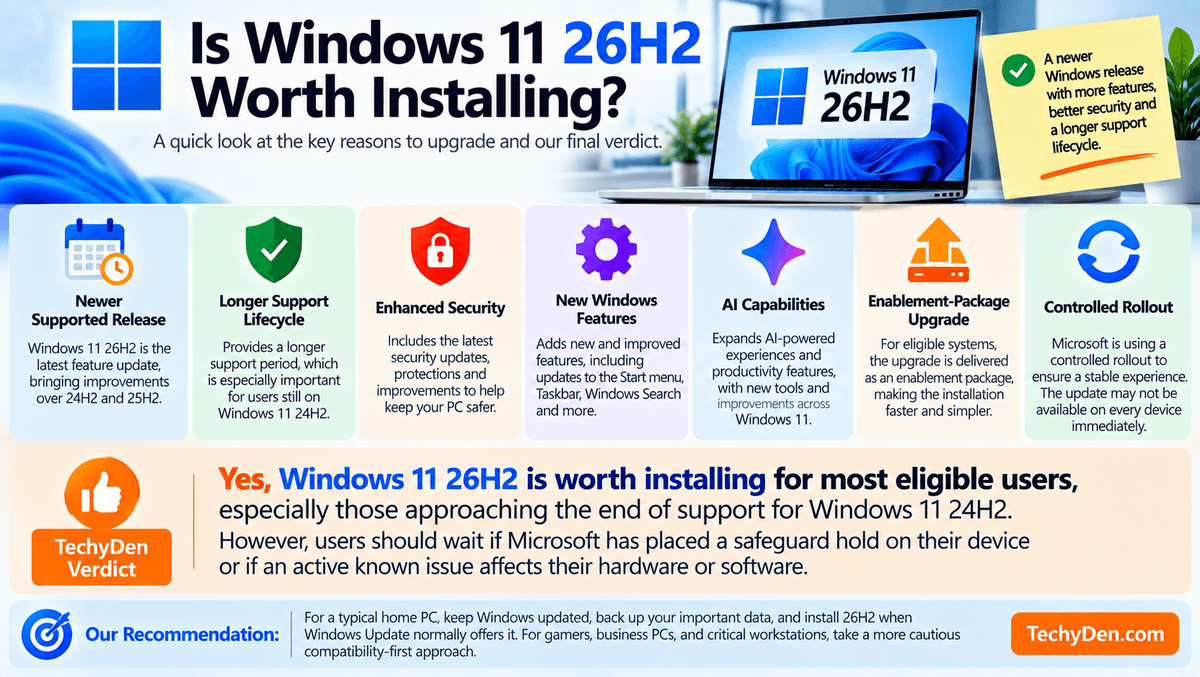
For eligible systems, the upgrade can also be relatively straightforward because 26H2 builds on the same servicing foundation as Windows 11 24H2 and 25H2. Microsoft uses an enablement-package approach for applicable devices, rather than requiring every eligible PC to undergo a completely new Windows installation.
Another reason to consider 26H2 is the continued expansion of AI capabilities and Windows productivity features, including AI-related functionality in areas such as File Explorer. Some features may depend on the device, region, configuration, or applicable Microsoft licensing.
However, you don’t need to force the upgrade. Microsoft is using a controlled rollout, meaning 26H2 may not immediately appear on every compatible PC. Availability can also be affected by compatibility safeguards designed to prevent devices with known problems from receiving the update.
TechyDen Verdict
Windows 11 26H2 is worth installing for most eligible users, especially those approaching the end of support for Windows 11 24H2. However, users should wait if Microsoft has placed a safeguard hold on their device or if an active known issue affects their hardware or software.
For a typical home PC, our recommendation is simple: keep Windows updated, back up your important data, and install 26H2 when Windows Update normally offers it. For gamers, business PCs, and critical workstations, take a more cautious compatibility-first approach.
Frequently Asked Question (FAQs) on Windows 11 26H2
What is Windows 11 26H2?
Windows 11 26H2 is Microsoft’s 2026 annual feature update for Windows 11. It builds on the same servicing foundation as Windows 11 24H2 and 25H2 and is delivered to eligible systems using an enablement package. It includes newer Windows features, security improvements, productivity enhancements, and updated AI capabilities.
When was Windows 11 26H2 released?
Microsoft released Windows 11 26H2 on September 29, 2026. It reached general availability on that date, although Microsoft is using a phased rollout, so the update may not appear immediately on every eligible Windows 11 PC. Availability depends on device eligibility and Microsoft’s compatibility safeguards.
Is Windows 11 26H2 available now?
Yes. Windows 11 26H2 is generally available, and Microsoft is gradually expanding the rollout to eligible Windows 11 24H2 and 25H2 devices. Users who enable Get the latest updates as soon as they’re available can receive the update when it is ready for their device.
What’s new in Windows 11 26H2?
Windows 11 26H2 includes the latest Windows innovations and features enabled or added since previous releases. Improvements cover areas such as File Explorer, Windows Settings Backup, Taskbar, AI Actions, Administrator Protection, accessibility, security, recovery, and device management. Microsoft notes that many features are delivered through monthly servicing before being enabled or consolidated in the annual release.
Is Windows 11 26H2 free?
For an eligible PC already running Windows 11, 26H2 is delivered as a Windows feature update rather than a separately purchased operating system. You do not normally need to buy another Windows license to install the update. Your existing Windows activation and edition continue to apply, subject to Microsoft’s eligibility requirements.
Can I upgrade from Windows 11 24H2 to 26H2?
Yes, eligible Windows 11 24H2 devices can upgrade to 26H2. Microsoft uses the same underlying servicing foundation for these releases, allowing eligible devices to receive 26H2 through an enablement package. Because 24H2 Home and Pro reach end of support on October 13, 2026, upgrading is particularly important for those users.
Can I upgrade from Windows 11 25H2 to 26H2?
Yes. Eligible Windows 11 25H2 systems can move to 26H2 through Microsoft’s servicing-based upgrade process. For many supported devices, the update uses a small enablement package and requires only a single restart. If Windows Update has not offered 26H2, wait for the rollout rather than bypassing a compatibility safeguard.
How do I install Windows 11 26H2?
The recommended consumer method is Windows Update. Open Settings → Windows Update, enable Get the latest updates as soon as they’re available, and select Check for updates. If 26H2 is available for your PC, select Download & install and restart when prompted.
What is the Windows 11 26H2 build number?
The Windows 11 26H2 release is on the 26300 build branch. Microsoft’s release information currently lists OS Build 26300.9550 as the September 2026 update for 26H2. Build numbers can change as Microsoft releases subsequent cumulative updates, so check Windows Update or winver for the build currently installed on your PC.
Why isn’t Windows 11 26H2 showing in Windows Update?
There are several possible reasons. Microsoft is conducting a phased rollout, and your PC may not yet be included. A compatibility safeguard, pending updates, device eligibility issue, or software or hardware compatibility problem can also prevent Windows Update from offering 26H2. If it isn’t offered, keep Windows updated and wait for Microsoft to make it available.
Is Windows 11 26H2 safe to install?
For most eligible users, 26H2 can be installed through Microsoft’s normal Windows Update process. However, Microsoft currently lists known issues, including problems involving some USB Audio Class 1.0 devices, domain-joined systems, and certain virtual desktop environments. These issues are currently listed as mitigated. Check Microsoft’s release-health page before installing if you depend on affected hardware or business configurations.
Should I upgrade to Windows 11 26H2?
Most eligible users should upgrade when Windows Update normally offers 26H2. It provides a newer supported release and extends the support lifecycle, which is especially important for Windows 11 24H2 Home and Pro users. Gamers, businesses, and users with critical applications should first check drivers, software compatibility, and Microsoft’s current known-issues list.
Final Verdict: Should You Install Windows 11 26H2?
Windows 11 26H2 is a worthwhile upgrade for most eligible Windows 11 users, especially those still running 24H2 and approaching its October 2026 end-of-support deadline. It is Microsoft’s 2026 annual feature update and builds on the same servicing foundation as 24H2 and 25H2.
The most notable improvements include updates to File Explorer, Windows Settings Backup, Taskbar, AI Actions, Administrator Protection, accessibility, security, recovery, and device management. Microsoft also continues expanding AI-powered Windows experiences, although some features depend on the device, configuration, region, or applicable licensing.
Eligible users can install 26H2 through Windows Update, where Microsoft delivers the update through its enablement-package model. However, availability is controlled and may vary by device.
Microsoft currently lists several known issues, including problems affecting some USB Audio Class 1.0 devices, certain domain-managed systems, and specific virtual desktop environments. These are currently listed as mitigated, but their status can change.
TechyDen Recommendation: Install Windows 11 26H2 when Windows Update normally offers it and your PC is compatible. Users on 24H2 should prioritize the upgrade because of the approaching support deadline. Gamers should verify drivers and game compatibility, while businesses and critical-workstation users should test applications and hardware first.
If Microsoft has placed a safeguard hold on your device or a known issue affects your setup, wait rather than forcing the upgrade.