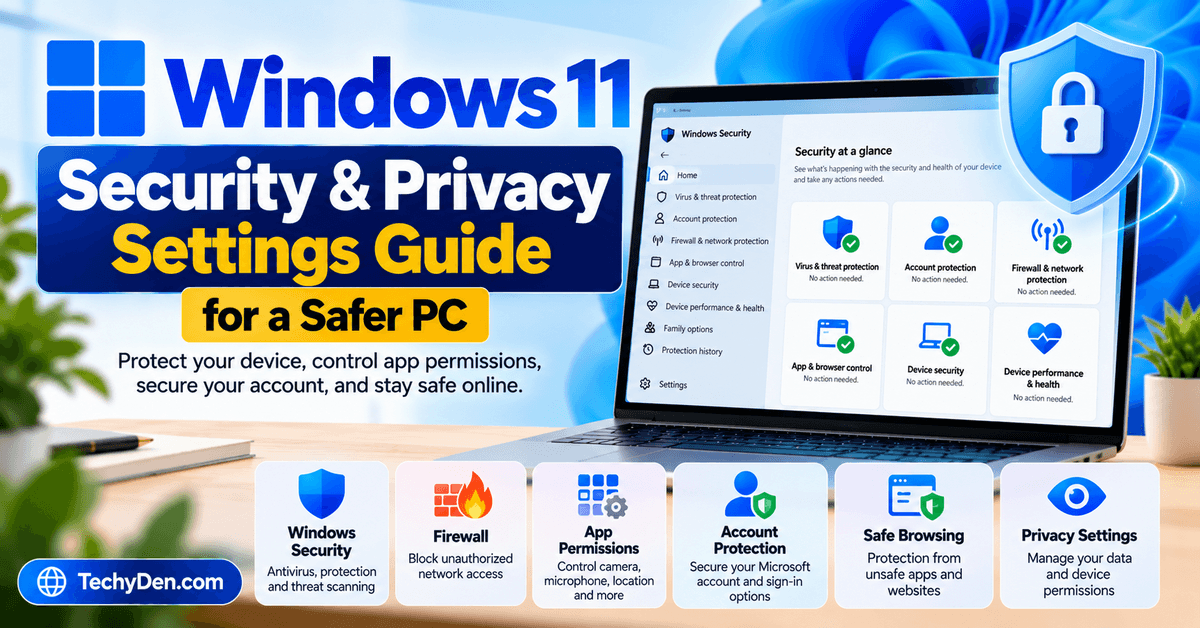
Windows 11 includes built-in security tools that help protect your computer against malware, suspicious downloads, unauthorized network access, and other digital threats. It also provides privacy settings that let you control how applications access your camera, microphone, location, and other information.
However, having these features available does not automatically mean every setting is configured appropriately for your needs. Reviewing your security options, protecting your account, and practicing safer browsing habits can help reduce common risks.
In this Windows 11 Security and Privacy Settings guide, you’ll learn how to use Windows Security, configure Microsoft Defender Firewall, manage app permissions, protect your account, review device security, and make your everyday computer use safer.
Whether you’re a beginner or an experienced Windows user, these practical steps will help you make more informed security decisions.
What Are Windows 11 Security and Privacy Settings?
Windows 11 security settings help protect your computer, operating system, accounts, applications, and files against potential threats. Privacy settings give you control over how supported applications access information and device features.
Although these settings work together, they serve different purposes.
| Feature | Main purpose |
|---|---|
| Windows Security | Provides access to built-in security and protection tools |
| Microsoft Defender Antivirus | Detects and helps remove malware and other threats |
| Microsoft Defender Firewall | Filters network traffic and helps block unauthorized connections |
| App & browser control | Helps protect against unsafe apps, downloads, and websites |
| Account protection | Provides access to account and sign-in security options |
| Device security | Shows supported hardware-based security features |
| Privacy & security settings | Controls supported app permissions and privacy options |
| Windows Update | Delivers security fixes and other updates for supported Windows installations |
These features are available through Windows 11, although some options depend on your hardware, Windows edition, configuration, and whether the device is managed by an organization.
1. Open and Understand Windows Security
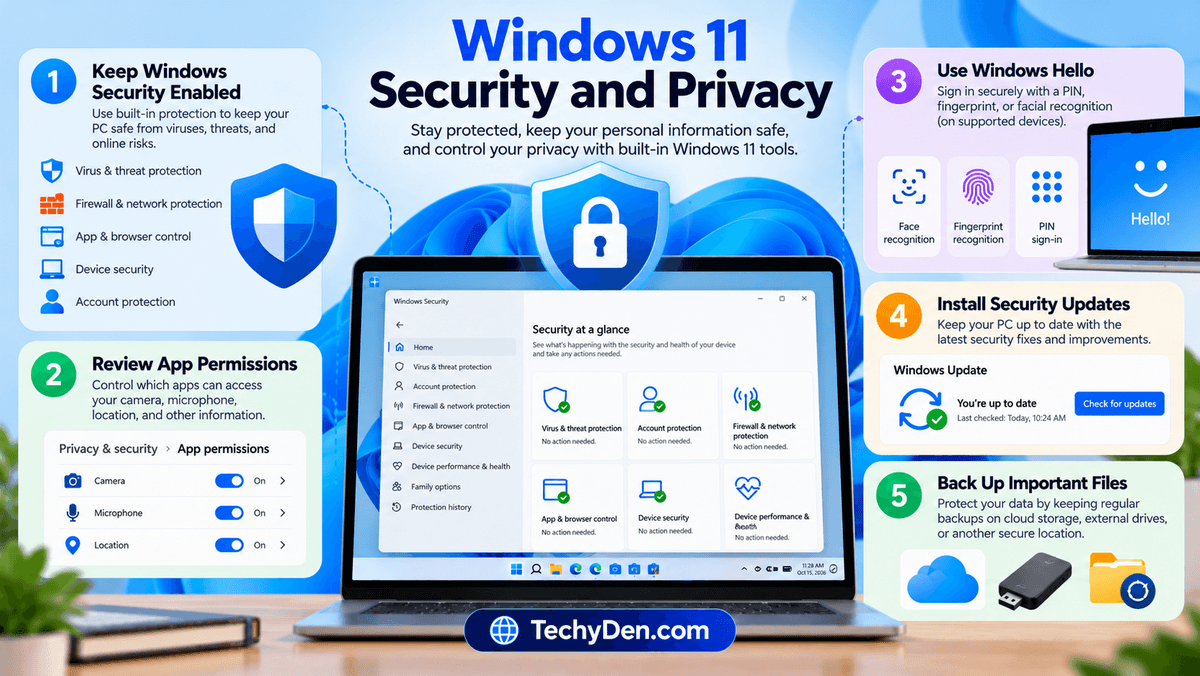
Windows Security is the central application for reviewing many of the security features built into Windows 11. It provides a dashboard where you can check protection status and investigate warnings.
How to open Windows Security
Follow these steps:
- Open the Start menu.
- Type Windows Security in the search box.
- Select the Windows Security application.
- Review the available protection categories and any displayed warnings.
You can also open the app through the Windows Security entry in Settings when available.
Understand the main protection areas
The app includes several important sections:
- Virus & threat protection: Review antivirus status, scan your computer, and check for detected threats.
- Account protection: Review account-related security information and sign-in options.
- Firewall & network protection: Check firewall status for different network types.
- App & browser control: Review protection against unsafe applications, files, and websites.
- Device security: Check available hardware-based protection features.
- Device performance & health: Review certain system health and reliability information.
- Protection history: Review security actions and relevant detections.
Windows Security may display status indicators or recommendations that require attention. Read the accompanying details rather than relying on the color of an icon alone.
Beginner tip: Start by reviewing the dashboard and resolving any genuine security warnings before changing advanced settings.
2. Configure Virus and Threat Protection
Microsoft Defender Antivirus is integrated into Windows Security and helps detect and block malicious software, including viruses and other forms of malware.
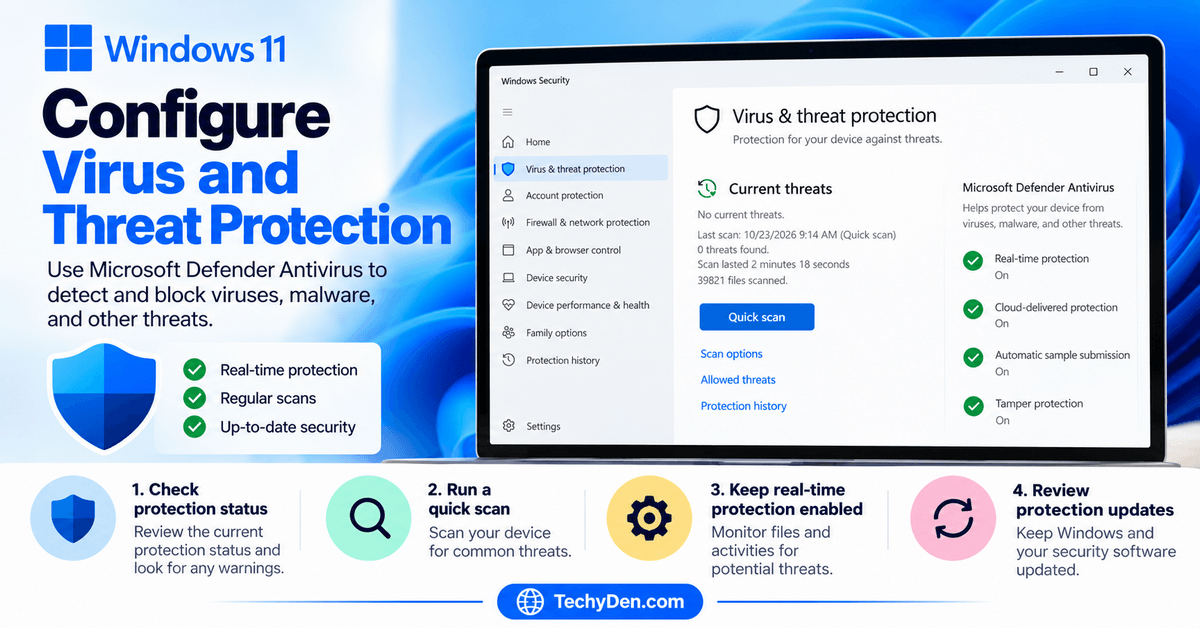
Check your antivirus protection
- Open Windows Security.
- Select Virus & threat protection.
- Review the current protection status.
- Check for warnings or recommended actions.
- Open the protection settings if you need to review their configuration.
If you have another compatible antivirus product installed and active, Microsoft Defender Antivirus may automatically switch to a different operating mode. Check which product is providing your active antivirus protection before changing anything
Run a quick scan
If you suspect that a downloaded file or application may be unsafe, you can run a scan.
- Open Windows Security.
- Select Virus & threat protection.
- Choose Quick scan.
- Allow the scan to complete.
- Review any findings and follow the recommended actions.
A quick scan checks common locations for threats. If you have a specific concern or the problem persists, consider a full scan or another appropriate scan option.
You can also right-click a file in File Explorer and select Scan with Microsoft Defender when that option is available.
Keep real-time protection enabled
Real-time protection monitors files and activities for potential threats. Turning it off can leave files you open or download less protected.
Keep it enabled unless you have a specific, well-understood troubleshooting reason to change it temporarily. If another antivirus product is installed, make sure your computer continues to have active protection.
Review protection updates
Antivirus protection relies on current security intelligence to identify emerging threats. Keep Windows and your active security software updated so that protection remains current.
Microsoft documents these options in its official Virus & threat protection guide.
3. Enable Microsoft Defender Firewall
Microsoft Defender Firewall helps protect your PC by filtering network traffic and blocking unauthorized connections. It is an important layer of protection when your computer connects to home, workplace, or public networks.
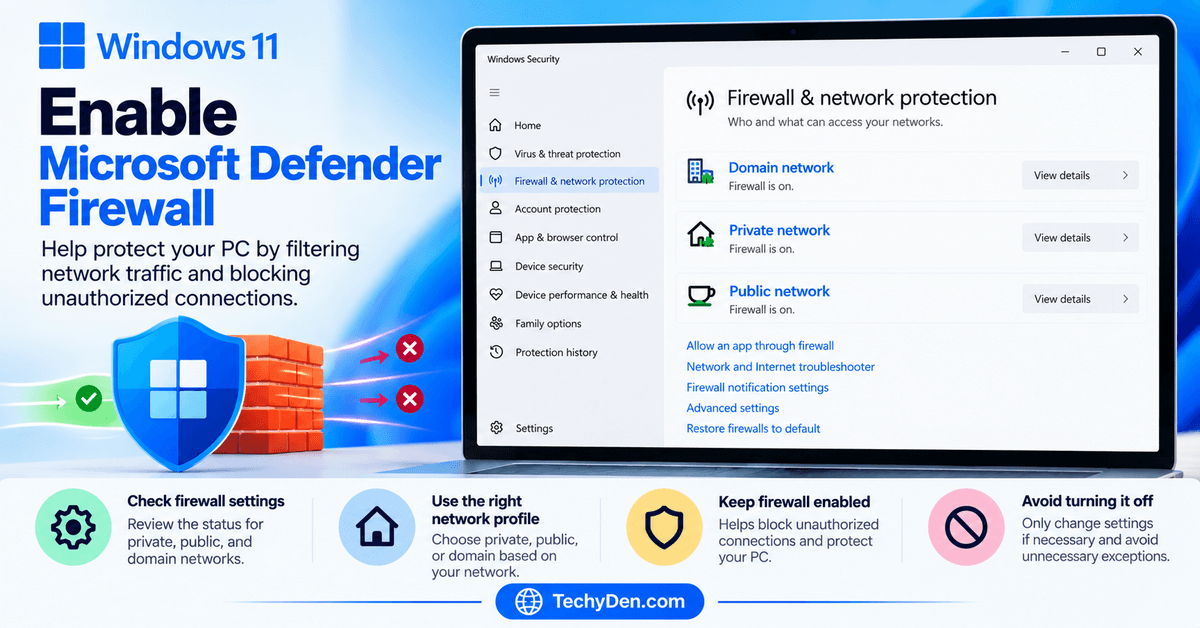
How to check firewall settings
- Open Windows Security.
- Select Firewall & network protection.
- Review the available network profiles.
- Check the firewall status for each applicable profile.
- Follow any recommended actions if protection is disabled unexpectedly.
Windows distinguishes between network profiles, including private, public, and domain networks on supported configurations. A private profile is intended for a network you trust, while a public profile is appropriate for networks you do not trust, such as many public Wi-Fi hotspots.
Private vs. public networks
| Network type | When to use it |
|---|---|
| Private | A trusted home network or another network where you understand the connected devices |
| Public | Untrusted networks, such as public Wi-Fi in a café, airport, or hotel |
| Domain | A managed workplace network configured by an organization |
Choose the appropriate profile for the network you are connected to. Do not mark an unfamiliar public network as private just to make file sharing or device discovery easier.
Should you turn off Windows Firewall?
No, not as a routine security measure. Disabling the firewall can reduce protection against unauthorized network connections.
If a trusted application cannot connect, investigate the app’s network requirements and the relevant firewall rule instead of turning off the firewall completely. Avoid creating broad exceptions that allow unnecessary network access.
For more details, consult Microsoft’s Firewall and network protection guide.
4. Manage App Permissions
Applications may request access to your camera, microphone, location, contacts, calendar, and other resources. Reviewing these permissions helps you decide which applications genuinely need access.
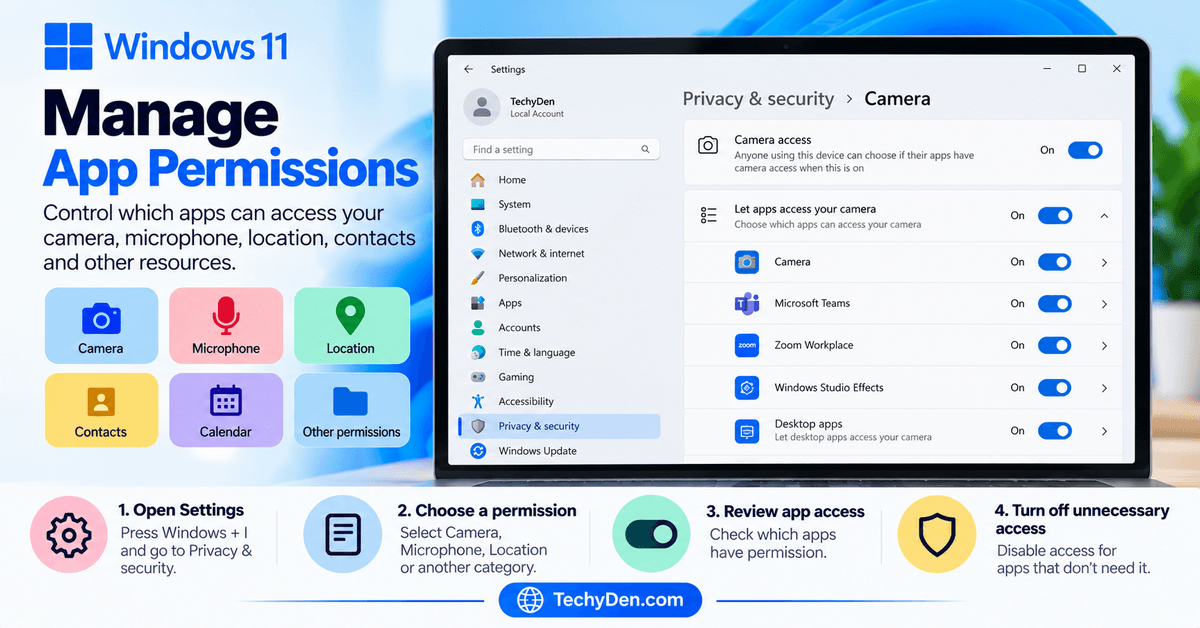
How to review app permissions
- Press
Windows + Ito open Settings. - Select Privacy & security.
- Choose a permission category, such as Camera, Microphone, or Location.
- Review the available controls.
- Disable access that an application does not need.
Windows lets you manage many permissions for Microsoft Store apps and certain other supported features. However, traditional desktop applications may not appear in every permission list or may be governed by separate application settings.
Control camera access
Open Settings → Privacy & security → Camera.
Review the camera access controls and enable access only for applications that need it. If you use video meeting software, for example, make sure the appropriate application is allowed to use the camera.
Windows may provide a camera indicator or notification when the camera is active, depending on the hardware.
Control microphone access
Open Settings → Privacy & security → Microphone.
Check device-level access, application permissions, and the option for desktop apps where available.
If a meeting application cannot hear you, verify its Windows permissions and its own audio settings before assuming that the microphone is broken.
Review location permissions
Navigate to Settings → Privacy & security → Location.
Some applications need location access for maps, local weather, or related services. Disable access when it is unnecessary for your use.
Important: Turning off a permission may stop an application’s related feature from working. Change settings according to your needs rather than disabling every permission indiscriminately.
For detailed instructions, see Microsoft’s Windows privacy settings guide.
5. Protect Your Microsoft Account
Your Windows account may provide access to personal files, email, cloud storage, application purchases, and other connected services. Protecting the account is therefore an important part of securing your PC.
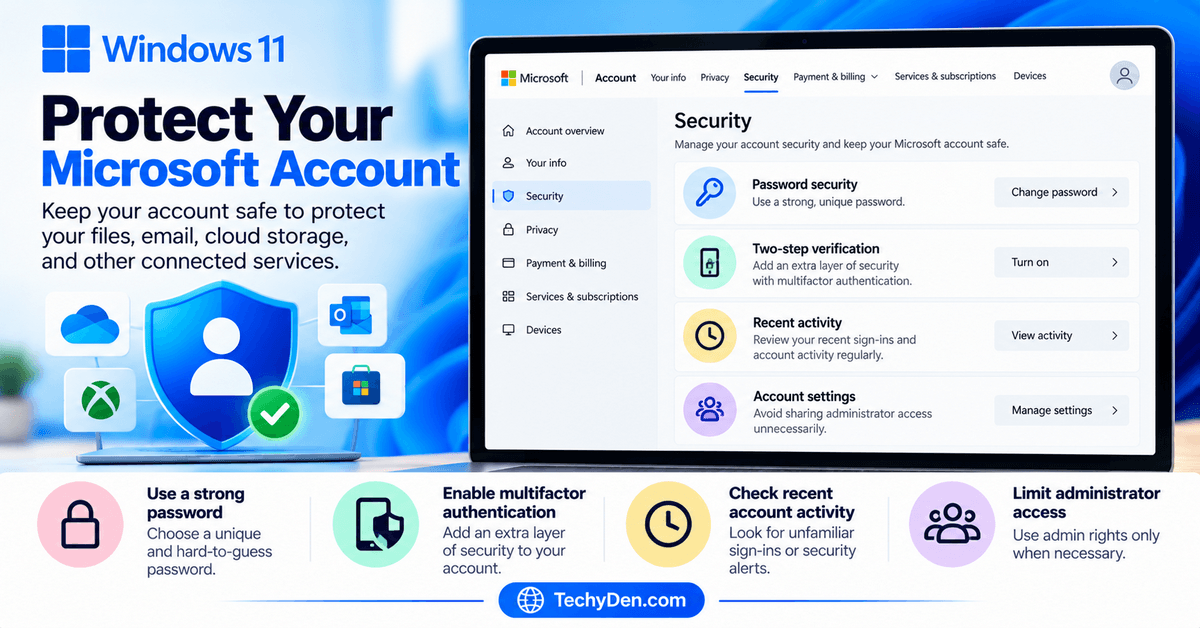
Use a strong, unique password
Choose a password that is difficult to guess and not reused on other websites.
Avoid using obvious personal information, such as your birthday or a simple sequence of numbers. A reputable password manager can help you create and store unique passwords.
Enable multifactor authentication
Where available, enable multifactor authentication for your Microsoft account. This adds a verification step beyond your password and can make it harder for someone to access your account using a stolen password alone.
Review your account’s official security settings and recovery methods, and keep them up to date.
Review recent account activity
Check your account’s security activity periodically. Investigate unfamiliar sign-ins, security alerts, or changes you did not authorize.
If you suspect that your account has been compromised, change your password using a trusted device, review recovery information, and follow Microsoft’s account recovery guidance.
Avoid sharing administrator access unnecessarily
Use administrator privileges only when required. On shared computers, separate user accounts can help keep each person’s files and settings distinct.
For additional protection, secure your account recovery information and never share verification codes with someone who contacts you unexpectedly.
6. Configure Windows Hello and Sign-In Options
Windows Hello provides supported sign-in options, including facial recognition, fingerprint recognition, and a PIN. These features can make signing in convenient while helping protect access to your device.
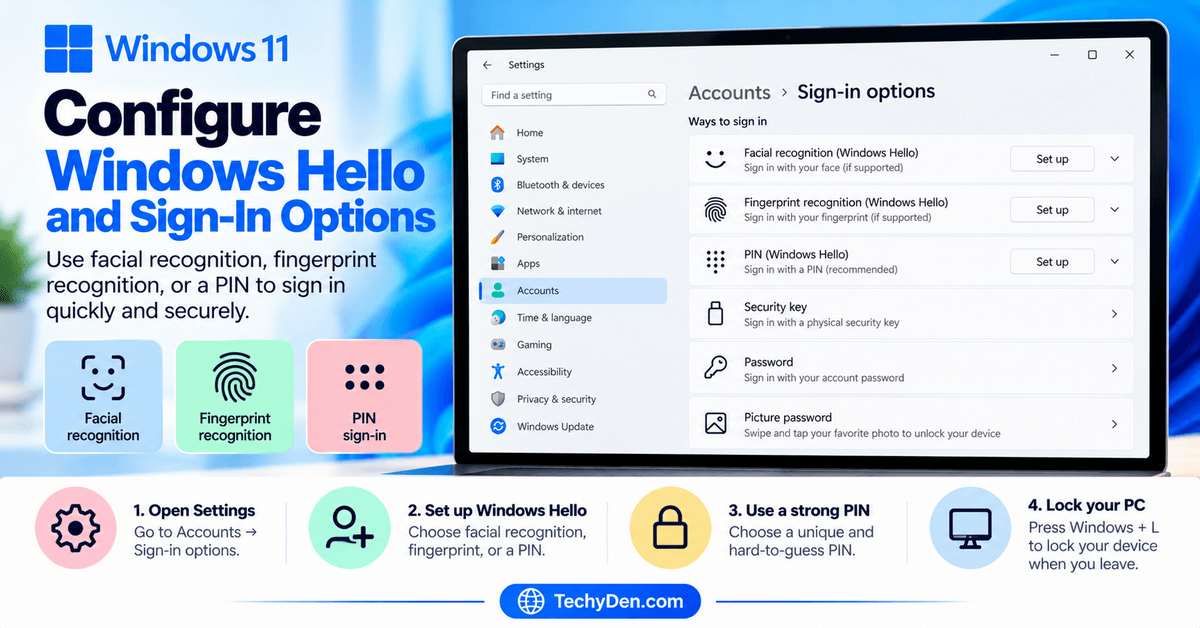
How to configure Windows Hello
- Open Settings.
- Select Accounts → Sign-in options.
- Review the available sign-in methods.
- Choose a supported option and follow the instructions.
Your available options depend on the hardware and configuration of your PC.
Use a Windows Hello PIN
A Windows Hello PIN is associated with your device and is not simply the same as your Microsoft account password.
Choose a PIN that other people cannot easily guess. Avoid obvious combinations such as repeated digits or predictable sequences.
Lock your PC when you leave
Press Windows + L to lock your computer immediately.
This is a simple but important habit when working in an office, classroom, shared home, or public space.
Windows Security also provides account protection information, including links to supported sign-in options and Dynamic Lock configuration. Dynamic Lock can automatically lock a compatible PC when a paired device moves out of range, but it should be treated as an additional convenience rather than your only security measure.
7. Protect Against Unsafe Apps and Websites
Windows 11 includes app and browser protection features that can help identify potentially dangerous downloads, applications, and websites.
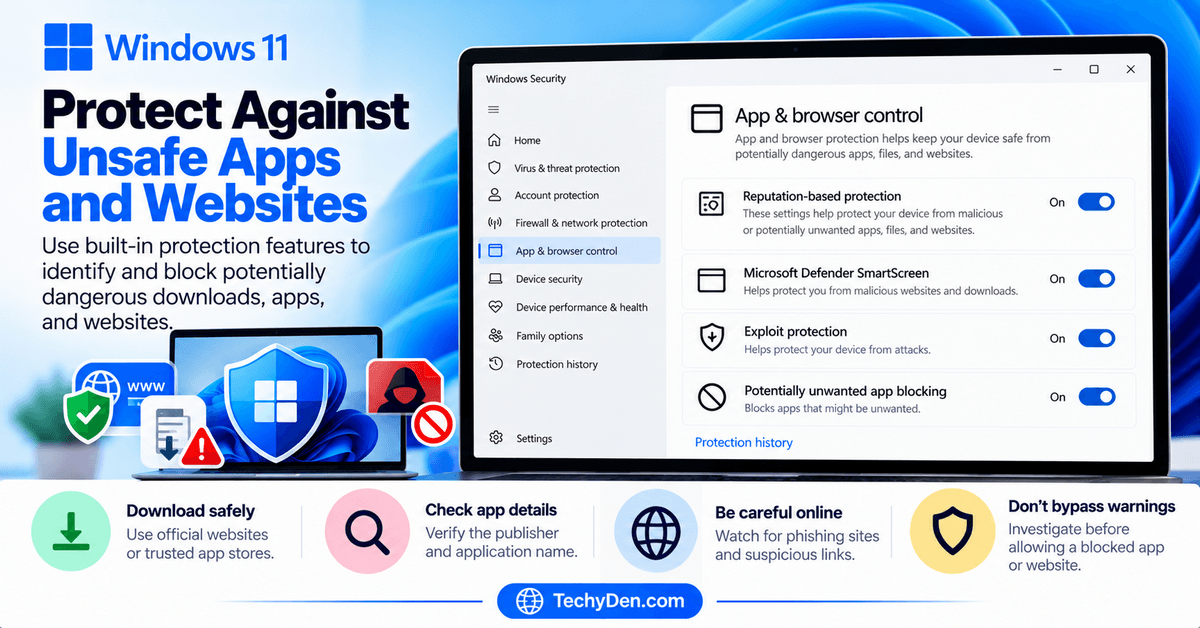
Review App & browser control
Open Windows Security → App & browser control.
Review the available protection options, including Microsoft Defender SmartScreen and reputation-based protection where supported.
These features can help warn you about suspicious applications, files, downloads, and websites. Availability and individual options may vary by Windows version and configuration.
Avoid suspicious downloads
Before installing software:
- Download it from the developer’s official website or a trusted app store.
- Check the publisher and application name.
- Avoid unexpected installers delivered through unsolicited emails or messages.
- Be cautious of software that promises unrealistic performance improvements or free access to paid products.
- Do not bypass a security warning unless you have independently verified that the file is trustworthy and understand the risk.
Review browser security
Keep your browser updated and pay attention to warnings about phishing sites, suspicious downloads, or potentially harmful extensions.
Be particularly careful with websites that ask you to enter passwords, payment details, or verification codes through unexpected links.
Avoid unnecessary security exceptions
If Windows blocks an application, investigate why before allowing it to run. Do not disable SmartScreen or other protective features just because a download is inconvenient to install.
8. Review Device Security Settings
The Device security section in Windows Security provides information about security features supported by your PC.
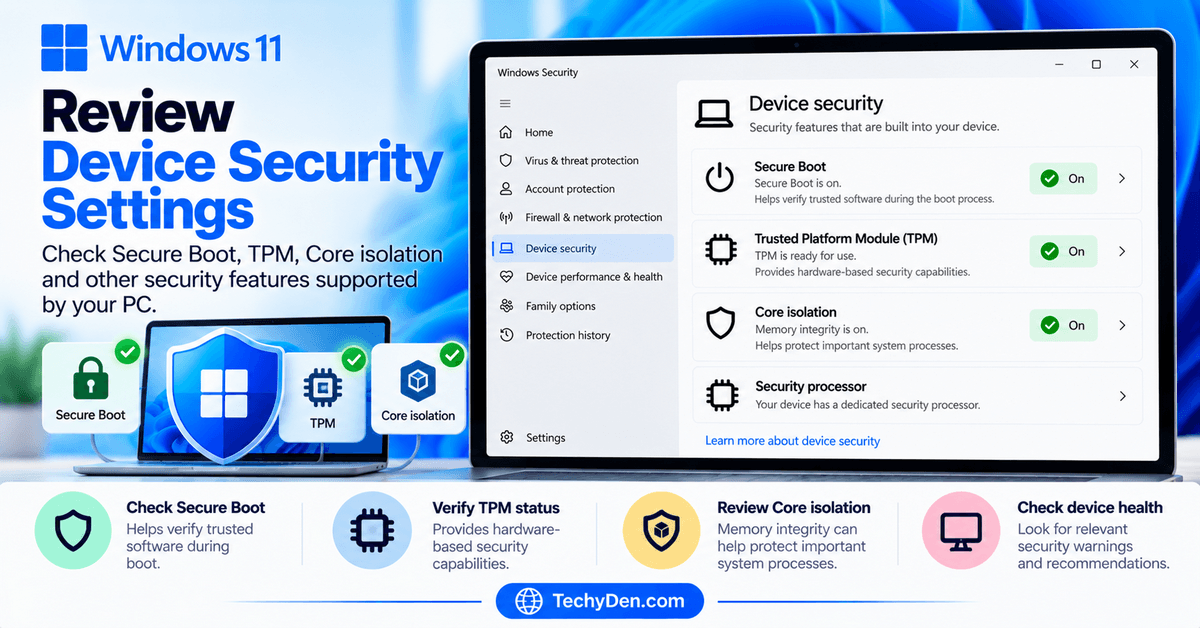
Depending on the hardware, these may include Secure Boot, the Trusted Platform Module (TPM), and Core isolation features.
Check Secure Boot and TPM
Secure Boot helps verify trusted software during the boot process on supported systems. TPM provides hardware-based security capabilities used by Windows and certain applications.
To review device security:
- Open Windows Security.
- Select Device security.
- Review the features and status information displayed.
- Investigate any warning using your computer manufacturer’s documentation or Microsoft’s guidance.
Do not change firmware or boot settings without understanding their effects. On some encrypted devices, changing security or firmware configurations may trigger a BitLocker recovery prompt.
Review Core isolation
Some compatible PCs offer Core isolation features, including Memory integrity, which can help protect important system processes against certain attacks.
If Windows displays a compatibility warning, review the details before changing the setting. An incompatible driver may need to be updated or replaced. Do not disable protections without understanding the consequences.
Check device health
Review Windows Security’s available device performance and health information for relevant warnings. Not every device exposes the same features, and a clean status does not guarantee that every possible security risk has been eliminated.
9. Configure Privacy Settings
Privacy settings help you manage certain information Windows and supported applications can access.
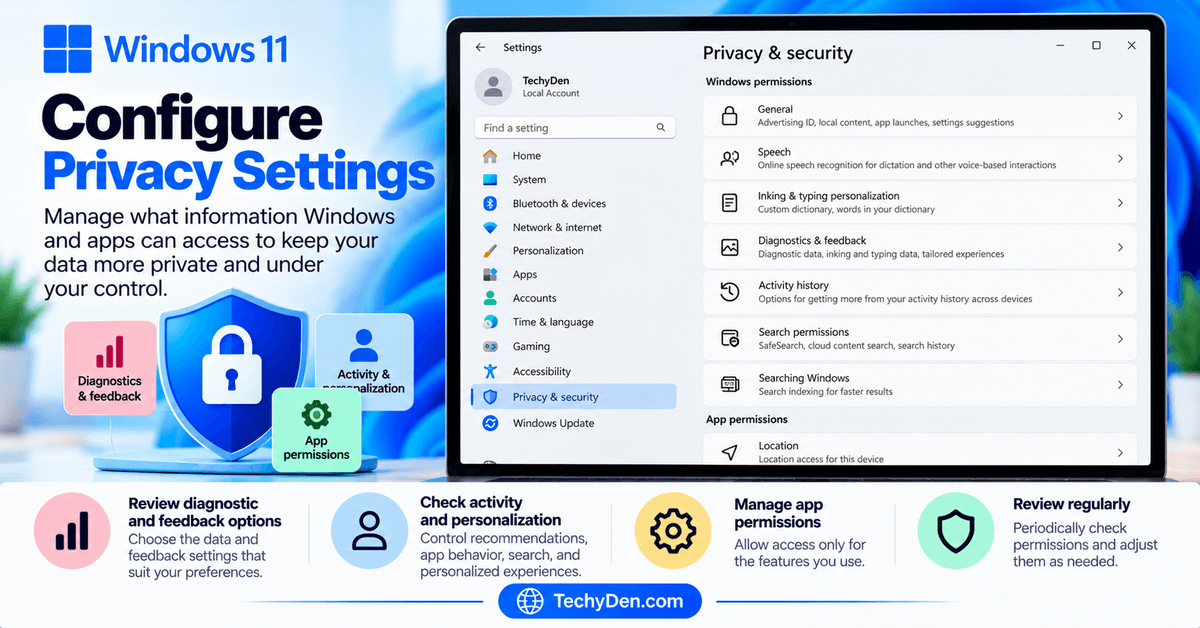
Open Settings → Privacy & security to review the available categories.
Review diagnostic and feedback options
Windows provides diagnostic and feedback settings that vary by edition and configuration. Review the information available and choose the options that suit your preferences.
Some diagnostic data is required for Windows to operate and remain updated, while other options may be optional. The choices available to you depend on your version and whether the PC is managed by an organization.
Review activity and personalization options
Depending on your Windows configuration, you may see options relating to recommendations, app behavior, search, and personalized experiences.
Read each setting’s description before disabling it. Some options affect convenience features rather than core security.
Check permissions after installing applications
When you install a new application, review the permissions it requests and its privacy policy where appropriate.
For example, a photo editor may reasonably need access to images, while a simple calculator usually does not need continuous access to your location.
Privacy tip: Grant access based on what an application needs to do, and periodically review permissions you previously approved.
10. Keep Windows 11 Updated
Security updates help address known vulnerabilities and improve the reliability of supported Windows installations.
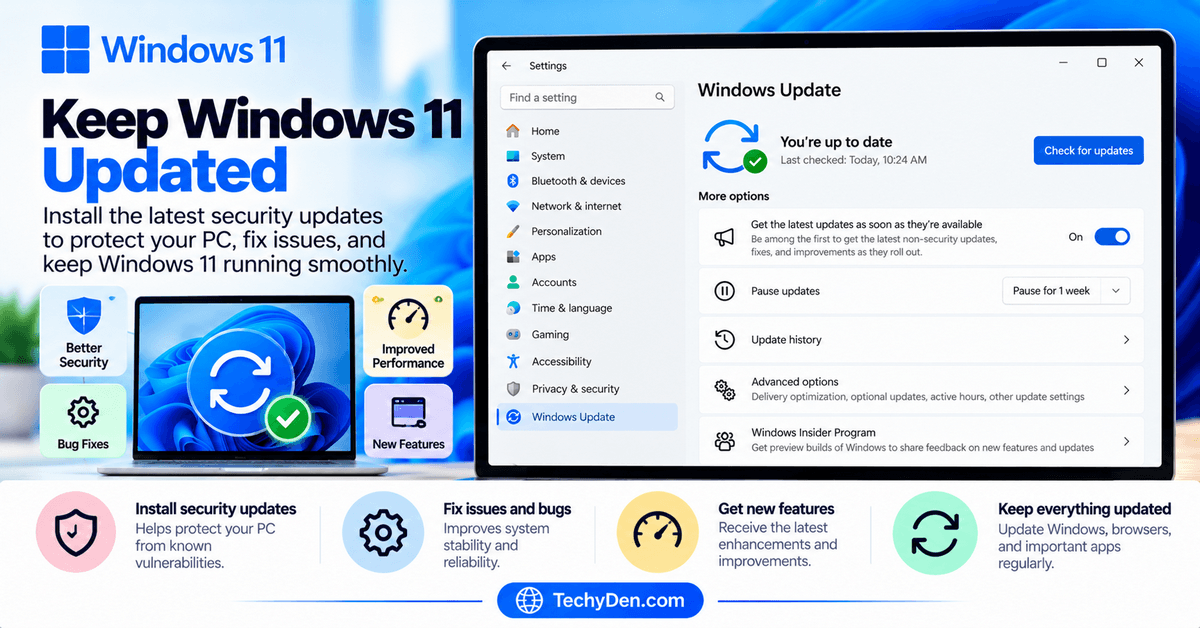
How to check for Windows updates
- Press
Windows + I. - Select Windows Update.
- Click Check for updates.
- Review the available updates and follow the installation instructions.
- Restart your PC if required.
Windows may install some updates automatically. Feature updates can be rolled out gradually, so they may not appear on every eligible computer at the same time.
Review optional updates carefully
Windows Update may offer optional driver updates or other updates. Install updates that are relevant to your device, but investigate compatibility issues if a particular driver causes problems.
For major release information and known issues, consult Microsoft’s Windows release health documentation.
Why updates matter for security
Outdated software can contain vulnerabilities that attackers may exploit. Keep Windows, your browser, security software, and other important applications updated.
Avoid permanently pausing security updates just to postpone a restart.
11. Protect Your Files Against Ransomware
Ransomware is a type of malware that can encrypt files and demand payment to restore access. Windows Security includes options that can help protect supported systems against certain ransomware-related risks.
Review ransomware protection
- Open Windows Security.
- Select Virus & threat protection.
- Look for the ransomware protection section.
- Review the available options, including Controlled folder access where supported.
Controlled folder access can help prevent untrusted applications from changing files in protected folders. However, it may block legitimate applications that need to modify files, so review any prompts carefully.
Maintain independent backups
Backups are important because no security feature can prevent every incident.
Keep copies of important documents, photos, and work files in a secure backup location. An external drive that is disconnected when not in use can provide an additional layer of protection.
Test your backup and recovery process occasionally so you know how to restore files if necessary.
12. Use Safer Network Connections
Your network settings influence how your computer communicates with other devices and the internet.
Use trusted Wi-Fi networks
Prefer networks you recognize and trust. When connecting to public Wi-Fi, avoid unnecessary file sharing and keep the firewall enabled.
If a network requests unexpected credentials or redirects you to suspicious websites, disconnect and investigate before continuing.
Use public network settings appropriately
For an unfamiliar network, select the public network profile when prompted or change the profile in the relevant network settings.
This helps Windows apply the appropriate network discovery and sharing behavior. The firewall remains important regardless of which profile you use.
Be careful with VPNs
A reputable VPN can protect traffic between your device and the VPN service in certain network situations, but it does not make you completely anonymous or protect you from every form of malware or phishing.
Choose a VPN provider carefully and keep your browser, operating system, and security software updated.
13. Improve Everyday Online Safety
Windows security settings are only part of a safe computing routine. Your everyday decisions also matter.
Follow these practical habits:
- Avoid phishing links: Verify unexpected emails, messages, and requests for account information.
- Use unique passwords: Do not reuse the same password across important accounts.
- Enable multifactor authentication: Add an extra verification step wherever available.
- Download trusted software: Prefer official websites and reputable app stores.
- Review browser extensions: Remove extensions you no longer use or do not trust.
- Protect sensitive information: Avoid entering passwords or financial details on suspicious websites.
- Lock your computer: Press
Windows + Lwhen leaving your desk. - Be cautious with remote access: Never give an unknown caller access to your PC.
- Keep backups: Maintain copies of important files in a separate, secure location.
These habits complement Windows Security and can help reduce the likelihood of common account and device compromises.
14. Back Up Important Files
A secure computer should also have a recovery plan. Malware, hardware failure, accidental deletion, and other incidents can result in data loss.
Review Windows Backup
Open Settings → Accounts → Windows Backup, where available, to review the backup options offered by your configuration.
Depending on your account and setup, these options may include supported file, settings, or application-related backup and synchronization features.
Confirm exactly what is backed up and where the data is stored.
Use an external backup drive
Copy important files to an external drive or another suitable backup destination. Disconnect the drive after the backup if it is not needed for ongoing access.
Keeping a backup separate from your everyday computer can help protect it from some incidents affecting the PC.
Test your recovery process
Occasionally check that your backed-up files can actually be restored. Make sure you have access to any required account credentials and recovery keys.
If device encryption or BitLocker is enabled, store the recovery key securely before you need it.
15. Review Your Security Regularly
Security is an ongoing process rather than a one-time configuration task.
Use this simple routine to keep your Windows 11 PC in good shape.
Windows 11 Security Checklist
Complete these checks to help keep your PC secure.
🛡️ Protection
🔒 Privacy and accounts
🔄 Maintenance
ProtectionReview Windows Security warnings.Confirm antivirus protection is active.Check that Microsoft Defender Firewall is enabled.
Privacy and accountsReview camera, microphone, and location permissions.Check account security and recovery information.Remove unnecessary applications and browser extensions.
MaintenanceInstall appropriate Windows and application updates.Back up important files.Review unfamiliar sign-ins, downloads, or security alerts.
Reset checklist
Best Windows 11 Security Settings Checklist
If you are configuring a new PC, prioritize these settings first.
| Setting | Recommended approach |
|---|---|
| Windows Security | Review the dashboard and address warnings |
| Antivirus | Keep active antivirus protection enabled |
| Firewall | Keep the firewall enabled for applicable network profiles |
| SmartScreen and app protection | Review available reputation-based protections |
| App permissions | Allow access only when it is needed |
| Account security | Use a strong password and multifactor authentication where available |
| Windows Hello | Configure a supported secure sign-in method |
| Windows Update | Install relevant security updates promptly |
| Device security | Review Secure Boot, TPM, and other supported features |
| Backups | Maintain separate copies of important files |
| Public Wi-Fi | Use appropriate network settings and avoid unnecessary sharing |
These recommendations provide a sensible baseline, but they do not guarantee complete protection. Your device’s hardware, installed applications, account configuration, and behavior all affect its security.
Frequently Asked Questions
Does Windows 11 have built-in antivirus protection?
Yes. Windows 11 includes Microsoft Defender Antivirus through the Windows Security app. It provides real-time protection and scanning features. If you install another compatible antivirus product, check which product is actively protecting your computer.
Should I keep Microsoft Defender Firewall enabled?
Yes. The firewall helps filter network traffic and block unauthorized connections. Keep it enabled unless you have a specific, well-understood configuration requirement, and avoid disabling it as a general troubleshooting step.
How do I change privacy settings in Windows 11?
Open Settings → Privacy & security. Select the relevant category, such as Camera, Microphone, or Location, and review the available permissions. Remember that traditional desktop applications may be governed by different controls.
How do I check whether my computer is secure?
Open Windows Security and review its dashboard. Check antivirus protection, firewall status, account protection, app and browser controls, and device security. Investigate any warnings and keep Windows updated. A clean dashboard is helpful but cannot guarantee that every threat has been eliminated.
How do I protect my Microsoft account?
Use a strong, unique password and enable multifactor authentication where available. Review account activity and recovery information, protect verification codes, and investigate unexpected sign-in alerts.
Is Windows Security enough to protect my PC?
Windows Security provides important built-in protection, but no security solution prevents every threat. Safe browsing, trustworthy downloads, software updates, account protection, and reliable backups remain essential. Additional security software may be appropriate for specific needs.
How can I prevent applications from accessing my camera and microphone?
Open Settings → Privacy & security → Camera or Microphone and review the available access controls. Disable unnecessary access while retaining the permissions required by trusted applications. Some desktop applications may need to be controlled separately.
Does Windows 11 protect against ransomware?
Windows 11 includes antivirus and other protection features that can help defend against malware. Controlled folder access, where available, can provide an additional layer of protection for selected folders. Keep independent backups because no protection feature can eliminate all risk.
Should I use a public Wi-Fi network on my Windows 11 laptop?
You can use public Wi-Fi, but exercise caution. Select the public network profile, keep your firewall enabled, avoid unnecessary file sharing, and do not enter sensitive information on suspicious websites. Use a reputable VPN when it suits your security needs.
How often should I review Windows 11 security settings?
Review important security alerts and updates as they appear, and periodically check app permissions, account protection, and backups. Revisit the settings after installing new applications, changing devices, or noticing suspicious activity.
Conclusion
Windows 11 provides a range of security and privacy features that help protect your PC, accounts, applications, and files. By reviewing Windows Security, keeping the firewall enabled, managing app permissions, protecting your account, and installing updates, you can establish a stronger security baseline.
Just as importantly, develop safe everyday habits: use unique passwords, avoid suspicious downloads, verify unexpected requests, and maintain reliable backups.
Start with the recommended settings in this guide, then review them periodically as your computer and applications change. For more practical tutorials, explore our complete Windows 11 guide and Windows 11 Settings Guide for Beginners.