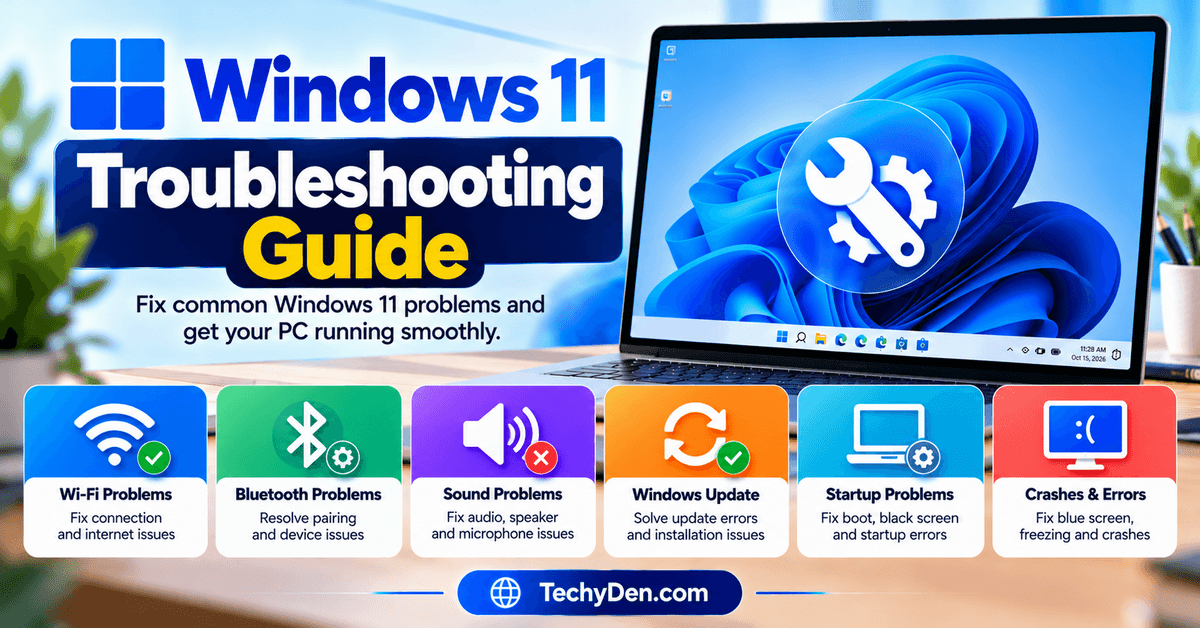
Are you experiencing problems with your Windows 11 computer? Issues such as slow performance, failed updates, Wi-Fi connectivity errors, Bluetooth problems, application crashes, and startup failures can interrupt your daily work.
Fortunately, many of these problems can be resolved without reinstalling Windows or taking your computer to a repair shop.
This Windows 11 troubleshooting guide explains how to identify common system issues and fix them using practical, step-by-step solutions.
You will learn how to use built-in troubleshooting tools, repair corrupted system files, resolve performance problems, fix connectivity issues, and recover Windows when it fails to start properly.
Whether you are a beginner or an experienced Windows user, you can follow these methods to diagnose problems and restore your computer to normal operation.
Start with the simplest solutions and move to advanced repairs only when necessary. Before making significant system changes, back up important files to protect your data.
If you want to explore more Windows features, settings, and solutions, visit our Windows 11 troubleshooting guides and tutorials for additional tips to improve your PC experience.
What to Do Before Troubleshooting Windows 11
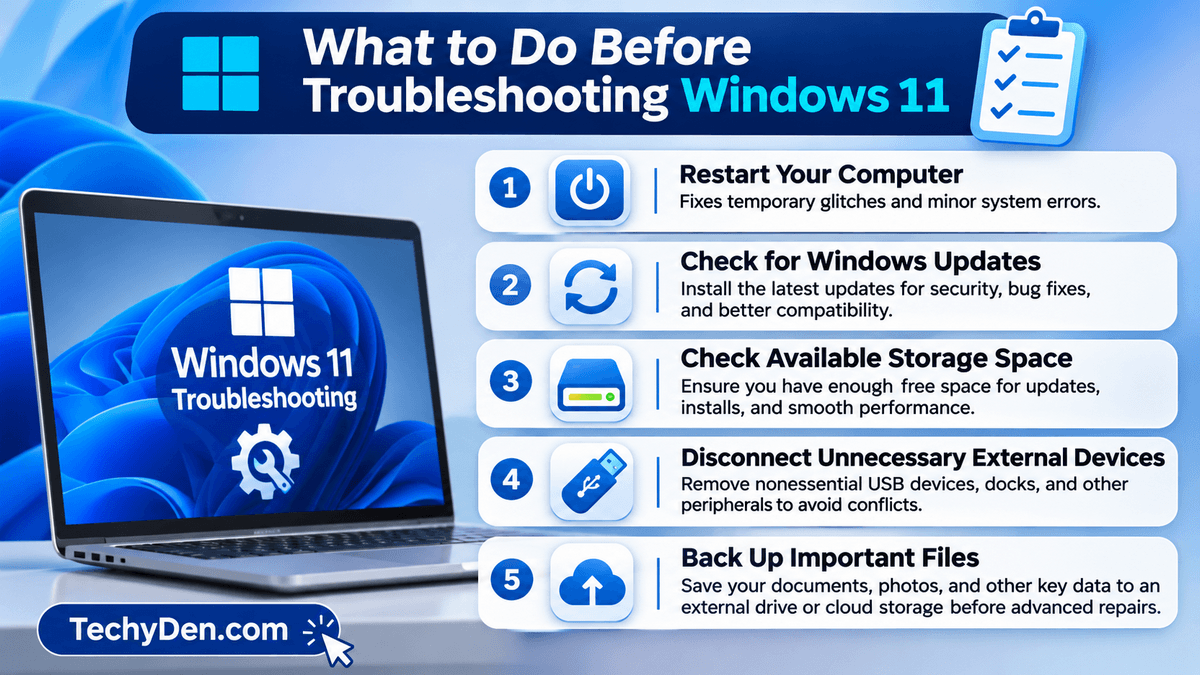
Before trying advanced Windows 11 repair methods, complete a few basic checks. These steps can resolve temporary problems and help you identify the underlying cause.
1. Restart Your Computer
Restarting your computer can resolve temporary software glitches, unresponsive applications, and minor system errors.
Save your work, open the Start menu, select Power, and choose Restart. After the computer starts again, check whether the problem persists.
If an application freezes frequently or Windows becomes temporarily unresponsive, restarting is a sensible first step.
2. Check for Windows Updates
Microsoft regularly releases Windows updates that may include security improvements, bug fixes, and compatibility changes.
To check for updates:
- Press
Windows + Ito open Settings. - Select Windows Update.
- Click Check for updates.
- Install appropriate available updates.
- Restart your computer if requested.
If the problem started immediately after an update, investigate that update before installing or removing additional software.
3. Check Available Storage Space
Low disk space can interfere with updates, application installations, and normal system operations.
To check your storage:
- Open Settings.
- Select System.
- Click Storage.
- Review the space used by temporary files, applications, and other data.
- Remove unnecessary files that you no longer need.
Review files carefully before deleting them, particularly items in Downloads and Recycle Bin.
4. Disconnect Unnecessary External Devices
External devices can sometimes cause driver conflicts or prevent Windows from starting correctly.
Disconnect unnecessary USB drives, docks, printers, and other peripherals. Restart your computer and check whether the problem disappears.
Reconnect the devices individually to identify whether a particular accessory is causing the issue.
5. Back Up Important Files
Before attempting advanced repairs, save important documents, photographs, and other files to an external drive or a trusted cloud storage service.
Some recovery procedures can remove applications, change system settings, or delete personal files. A recent backup gives you another way to recover important information if a repair fails.
How to Troubleshoot Windows 11 Using Built-In Tools
Windows 11 includes several diagnostic utilities that help identify problems with applications, hardware, system resources, and Windows components.
1. Run the Get Help Troubleshooter
The Get Help app provides guided troubleshooting for supported Windows problems.
To use it:
- Open Start.
- Search for Get Help and launch the app.
- Describe the problem you are experiencing.
- Follow the diagnostic instructions provided.
- Apply the suggested solution if it addresses your issue.
For example, you can search for help with Windows Update, audio, or Bluetooth problems.
The available troubleshooting options depend on the issue and your Windows configuration.
2. Use Windows Troubleshoot Settings
Windows also provides troubleshooters for supported hardware and software problems.
Follow these steps:
- Open Settings using
Windows + I. - Select System.
- Click Troubleshoot.
- Select Other troubleshooters.
- Find the relevant troubleshooter and select Run, if available.
- Follow the on-screen instructions.
Run the troubleshooter that matches your symptoms rather than trying unrelated diagnostics.
3. Use Task Manager to Identify Performance Problems
Task Manager helps you identify applications that consume excessive CPU, memory, disk, or network resources.
Press Ctrl + Shift + Esc to open Task Manager.
Select the Processes tab and examine the CPU, Memory, Disk, and Network columns. Sort by a column to identify applications using unusually high resources.
If an application stops responding, select it and choose End task when appropriate. Save your work whenever possible before closing an application.
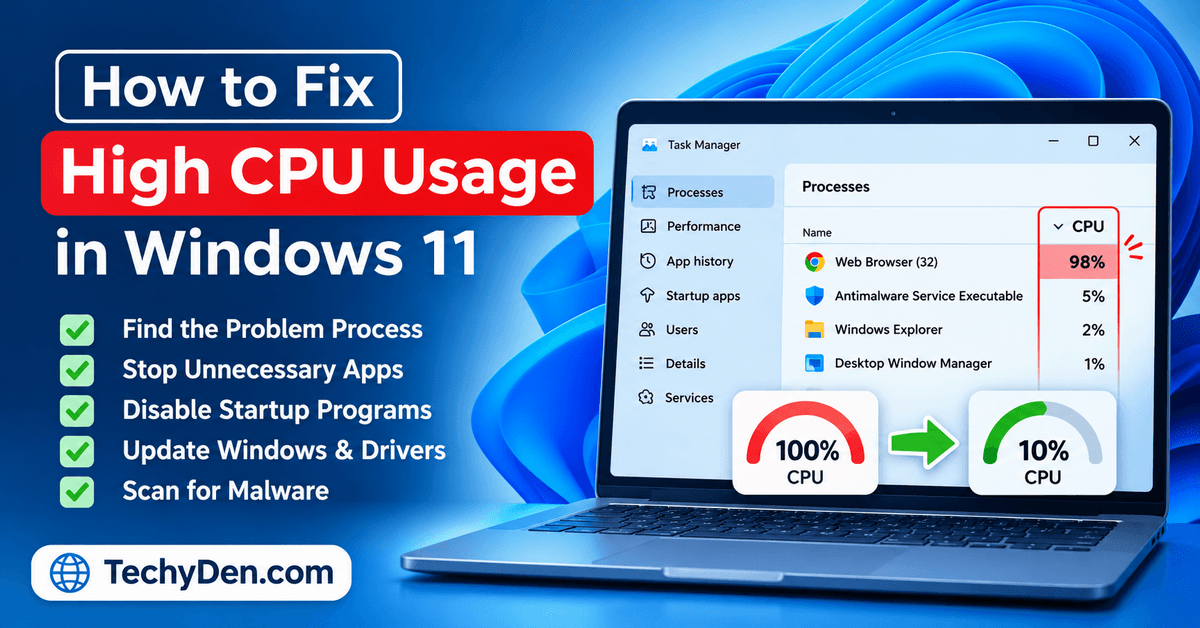
If CPU usage remains unusually high, follow our detailed guide on how to fix high CPU usage in Windows 11.
4. Check Hardware Drivers in Device Manager
Outdated, incompatible, or malfunctioning drivers can cause audio problems, network failures, display errors, and unstable system behavior.
To investigate a device:
- Right-click Start.
- Select Device Manager.
- Expand the category related to the device.
- Right-click the relevant device.
- Review the available driver and troubleshooting options.
You may be able to update a driver or investigate a device showing a warning symbol.
Obtain drivers from Windows Update or your computer manufacturer’s official website whenever possible. Avoid installing drivers from unfamiliar download sites.
5. Scan Your Computer with Windows Security
Malware and unwanted software can cause unexpected application behavior, performance problems, and security warnings.
To run a scan:
- Open Start.
- Search for Windows Security.
- Select Virus & threat protection.
- Choose the available scan option.
- Follow the instructions to complete the scan.
If you suspect a serious infection, consider a more thorough scan and follow Microsoft’s security recommendations.
A malware scan will not fix every Windows problem, but it can help identify one possible cause.
How to Fix Common Windows 11 Problems
The following Windows 11 troubleshooting solutions address common problems affecting performance, connectivity, applications, and system stability.
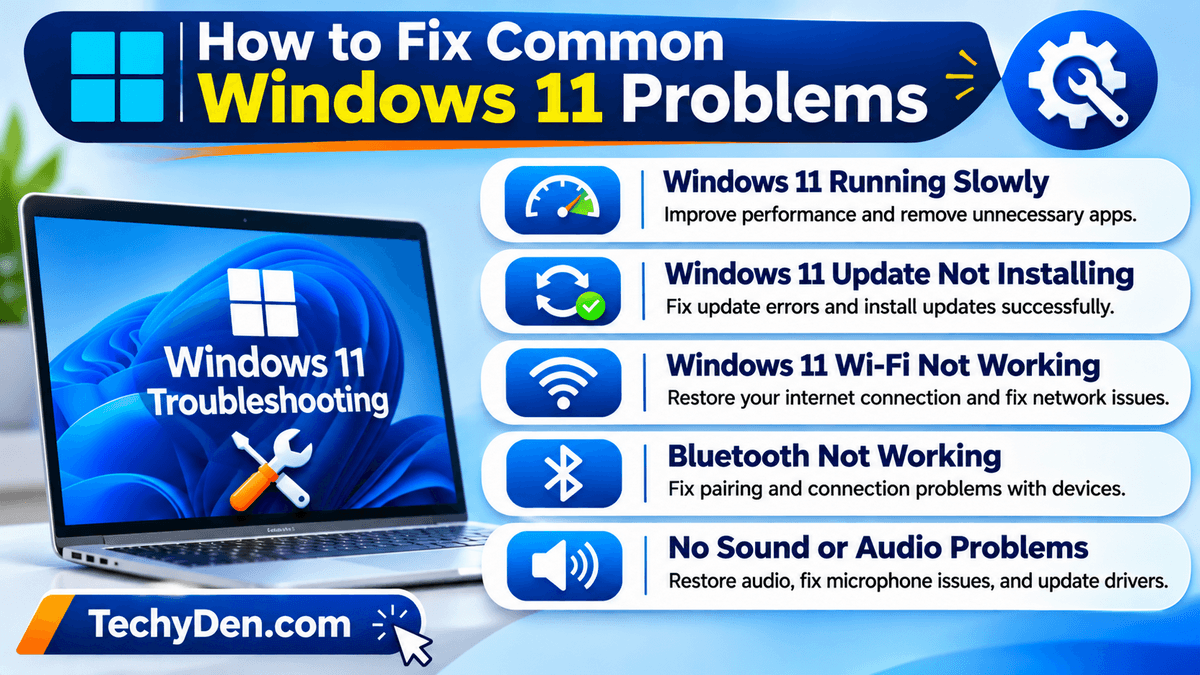
Choose the section that best matches your symptoms.
1. Windows 11 Running Slowly
A slow Windows 11 computer may take longer to start, open applications, or respond to everyday tasks. Common causes include excessive background activity, limited memory, insufficient storage, overheating, and software conflicts.
Try these solutions:
- Step 1: Check resource usage. Open Task Manager with
Ctrl + Shift + Esc. Check whether an application is consuming unusually high CPU, memory, or disk resources. - Step 2: Disable unnecessary startup applications. In Task Manager, open Startup apps and disable applications you recognize and do not need to launch automatically.
- Step 3: Free up storage space. Open Settings → System → Storage and remove unnecessary files.
- Step 4: Install appropriate updates. Check Windows Update and investigate any available driver updates related to the problem.
- Step 5: Check for malware. Run a scan using Windows Security if you suspect unwanted software.
If your computer remains slow, investigate overheating, hardware limitations, and storage health.
For more detailed instructions, read our guide on fixing high CPU usage in Windows 11.
2. Windows 11 Update Not Installing
Windows Update can fail because of insufficient storage, corrupted update files, network problems, or incompatible drivers.
Follow these troubleshooting steps:
- Restart your computer.
- Check your internet connection.
- Confirm that sufficient storage space is available.
- Open Settings → System → Troubleshoot → Other troubleshooters.
- Run the Windows Update troubleshooter if it is available.
- Record any error code displayed on the screen.
- Consult Microsoft’s documentation for that specific error.
If the problem persists, investigate whether a driver, security application, or recent system change is interfering with the update.
Avoid repeatedly forcing shutdowns while an update is installing. If Windows Update continues to fail, use the official Windows Update troubleshooting guide for additional steps.
For more information about recent Windows releases and their fixes, read our Windows 11 October 2026 update guide to learn about the latest updates and reported issues.
3. Windows 11 Wi-Fi Not Working
Wi-Fi problems can prevent you from accessing websites, downloading updates, or connecting to online services.
First, determine whether the issue affects only your computer or every device connected to the same network.
Try these solutions:
- Confirm that Wi-Fi is enabled and airplane mode is disabled.
- Restart your router if other network devices are also affected.
- Disconnect from the wireless network and reconnect.
- Restart your computer.
- Run the available network troubleshooter.
- Check whether the wireless adapter appears correctly in Device Manager.
- Investigate driver updates if the problem continues.
If other devices connect successfully but your computer cannot, focus on Windows network settings and the wireless adapter.
Avoid resetting all network settings immediately. Start with basic checks and use more disruptive network repairs only when necessary.
4. Bluetooth Not Working in Windows 11
Bluetooth problems can prevent wireless headphones, keyboards, mice, and other accessories from connecting.
Try the following fixes:
- Open Settings → Bluetooth & devices.
- Confirm that Bluetooth is enabled.
- Check that your accessory is charged and in pairing mode.
- Make sure the accessory is within range.
- Remove the device from Windows and pair it again.
- Check the Bluetooth adapter and driver in Device Manager.
If the Bluetooth toggle is missing, investigate the adapter, its driver, and whether the hardware is enabled.
If the problem began after a driver update, check whether rolling back the driver is available and appropriate.
5. No Sound or Audio Problems in Windows 11
Windows 11 audio problems may include missing sound, distorted output, microphone failures, or audio playing through the wrong device.
Use these troubleshooting steps:
- Step 1: Check the volume. Confirm that the system and application volumes are not muted.
- Step 2: Select the correct output device. Open Settings → System → Sound and choose the intended speakers, headphones, or other audio device.
- Step 3: Check connections. Make sure wired headphones and speakers are connected properly.
- Step 4: Run the audio troubleshooter. Open the Get Help app and search for audio troubleshooting.
- Step 5: Check the driver. If the problem continues, investigate the audio device in Device Manager.
If audio stopped working after a driver update, rolling back that driver may help. If only one application has no sound, check its individual audio settings before changing system-wide settings.
6. Windows 11 Black Screen
A black screen can occur because of display connection problems, graphics driver issues, or Windows failing to load the desktop properly.
First, check whether the computer is powered on and responding.
Try these steps:
- Confirm that your monitor is powered on and set to the correct input.
- Check the display cable and connections.
- Disconnect unnecessary external monitors and accessories.
- Press
Windows + Ctrl + Shift + Bto attempt to reset the graphics driver. - If the desktop is missing but Windows is responding, open Task Manager and check whether Windows Explorer is running.
If the problem persists, try Windows Recovery Environment and investigate Safe Mode or Startup Repair.
A computer that does not power on at all requires a different diagnosis from one that displays a black screen after Windows starts.
7. Windows 11 Blue Screen Errors
A blue screen indicates that Windows has encountered a serious problem and cannot continue operating normally.
The displayed stop code can help identify the underlying cause.
Common causes include driver conflicts, hardware problems, system file corruption, and incompatible software.
To troubleshoot a blue screen:
- Record the stop code shown on the screen.
- Note whether the crash started after a recent update or hardware change.
- Disconnect recently added peripherals if appropriate.
- Update or roll back a driver if there is evidence that it is responsible.
- Run DISM and System File Checker when system corruption is suspected.
- Use Safe Mode or Windows recovery options if Windows cannot start normally.
If blue screens occur repeatedly, check the computer’s hardware and review any available diagnostic information.
Do not assume that every blue screen is caused by a virus. The stop code and circumstances surrounding the crash provide important clues.
8. Windows 11 Freezing or Crashing
Freezing occurs when an application or the entire operating system becomes unresponsive. Repeated crashes may indicate software conflicts, insufficient resources, overheating, or hardware problems.
Try these fixes:
- Close an unresponsive application through Task Manager if possible.
- Restart the computer.
- Install relevant application updates.
- Investigate software installed immediately before the problem began.
- Check CPU and memory usage.
- Run a malware scan if suspicious behavior is present.
- Test the computer in Safe Mode if you suspect a third-party software conflict.
If the problem occurs during gaming or other demanding tasks, investigate temperatures, graphics drivers, and hardware requirements.
If the computer freezes frequently even when idle, consider checking storage health and running appropriate hardware diagnostics.
9. Windows 11 Start Menu Not Working
A Start menu that will not open can make it difficult to launch applications, search for files, or access system settings.
Begin with these troubleshooting steps:
- Press
Ctrl + Shift + Escto open Task Manager. - Find Windows Explorer in the processes list.
- Right-click Windows Explorer and select Restart, if available.
- Wait for the taskbar and desktop to reload.
- Restart your computer if the Start menu remains unresponsive.
- Check for relevant Windows updates.
If the problem started after installing an application or update, investigate that change.
For more guidance on Start menu settings and common customization problems, read our tutorial on customizing the Windows 11 Start menu.
If the Start menu remains broken, use additional diagnostic methods rather than making unnecessary registry changes.
10. Windows 11 Apps Not Opening
Applications may refuse to open, crash during startup, or display error messages because of corrupted files, missing dependencies, compatibility problems, or outdated software.
Try these solutions:
- Restart the computer.
- Install available updates for the application.
- Check whether the application is compatible with your Windows version.
- Open Settings → Apps → Installed apps.
- Select the application’s available advanced options.
- Choose Repair if the option is available.
- If repair does not work, consider Reset or reinstalling the application.
Be aware that resetting an application can remove its settings or local data. Back up application-specific files before proceeding.
If only one program is affected, focus on that application instead of resetting Windows.
11. Windows 11 Search Not Working
Windows Search may fail to return expected results, stop responding, or take too long to find files.
Try the following steps:
- Restart your computer.
- Check whether the problem affects applications, files, or both.
- Open the Get Help app and search for Windows Search troubleshooting.
- Review Windows Search settings.
- Investigate indexing problems if file searches remain incomplete.
- Install relevant Windows updates.
If Search fails after a recent system change, investigate that change before attempting advanced repairs.
Avoid deleting indexing files or modifying the registry without a clear reason. These steps are unnecessary for many basic search problems.
12. Windows 11 Not Shutting Down or Restarting
Windows may become stuck during shutdown or restart because of an unresponsive application, driver conflict, background process, or update-related problem.
Try these fixes:
- Close open applications and save your work.
- Disconnect unnecessary peripherals.
- Install appropriate Windows updates.
- Investigate whether the problem started after a driver or application change.
- Check for applications that remain unresponsive during shutdown.
If the issue continues, investigate driver conflicts and system errors.
Avoid repeatedly forcing the computer to power off during active Windows, BIOS, or firmware updates. Interrupting these processes can cause additional problems.
13. Keyboard, Mouse, or Touchpad Not Working
Input device problems can make Windows difficult to use, particularly when both the keyboard and mouse stop responding.
Start with these checks:
- Confirm that wired devices are connected properly.
- Replace or recharge wireless device batteries.
- Try another USB port if available.
- Test another keyboard or mouse to identify whether the original device is faulty.
- Check touchpad settings in Settings → Bluetooth & devices → Touchpad.
- Investigate drivers in Device Manager.
If the touchpad stopped working after a driver update, investigate whether a compatible driver or rollback option is available.
If no input devices work, the issue may require additional hardware or recovery troubleshooting.
14. Windows 11 Disk Usage at 100%
When Task Manager shows 100% disk usage, your computer may respond slowly, applications may take longer to open, and the system may become temporarily unresponsive.
High disk usage does not automatically mean your storage drive is defective.
To investigate the problem:
- Open Task Manager.
- Select Processes.
- Sort by Disk usage.
- Identify applications or services responsible for unusually high activity.
- Check available storage space.
- Install relevant Windows and storage driver updates.
- Investigate drive health if the problem continues.
Temporary spikes can occur during updates, indexing, or file transfers. Persistent high usage, especially alongside freezing or disk errors, requires closer investigation.
If you hear unusual mechanical noises from a traditional hard drive or suspect drive failure, back up important data promptly.
15. Windows 11 Cannot Boot or Gets Stuck on Startup
Startup failures can leave Windows stuck on a loading screen, trapped in a restart loop, or unable to reach the sign-in screen.
Try these troubleshooting steps:
- Step 1: Disconnect unnecessary devices. Remove nonessential USB drives, docks, and other peripherals.
- Step 2: Access Windows Recovery Environment. If Windows cannot start normally, use the recovery options available on your device. The entry method depends on the situation.
- Step 3: Run Startup Repair. Select Troubleshoot → Advanced options → Startup Repair when available.
- Step 4: Try Safe Mode. If Windows can start in Safe Mode, investigate recent drivers, applications, or other changes.
- Step 5: Consider System Restore. If a suitable restore point exists, it may help reverse system changes that caused the problem.
If Windows cannot start and the built-in recovery tools fail, consider professional support or a carefully planned recovery process.
Some recovery operations may require your BitLocker recovery key. Check that you have it before proceeding with encrypted devices.
For additional guidance, consult Microsoft’s Startup Repair instructions.
How to Repair Windows 11 System Files
Corrupted or missing system files can cause Windows 11 to freeze, display errors, or behave unexpectedly. Windows includes two useful command-line tools for investigating and repairing certain types of system corruption: Deployment Image Servicing and Management (DISM) and System File Checker (SFC).
Use these tools when simpler troubleshooting steps have not resolved the problem.
1. Run the DISM Repair Command
DISM can repair the Windows image used to maintain and restore system components.
Follow these steps:
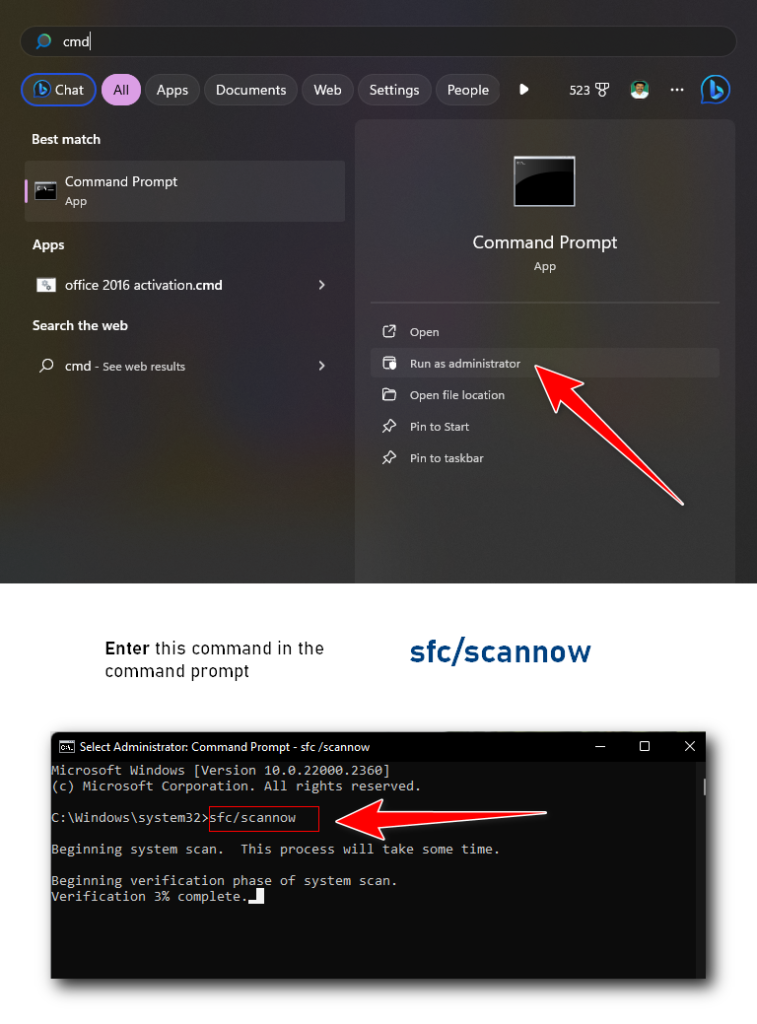
- Open Start and search for Command Prompt.
- Select Run as administrator.
- Approve the User Account Control prompt if it appears.
- Enter the following command:
DISM /Online /Cleanup-Image /RestoreHealth- Press Enter.
- Wait for the operation to finish.
The process may take several minutes or longer, depending on the computer and the condition of the Windows image. An internet connection may be needed to obtain repair files through Windows Update.
Do not close the terminal while the operation is running.
2. Run System File Checker
After DISM completes successfully, run System File Checker to scan protected Windows system files and attempt to repair corruption.
In the administrator Command Prompt, enter:
sfc /scannowPress Enter and wait until verification reaches 100%.
The results will indicate whether Windows found and repaired corrupted files, found no integrity violations, or could not repair some files.
Restart your computer if appropriate and check whether the original problem has been resolved.
Important: These commands do not fix every Windows problem. If errors persist, investigate the specific message and consider other recovery options.
For additional instructions, read Microsoft’s official guide to repairing corrupted Windows system files.
How to Use Safe Mode to Troubleshoot Windows 11
Safe Mode starts Windows with a limited set of drivers and services. It can help you determine whether a problem is associated with a third-party application, driver, or service.
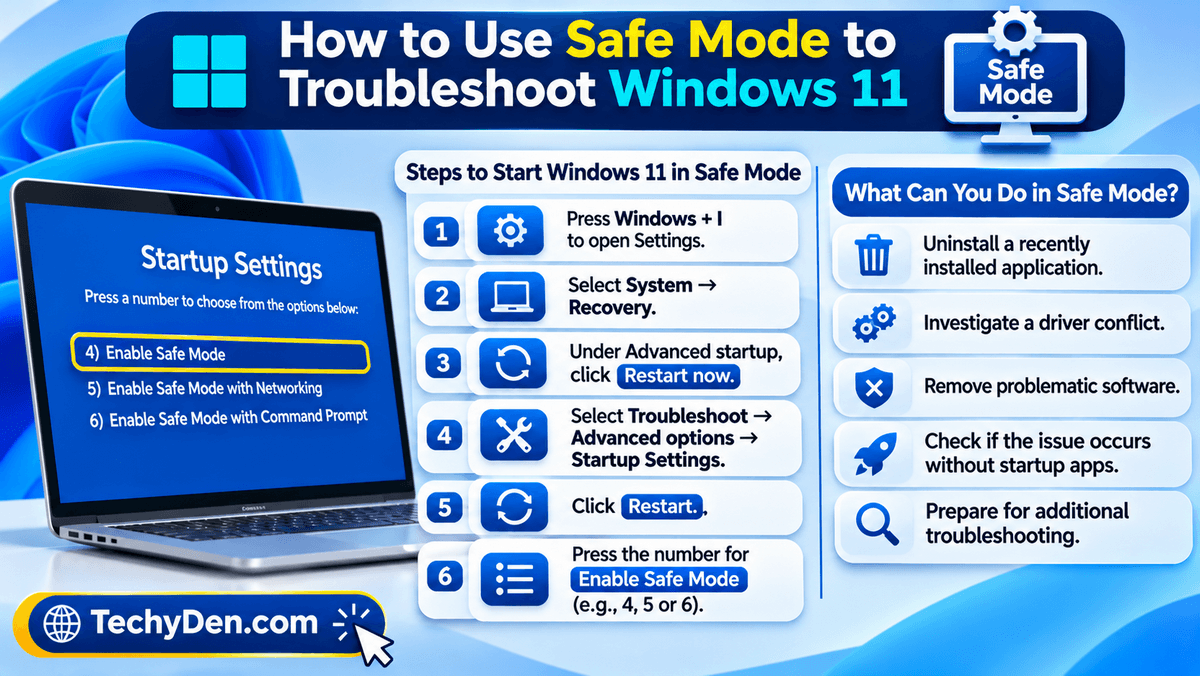
Safe Mode is particularly useful when Windows becomes unstable after installing new software or updating a driver.
Steps to Start Windows 11 in Safe Mode
If you can open Settings, follow these steps:
- Press
Windows + Ito open Settings. - Select System → Recovery.
- Under Advanced startup, click Restart now.
- Select Troubleshoot → Advanced options → Startup Settings.
- Click Restart.
- After the options appear, press the number associated with Enable Safe Mode.
Choose the networking option only if you need network access for troubleshooting.
The exact options may vary depending on your device and Windows configuration.
What Can You Do in Safe Mode?
Once Windows starts in Safe Mode, you can:
- Uninstall a recently installed application that may be causing problems.
- Investigate a driver conflict.
- Remove problematic software.
- Check whether the issue also occurs without normal startup applications.
- Prepare for additional troubleshooting.
If the problem disappears in Safe Mode, that is a useful clue, but it does not prove which application or driver caused it.
Before using recovery tools, make sure you can access your sign-in credentials and BitLocker recovery key if required.
How to Fix Windows 11 Problems After an Update
If Windows 11 starts freezing, crashing, or displaying errors immediately after an update, the update or a related driver change may be responsible.
However, the timing alone does not establish the cause. Follow these steps to investigate safely.
1. Check for Additional Windows Updates
Open Settings → Windows Update and check for available updates.
If Microsoft has released a corrective update for the issue, installing it may resolve the problem. Review applicable update information before proceeding.
2. Investigate Driver Problems
Open Device Manager and locate the device associated with the problem.
If the issue started after a driver update, open the device’s Properties and check whether Roll Back Driver is available. Use this option only when the timing and symptoms suggest that the updated driver may be responsible.
3. Uninstall a Problematic Windows Update
If the problem clearly began after a recent Windows update, check Windows Update history and the available uninstall options.
Use this approach selectively. Removing an update can reduce security protection or affect system stability, so reinstall an appropriate corrective update when one becomes available.
4. Use System Restore
System Restore can return certain system files, drivers, settings, and installed programs to an earlier state.
To check for restore points, search Windows for Create a restore point and open the System Protection settings.
If System Restore is enabled and a suitable restore point exists, follow the instructions to restore the computer to an earlier state.
Review the affected programs before confirming the operation.
5. Reinstall the Current Version of Windows
If other methods fail, Windows 11 may offer a recovery option called Fix problems using Windows Update.
When available, this option reinstalls the current Windows version while preserving personal files, applications, and settings. Availability depends on the Windows version and device configuration.
Back up important files before attempting any recovery operation.
Windows 11 Troubleshooting Tools Compared
Different Windows 11 repair tools address different types of problems. Choosing the right tool can save time and help you avoid unnecessary system changes.
| Troubleshooting tool | Best for | Difficulty |
|---|---|---|
| Get Help | Guided diagnostics for supported problems | Easy |
| Windows troubleshooters | Common audio, update, and device issues | Easy |
| Task Manager | High CPU, memory, or disk usage | Easy |
| Device Manager | Hardware and driver problems | Easy to moderate |
| Windows Security | Investigating suspected malware | Easy |
| DISM | Repairing the Windows image | Moderate |
| System File Checker (SFC) | Scanning and repairing protected system files | Moderate |
| Safe Mode | Investigating software and driver conflicts | Moderate |
| Startup Repair | Certain problems preventing Windows from starting | Moderate |
| System Restore | Reversing certain recent system changes | Moderate |
| Reset this PC | Persistent problems that other repairs cannot resolve | Advanced |
Start with the tool that matches your symptoms. For example, use Task Manager to investigate high CPU usage rather than immediately running system repair commands.
Similarly, use Startup Repair when Windows cannot boot normally instead of trying unrelated audio or network troubleshooters.
When Should You Reset Windows 11?
Resetting Windows 11 can help when persistent software problems remain unresolved after appropriate troubleshooting. However, it is more disruptive than using a troubleshooter or repairing system files.
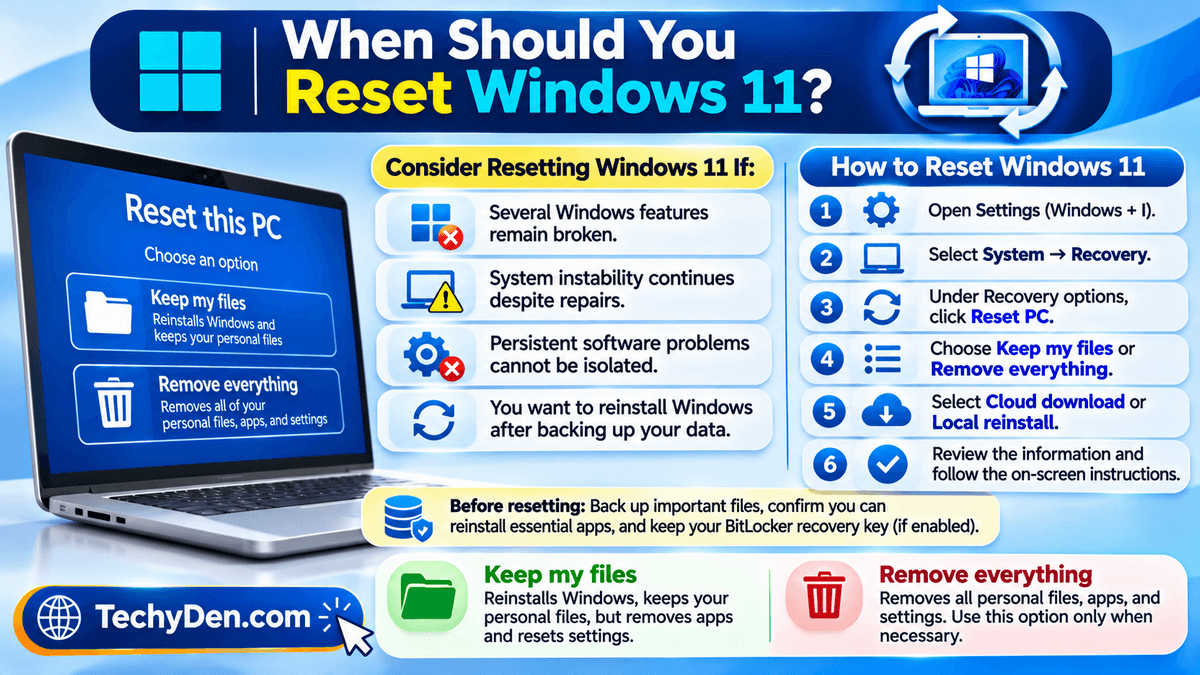
Consider resetting Windows if:
- Several Windows features remain broken.
- System instability continues despite appropriate repairs.
- Persistent software problems cannot be isolated.
- You want to reinstall Windows after backing up your data.
Before proceeding, back up important files, confirm that you can reinstall essential applications, and locate your BitLocker recovery key if device encryption is enabled.
How to Reset Windows 11
Follow these steps:
- Open Settings.
- Select System → Recovery.
- Under Recovery options, select Reset PC.
- Choose Keep my files or Remove everything.
- Select the available reinstall method.
- Review the information and follow the on-screen instructions.
Depending on your configuration, you may be offered Cloud download or Local reinstall. These options use different sources to reinstall Windows.
- Keep my files reinstalls Windows while retaining personal files, but removes applications and resets settings.
- Remove everything removes personal files, applications, and settings. This option is more destructive and should be used only when appropriate.
Neither option guarantees that every underlying hardware or software problem will be fixed. A failing storage drive or faulty memory, for example, may require a separate repair.
How to Prevent Common Windows 11 Problems
Although not every Windows error can be prevented, a few maintenance habits can reduce the likelihood of avoidable issues.
- Keep Windows updated. Install appropriate security and reliability updates, and investigate any recurring installation errors.
- Use trusted driver sources. Prefer Windows Update and your computer manufacturer’s official support website.
- Maintain sufficient storage space. Review Settings → System → Storage regularly and remove unnecessary files.
- Back up important data. Maintain a current backup so you can recover files if Windows or your storage device fails.
- Review startup applications. Disable unnecessary applications that launch automatically, but avoid disabling unfamiliar system components.
- Use Windows Security. Keep security protection active and investigate suspicious applications or unexpected system behavior.
- Avoid unnecessary registry changes. Registry modifications can create additional problems if performed incorrectly.
- Pay attention to recurring symptoms. Repeated crashes, disk errors, overheating, and unusual hardware noises may indicate a problem that software troubleshooting cannot resolve.
These practices help keep your computer in better condition, although they cannot prevent every software conflict or hardware failure.
For more practical advice on configuring and maintaining your PC, explore our complete Windows 11 guide, which covers useful features, settings, tips, and troubleshooting resources.
Frequently Asked Questions About Windows 11 Troubleshooting
How do I troubleshoot Windows 11?
Start by identifying the problem, restarting your computer, checking for Windows updates, and running the relevant troubleshooter. Use Task Manager to investigate performance issues and Device Manager to check hardware drivers. If basic fixes fail, consider DISM, System File Checker, Safe Mode, or Windows recovery options, depending on the symptoms.
Does Windows 11 have a built-in troubleshooting tool?
Yes. Windows 11 includes the Get Help app and various troubleshooting options under Settings → System → Troubleshoot → Other troubleshooters. It also provides diagnostic utilities such as Task Manager, Device Manager, Windows Security, and system repair commands. The appropriate tool depends on whether you are experiencing performance, connectivity, application, or startup problems.
How do I repair Windows 11 without losing data?
Start with targeted fixes such as running a troubleshooter, updating a driver, or repairing system files with DISM and SFC. System Restore or the Windows Update recovery reinstall option may also help, depending on your situation. Back up important files before recovery operations, and check the expected effects of each option before proceeding.
How do I fix Windows 11 if it is not responding?
If one application freezes, wait briefly and use Task Manager to close it if necessary. If the entire computer becomes unresponsive, check for overheating or recurring hardware problems after restarting. If freezing continues, investigate startup applications, drivers, storage health, and available system resources. Save your work whenever possible before closing applications.
Can I troubleshoot Windows 11 in Safe Mode?
Yes. Safe Mode starts Windows with a limited set of drivers and services, helping you investigate certain application and driver conflicts. If a problem disappears in Safe Mode, a component loaded during normal startup may be involved. Uninstall or update suspected software carefully, and restart normally to check whether the issue has been resolved.
How do I fix Windows 11 startup problems?
Disconnect unnecessary peripherals and try Windows Recovery Environment if Windows cannot start normally. Select Troubleshoot → Advanced options → Startup Repair when available. If that fails, consider Safe Mode or System Restore, depending on the symptoms and available recovery options. Keep your BitLocker recovery key accessible because encrypted devices may require it during recovery.
Will resetting Windows 11 delete my files?
It depends on the option you choose. Keep my files retains personal files but removes installed applications and resets settings. Remove everything deletes personal files, applications, and settings. Before resetting, back up important data, verify your recovery options, and ensure that you can access your BitLocker recovery key if device encryption is enabled.
When should I reinstall Windows 11?
Consider reinstalling Windows when targeted troubleshooting and appropriate repair tools fail to resolve persistent software problems. Before reinstalling, back up important files, confirm application installation requirements, and check your recovery credentials. If the underlying problem is caused by failing hardware, reinstalling Windows may not help. Diagnose possible hardware faults before choosing a destructive recovery method.
How do I fix corrupted system files in Windows 11?
Open Command Prompt as an administrator and run DISM /Online /Cleanup-Image /RestoreHealth. After it completes, run sfc /scannow and wait for verification to finish. These tools can repair certain types of Windows system corruption. If errors remain, record the messages and investigate additional recovery options rather than repeatedly running commands without a diagnosis.
Why is Windows 11 so slow all of a sudden?
A sudden slowdown may result from an application consuming excessive resources, a background update, low storage space, malware, overheating, or a driver problem. Open Task Manager and check CPU, memory, and disk usage. Review recent software changes and available updates. If the slowdown continues, investigate storage health and hardware performance instead of assuming Windows needs to be reinstalled.
Conclusion
Windows 11 problems can range from slow performance and failed updates to Wi-Fi connectivity issues, audio errors, and startup failures. Fortunately, most common issues can be diagnosed and resolved using built-in Windows troubleshooting tools and a few practical steps.
Start by restarting your computer, installing available updates, checking storage space, and disconnecting unnecessary external devices.
If the problem persists, use the appropriate troubleshooter, update or reinstall problematic drivers, and run SFC or DISM commands to repair corrupted system files. You can also use Safe Mode to investigate software conflicts and driver-related problems.
Consider resetting Windows 11 only when other suitable troubleshooting methods fail. Before resetting, back up your important files and make sure you have access to your essential applications and BitLocker recovery key, if required.
The key to successful Windows 11 troubleshooting is to identify the underlying cause and apply the least disruptive solution first. By following the steps in this guide, you can resolve many common PC problems and keep your system running reliably.
If you continue experiencing issues, explore our Windows 11 tips and tutorials for more practical guides to troubleshooting, customization, and improving your PC experience.