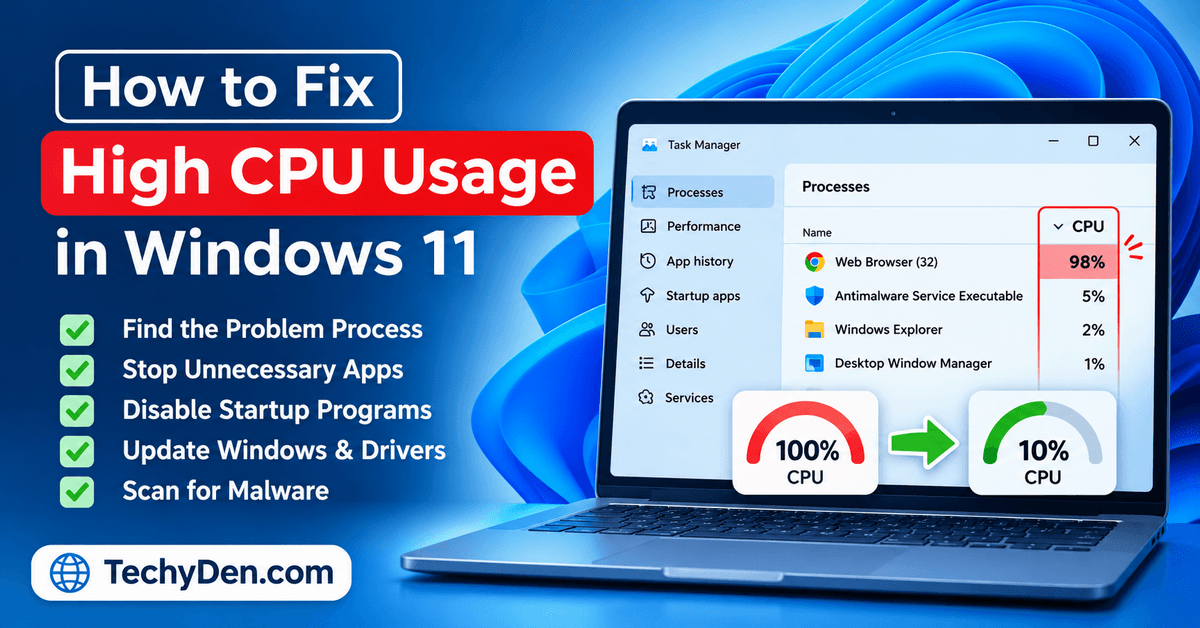
Is your Windows 11 PC running slowly, freezing frequently, or showing 100% CPU usage in Task Manager? High CPU usage can make everyday tasks frustrating, especially when opening applications, browsing the internet, or playing games. Fortunately, you can often resolve the problem without upgrading your hardware.
To fix high CPU usage in Windows 11, open Task Manager by pressing Ctrl + Shift + Esc, identify the process consuming the most CPU resources, and close unnecessary applications.
You can then investigate background processes, disable unnecessary startup apps, check for malware, update Windows, and repair corrupted system files if necessary.
In this guide, you’ll learn how to identify the cause of excessive CPU usage and follow 12 practical methods to restore your computer’s performance.
Why Is My CPU Usage So High in Windows 11?
Your CPU, or central processing unit, handles instructions from Windows, applications, and background services. CPU usage increases when these tasks require more processing power.
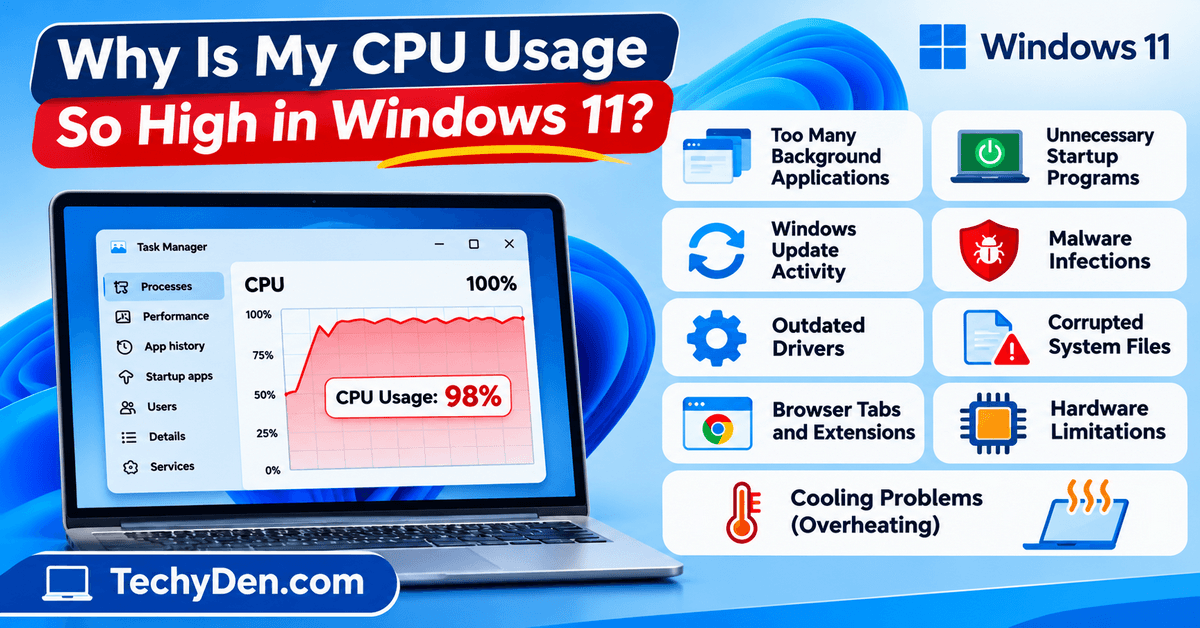
Temporary spikes are normal when installing updates, launching applications, extracting files, or running demanding programs. However, consistently high CPU usage when your computer is idle or performing simple tasks may indicate an underlying problem.
Common causes include:
- Too many background applications: Several applications running simultaneously can compete for CPU resources.
- Unnecessary startup programs: Applications that launch automatically may continue consuming resources after you sign in.
- Windows Update activity: Downloading, installing, or processing updates can temporarily increase CPU usage.
- Malware infections: Some malicious programs run unwanted processes that consume system resources.
- Outdated drivers: Incompatible or malfunctioning drivers can contribute to performance problems.
- Corrupted system files: Damaged Windows components may cause errors or unexpected behavior.
- Browser tabs and extensions: Resource-intensive websites and extensions can increase processor usage.
- Hardware limitations: Older processors may struggle with demanding applications or heavy multitasking.
- Cooling problems: Overheating can cause thermal throttling and reduced performance, although it does not necessarily cause high CPU utilization.
Before changing Windows settings, identify the process responsible for the problem. This helps you choose the appropriate fix instead of making unnecessary system changes.
How to Check CPU Usage in Windows 11
Task Manager is the easiest place to begin diagnosing high CPU usage. It shows which applications and processes are consuming your computer’s resources.
Check CPU Usage Using Task Manager
Follow these steps to identify the process using the most CPU resources:
- Press Ctrl + Shift + Esc to open Task Manager.
- Select the Processes tab.
- Find the CPU column.
- Click the CPU column heading to sort processes by CPU usage.
- Look at the applications and processes at the top of the list.
- Observe the readings for a short period to determine whether usage remains high.
If an application you recognize is consuming excessive CPU resources, save your work and close it normally before considering ending its task.
For example, a video editor may use substantial CPU resources while exporting a video. A browser may consume more resources when several demanding tabs are open. These situations do not automatically indicate a problem.
However, if CPU usage remains unusually high when you are not doing anything demanding, investigate the responsible process.
Important: Do not terminate unfamiliar Windows processes simply because they use CPU resources. Some system processes are essential for Windows to function correctly.
For more detailed information, open the Start menu, search for Resource Monitor, and select its CPU tab. You can also press Win + R, enter resmon, and press Enter.
Microsoft provides additional guidance in its high CPU usage troubleshooting documentation.
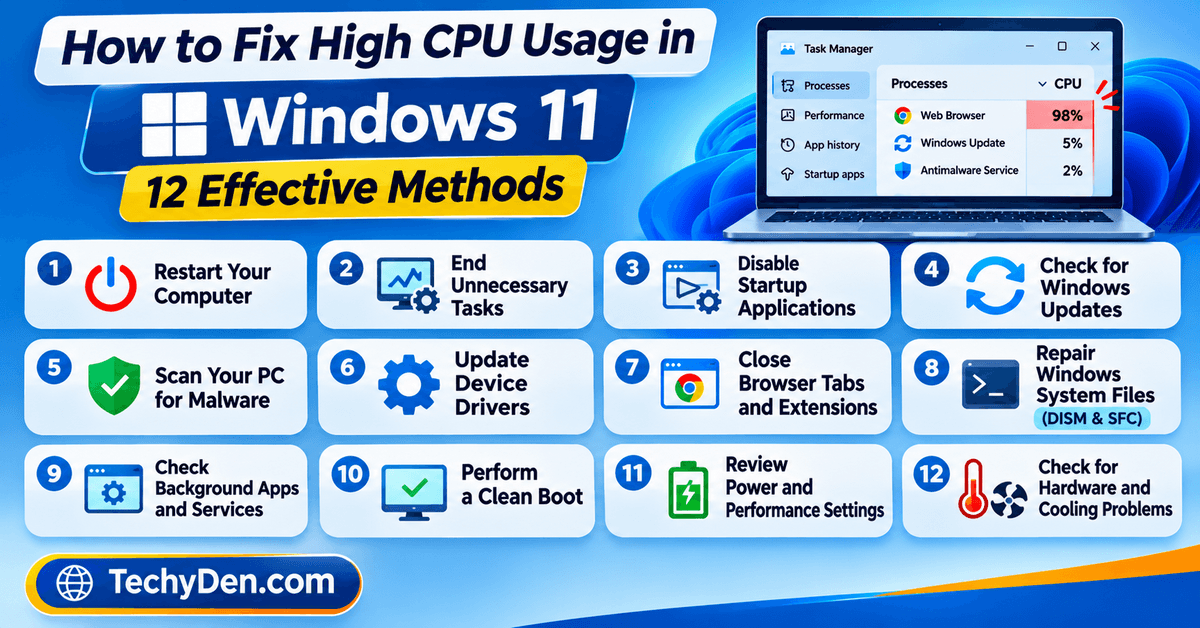
How to Fix High CPU Usage in Windows 11: 12 Effective Methods
Try the following solutions in order. Start with the simpler fixes before moving to system repairs and advanced troubleshooting.
1. Restart Your Windows 11 Computer
Restarting your computer is one of the simplest ways to resolve temporary performance problems.
Applications can occasionally become unresponsive, background processes may stop behaving correctly, and temporary software issues can affect system performance. A restart closes running applications and starts a fresh Windows session.
Follow these steps:
- Save your open documents and work.
- Open the Start menu.
- Select the Power button.
- Click Restart.
- Wait for Windows to start again.
- Open Task Manager and check CPU usage.
Avoid opening all your applications immediately after restarting. Give Windows a short period to finish its initial background activity, then check whether CPU usage decreases.
If the problem returns as soon as you launch a particular application, investigate that application first.
2. End Unnecessary Tasks in Task Manager
An application that consumes excessive CPU resources can slow down other programs. Closing it may immediately improve responsiveness.
How to close an unnecessary task:
- Open Task Manager using Ctrl + Shift + Esc.
- Select Processes.
- Click the CPU column to identify resource-intensive processes.
- Select an application you recognize and no longer need.
- Click End task.
- Check whether CPU usage decreases.
Save your work before ending an application. Unsaved changes may be lost when you terminate its process.
If the same application repeatedly consumes excessive CPU resources, update it, check its settings, or reinstall it if necessary.
Do not end critical Windows processes or unfamiliar services without understanding their purpose. If a Windows process appears responsible, investigate the process and any associated service before making changes.
3. Disable Unnecessary Startup Applications
Some applications launch automatically whenever you sign in to Windows 11. Too many startup applications can increase background activity and make your computer feel slow.
Disabling unnecessary startup applications can reduce this activity and improve startup performance.
Follow these steps:
- Press Ctrl + Shift + Esc to open Task Manager.
- Select Startup apps.
- Review the list of applications.
- Identify programs you do not need immediately after signing in.
- Select an unnecessary application.
- Click Disable.
You can also manage startup applications through Settings → Apps → Startup.
Consider disabling automatic startup for applications such as unused game launchers, messaging programs you rarely use, and optional utilities that do not need to run continuously.
Keep essential security software enabled, and avoid disabling hardware utilities or other programs whose functions you do not understand.
Disabling a startup application prevents it from launching automatically; it does not necessarily uninstall the application or prevent you from opening it manually.
For detailed instructions, see Microsoft’s guide to configuring startup applications in Windows.
4. Check for Windows Updates
Windows updates can include security fixes, compatibility improvements, and performance-related corrections.
However, Windows Update may temporarily increase CPU usage while downloading, installing, or processing updates. If your computer recently installed an update, allow the activity to finish before assuming something is wrong.
How to check for updates:
- Press Win + I to open Settings.
- Select Windows Update.
- Click Check for updates.
- Install applicable updates.
- Restart your computer if Windows requests it.
- Check CPU usage again after the system settles.
If CPU usage remains unusually high after an update, check whether another update is pending and investigate any recently installed drivers or applications.
Do not repeatedly interrupt an update simply because CPU usage increases temporarily.
You can also read our guide to installing Windows 11 on unsupported PCs if your system has compatibility limitations, although that guide addresses installation rather than CPU troubleshooting.
5. Scan Your PC for Malware
Malware is another possible cause of unusually high CPU usage. Some malicious programs run continuously in the background, use system resources, or perform unwanted activities without obvious signs.
Windows Security includes built-in protection that can help detect malicious software.
How to scan Windows 11 for malware:
- Open Settings.
- Select Privacy & security.
- Click Windows Security.
- Select Virus & threat protection.
- Click Quick scan.
- Follow any recommendations provided by Windows Security.
If you suspect an infection but the quick scan does not resolve the concern, consider running a full scan. Microsoft Defender Offline may also be appropriate for certain persistent threats.
Keep your security software updated, and avoid installing unknown antivirus applications or PC optimization utilities from untrusted websites.
If malware is detected, follow the security application’s recommended actions and check Task Manager again afterward.
6. Update Your Device Drivers
Outdated, incompatible, or malfunctioning drivers can sometimes contribute to system instability and performance problems.
Drivers allow Windows to communicate with hardware components, including graphics cards, network adapters, and other devices. If a problem began after a driver update, the new driver may also be worth investigating.
How to check for driver updates:
- Open Settings.
- Select Windows Update.
- Check for applicable updates.
- Open Advanced options and review Optional updates, if available.
- Install relevant driver updates when appropriate.
- Restart your computer if required.
You can also visit your computer manufacturer’s official support website to find compatible drivers for your specific model.
For a desktop PC, consult the relevant component manufacturer’s official website when investigating a graphics card or other hardware component.
Avoid installing drivers from unfamiliar download websites. Do not assume every optional driver update will solve CPU problems; update the components relevant to the symptoms you are experiencing.
7. Close Unnecessary Browser Tabs and Extensions
Web browsers can consume considerable CPU resources when multiple tabs, extensions, or demanding websites are open.
Video playback, browser-based applications, online meetings, and complex websites can all increase processor usage.
Try these steps:
- Save any important information in your browser.
- Close tabs you no longer need.
- Disable extensions you rarely use.
- Update your browser.
- Close the browser and check CPU usage in Task Manager.
- Reopen the browser and test whether the problem returns.
If CPU usage rises sharply whenever you open a particular website, test the browser with that tab closed.
Some browsers also provide their own task manager, allowing you to identify resource-intensive tabs and extensions.
If you use Google Chrome, our guide to installing Google Chrome on Windows 11 can help if you need to reinstall the browser.
Do not assume every browser slowdown is caused by CPU usage. Memory pressure, network problems, and graphics processing can also affect browsing performance.
8. Repair Corrupted Windows System Files
Damaged Windows system files can cause operating system problems. If high CPU usage occurs alongside Windows errors, crashes, or other unusual behavior, Microsoft’s built-in DISM and System File Checker tools may help.
DISM can repair the Windows image, while System File Checker checks protected system files and attempts to repair detected corruption.
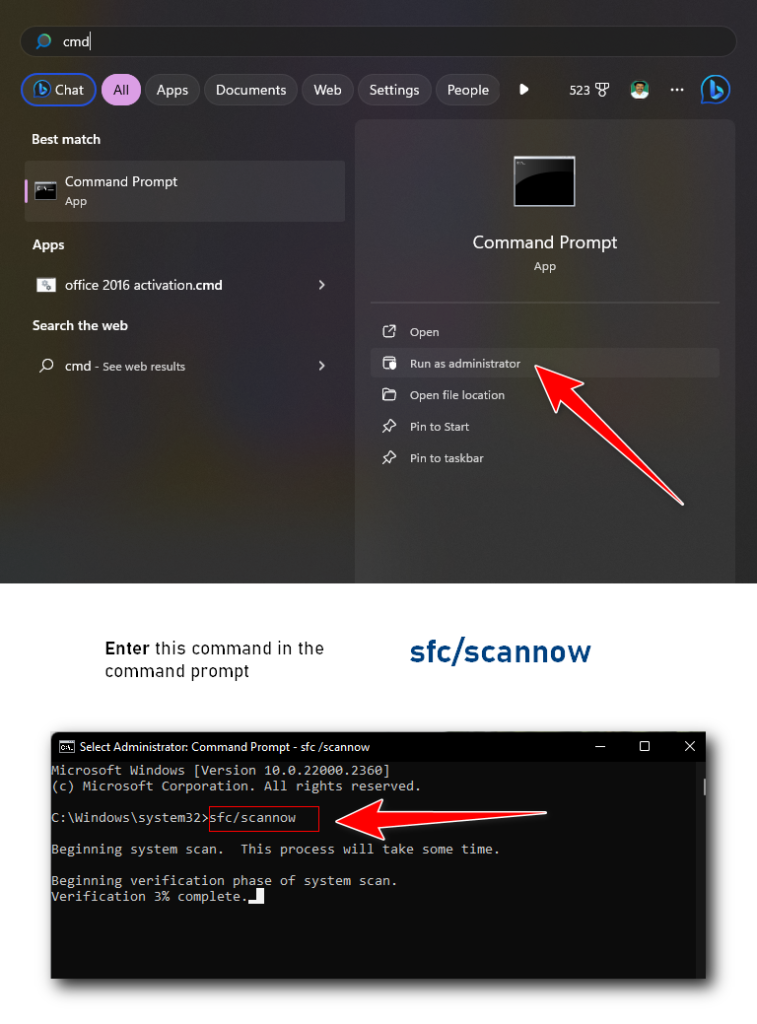
How to run DISM and SFC:
- Open the Start menu.
- Search for Terminal.
- Right-click Windows Terminal and select Run as administrator.
- Approve the User Account Control prompt.
- Run the following command:
DISM.exe /Online /Cleanup-image /Restorehealth
- Wait for the command to finish.
- Run the next command:
sfc /scannow
- Wait until verification is complete.
- Restart your computer if appropriate and check whether the problem persists.
Run the commands separately and allow each operation to finish. DISM may take several minutes or longer, depending on the system and the repairs required.
These tools do not fix every cause of high CPU usage. They are most useful when Windows system corruption is suspected.
For further instructions, consult Microsoft’s guide to using System File Checker in Windows.
9. Check Background Applications and Unnecessary Services
Some applications continue running background processes even when their windows are closed. These processes may perform synchronization, notifications, updates, or other tasks.
Reviewing unnecessary background activity can help reduce CPU usage.
To review background application settings:
- Open Settings.
- Select Apps.
- Open Installed apps.
- Find the application you want to review.
- Select its three-dot menu.
- Choose Advanced options if available.
- Review its Background app permissions setting.
- Choose Never if the application supports this option and does not need to run in the background.
Not every desktop application offers this setting. Some applications manage their own background activity through their internal preferences.
Be careful when investigating Windows services. Disabling essential services can affect updates, networking, security, or other system functions.
If a service appears to be responsible for high CPU usage, identify what it does before changing its configuration.
10. Perform a Clean Boot to Identify Software Conflicts
If CPU usage remains high after trying the basic fixes, a clean boot can help determine whether a third-party application or service is contributing to the problem.
A clean boot starts Windows with a reduced set of startup programs and non-Microsoft services. This helps isolate software conflicts without immediately uninstalling applications.
Before you begin: A clean boot changes startup behavior and may temporarily affect some functionality. Follow Microsoft’s instructions carefully, and keep track of any settings you change.
General procedure:
- Press Win + R.
- Type
msconfigand press Enter. - Open the Services tab.
- Select Hide all Microsoft services.
- Disable the remaining services for diagnostic testing.
- Open the Startup tab and select Open Task Manager.
- Disable the relevant enabled startup applications, keeping track of your changes.
- Close Task Manager and return to System Configuration.
- Apply the changes and restart the computer.
- Check whether CPU usage improves.
If the problem disappears, a disabled application or service may be responsible. Re-enable items methodically to isolate the cause.
When testing is complete, restore normal startup settings and re-enable the services and applications you disabled, unless you have identified a specific item that should remain disabled.
For safety, follow Microsoft’s complete guide to performing a clean boot in Windows.
11. Review Windows 11 Power and Performance Settings
Windows 11 provides power settings that influence how your computer balances performance and energy consumption.
Changing these settings will not necessarily reduce CPU usage, but selecting an appropriate power mode can improve responsiveness in some situations.
How to review your power mode:
- Press Win + I.
- Select System.
- Open Power & battery.
- Find Power mode.
- Select an appropriate option for your workload.
On a laptop, a power-saving mode may limit performance to conserve battery life. A performance-oriented mode may allow the processor to operate more aggressively when needed.
However, Best performance is not a universal fix for high CPU usage. It can increase power consumption, fan activity, and heat.
If your computer is already overheating or running at full CPU utilization, investigate the responsible process and cooling conditions instead of simply selecting a more aggressive power mode.
You can also search Windows for Adjust the appearance and performance of Windows and review visual effects if the system feels sluggish. Reducing unnecessary visual effects may improve responsiveness on some computers, although it will not necessarily resolve the underlying CPU problem.
12. Investigate Hardware Limitations and Cooling Problems
If none of the previous methods works, consider whether your hardware or workload is contributing to the problem.
Older processors may struggle with modern applications, demanding games, video editing, and extensive multitasking. A computer with limited processing capacity may reach high CPU utilization even when it is functioning normally.
Cooling problems can also reduce performance. When a processor becomes too hot, it may reduce its operating speed to protect itself.
Check the following:
- Close demanding applications you do not need.
- Make sure laptop ventilation openings are not blocked.
- Check whether the cooling fans are operating normally.
- Keep air vents free of dust using manufacturer-approved cleaning methods.
- Review your computer manufacturer’s guidance for temperature and cooling problems.
- Consider professional servicing if the fan is malfunctioning or the system repeatedly overheats.
Avoid opening a laptop or removing cooling components unless you have the necessary experience and understand the risks.
If your computer consistently reaches very high CPU utilization during ordinary tasks, compare the workload with your processor’s capabilities before deciding whether an upgrade is necessary.
Microsoft also recommends evaluating persistent resource usage alongside overall system performance and hardware age. Read its guide on recognizing when it may be time for a new PC.
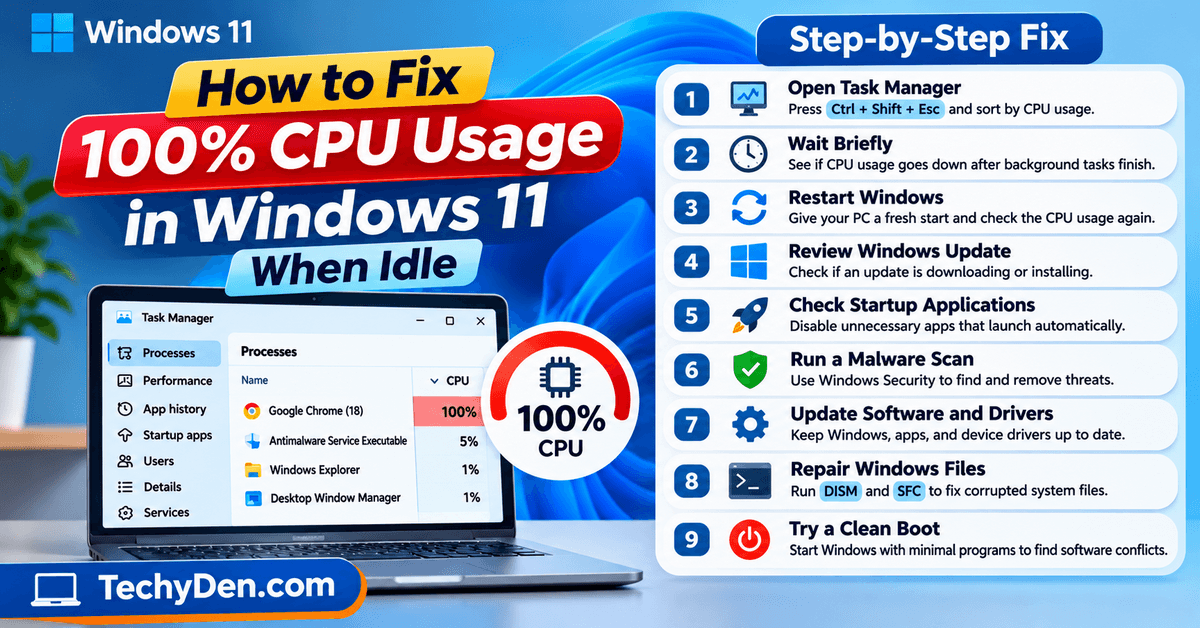
How to Fix 100% CPU Usage in Windows 11 When Idle
If your CPU usage reaches 100% while your computer is idle, the first step is to determine which process is consuming the resources.
A high reading does not automatically mean your computer is infected or damaged. Windows may be completing an update, running a security scan, processing background tasks, or dealing with a malfunctioning application.
Follow this diagnostic sequence:
- Open Task Manager: Press Ctrl + Shift + Esc and sort processes by CPU usage.
- Wait briefly: Observe whether CPU usage decreases as background activity finishes.
- Restart Windows: Check whether the problem returns after a fresh start.
- Review Windows Update: Determine whether an update is still installing or processing.
- Check startup applications: Disable unnecessary applications that launch automatically.
- Run a malware scan: Use Windows Security to investigate suspicious activity.
- Update relevant software: Check Windows, applications, and drivers associated with the problem.
- Repair Windows files: Run DISM and SFC if system corruption is suspected.
- Try a clean boot: Investigate whether a third-party application or service is responsible.
If a particular process consistently uses a large percentage of the CPU, focus on that process rather than applying every available fix.
For example, if a browser causes CPU usage to spike whenever it launches, investigate its tabs and extensions. If an unfamiliar process is responsible, verify its identity and location before taking action.
What to Do If CPU Usage Is Still High After Trying These Fixes
If your Windows 11 computer continues to experience high CPU usage, narrow down the problem based on when it occurs.
1. High CPU Usage After a Windows Update
Windows may use additional processing resources while completing update-related tasks.
Wait for the activity to finish, restart your computer if required, and check whether CPU usage returns to a normal level.
If the problem started immediately after an update and persists, review subsequent updates and relevant driver changes. Avoid uninstalling security updates without a clear reason.
2. High CPU Usage Caused by a Windows System Process
Windows processes may consume substantial CPU resources while performing legitimate work.
Do not assume a process is malicious simply because its name is unfamiliar or resembles a Windows component.
Check the process in Task Manager, investigate its purpose, and look for related error messages. If necessary, use Resource Monitor for additional information.
Avoid disabling services or ending system processes without understanding their function.
3. High CPU Usage While Gaming
Some games require substantial processing power, particularly at high frame rates or when many game systems are active.
If CPU usage increases during gameplay, try these steps:
- Close unnecessary background applications.
- Update the game and relevant graphics drivers.
- Reduce CPU-intensive game settings where appropriate.
- Limit the frame rate if the game is generating more frames than necessary.
- Check cooling and ventilation.
- Compare performance with the game’s hardware requirements.
High CPU usage during gaming is not automatically a problem. Investigate it when it accompanies stuttering, unexpected slowdown, instability, or excessive temperatures.
4. High CPU Usage on an Older Computer
Older computers may struggle with demanding applications, modern websites, or multiple programs running simultaneously.
Start by reducing unnecessary background activity and identifying applications that exceed your system’s capabilities.
If the processor remains heavily utilized during normal workloads, consider whether a compatible hardware upgrade would help. Some laptops do not allow processor upgrades, so replacing the device may be more practical.
Our guide to Windows 11 performance optimization tips provides additional ways to improve overall system responsiveness.
Frequently Asked Questions About High CPU Usage in Windows 11
Why Is My CPU Usage at 100% in Windows 11?
Your CPU may reach 100% because of demanding applications, background tasks, Windows updates, malware, or hardware limitations. Open Task Manager and sort processes by CPU usage to identify the cause. If the high usage continues when your computer is idle, investigate the responsible process rather than assuming the processor is faulty.
Is 100% CPU Usage Bad for My Computer?
Not necessarily. A CPU can operate at 100% utilization while handling demanding tasks such as gaming, video rendering, or software installation. Temporary spikes are generally normal. However, sustained high usage accompanied by overheating, severe slowdown, freezing, or instability warrants investigation to identify the underlying cause.
How Do I Reduce CPU Usage in Windows 11 When Idle?
Open Task Manager, identify the process consuming the most CPU resources, and investigate why it is running. Restart your computer, disable unnecessary startup applications, check Windows Update activity, and run a malware scan if appropriate. If usage remains high, investigate software conflicts and consider repairing corrupted Windows system files.
Can Windows Update Cause High CPU Usage?
Yes. Windows Update can temporarily increase CPU usage while downloading, installing, or processing updates. This activity should generally decrease after the work finishes. If CPU usage remains unusually high, restart the computer if required, check for pending updates, and investigate other applications or processes that may be contributing to the problem.
Does High CPU Usage Mean My Computer Has a Virus?
No. Malware can cause high CPU usage, but legitimate applications, Windows services, browser tabs, and background tasks can produce similar symptoms. Open Task Manager to identify the process and use Windows Security to scan for threats if necessary. Do not assume an unfamiliar process is malicious without verifying it.
Should I Disable Background Services to Reduce CPU Usage?
Only disable a service after identifying its purpose and confirming that it is unnecessary. Some Windows services support security, networking, updates, and other essential functions. Disabling them indiscriminately can create additional problems. Start by closing unnecessary applications and managing startup programs before changing service configurations.
Why Is My CPU Usage High Even When No Applications Are Open?
Windows services, scheduled tasks, update processing, security scans, and background applications can continue running when no visible programs are open. Task Manager can help identify which process is consuming resources. Wait briefly to see whether the activity ends, and investigate persistent high usage if it continues.
Can Upgrading RAM Fix High CPU Usage?
Adding RAM may help when your computer lacks enough memory and must repeatedly move data between RAM and storage. This can improve multitasking and reduce some performance bottlenecks. However, additional RAM does not directly fix every CPU problem. Identify the cause first to determine whether a memory upgrade would provide a meaningful improvement.
Final Thoughts
High CPU usage can make Windows 11 slow, unresponsive, and frustrating to use, but you do not always need new hardware to fix it.
Start by opening Task Manager and identifying the process consuming the most CPU resources. Then restart your computer, close unnecessary applications, disable unnecessary startup programs, check for updates, and scan for malware if appropriate.
If these basic fixes do not help, investigate drivers, repair corrupted Windows system files, or perform a clean boot to identify software conflicts. Persistent high CPU usage may also require checking hardware limitations and cooling conditions.
For more troubleshooting advice, explore our Windows 11 performance optimization guide and guide to fixing freezing issues in Windows 11.
Still experiencing high CPU usage? Share the process name shown at the top of Task Manager, your approximate CPU usage percentage, and whether the problem occurs when your PC is idle or running a particular application. These details can help narrow down the cause.