Are you looking for a free online virus scanner to check a suspicious file, scan a potentially dangerous link, or find malware on your computer? An online virus scan can help you investigate security threats before opening unfamiliar downloads or taking further action to protect your device.
Several free virus scanning tools are available, but they do not all work the same way. Some scan individual files, URLs, and website addresses directly through a browser.
Others require you to download a small security utility to scan your Windows computer for viruses, spyware, and other malware.
In this guide, we compare the best free online virus scanners for checking suspicious files, analyzing URLs, and scanning an infected computer.
We explain what each tool does, its main advantages, and its limitations so you can choose the right option for your needs.
Important: An online virus scanner does not always scan your entire device. Browser-based services generally analyze the files or links you submit, while computer scanners can examine your system for existing threats. Neither type should automatically be treated as a replacement for ongoing antivirus protection.
Best Free Online Virus Scanners at a Glance
The following comparison will help you choose a suitable free virus scanner based on what you need to check.
| Online Virus Scanner | Best For | What It Checks | Installation Required? |
|---|---|---|---|
| VirusTotal | Checking suspicious files and links | Files and URLs | No |
| MetaDefender Cloud | Multi-engine file and URL analysis | Files, URLs, domains, IP addresses, and hashes | No |
| Jotti’s Malware Scan | Checking suspicious files with multiple antivirus engines | Uploaded files | No |
| Dr.Web Online Scanner | Checking files and website links | Files and URLs | No |
| ESET Online Scanner | Finding malware on a Windows PC | Computer files and system locations | Yes |
| Trend Micro HouseCall | Running a second-opinion malware scan | Windows computer | Yes |
| Microsoft Safety Scanner | Detecting and removing malware from Windows | Windows computer | Yes |
| F-Secure Online Scanner | Performing a one-time malware check | Supported Windows computers | Yes |
Which should you choose? Use VirusTotal or MetaDefender Cloud to investigate a suspicious file or URL. Choose ESET Online Scanner, Trend Micro HouseCall, Microsoft Safety Scanner, or F-Secure Online Scanner if you suspect that your Windows computer is infected.
Availability, supported operating systems, and free-use limits can change. Check the official product page before downloading or submitting a file.
What Is an Online Virus Scanner?
An online virus scanner is a security service that helps identify potentially malicious files, links, or software. Depending on the tool, it may compare a submitted file against multiple antivirus engines, check a website’s reputation, or download a small utility that scans your computer.
The term online virus scanner can be misleading because not every service performs the scan entirely inside your browser.
There are three main types of online virus scanners.
- Browser-based file scanners: These services let you upload a suspicious file and examine the results without installing a full antivirus application. They are useful when you want to check a downloaded document, installer, archive, or other file before opening it.
- Online URL and website scanners: These tools analyze a web address to identify possible malware, phishing, or other security risks. They can help you investigate a suspicious link received through email, messaging apps, or social media.
- Downloadable computer virus scanners: These tools require a download but can scan files and system locations on your computer. They are useful when you suspect an existing malware infection and need a second-opinion scan.
Remember: A clean result does not guarantee that a file or website is safe. New threats may not yet be detected, and different security engines can produce different results.
8 Best Free Online Virus Scanners
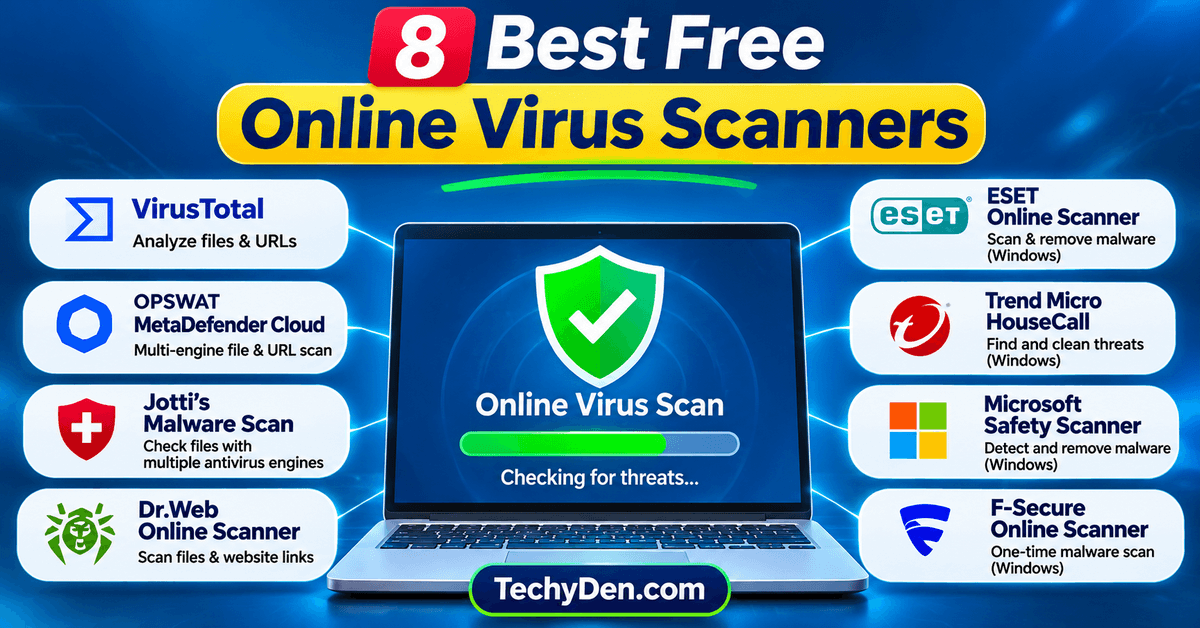
Below are eight useful options for checking suspicious files, scanning links, and investigating possible malware infections. Each tool serves a slightly different purpose, so choose one based on what you need to scan.
1. VirusTotal
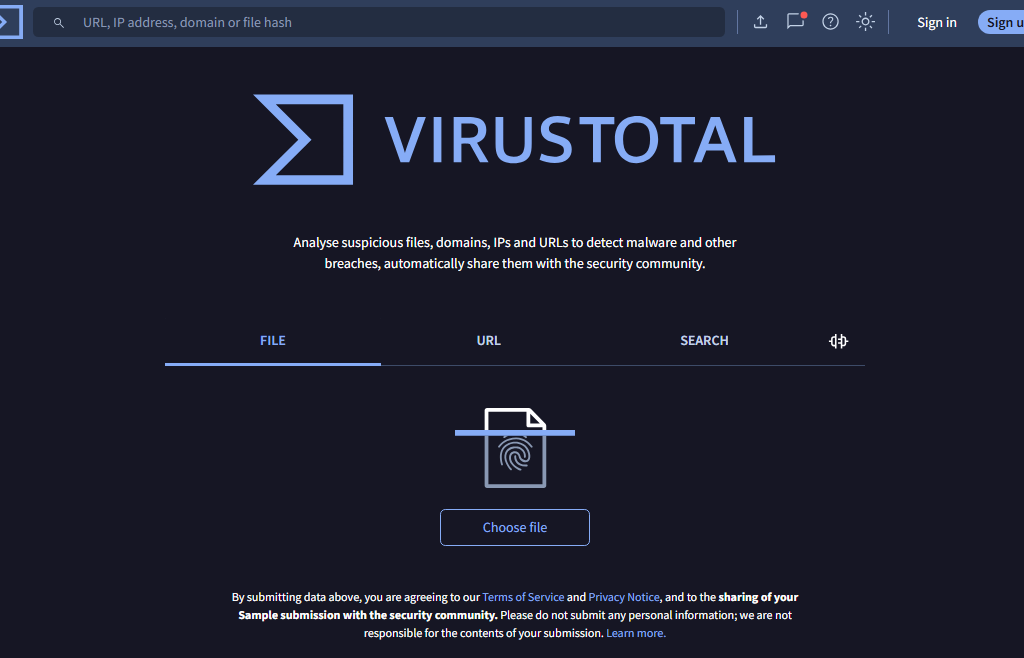
VirusTotal is a widely used online service that analyzes files and URLs using multiple antivirus scanners and other security tools. It is a convenient starting point when you want a second opinion about a suspicious download or link.
Instead of relying on the verdict of a single antivirus engine, VirusTotal presents results from numerous security engines and URL or domain reputation services. This can help you investigate potential threats before interacting with unfamiliar content.
Best for: Checking suspicious files, URLs, and website addresses.
Key features:
- Analyze files and suspicious URLs online.
- Review results from multiple antivirus engines.
- Examine reports associated with submitted files and links.
- Investigate domain and website reputation information.
- Use the browser-based interface without installing a desktop antivirus application.
How to use VirusTotal:
- Visit the official VirusTotal website.
- Select the file or URL analysis option.
- Upload the suspicious file or enter the web address you want to investigate.
- Start the analysis and wait for the results.
- Review the detection summary and individual security-engine results.
Advantages:
- Easy to use for a quick security check.
- Combines results from multiple security engines.
- Supports both file and URL analysis.
- Useful for investigating suspicious downloads and links.
Limitations:
- It does not clean an infected computer or replace antivirus software.
- Different engines may disagree about a file.
- A file with no detections is not necessarily harmless.
- Submissions may be shared with security partners and the VirusTotal community, and submitted files may be accessible to certain premium customers.
Privacy tip: Do not upload confidential documents, private photographs, company files, financial records, or other sensitive material unless you understand the service’s submission and data-sharing policies.
VirusTotal is a strong choice when you need an online virus scan for a file or link rather than a complete computer scan.
2. MetaDefender Cloud
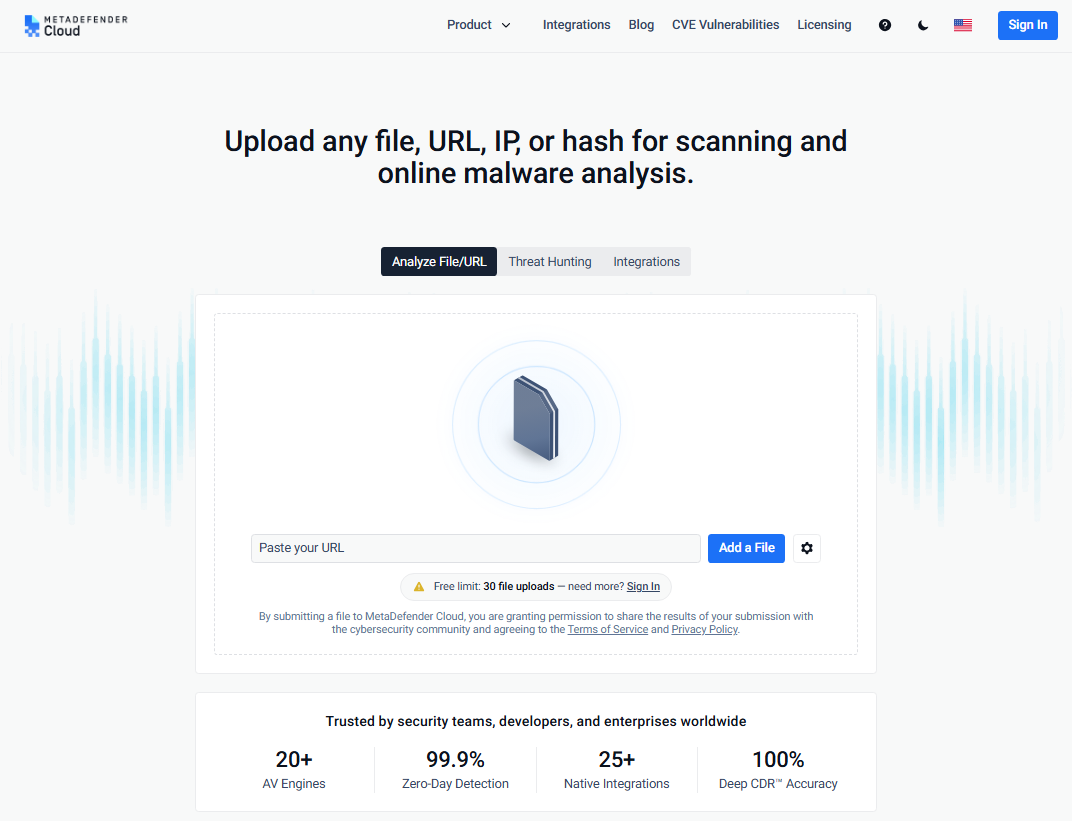
MetaDefender Cloud is an online security analysis service from OPSWAT. It allows users to submit files, URLs, IP addresses, domains, and file hashes for analysis.
The service combines multiple security engines with additional analysis capabilities. Depending on the submission and available features, its reports can provide information about malware detections, file reputation, and other security indicators.
MetaDefender Cloud is particularly useful when a single antivirus result does not give you enough information to assess a suspicious file.
Best for: Multi-engine malware analysis and checking suspicious files or URLs.
Key features:
- Analyze files through a browser.
- Check URLs, domains, IP addresses, and file hashes.
- Compare results from multiple anti-malware engines.
- Review security and reputation information.
- Access free scanning options, subject to applicable limits.
How to use MetaDefender Cloud:
- Open the official MetaDefender Cloud website.
- Choose the appropriate file, URL, or other analysis option.
- Submit the item you want to investigate.
- Review the resulting security report.
- Follow up on suspicious findings before opening or running the file.
Advantages:
- Supports several types of security indicators.
- Provides multi-engine analysis.
- Offers a browser-based scanning option.
- Can provide more context than a simple single-engine verdict.
Limitations:
- Free-use limits may apply.
- A security report requires interpretation; it is not an absolute guarantee of safety.
- Submitted files and related results may be shared according to the service’s terms and privacy policies.
- It does not replace a full antivirus scan of your computer.
Privacy tip: Read the service’s submission terms before uploading private or confidential files. If you only need to investigate a file’s reputation, checking its cryptographic hash may be preferable when the service supports that workflow.
MetaDefender Cloud is a useful alternative to VirusTotal when you want to compare malware analysis results or investigate additional security indicators.
3. Jotti’s Malware Scan
Jotti’s Malware Scan is a free online service that allows users to submit suspicious files for analysis by several antivirus programs. It can be useful when you have downloaded a file and want to check whether security engines identify it as potentially malicious.
The service is straightforward: upload a file, wait for the scan, and review the results.
Best for: Checking suspicious files using multiple antivirus engines.
Key features:
- Submit up to five files at the same time.
- Check files using several antivirus programs.
- Review the detection results reported by individual engines.
- Use the service through a web browser.
- Scan files within the service’s published size limit.
At the time of writing, Jotti lists a maximum of 250 MB per file. Check its website for current limits and supported file types.
How to use Jotti’s Malware Scan:
- Visit Jotti’s Malware Scan.
- Select the suspicious file you want to check.
- Submit the file for analysis.
- Wait for the available antivirus engines to process it.
- Examine the results and investigate any detections.
Advantages:
- Simple file-submission process.
- Free to use.
- Provides results from multiple antivirus engines.
- Useful for checking unfamiliar files before opening them.
Limitations:
- It analyzes submitted files rather than scanning your entire computer.
- Results may differ between antivirus engines.
- It does not provide real-time protection.
- Jotti states that submitted files are shared with antivirus companies to help improve detection accuracy.
Privacy tip: Do not submit sensitive files without reviewing Jotti’s data-sharing information.
Jotti’s Malware Scan is a practical option when you need to scan a suspicious file online for viruses without installing a desktop security application.
4. Dr.Web Online Scanner
Dr.Web provides free security utilities, including browser-based forms for checking files and website addresses.
Its online scanning service can help you investigate whether a submitted file or link is associated with a known security threat. It is especially useful when you want to perform a quick check without installing a complete antivirus suite.
Best for: Checking suspicious files and URLs.
Key features:
- Scan submitted files for possible malware.
- Check suspicious website addresses.
- Use updated virus databases for analysis.
- Access the scanning service through a browser.
- Integrate its file and URL scanning forms into a website where appropriate.
How to use Dr.Web’s online scanner:
- Visit the official Dr.Web file and URL scanning page.
- Select the file-scanning or URL-checking option.
- Upload the file or enter the website address.
- Start the scan.
- Review the report before deciding whether to open the file or visit the website.
Advantages:
- Supports both file and URL checks.
- Does not require a full desktop antivirus installation for browser-based checks.
- Provides another source of security analysis.
- Useful for investigating potentially dangerous links and downloads.
Limitations:
- File-size limits apply; Dr.Web currently lists a 10 MB limit on its online file-scanning form.
- Browser-based checks do not scan your entire computer.
- A clean result cannot guarantee that a file or URL is safe.
- Some threats may require a full computer scan or additional security investigation.
Dr.Web is a useful choice if you want a free online virus scanner for a suspicious file or web address. For a potentially infected Windows computer, use an appropriate system-scanning tool as well.
5. ESET Online Scanner
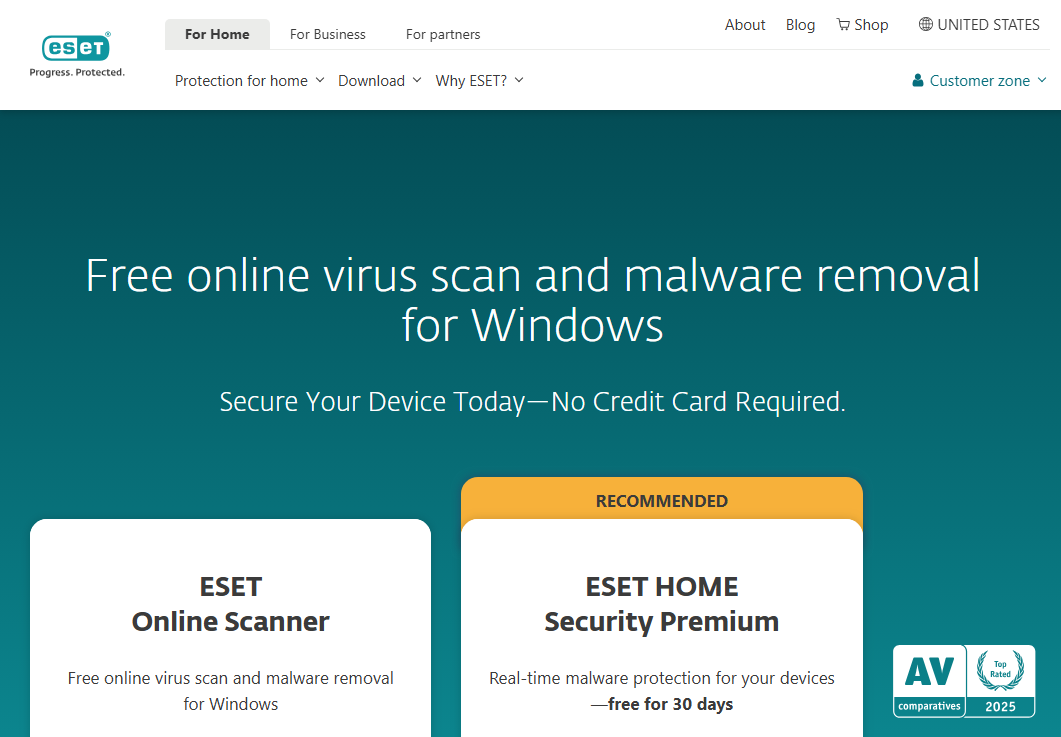
ESET Online Scanner is a free, downloadable security utility designed to check a Windows computer for malware. Unlike browser-based file scanners, it can examine the computer itself rather than only a file or link you submit.
ESET Online Scanner is useful if your computer is behaving unusually, you suspect a malware infection, or you want a second opinion from a different security product.
Best for: Finding and removing malware from a Windows computer.
Key features:
- Perform a one-time malware scan.
- Run full, quick, or custom scans.
- Check for viruses, spyware, Trojans, and other threats.
- Review scan results and detected items.
- Use it alongside an existing antivirus product, subject to compatibility and configuration requirements.
How to scan your computer using ESET Online Scanner:
- Open the official ESET Online Scanner page.
- Download the scanner from ESET.
- Run the downloaded application and follow the setup instructions.
- Select an appropriate scan type.
- Allow the scan to finish.
- Review the detected items and follow ESET’s recommendations for removing or quarantining threats.
Advantages:
- Scans the Windows computer rather than just an uploaded file.
- Offers different scan options.
- Can detect and remove supported malware.
- Provides a second opinion alongside an existing security product.
Limitations:
- Requires a download and execution of the scanner.
- Does not provide the same continuous, real-time protection as a full antivirus product.
- A scan may take time depending on the selected option and the size of the computer’s storage.
- Supported operating systems and requirements can change.
ESET Online Scanner is one of the better choices when you want to scan a Windows PC for viruses for free. It is not a browser-only virus scanner, but it is more suitable for checking a computer that may already be infected.
6. Trend Micro HouseCall
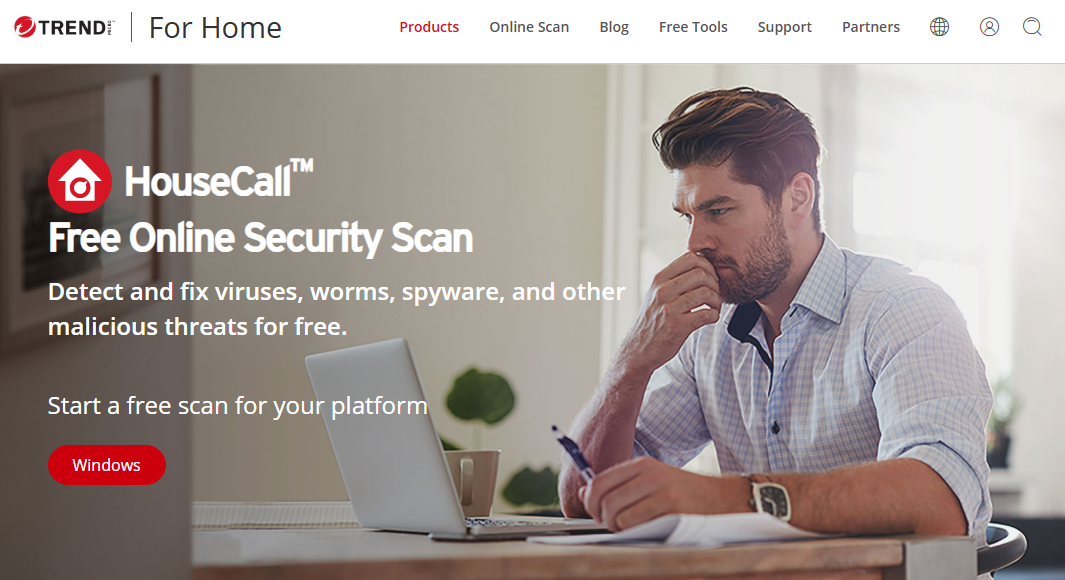
Trend Micro HouseCall is a free security scanner that helps detect and clean viruses, worms, spyware, and other malicious threats on supported Windows computers.
It is designed to work alongside existing antivirus software, making it useful when you want to investigate a possible infection without immediately replacing your current security application.
Best for: Running a free second-opinion malware scan on Windows.
Key features:
- Detects supported malware and other security threats.
- Offers quick, full, and custom scanning options.
- Provides a report of detected threats.
- Can help remove identified malicious files.
- Works alongside existing antivirus products, subject to the tool’s requirements.
How to use Trend Micro HouseCall:
- Visit the official Trend Micro HouseCall page.
- Download the scanner for your supported Windows system.
- Run the downloaded utility.
- Choose a quick, full, or custom scan.
- Wait for the scan to finish.
- Review the results and follow the recommended cleanup steps.
Advantages:
- Free scanning for supported Windows systems.
- Useful for a second-opinion malware check.
- Provides several scan options.
- Can identify and help clean supported threats.
Limitations:
- Requires a download before scanning.
- A full scan can take considerably longer than a quick scan.
- It does not replace continuous antivirus protection.
- Available platforms and system requirements should be checked before downloading.
Trend Micro HouseCall is a good option if you suspect malware on your computer and want to run an additional scan without uninstalling your existing antivirus software.
7. Microsoft Safety Scanner
Microsoft Safety Scanner is a free, downloadable tool from Microsoft that scans Windows computers for malware and attempts to remove detected threats.
It is designed for manual, on-demand scanning. It can be useful if you suspect that your computer is infected or want to investigate a problem with an additional Microsoft security utility.
Best for: Detecting and removing malware from Windows computers.
Key features:
- Detects supported malware on Windows.
- Offers different scan types.
- Attempts to remove identified threats.
- Runs as a downloadable executable.
- Provides a report of scan results.
How to use Microsoft Safety Scanner:
- Visit the official Microsoft Safety Scanner download page.
- Download the appropriate version for your computer.
- Save the executable in a location you can find easily.
- Run the tool and select a scan type.
- Wait for the scan to finish.
- Review the results and follow Microsoft’s instructions if threats are detected.
Advantages:
- Comes directly from Microsoft.
- Helps find and remove supported malware.
- Useful for on-demand security checks.
- Does not require purchasing a separate antivirus subscription.
Limitations:
- Requires a download and manual execution.
- Does not provide continuous, real-time protection.
- Each downloaded copy expires after 10 days, so download a fresh version before running it again later.
- It is intended for supported Windows systems, not for scanning Android phones, iPhones, or Macs.
Microsoft Safety Scanner is a useful option for people who want a free malware scan on a Windows PC. Microsoft recommends using Microsoft Defender Antivirus for ongoing protection rather than treating Safety Scanner as a replacement.
8. F-Secure Online Scanner
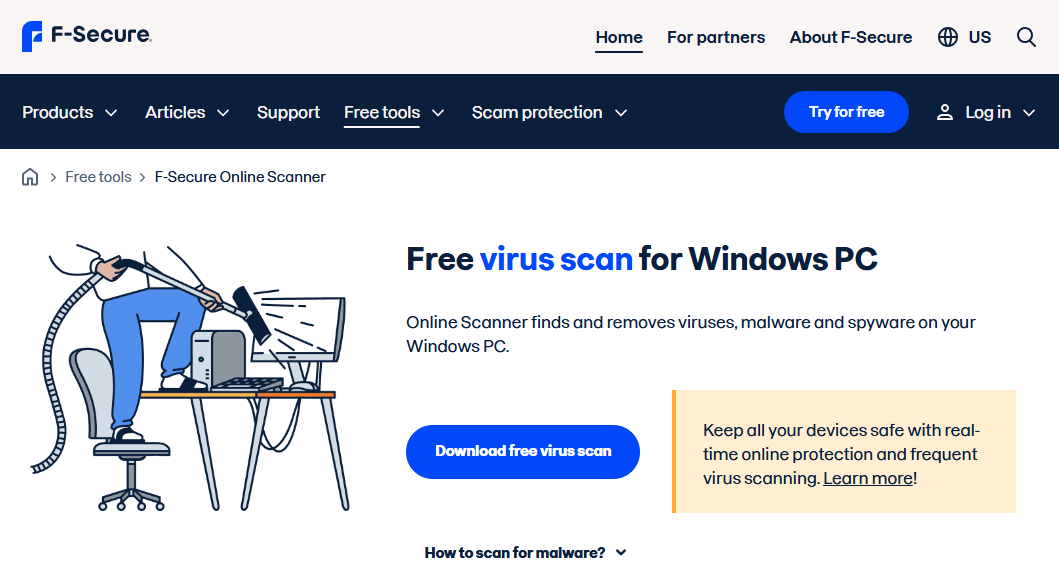
F-Secure Online Scanner is a free utility designed to detect and remove malware from supported Windows computers.
It can be useful when your computer is showing unusual behavior or you want another security tool to investigate a possible infection. Although it is described as an online scanner, it downloads a scanner that runs on your computer.
Best for: Running a one-time malware check on a supported Windows computer.
Key features:
- Detects supported malware and spyware.
- Provides a one-time computer scan.
- Helps identify and remove detected threats.
- Offers a straightforward scanning workflow.
- Can be used as an additional security check.
How to use F-Secure Online Scanner:
- Visit the official F-Secure Online Scanner page.
- Download the scanner from the official website.
- Check the current operating-system requirements.
- Run the downloaded utility and follow its instructions.
- Let the scanner complete its inspection.
- Review the detected items and choose the recommended cleanup action.
Advantages:
- Free one-time malware scanning.
- Simple workflow for supported Windows systems.
- Can help detect threats that warrant further investigation.
- Provides another option for checking a potentially infected computer.
Limitations:
- Requires a download.
- Supports specific Windows versions and system architectures.
- Compatibility restrictions may apply when other antivirus products are installed.
- Does not replace ongoing, real-time antivirus protection.
F-Secure Online Scanner is worth considering when you need a second opinion about a possible Windows malware infection. Review the current requirements on its official website before using it.
How to Scan Your Computer for Viruses Online
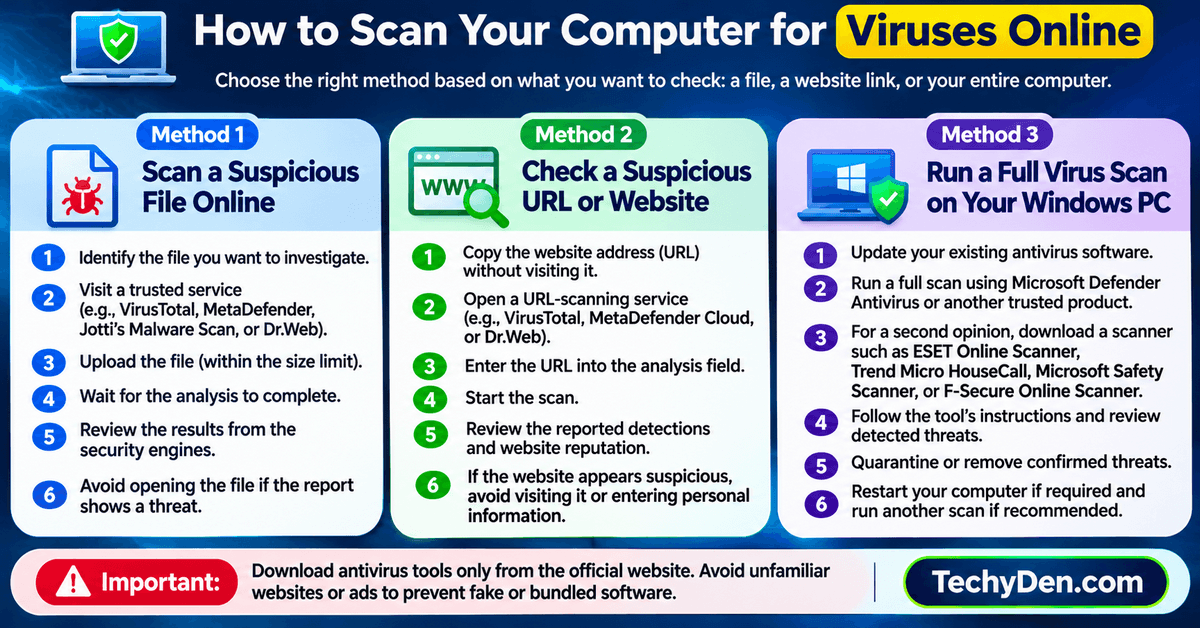
If you think your computer has a virus, the correct scanning method depends on whether you want to check a single file, investigate a suspicious website, or scan the entire computer.
Method 1: Scan a suspicious file online
Use a browser-based service such as VirusTotal, MetaDefender Cloud, Jotti’s Malware Scan, or Dr.Web.
- Identify the file you want to investigate.
- Visit the official website of the selected scanning service.
- Upload the file if it falls within the service’s size and format limits.
- Wait for the analysis to complete.
- Review the results from the available security engines.
- Avoid opening the file if the report identifies credible security concerns.
Do not upload confidential or private files without checking the service’s privacy and data-sharing policies.
Method 2: Check a suspicious URL or website
If you receive an unfamiliar link in an email, text message, or social media post, investigate the address before opening it.
- Copy the website address without visiting it.
- Open VirusTotal, MetaDefender Cloud, or Dr.Web’s URL-scanning service.
- Enter the address into the URL analysis field.
- Start the scan.
- Review the reported detections and reputation information.
- If the website appears suspicious, avoid visiting it or entering personal information.
A website may change after it has been scanned, and a clean report does not guarantee that every page on the domain is safe.
Method 3: Run a full virus scan on your Windows PC
If your computer is slow, showing unexpected pop-ups, crashing frequently, or behaving unusually, a file scanner alone may not be enough.
- Update your existing antivirus software.
- Run a full scan using Microsoft Defender Antivirus or another reputable security product.
- If you need a second opinion, download a scanner such as ESET Online Scanner, Trend Micro HouseCall, Microsoft Safety Scanner, or F-Secure Online Scanner from its official website.
- Follow the tool’s instructions and review any detected threats.
- Quarantine or remove confirmed threats using the security tool’s recommended process.
- Restart your computer if required and run another scan if the security tool recommends it.
Important: Do not download an antivirus tool from an unfamiliar website or advertisement. Use the developer’s official website to avoid fake security applications and bundled unwanted software.
Can You Scan Your Computer for Viruses Without Downloading Anything?
You can check individual files and website links without installing a full antivirus application by using browser-based services such as VirusTotal, MetaDefender Cloud, Jotti’s Malware Scan, and Dr.Web.
However, a normal website cannot freely inspect every file, process, and system location on your computer. Therefore, a browser-based file scanner generally cannot perform the same type of full-device scan as a dedicated security utility.
If you suspect an existing infection, use the antivirus protection built into your operating system or a reputable downloadable scanner that supports a full system scan.
Are Free Online Virus Scanners Safe to Use?
Free online virus scanners can be useful, but you should take a few precautions before using them.
- Use official websites. Download computer-scanning utilities directly from their developers. Avoid third-party download pages that may distribute modified or bundled installers.
- Check privacy policies. Some scanning services share submitted files or analysis results with security partners or research communities. Never assume that an uploaded file remains private.
- Understand the results. Multiple antivirus engines can improve your understanding of a potential threat, but their verdicts are not infallible. A detection can sometimes be a false positive, while a newly developed threat may not yet be recognized.
- Do not disable security software unnecessarily. Follow the scanner’s official instructions if it reports a compatibility problem. Avoid turning off protection without understanding the risks.
- Keep your system updated. Install security updates for your operating system, browser, and applications. Updates can help address vulnerabilities that malware may exploit.
- Maintain regular backups. Keep important files backed up to a separate location or a reliable cloud service. Backups can help you recover if malware damages or encrypts your data.
What Should You Do If an Online Virus Scanner Detects Malware?
If a scanner reports a possible infection, do not panic. Follow these steps to investigate and respond safely.
- Avoid opening the suspicious file. If you have not run the file yet, leave it unopened until you understand the report.
- Review the detection details. Check the file name, the detection labels, and whether multiple reputable security engines report a threat. A single detection is not conclusive proof of malware, but it should not be ignored.
- Run a trusted computer scan. If you suspect the file has already been executed, scan the computer using Microsoft Defender Antivirus or another reputable security product.
- Quarantine or remove confirmed threats. Follow the security software’s recommendations. Do not manually delete unfamiliar system files simply because their names look suspicious.
- Update important passwords when necessary. If you believe malware may have stolen credentials, change your passwords from a known-safe device. Prioritize your email, banking, and other important accounts, and enable multifactor authentication where available.
- Seek additional help if the infection persists. If malware repeatedly returns, security tools cannot remove it, or you suspect ransomware, follow the security vendor’s recovery guidance or contact a qualified technician.
Frequently Asked Questions About Online Virus Scanners
What is the best free online virus scanner?
The best option depends on what you want to scan. VirusTotal is useful for analyzing individual files and URLs using multiple security engines. MetaDefender Cloud provides another option for multi-engine file and URL analysis. For a Windows computer that may already be infected, consider ESET Online Scanner, Trend Micro HouseCall, Microsoft Safety Scanner, or F-Secure Online Scanner.
Can I scan a file for viruses online for free?
Yes. Services such as VirusTotal, MetaDefender Cloud, Jotti’s Malware Scan, and Dr.Web let you submit supported files for online analysis. File-size limits and data-sharing policies vary, so check the service’s terms before uploading a file.
Can I scan my computer for viruses online without downloading software?
You can scan individual files and URLs through a browser, but a full computer scan generally requires a local security tool. Use Microsoft Defender Antivirus or a reputable downloadable scanner if you need to inspect the computer itself.
Can an online virus scanner remove viruses?
Some downloadable online scanners, including ESET Online Scanner and Trend Micro HouseCall, can help remove detected threats. Browser-based file-analysis services such as VirusTotal primarily provide analysis results; they do not disinfect your computer.
Can an online virus scanner detect every virus?
No. No scanner can guarantee that it will detect every threat. Detection depends on factors such as the threat’s characteristics, the scanner’s capabilities, and the available security intelligence. A clean result should not be treated as proof that a file or website is completely safe.
Is VirusTotal safe for checking private files?
VirusTotal can be useful for analyzing suspicious files, but you should not assume that submitted files remain private. Its documentation explains that submissions and reports may be shared with security partners and the VirusTotal community, and file samples may be available to certain premium customers. Avoid uploading confidential or sensitive documents unless you have reviewed the applicable policies and are comfortable with the sharing terms.
What is the difference between an online virus scanner and antivirus software?
An online virus scanner is generally used for a specific check, such as analyzing a file, checking a URL, or performing a one-time computer scan. Full antivirus software can provide ongoing protection through features such as real-time monitoring, automatic security updates, and threat blocking. Some downloadable online scanners can remove malware, but they do not necessarily provide continuous protection.
Can I use an online virus scanner on Android or iPhone?
Browser-based services can analyze supported files and URLs from a phone, but they do not perform a full antivirus scan of the entire mobile operating system. For mobile security, use built-in platform protections and reputable security applications that specifically support your device. Be cautious of websites claiming that a quick browser scan can inspect and clean every part of your phone.
Is a free online virus scan enough to protect my computer?
A one-time scan can help identify an existing infection, but it is not enough for comprehensive ongoing protection. Keep your operating system and applications updated, use reputable antivirus protection, avoid suspicious downloads, and maintain backups of important data.
Final Verdict: Which Free Online Virus Scanner Should You Use?
The best free online virus scanner depends on the security problem you are trying to solve.
- For suspicious files and links: Use VirusTotal for multi-engine analysis or MetaDefender Cloud for additional file and URL analysis.
- For checking a suspicious file with a simple upload process: Consider Jotti’s Malware Scan or Dr.Web.
- For a Windows computer that may be infected: Try ESET Online Scanner, Trend Micro HouseCall, Microsoft Safety Scanner, or F-Secure Online Scanner.
- For ongoing protection: Keep a reputable antivirus product enabled and updated rather than relying only on one-time scans.
Online virus scanners are valuable tools for investigating suspicious files and links, but no single service can guarantee complete protection against every threat.
Choose the scanner that matches your needs, download software only from official sources, review privacy policies before uploading files, and keep your computer’s security protection up to date.