
Parental controls to monitor child activity help parents understand how their children use smartphones, tablets, computers, and online services. Depending on the device and tool, these controls can show screen time, app usage, browsing activity, location information, and content-filtering settings.
You can start with free built-in tools such as Google Family Link for supported Android devices, Apple Screen Time for iPhone and iPad, or Microsoft Family Safety for Windows PCs.
Each offers different monitoring and restriction features, so choosing the right option depends on your child’s device and your family’s needs.
In this guide, you’ll learn what parental controls can monitor, how to set them up, which limitations to understand, and how to protect your child’s privacy while encouraging healthy digital habits.
| Tool | Best For | Main Features | Important Limitation |
|---|---|---|---|
| Google Family Link | Android devices and compatible child accounts | Screen-time limits, app management, and supported location features | Monitoring varies by device and Google service |
| Apple Screen Time | iPhone and iPad | Downtime, app limits, and content restrictions | Features depend on the device, account, and family settings |
| Microsoft Family Safety | Windows devices and supported Microsoft family accounts | Screen-time controls and supported activity reporting | Some features require compatible accounts, browsers, or subscriptions |
| Router Parental Controls | Managing internet access at home | Internet scheduling and website or category filtering, depending on the router | May not cover mobile data or devices outside the home network |
| Third-Party Parental Control Apps | Additional controls across supported devices | Features vary by provider and subscription plan | Compatibility, privacy, and monitoring capabilities vary |
What Are Parental Controls?
Parental controls are settings, applications, and digital safety tools that help parents manage how children use connected devices and online services.
Depending on the platform, these controls can limit screen time, restrict app downloads, block inappropriate websites, filter content, manage purchases, and provide reports about device usage.
For example, a parent can use Google Family Link to manage supported Android devices, Apple Screen Time to set limits on iPhones and iPads, or Microsoft Family Safety to manage supported Windows devices and Xbox consoles.
Most parental control tools fall into three categories:
- Built-in parental controls: Features included with an operating system or online service, such as Apple Screen Time.
- Third-party parental control apps: Dedicated applications that offer additional monitoring, filtering, or family management features.
- Network-level parental controls: Router or DNS settings that help restrict access to selected websites or categories across a home network.
The best option depends on your child’s age, the devices they use, the type of activity you want to manage, and your family’s privacy expectations.
Along with parental controls, you can improve Windows 11 security by reviewing privacy settings, keeping your system updated, and enabling appropriate security protections.
What Can Parents Monitor With Parental Controls?
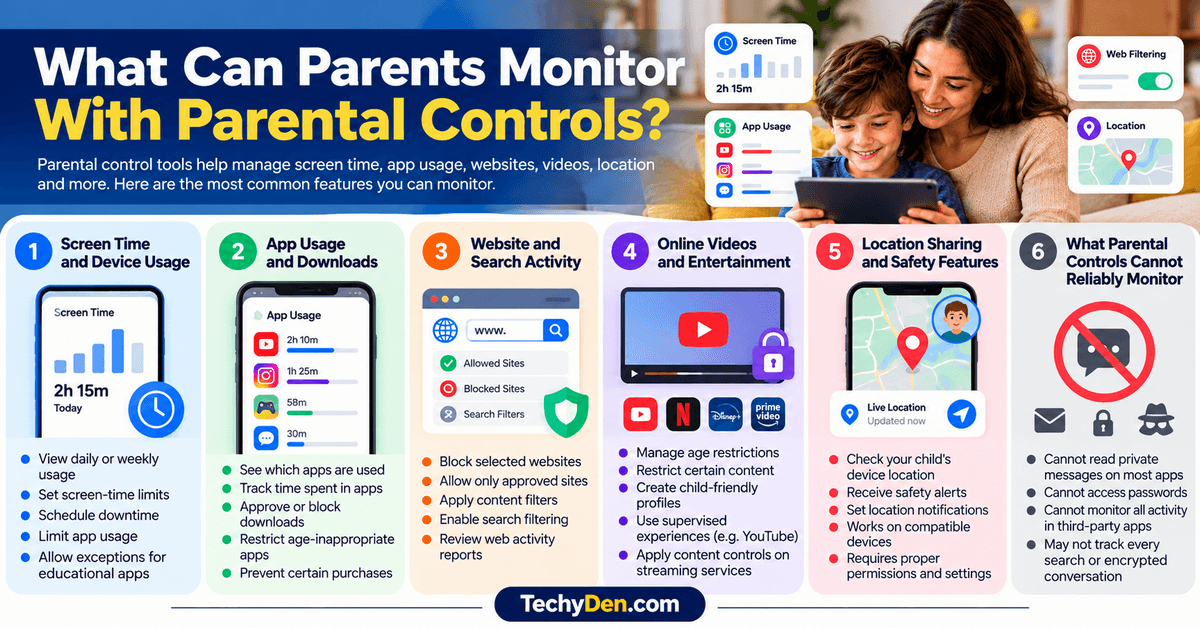
Parental control tools offer different capabilities. Some focus primarily on screen time, while others provide content filtering, location features, and activity reports.
Here are the most common features to consider.
1. Screen Time and Device Usage
Screen-time management lets parents see how much time children spend on supported devices and applications.
Depending on the tool, you may be able to:
- Review daily or weekly device usage.
- Set daily screen-time limits.
- Schedule device downtime during homework or bedtime.
- Limit time spent in selected applications.
- Allow exceptions for educational tools or essential communication apps.
These features can help children develop healthier digital habits without requiring parents to check their devices constantly.
2. App Usage and Downloads
Some parental controls provide reports showing which supported applications a child uses and how much time is spent in them.
Parents may also be able to approve app downloads, restrict age-inappropriate applications, or prevent certain purchases.
However, app management and usage reporting vary by operating system. A tool that reports app usage on Android may not offer identical functionality on an iPhone or Windows computer.
3. Website and Search Activity
Website filtering helps restrict access to adult content, dangerous websites, and other unsuitable material.
Depending on the configuration, parents may be able to:
- Block selected websites.
- Allow only approved websites.
- Apply age-appropriate content filters.
- Enable search filtering on supported services.
- Review certain browsing or web activity reports.
These protections are not foolproof. Different browsers, private browsing features, encrypted connections, and apps with their own web content can affect what a parental control tool can filter or report.
Parents can also review our guide to Android browsers when choosing a browser with suitable privacy and security features for a child’s device.
4. Online Videos and Entertainment
Video platforms and streaming services often provide their own parental controls.
Parents can use these settings to manage age restrictions, restrict certain content, or create child-appropriate viewing environments.
For example, YouTube offers supervised experiences and parental controls, while other entertainment services provide profile-level content restrictions. These controls are separate from the settings available on the child’s phone or computer.
5. Location Sharing and Safety Features
Some family management tools support location sharing for compatible devices.
Depending on the service, parents may be able to check a child’s device location or receive certain location-related alerts.
Location features require the appropriate device, account permissions, connectivity, and settings. They should be used transparently and should not be confused with a comprehensive activity monitoring system.
For families interested in location-sharing features, see our guide to Android apps to find your friends and compare the location-sharing options available.
6. What Parental Controls Cannot Reliably Monitor
Parental controls do not provide unrestricted access to everything a child does online.
For example, built-in tools generally do not give parents universal access to private messages, passwords, encrypted conversations, or every activity inside third-party apps. Even paid tools have platform restrictions and permission requirements.
Before choosing a product, check exactly what it monitors, what data it collects, and which features work on your child’s device.
Best Parental Controls to Monitor Child Activity
You can start with the parental controls already available on your family’s devices. Consider a third-party application only if you need additional features that your built-in tools do not provide.
Here are the leading options to consider.
1. Google Family Link
Google Family Link helps parents manage children’s Google accounts and compatible Android devices and Chromebooks. Its features include app approvals, screen-time limits, content restrictions, and device location for eligible devices. This is one of the best for Android families.
For additional mobile protection, explore the best antivirus apps for Android to learn about security features that complement parental controls.
Cost: Free core features
Key features
- Review how much time children spend in supported apps.
- Set daily device and individual app limits.
- Approve or block app downloads where supported.
- Configure content filters for Google services.
- View the location of compatible devices when location requirements are met.
Limitations: Family Link does not provide complete visibility into all phone activity. Its available features depend on the device, operating system, child’s account, and service being used.
Best for: Parents who want to manage Android devices without paying for a separate parental control subscription.
2. Apple Screen Time
Apple Screen Time lets parents manage app access, schedules, content restrictions, and supported communication settings. Parents can manage eligible child accounts through Family Sharing. This is one of the best for Apple families.
Cost: Built-in feature
Key features
- View app and device usage summaries.
- Set Downtime schedules and app time allowances.
- Restrict age-inappropriate content and selected websites.
- Manage supported communication and purchase settings.
- Protect restrictions with a Screen Time passcode.
Apple’s newer child safety features announced in September 2026 include expanded time allowances and redesigned parental controls on supported, updated devices. Availability depends on software version, device compatibility, and region.
Limitations: Screen Time is most useful within Apple’s ecosystem. It is not a universal monitoring dashboard for every third-party app or non-Apple device.
Best for: Families whose children primarily use iPhones, iPads, or Macs.
3. Microsoft Family Safety
Microsoft Family Safety helps families manage supported Windows and Xbox devices and review activity reports for connected accounts. Reports can include app and game usage, screen time, and supported web and search activity. This is one of the best for Windows and Xbox.
If your family uses Windows computers, compare the best web browsers for Windows and review their privacy and security options.
Cost: Core family features available; verify current plan terms
Key features
- Set screen-time limits on supported devices.
- Review app and game usage.
- Configure age-related app and game restrictions.
- Apply supported website and search filters.
- Manage purchase permissions within the family group.
Limitations: Web and search reporting depends on supported browsers and account configuration. Microsoft documents that web activity reporting requires a supported browser, so it should not be treated as a complete record of everything a child does online.
Best for: Parents who want to manage Windows PCs, Xbox consoles, and supported family accounts from one place.
4. Router-Level Parental Controls
Router-level parental controls apply restrictions at the home network level rather than relying entirely on a monitoring application installed on a child’s device.
Depending on the router, you may be able to:
- Pause internet access for selected devices.
- Schedule internet-free periods.
- Block certain websites or content categories.
- Create separate profiles for family members.
- Set time-based access rules.
The main limitation is that router controls generally cannot provide detailed visibility into every app or action. They may also stop applying when a child switches to mobile data or another network.
Best for: Families who want to manage internet access across multiple devices at home.
5. Third-Party Parental Control Apps
Dedicated parental control applications can provide additional tools such as cross-device dashboards, more detailed web filtering, activity summaries, and alerts.
Before choosing a paid service, verify:
- Which features work on Android, iOS, Windows, and other devices.
- Whether advanced features require a subscription.
- Which browsers and applications are supported.
- Whether the app collects location, browsing, or other sensitive information.
- How to cancel the subscription and delete collected data.
Avoid products that promise unlimited access to private messages or complete monitoring of every device. Check the actual platform restrictions and privacy terms instead.
For another layer of account protection, explore the best authenticator apps to help secure supported parent accounts.
Best for: Families who need specific additional capabilities and have confirmed that those features work on their child’s devices.
Parental Control Tools Compared
| Tool | Screen time | App usage | Web filtering | Location |
|---|---|---|---|---|
| Google Family Link | Yes | Yes, supported apps | Yes, supported services | Yes, eligible devices |
| Apple Screen Time | Yes | Yes | Yes, supported settings | Not a primary feature |
| Microsoft Family Safety | Yes, supported devices | Yes | Yes, supported browsers | Not a primary feature |
| Router controls | Schedules and access limits | Usually limited | Depends on router | Usually no |
| Third-party apps | Depends on product | Depends on platform | Depends on product | Some products |
Feature availability can vary by device, account, operating system, region, permissions, and plan. This table summarizes general capabilities rather than guaranteeing identical functionality across every setup.
How to Set Up Parental Controls to Monitor Child Activity
Choose the instructions that match your child’s primary device. Menu names may differ depending on software versions and manufacturer customizations.
How to Set Up Google Family Link on Android
Follow these steps to configure parental controls for a compatible child’s account.
- Install Google Family Link on the parent’s compatible smartphone.
- Sign in with the parent’s Google account.
- Add or select your child’s supervised Google account and follow the on-screen setup instructions.
- Connect the child’s compatible Android device to the supervised account.
- Open Family Link and select your child’s profile.
- Open the screen-time or device controls section.
- Set a daily limit, configure downtime, or apply individual app limits.
- Review the available app permissions and content restrictions.
- Configure device location if appropriate and supported.
- Test the settings to confirm they work as intended.
Google also provides options for managing website access on supported Chromebooks and Chrome configurations.
Tip: Begin with a reasonable screen-time schedule and a few essential content restrictions. Review how they work before adding more rules.
How to Set Up Parental Controls on an iPhone or iPad
Apple’s built-in Screen Time controls are a good starting point for families using compatible Apple devices.
- Set up Family Sharing and a child account when appropriate.
- Open Settings on the parent’s Apple device.
- Select Screen Time and choose your child’s name under the family controls, if available.
- Review the child’s existing activity and screen-time settings.
- Configure Downtime and app time allowances.
- Open Content & Privacy Restrictions to manage supported content and features.
- Configure app installation, purchases, and website restrictions as needed.
- Set a Screen Time passcode to help prevent unauthorized changes.
- Review the settings periodically and adjust them as your child grows.
If you are configuring controls directly on the child’s device, open Settings and select Screen Time. The available setup options depend on the device and account configuration.
Apple’s official guide to parental controls provides further instructions.
How to Set Up Microsoft Family Safety on Windows 11
To manage a child’s Windows activity, create or configure a Microsoft family group and connect the child’s account.
- Visit the Microsoft Family Safety website.
- Sign in with the parent or organizer account.
- Add your child to the family group or select an existing member.
- Follow Microsoft’s instructions to connect the child’s Windows device and account.
- Select the child’s profile in the family dashboard.
- Configure screen-time schedules and app or game limits.
- Set up the available web and search filters.
- Enable activity reporting for the relevant platforms.
- Review the resulting reports and test the restrictions.
Microsoft explains how to configure reporting in its official Family Safety activity reporting guide. Remember that browser activity reporting has specific requirements and limitations.
How to Block Inappropriate Websites
Website filtering adds another layer of protection, particularly for younger children.
You can use a combination of:
- Built-in browser restrictions.
- Search engine safe-search settings.
- Age-appropriate video and streaming profiles.
- Router-level filtering.
- Approved-site lists for younger children.
For example, Google Family Link lets parents configure Chrome website access for supported supervised accounts, including options to attempt to block explicit sites or allow only approved sites. Google cautions that no filter is perfect.
After enabling filters, test common websites and browsers on the child’s device. Remember that filtering in one browser may not apply to every application that can display web content.
How to Monitor App Usage and Screen Time
Once parental controls are configured, review the available activity reports rather than repeatedly checking the child’s device.
Look for patterns such as:
- Long periods spent on entertainment apps.
- Excessive late-night device use.
- Frequent use of unfamiliar applications.
- Repeated attempts to access blocked websites.
- Changes in screen-time habits during school days.
Use these observations as a starting point for discussion, not automatic proof of inappropriate behavior. Some applications serve educational, accessibility, or communication purposes that may not be obvious from their names.
Free vs. Paid Parental Control Apps
Free parental controls are often sufficient for families who mainly want to manage screen time, approve downloads, or restrict inappropriate content. Paid tools may be useful if you need additional reporting or support for several different devices.
| Feature | Free built-in controls | Paid parental control apps |
|---|---|---|
| Screen-time limits | Commonly available | Commonly available |
| App usage reports | Available on supported devices | Depends on product |
| Website filtering | Basic to advanced, depending on platform | May offer additional filters |
| Location features | Available in selected family tools | Available in some products |
| Cross-platform management | May be limited | May offer broader support |
| Detailed activity reports | Varies by platform | Depends on product and permissions |
| Cost | Usually no separate subscription | Subscription may be required |
Before buying a subscription, check whether the product supports all the devices your child uses. Some paid features are available only on Android or Windows, while iOS restrictions can limit the capabilities of third-party applications.
For most families, the sensible approach is to start with built-in tools and upgrade only when there is a specific need.
How to Choose the Right Parental Control Tool
Choosing the best parental control solution requires more than comparing feature lists. Consider the following factors.
1. Your Child’s Age
Younger children may benefit from stricter website filters, app approvals, and clearly defined screen-time schedules.
Older children and teenagers generally need more independence. Consider involving them in setting limits and explaining when activity reports will be reviewed.
2. Device Compatibility
Choose a tool that supports your child’s actual devices.
- Android phones and Chromebooks: Start with Google Family Link.
- iPhones and iPads: Start with Apple Screen Time.
- Windows computers and Xbox consoles: Consider Microsoft Family Safety.
- Multiple devices and operating systems: Evaluate a compatible third-party solution alongside the built-in controls.
3. Features You Actually Need
Decide whether your main goal is to limit screen time, block inappropriate websites, manage purchases, review app usage, or share location.
Avoid paying for features you will not use. A simple screen-time schedule may solve the problem without requiring a comprehensive monitoring subscription.
4. Privacy and Security
Parental control software can handle sensitive information, including browsing activity, location, and app usage.
Before installing an application, read its privacy policy, review its requested permissions, and investigate its developer. Use strong authentication for parent accounts and avoid granting unnecessary access.
The US Federal Trade Commission also recommends discussing online safety rules with children and using parental controls to reinforce healthy habits. See its guide to using parental controls.
How to Troubleshoot Common Parental Control Problems
Parental controls do not always work as expected. Activity reports may be delayed, website filters may miss certain pages, and app limits may behave differently across devices.
The solution often depends on the device, operating system, account settings, and parental control tool you use.
Here are common parental control problems and practical ways to troubleshoot them.
1. Activity Reports Are Missing or Delayed
Why it happens: Activity reports may take time to sync. The child’s device might be offline, background activity may be restricted, or the parental control app may need an update.
How to fix it:
- Check that the child’s device has a working internet connection.
- Open the parental control app on both the parent and child devices, if applicable.
- Confirm that activity reporting is enabled in the relevant settings.
- Update the app and restart the devices.
- Wait for the service to sync before checking the report again.
Tip: Reporting frequency and available activity details vary by service. A missing report does not necessarily mean the child has bypassed the controls.
2. A Website Is Not Being Blocked
Why it happens: The website may not be covered by the selected filter, the filtering settings may not have synced, or the child may be using a browser or network that the controls do not cover.
How to fix it:
- Check that the website is included in the blocked list or restricted content category.
- Review the service’s supported browsers and filtering requirements.
- Confirm that the device is signed in to the correct child account.
- Restart the browser and check whether the settings have synced.
- If necessary, add the website to the block list manually.
Tip: Test the restriction on the child’s device. Blocking a website in one browser or network does not guarantee that it will be blocked everywhere.
3. App Limits Are Not Working as Expected
Why it happens: The limit may apply only to selected apps, the device may be using a different account, or the parental control service may not support the same restrictions on every platform.
How to fix it:
- Verify that the correct app is included in the limit.
- Check the schedule, daily usage allowance, and time zone.
- Confirm that the child’s device is linked to the correct family account.
- Update the operating system and parental control app.
- Review whether the service allows exceptions or additional time.
Tip: Some system apps and apps on unsupported devices may behave differently from regular apps. Check the provider’s documentation for platform-specific restrictions.
4. Location Is Unavailable or Inaccurate
Why it happens: Location services may be disabled, the device may have a weak GPS signal, or the app may lack the necessary location permissions. Battery-saving settings and poor internet connectivity can also affect location updates.
How to fix it:
- Make sure location services are enabled on the child’s device.
- Review the parental control app’s location permissions.
- Check that the device has an internet connection.
- If appropriate, enable the required background location permissions.
- Move outdoors or to an area with a clearer GPS signal and allow time for the location to refresh.
Tip: Location sharing depends on device support, permissions, connectivity, and the service’s features. It may not provide a real-time or exact location in every situation.
5. A Child Can Access Restricted Content Through Another Browser or Device
Why it happens: Restrictions may apply only to a particular browser, account, device, or home network. A different browser, another device, mobile data, or a different network may not be covered by the same controls.
How to fix it:
- Check which browsers and devices the parental control service supports.
- Enable appropriate content restrictions on each device and supported browser.
- Review router filtering settings if you want to manage access through your home network.
- Secure parent or administrator accounts and review who can change the restrictions.
- Discuss online safety expectations with your child and explain why the rules are in place.
Tip: No single parental control tool blocks every type of content across every device and network. Combine suitable device, account, browser, and network settings where appropriate.
6. Parental Controls Stop Working After an Update
Why it happens: An operating system or app update may change permissions, sign-in status, background activity settings, or compatibility with the parental control service.
How to fix it:
- Restart the affected devices.
- Install any available updates for the parental control app.
- Check whether the child and parent accounts are still correctly linked.
- Review permissions, content restrictions, app limits, and reporting settings.
- Consult the provider’s support documentation if the problem continues.
Tip: After a major update, test important restrictions—such as app limits and website filtering—to confirm they still work as expected.
When to Contact Support
If these steps do not resolve the issue, consult the official support documentation for your device or parental control service. Contact the provider if reports remain unavailable, restrictions repeatedly fail, or a feature that should be supported is missing.
Remember that parental controls are most effective when combined with age-appropriate conversations, clear family rules, and regular reviews of settings. Use them to support children’s online safety while respecting their growing need for privacy and independence.
Parental controls are only one part of mobile security, so learn more about how to identify and address a hacked Android phone and protect your device.
Tips for Monitoring Child Activity Responsibly
Parental controls work best when combined with communication, education, and reasonable boundaries.
- Explain the rules clearly. Tell your child which settings are enabled, what information you review, and why the rules exist.
- Set age-appropriate limits. Avoid applying identical restrictions to a young child and a teenager. Adjust controls as your child’s needs change.
- Focus on patterns, not individual incidents. A long period of screen time does not automatically mean a child is doing something harmful. Consider schoolwork, entertainment, and other legitimate uses.
- Protect parent accounts. Use strong, unique passwords and enable multifactor authentication where available. Keep devices and applications updated.
- Review privacy settings. Check app permissions, location sharing, purchase approvals, and the data collected by any monitoring application.
- Encourage open communication. Make sure your child knows they can approach you about cyberbullying, suspicious messages, scams, or uncomfortable online experiences.
- Revisit the settings regularly. Review restrictions when your child receives a new device, starts using new applications, or becomes ready for greater independence.
Parental controls should support a child’s safety and development, not replace the relationship between parent and child.
Frequently Asked Questions on Parental control
What are the best parental controls to monitor child activity?
Google Family Link is a good starting point for compatible Android devices and Chromebooks. Apple Screen Time suits iPhone and iPad users, while Microsoft Family Safety is useful for supported Windows and Xbox devices. Choose based on the devices and features your family needs.
How can I monitor my child’s phone activity?
Set up a family management tool, connect the child’s compatible account, and enable the relevant activity reports. You can then review supported app usage, screen time, content restrictions, and other available information. The exact reports depend on the device and platform.
Can I monitor my child’s phone without installing an app?
Yes, in many cases. Apple Screen Time is built into Apple devices, and Android devices offer built-in parental controls. You can also use account-level settings and controls provided by individual apps. Some remote management features may still require a companion application or supervised account.
Is Google Family Link free?
Google Family Link offers core parental supervision features without a separate subscription fee. These include supported screen-time controls, app management, and location features. Device compatibility and feature availability may vary.
Can parental controls read text messages and social media chats?
Not universally. Most built-in parental control tools do not provide unrestricted access to every text message or private social media conversation. Some services offer limited contact management or communication settings, but capabilities depend on the platform and application.
Can parental controls block inappropriate websites?
Yes. Many tools can block selected websites, filter certain content categories, or restrict access to approved websites. However, no filter is perfect, and the protection may vary across browsers, apps, and networks.
How do I limit my child’s screen time?
Use the device’s built-in family settings to configure daily limits, app allowances, and downtime schedules. Review actual usage before deciding on limits, and leave appropriate access for educational activities and essential communication.
Are parental control apps safe to use?
They can be useful, but safety depends on the developer, permissions, security practices, and privacy policy. Research the application before installation, limit access to sensitive data, and avoid software that makes unrealistic monitoring claim
Final Verdict
Using parental controls to monitor child activity is a practical way to help children develop safer digital habits. These tools can help parents manage screen time, restrict inappropriate content, approve applications, and review supported activity reports.
For most families, start with Google Family Link for compatible Android devices, Apple Screen Time for Apple devices, or Microsoft Family Safety for supported Windows and Xbox devices. Consider a third-party parental control app only if the built-in features do not meet your needs.
Most importantly, combine technical controls with clear family rules and regular conversations. The goal is not to monitor every digital interaction but to help children use technology safely, responsibly, and independently as they grow.