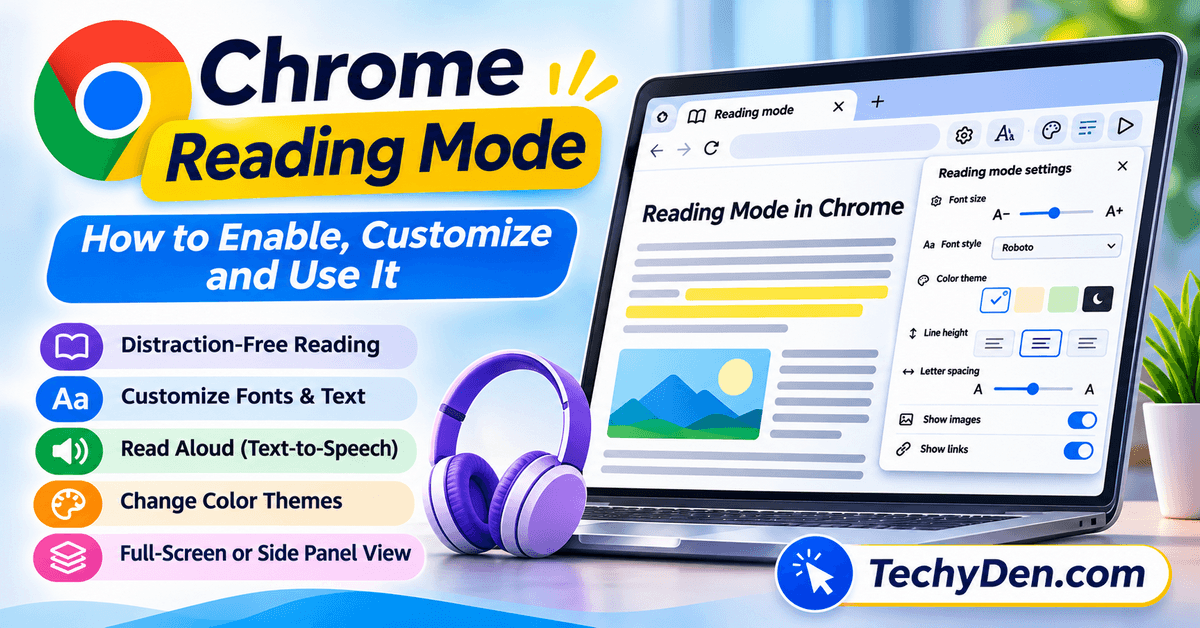
Google Chrome’s Reading Mode makes online articles easier to read by reducing visual distractions and presenting supported webpage content in a cleaner layout. You can customize fonts, text size, background colors, and spacing to suit your reading preferences. On desktop, you can also use Read Aloud to listen to supported text.
Reading online articles can be frustrating when advertisements, pop-ups, sidebars, and other page elements compete for your attention. Google Chrome’s Reading Mode helps solve this problem by presenting supported web content in a cleaner, easier-to-read format.
With Chrome Reading Mode, you can adjust font sizes, change the background color, customize text spacing, and listen to articles using the built-in Read Aloud feature on desktop. Chrome also offers an immersive, full-page reading experience that makes it easier to focus on the content.
In this guide, you’ll learn how to enable Chrome Reading Mode, switch between full-screen and side-panel views, customize its settings, use Read Aloud, understand its benefits, and troubleshoot common problems on supported devices.
How to enable Chrome Reading Mode:
- Open Google Chrome on your computer.
- Visit a webpage containing readable text.
- Right-click the webpage.
- Select Open in reading mode.
- Customize the font, color theme, and spacing using the Reading Mode controls.
Chrome opens an immersive full-screen reading view by default. You can switch to side-panel view through the Reading Mode settings. Availability depends on the webpage and browser version.
What Is Chrome Reading Mode?
Chrome Reading Mode is a built-in Google Chrome feature that simplifies supported web pages to make their text easier to read. Instead of displaying the original page with all its surrounding elements, Reading Mode presents the main text in a cleaner reading interface.
Depending on your Chrome version and settings, you can use a full-screen reading view or a side panel. The full-screen option provides a more immersive reading experience, while the side panel lets you keep the original webpage visible alongside the simplified text.
Chrome Reading Mode is useful for reading news articles, educational resources, tutorials, blog posts, and other text-heavy pages.
Key features of Chrome Reading Mode include
- Distraction-free reading: Focus on the main text without the usual webpage clutter.
- Text customization: Change the font style, font size, and spacing.
- Color themes: Choose a reading background that feels comfortable.
- Read Aloud: Listen to supported webpage text on desktop.
- Voice customization: Select an available voice and adjust playback speed.
- Display options: Show or hide images and links in the reading interface.
- Flexible viewing: Switch between full-screen and side-panel layouts where supported.
Reading Mode does not change the original webpage. It changes how supported content is presented within the reading interface.
How to Enable Chrome Reading Mode on a Computer
On desktop computers, Chrome provides several ways to open Reading Mode. The quickest method is usually to right-click a supported webpage.
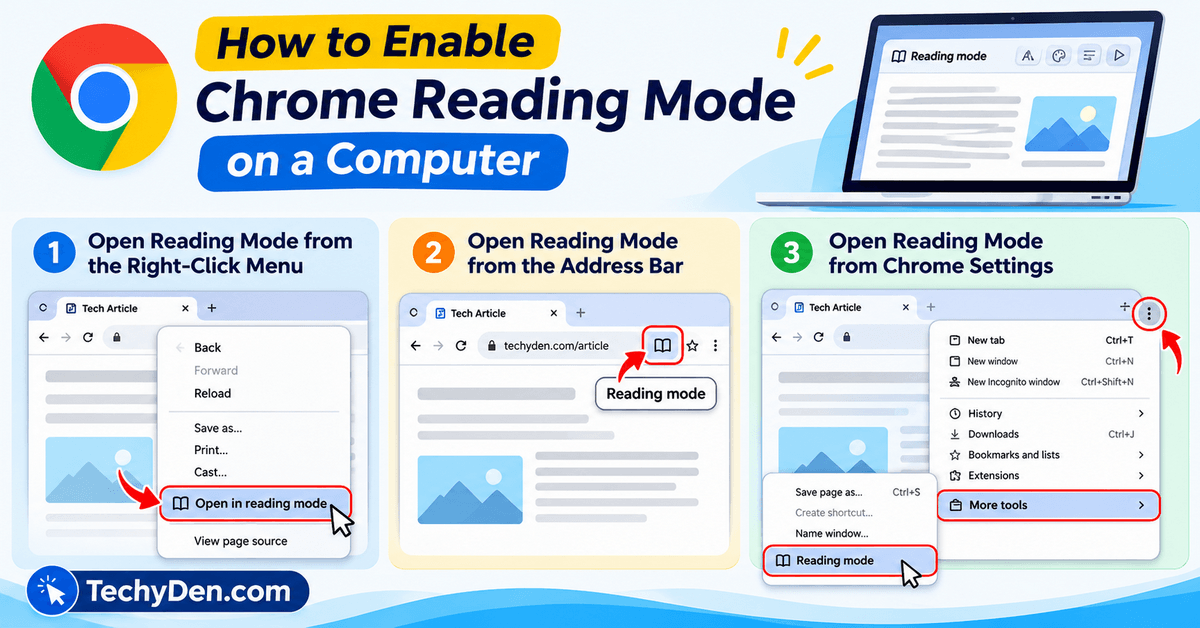
Method 1: Open Reading Mode from the Right-Click Menu
Follow these steps to enable Chrome Reading Mode on Windows, macOS, Linux, or ChromeOS.
- Open Google Chrome on your computer.
- Visit a webpage containing an article or other readable text.
- Right-click the webpage.
- Select Open in reading mode.
- Wait for Chrome to display the simplified reading view.
- Use the available controls to customize the text and appearance.
Depending on your settings, Reading Mode may open in a full-screen view or a side panel.
If you don’t see the option, try another article-style webpage. Reading Mode does not work with every website or page format.
Method 2: Open Reading Mode from the Address Bar
Chrome may display a Reading Mode icon in the address bar when the feature is available for the current page.
- Open the webpage you want to read.
- Look for the Reading Mode icon in the address bar.
- Select the icon to open Reading Mode.
The icon may not appear on every website. If it is unavailable, use the right-click menu or the browser’s More Tools menu instead.
Method 3: Open Reading Mode from Chrome Settings

You can also access Reading Mode through Chrome’s main menu.
- Open the webpage you want to read.
- Select the three-dot menu in the top-right corner.
- Open More tools.
- Select Reading mode.
Chrome will display the reading interface if the current page is supported.
For the latest information about supported features and Reading Mode settings, consult Google’s official Chrome Reading Mode instructions.
How to Switch Between Full-Screen and Side-Panel Reading Mode
Chrome’s newer immersive reading experience provides a full-page view, while the side-panel layout keeps the original webpage available beside the simplified text.
To change the layout:
- Open Reading Mode on a supported webpage.
- Open the Reading Mode settings.
- Find the viewing-layout option.
- Choose Full screen or Side panel, depending on the options displayed.
- Continue reading in your preferred layout.
Which layout should you choose?
- Full-screen mode: Best for long articles, focused reading, and reducing visual distractions.
- Side-panel mode: Useful when you want to refer to the original webpage while reading the simplified text.
Google has introduced an immersive reading experience designed to help users focus on webpage content with fewer visual distractions. Learn more about Chrome’s immersive reading experience.
Chrome can remember your selected layout, so the available view may differ the next time you open Reading Mode.
How to Pin Reading Mode to the Chrome Toolbar
If you use Reading Mode regularly, pinning it to the toolbar can make it easier to access.
- Open Reading Mode.
- Open its settings menu.
- Select Pin reading mode if that option is available.
- Look for the Reading Mode icon in the toolbar.
Once pinned, you may be able to open the feature directly from the toolbar on supported pages.
How to Customize Chrome Reading Mode
One of the biggest benefits of Chrome Reading Mode is that you can adjust its appearance to suit your reading preferences.
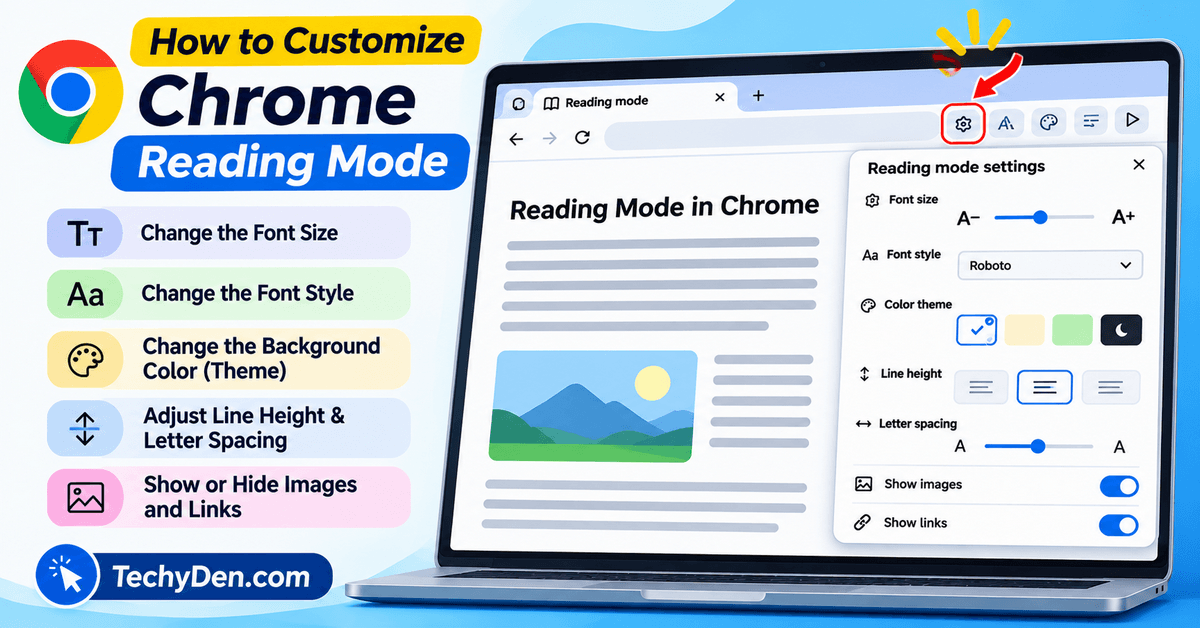
Change the Font Size
Small text can make long articles difficult to read, particularly on high-resolution displays. Chrome lets you increase or decrease the font size in Reading Mode.
To adjust the text:
- Open Reading Mode.
- Find the font-size controls.
- Select the increase or decrease option.
- Continue adjusting until the text is comfortable to read.
You can also reset the font size to its default setting if necessary.
Change the Font Style
Chrome Reading Mode provides alternative typefaces for a more comfortable reading experience.
To change the font:
- Open Reading Mode.
- Select the settings icon.
- Find the font-style option.
- Choose an available typeface.
Try different options to see which makes longer passages easier to read.
Change the Background Color or Color Theme
The default background may not be ideal for every reader. Chrome lets you choose from available color themes to change the appearance of the reading interface.
To change the theme:
- Open Reading Mode.
- Select the settings icon.
- Open the color-theme option.
- Choose your preferred theme.
A darker theme may feel more comfortable in a dim room, while a lighter background may work better in a bright environment. The best choice depends on your display, lighting, and personal preference.
Adjust Line Height and Letter Spacing
Text spacing can affect how easily you follow a paragraph, especially when reading lengthy articles.
Chrome Reading Mode lets you adjust:
- Line height: Changes the vertical space between lines.
- Letter spacing: Changes the horizontal space between characters.
To customize spacing, open Reading Mode settings and adjust the available controls.
Increasing the spacing slightly may help you distinguish lines more easily. However, excessive spacing can make paragraphs longer and require more scrolling.
Show or Hide Images and Links
Chrome Reading Mode also provides options for displaying images and links.
To change these settings:
- Open Reading Mode.
- Select the settings icon.
- Find the image or link display options.
- Turn the relevant option on or off.
Keeping links visible can be useful when researching a topic. Hiding them may help you concentrate on the main text.
Similarly, displaying images may help you understand educational articles, while hiding them can create a more text-focused experience.
How to Use Read Aloud in Chrome Reading Mode
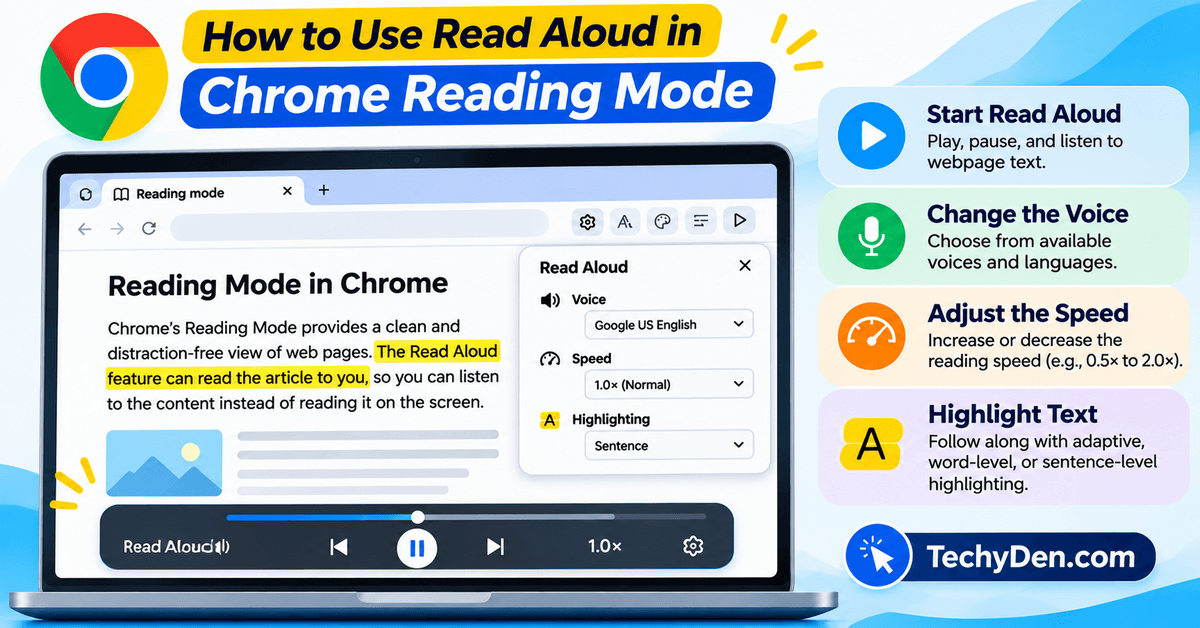
Chrome’s desktop Reading Mode includes a Read Aloud feature that reads supported webpage text aloud. This is useful when you prefer listening to an article, want to follow along while reading, or need a break from looking at the screen.
How to Start Read Aloud
- Open a supported webpage in Chrome.
- Enter Reading Mode.
- Select the Play button in the reading interface.
- Listen as Chrome reads the available text.
- Select Pause when you want to stop temporarily.
The playback controls may let you move between sentences and adjust the reading speed.
How to Change the Read Aloud Voice
Chrome provides voice-selection options for Read Aloud on desktop.
- Open Reading Mode.
- Select the settings icon.
- Find the voice-selection option.
- Preview the available voices if that option is shown.
- Select the voice you prefer.
Available voices and languages can vary. Chrome may download Google Natural Voices for the selected language. If a voice download fails, the browser may use the system voice instead.
How to Change the Read Aloud Speed
If the narration sounds too slow or too fast, adjust the playback speed.
- Start Read Aloud in Reading Mode.
- Open the playback-speed control.
- Select a slower or faster speed.
- Continue listening at a comfortable pace.
A slower speed may help when studying unfamiliar material, while a faster setting may be suitable for reviewing familiar information.
Can Chrome Highlight Text While Reading Aloud?
Chrome Reading Mode offers voice-highlighting options that can highlight text during playback. Depending on the available settings, you may be able to choose adaptive highlighting, word-level highlighting, sentence-level highlighting, or turn highlighting off.
This can make it easier to follow the narration and identify the text being read.
How to Use Reading Mode on Android
Chrome’s desktop Reading Mode and Android’s reading features do not necessarily use the same interface. The options available on your phone can depend on your Chrome version, Android version, device, and feature availability.
To check whether Reading Mode is available in Chrome on Android:
- Open Chrome on your Android phone.
- Visit a webpage containing an article.
- Open Chrome’s three-dot menu.
- Look for a reading-related option, such as Show reading mode, if available.
- Follow the on-screen instructions.
If you don’t see the option, update Chrome and check whether the feature is available on your device.
Android also has a separate Reading Mode accessibility app from Google. This tool can provide a simplified reading view for supported content and may offer text-to-speech features. Its controls and activation methods differ from Chrome’s built-in desktop Reading Mode.
To try the Android accessibility app:
- Open the Google Play Store.
- Search for Google’s Reading Mode app.
- Install it if it is compatible with your device and available in your region.
- Open the app and follow its setup instructions.
- Enable its accessibility shortcut when prompted.
- Use the configured shortcut on supported content.
The Android accessibility app is separate from the desktop feature. Installing it does not guarantee that the same Reading Mode controls will appear inside Chrome on every Android device.
7 Benefits of Using Chrome Reading Mode
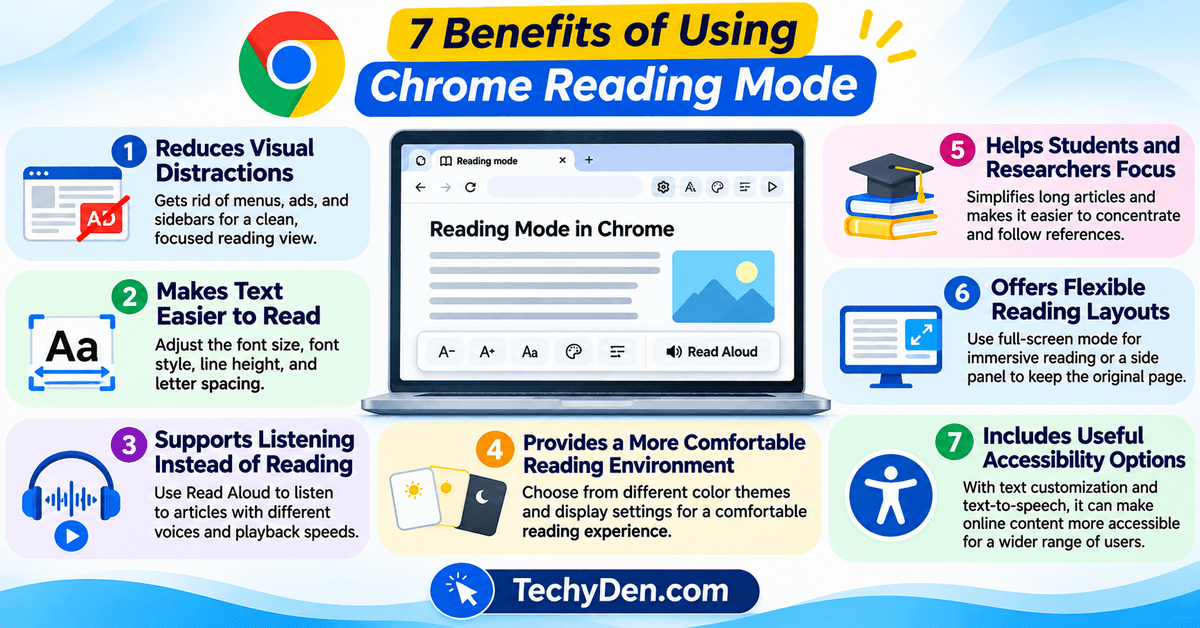
Chrome Reading Mode is more than a way to remove webpage clutter. It also offers features that can make reading more comfortable, focused, and accessible.
1. Reduces Visual Distractions
Busy webpages can contain navigation menus, promotional boxes, sidebars, and other elements that compete for attention.
Reading Mode presents supported text in a simpler interface, helping you concentrate on the article rather than the surrounding page.
This can be especially useful when reading lengthy blog posts, online tutorials, or educational resources.
2. Makes Text Easier to Read
Not everyone finds the default text size or font comfortable. Chrome Reading Mode allows you to adjust font size and style to suit your preferences.
You can also change line height and letter spacing, making it easier to follow paragraphs.
These options can be helpful for people who find small or tightly spaced text difficult to read.
3. Supports Listening Instead of Reading
The desktop Read Aloud feature lets you listen to supported webpage text.
This can be useful when reviewing articles, studying written material, or taking a break from reading on a screen.
Voice selection and playback-speed controls provide additional flexibility, although available voices and languages may vary.
4. Provides a More Comfortable Reading Environment
Chrome Reading Mode offers different color themes and text-display settings.
You can experiment with font size, spacing, and background colors to create a reading environment that feels comfortable for longer sessions.
These settings are personal preferences rather than a guarantee of reduced eye strain. Taking regular breaks and adjusting screen brightness can also help improve comfort.
5. Helps Students and Researchers Focus
Students and researchers often read long articles, documentation, and educational resources online.
Reading Mode can simplify supported pages and reduce distractions, helping readers concentrate on the main text.
When researching a topic, you can keep links visible to follow references or hide them when you want fewer interruptions.
6. Offers Flexible Reading Layouts
Chrome’s full-screen reading interface provides an immersive experience, while the side-panel option can be useful when you want to keep the original webpage visible.
The choice allows you to adapt the reading experience to different tasks, such as studying an article or checking its original layout.
7. Includes Useful Accessibility Options
Reading Mode offers text customization and desktop text-to-speech features that may make online content easier to access for some users.
However, it is not a replacement for every accessibility tool. People who rely on screen readers or other assistive technologies should continue using the tools that meet their individual needs.
Limitations of Chrome Reading Mode
Although Chrome Reading Mode is useful, it has some limitations.
- It does not work on every webpage. Chrome explains that Reading Mode may not work as expected on image galleries, interactive maps, forms, quizzes, payment pages, and login screens.
- It may simplify a page imperfectly. Complex layouts and dynamic content can sometimes be missing or presented differently from the original page.
- Read Aloud availability varies. The desktop feature offers narration, but voice and language options may differ across devices and configurations.
- It is not a full offline-reading tool. Reading Mode should not be treated as a service for downloading and storing entire articles for offline access.
- Mobile and desktop features differ. Do not assume that the Android interface includes every desktop setting or shortcut.
Chrome Reading Mode Not Working? How to Fix It
If Chrome Reading Mode is missing or not working correctly, try the following troubleshooting steps.
1. Update Google Chrome
An outdated browser may not include the latest Reading Mode improvements.
- Open Chrome.
- Select the three-dot menu.
- Go to Help.
- Select About Google Chrome.
- Allow Chrome to check for updates.
- Restart the browser if an update is installed.
Check the current interface again after updating.
2. Try a Different Webpage
Reading Mode is not compatible with every page format. Test it on a standard news article or blog post containing readable text.
If it works on another page, the problem may be related to the original website’s layout or content.
3. Use the Right-Click Menu
If the Reading Mode icon is missing from the address bar, right-click the webpage and look for Open in reading mode.
You can also check the More tools menu.
The available entry points may vary by Chrome version and page.
4. Highlight the Text You Want to Read
If Chrome cannot identify the main content automatically, try selecting or highlighting the relevant text on the original webpage.
Then check whether Reading Mode becomes available or opens with the selected content.
5. Check the Keyboard Shortcut
Chrome’s documented desktop shortcuts are:
- Windows, Linux, and ChromeOS:
Alt + Shift + R - macOS:
Command + Option + R
If a shortcut does not work, use the menu instead. Keyboard shortcuts can be affected by browser versions, operating-system settings, or conflicts with other applications.
6. Check Read Aloud Settings
If Read Aloud does not play correctly:
- Check your device’s volume and audio output.
- Try another available voice.
- Confirm that the selected language is supported.
- Wait for any required voice download to complete.
- Restart Chrome and test the feature again.
If a preferred voice is unavailable, Chrome may fall back to a system voice.
7. Restart Chrome
Close Chrome completely and reopen it. Then visit a supported article and try Reading Mode again.
If the problem continues, consult Google’s official Chrome Help documentation for the latest troubleshooting guidance.
Chrome Reading Mode vs. Microsoft Edge Immersive Reader
Chrome Reading Mode and Microsoft Edge’s reading features both help make web content easier to read, but their interfaces and available options differ.
Chrome Reading Mode
- Built into Google Chrome.
- Offers a full-screen reading interface and a side-panel option.
- Supports font and color customization.
- Includes Read Aloud on desktop.
- Provides controls for text spacing and displaying images or links.
Microsoft Edge reading features
- Integrated into Microsoft Edge.
- Provides reading-focused tools for supported webpages.
- Offers Read Aloud and other accessibility-related features, depending on the page and browser version.
- Can be useful for people who already use Edge as their main browser.
The better choice depends on your preferred browser, the available features on your device, and your reading habits.
If you use Microsoft Edge for everyday browsing, explore Microsoft Edge’s vertical tabs feature to organize open tabs more efficiently and make better use of your browser workspace.
Tips for Getting the Most Out of Chrome Reading Mode
Use these practical tips to make your reading sessions more comfortable.
- Choose a comfortable font size: Avoid making the text so small that you need to strain to read it.
- Experiment with color themes: Select a background that works well with your display and room lighting.
- Adjust text spacing: Increase line height or letter spacing if paragraphs are difficult to follow.
- Try Read Aloud: Listen to supported articles when you want an alternative to reading on screen.
- Use full-screen mode for focus: Choose the immersive layout when you want fewer visual distractions.
- If you regularly keep multiple articles open while researching a topic, learn how to create and use tab groups in Microsoft Edge to organize related webpages and make browser multitasking easier.
- Keep links visible during research: This makes it easier to follow references and related resources.
- Update Chrome regularly: Updates can bring interface changes, fixes, and new features.
- Take breaks: Reading Mode can simplify a page, but it does not eliminate the need for regular breaks during long screen sessions.
Frequently Asked Questions About Chrome Reading Mode
What is Chrome Reading Mode?
Chrome Reading Mode is a built-in browser feature that presents supported webpage text in a simpler reading interface. It reduces visual distractions and lets you customize settings such as font size, font style, color theme, and spacing. On desktop, it also supports Read Aloud, which can read supported text aloud.
How do I enable Reading Mode in Google Chrome?
Open an article in Chrome, right-click the webpage, and select Open in reading mode. You can also use the Reading Mode icon in the address bar when it appears or open the feature from the three-dot menu under More tools. Availability depends on the page and your Chrome version.
Does Chrome Reading Mode work on all websites?
No. Chrome Reading Mode does not support every website or page format. It may not work as expected on image galleries, interactive maps, forms, quizzes, payment pages, and login screens. If the option is unavailable, try a standard article or select the text you want to read.
Can I change the font size in Chrome Reading Mode?
Yes. Open Reading Mode and use the font-size controls to increase or decrease the text size. You can also adjust the font style, color theme, line height, and letter spacing. These settings help you personalize the reading interface for greater comfort.
Can Chrome read articles aloud?
Yes. Chrome’s desktop Reading Mode includes a Read Aloud feature for supported webpage text. Select the Play button to begin narration. Depending on your available settings, you can choose a voice, change playback speed, and control text highlighting.
Is Chrome Reading Mode available on Android?
Android reading features differ from Chrome’s desktop Reading Mode. Depending on your device and browser version, Chrome may show a reading-related option in its menu. Google’s separate Android Reading Mode accessibility app is another option for simplifying supported content.
Why is Reading Mode missing in Chrome?
The option may be missing because the current webpage is unsupported, the feature is unavailable in that context, or your browser needs an update. Try another article, check the More tools menu, and update Chrome. You can also highlight the text you want to read.
Can I use Chrome Reading Mode offline?
Chrome Reading Mode is not designed as a complete offline-reading or article-saving service. It simplifies supported webpage content, but you should not rely on it to download and store articles for offline use. If you need offline access, use a separate reading or saving tool that explicitly supports it.
Is Chrome Reading Mode better than Microsoft Edge’s reading tools?
Both browsers offer reading-focused features, and the better option depends on your needs. Chrome provides customizable reading layouts and desktop Read Aloud. Edge has its own reading and accessibility tools. Compare the options available in your browser version and choose the one that fits your workflow.
Conclusion
Chrome Reading Mode is a useful feature for anyone who regularly reads articles, tutorials, and educational content online. It provides a simpler reading interface, customizable text settings, flexible viewing layouts, and desktop Read Aloud support.
To get started, open a supported article in Chrome, right-click the page, and select Open in reading mode. Adjust the font, color theme, and spacing to suit your preferences. If you prefer listening, try the Read Aloud controls.
Although Reading Mode does not work on every webpage and its features differ between desktop and mobile, it can make supported online content easier to read and navigate. Keep Chrome updated and explore the settings to find the reading experience that works best for you.
For more practical computer tips, troubleshooting advice, and productivity guides, explore our collection of Windows 11 tips and tutorials.