Thunderbird Setup 2026: Configure Outlook IMAP Email Securely

If you’re searching for a secure, privacy-focused email solution for your desktop, the Thunderbird setup 2025 is your answer.
This guide helps you set up Outlook emails (IMAP) in the Thunderbird Email Client on Windows 11. It also covers Mac and Linux setups. It uses the latest UI and follows best security practices.
IMAP (Internet Message Access Protocol) was developed by Mark Crispin in 1986. It lets you keep your inbox, folders, and the “read/unread” state perfectly synced across multiple devices.
Compared to traditional POP3, IMAP offers seamless mailbox access—ideal for today’s multi-device environment.
Major platforms like Gmail and Microsoft Outlook (formerly Hotmail) support IMAP. This empowers users to sync emails, folders, and actions efficiently from top email clients. Mozilla Thunderbird is among the best free email clients.

It stands out for 2025 with its modern, open-source interface. The client offers encrypted email setup and supports advanced features like a unified inbox and PGP encryption.
In this step-by-step guide, you’ll learn how to set up your Outlook IMAP account in Thunderbird. You will discover why Thunderbird outshines other email apps. You will also learn how to resolve common sync issues.
By the end, you’ll unlock a superior email experience on your desktop. It is backed by security. It’s also enhanced by productivity. You will have the most up-to-date features for the new year.
Let’s get started with your Thunderbird IMAP setup 2025!
How to Configure Outlook Emails IMAP in Thunderbird Email Client?
Follow these updated steps for a secure, seamless Thunderbird Outlook IMAP configuration on Windows 11, Mac, or Linux in 2025. (Tip: Include screenshots for each step if possible, as users highly value visual guides!)
1. Preparation: Enable IMAP in Your Outlook Account
- Sign in to your Outlook.com or Microsoft 365 webmail.
- Click the gear ⚙️ (Settings) icon → “View all Outlook settings.”
- Under Mail > Sync Email, make sure IMAP is enabled.
- Save your changes.
2. If Using Two-Factor Authentication: Generate an App Password
- Go to Microsoft Account Security.
- Under “Additional security,” find “App passwords.”
- Click “Create a new app password.”
- Copy and save this password to use in Thunderbird.
3. Launch Thunderbird & Add Your Outlook Account
Double click on the shortcut of Mozilla Thunderbird or by accessing from desktop or Start > All programs > Mozilla Thunderbird
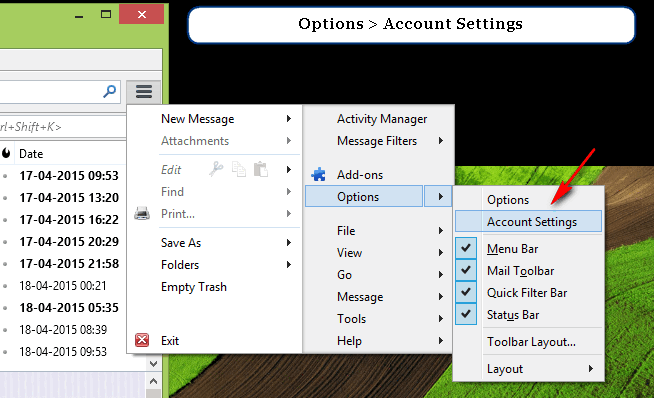
- Open the latest Thunderbird (2025) on Windows 11, Mac, or Linux.
- Go to Menu > Account Settings or click Tools > Account Settings.
- Click “Account Actions” > “Add Mail Account.”
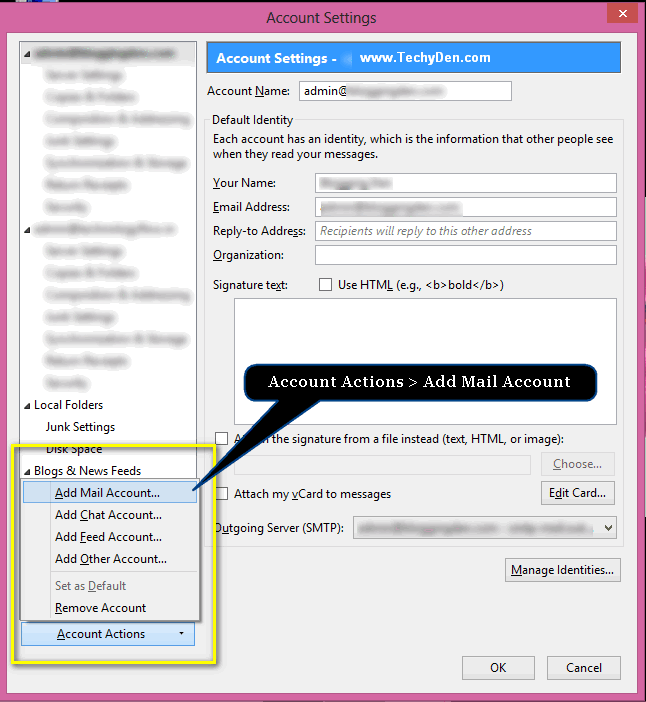
4. Enter Outlook Email Credentials
In the next screen, your Mail Account Setup box will be displayed. Now it’s time to configure your email here
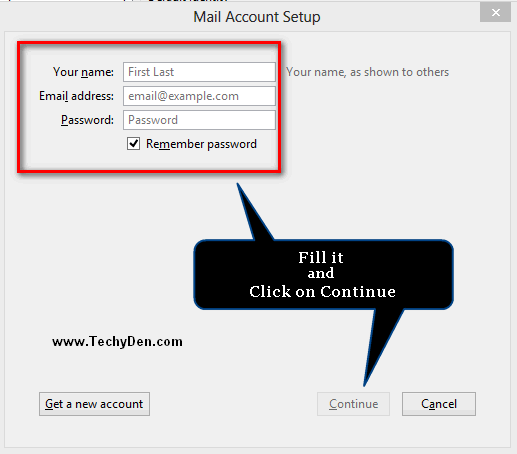
- Now Enter the following details
- Your Name: (as you want it to appear)
- Email Address: (your full Outlook email, e.g., [email protected])
- Password: (use app password if 2FA is on)
- Password: Outlook account password
- Check “Show Password” → Click Continue.
- Click “Continue” and let Thunderbird auto-detect settings, or choose “Manual config” to adjust.
5. Set IMAP & SMTP Server Settings for Outlook (2025 Updated)
In the next dialog, click the “Manual Config” button.
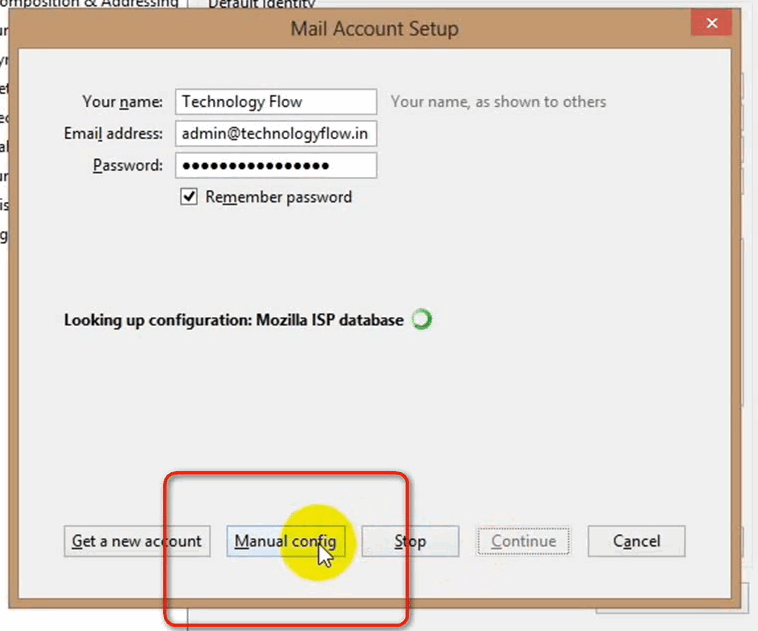
Incoming IMAP Server Settings
- Server: imap-mail.outlook.com
- Port: 993
- SSL Encryption: Enabled
- Authentication: Normal password (use app password if applicable)
Outgoing SMTP Server Settings
- Server: smtp-mail.outlook.com
- Port: 587
- Encryption: Start TLS
- Authentication: Normal password
Now fill in the details as shown in the following image, click “Re-test,” and finally click on Done. Confirm details and click “Done.”
6. Complete Authentication & Connection
- If prompted, enter your app password or Outlook credentials.
- Approve permissions if requested (OAuth2 window may pop up for modern Outlook accounts).
- Thunderbird should start syncing your Outlook mail and folders.
7. Verify & Start Using Thunderbird
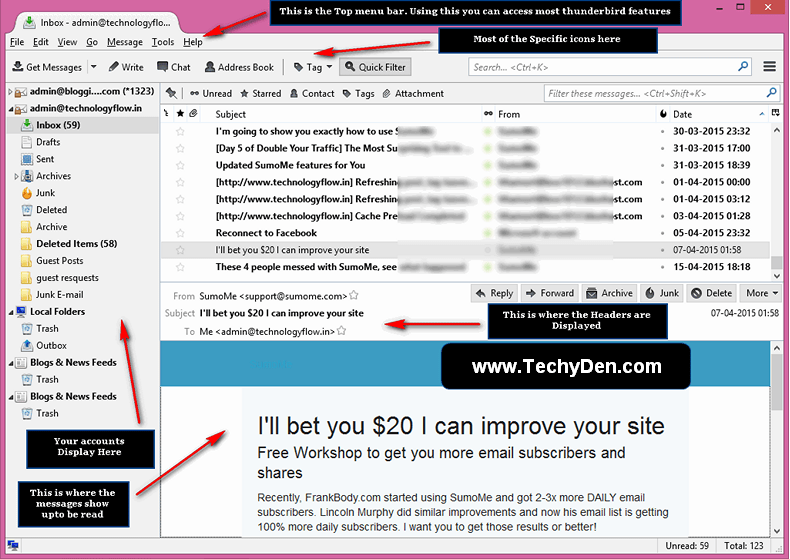
This is the final interface of the Mozilla Thunderbird Email Client. The image gives the basic idea of working with the email client.
Your Outlook emails will now sync via IMAP in Thunderbird. Enjoy features like:
- Tabbed email browsing
- Offline access
- Customizable interface
8. Troubleshooting Common Errors
- IMAP connection fails: Check your app password, enable IMAP in Outlook web settings, update Thunderbird to latest version.
- Authentication issues: Double-check 2FA/app password use.
- Folders missing: Make sure “Show All Folders” and “Subscribe” settings are correct inside Thunderbird.
- SSL/TLS errors: Ensure correct ports and encryption are entered; confirm your internet connection is stable.
By completing these steps, your Thunderbird setup 2025 will be ready to securely manage all your Outlook emails. It will efficiently handle them with robust IMAP sync and best-in-class privacy!
Helpful Official Support & Community Resources
- Thunderbird Official Support: Mozilla Thunderbird Support
- Microsoft Outlook Help: Outlook Email Setup – Microsoft Support
- Thunderbird Help Forum: MozillaZine Forums
- Reddit Community: r/Thunderbird
Use these troubleshooting tips to keep your Thunderbird + Outlook integration running smoothly and your email communications secure!
Why Choose Thunderbird for Outlook Email in 2025?
Choosing an email client isn’t just about convenience—it’s about security, privacy, and efficient management of your digital communication.
In 2025, Mozilla Thunderbird continues as the leading free, open-source email client. It serves those who want true control over their data. It also offers a seamless way to access Outlook emails.
Key Benefits of Using Thunderbird:
- Security & Encryption: Thunderbird offers powerful encryption options, including PGP/S/MIME. Regular updates help protect your Outlook emails from phishing, spam, and cyber threats.
- Privacy-Focused: As an open-source email application, Thunderbird does not collect your personal data. It also does not sell your data. This makes it a top choice for privacy-minded users.
- Unified Inbox & Multi-Account Management: Manage all your email accounts from one unified inbox. This includes Outlook, Gmail, and more. It is perfect for personal and professional use.
- Advanced Customization: Enjoy a wide range of Thunderbird extensions for productivity, automated email filters, themes, and productivity tools.
- Cross-Platform Support: Use the same secure and modern experience across Windows 11, Mac, and Linux devices.
- Regular Updates: Thunderbird 2025 brings a refreshed UI. It offers improved dark mode and enhanced spam detection. The update also includes support for the latest IMAP and authentication standards.
Thunderbird vs. Outlook & Other Email Clients (2025)
| Feature | Thunderbird | Microsoft Outlook | Other Free Clients |
|---|---|---|---|
| Open Source | Yes | No | Mixed |
| Privacy-Focused | Yes | No | Usually |
| Built-in Encryption | PGP/S/MIME | S/MIME (paid) | Rare |
| Unified Inbox | Yes | Yes | Sometimes |
| Add-ons/Extensions | Extensive (2025) | Few | Limited |
| Platform Support | Win/Mac/Linux | Win/Mac/Web | Mixed |
| Custom Automation | Yes | Some rules | Limited |
| Cost | Free | Paid/Subscription | Free |
For Outlook users in 2025, Thunderbird offers superior privacy, customization, and robust feature updates. It is the ideal choice for secure, unified, and streamlined email management.
Prerequisites & Requirements for Thunderbird IMAP Setup (2025)
Before you start configuring your Outlook email in Thunderbird, make sure you have the following essentials to ensure a smooth, secure setup:
- Download the Latest Thunderbird (2025 Release): Use the latest version of Thunderbird. This allows you to take advantage of all the newest features. Stay updated with security updates, and enjoy a user-friendly interface. Get Thunderbird for Windows, Mac, or Linux (2025)
- Active Outlook Account (Microsoft/Outlook.com/Office 365): You’ll need your full Outlook email address and password. If your Microsoft/Outlook account uses Two-Factor Authentication (2FA), it’s recommended to generate an app-specific password. This additional step enhances security and ensures a smoother IMAP login.
- Stable Internet Connection: Ensure a reliable broadband or Wi-Fi connection for syncing messages and folders via IMAP.
- Operating System Compatibility: Thunderbird (2025) supports Windows 11, macOS, and Linux. Make sure your system is up-to-date to avoid compatibility or security issues.
Prepare these prerequisites in advance. You’ll be ready to complete your Thunderbird IMAP configuration for Outlook quickly and securely. This will ensure there is no downtime or sync problems.
Advanced Settings & Feature Tips for Thunderbird (2025)
Take your Thunderbird setup 2025 to the next level by making use of these powerful advanced settings and productivity features. These tips will help you unlock the best security, organization, and custom workflows for your Outlook IMAP account:
1. Organizing Your Unified Inbox
Thunderbird’s unified inbox lets you manage all your email accounts—including Outlook, Gmail, and others—in a single, streamlined view.
- Enable the Unified Folders option to see all incoming mail in one place.
- Use conversation view to group related messages and declutter your inbox.
2. Custom Folders, Tags, and Filters
Keep your inbox organized with Thunderbird’s deep customization:
- Custom Folders: Create dedicated folders for work, personal emails, newsletters, or any custom category.
- Tags: Apply color-coded tags like Important, To-Do, Later, etc., for easy prioritization.
- Message Filters: Automate routine actions. (Example: Move all emails from certain contacts to a specific folder, or tag all invoices automatically.)
- Go to Tools > Message Filters to set up rules for your Outlook IMAP account.
- Sample filters: “flag as important,” “auto-archive older than X days,” “block spam senders”
3. Email Encryption & Security (PGP/S/MIME, SSL/TLS)
Protect your privacy and data with Thunderbird’s built-in security features:
- PGP Encryption: Thunderbird supports OpenPGP for encrypting and signing emails. Enable it in Account Settings > End-to-End Encryption.
- S/MIME: Use S/MIME certificates for professional-grade encrypted communication.
- SSL/TLS: Ensure that your Outlook IMAP and SMTP settings use SSL or TLS to encrypt data in transit.
- Typical server settings: IMAP (993, SSL/TLS), SMTP (465 or 587, SSL/TLS)
4. Thunderbird Extensions: Productivity & Security (2025 Recommendations)
Expand Thunderbird’s capabilities by installing modern add-ons tailored for security or efficiency:
- QuickFolders: Organize and access folders with one click.
- Lightning Calendar: Integrated calendar and task management.
- CardBook: Advanced contact management with CardDAV/Outlook syncing.
- Thunderbird Conversations: Modern threaded email conversation view.
- Enigmail (or latest OpenPGP add-on): Enhanced PGP encryption management.
- SpamFilters AI: Next-gen spam/phishing detection using artificial intelligence.
- Dark Mode Plus: For better readability and energy savings.
Find and install add-ons via Tools > Add-ons and Themes.
Security Best Practices for Thunderbird Email Setup (2025)
Keeping your Outlook emails protected in Thunderbird setup 2025 isn’t just a one-time task. It’s an ongoing commitment to smart, modern security. Follow these best practices to safeguard your inbox against the latest threats and ensure your information remains private:
1. Use Strong Passwords & Enable Two-Factor Authentication (2FA)
- Always use unique, complex passwords for both your Outlook and email provider accounts.
- Enable Two-Factor Authentication (2FA) on your Microsoft/Outlook account. This will require an additional one-time code at login. It drastically reduces the risk of unauthorized access—even if your password is compromised.
- When 2FA is enabled, remember to generate an app password specifically for Thunderbird IMAP access. Never reuse app passwords, and store them securely.
2. Keep Thunderbird Updated
- Always install the latest Thunderbird updates—on Windows 11, Mac, or Linux. Updates patch vulnerabilities, add new security features (like SSL/TLS and modern OAuth2 support), and maintain compatibility with email providers.
- Enable “auto-update” in Thunderbird’s settings if possible, so you’re always protected against emerging threats.
3. Spot and Avoid Phishing or Malware Emails
- Never open suspicious attachments or click unknown links, even if they appear to come from trusted contacts.
- Learn to recognize classic phishing signs: urgent or threatening language, poor spelling/grammar, requests for personal info or passwords.
- Use Thunderbird’s built-in spam and phishing filters—keep them activated and regularly mark unwanted emails as “Junk.”
- Consider adding extra layers with security extensions or anti-phishing plugins (search “Thunderbird security add-ons 2025” for current picks).
- If unsure, verify the sender by contacting them through another method before acting.
By following these security best practices, your Thunderbird Outlook IMAP setup (2025) will stay safe and efficient. It will be resilient against both old and new cyber threats. This helps you maintain full privacy and control over your digital communications.
FAQs: Thunderbird & Outlook IMAP Setup
Is Thunderbird still free to use in 2025?
Yes, Thunderbird remains a 100% free, open-source email client for Windows, Mac, and Linux.
Can I use Thunderbird with my Microsoft Outlook or Office 365 email?
Absolutely! You can connect Outlook, Office 365, and many other email accounts using IMAP in Thunderbird.
What is the benefit of using IMAP over POP3 for email?
IMAP syncs emails, folders, and read/unread status across all devices, while POP3 downloads mail to a single device only.
Do I need a special password for Thunderbird if 2FA is enabled on Outlook?
Yes—set up an “app password” in your Microsoft security settings, then use that in Thunderbird.
Why can’t Thunderbird connect to my Outlook account?
Double-check your IMAP/SMTP settings, ensure IMAP is enabled in Outlook, and use an app password if 2FA is on.
Is Thunderbird email secure?
Yes! Thunderbird supports strong encryption (PGP/S/MIME), SSL/TLS, and frequent security updates to keep your email safe.
Can I add more than one email account in Thunderbird?
Yes, you can manage multiple emails (Outlook, Gmail, Yahoo, etc.) through a single unified inbox.
How do I keep Thunderbird up to date?
Turn on auto-updates or check for updates in the settings to always have the latest security and feature improvements.
Why aren’t all my Outlook folders showing in Thunderbird?
Right-click your email account, choose “Subscribe…,” and select all folders you want to display and sync.
What should I do if Thunderbird asks for my Outlook password multiple times?
Delete old saved passwords in Thunderbird, use a new app password, and ensure you’re using the latest Thunderbird version.
Conclusion & Next Steps
Choosing Thunderbird with Outlook IMAP for your desktop email management in 2025 is a futureproof strategy. It is ideal for anyone seeking privacy, security, and seamless productivity.
Thunderbird’s open-source foundation provides strong support for advanced encryption options. Its unified inbox and robust extension ecosystem make it the best free alternative to mainstream email apps. This empowers you to access, organize, and protect your Outlook emails with confidence.
In today’s fast-evolving digital landscape, threats and technology shift quickly. That’s why it’s essential to keep your Thunderbird installation updated.
You should review your IMAP/SMTP settings yearly. Stay aware of new security features like improved encryption protocols, stronger spam filters, and evolving two-factor authentication support.
Regularly upgrade your Thunderbird client. Periodically check your configuration. Doing this ensures ongoing compatibility.
You will have maximum data privacy. You will also be resilient against even the latest cyber risks.
With your new Thunderbird setup for Outlook (2025), you’re equipped for efficient, secure communication—today and into the future.
Ready to take control?
Download the latest Thunderbird. Set up your Outlook IMAP securely. Experience the next level of free, private, and customizable email. It keeps you ahead of the curve!