Spending hours reading articles, writing documents, researching topics, or watching videos in Google Chrome can make your eyes feel tired. Bright white backgrounds, small text, screen glare, and long periods without breaks can make browsing uncomfortable, especially when you work late at night.
Fortunately, several Chrome extensions can help you customize website colors, adjust brightness, apply warmer screen tints, improve reading comfort, and remind you to take regular breaks.
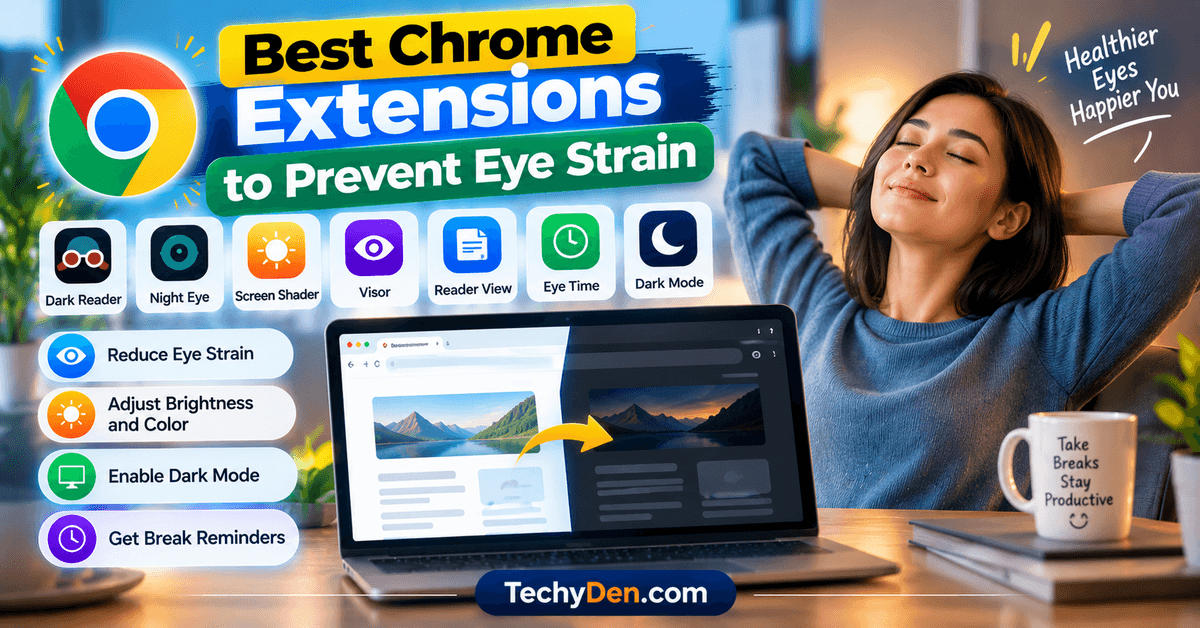
In this guide, we explore the best Chrome extensions to prevent eye strain in 2026, including Dark Reader, Night Eye, Screen Shader, Visor, and other useful tools. We compare their features, pricing options, benefits, and limitations to help you choose the right extension for your browsing habits.
Regular breaks and eye strain prevention tools can make long computer sessions more comfortable.
These tools can improve visual comfort for some users, but they cannot guarantee that eye strain will be prevented or treated. Your display settings, lighting, viewing distance, and break habits also matter.
Best Chrome Extensions to Prevent Eye Strain at a Glance
If you want to improve your overall browsing experience, explore our guide to the best Google Chrome extensions for more tools that can improve productivity, customization, and everyday browsing.
If you want a quick recommendation, start with this comparison of popular Chrome extensions for comfortable browsing.
| Chrome Extension | Best For | Main Features | Pricing |
|---|---|---|---|
| Dark Reader | Customizable dark mode | Website themes, brightness, contrast, sepia, font controls | Free |
| Night Eye | Advanced website appearance controls | Dark mode, warmth, scheduling, PDF support | Free tier and paid plans |
| Screen Shader | Warm screen tinting | Color filters, tint intensity, scheduling-related controls | Free |
| Visor | Reading comfort | Screen dimming, overlays, reading aids | Check current listing |
| Reader View | Distraction-free reading | Simplified page layout and adjustable text presentation | Check current listing |
| Eye Time | Break reminders | Configurable reminders, look-away durations, breathing animation | Check current listing |
| Dark Mode / Night Reader | Simple dark themes | Website color transformation and visual controls | Check current listing |
Features, pricing, and availability can change. Check the linked Chrome Web Store listings before installing an extension.
Our quick recommendation: Start with Dark Reader if you want to customize the appearance of most websites. Choose Night Eye for additional appearance controls, Screen Shader for a warmer screen tint, or Eye Time if you mainly need reminders to look away from your display.
1. Dark Reader
Best for: Creating customizable dark themes on websites
Dark Reader is one of the most recognizable Chrome extensions for dark-mode browsing. It creates dark themes for websites that do not provide a suitable built-in dark appearance.
Instead of relying on the website’s own theme settings, Dark Reader adjusts webpage colors and offers controls for brightness, contrast, sepia, and fonts. You can also enable or disable the extension for individual websites and configure it to follow your system’s dark-mode setting.
This makes it useful for reading articles, browsing documentation, researching topics, and working with text-heavy websites.
Key Features
- Generates dark themes for supported websites.
- Lets you adjust brightness and contrast.
- Provides sepia settings for a different reading appearance.
- Offers font-related customization.
- Supports website-specific enable and disable controls.
- Can follow your system’s dark-mode setting.
- Can detect certain websites that already have dark themes.
- Is available as free, open-source software.
Pros
- Extensive visual customization.
- Works across many websites.
- Useful for people who dislike bright white backgrounds.
- Offers per-website controls.
- No standard subscription is required.
Cons
- Some websites may display incorrectly after their colors are transformed.
- Images, charts, forms, and embedded content may not always look as intended.
- Applying a generated theme can affect page rendering on some websites.
- A dark theme is not automatically more comfortable for every user.
Pricing
Dark Reader is free to use. The project also accepts support from users who want to contribute to its development.
You can install the extension from the Dark Reader listing on the Chrome Web Store and customize its dark-mode settings to suit your reading preferences.
Verdict: Dark Reader is an excellent starting point for anyone who wants flexible dark-mode settings without paying for a browser extension.
Download: Dark Reader on the Chrome Web Store
2. Night Eye
Best for: Advanced website appearance controls and scheduled dark mode
Night Eye is a website appearance extension that offers more than a simple dark-mode switch. It includes dark mode, filtered mode, and normal mode, allowing you to choose between changing website colors and adjusting their visual intensity.
Its controls include brightness, contrast, saturation, warmth, and dimming. You can also configure individual websites, schedule appearance changes, and use dark mode on supported PDFs opened in Chrome.
These options are useful if you want a different appearance for websites, reading platforms, and documents.
Key Features
- Converts supported websites to dark themes.
- Offers a filtered mode that preserves more of a site’s original appearance.
- Includes brightness and contrast controls.
- Provides warmth and dimming adjustments.
- Supports website-specific settings.
- Offers scheduling options.
- Supports dark-mode transformation for certain PDFs.
- Includes normal mode for restoring a website’s original appearance.
Pros
- Multiple ways to adjust website appearance.
- Useful scheduling and site-specific controls.
- Supports more than basic dark-mode conversion.
- Can be helpful for users who read PDFs in Chrome.
- Provides options for adjusting visual intensity.
Cons
- Free usage is limited to a selected number of websites.
- Paid plans are available for broader use.
- Some websites may need individual adjustments.
- Additional controls may be unnecessary if you only want a simple dark theme.
Pricing
Night Eye offers a free Lite tier that allows dark mode on up to five selected websites. Paid plans are available for broader usage. The developer also offers a trial of its Pro features; check the official pricing information for current terms.
To explore its current features and available plans, visit the Night Eye listing on the Chrome Web Store before installing the extension.
Verdict: Night Eye is worth considering if you want more control over website appearance, including scheduling, warmth, and supported PDF dark mode.
Download: Night Eye on the Chrome Web Store
3. Screen Shader
Best for: Applying a warm tint to website content
Screen Shader changes the color appearance of web content by applying a customizable tint. Instead of turning every website completely dark, you can use a warmer color to make the display look less cool or harsh.
The extension provides color and intensity controls, and its project documentation describes options for adjusting shading based on local sunrise and sunset times. It also supports keyboard shortcuts for controlling the effect.
This makes Screen Shader a useful option for people who prefer warmer colors rather than a fully inverted or dark website theme.
Key Features
- Applies a tint to supported webpage content.
- Lets you customize the color and intensity.
- Offers preset and custom shading options.
- Provides controls for different times of day.
- Supports keyboard shortcuts.
- Works with many common websites.
- Offers an open-source project repository.
Pros
- Simple approach to changing screen color appearance.
- Useful for people who prefer warmer tones.
- Offers customization beyond a basic dark-mode toggle.
- Provides keyboard shortcuts.
- Available without a standard subscription.
Cons
- Color changes can affect how photographs and graphics appear.
- Some websites may not display as expected.
- A warm tint does not eliminate all causes of eye discomfort.
- Its interface and settings may take some adjustment.
Pricing
Screen Shader is available as a free Chrome extension. Check the current Chrome Web Store listing for the latest version and availability.
Verdict: Choose Screen Shader if you prefer a warm screen tint instead of converting every website to a dark theme.
Download: Screen Shader on the Chrome Web Store
4. Visor
Best for: Reading assistance and visual overlays
Visor is a Chrome extension designed to make on-screen reading more manageable through screen dimming, overlays, and reading aids.
Its features can be useful if you find it difficult to follow lines of text or prefer a visual guide while reading long articles. The extension also provides controls for adjusting how content appears on the screen.
Visor is different from a conventional dark-mode extension because its focus includes reading presentations rather than simply changing every website to a dark theme.
Key Features
- Offers screen-dimming controls.
- Provides visual overlays.
- Includes a point-of-focus feature.
- Can help guide attention while reading.
- Offers visual adjustments for supported webpage content.
- Is listed in the Chrome Web Store’s accessibility category.
Pros
- Useful for text-heavy pages.
- Offers reading aids beyond dark mode.
- Provides adjustable visual presentation.
- May suit users who find it difficult to follow long lines of text.
Cons
- Visual overlays may not suit everyone.
- Some effects may interfere with page layouts.
- It is not a replacement for appropriate vision care.
- Current availability and features should be checked before installation.
Pricing
Check the current Chrome Web Store listing for pricing and available features.
Verdict: Visor is worth considering if your main challenge is reading comfort rather than simply reducing the brightness of websites.
Download: Visor on the Chrome Web Store
5. Reader View
Best for: Reading articles without website distractions
Some websites contain large advertisements, sidebars, pop-ups, navigation menus, and other elements that make long articles harder to read. Reader View extensions simplify supported pages so you can focus on the main text.
Depending on the extension, reader-mode controls may let you adjust text size, contrast, and layout. These changes can be useful when reading tutorials, documentation, news articles, or lengthy blog posts.
Reader View is particularly relevant if you spend a lot of time reading online rather than watching videos or browsing image-heavy pages.
Key Features
- Simplifies supported webpages.
- Reduces visual clutter around the main article.
- May provide text-size adjustments.
- May offer contrast and layout controls.
- Can make long-form reading easier to organize.
- Helps focus attention on the main text.
Pros
- Useful for lengthy articles.
- Reduces distractions from surrounding page elements.
- Can improve text presentation.
- Provides an alternative to applying a dark theme across an entire website.
Cons
- Some websites may not be converted correctly.
- Interactive content and embedded tools may be removed from reader view.
- Features differ between extensions using similar names.
- You should verify the publisher before installing an extension.
Pricing
Pricing depends on the specific Reader View extension. Review the exact listing and its permissions before installing it.
Verdict: A reader-mode extension is a good option if cluttered webpages make it difficult to concentrate on text.
Find an extension: Search Reader View in the Chrome Web Store
6. Eye Time: Gentle Reminders for Healthy Eyes
Best for: Reminders to look away from the screen
Changing website colors is only one part of making computer use more comfortable. Regular breaks can also help you avoid long periods of uninterrupted close-up screen work.
Eye Time is a Chrome extension that provides configurable break reminders. Its listed features include look-away intervals, a breathing animation, tab dimming, and a focus mode.
It is worth considering if you often become absorbed in writing, research, coding, or online study and forget to take a pause.
Key Features
- Provides configurable break reminders.
- Supports adjustable reminder intervals.
- Offers look-away durations.
- Includes a guided breathing animation.
- Provides tab-dimming functionality.
- Includes a focus mode.
- Can support a routine based on the 20-20-20 rule.
Pros
- Focuses on break reminders rather than only appearance.
- Useful for people who forget to pause during work.
- Offers configurable intervals.
- Can be combined with a dark-mode extension when appropriate.
Cons
- It is a newer extension with a relatively small user base in its current listing.
- Reminders may interrupt focused work if configured poorly.
- It cannot guarantee that eye strain will be prevented.
- It does not replace regular breaks or appropriate eye care.
Pricing
Check the current Chrome Web Store listing for the latest pricing and available features.
Verdict: Eye Time is a useful option to investigate if you want reminders to pause and look away, rather than another tool that changes website colors.
Download: Eye Time on the Chrome Web Store
7. Dark Mode / Night Reader
Best for: Users who want another simple dark-mode option
Dark Mode / Night Reader is a Chrome extension that offers different approaches to transforming website colors. Its Chrome Web Store listing describes several modes built around color inversion and contrast adjustments.
It may suit users who want a straightforward way to change bright websites without the broader set of appearance controls available in some alternatives.
Before installing it, make sure you select the intended extension. Several unrelated Chrome extensions use similar names, so verify the publisher, permissions, and listing details.
Key Features
- Provides dark-mode options for websites.
- Offers multiple color-transformation modes.
- Includes visual controls for supported content.
- Can help make bright pages less visually intense.
- Provides a simple alternative to more complex theme extensions.
Pros
- Useful for users who prefer simple controls.
- Offers alternatives to a full website redesign.
- Can be tried alongside your normal browser settings.
Cons
- Extensions with similar names may be published by different developers.
- Visual results can vary between websites.
- It may offer fewer controls than Dark Reader or Night Eye.
- Current availability and pricing should be verified.
Pricing
Check the specific Chrome Web Store listing for its current pricing and feature limits.
Verdict: Consider this type of extension if you want a simple dark-mode tool, but verify the exact listing before installing it.
Find an extension: Search Dark Mode in the Chrome Web Store
How to Choose the Best Chrome Extension for Eye Strain
The best extension depends on what makes browsing uncomfortable for you. A dark-mode extension, a warm tint, a reading aid, and a break reminder solve different problems.
- Choose Dark Reader for Customizable Dark Mode: If you frequently visit bright websites and want to change their appearance, start with Dark Reader. It offers a wide range of settings for brightness, contrast, sepia, and individual websites.
- Choose Night Eye for More Appearance Controls: Night Eye is worth considering if you want scheduling, filtered mode, warmth adjustments, and support for certain PDFs.
- Choose Screen Shader for Warm Colors: If you prefer a warm tint rather than a fully dark website, Screen Shader offers a different approach.
- Choose Visor for Reading Assistance: If you struggle to follow long lines of text or prefer visual overlays, Visor may be more relevant than a standard dark-mode extension.
- Choose Eye Time for Break Reminders: If you regularly forget to take breaks, a reminder extension can complement your visual settings.
How to Install an Eye-Care Extension in Google Chrome
Installing a Chrome extension is straightforward, but you should review its permissions before granting access.
For more information about browser accessibility tools, read Google’s guide to Chrome accessibility extensions to explore additional ways to customize your browsing experience.
- Open the Chrome Web Store.
- Search for the extension you want to install.
- Confirm the developer and exact extension name.
- Review the description, permissions, and privacy disclosures.
- Click Add to Chrome.
- Review the permission prompt and confirm only if you are comfortable with the requested access.
- Open the extension’s settings and customize its behavior.
- Test it on your frequently visited websites.
Some extensions need permission to read or modify website content so they can change colors, apply overlays, or simplify a page. Review these permissions carefully, particularly if you use Chrome for banking, work, or sensitive activities.
Install only extensions you need, and remove them if you no longer use them.
Tips to Reduce Eye Strain While Using Chrome
Chrome extensions can make browsing more comfortable, but they are only one part of a good screen-use routine.
- Adjust Screen Brightness: Set your monitor brightness to a comfortable level for the room. A screen that appears extremely bright in a dark room can be uncomfortable, while a screen that is too dim may make reading difficult.
- Use a Comfortable Text Size: Increase text size when you need to squint or lean forward to read. Chrome’s zoom controls can help make articles and websites easier to view.
- Reduce Glare: Position your monitor to minimize reflections from windows and overhead lights. Adjusting the display angle or lighting may help more than installing another extension.
- Take Regular Breaks: Avoid long periods of uninterrupted close-up work. You can use a reminder extension or desktop software such as BreakTimer to establish a regular break schedule. Read our BreakTimer review to learn about a free desktop application that helps schedule computer breaks.
- Try the 20-20-20 Rule: A commonly used reminder is to look at an object about 20 feet away for 20 seconds every 20 minutes. You can use a timer or reminder extension to help follow this routine.
- Blink Regularly: People may blink less frequently when concentrating on a screen. Remembering to blink can help maintain the normal moisture of the eye surface.
- Choose Dark Mode Based on Comfort: Dark mode can be comfortable in low-light environments, but it is not universally better than light mode. Some people find dark text on a light background easier to read, particularly in bright rooms. Choose the setting that makes text clear and comfortable for you. You can also experiment with grayscale settings on your smartphone to change the appearance of your screen. Follow our guide on how to activate grayscale mode on mobiles to learn how to enable this feature.
- eep Your Browser Updated: Update Chrome and review your installed extensions periodically. Remove extensions you no longer use and check their current publishers and permissions.
If you experience persistent eye discomfort, blurred vision, headaches, or other concerning symptoms, consult an appropriate eye-care professional.
Frequently Asked Questions
What is the best Chrome extension to prevent eye strain?
Dark Reader is a strong starting point if you want customizable dark themes for websites. Night Eye offers additional appearance controls, Screen Shader provides warm tinting, and Eye Time focuses on break reminders. The best choice depends on your needs and preferences.
Does dark mode prevent eye strain?
Dark mode may make browsing more comfortable for some users, especially in low-light environments. However, it does not guarantee that eye strain will be prevented. Brightness, glare, viewing distance, text size, and prolonged close-up work can also contribute to discomfort.
Is Dark Reader free?
Yes. Dark Reader is available as free, open-source software. It provides customizable website themes and controls for brightness, contrast, sepia, and individual websites.
Is Night Eye free?
Night Eye offers a free Lite tier with dark mode for up to five selected websites. Paid plans provide broader usage options. Check the official listing and pricing information for current terms.
Which Chrome extension can reduce blue light?
Screen Shader applies a customizable color tint to supported webpage content. Night Eye also offers warmth controls. These features change the appearance of displayed content, but their effects depend on the settings and your overall device configuration.
Can Chrome extensions improve reading comfort?
Yes. Extensions can simplify supported webpages, adjust text presentation, apply dark themes, or provide visual overlays. However, the results vary between websites, and not every extension is suitable for every reader.
Are eye-care Chrome extensions safe?
Safety depends on the individual extension, its developer, permissions, maintenance, and privacy practices. Download extensions from the Chrome Web Store, review their permissions and privacy disclosures, and avoid installing multiple tools with overlapping functions unless necessary.
Should I use more than one eye-care extension?
Usually, start with one extension that addresses your main concern. Two extensions that both modify website colors may conflict or produce unexpected results. A dark-mode extension and a separate break reminder can serve different purposes, but test them for compatibility.
Final Verdict: Which Chrome Extension Should You Use?
The best Chrome extension for eye comfort depends on what you want to change.
- Dark Reader: Best starting point for customizable website dark mode.
- Night Eye: Best for additional appearance controls, scheduling, and supported PDF dark mode.
- Screen Shader: Best for applying a warm screen tint.
- Visor: Best for reading aids and visual overlays.
- Reader View: Best for simplifying supported articles.
- Eye Time: Best for reminders to look away from your screen.
- Dark Mode / Night Reader: An alternative for simple website color transformation.
For most users, start with Dark Reader if bright websites are your main concern. If you prefer warmer colors, try Screen Shader. If you forget to take breaks, consider a reminder tool such as Eye Time or a desktop application such as BreakTimer.
Remember that no Chrome extension can guarantee protection from eye strain. Combine comfortable display settings, regular breaks, suitable lighting, and good viewing habits for a more balanced browsing experience.