Best Video Editing Software in 2026: Top Picks for Beginners, YouTube, Mac, Windows, and Pros
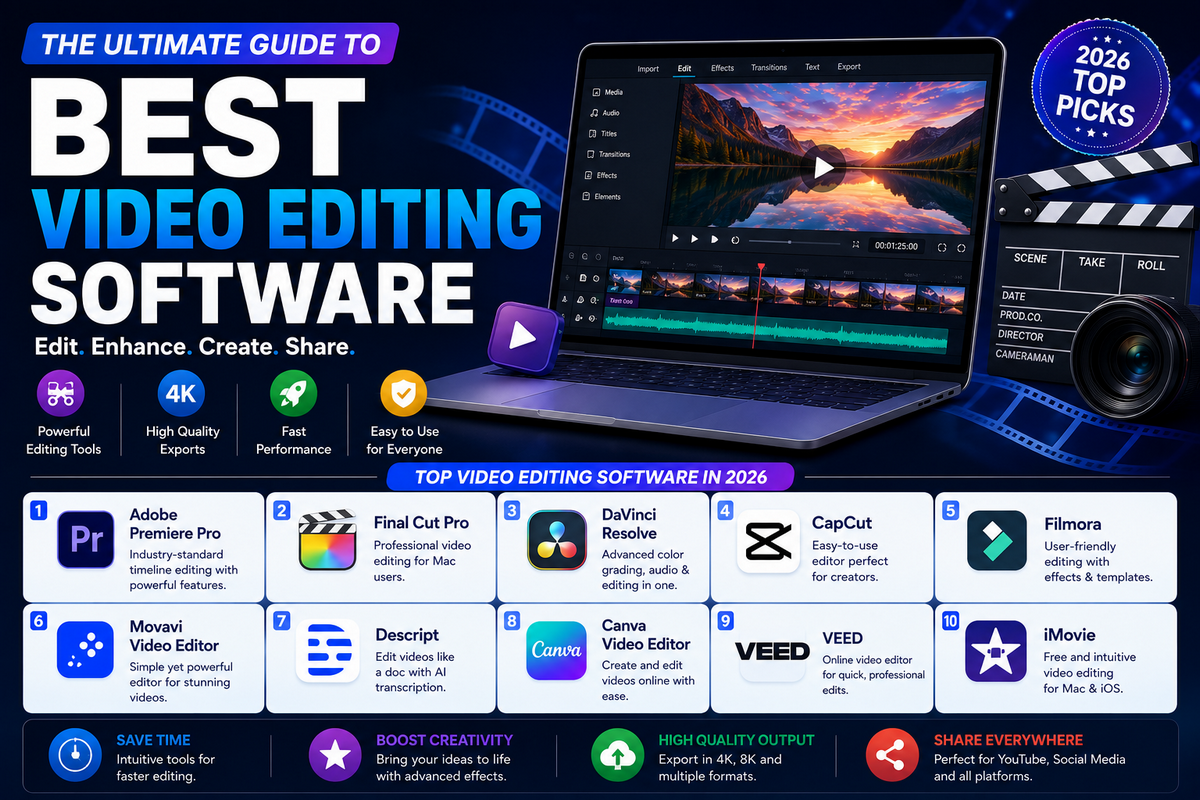
Video editing software in 2026 is no longer just about cutting clips on a timeline. Today’s best editors combine speed, AI features, social-ready exports, color tools, and flexible workflows for everyone from beginners to professional filmmakers.
That’s why the search for the best video editing software depends on what you create, whether you edit on Mac or Windows, and how much control you want over the final result.
In this guide, we compare the top video editing software for beginners, YouTube creators, social media editors, Mac users, Windows users, and professionals so you can choose the right tool for your workflow and budget.
You’ll also find current pricing, AI features, and the best use case for each editor, including popular options like Premiere Pro, Final Cut Pro, DaVinci Resolve, CapCut, Filmora, and more.
Why Choosing the Right Video Editor Matters
Not every video editor is built for the same kind of creator. A beginner editing YouTube videos, a marketer making short social clips, and a professional colorist working on a client project all need very different tools.
In 2026, the best video editing software usually depends on your skill level, your device, your budget, and whether you need AI features like auto captions, silence removal, or faster repurposing workflows.
If you are just starting out, simplicity matters more than advanced effects because a clean workflow helps you learn faster and publish more consistently.
If you are editing for YouTube or short-form platforms, speed, templates, and AI-assisted features can save a lot of time.
And if you work professionally, you’ll likely need deeper control over color, audio, multicam, and plugin support, which is why tools like Premiere Pro, Final Cut Pro, and DaVinci Resolve still dominates the pro-conversation in 2026.
Quick Comparison Table
| Software | Best for | Skill level | Platform | AI features | Free plan | Starting price |
|---|---|---|---|---|---|---|
| Adobe Premiere Pro | Professional editing and YouTube workflows | Intermediate to advanced | Windows, Mac | Strong AI tools, transcription, generative features | Free trial | Around $22.99/month or included in Creative Cloud |
| Final Cut Pro | Mac users who want fast, one-time purchase editing | Intermediate to advanced | Mac | Limited AI compared with newer tools | No free plan | One-time purchase, around $299.99 |
| DaVinci Resolve | Color grading, professional editing, and all-in-one post-production | Beginner to advanced | Windows, Mac, Linux | AI tools in the Studio version, advanced workflow support | Yes | Free; the studio is around $295 one-time |
| CapCut | Short-form videos, social media, and fast AI-assisted editing | Beginner to intermediate | Windows, Mac, mobile, web | Very strong AI captions and social tools | Yes | Free plan; paid Pro/Team plans available |
| Filmora | Beginners who want easy editing with AI help | Beginner to intermediate | Windows, Mac | AI-assisted editing tools and templates | Free trial | Subscription pricing varies by plan |
| Movavi Video Editor | Beginners and low-budget creators | Beginner | Windows, Mac | Basic AI helpers and beginner-friendly tools | Free trial | Subscription-based pricing |
| Descript | Podcasting, talking-head videos, and text-based editing | Beginner to intermediate | Windows, Mac, web | Strong AI transcription and text editing | Limited free plan | Subscription-based pricing |
| Canva Video | Marketing videos, reels, and branded content | Beginner | Web, mobile | AI design and video creation tools | Yes | Free plan; Pro available |
| VEED | Browser-based editing and quick social content | Beginner to intermediate | Web | AI subtitles, cleanup, and editing helpers | Limited free plan | Subscription-based pricing |
| iMovie | Free starter editor for Mac users | Beginner | Mac, iPhone, iPad | Very limited | Yes | Free |
| Clipchamp | Easy browser editing for Windows and casual creators | Beginner | Windows, web | Some AI-assisted tools | Yes | Free plan; paid options available |
| VN Video Editor | Free editing for PC and mobile creators | Beginner to intermediate | Windows, Mac, mobile | Limited AI | Yes | Free plan |
| PowerDirector | Fast editing for Windows users | Beginner to intermediate | Windows, mobile | AI features and templates | Free trial | Subscription-based pricing |
What to do next
You now have the comparison table in place, and the next best section is individual reviews starting with Adobe Premiere Pro, Final Cut Pro, and DaVinci Resolve because they anchor the whole article. After that, you can move into CapCut, Filmora, Movavi, and the browser-based tools for beginners and marketers.
Best Video Editing Software for Beginner to Professional
1. Adobe Premiere Pro
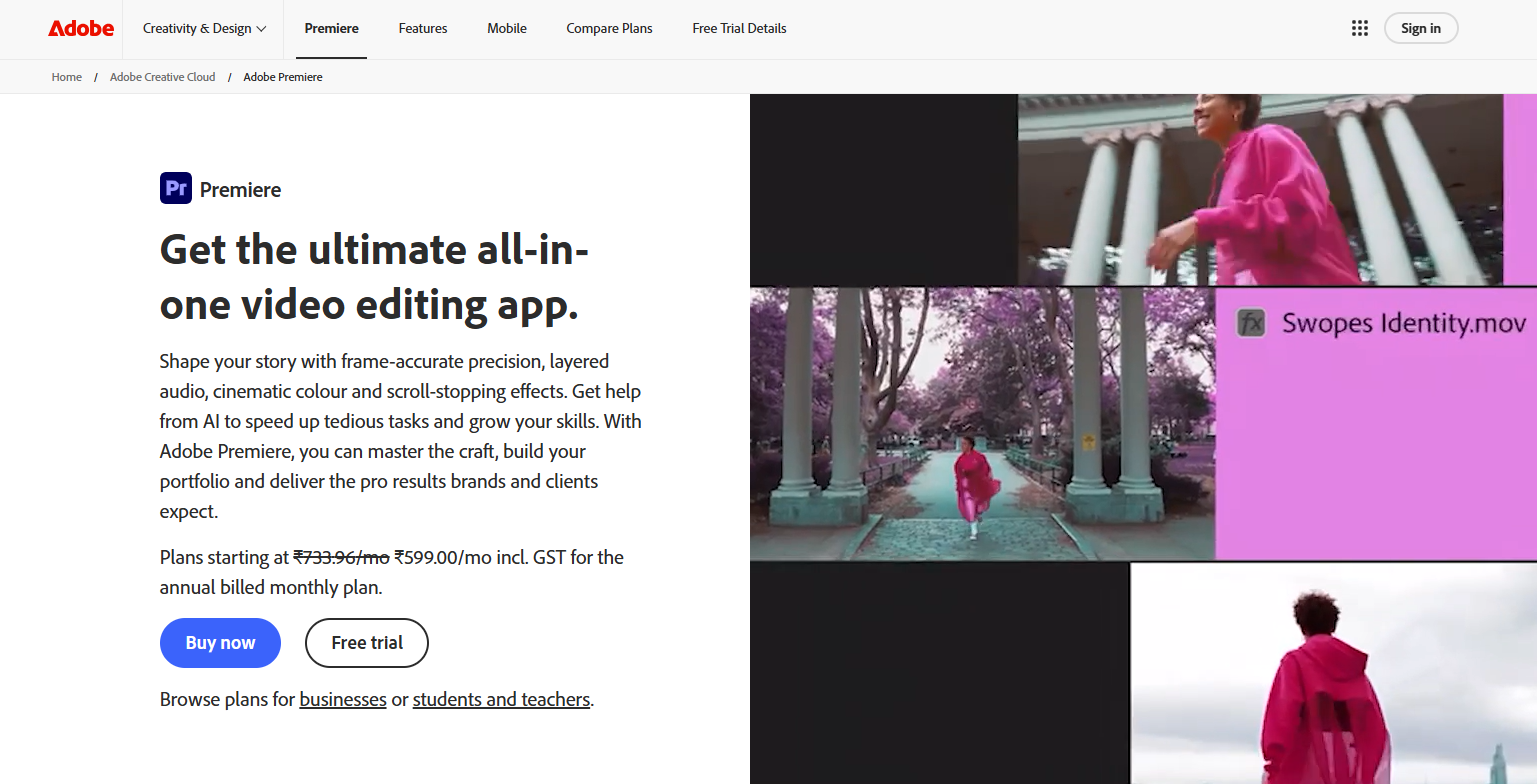
Adobe Premiere Pro remains one of the most powerful and widely used video editing tools in 2026, especially for YouTube creators, agencies, and professional editors.
It offers deep timeline control, strong collaboration options, and a mature ecosystem that works well with After Effects, Photoshop, and the rest of Adobe Creative Cloud.
Premiere Pro now also includes stronger AI-assisted tools such as automatic transcription, captions, and speech-to-text workflows, which make editing faster and more efficient for modern creators.
Features of Adobe Premiere Pro
- Multi-track timeline editing for complex projects.
- Speech-to-text transcription and auto captions.
- AI-assisted editing tools like Auto-Reframer and Enhance Speech.
- Color correction and professional grading controls.
- Built-in audio editing and mixing support.
- Integration with After Effects, Photoshop, and other Adobe apps.
- Cloud sync and collaboration features for teams.
- Support for a wide range of file formats and exports.
- Proxy workflow for smoother editing on heavier footage.
- Regular feature updates through Adobe’s release cycle.
Pros
- Industry-standard editing software for professionals.
- Excellent for YouTube, client work, and long-form editing.
- Strong AI features improve speed without removing control.
- Works well with Adobe’s wider creative ecosystem.
- Highly flexible for both solo editors and teams.
- Good support for plug-ins and advanced workflows.
- Frequent updates keep it current with creator needs.
Cons
- Subscription pricing is expensive over time.
- Steeper learning curve than beginner-friendly editors.
- Can feel heavy on lower-end computers.
- Some users prefer one-time purchase tools instead.
- Best value depends on whether you use other Adobe apps.
Pricing
Premiere Pro is available as a standalone subscription or through Adobe Creative Cloud plans. Current Adobe pricing shows individual plans starting around ₹599 per month for annual billing in India, with team plans priced separately. A seven-day free trial is also available.
Best for: Best for professional editors, YouTubers, agencies, and teams that want a powerful, industry-standard editor with AI-assisted workflows.
2. Final Cut Pro
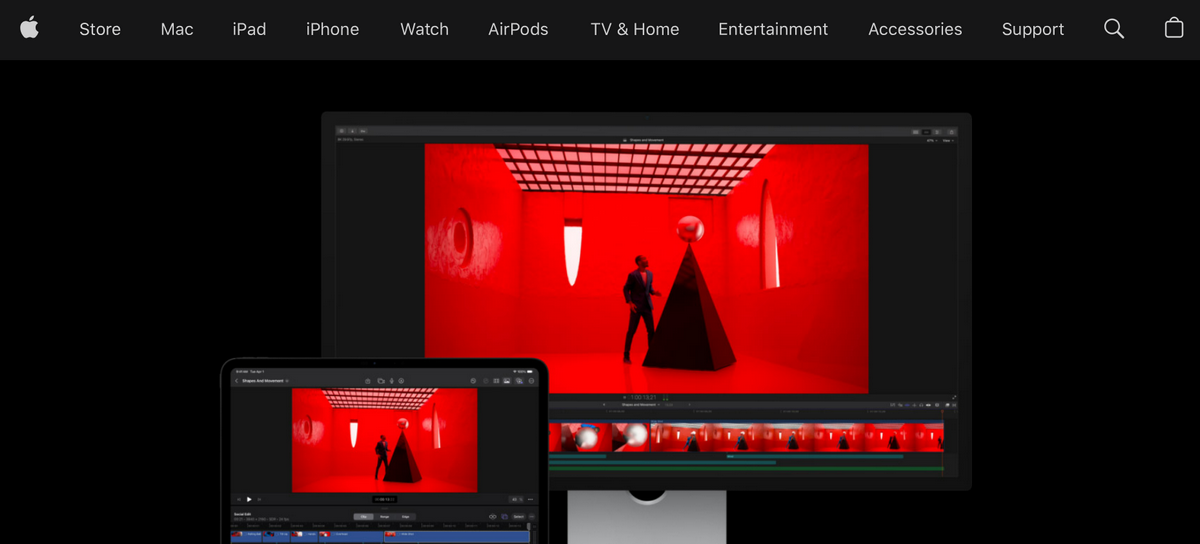
Final Cut Pro remains one of the best video editing software choices for Mac users in 2026, especially for creators who want speed, smooth performance, and a one-time purchase option.
It is built for Apple hardware and continues to appeal to YouTubers, filmmakers, and editors who prefer a fast, timeline-based workflow with strong organization tools.
Apple has also expanded the ecosystem with Apple Creator Studio, which adds new subscription options and premium AI-style features alongside the standalone app.
Features
- Magnetic timeline for fast, flexible editing.
- Optimized performance on Apple Silicon Macs.
- Advanced color correction and grading tools.
- Multicam editing for interviews, events, and podcasts.
- Motion graphics and title support through Apple tools.
- Transcript search and visual search in newer workflows.
- Beat detection and montage tools for faster assembly.
- Support for proxies and high-resolution footage.
- Fast export and delivery workflows.
- Integration with Motion, Compressor, and other Apple creative apps.
Pros
- Extremely fast on Mac hardware.
- One-time purchase is still available for standalone buyers.
- Clean, polished interface for editors who like efficiency.
- Great for YouTube, social, and client projects.
- Strong Apple ecosystem integration.
- Very good organization and timeline responsiveness.
- Suitable for both beginners and advanced Mac users.
Cons
- Mac-only, so Windows users cannot use it.
- Less flexible if you work outside the Apple ecosystem.
- Some newer premium features are tied to the Creator Studio bundle.
- Learning curve if you are moving from a different NLE.
- Less universal in professional studios than Premiere or Resolve.
Pricing
Apple continues to offer Final Cut Pro as a one-time purchase at around $299.99 for standalone buyers. Apple also introduced Creator Studio, a subscription bundle priced at about $12.99 per month or $129 per year, which includes Final Cut Pro and other creative apps plus newer premium features.
Best for: Mac users, YouTubers, solo creators, and editors who want a fast one-time purchase editor with a polished workflow.
3. DaVinci Resolve
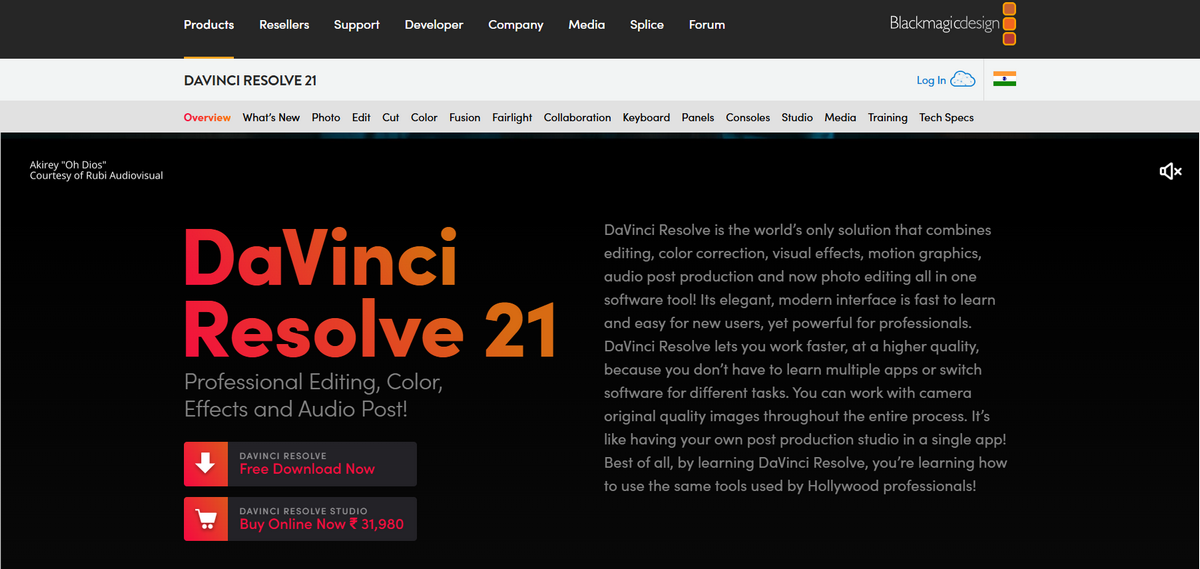
DaVinci Resolve is one of the best video editing software options in 2026 for creators who want professional editing, advanced color grading, and a powerful free version in one app.
It is widely used by editors, colorists, and filmmakers because it combines editing, visual effects, audio post-production, and finishing tools without forcing users into a subscription.
The 2026 Resolve 21 update also adds major AI and workflow improvements, including a new Photo page and upgraded intelligent tools.
Features
- Free professional editing version with no watermark or time limit.
- Advanced color correction and grading tools.
- AI tools in Resolve 21, including search, face, sharpening, and workflow helpers.
- Built-in Fusion visual effects tools.
- Fairlight audio post-production workspace.
- Multi-user collaboration for team workflows.
- Multi-camera editing support.
- HDR and advanced export capabilities in Studio.
- New Photo page in Resolve 21 for image workflows.
- Available on Windows, Mac, and Linux.
Pros
- Excellent free version for beginners and professionals.
- Best-in-class color grading reputation.
- No subscription required for studio purchase.
- All-in-one tool for editing, VFX, audio, and finishing.
- Strong choice for long-term creators who want value.
- Now includes more AI features and workflow upgrades in Resolve 21.
- Works across major operating systems.
Cons
- The learning curve is steeper than beginner-friendly editors.
- UI can feel overwhelming at first.
- Some advanced AI tools are reserved for Studio.electronics.
- Heavy projects need strong hardware.
- Beginners may need time to master the workflow.
Pricing
DaVinci Resolve is free to download and use, with no watermark or time limit. DaVinci Resolve Studio is a one-time purchase priced at $295, and it unlocks advanced AI and post-production features.
Best for: Creators, filmmakers, colorists, and YouTubers who want pro-level editing power, a strong free version, and a one-time purchase option
4. CapCut
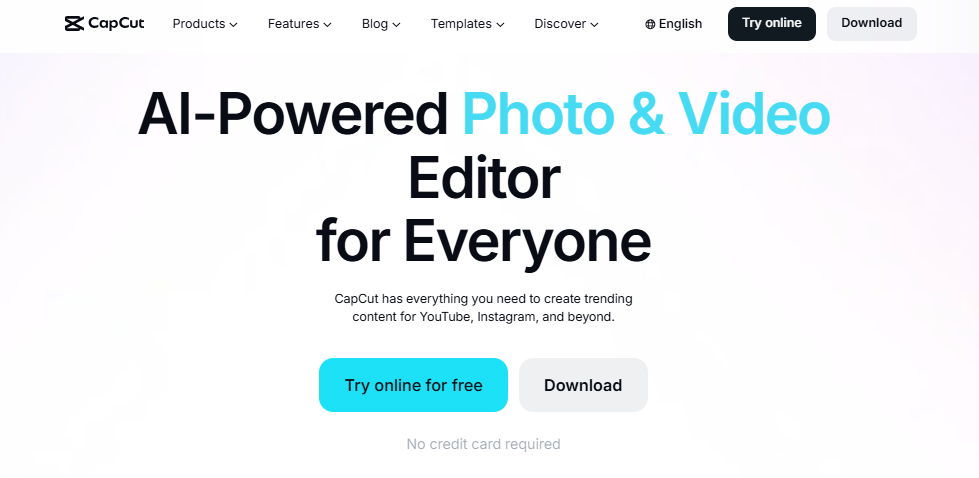
CapCut has become one of the most popular video editing software options in 2026, especially for short-form creators, social media marketers, and YouTubers who want fast results with minimal effort.
It is built around speed, templates, auto captions, and AI-driven editing helpers, which makes it a strong fit for creators who publish often on TikTok, Instagram Reels, Shorts, and YouTube.
The biggest shift in 2026 is that CapCut is no longer just a free beginner tool—it is now a more serious paid editor with expanded AI features and tighter plan limits.
Features
- AI auto-captions in multiple languages.
- Auto-cut and scene detection for faster rough edits.
- Background removal for clips and visuals.
- AI video generation and editing helpers.
- 4K export and cloud sync on higher plans.
- Voice cloning and AI HD upscaling on Pro.
- Team collaboration and shared assets on business tiers.
- Mobile, desktop, and web access.
- Template-based editing for social content.
- Built for quick publishing to social platforms.
Pros
- Very easy to learn for beginners.
- Excellent for short-form and social media editing.
- Strong AI tools save time on captions and rough cuts.
- Works across desktop, mobile, and web.
- Good choice for creators who want speed over deep control.
- Large template and effects ecosystem.
- Useful for fast repurposing workflows.
Cons
- Auto captions and other AI features are less generous than they used to be.
- Pro pricing increased sharply in 2026.
- Less ideal for advanced long-form or cinematic workflows.
- Can feel limiting for professional multi-layer editing.
- Some creators prefer tools with more stable pricing.
Pricing
CapCut still offers a free plan, but some features now come with tighter limits and upgrade prompts. Current Pro pricing is reported around $19.99 per month or $179.99 per year, with lower-cost or alternate plan structures also appearing in some regions and product tiers.
Best for: Beginners, short-form creators, social media managers, and YouTubers who want fast, AI-assisted editing with strong template support.
5. Filmora
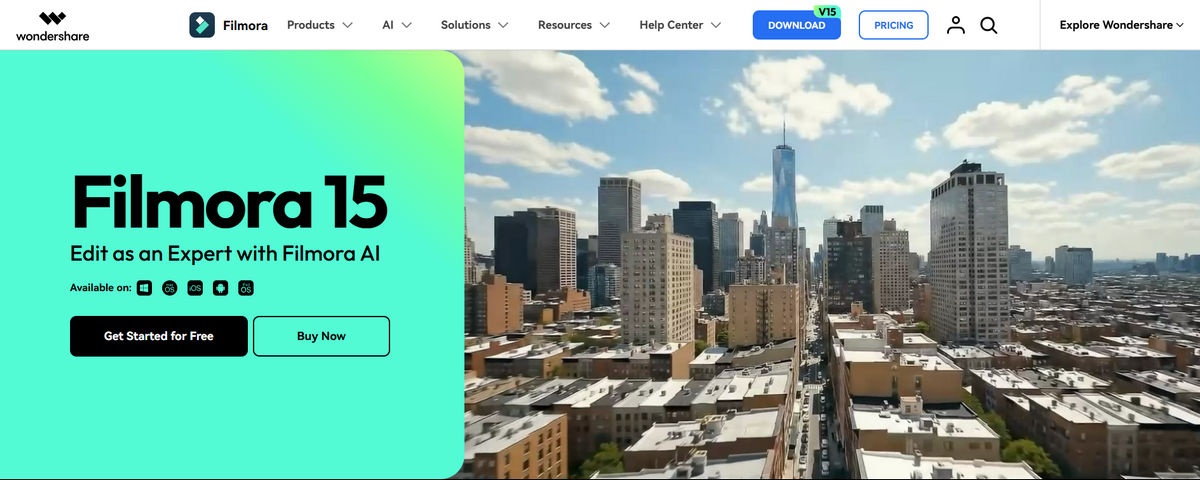
Filmora is one of the most beginner-friendly video editing software options in 2026, especially for YouTubers and creators who want a simple timeline editor with modern AI tools.
It balances ease of use with features like AI Smart Cutout, text-based editing, vocal removal, and AI Copilot-style helpers, which makes it more capable than a basic starter app.
If you want a cleaner learning curve than Premiere Pro but more power than a very simple editor, Filmora is a strong middle-ground choice.
Features
- Timeline-based editing with a clean interface.
- AI Smart Cutout for removing subjects or backgrounds.
- AI Copilot and editing helpers.
- Text-based editing and transcript-driven workflows.
- Vocal removal and audio cleanup tools.
- Built-in transitions, effects, and templates.
- Screen recording and basic capture tools.
- 4K export support on paid plans.
- Asset libraries and add-ons for creators.
- Available for Windows and Mac.
Pros
- Very easy for beginners to learn.
- Good balance between simplicity and AI features.
- Faster to use than many pro editors.
- Good for YouTube, tutorials, and social content.
- Plenty of templates and effects for quick edits.
- Reasonable option for users who do not want a steep learning curve.
- Good choice for creators who edit often but don’t need full pro complexity.
Cons
- Less powerful than Premiere Pro or DaVinci Resolve.
- Some AI tools and add-ons increase the real cost.
- Advanced users may outgrow it quickly.
- Trial exports include a watermark.
- Pricing and plan structure can feel a bit confusing.
Pricing
Filmora offers a free trial, but exported videos include a watermark. Current 2026 pricing is reported around $49.99 per year for Basic, about $59.99 per year for Advanced with AI credits, and roughly $79.99 for a Perpetual plan in some listings, while official store pages also show monthly and annual options.
Best for: Beginners, solo creators, and YouTubers who want an easy editor with useful AI tools and a shorter learning curve.
6. Movavi Video Editor
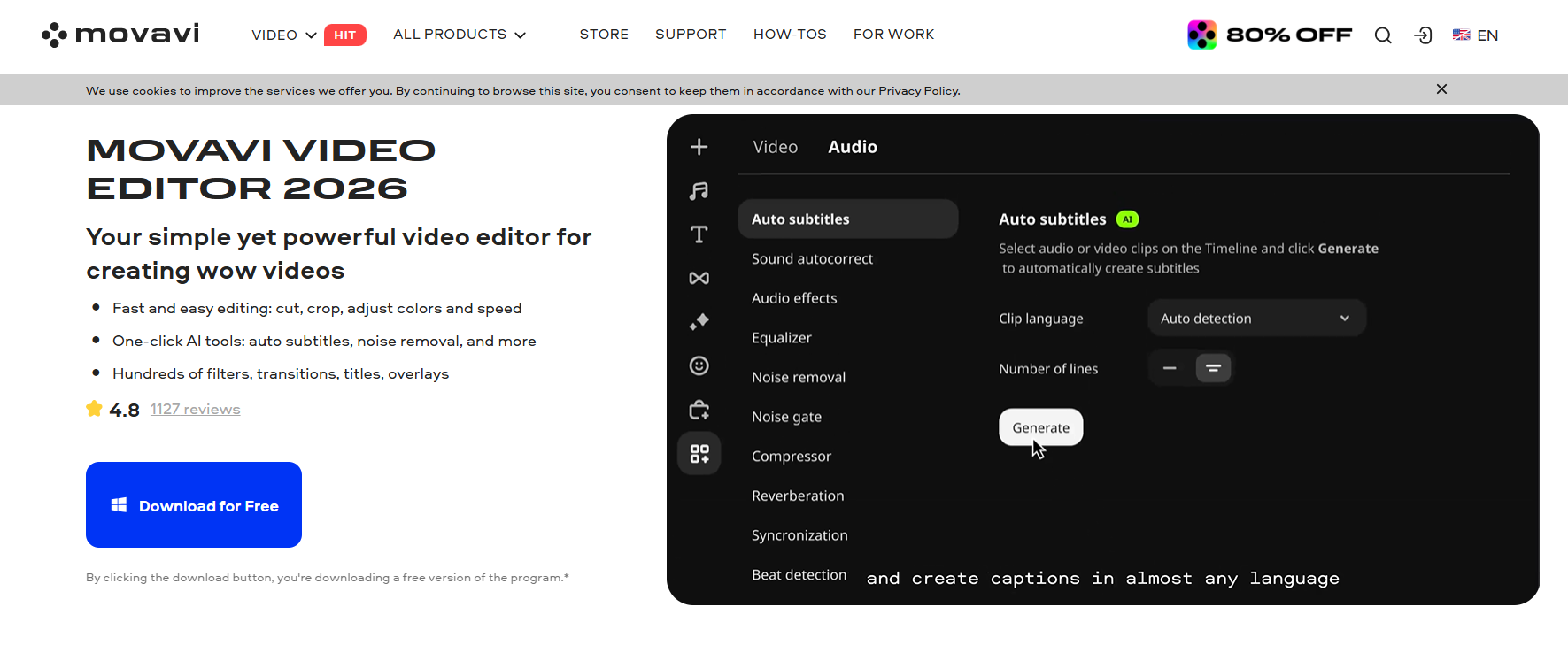
Movavi Video Editor is a beginner-friendly editor that focuses on fast, simple video creation with a lighter learning curve than pro tools.
In 2026, it leans into one-click AI helpers like auto subtitles, noise removal, and background removal, which makes it appealing for quick tutorials, family videos, and content creators who want speed over complexity.
It sits in a practical middle zone between very simple mobile editors and heavier professional suites.
Features
- Easy timeline editing with cut, crop, rotate, color, and speed controls.
- One-click AI tools.
- Automatic subtitles in 13 languages.
- Quick background removal.
- Noise reduction and silence removal.
- Motion tracking.
- Screen recording and media conversion.
- Effects, filters, and LUT packs.
- No cap on video or audio length on paid plans.
- Minor and major updates included during the subscription period.
Pros
- Very easy for beginners to pick up.
- Good for tutorials and screen-recorded videos.
- Practical AI tools without a steep workflow.
- Includes useful extras like recording and conversion.
- Offers a straightforward path from simple edits to more polished results.
- Good value if you want a lightweight desktop editor.
Cons
- Less advanced than DaVinci Resolve or Premiere Pro.
- Fewer high-end pro features than heavy-duty editors.
- Pricing can look fragmented across plans.
- Trial limitations reduce usefulness if you need clean exports.
- Best suited to basic-to-mid-complexity editing, not deep post-production.
Pricing
Movavi’s official pricing page shows a 1-month subscription around $19.95 after the first-month promo, a Video Editor Plus option listed at $69.95, and a Video Suite Plus 1-year subscription at $99.95. The paid plans remove the watermark and include the main editing features, updates, and AI tools.
Best for: Beginners, educators, and casual creators who want a simple desktop editor with AI help and quick export workflows.
7. Descript
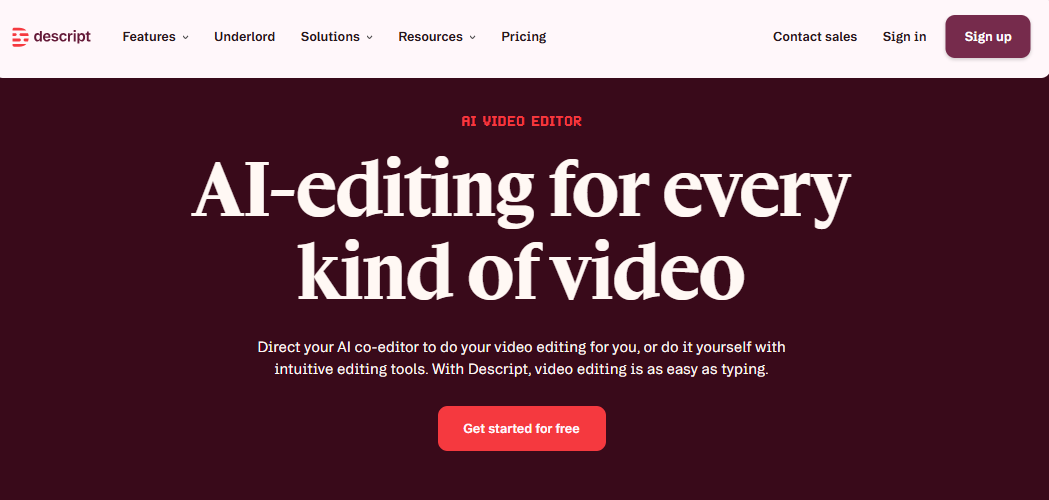
Descript is a text-based audio and video editor that lets you edit by editing the transcript, making it ideal for podcasts, talking-head videos, and tutorials where spoken content is the main focus.
It combines transcription, multitrack audio, screen recording, and AI tools in one app so you can script, edit, and publish from a single workspace.
Features
- Edit video and audio by editing the transcript.
- Automatic transcription with multi-track support.
- AI tools for removing filler words, cleaning audio (Studio Sound), and overdubbing voices.
- Screen recording and simple timeline editing.
- Captioning, audiograms, and social clip export.
- Collaboration tools and shared workspaces for teams.
Pros
- Extremely fast for dialogue-heavy content (podcasts, interviews, tutorials).
- Makes editing accessible to non-video editors by focusing on text.
- Strong AI-powered audio cleanup and filler-word removal.
- All-in-one workflow: record, transcribe, edit, and export in one tool.
Cons
- Less suited to complex B‑roll, effects-heavy, or cinematic projects.
- AI features and transcription use token/credit-style limits on lower tiers.
- Can feel clunky once you stack lots of overlays and visual layers.
Pricing
Descript has a free plan with limited transcription hours, 5 minutes of AI speech, and 720p exports. Paid plans start with Hobbyist around 16 USD per month billed annually, Creator around 24 USD per month, and Business around 50 USD per month, with higher limits, 1080p/4K exports, more AI speech, and team features.
Best for: Podcasters, educators, marketers, and YouTubers whose videos are mostly talking-head or screen-recorded and who want to edit mainly by editing text instead of a traditional timeline.
8. Canva Video Editor
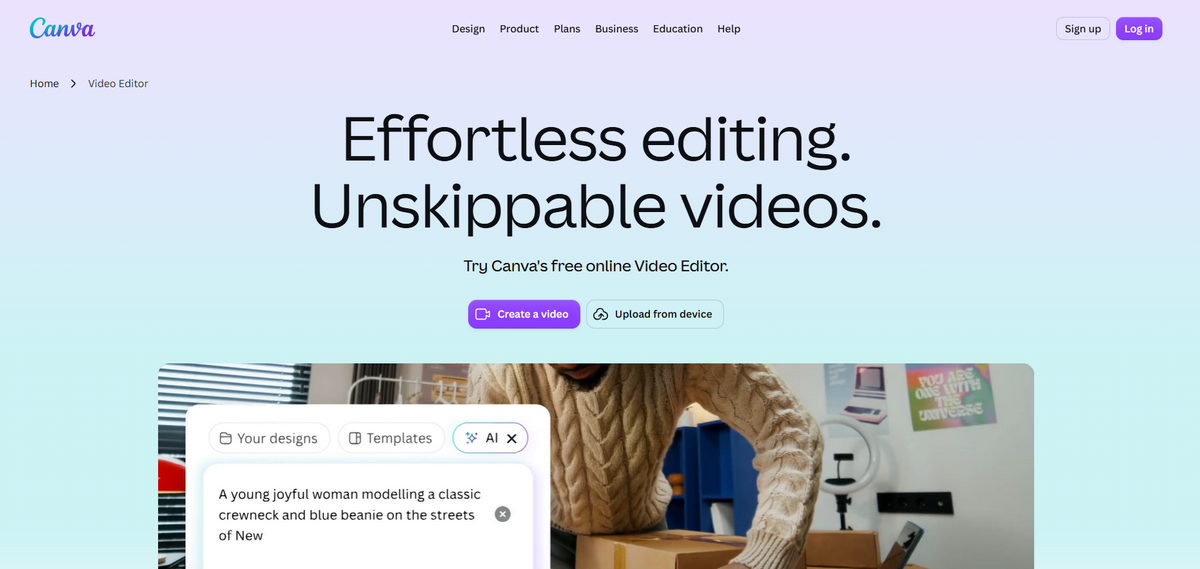
Canva Video is the video editor built into Canva’s design platform, focused on turning templates, graphics, and brand assets into simple videos.
It is a design-first tool that suits creators and small teams already using Canva for social posts, presentations, and branding.
Canva Video Editor is a versatile, browser-based, and mobile editing platform designed to make professional-grade video creation accessible to everyone, regardless of prior editing experience.
Moving beyond its roots as a graphic design tool, Canva has built an all-in-one editing suite tailored for digital creators, marketers, educators, and social media managers
Features
- Drag-and-drop video editor with a timeline inside Canva.
- Access to Canva’s entire library of photos, graphics, music, and templates.
- Text animations, transitions, and simple multi-layer layouts.
- AI “magic” tools (Magic Design, Magic Video, and background remover) on Pro/Magic Studio tiers
- Brand Kit for logos, colors, and fonts on Pro and Business plans.
- Works in the browser and via apps across platforms.
Pros
- Very easy for non-editors and design-focused users.
- Perfect for social posts, ads, and branded snippets that match existing Canva designs.
- No separate “video app” to learn if you already use Canva.
Cons
- Less control and power than full video editors like Premiere or Resolve.
- AI and brand features are limited or locked on the free plan.
- Not ideal for long-form or complex multi-track video projects.
Pricing
Canva Video is included in the free plan with 720p exports and limited AI credits. Canva Pro costs around 12.99–18 USD per month for one user (or similar regional equivalent) and unlocks 1080p exports, Brand Kit, 1 TB storage, premium elements, and the Magic Studio AI suite; Canva Business/Teams starts around 10–25 USD per user per month for multi-user workspaces.
Best for: Best for creators, marketers, and small teams already in Canva who need quick, on-brand videos for social media, presentations, and campaigns without learning a full pro editor.
9. VEED
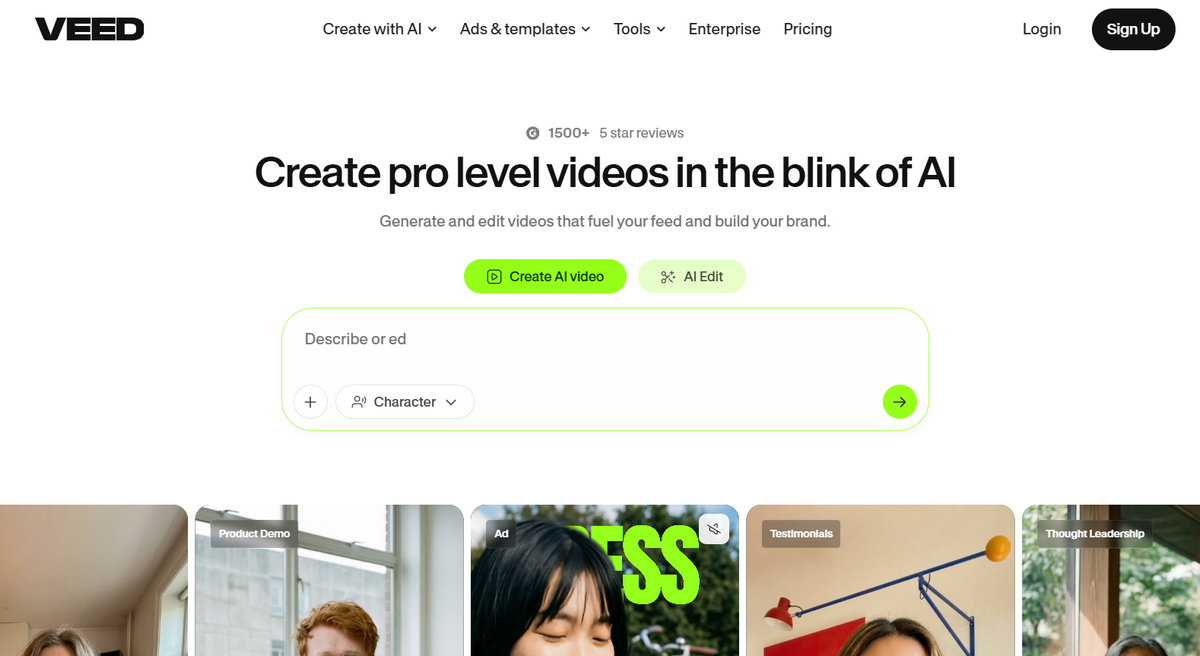
VEED is a browser-based video editor designed for fast, subtitle-heavy social media content and collaborative workflows.
It focuses on making it easy to upload clips, add subtitles, apply simple edits, and export from any computer with a browser.
VEED.IO is a powerful, browser-based video creation and editing platform designed to simplify the production process for creators, marketers, educators, and businesses.
By removing the need to download heavy, complex software, VEED allows users to produce professional-grade video content directly from the web.
Features
- Online timeline editor for trimming, cutting, and arranging clips.
- Automatic subtitles with translation into 50+ languages on higher plans.
- AI tools like background noise removal, voice cloning, AI dubbing, and text-to-speech.
- Stock media and templates for social posts and marketing videos.
- Brand kits and collaborative features on Pro/Studio/Business tiers.
- Cloud-based storage and exports up to 4K on higher plans.
Pros
- Excellent for subtitled social clips and quick edits in the browser.
- No install required; works on most devices with internet access.
- Strong AI subtitle and translation tools for multi-language content.
Cons
- The free plan adds watermarks and limits export length and subtitle minutes.
- Heavy projects depend on good internet and can feel slower than desktop apps.
- Costs scale quickly for teams with multiple editors and higher AI usage.
Pricing
VEED offers a free plan with 720p exports, watermarks, and about 30 minutes of subtitles per month. Paid tiers include Creator/Lite around 9–20 USD per month, Pro around 21–24 USD per month, and Studio/Business around 30–59 USD per month.
Best for: Social media editors, marketing teams, and educators who need fast, browser-based editing with strong subtitle and translation tools.
10. iMovie
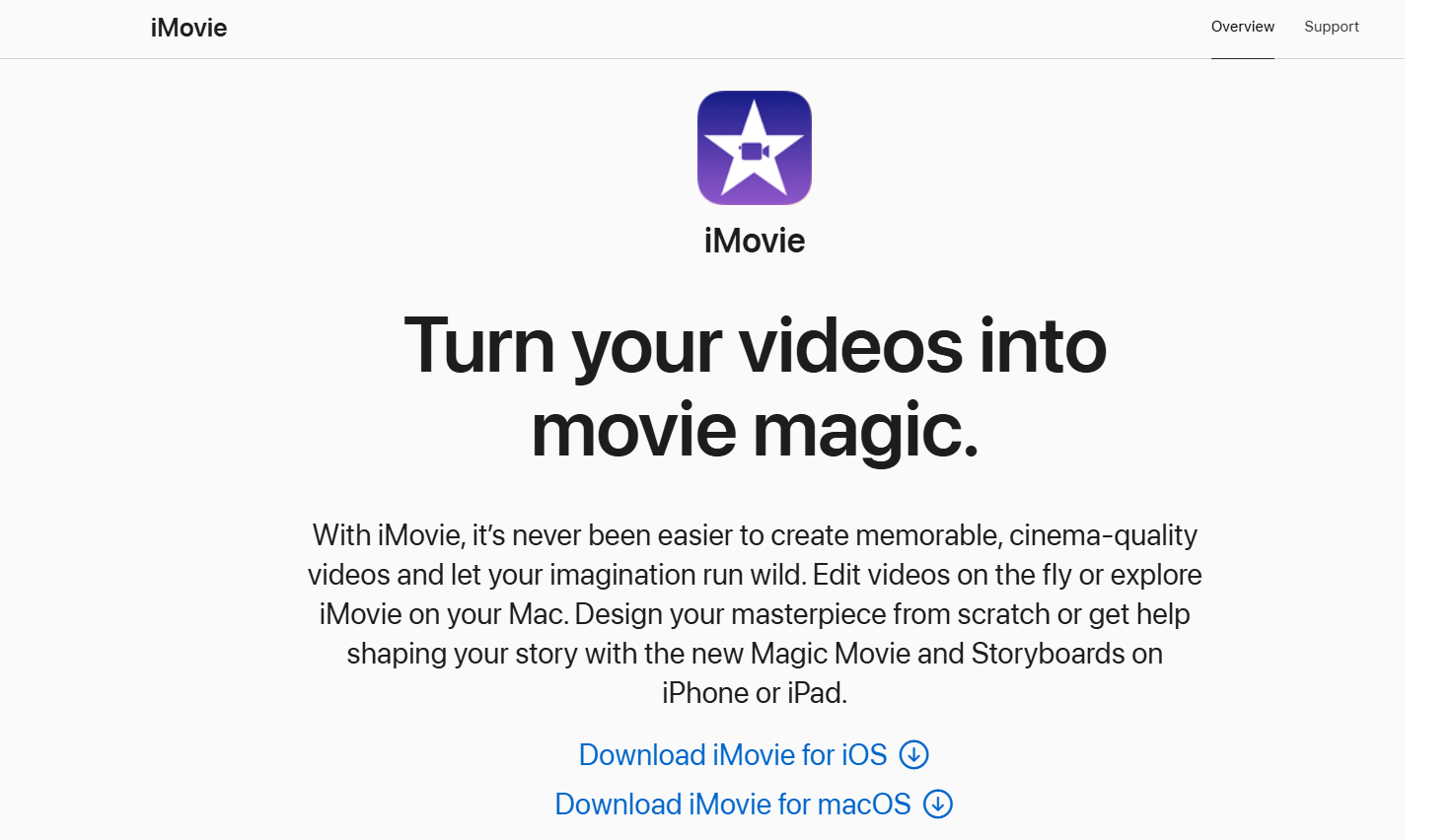
iMovie is Apple’s free, entry-level video editor preinstalled on Mac, iPhone, and iPad. It is aimed at casual creators and beginners who want simple, polished videos without complex timelines or subscriptions.
iMovie, developed by Apple, is a powerful yet user-friendly video editing software designed for macOS, iOS, and iPadOS devices.
Whether you are a beginner looking to piece together home videos or a content creator crafting social media clips, iMovie provides an accessible platform to turn raw footage into cinematic masterpieces without requiring a professional editing background.
Features
- Simple drag-and-drop editing with themes and templates.
- Support for 4K, 60 fps, and HDR export on modern Apple devices.
- Basic tools for trimming, transitions, titles, and simple audio adjustments.
- Trailer-style templates and storyboards.
- Integration with Photos, GarageBand, and easy handoff to Final Cut Pro.
Pros
- Completely free and tightly integrated with macOS and iOS.
- Very easy to learn for complete beginners.
- Stable performance and good output quality on Apple hardware.
Cons
- Limited advanced tools: no modern AI features, limited audio mixing, and basic compositing.
- Not suitable for complex or professional editing workflows.
- Only available on Apple devices.
Pricing:
iMovie is 100% free to download and use on compatible Mac, iPhone, and iPad devices, with no paid tiers.
Best for casual Apple users, families, students, and beginners who want simple, clean videos without spending money or learning a pro editor.
Best Video Editing Software by Use Case
- Best for beginners: iMovie or Filmora, thanks to simple drag-and-drop interfaces and short learning curves.
- Best for YouTube: DaVinci Resolve, since it combines free professional editing, color grading, and audio tools that scale with growing channels.
- Best for social media: CapCut, because it’s built around templates, auto captions, and fast vertical-video workflows.
- Best for Windows: DaVinci Resolve or Clipchamp, covering both pro-level editing and Microsoft’s built-in free option.
- Best for Mac: Final Cut Pro for paid users, iMovie for free casual editing.
- Best free option: DaVinci Resolve, widely regarded as the top free professional-grade editor.
- Best AI video editor: CapCut, cited repeatedly as the strongest AI-driven editor for 2025 into 2026.
- Best for professionals: Adobe Premiere Pro or DaVinci Resolve Studio, both standard choices in film and broadcast production.
How to Choose the Right Video Editing Software
Choosing a video editor is much easier if you break it into a few simple questions.
1. What’s your skill level?
- If you’re a beginner, start with iMovie, CapCut, or Filmora. They use simple timelines and templates, so you can get results fast without reading a manual.
- If you’re more advanced, tools like Adobe Premiere Pro and DaVinci Resolve give you deeper control over color, audio, and complex timelines.
2. Do you actually need AI features?
- If you care about automatic captions, transcription, background noise cleanup, or AI-assisted edits, look at CapCut, Descript, and VEED, which are built around these features.
- If you just want basic cutting and transitions and don’t need AI at all, something like iMovie is more than enough.
3. How do you want to pay?
- If you prefer to avoid subscriptions, DaVinci Resolve Studio and Final Cut Pro are strong one-time purchases.
- If you are okay with ongoing monthly billing, Premiere Pro, VEED, and Canva are subscription-based and include updates and cloud features.
4. What kind of videos do you make?
- Talking-heads, podcasts, or screen recordings: Descript is ideal because you edit by editing the transcript.
- Short social clips (Reels, TikTok, Shorts): CapCut or VEED are optimized for fast, vertical, caption-heavy content.
- Cinematic or long-form projects: DaVinci Resolve or Premiere Pro handle complex timelines and advanced grading best.
5. What device are you using?
- Mac / iOS only: iMovie and Final Cut Pro are Apple-only and deeply integrated into macOS and iOS.
- Windows or mixed devices: DaVinci Resolve, Premiere Pro, and browser-based tools like VEED or Canva Video run on both Windows and Mac.
6. What limits can you live with?
- Free plans often:
- Limit export resolution (for example, 720p or 1080p),
- Add watermarks,
- Restrict AI minutes, exports, or storage.
- Paid plans usually:
- Unlock 4K exports,
- Remove watermarks,
- Add more cloud storage and team collaboration tools.
In practice, start with a free option that matches your skill level and device, then upgrade only if you hit limits that slow you down (like watermarks, low resolution, or missing AI/collaboration features).
Free vs Paid Video Editing Software
- What free tools offer: Free editors like DaVinci Resolve, CapCut, iMovie, and Clipchamp typically include core editing, some AI tools, and decent export quality, though several add watermarks or resolution caps on premium features.
- What paid tools unlock: Paid tiers generally unlock 4K exports, removed watermarks, expanded AI credits, cloud storage, brand kits, and team collaboration—features found in Premiere Pro, VEED Pro, Canva Pro, and Descript’s paid plans.
- When free software is enough: Free tools are enough for casual creators, students, hobbyists, and anyone making simple social clips or personal projects without heavy AI or 4K export needs.
- When paying makes sense: Paying makes sense once video work becomes part of your job; you need team collaboration, higher-resolution exports, or you’re hitting AI credit or watermark limits on free tiers.
Examples of the best free and best paid choices:
- Best for free: DaVinci Resolve (professional editing) and CapCut (social-first editing).
- Best paid: Adobe Premiere Pro (professional workflows), Final Cut Pro (Mac users), and DaVinci Resolve Studio ($295 one-time) for those who outgrow the free tier.
Frequently Asked Questions on Best Video Editing Software to try in 2026
What is the best video editing software in 2026?
There is no single “best” editor in 2026; it depends on your goals. For professionals, Adobe Premiere Pro and DaVinci Resolve are top choices, while Final Cut Pro leads on Mac, and CapCut or Filmora work best for casual and social creators.
Which video editor is best for beginners?
Beginners usually find iMovie, CapCut, or Filmora easiest because they have simple timelines, templates, and forgiving interfaces. These tools let you learn basic cuts, titles, and music quickly before you move to more advanced editors like DaVinci Resolve or Premiere Pro.
What is the best free video editing software?
DaVinci Resolve is often ranked the best free video editing software because it offers professional-level editing, color grading, and audio tools with no watermark. For social and mobile creators, CapCut is another excellent free option focused on fast, template-driven videos.
What is the best video editing software for YouTube?
For YouTube, DaVinci Resolve and Adobe Premiere Pro are the most recommended because they scale from simple edits to full productions. Smaller channels often start on CapCut, Filmora, or Movavi, then upgrade as their content and workflow become more complex.
Which video editor is best for Mac?
Final Cut Pro is widely considered the best paid editor for Mac thanks to its speed and integration with macOS. For free editing, iMovie and DaVinci Resolve are strong Mac options, covering both casual users and aspiring professionals.
Which video editor is best for Windows?
On Windows, DaVinci Resolve is an excellent free choice, while Adobe Premiere Pro remains the most common professional editor. Many beginners and enthusiasts also use Clipchamp, CapCut, or Filmora for simpler, template-based workflows.
Is CapCut better than Filmora?
CapCut is better if you focus on short-form social content, vertical video, and heavy AI features, especially when you want free tools. Filmora is better when you want a slightly more traditional desktop timeline, more structured projects, and a gentle upgrade path into paid plans.
Is DaVinci Resolve good for beginners?
DaVinci Resolve can be good for beginners who are willing to learn a more complex interface in exchange for long-term power and pro features. Many creators start on simpler tools, then move to Resolve once they’re comfortable, but free courses and tutorials make it approachable from day one.
Conclusion
The best video editing software in 2026 depends on your goals, platform, and skill level rather than a single “number one” tool.
- For beginners, iMovie, CapCut, and Filmora are top picks.
- For YouTube and professional work, DaVinci Resolve, Adobe Premiere Pro, and Final Cut Pro stand out, and DaVinci Resolve remains the strongest free option.
When choosing the best video editing software, decide whether you care more about cost, simplicity, or long-term professional growth, then pick the editor that matches how you actually create videos today.