
Quick Verdict
Glary Utilities offers a convenient collection of Windows maintenance tools, and its free edition is a useful starting point for users who want to manage cleanup and startup tasks in one place.
Pros
It combines multiple PC maintenance utilities, offers a free edition, and includes tools for cleanup, startup management, and disk analysis.
Cons
Performance improvements vary, registry repairs require caution, and some paid features may not justify the cost for occasional users.
If your Windows computer feels sluggish, takes too long to start, or has accumulated unnecessary files, a PC maintenance tool may help you clean up and manage your system. Glary Utilities is an all-in-one Windows utility suite designed to handle these tasks from a single application.
But is Glary Utilities worth installing in 2026? Does the free version offer enough useful features, is the Pro edition worth paying for, and can it genuinely improve your computer’s performance?
In this Glary Utilities review, we’ll examine its main features, free and paid editions, pricing, usability, safety considerations, advantages, limitations, and alternatives. We’ll also explain who should consider using it and when Windows’ built-in maintenance tools may be sufficient.
Quick verdict: Glary Utilities is worth considering if you want a collection of Windows maintenance tools in one application. Its free edition is a practical starting point for manual maintenance, while Pro is aimed at users who want additional cleaning, automatic updates, scheduled maintenance, and support. However, don’t expect a utility suite to solve every performance problem or replace dedicated security software.
Glary Utilities Review: At a Glance
| Category | Details |
|---|---|
| Software | Glary Utilities |
| Developer | Glarysoft |
| Latest listed version | Glary Utilities 6.48 |
| Main purpose | Windows cleanup, optimization, and maintenance |
| Free version | Yes |
| Paid version | Glary Utilities Professional |
| Trial | The official download page lists a 30-day free trial for Professional. |
| Main features | Junk cleanup, registry repair, startup management, privacy tools, disk analysis, and more |
| Supported platform | Windows |
| Best for | Users who want several PC maintenance utilities in one application |
| Official website | https://www.glarysoft.com/ |
Glarysoft’s official download page lists version 6.48 and separates the free edition from the professional edition. Check the official page before downloading because version numbers, compatibility information, and commercial terms can change.
Keeping your operating system updated is also important, so check our guide to Windows 11 26H2 features for the latest update information.
What Is Glary Utilities?
Glary Utilities is a Windows maintenance program that combines multiple utilities for cleaning unnecessary files, managing startup applications, checking system issues, finding duplicate files, analyzing disk usage, and managing other aspects of a computer.

Instead of installing several standalone programs, you can use Glary Utilities to access many maintenance functions from one interface. It also offers one-click maintenance for users who prefer to run several checks together.
The software is particularly relevant to people who regularly download applications, install and uninstall programs, work with large numbers of files, or want more control over their Windows startup process.
However, it is important to understand what this type of software can and cannot do. Removing unnecessary files can reclaim disk space, while disabling unneeded startup applications can reduce background activity.
Neither action automatically makes every computer faster, and registry cleaning should not be treated as a universal performance fix.
Glary Utilities Features Reviewed
Glary Utilities includes a broad collection of Windows maintenance tools. The following are the features worth examining before deciding whether to install the software.
1. One-Click Maintenance
The one-click maintenance feature brings several common maintenance checks together. Depending on the selected options and installed version, it can check areas such as temporary files, registry entries, shortcuts, and startup-related issues.

This is useful when you want to review several maintenance categories without opening every individual tool.
However, one-click maintenance should not mean blindly approving every suggested change.
Review the scan results before applying repairs, especially when the program proposes changes to system settings or registry entries.
2. Disk Cleanup
The disk cleanup tools identify unnecessary files that may be taking up storage space. These can include temporary files, cached data, and other removable items supported by the selected cleaning options.
Why it matters: A drive with very little free space can create problems for updates, temporary files, and some applications. Removing unnecessary data may help recover storage.
Limitation: Cleaning files does not upgrade your processor or increase your physical RAM. If your computer is slow because of limited hardware, overheating, or a demanding application, cleanup alone may not solve the problem.
3. Registry Cleaner
The registry cleaner scans for selected registry entries that the program considers invalid or unnecessary.
Registry cleaners are a feature to use cautiously. Removing an entry does not necessarily improve Windows performance, and an incorrect change can cause application or system problems.
Before using registry repair:
- Review the reported issues.
- Create an appropriate backup or restore point.
- Avoid repairing entries you do not understand.
- Keep a record of changes so you can troubleshoot if something stops working.
For many everyday Windows users, registry cleaning is optional rather than an essential maintenance task.
4. Startup Manager
The Startup Manager helps you identify applications and other entries configured to run automatically when Windows starts.
Unnecessary startup applications can consume memory and CPU resources or delay the desktop from becoming ready. Reviewing them is often more useful than repeatedly cleaning the registry.
Disable only entries you recognize and do not need at startup. Some security, backup, audio, touchpad, and hardware utilities may provide important functions in the background.
You can also configure startup applications in Windows through Settings or Task Manager without installing an additional optimization tool.
If boot time is your main concern, compare startup behavior before and after changing the settings.
5. Duplicate File Finder
Duplicate file tools help locate files that appear more than once on a drive. Removing confirmed duplicates can free storage space, particularly on computers containing large collections of documents, images, downloads, or videos.
Be careful when reviewing the results. Files with similar names may have different contents, and duplicate-looking files can be required by applications or stored in separate working folders.
Back up important files and inspect the selected items before deleting them.
6. Disk Space Analyzer
A disk space analyzer helps you identify files and folders that consume the most storage.
This feature is useful when your Windows drive is nearly full and you are unsure what is taking up the available space. It can help you find large downloads, old archives, and other files that may no longer be needed.
Before removing large files, confirm that they are not important documents, application resources, or system files.
7. Privacy and Browser Cleanup
Glary Utilities includes tools for removing selected traces of computer and browsing activity. Depending on the tool and configuration, these can include browser history, cookies, temporary internet files, and other supported data.
This can be useful on a shared computer or when you want to remove stored browsing data.
Keep in mind that clearing cookies can sign you out of websites, remove site preferences, and affect saved sessions. Cleaning local browsing history also does not make you anonymous online or prevent websites, internet providers, or network administrators from observing all activity.
8. Uninstall Manager
The Uninstall Manager helps you review installed applications and remove software you no longer need.
Removing unused programs can reclaim disk space and, in some cases, reduce background activity. The results depend on what is installed and how the application operates.
Use the standard uninstall process whenever possible, and avoid removing drivers or system components unless you understand their purpose.
9. File Recovery and File Shredding
The broader Glarysoft utility ecosystem includes tools for recovering deleted files and permanently deleting selected data. Confirm which capabilities are included in your particular Glary Utilities edition before relying on them.
File recovery is not guaranteed. The chances of recovering a deleted file can decrease when new data overwrites the original storage location.
For important files, maintain regular backups instead of relying on recovery software as your primary protection.
File shredding also deserves care: once files are securely erased, recovery may be impossible. Verify the selected files before proceeding.
10. Additional Windows Maintenance Tools
Glary Utilities and its associated tools provide additional functions for areas such as shortcuts, context-menu entries, process information, disk usage, and software maintenance.
The exact tools and capabilities may vary by release and edition. Consult the official product documentation before assuming that every advertised function is included in the free version.
For more Windows maintenance tips, see our guide on how to enable Hibernate on Windows 11.
The biggest benefit is convenience: several utilities are available from one interface. The trade-off is that users may not need every tool, especially when Windows already provides an adequate built-in alternative.
Glary Utilities Free vs. Pro
Glary Utilities has a free edition and a paid professional edition. The free version is intended for users who want to perform maintenance manually, while Pro adds features focused on automation and ongoing support.
| Feature | Free | Professional |
|---|---|---|
| Basic PC maintenance | Yes | Yes |
| Manual cleaning and optimization | Yes | Yes |
| Automatic software updating | Limited or manual | Included according to the official comparison |
| Complete cleaning | Not listed as a Free feature | Included |
| Automatic maintenance | Not listed as a Free feature | Included |
| Technical support | More limited | Enhanced support |
| Cost | Free | Paid license |
Feature availability should always be checked against the current official edition comparison.
Is the Free Version Enough?
For many home users, the free version is the sensible place to start. It provides access to maintenance tools without requiring a subscription.
Choose Free if you mainly want to clean unnecessary files, inspect startup applications, or occasionally use maintenance utilities.
You may not need the Pro edition if you are comfortable performing manual maintenance and already use Windows Update, built-in storage tools, and other trusted utilities.
Is Glary Utilities Pro Worth It?
Glary Utilities Pro is more relevant to users who want automatic maintenance, automatic updates, more comprehensive cleaning, and additional support.
The value depends on how often you use these capabilities. If you run maintenance occasionally and prefer to review every change yourself, the free edition may be sufficient.
If you want more automation and prefer a consolidated maintenance suite, compare the current Pro price with your expected usage before purchasing.
Glary Utilities Pricing in 2026
Glarysoft’s official download page lists Glary Utilities Professional at $19.97 per year, with $39.95 shown as the crossed-out reference price when checked for this review. The official download center also lists a 30-day free trial.
Promotional prices can change, and the final amount may depend on the purchase page, region, taxes, and selected license. Confirm the total and renewal terms at checkout before paying.
| Plan | Price | Best for |
|---|---|---|
| Glary Utilities Free | $0 | Manual maintenance and occasional cleanup |
| Glary Utilities Professional | $19.97/year displayed on the official page at the time of review | Users who want paid automation and additional support |
| Professional trial | 30-day trial listed by Glarysoft | Evaluating the paid features before buying |
Check whether the trial requires payment details, whether it converts to a paid license, how many computers the license covers, and what renewal price applies. Do not assume that a promotional price is permanent.
How to Download and Use Glary Utilities
If you decide to try Glary Utilities, follow these steps.
Step 1: Download the Official Installer
Visit the official Glarysoft official magic link and choose the edition you want.
Avoid cracked, modified, or repackaged installers from untrusted download websites. Downloading directly from the developer makes it easier to verify the software’s origin.
Step 2: Install the Program
Open the downloaded installer and follow the installation instructions. Read each screen carefully and review any optional settings before accepting them.
Once installation is complete, open Glary Utilities and familiarize yourself with its main maintenance options.
Step 3: Run a Scan
Choose the maintenance function that addresses your problem. If you are trying to reclaim storage, begin with disk cleanup. If Windows starts slowly, inspect the Startup Manager.
A targeted scan makes it easier to understand which action is intended to solve the problem.
Step 4: Review the Results
Before applying changes, inspect the list of files, registry entries, startup items, or other issues the program reports.
Do not assume that every detected item must be removed. Keep files you recognize as important and avoid changing system components without understanding their purpose.
Step 5: Apply Selected Changes
Apply only the changes you are comfortable making. For more sensitive operations, such as registry repair, create a backup or restore point first.
Restart Windows if needed, then check whether the original problem has improved.
Step 6: Evaluate the Results
Pay attention to measurable outcomes rather than a scan score alone.
For example, check available storage before and after cleanup, compare startup times under similar conditions, and observe whether the specific issue you wanted to fix has changed.
If the computer remains slow, investigate other causes such as limited RAM, a failing drive, overheating, background processes, or malware.
Is Glary Utilities Safe?
Glary Utilities is a Windows maintenance product distributed by Glarysoft. Downloading the installer from the official website is the recommended starting point, but no software should be treated as automatically risk-free.
The main practical concerns involve the changes you allow the program to make, rather than simply whether it can scan your computer.
Follow these precautions:
- Download the installer from Glarysoft’s official website.
- Verify the publisher and digital signature where available.
- Keep Windows and your security software updated.
- Review cleanup and registry repair results before applying them.
- Back up important files and create a restore point before making sensitive system changes.
- Avoid using multiple aggressive cleaning utilities simultaneously.
- Do not treat Glary Utilities as a replacement for antivirus or endpoint security software.
Is Glary Utilities malware? The legitimate product from Glarysoft is a Windows maintenance suite, not a substitute for dedicated malware protection. However, that does not establish the safety of every installer bearing its name. Avoid unofficial repackaged copies and verify the source of any download.
If you suspect your computer is infected, follow our guide on how to remove a Trojan from your PC rather than relying on a PC optimization utility.
Can Glary Utilities damage Windows? Incorrect registry changes, removal of necessary files, or disabling important startup components can cause problems. Review changes carefully and maintain a recovery option before performing system repairs.
Does Glary Utilities Really Speed Up a PC?
Glary Utilities can help with certain maintenance tasks, but the improvement depends on the condition of your computer.
It may help when:
- Unnecessary files are consuming valuable storage space.
- Too many nonessential applications launch at startup.
- You need to identify large or duplicate files.
- You want to manage several maintenance tasks from one interface.
It is less likely to solve problems caused by insufficient RAM, an aging or failing storage drive, CPU limitations, overheating, or software that continually consumes excessive resources.
For a fair performance test, record your computer’s condition before making changes. Compare available disk space, startup time, and resource usage under similar conditions afterward. Repeat the measurements where practical.
Do not rely solely on the number of detected problems or a cleanup score as proof of a faster computer.
Pros and Cons of Glary Utilities
Pros of Glary Utilities
- Free edition available: Try basic maintenance without purchasing a license.
- Broad selection of utilities: Access multiple cleanup and system-management functions from one application.
- Startup management: Review applications that launch automatically.
- Storage analysis: Identify large files and potential duplicate files.
- Privacy cleanup: Remove selected local browsing and usage traces.
- Paid automation: Professional offers additional automated maintenance features.
- Established product line: Glarysoft provides official downloads and product documentation.
Cons of of Glary Utilities
- Windows-focused: It is not a universal maintenance solution for every operating system.
- Registry repair requires caution: Incorrect changes can create additional problems.
- Performance gains vary: Cleaning does not guarantee a faster computer.
- Some tools overlap with Windows: You may not need a third-party utility for every maintenance task.
- Paid features require evaluation: Automatic maintenance may not justify a subscription for occasional users.
- The interface may feel busy: Users unfamiliar with system utilities may need time to understand the options.
Glary Utilities Alternatives
Glary Utilities is not the only way to maintain a Windows computer. Consider these alternatives based on the problem you want to solve.
1. Microsoft Windows Built-in Tools
Windows includes tools such as Storage Sense, Task Manager, Windows Update, and built-in security features.
These are good starting points for routine cleanup, startup management, software updates, and security. They are especially appropriate if you prefer not to install an additional maintenance suite.
2. CCleaner
CCleaner is an alternative for users interested in temporary-file cleanup and PC maintenance. Compare its current free and paid features, supported functions, and licensing terms with Glary Utilities before choosing one.
Choose based on the functions you actually use rather than the number of features listed on a product page.
3. Microsoft PC Manager
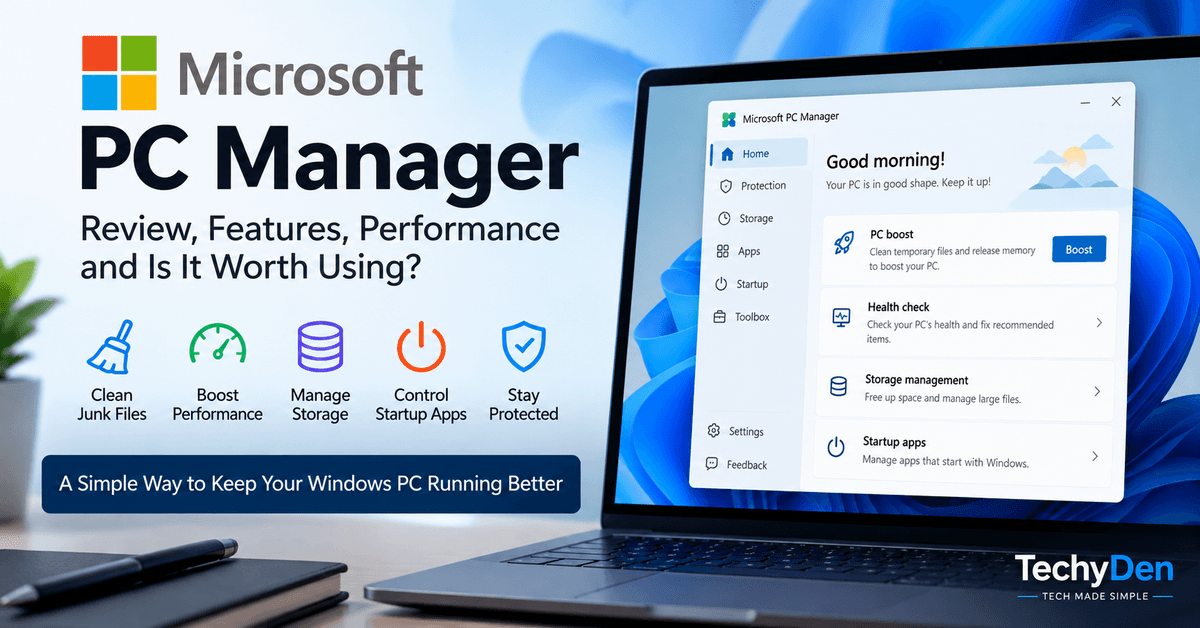
Microsoft PC Manager is another option to investigate for Windows cleanup and maintenance. Check the official Microsoft distribution channel for current availability and supported features in your region.
It may suit users who prefer a Microsoft-focused utility instead of a broad third-party suite.
4. Individual Windows Utilities
Sometimes a dedicated tool is better than an all-in-one program. For example, use Task Manager to inspect startup activity, Storage Sense to manage supported temporary files, and Windows Security for built-in protection.
If you only need to remove unnecessary temporary files, you can also use Windows Storage Sense, Microsoft’s built-in feature for managing disk space automatically.
The best approach is to select the smallest set of trusted tools that meets your needs.
Who Should Use Glary Utilities?
Glary Utilities is a good fit for:
- Windows users who want several maintenance tools in one application.
- People who prefer manual cleanup and startup management.
- Users who want to investigate storage usage and duplicate files.
- Experienced users who are comfortable reviewing system changes.
- People who want to evaluate the free version before considering Pro.
Glary Utilities may not be necessary for:
- Users whose computers already run well and need little maintenance.
- People who expect a cleaner to fix hardware limitations.
- Users who want comprehensive antivirus protection from one application.
- Anyone who prefers to rely exclusively on Windows’ built-in maintenance tools.
- Users who are uncomfortable reviewing registry changes or system settings.
Frequently Asked Questions (FAQs) on Glary Utilites Review
Is Glary Utilities free?
Yes. Glary Utilities offers a free edition for Windows. A Professional edition is also available with additional features. Check the official website for the current differences between editions.
Is Glary Utilities safe to use?
Download the legitimate software from Glarysoft’s official website and review the changes before applying them. Be especially cautious with registry repair, permanent file deletion, and system-setting changes.
Is Glary Utilities Pro worth buying?
It may be worthwhile if you need automated maintenance, automatic updates, more comprehensive cleaning, and additional support. If you only perform occasional manual maintenance, the free version may be enough.
Does Glary Utilities work on Windows 11?
Glarysoft lists Windows 11 on its official download information. Check the current system requirements and release notes before installation.
Can Glary Utilities fix a slow computer?
It can help address specific maintenance issues, such as unnecessary files and excessive startup applications. It cannot guarantee an improvement and will not fix every hardware or software problem.
Is Glary Utilities better than CCleaner?
Neither is automatically better for every user. Compare their current feature sets, pricing, usability, and the specific tasks you need to perform. Test changes carefully rather than choosing based on marketing claims alone.
Does Glary Utilities remove viruses?
Do not use Glary Utilities as your primary antivirus solution. Use a dedicated security product, such as Windows Security, to protect against and investigate malware.
Should I use a registry cleaner regularly?
Routine registry cleaning is not essential for most Windows users. Only make registry changes when there is a clear reason, and create a recovery option before proceeding.
Final Verdict: Is Glary Utilities Worth It in 2026?
Glary Utilities remains an option for Windows users who want a collection of cleanup, startup-management, privacy, and system-maintenance tools in one application.
Its strongest advantage is convenience. Instead of switching between multiple utilities, you can access a range of maintenance functions from one place. The free version is a reasonable starting point, while Professional may appeal to people who want more automation and additional support.
However, Glary Utilities is not a magic PC speed booster. Cleaning temporary files, removing unnecessary startup entries, and reviewing storage usage can help with particular problems, but they cannot replace hardware upgrades, troubleshooting, regular backups, or proper security software.
Our recommendation: Start with Glary Utilities Free if you need its tools, review every proposed change, and consider Pro only if you will use its paid features regularly. If your computer already works well, Windows’ built-in maintenance tools may be all you need.
Ready to Clean Up and Optimize Your PC?
Explore Glary Utilities’ cleaning, startup management, and system maintenance tools. Start with the free version and discover which features work best for your Windows PC.
Download Glary Utilities FreeVisit the official Glarysoft website to check the latest version and features.