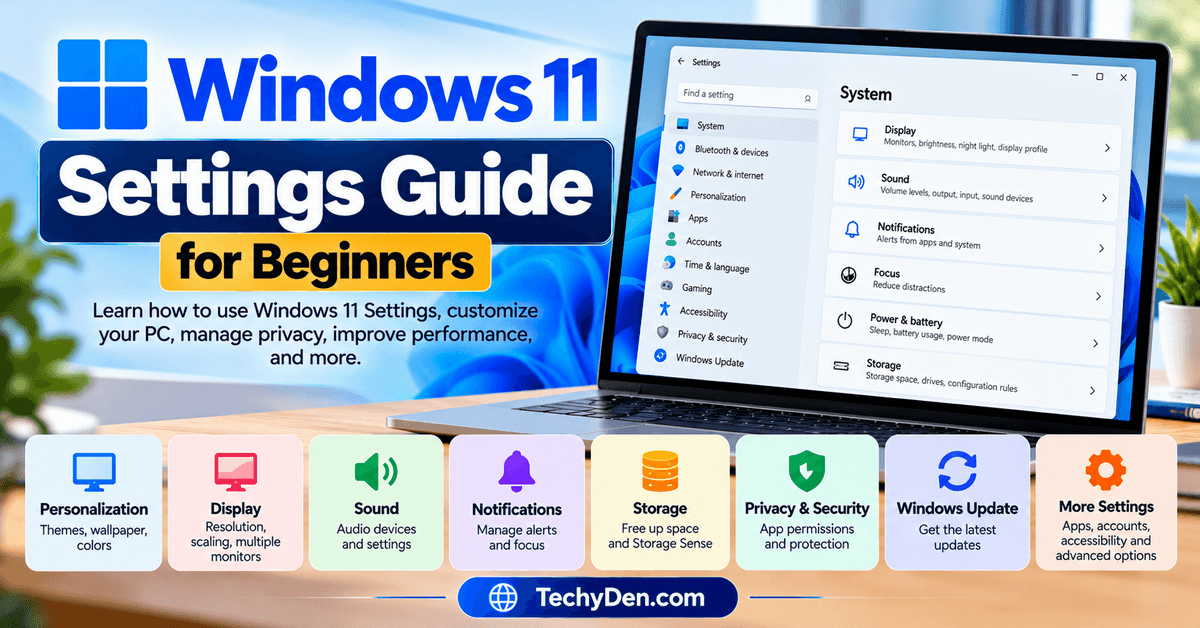
Windows 11 includes a wide range of settings that let you customize your desktop, manage connected devices, control privacy, improve performance, and keep your computer secure. However, if you’re new to Windows 11, finding the right option can sometimes be confusing.
The good news is that most everyday tasks can be completed through the built-in Settings app without using complicated commands or third-party software.
In this Windows 11 Settings guide for beginners, you’ll learn how to open Settings, personalize your desktop, adjust your display and sound, manage storage, configure privacy, control updates, and discover useful options for everyday computing.
For a broader overview of the operating system, explore our complete Windows 11 guide, which covers its features, settings, troubleshooting, and useful tips.
How to Open Settings in Windows 11
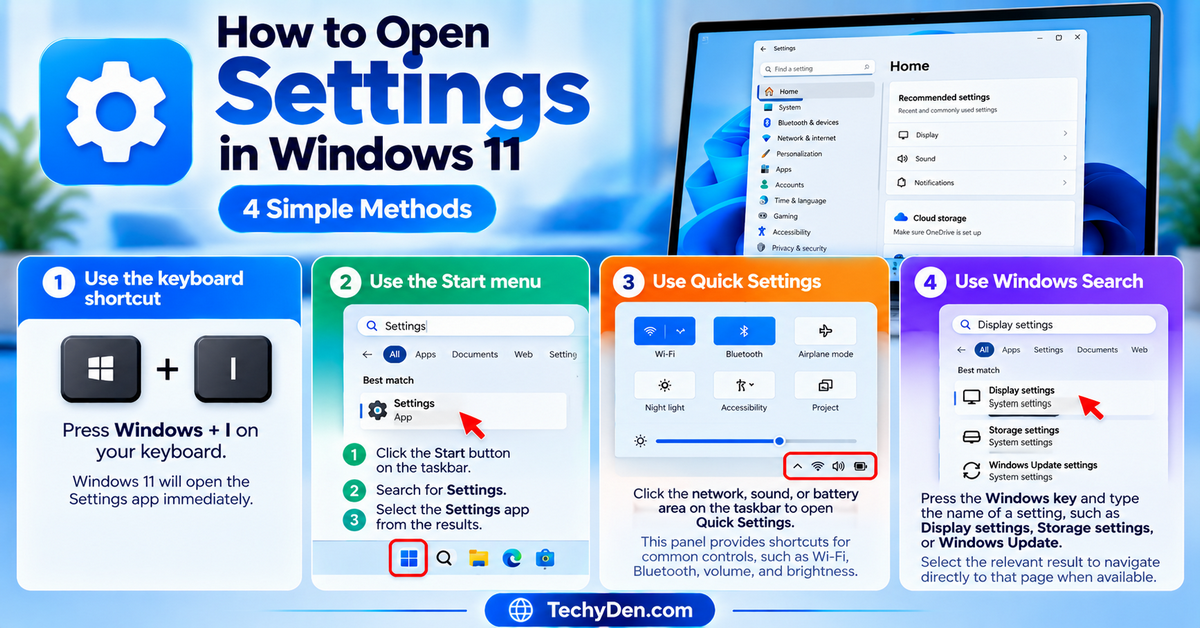
Before changing anything, you need to know how to access the Settings app.
Here are four simple methods.
Method 1: Use the keyboard shortcut
Press Windows + I on your keyboard.
Windows 11 will open the Settings app immediately. This is usually the fastest method when you’re working on your computer.
Need to capture your screen? Learn how to take screenshots in Windows 11 using built-in tools and keyboard shortcuts.
Method 2: Use the Start menu
- Click the Start button on the taskbar.
- Search for Settings.
- Select the Settings app from the results.
Method 3: Use Quick Settings
Click the network, sound, or battery area on the taskbar to open Quick Settings. This panel provides shortcuts for common controls, such as Wi-Fi, Bluetooth, volume, and brightness on supported devices.
Quick Settings is useful for making quick adjustments without opening the full Settings app.
Method 4: Use Windows Search
Press the Windows key and type the name of a setting, such as Display settings, Storage settings, or Windows Update.
Select the relevant result to navigate directly to that page when Windows offers it.
If you want to explore Windows configuration options in more detail, consult Microsoft’s official guide to exploring Windows Settings.
Understanding the Windows 11 Settings App
The Settings app groups related options into categories so you can find them more easily.
| Settings category | What you can manage |
|---|---|
| System | Display, sound, notifications, storage, power, recovery |
| Bluetooth & devices | Bluetooth, printers, mouse, keyboard, and other peripherals |
| Network & internet | Wi-Fi, Ethernet, VPN, proxy, and network settings |
| Personalization | Backgrounds, colors, themes, Start menu, and taskbar |
| Apps | Installed applications, default apps, and optional features |
| Accounts | Microsoft accounts, sign-in options, and account-related settings |
| Time & language | Date, time, language, region, and typing |
| Gaming | Game Mode and other supported gaming options |
| Accessibility | Text size, Narrator, Magnifier, captions, and related tools |
| Privacy & security | Permissions, Windows Security, and privacy controls |
| Windows Update | Updates, update history, and related options |
The exact labels and available options may vary slightly depending on your Windows 11 version, edition, device, and installed updates.
Want to learn more about the operating system’s capabilities? Explore these useful Windows 11 features to make everyday computing easier.
Basic Windows 11 Settings Guide for Beginners
Windows 11 Settings lets you customize your PC, manage devices, improve security, troubleshoot problems, and control how Windows works. In this beginner-friendly guide, you’ll learn how to navigate the Settings app and understand its key options, including System, Personalization, Network & internet, Apps, Accounts, and Windows Update.
1. Personalization Settings in Windows 11
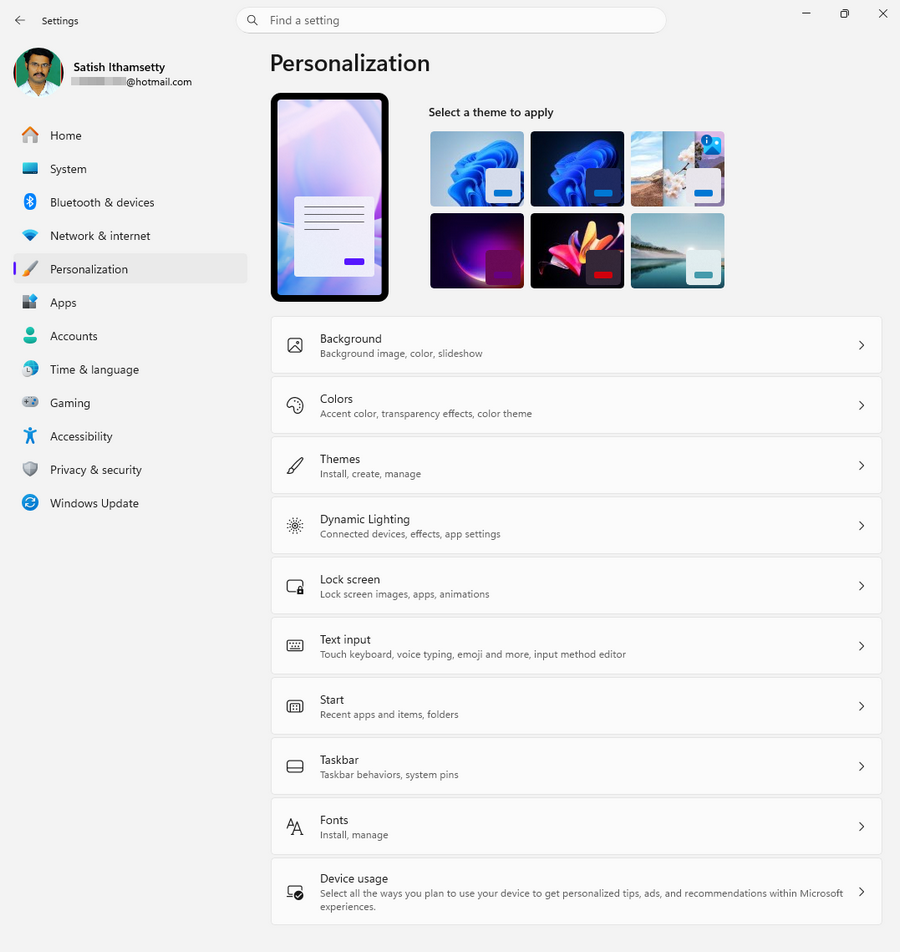
Windows 11 Personalization settings let you customize your desktop’s appearance, including the background, colors, themes, Start menu, and taskbar. To access these options, press Windows + I and select Personalization.
Key Features of Personalization Settings
- Background: Change your desktop wallpaper to a picture, solid color, or slideshow.
- Colors: Choose Light or Dark mode, adjust accent colors, and configure transparency effects.
- Themes: Apply coordinated backgrounds, colors, and other visual settings.
- Dynamic Lighting: Customize lighting effects on compatible RGB keyboards, mice, and other devices.
- Lock Screen: Change the lock-screen background and configure supported status information.
- Text Input: Customize available touch keyboard, typing, and input options.
- Start: Adjust available Start menu settings, including recommendations and folder shortcuts.
- Taskbar: Customize taskbar alignment and other supported behaviors.
- Fonts: View, install, and manage fonts for documents and applications.
- Device Usage: Set preferences that may influence Windows tips, recommendations, and personalized experiences.
Best Personalization Settings for Everyday Users
If you are new to Windows 11, start with these simple customizations:
- Choose a comfortable theme: Select Light, Dark, or a theme that suits your preferences.
- Set your favorite wallpaper: Use a picture that makes your desktop feel more personal.
- Adjust the taskbar: Choose your preferred alignment and review the available behavior settings.
- Customize the Start menu: Make frequently used applications and folders easier to find.
- Review lock-screen information: Display useful information without exposing sensitive details.
- Check privacy preferences: Review personalization and recommendation settings if you want to limit certain personalized experiences.
You do not need to change every setting. Start with the options that make your computer more comfortable and convenient to use.
Tip: If you prefer a cleaner Windows experience, review Start menu recommendations and personalization-related privacy settings.
Note: Available options may vary depending on your Windows 11 version, device, and connected hardware.
2. Windows 11 Display Settings
Windows 11 Display settings let you customize your screen’s appearance, text size, resolution, and brightness-related features. You can also configure multiple monitors and adjust graphics settings.
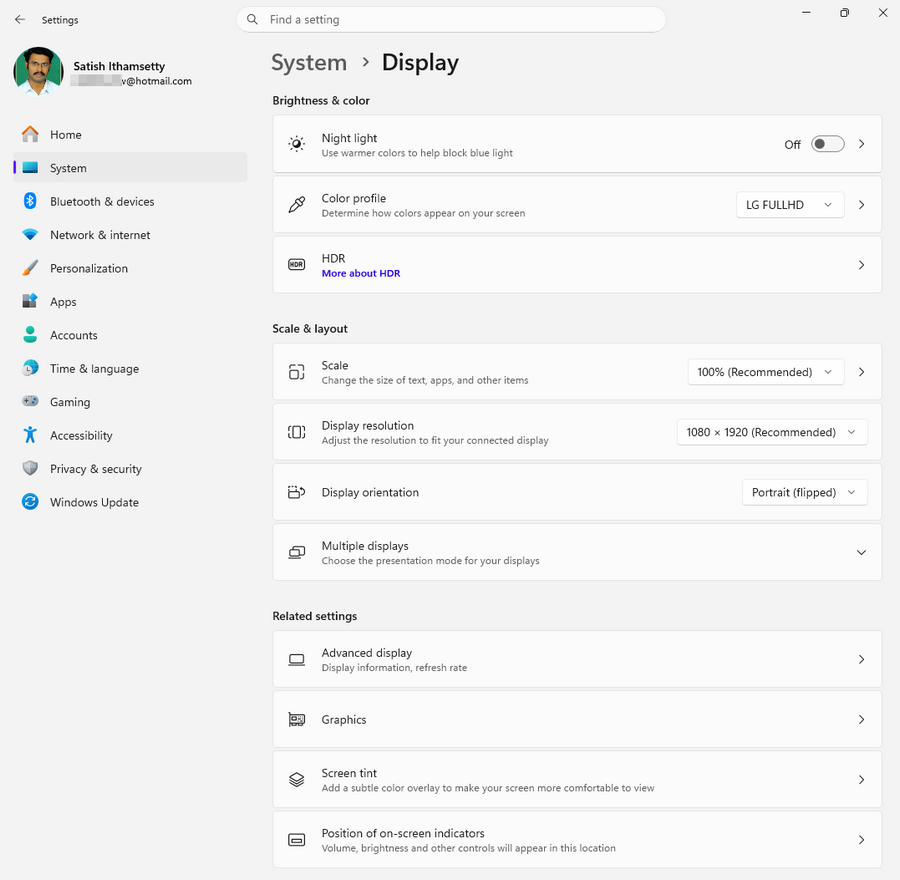
To open Display settings, press Windows + I and navigate to System → Display. You can also right-click your desktop and select Display settings.
Key Features of Display Settings
- Night Light: Applies warmer screen colors to make viewing more comfortable, especially in the evening.
- Color Profile: Manages how colors appear on your display. Most users can keep the default profile.
- HDR: Improves brightness, contrast, and color in supported content when your display and hardware support HDR.
- Scale: Changes the size of text, apps, and other interface elements. Use the recommended setting unless you need larger or smaller content.
- Display Resolution: Controls the screen’s pixel dimensions. Keep the recommended resolution for the sharpest image.
- Display Orientation: Switches between landscape and portrait modes, including flipped orientations.
- Multiple Displays: Lets you extend or duplicate your screen when using an external monitor or projector. Press Windows + P to switch display modes quickly.
- Advanced Display: Shows display information and lets you select a supported refresh rate.
- Graphics: Provides graphics preferences for supported applications, including power-saving or high-performance options on compatible devices.
- Screen Tint: Provides a color overlay on supported devices to customize the screen’s appearance.
- Position of On-Screen Indicators: Lets you adjust the position of supported indicators, such as volume or brightness notifications.
Recommended Display Settings
For most users, keeping the recommended display resolution and scaling is a good starting point. Enable Night Light if you prefer warmer colors in the evening, and select a higher refresh rate if your monitor supports it and you want smoother scrolling or animations.
If you use multiple monitors, choose Extend these displays to create more workspace. You can also explore Advanced Display settings to check your monitor’s refresh rate.
Tip: If your screen looks blurry, appears rotated incorrectly, or does not use the expected refresh rate, check the Display settings before troubleshooting further.
Note: Available options vary depending on your Windows 11 version, graphics hardware, drivers, and connected display.
For more ways to get the most from your operating system, explore the main Windows 11 guide.
3. Sound Settings in Windows 11
Windows 11 Sound settings let you manage your speakers, headphones, microphones, volume levels, and other audio options. You can also troubleshoot common sound problems and control audio for individual applications.
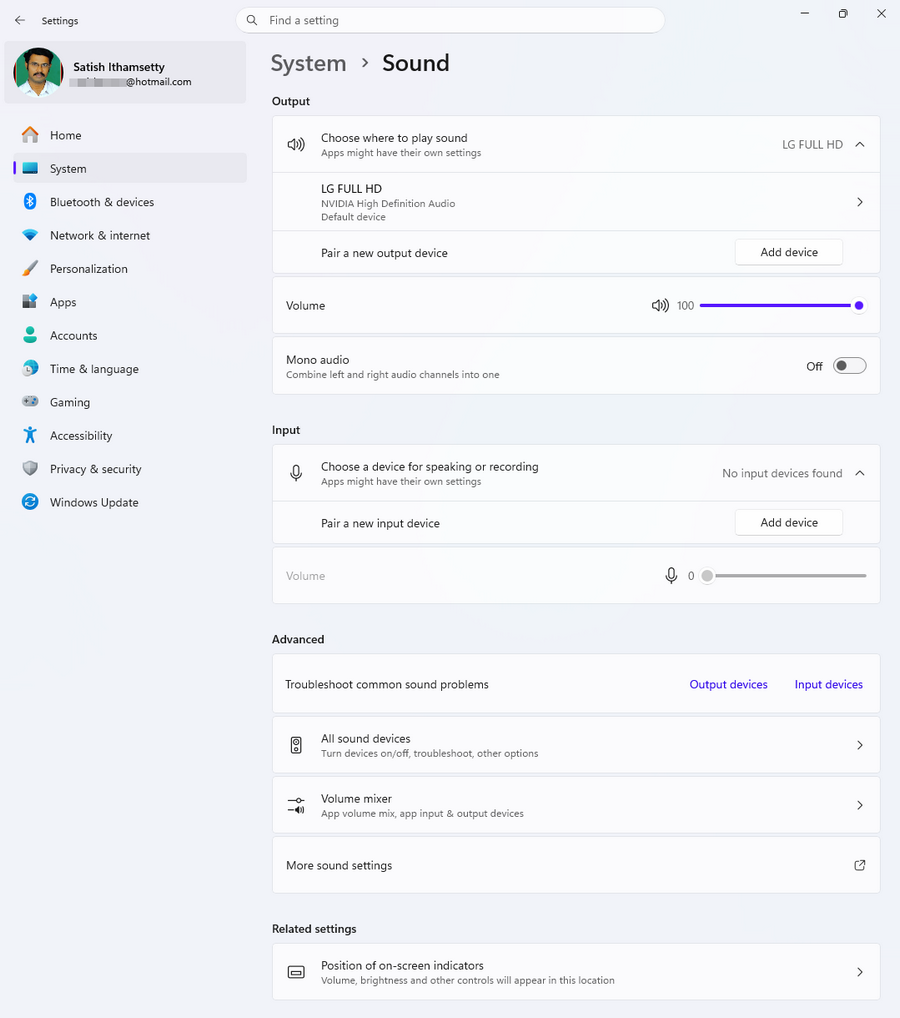
To open Sound settings, press Windows + I and navigate to System → Sound.
Key Features of Sound Settings
- Output Device: Choose where sound plays, such as speakers, headphones, or a connected monitor. You can also pair a new audio output device.
- Volume: Adjust the overall sound level for your output device.
- Mono Audio: Combines the left and right audio channels into one, which can be useful for people who need sound from both channels in a single channel.
- Input Device: Select a microphone or another supported recording device. You can also connect a new input device.
- Input Volume: Adjust the microphone’s input level when supported.
- Troubleshoot Sound Problems: Access troubleshooting options for output and input devices when sound is not working correctly.
- All Sound Devices: View available audio devices and access supported device settings.
- Volume Mixer: Adjust volume levels for individual applications and select their input and output devices.
- More Sound Settings: Open additional sound controls, including classic Windows sound settings.
- Position of On-Screen Indicators: Adjust the position of supported volume and other on-screen indicators.
Recommended Sound Settings
Select the correct output device and adjust the volume to a comfortable level. If you use a microphone for video calls or recording, check that the correct input device is selected and that its input level is appropriate.
Tip: If you cannot hear audio, check the selected output device, review the Volume Mixer, and run the sound troubleshooter. If your microphone is not working, verify the input device and review your microphone permissions under Settings → Privacy & security → Microphone.
For additional instructions on adjusting your screen, refer to Microsoft’s guide to changing screen resolution and display layout in Windows.
Note: Available options depend on your Windows 11 version, audio drivers, and connected devices.
4. Manage Notifications
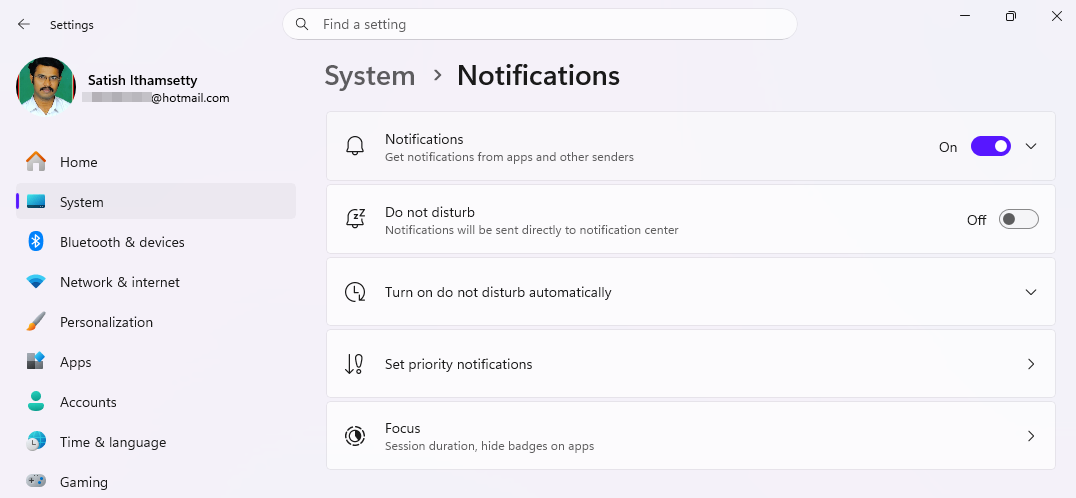
Windows 11 notification settings let you control alerts from apps and other senders. You can enable or disable notifications, silence interruptions, set priority alerts, and manage focus sessions.
To access these settings, press Windows + I and navigate to System → Notifications.
Key Features of Notification Settings
- Notifications: Turn notifications on or off for apps and other senders. You can also customize how supported notifications appear.
- Do Not Disturb: Silence most notifications so you can work without interruptions. Notifications are sent to the notification center instead.
- Turn on Do Not Disturb Automatically: Set rules to enable Do Not Disturb automatically during specific times or activities, depending on your available options.
- Set Priority Notifications: Choose which notifications can still reach you when Do Not Disturb is enabled.
- Focus: Start focus sessions to reduce distractions. Available options can include hiding app badges and flashing indicators on the taskbar.
Recommended Notification Settings
Keep notifications enabled for important apps, such as email, calendar, and security tools. Disable unnecessary app alerts to reduce distractions, and use Do Not Disturb during meetings, study sessions, or focused work.
Tip: If you don’t want to miss an important alert, review your priority notification settings before enabling Do Not Disturb.
Note: Available options may vary depending on your Windows 11 version and installed apps.
5. Manage Storage and Storage Sense
Running low on storage can prevent you from installing updates, downloading files, or installing applications.
Windows 11 includes storage tools that help you identify what is consuming disk space.
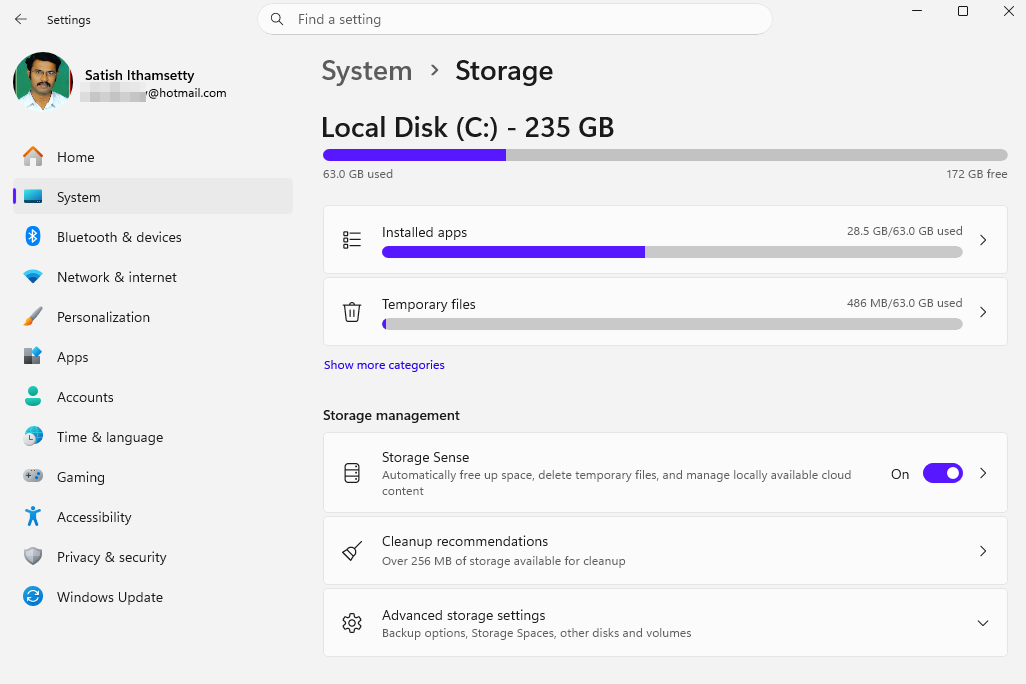
Open Settings → System → Storage.
Check available storage space
The Storage page shows how disk space is being used. Depending on your configuration, categories may include installed applications, temporary files, documents, and system files.
Review these categories to identify where you can safely reclaim space.
Remove temporary files
To review temporary files:
- Open Storage settings.
- Select Temporary files.
- Wait for Windows to calculate the available cleanup options.
- Review the selected categories carefully.
- Select the removal option when you are confident the files are no longer needed.
Be careful with the Downloads folder and other categories that may contain personal files.
Enable Storage Sense
Storage Sense can automatically remove certain unnecessary files when its conditions are met.
To configure it, open Settings → System → Storage → Storage Sense.
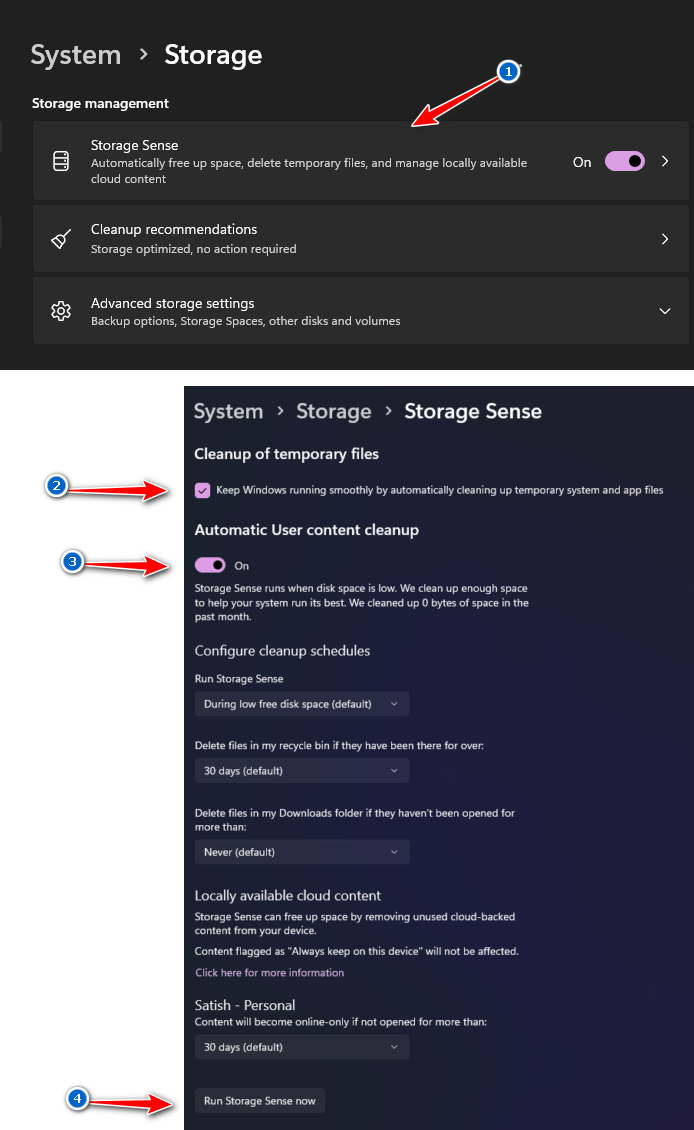
Review the available options, such as how often cleanup runs and how temporary files or Recycle Bin contents are handled.
Do not configure automatic deletion rules without understanding their effects.
Uninstall applications you no longer use
Navigate to Settings → Apps → Installed apps.
Review applications you recognize and no longer need. Select the available uninstall option for an application you want to remove.
Avoid uninstalling unfamiliar drivers or system components simply because you do not recognize their names.
6. Configure Default Applications
Default apps determine which programs Windows uses to open specific file types and links.
For example, you might prefer one browser for websites, another application for viewing photos, or a particular media player for video files.
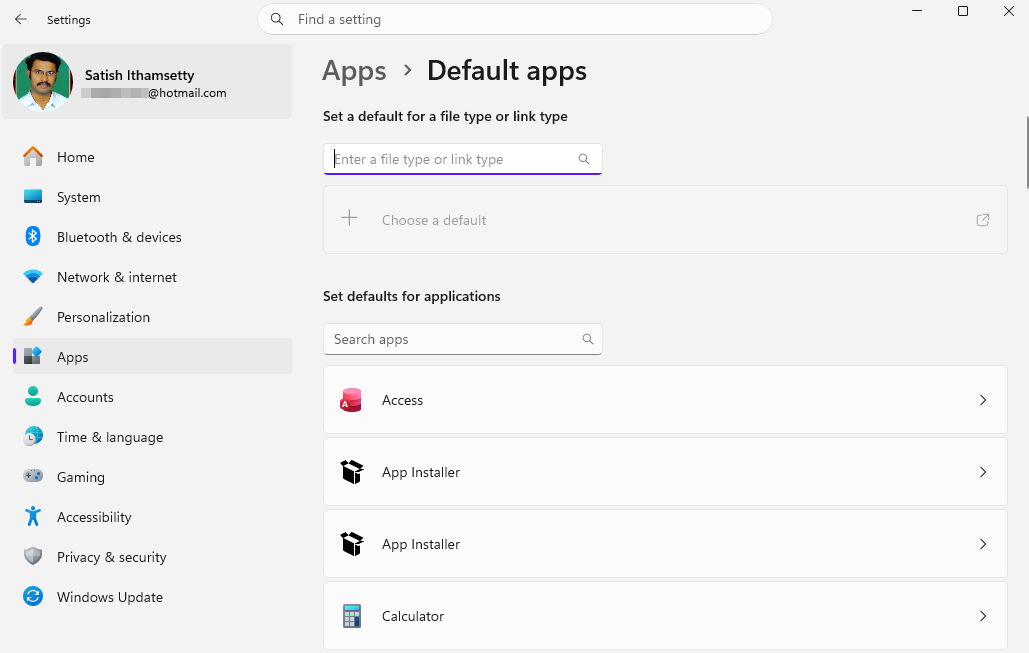
To manage these preferences, open Settings → Apps → Default apps.
Change your default browser
- Open Default apps.
- Search for the browser you want to use.
- Select the application.
- Review the available default file types and link types.
- Change the relevant defaults using the options provided.
Depending on your Windows version and the application, you may see an option to set an application as the default for supported file types.
Change default apps for files
You can also select an application for a particular file extension.
For example, you might configure which application opens PDF documents or image files.
Important: Choose applications you trust, and avoid changing file associations unless you understand which application will handle the files afterward.
7. Adjust Power and Battery Settings
Power settings can help balance performance and energy consumption, particularly on laptops.
Open Settings → System → Power & battery on supported devices.
Change the power mode
Windows may offer power modes such as Best power efficiency, Balanced, or Best performance.
- Best power efficiency: Prioritizes energy savings.
- Balanced: Offers a compromise between performance and power consumption.
- Best performance: Prioritizes performance and may consume more energy.
The available options depend on your device and configuration. If your PC feels sluggish, follow our guide on how to speed up Windows 11 for practical ways to improve performance.
Review battery usage
On supported laptops, battery settings can help you identify applications using significant amounts of energy.
Review the available battery usage information and adjust unnecessary background activity where appropriate.
Configure screen and sleep settings
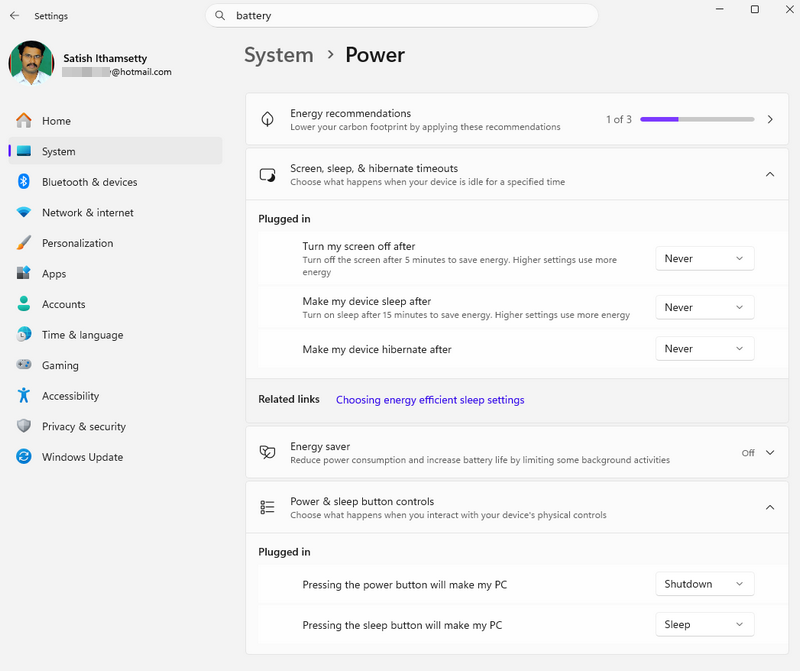
You can configure when your screen turns off and when the computer enters sleep mode.
For example, you might choose a shorter screen timeout when running on battery and a longer timeout when plugged into power.
These settings can help reduce unnecessary energy consumption.
Tip: If your laptop is overheating or running its fans frequently, selecting a more aggressive performance mode may not be the best solution.
8. Review Privacy and App Permissions
Privacy settings help you control which applications can access certain information and device features.
Open Settings → Privacy & security.
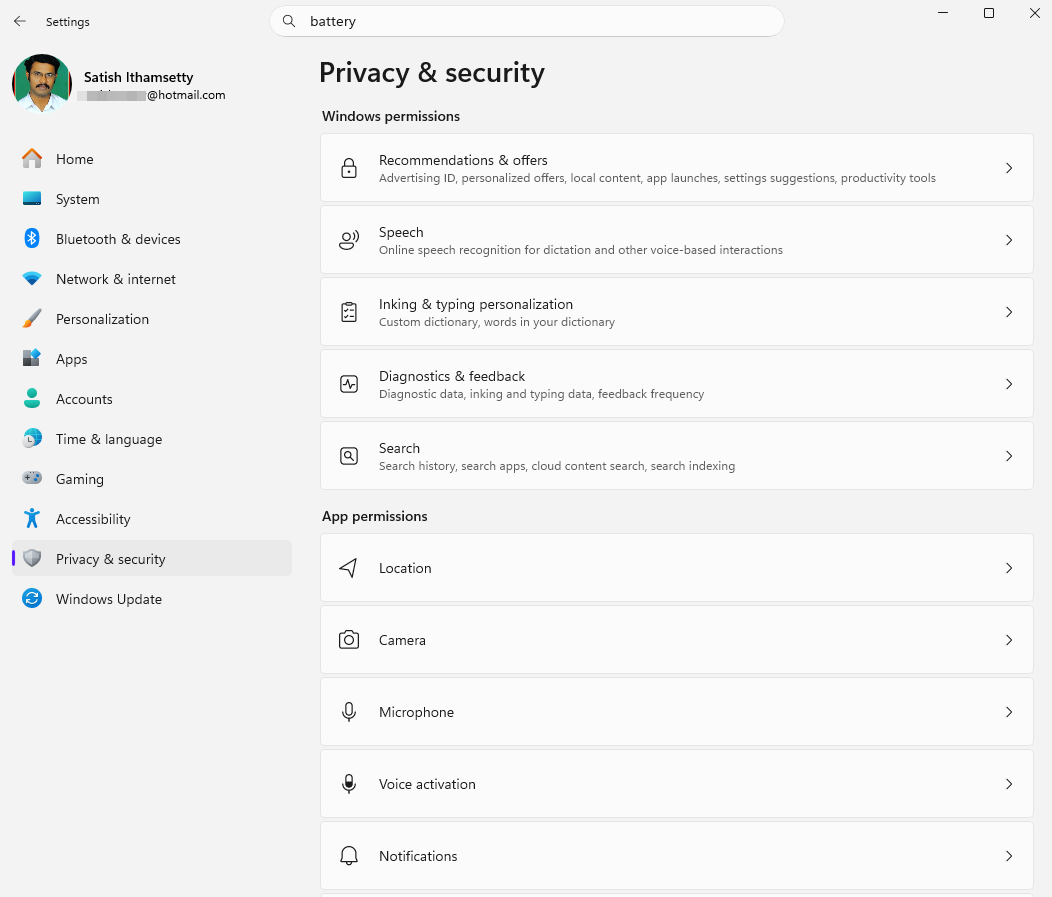
1. Manage camera and microphone access
If you want to review which applications can access your camera or microphone:
- Open Privacy & security.
- Select Camera or Microphone.
- Review the relevant access controls.
- Disable access for applications that do not need it.
Turning off access for an application may prevent its video calls, recording, or voice features from working properly.
2. Review location permissions
Some applications use location information to provide maps, local weather, or other location-based services.
Open the Location settings page and review the available controls. Depending on your device and configuration, you may be able to control location access globally or for individual applications.
3. Review other privacy options
Windows 11 includes additional privacy controls for areas such as notifications, contacts, calendar, and other supported resources.
The available categories can vary by Windows version and application.
Review these options periodically, particularly after installing new applications.
Best practice: Grant applications only the permissions they need to perform their intended functions.
9. Configure Windows Security
Windows Security provides access to built-in protection features, including virus and threat protection, firewall controls, and other security tools.
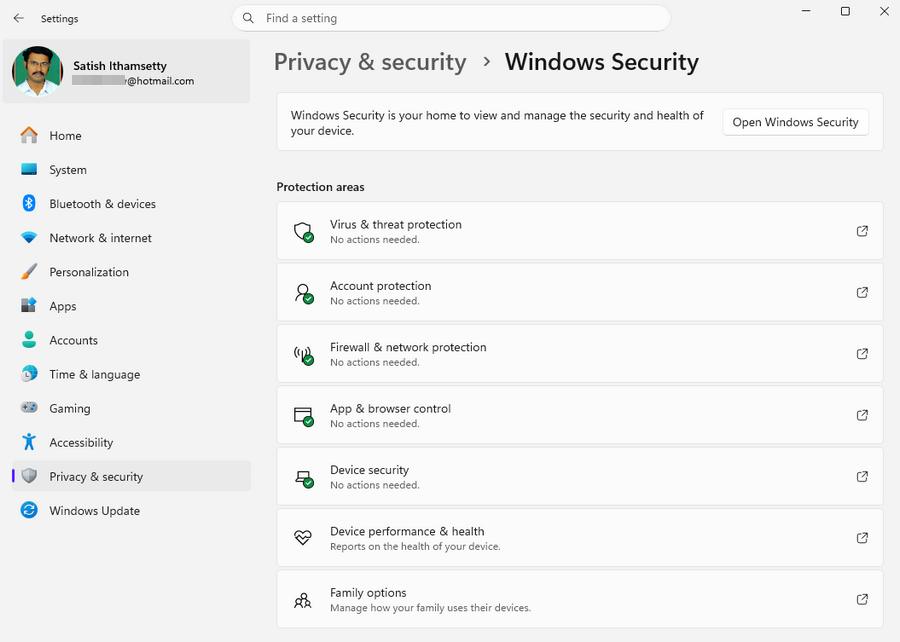
To open it, search for Windows Security in the Start menu.
- Review virus and threat protection: Open Virus & threat protection and review the protection status. If Windows Security displays a warning, read the recommended action carefully. If you use compatible third-party antivirus software, confirm its protection status before changing any security configuration.
- Check firewall protection: The firewall helps control network traffic according to the applicable rules. Open Firewall & network protection to review the available status information. Avoid disabling the firewall simply to resolve a connectivity problem; investigate the specific application or network issue instead.
- Review device security: The Device security section may provide information about hardware-based security features, depending on your computer. Available options can vary with the processor, firmware, and device configuration.
For additional guidance, consult Microsoft’s Windows Security support resources.
10. Manage Windows Update
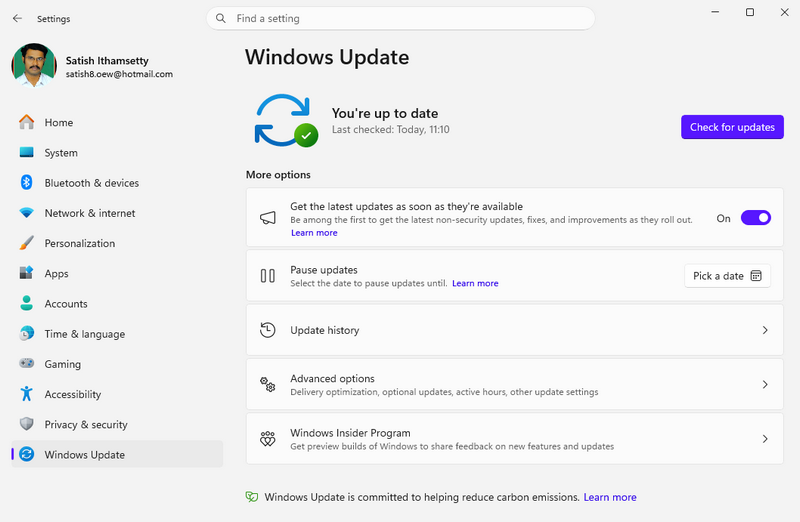
Windows Update delivers security updates, bug fixes, and other updates for supported Windows installations.
To check for updates, open Settings → Windows Update.
Check for available updates
Follow these steps:
- Open Settings.
- Select Windows Update.
- Click Check for updates.
- Review the available updates.
- Follow the installation instructions and restart your computer when required.
Some updates install automatically, while others may require you to initiate the installation.
Pause updates when necessary
Windows 11 may provide options to pause updates temporarily.
This can be useful when you need to avoid a restart during an important task. However, do not leave security updates paused longer than necessary.
Review update history
The update history page helps you see previously installed updates and identify when a recent update may have coincided with a problem.
If you experience an issue after an update, check Microsoft’s documentation before uninstalling it or attempting advanced repairs.
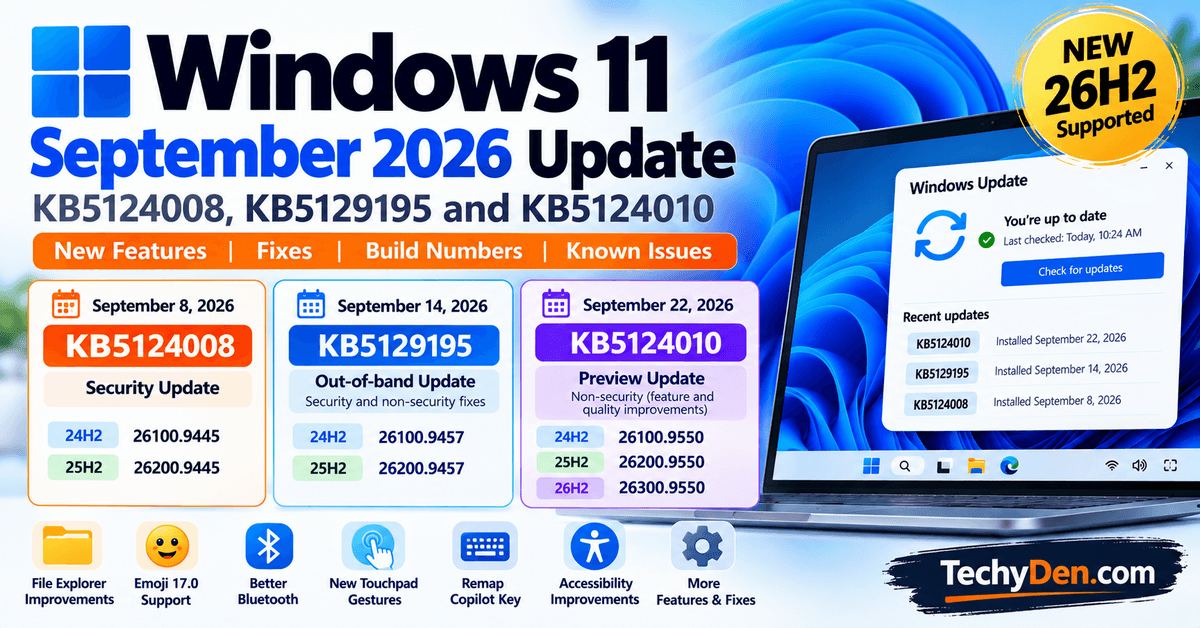
Before upgrading, read our Windows 11 26H2 features and installation guide to learn about the update and its availability.
11. Manage Bluetooth and Connected Devices
Windows 11 supports a range of connected devices, including wireless headphones, keyboards, mice, printers, and compatible accessories.
Open Settings → Bluetooth & devices.
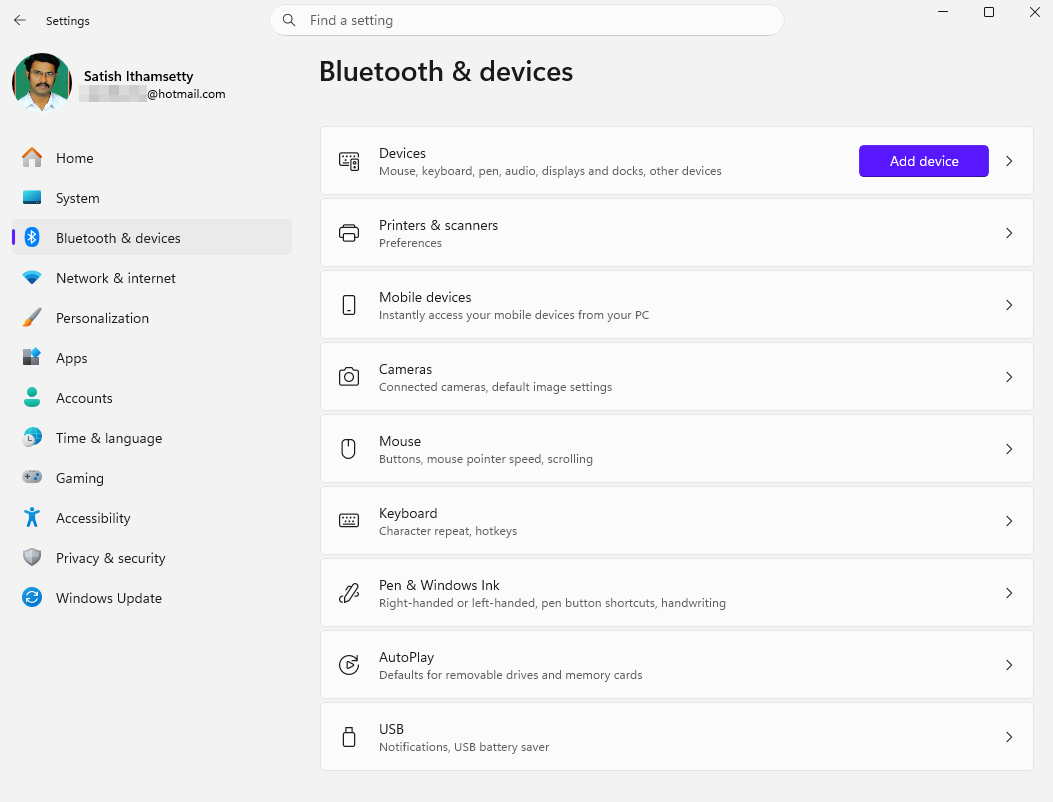
Turn Bluetooth on or off
Use the Bluetooth control in Settings or Quick Settings to manage the connection.
To pair a new device:
- Turn on Bluetooth if necessary.
- Put the accessory into pairing mode.
- Open Bluetooth & devices.
- Select the option to add a device.
- Choose Bluetooth and select your accessory when it appears.
- Follow any pairing instructions.
The exact steps can vary by accessory.
Manage printers and scanners
Open the relevant device settings to add a supported printer or scanner, review its status, or manage available options.
If a device does not appear, check that it is powered on, connected to the appropriate network or port, and supported by your Windows installation.
Troubleshoot connection problems
If a Bluetooth device fails to connect, make sure it has sufficient battery power, is within range, and is not connected to another device in a way that prevents pairing.
If necessary, remove the device from Windows and pair it again.
12. Customize the Start Menu and Taskbar
The Start menu and taskbar are two of the most frequently used parts of Windows 11.
Open Settings → Personalization to explore the available customization options.
Customize the Start menu
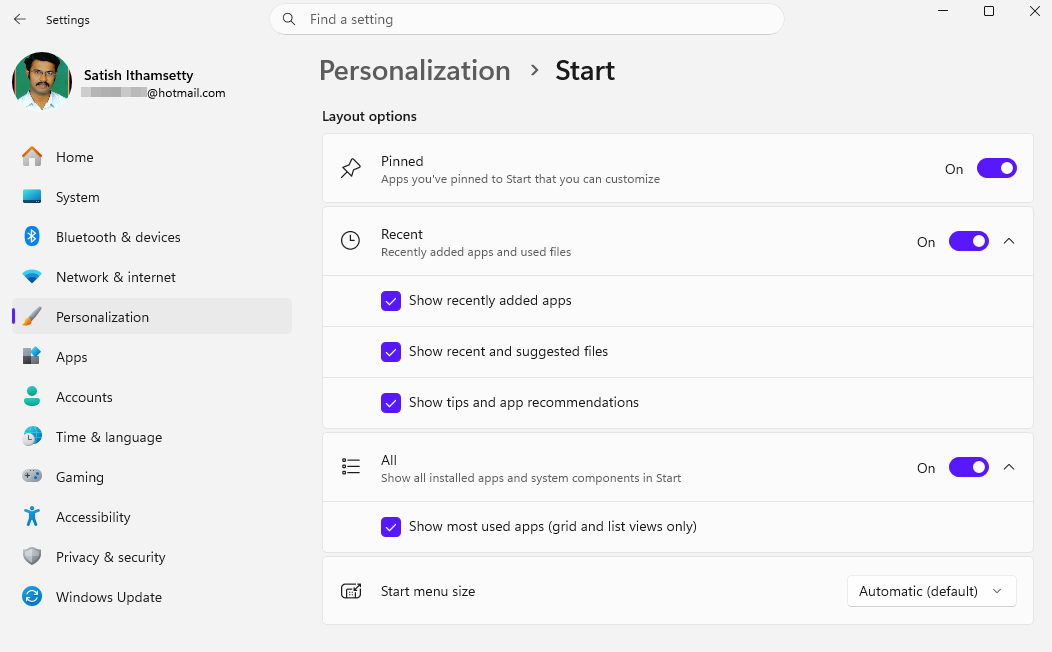
Depending on your Windows version, you may be able to adjust how the Start menu displays pinned apps, recommendations, and other content.
Pin frequently used applications so you can launch them quickly. Unpin applications you do not use regularly.
Customize the taskbar
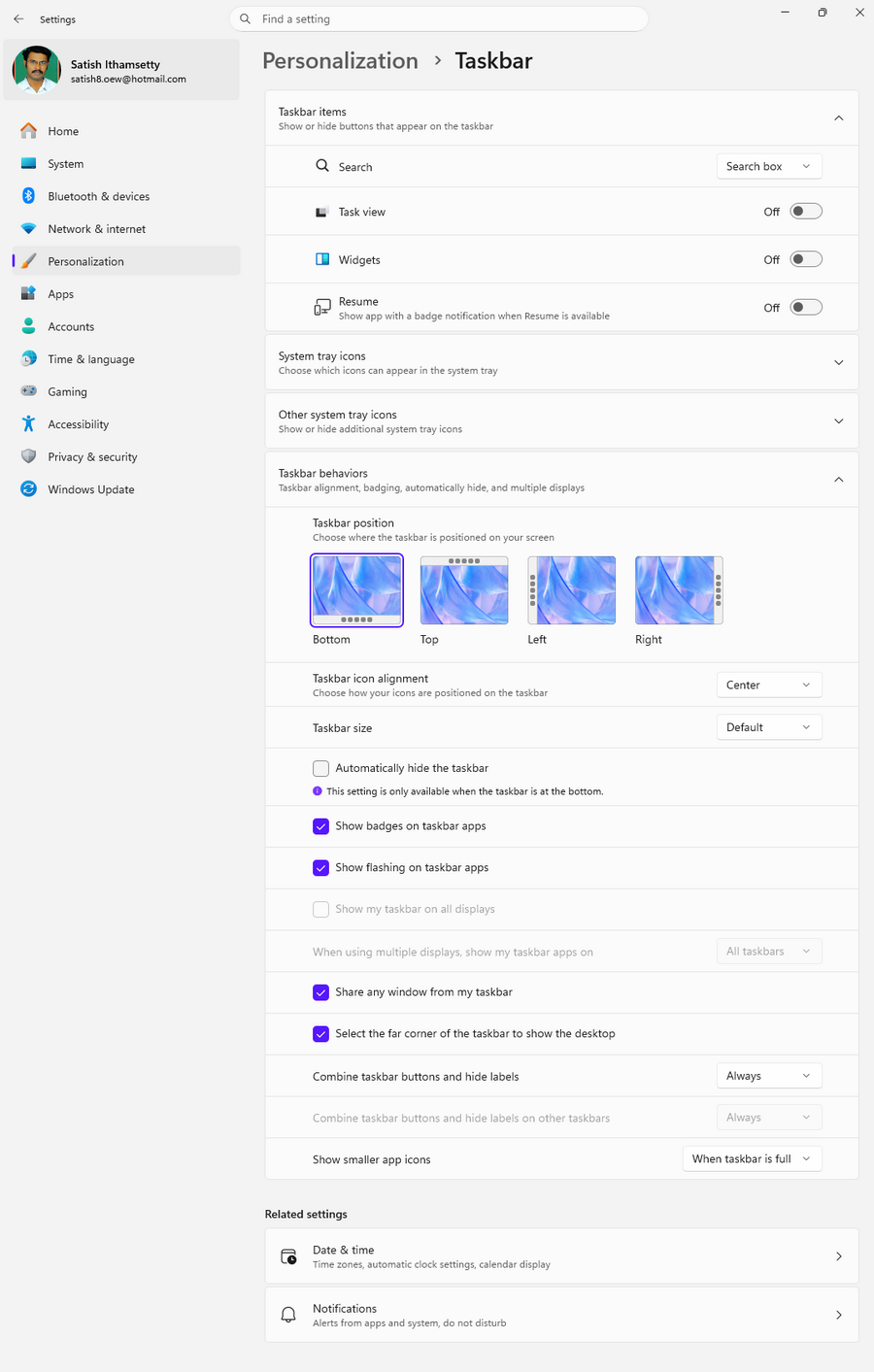
Taskbar settings let you control supported options such as alignment, search presentation, widgets, and system icons.
Choose the arrangement that makes it easiest to access the applications and controls you use most often.
Use Task View
Press Windows + Tab to open Task View.
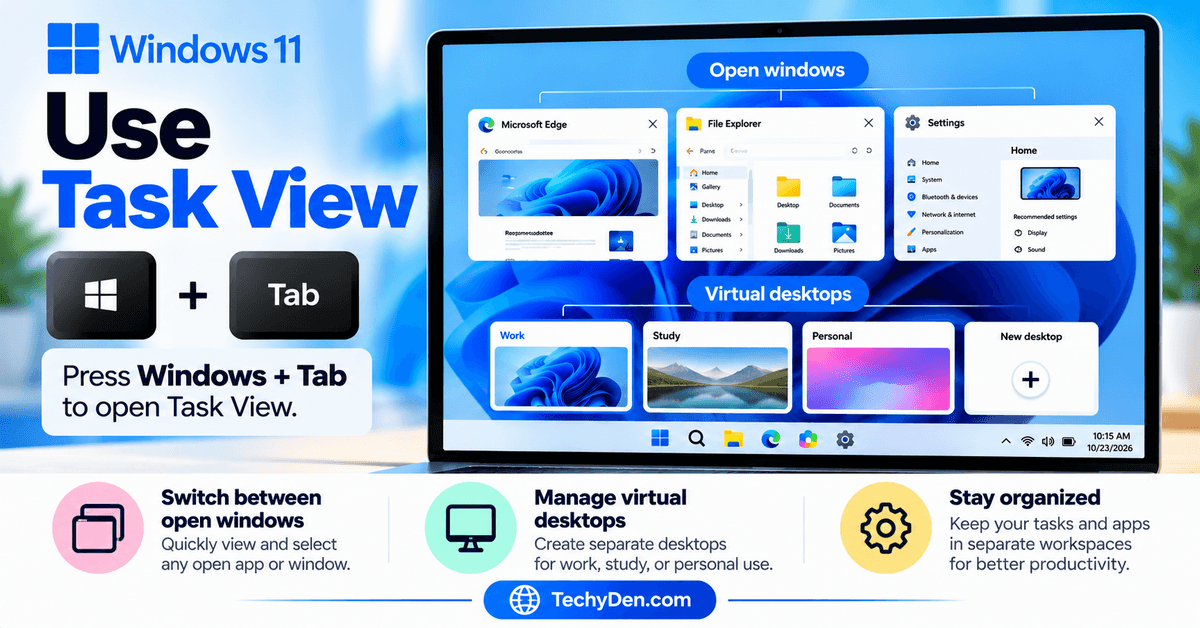
This feature lets you switch between open windows and manage virtual desktops. Virtual desktops are useful when you want separate workspaces for work, study, or personal tasks.
13. Configure Accounts and Sign-In Options
Windows 11 includes account settings for managing sign-in methods, connected accounts, and other account-related preferences.
Open Settings → Accounts.
Review your account information
The Accounts section provides access to information and options associated with your Windows account.
Some features depend on whether you use a Microsoft account or a local account, and availability may vary by Windows edition and configuration.
Configure Windows Hello
On supported devices, Windows Hello lets you sign in using options such as facial recognition, fingerprint recognition, or a PIN.
To review available options, open Settings → Accounts → Sign-in options.
Choose a sign-in method that your device supports, and keep your recovery information secure.
Set up a screen lock
Locking your computer helps protect your information when you step away from your desk.
Press Windows + L to lock the screen immediately.
Use an appropriate sign-in method so other people cannot easily access your account when you are away.
14. Explore Accessibility Settings
Windows 11 provides accessibility features that make the computer easier to use for people with different needs and preferences.
Open Settings → Accessibility.
- Increase text size: If text is difficult to read, open Text size and adjust it to a comfortable level. Changing text size can improve readability, although it may affect how content fits on the screen.
- Use Magnifier: Magnifier enlarges content displayed on the screen. Press Windows + Plus (+) to turn on Magnifier, then use the available controls to adjust magnification.
- Explore Narrator and captions: Narrator is a screen reader that reads interface elements and other supported content aloud. Live captions can display captions for supported audio content. Availability and supported languages may vary.
- Use voice typing: Press Windows + H in a supported text field to open voice typing. Check the microphone, language, and privacy settings if the feature does not work as expected. Review the recognized text before submitting or sharing it.
These tools can improve accessibility and productivity for a wide range of users.
15. Use Advanced System Settings Carefully
Some Windows configuration options are designed for troubleshooting or advanced administration.
Beginners should understand what an option does before changing it.
- About your PC: Open Settings → System → About to review information such as your Windows edition, installed RAM, processor, and system type. This information can help when checking application requirements or seeking technical support.
- Recovery settings: Open Settings → System → Recovery to review available recovery options. Depending on your system, these may include options for troubleshooting startup problems or resetting your PC. Before using a major recovery option, back up important files and confirm that you can access the necessary account credentials and any BitLocker recovery key.
- Developer settings: Windows 11 includes developer-related options under System settings, depending on the version and configuration. Most everyday users do not need to change these settings. Enable specialized options only when you understand the purpose and trust the software or workflow that requires them.
Important: Avoid changing registry entries, disabling security features, or using unfamiliar system-tweaking utilities simply because an online tutorial recommends them.
Best Windows 11 Settings Guide for Beginners
If you’re setting up a new PC or learning Windows 11 for the first time, you don’t need to change every available option. Start with these practical settings.
| Setting | Recommended action | Why it helps |
|---|---|---|
| Windows Update | Check for updates regularly | Helps keep your PC secure and reliable |
| Windows Security | Review protection status | Helps identify security warnings |
| Storage Sense | Configure after reviewing cleanup options | Helps manage unnecessary files |
| Notifications | Disable unnecessary app alerts | Reduces interruptions |
| Display scaling | Start with the recommended value | Improves readability |
| Power mode | Choose according to your needs | Balances performance and energy use |
| App permissions | Review camera, microphone, and location access | Improves privacy control |
| Startup apps | Disable only unnecessary apps you recognize | Can reduce startup delays |
| Sign-in options | Configure a supported secure sign-in method | Helps protect your account |
| Windows Backup | Review which files and settings are covered | Makes recovery easier |
These are general recommendations. The best configuration depends on your hardware, applications, accessibility needs, and how you use your computer.
Common Windows 11 Settings Problems and Solutions
Sometimes a setting is missing, unavailable, or does not behave as expected. Try these basic checks before making advanced changes.
| Problem | What to try |
|---|---|
| Settings won’t open | Restart your PC and try Windows + I again |
| Wi-Fi or Bluetooth is missing | Check Quick Settings, device status, and relevant drivers |
| Display resolution looks wrong | Select the recommended resolution and check the graphics driver |
| Storage Sense isn’t freeing space | Review its configuration and available cleanup categories |
| Microphone or camera isn’t working | Check device connections and app permissions |
| Windows Update fails | Restart, check storage space, and review the error code |
| A setting is grayed out | Check whether your device, account, Windows edition, or organization policy restricts it |
If Settings continues to malfunction, use Microsoft’s official troubleshooting guidance rather than immediately resetting Windows or editing the registry.
Frequently Asked Questions on Windows 11 Settings Guide for Beginners
How do I open Settings in Windows 11?
Press Windows + I on your keyboard. Alternatively, search for Settings in the Start menu or Windows Search.
Where are the advanced settings in Windows 11?
Advanced options are spread across several areas, including System, Privacy & security, Windows Update, Recovery, and other Settings categories. Some legacy configuration tools remain available through Windows Search.
How do I customize Windows 11?
Open Settings → Personalization to change your desktop background, colors, themes, lock screen, and supported Start menu and taskbar options.
Which Windows 11 settings should I change first?
Start by checking Windows Update, reviewing Windows Security, configuring notifications, verifying display settings, and reviewing app permissions. You can then customize power and storage settings according to your needs.
How do I reset Windows 11 settings to their defaults?
There is no single button that restores every Windows setting to its original default. Individual settings can usually be changed back manually. Reset this PC is a more extensive recovery option that can remove applications and reset system settings, so back up your files before using it.
How do I make Windows 11 easier to use?
Adjust text size, display scaling, and taskbar options to suit your preferences. You can also explore Magnifier, Narrator, voice typing, and other accessibility features.
Is it safe to change Windows 11 settings?
Most ordinary personalization and display changes are safe. However, changing security protections, advanced system configurations, or recovery options without understanding their effects can cause problems. Make one change at a time and keep backups of important files.
How do I update Windows 11 settings and features?
Open Settings → Windows Update → Check for updates. Install appropriate updates and follow Microsoft’s instructions. Some features are rolled out gradually and may not be available on every device immediately.
Conclusion on Windows 11 Settings Guide for Beginners
The Windows 11 Settings app gives you control over how your computer looks, sounds, performs, and protects your information. Once you understand the main categories, everyday tasks such as changing your wallpaper, managing storage, adjusting notifications, and configuring privacy become much easier.
Start with the basic settings in this guide and make changes gradually. You don’t need to modify advanced options unless you have a specific reason to do so.
For more tutorials on features, troubleshooting, performance, and updates, explore our complete Windows 11 category.