7 Best Android OS for Low-End PCs and Laptops (2026)
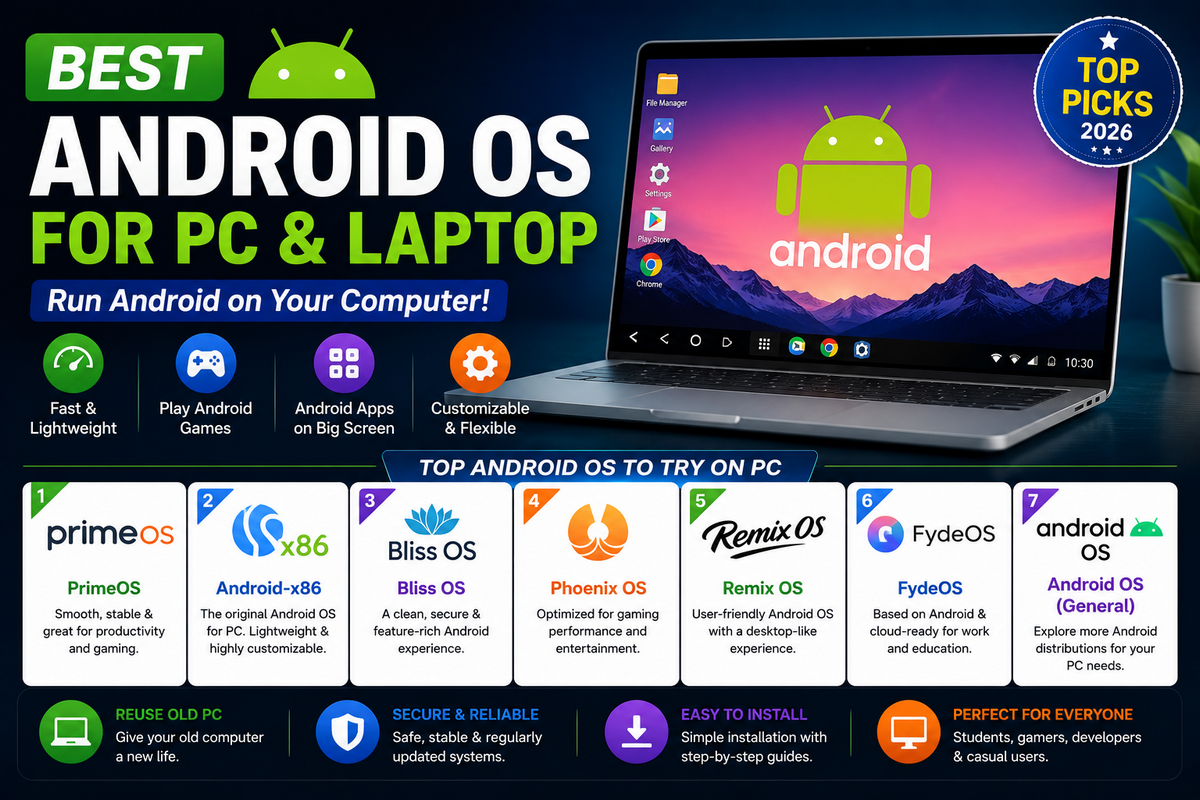
If your old laptop takes several minutes to boot or struggles to open a web browser, you don’t necessarily need to replace it. Installing a lightweight Android operating system can breathe new life into aging hardware, making it faster, more responsive, and capable of running millions of Android apps.
Unlike traditional desktop operating systems, Android-based operating systems are optimized to use fewer system resources. Many of them run smoothly on computers with just 2GB or 4GB of RAM, making them an excellent choice for older Windows laptops, Chromebooks, mini PCs, and low-end desktops.
Modern Android operating systems for PCs also include desktop-style features such as a taskbar, multi-window support, keyboard and mouse controls, file management, Google Play Store compatibility, and even gaming optimizations. Whether you want to browse the web, watch YouTube, attend online classes, play Android games, or simply revive an outdated computer, there’s an Android OS that fits your needs.
Got an old laptop gathering dust because Windows feels sluggish on it? You don’t need to throw it out or live with the lag. Installing an Android operating system turns that same low-spec hardware into a fast, app-ready device — with access to millions of Android apps, games, and a desktop-style interface built for exactly this kind of machine.
This guide compares the best Android operating systems for low-end PCs and laptops in 2026, including hardware requirements, installation difficulty, Google Play Store support, and which option fits your specific use case — whether that’s gaming, daily browsing, or squeezing a few more years out of a 2GB RAM machine.
What Is an Android OS for PC?
An Android operating system for PC is a modified version of Android designed to run on Intel and AMD desktop or laptop processors instead of smartphones. These operating systems include desktop-friendly features like support for a keyboard, mouse, multitasking, windowed applications, file management, USB devices, Wi-Fi, Ethernet, and external displays.
Unlike Android emulators such as BlueStacks or LDPlayer, an Android OS runs directly on your computer’s hardware. This means it typically delivers better performance, lower memory usage, faster boot times, and improved battery life, making it an ideal solution for older or low-end PCs.
Many Android operating systems also support dual boot with Windows, allowing you to switch between operating systems whenever needed without removing your existing Windows installation.
Best Android OS for Different Users (Quick Answer)
If you only read one section, read this one:
- Best overall: PrimeOS — dedicated Android desktop environment with strong app and game support
- Best for gaming: Phoenix OS Dark Matter — built specifically for lag-free Android gaming on PC
- Best for very old / low-spec PCs: Android-x86 — the lightest option, runs on as little as 1–2GB RAM
- Best ChromeOS alternative: FydeOS — runs Android and Linux apps with cloud sync
- Best privacy-focused option: Bliss OS — open-source, offers Google-free builds
- Best for beginners: ChromeOS Flex — easiest install, most polished interface
Android OS Comparison Table
Here’s how the main contenders stack up at a glance:
| Feature | PrimeOS | Bliss OS | Android-x86 | FydeOS | ChromeOS Flex |
| Gaming performance | Excellent | Good | Fair | Fair | Basic |
| Google Play Store | Yes | Optional build | Manual APK | Limited (manual APK) | Yes |
| Runs on very old PCs | Yes | Yes | Excellent | Good | Good |
| Works with 2GB RAM | Yes (tight) | Yes (tight) | Yes | No (4GB+ recommended) | No (4GB+ recommended) |
| Touchscreen support | Yes | Yes | Limited | Yes | Yes |
| Update frequency | Moderate | Active | Active | Active | Active |
| Best for | Gaming + daily use | Privacy/customization | Ancient hardware | ChromeOS-style use | Simplicity |
Minimum and Recommended Hardware Requirements
These are the general specs each OS is built around. Actual performance still depends on your specific CPU generation and storage type (an SSD helps every option on this list noticeably more than adding RAM does).
| Android OS | Minimum RAM | Recommended RAM | Storage | Best For |
| Android-x86 | 1–2GB | 4GB | 8GB+ | Very old PCs (Core 2 Duo era and up) |
| PrimeOS | 2GB | 4GB | 16GB | Gaming and general use |
| Bliss OS | 2GB | 4GB | 16GB | Daily use, customization |
| FydeOS | 4GB | 8GB | 32GB | ChromeOS-style workflows |
| Phoenix OS Dark Matter | 2GB | 4GB+ | 16GB | Dedicated gaming |
| ChromeOS Flex | 4GB | 8GB | 16GB | Simple browsing and apps |
Android OS vs. Android Emulator: What’s the Difference?
This trips up a lot of people, so it’s worth clearing up before you pick anything. An Android OS (PrimeOS, Bliss OS, Android-x86) replaces or dual-boots alongside your existing operating system — it IS the operating system your PC boots into.
An Android emulator (BlueStacks, LDPlayer, NoxPlayer) runs on top of Windows as a regular application, simulating an Android device inside a window.
| Android OS | Android Emulator | |
| How it runs | Boots as (or instead of) your OS | Runs as an app inside Windows |
| Performance | Faster — uses hardware directly | Slower — virtualization overhead |
| Best for | Reviving old/low-end hardware | Running one or two apps alongside Windows |
| Setup difficulty | Higher (partitioning, USB boot) | Low (install like any app) |
| Multitasking with Windows apps | Requires dual-boot or reboot | Seamless, side-by-side |
Rule of thumb: if your goal is to make an old, underpowered laptop usable again, go with an Android OS. If you just want to run a specific Android app or game alongside your existing Windows setup, an emulator is the simpler choice.
Android OS vs. ChromeOS Flex
These two get confused constantly because both promise to “save” an old laptop. They’re not the same thing:
| Aspect | Android OS (PrimeOS, Bliss, etc.) | ChromeOS Flex |
| Core purpose | Full Android app/game environment | Lightweight browser-first OS |
| Google Play Store | Yes (most options) | No — no Play Store access |
| Android app support | Native | None (Chrome extensions only) |
| Gaming | Strong, with keymapping | Very limited |
| Ease of setup | Moderate to advanced | Very easy |
| Ideal user | Wants Android apps/games on PC | Wants a fast, simple browser machine |
If you mainly want a fast machine for Gmail, Docs, and browsing, ChromeOS Flex is genuinely the easier path — see our guide to installing ChromeOS Flex for step-by-step instructions. If you want actual Android apps and games, stick with the Android OS options below.
6 Best Android Operating Systems for PC in 2026
1. Android-x86
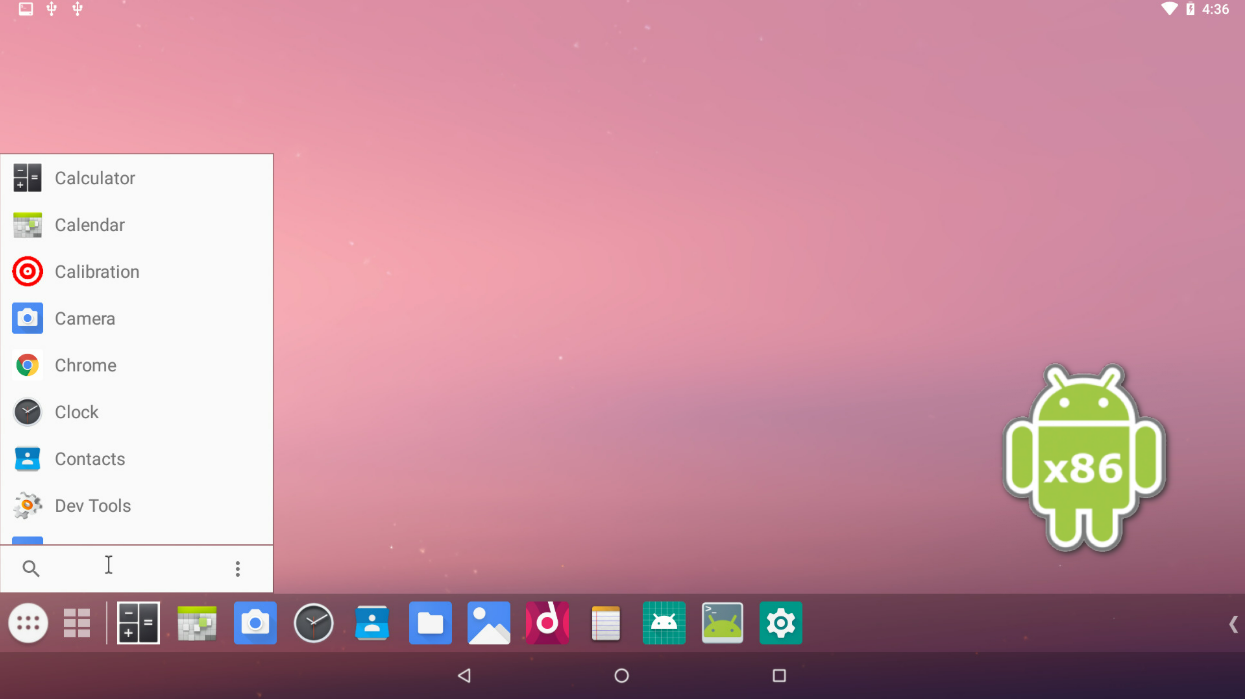
Android-x86 is the open-source project that ports the Android operating system to run natively on standard x86 and x86_64 PC hardware, rather than the ARM chips found in phones.
Originally created to let developers test Android apps on desktop machines, it has since become the go-to base for reviving genuinely old laptops and desktops.
Because it strips Android down to its essentials without a heavy custom interface layered on top, it demands far less RAM and processing power than any other Android-based operating system in this guide, making it the practical choice for hardware that Windows 11 has left behind.
Features
- Native x86/x86_64 build of the Android Open Source Project
- Boots and runs live from a USB drive without installing anything
- Supports both UEFI and legacy BIOS boot modes
- Minimal resource footprint with no heavy custom shell
- Compatible with a wide range of older Intel and AMD chipsets
- Open-source codebase, publicly auditable on its official repository
- Dual-boot support alongside an existing Windows installation
- Regular point releases tied to upstream Android version updates
- Basic desktop taskbar and window management for mouse and keyboard use
- Community-maintained forums and documentation for troubleshooting installs
Pros
- Runs on some of the lowest-spec hardware of any option in this guide
- Completely free and open-source
- Live-USB testing lets you check compatibility before installing
- Actively maintained with ongoing updates
- Works with both very old BIOS systems and newer UEFI machines
- Lightweight interface means less background resource use
Cons
- Interface looks and feels dated compared to PrimeOS or Bliss OS
- Google Play Store isn’t preinstalled on every build and often needs manual setup
- Some newer Android apps aren’t optimized for x86 architecture
- Driver support for Wi-Fi and touchpads can be inconsistent on unusual hardware
- No dedicated gaming features like keymapping tools
- Documentation is community-run rather than officially polished
Best for: Reviving genuinely old hardware — netbooks, pre-2015 laptops, or machines with 2GB RAM or less.
2. PrimeOS
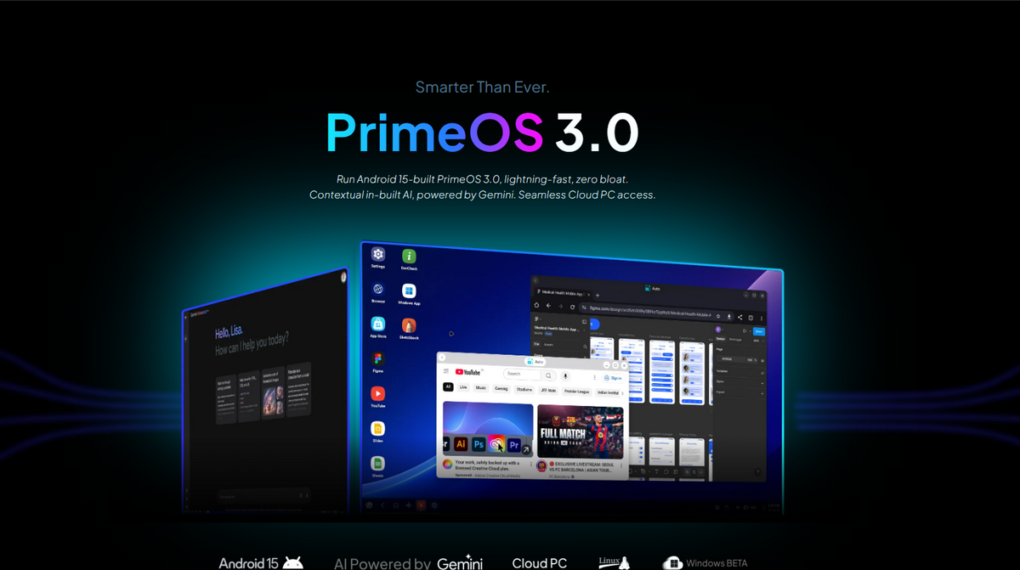
PrimeOS is a dedicated Android-based operating system engineered specifically to bring strong app and game performance to PC hardware, built on an Android-x86 foundation with a purpose-built desktop shell layered on top.
Where Android-x86 focuses on being lightweight and minimal, PrimeOS focuses on usability and gaming—it ships with keymapping tools, a curated Game Center, and a taskbar-driven interface that feels closer to a conventional desktop OS.
It’s the most actively developed and widely used Android-on-PC project among casual users and gamers, with an active community and frequent updates.
Features
- Built-in keymapping editor for converting keyboard and mouse input into touch controls
- Dedicated Game Center for discovering and organizing installed Android games
- Direct Google Play Store integration for app downloads
- Built-in file manager for managing storage and app data
- Adjustable graphics and performance settings per app
- Desktop-style taskbar, notification center, and multi-window support
- Support for both Windows and Mac installation environments
- Regular community builds with active developer support
- Support for external controllers in supported games
- Options to run in dual-boot, single-boot, or virtual machine mode
Pros
- Best all-around gaming performance of the Android OS options in this guide
- Full Google Play Store access out of the box
- Active, large community with frequent updates and troubleshooting support
- Polished, desktop-style interface that’s easy to navigate
- Flexible installation options including dual-boot and virtual machine
- Keymapping makes touch-only games genuinely playable with a keyboard and mouse
Cons
- Installation requires creating a disk partition, which is more involved than a simple app install
- Heavier on system resources than Android-x86
- Free version includes some bundled promotional content
- Occasional compatibility issues with very new or DRM-protected games
- Less privacy-focused than Bliss OS, since it ships with full Google Services
- Update cadence can be slower than better-funded commercial projects
Best for: Users who want the closest thing to a proper Android gaming console built into their old PC.
3. Bliss OS
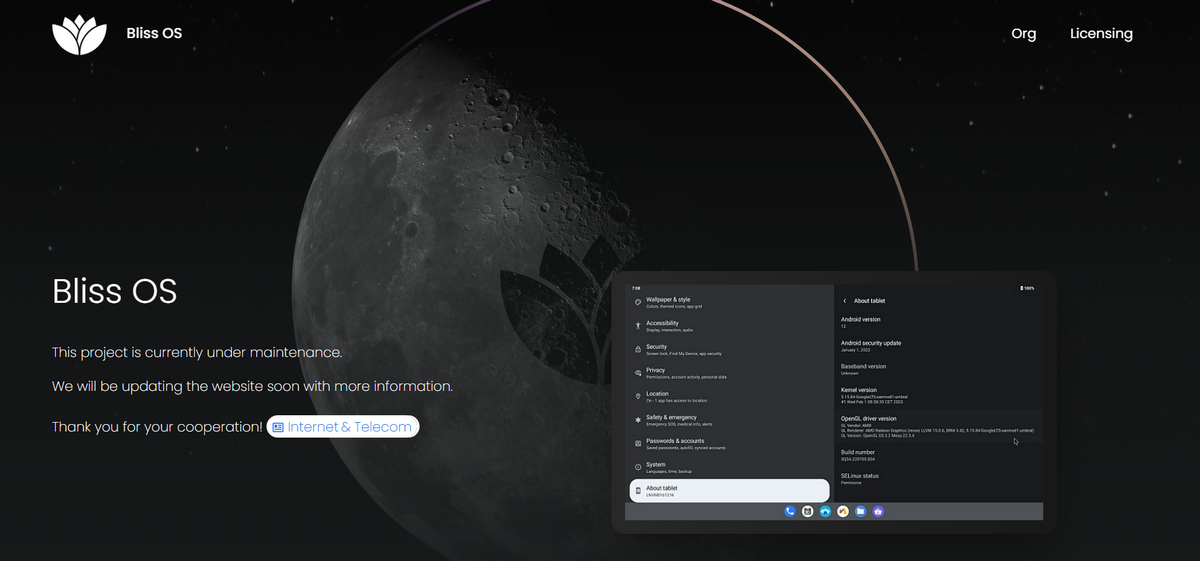
Bliss OS is an open-source operating system built directly on the Android Open Source Project (AOSP), created for PCs, Chromebooks, and tablets alike.
Unlike PrimeOS, which prioritizes gaming polish, Bliss OS leans into transparency, customization, and privacy—offering builds with and without Google Services baked in.
It supports a notably wide range of hardware, including both x86 PCs and ARM/ARM64 devices, and ships pre-rooted with KernelSU, giving advanced users direct control over their system without needing to modify core system partitions.
Features
- Choice of desktop-style or tablet-style user interface, or a blend of both
- Broad hardware support spanning x86, ARM, and ARM64 architectures
- Pre-rooted with KernelSU for granting app-level root permissions
- Immutable system partition design for more secure updates
- Optional Google Services-free builds using F-Droid and Aurora Store
- Built-in taskbar, start menu, and keyboard/mouse app control
- Support for Magisk modules without modifying the core system
- Active open-source development with publicly reviewable code
- Customizable desktop layout and app drawer behavior
- Compatible with a wide range of both new and legacy devices
Pros
- Fully open-source and independently auditable
- Genuine privacy-respecting builds available without Google Services
- Broadest hardware compatibility of any option in this guide
- High degree of interface and system customization
- Immutable system design improves update reliability and security
- Pre-rooted setup saves advanced users a separate rooting step
Cons
- Smaller community and slower support turnaround than PrimeOS
- Newer or beta builds can be less stable
- App ecosystem feels narrower without full Google Services enabled
- Setup and configuration require more technical comfort than PrimeOS
- Documentation is less centralized than mainstream desktop operating systems
- Gaming performance trails purpose-built options like Phoenix OS Dark Matter
Best for: Privacy-conscious users and tinkerers who want control over their setup.
4. FydeOS
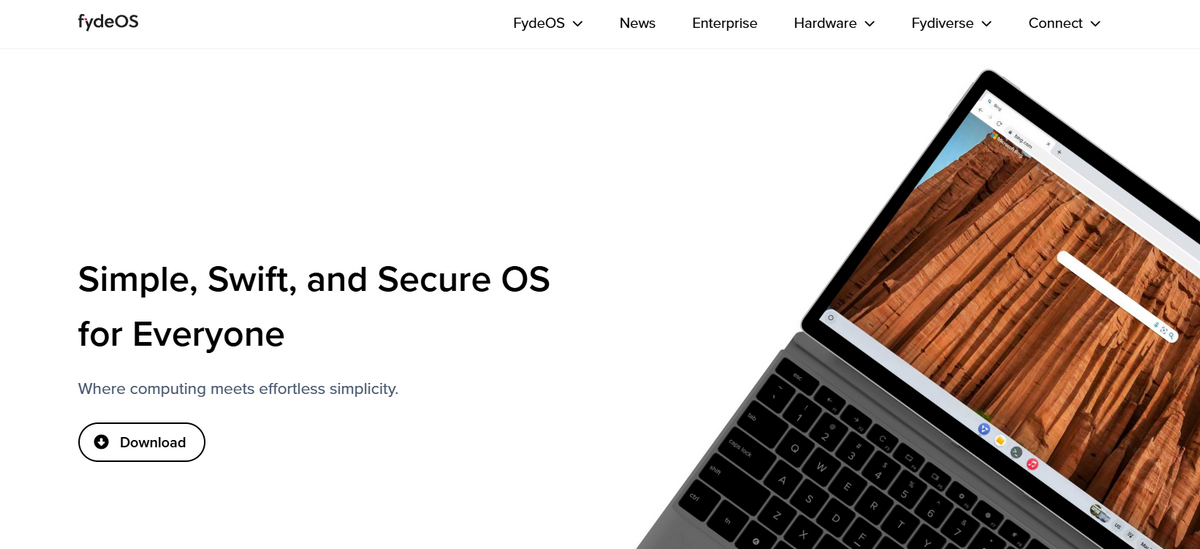
FydeOS, formerly known as Flinto, is a fork of the open-source Chromium OS project that adds native Android app support on top of a browser-first, ChromeOS-style experience.
It’s designed for users who want the speed and simplicity of a Chromebook-like interface but with more flexibility than Google’s official ChromeOS allows—including the ability to run Linux applications alongside Android apps.
FydeOS has built a loyal following among users who want a lightweight OS with cloud sync features that official ChromeOS doesn’t fully offer outside Google’s own ecosystem.
Features
- Native support for running Android apps alongside Linux applications
- Full Chromium-based browser with regular security patching
- Free cloud sync through the dedicated FydeOS Sync app
- Remote access to your FydeOS desktop from another device
- Timely updates tied to the upstream Chromium OS project
- Familiar ChromeOS-style taskbar and app launcher
- Support for Android app sideloading via manual APK installation
- Built-in file manager for handling both Android and Linux files
- Lightweight footprint suited to browser-centric daily use
- Available in both community and commercial editions
Pros
- Smooth, ChromeOS-like browsing experience out of the box
- Genuinely useful cloud sync and remote access features
- Regular updates through the active Chromium OS project
- Runs Android and Linux apps together, which official ChromeOS doesn’t fully support
- Often more responsive than official ChromeOS Flex on the same hardware
- Good documentation for a community-driven project
Cons
- No official Google Play Store — apps require manual APK sideloading
- Some apps behave inconsistently due to virtualization limitations
- Requires more RAM than Android-x86 or PrimeOS to run smoothly
- Smaller international user base than Google’s own ChromeOS Flex
- Occasional inconsistent update timing between the Chromium OS upstream and FydeOS’s own release cycle
- Gaming support is weaker than PrimeOS or Phoenix OS Dark Matter
Best for: Users who want a ChromeOS-like experience but with more flexibility for sideloading apps.
5. Phoenix OS Dark Matter (Phoenix OSDM)
Phoenix OS Dark Matter (Phoenix OSDM) is a standalone Android operating system built almost entirely around one goal: squeezing the maximum possible gaming performance out of PC hardware running Android titles.
It’s a community-maintained continuation of the original Phoenix OS project, rebuilt with modern x64 architecture support and networking features aimed squarely at competitive mobile gamers.
Rather than trying to be a general-purpose desktop replacement, Phoenix OSDM focuses on delivering a lag-free, keyboard-and-mouse-optimized environment for popular mobile titles like battle royale and shooter games.
Features
- Full x64 architecture support for modern CPU efficiency
- Ethernet and LAN connectivity options for stable online gaming
- Universal search across installed apps and system settings
- Built-in file manager for managing game data and downloads
- Keymapping tuned specifically for shooter and battle royale titles
- Support for the latest AMD and Intel processor generations
- Standalone installation designed as a dedicated gaming environment
- Low-latency input handling optimized for competitive play
- Community-driven updates and configuration tweaks
- Compatibility layer for popular mobile esports titles
Pros
- Strongest gaming-specific performance tuning of any option in this guide
- Solid support for modern AMD and Intel processors
- Immersive, competitive-focused keymapping for shooter and battle royale games
- Stable wired networking options for reduced lag in online games
- Lightweight enough to run well on modest gaming-focused hardware
- Dedicated single-purpose design avoids the bloat of general-purpose builds
Cons
- Not designed or recommended for virtual machine use
- Installation requires disk partitioning, similar to PrimeOS
- Narrower general-purpose app support than PrimeOS or Bliss OS
- Smaller, more niche community than PrimeOS
- Less suited to non-gaming daily use like productivity or browsing
- Update frequency depends on a smaller, community-driven development team
Best for: Gamers who want a dedicated Android gaming rig out of an old PC.
6. ChromeOS Flex
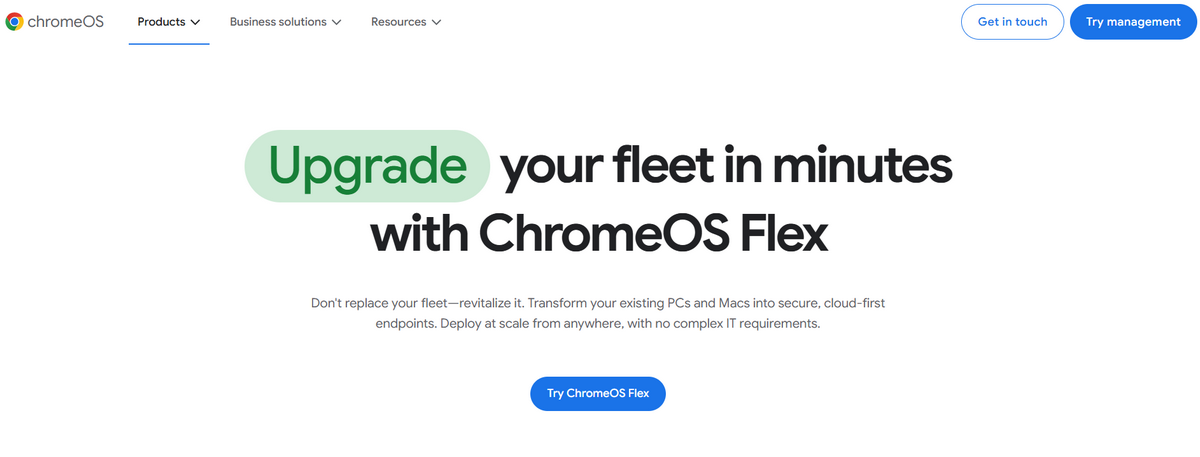
ChromeOS Flex is Google’s free, official operating system built to give new life to old Windows and Mac hardware, though it’s worth noting upfront that it isn’t an Android operating system in the traditional sense.
Rather than running Android apps natively, ChromeOS Flex offers a browser-first environment built around Chrome, Google Workspace, and web apps, which makes it the easiest and most polished option on this list for users who don’t specifically need Android apps or games.
It’s frequently searched for alongside Android OS options because both promise the same outcome — a fast, modern-feeling machine on old hardware.
Features
- Free, officially supported by Google with straightforward installation
- Automatic background updates handled entirely by Google
- Clean, minimal interface built around the Chrome browser
- Fast boot times even on genuinely old, low-spec hardware
- Built-in support for Google Workspace apps like Docs and Sheets
- Security patches and malware protection managed automatically
- Multi-user account support with individual Google sign-ins
- Chrome extension support for expanding browser functionality
- Simple, guided installer with minimal manual configuration required
- Compatible with a wide range of certified and non-certified older devices
Pros
- Easiest installation process of any option in this guide
- Most stable, polished day-to-day experience
- Official Google backing means consistent long-term support
- Excellent performance on genuinely old, low-spec hardware
- Zero cost with no bundled promotional content
- Automatic updates remove the need for manual maintenance
Cons
- No Google Play Store or native Android app support
- No native Android game support or keymapping tools
- Limited offline functionality compared to a full desktop OS
- Not suitable for users who specifically want Android apps
- Fewer customization options than Bliss OS or PrimeOS
- Relies heavily on an internet connection for full functionality
Best for: Anyone who wants simplicity over Android apps. See our full
Get started with our ChromeOS Flex installation guide for the full step-by-step walkthrough.
7. AnboxOS
You’ll see AnboxOS recommended on older “best of” lists, including earlier versions of this guide. As of February 2025, the AnboxOS project has been archived and is no longer maintained — no security patches, no updates, no active development.
We’ve removed it from our top picks and recommend Android-x86 or Bliss OS instead for the same low-spec use case, since both are actively maintained.
How to Install Android OS on an Old Laptop (Step-by-Step)
The exact steps vary slightly by OS, but the general process is the same across PrimeOS, Bliss OS, Android-x86, and Phoenix OSDM. Back up your files first — some of these steps involve partitioning your drive.
- Download the ISO file for your chosen Android OS from its official website.
- Create a bootable USB drive using a tool like Rufus (Windows) or Etcher (Mac/Linux) — an 8GB+ USB drive is enough.
- Restart your PC and enter the BIOS/UEFI settings (usually F2, F10, F12, or Del at startup).
- Change the boot order so your PC boots from the USB drive first, and disable Secure Boot if the OS requires it.
- Boot from the USB drive and choose “Try” to test the OS live, or “Install” to set it up permanently.
- If installing permanently, choose whether to dual-boot alongside Windows or replace it entirely — dual-boot is safer if you’re not sure yet.
- Follow the on-screen partitioning steps, then let the installer finish and restart your PC.
- On first boot, sign in with your Google account to enable the Play Store (where supported) and sync your apps.
Tip: always test with the “live” USB mode first before committing to a full install. It lets you confirm your Wi-Fi card, touchpad, and display all work correctly with that specific OS before you touch your partitions.
Best Android OS by RAM
- Best Android OS for 2GB RAM: Stick with Android-x86 or a lightweight PrimeOS build. Both are designed to stay responsive on 2GB, though you should expect to run one or two apps at a time rather than heavy multitasking.
- Best Android OS for 4GB RAM: This is the sweet spot for PrimeOS, Bliss OS, and Phoenix OS Dark Matter — all three run smoothly, including light gaming, at 4GB.
- Best Android OS for 8GB RAM: With 8GB, FydeOS and ChromeOS Flex both run comfortably alongside heavier multitasking, and any of the Android-focused options on this list will feel noticeably snappier than on 4GB.
Is Android OS Better Than Windows 11 on Old PCs?
It depends entirely on what you use the PC for:
- RAM usage: Android OS options generally use less background RAM than Windows 11, which is a big part of why they feel faster on old hardware.
- Battery life: Android-based systems tend to be more battery-efficient on laptops, since they’re built around mobile-first power management.
- Gaming: Windows 11 wins for PC/Steam games; Android OS wins for mobile and Android-exclusive titles.
- Office work: Windows 11 still has the edge for full desktop software like the complete Microsoft Office suite or Adobe apps; Android OS covers this with mobile app equivalents instead.
- Web browsing: Both perform well, though Android OS options generally feel lighter on older hardware.
Bottom line: if Windows 11’s minimum requirements are making your old laptop struggle, an Android OS is genuinely a better fit for that hardware — not a downgrade, just a better match.
Android OS Security and Updates
Before committing to any Android OS, check how actively it’s maintained — this matters more than most feature comparisons:
- Google Play Protect: Available on builds with full Google Play Store access (PrimeOS, ChromeOS Flex), scanning apps for malware automatically.
- Update frequency: Bliss OS and Android-x86 both maintain active release schedules; check each project’s official site before installing to confirm the latest version.
- Open-source transparency: Bliss OS and Android-x86 are both open-source, meaning their code can be publicly reviewed for security issues.
- Avoid archived projects: As noted above, AnboxOS is no longer maintained. Running an abandoned OS means no security patches — avoid it for anything connected to the internet regularly.
Frequently Asked Questions on Best Android OS for Low-End PCs and Laptops
Can I run Android OS on my low-end PC or laptop?
Yes, you can run an Android operating system on most low-end PCs and laptops, provided the hardware meets the minimum requirements. Lightweight options such as Android-x86, PrimeOS, Bliss OS, and Phoenix OS Dark Matter are specifically optimized for older computers, with some versions running smoothly on systems with just 2GB of RAM. Installing Android OS is an excellent way to revive an aging laptop for web browsing, streaming, online learning, and Android gaming without upgrading your hardware.
Do I need to uninstall Windows to use an Android OS?
No, you don’t have to remove Windows before installing an Android operating system. Most Android OS options, including PrimeOS and Android-x86, support dual-boot installations, allowing you to choose between Windows and Android every time your computer starts. This setup lets you continue using Windows for productivity while enjoying Android apps and games whenever needed. If you prefer, you can also boot Android from a USB drive to test it before installing.
Can I access the Google Play Store on all Android OS options?
No. Google Play Store support varies depending on the Android operating system you choose. PrimeOS includes Google Play services by default, while Bliss OS offers builds with optional Google Apps (GApps). Android-x86 and FydeOS may require manually installing Google Play services or APK files. Before downloading, always verify whether your preferred version includes Play Store support or requires additional configuration.
Which Android OS is fastest for old laptops?
For older laptops with limited hardware, Android-x86 is generally the fastest and lightest option. It has one of the lowest hardware requirements and runs efficiently on systems with 2GB of RAM or older Intel and AMD processors. If your laptop is slightly newer and has 4GB of RAM, PrimeOS and Bliss OS provide a smoother desktop experience with additional features while maintaining excellent performance.
Which Android OS is best for gaming?
If gaming is your primary goal, PrimeOS is widely considered the best Android operating system for PCs. It includes advanced keyboard and mouse mapping, performance optimization, game management tools, and support for popular Android games. Phoenix OS Dark Matter is another strong option for gamers, offering hardware acceleration and customizable controls that improve gameplay on both low-end and mid-range computers.
Is PrimeOS better than Bliss OS?
Both operating systems are excellent, but they serve different audiences. PrimeOS focuses on gaming, ease of installation, and desktop usability, making it ideal for most users. Bliss OS, on the other hand, is open source, highly customizable, and privacy-focused, making it popular among advanced users and developers. If you want the best gaming performance, choose PrimeOS. If flexibility and open-source software matter most, Bliss OS is the better choice.
Does Android-x86 still receive updates?
Yes. Android-x86 remains an active open-source project with ongoing community development. New releases continue to improve hardware compatibility, security, and support for newer Android versions. However, update frequency varies depending on the development cycle. Before downloading, visit the official Android-x86 website to obtain the latest stable release and review the supported hardware list for the best compatibility.
Is ChromeOS Flex actually Android?
No. ChromeOS Flex and Android are two different operating systems developed by Google. ChromeOS Flex is designed primarily for web-based computing and uses the Chrome browser as its core platform. Unlike ChromeOS found on many Chromebooks, ChromeOS Flex does not include native Android app support or the Google Play Store. If your goal is to run Android apps directly on your PC, PrimeOS, Bliss OS, or Android-x86 are better choices.
Can I install Android OS from a USB drive without creating partitions?
Yes. Most Android operating systems allow you to create a bootable USB drive and run the operating system in Live Mode without modifying your existing hard drive. This lets you test compatibility, performance, and hardware support before installation. However, if you want a permanent installation with saved files and settings, you’ll typically need to create a dedicated partition or install Android on a separate drive.
Which Android OS works well with just 2GB of RAM?
If your computer has only 2GB of RAM, Android-x86 is generally the best choice because it is lightweight, stable, and designed to perform well on older hardware. PrimeOS can also run on 2GB RAM systems, but you’ll achieve better performance with 4GB or more, especially when multitasking or playing games. For the smoothest experience on very old laptops, Android-x86 remains the most reliable recommendation.
Final Verdict: Which Android OS Should You Choose?
There’s no single “best” Android OS for every situation — the right pick depends on your hardware and what you actually plan to do with it.
- If your laptop is genuinely old (2GB RAM or less), start with Android-x86.
- If you want the best all-around gaming and app experience, go with PrimeOS.
- If privacy and open-source transparency matter most, choose Bliss OS.
- If you’d rather skip Android apps entirely and want the simplest possible setup, install ChromeOS Flex instead.
Whichever you choose, always test with a live USB boot first — it takes ten minutes and saves you from partitioning a drive for an OS that turns out not to support your Wi-Fi card or touchpad properly.
Related Reading