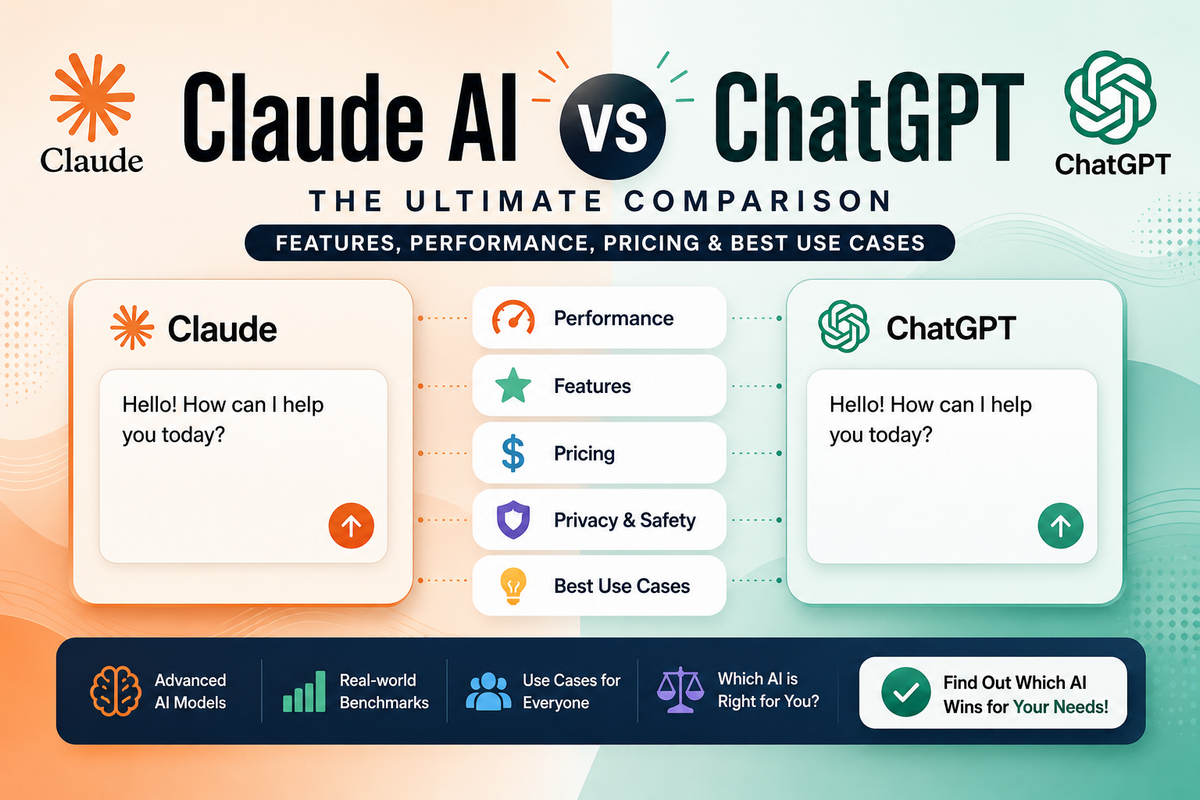
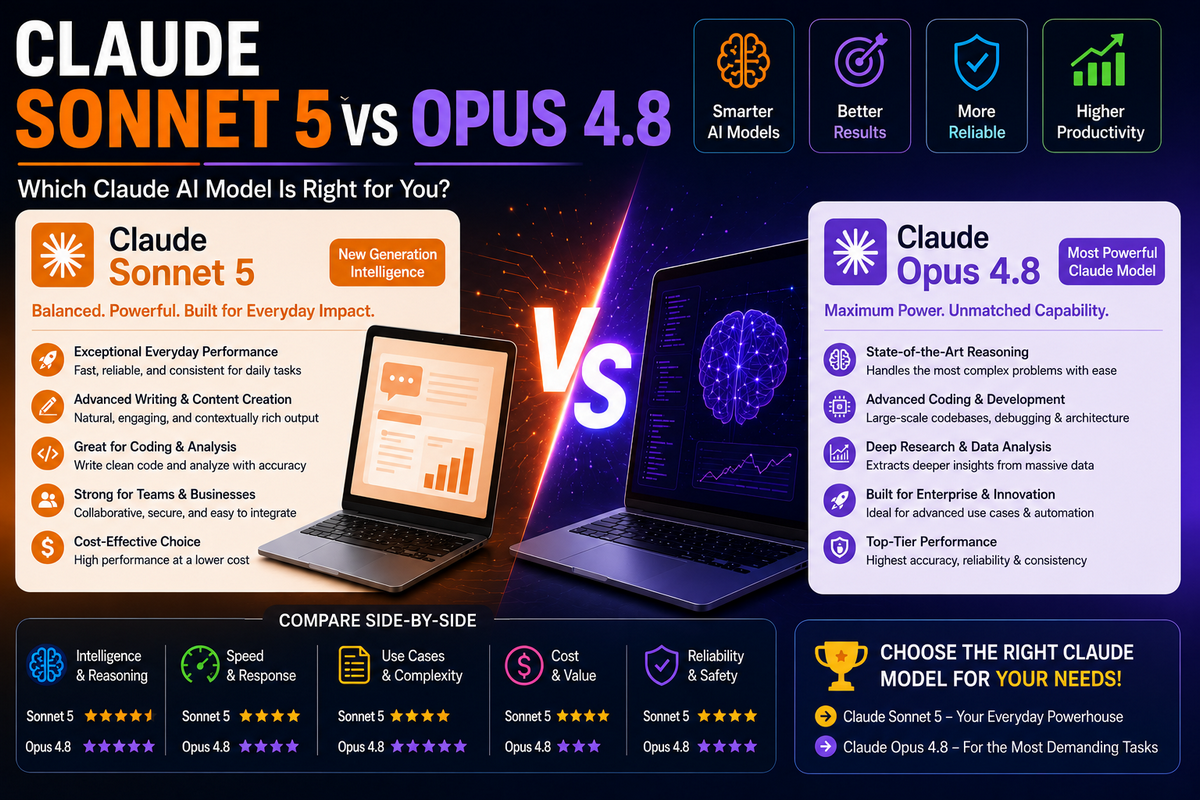
Claude in Chrome: Features, How to Use It, Pricing & Safety Guide (2026)

Claude in Chrome is Anthropic’s AI-powered browser extension that brings Claude directly into Google Chrome, allowing it to do more than simply answer questions. Instead of copying information from a webpage into an AI chatbot and then manually following its instructions, you can use Claude in Chrome to interact with websites and perform browser tasks.
The Claude Chrome extension can read and understand webpages, click links and buttons, type text, navigate between websites, fill out forms, and work across multiple tabs.
This makes Claude in Chrome more than a conventional AI assistant—it functions as a browser agent that can help with multi-step tasks and repetitive online workflows.
For bloggers, content creators, SEO professionals, marketers, researchers, developers, and other productivity-focused users, this type of Claude AI browser automation can be useful for tasks such as web research, competitor analysis, content research, data collection, and routine browser work.
For example, instead of manually opening several competitor websites and collecting information from each page, you can ask Claude to research the websites and organize the relevant information for you.
Anthropic currently makes Claude in Chrome available to users on supported paid Claude plans, including Pro, Max, Team, and Enterprise. The Claude browser extension is designed for desktop Google Chrome, rather than mobile devices or other Chromium-based browsers.
However, browser automation also introduces important considerations around privacy, permissions, and browser security.
Because Claude can interact with websites and, in some cases, use existing browser sessions, users need to understand the risks associated with giving an AI agent access to webpages and web applications.
Prompt injection is one of the key concerns with AI browser agents, because malicious instructions embedded in a webpage could potentially influence an agent’s actions.
In this guide, we’ll explore what Claude in Chrome is, how it works, its key features, how to install and use the Claude AI Chrome extension, practical use cases for bloggers and SEO professionals, pricing and supported plans, safety considerations, limitations, and how it compares with Claude Cowork, Claude Code, and other AI browser tools.
What Is Claude in Chrome?
Claude in Chrome is an AI-powered browser extension from Anthropic that allows Claude to interact directly with websites through Google Chrome.
Instead of using Claude only as a conversational AI assistant, you can give it browser-based tasks and allow it to read webpages, navigate websites, click elements, type text, and fill out forms.
This makes Claude in Chrome a type of AI browser agent. It can understand the context of the webpage you are viewing and use that information to perform actions within the browser.
For example, you could ask Claude to summarize an article, compare information from several websites, research a topic across multiple tabs, or complete a repetitive browser task.
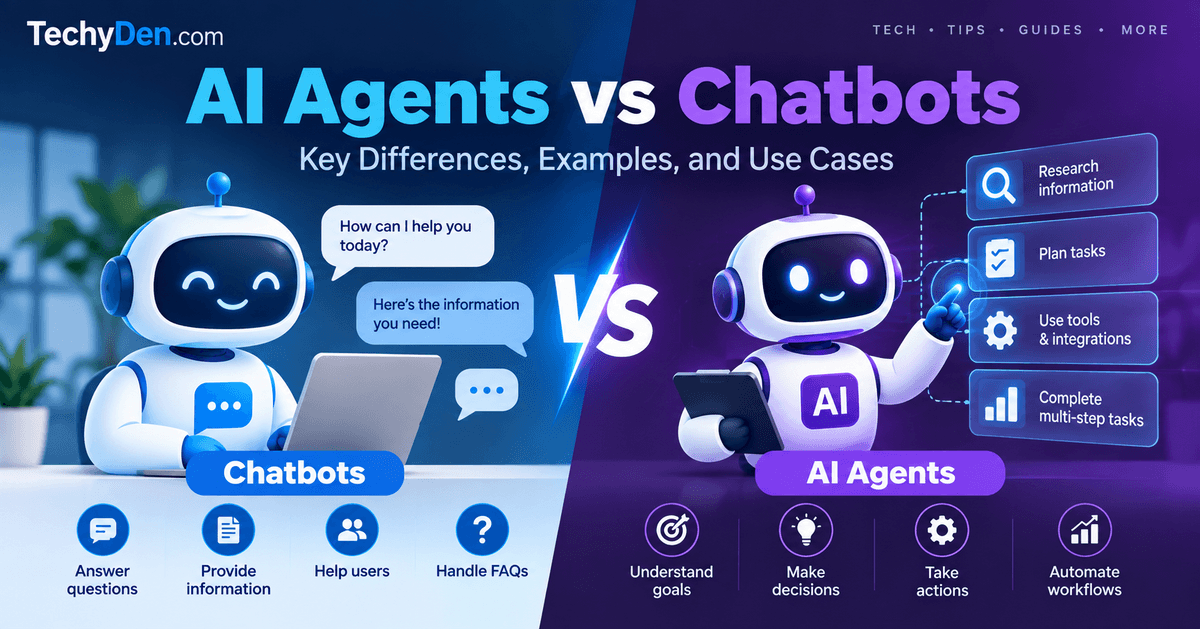
The main difference is that a traditional chatbot generally provides information or instructions for you to act on, while a browser agent can interact with the website itself. This can reduce the number of manual steps required to complete certain online workflows.
How Claude in Chrome Works
The basic Claude in Chrome workflow is straightforward:
- Install the Claude Chrome extension: Add the supported Claude browser extension to Google Chrome.
- Sign in to your Claude account: Connect the extension to your supported Claude account.
- Open Claude from the Chrome side panel: Access Claude directly from your browser.
- Give Claude a task: Describe what you want Claude to accomplish.
- Claude observes the webpage: The agent uses the available browser context to understand the page and determine what actions are needed.
- Claude performs permitted browser actions: Depending on the task, it can read content, click, type, navigate, or fill forms.
- Claude pauses for approval when required: For actions that require user oversight, you can review what Claude intends to do before allowing it to continue.
Anthropic describes Claude in Chrome as being able to read, click, navigate, type, and fill forms on websites while working with the user’s existing browser sessions.
This workflow makes Claude browser automation particularly useful for multi-step tasks. Instead of asking Claude for instructions and manually completing every step, you can describe the desired outcome and let the browser agent handle supported actions while you remain in control.
Claude in Chrome vs Traditional AI Chatbots
A traditional AI chatbot is primarily designed to communicate through text. You ask a question, provide information, or give it a prompt, and it generates a response. If the answer requires interacting with a website, you normally have to perform those browser actions yourself.
Claude in Chrome adds another layer: website interaction.
| Traditional AI Chatbot | Claude in Chrome |
|---|---|
| Answers questions | Can perform supported browser actions |
| User copies information from websites | Claude can read webpages |
| User clicks buttons and links | Claude can interact with supported webpage elements |
| User fills out forms | Claude can type and fill forms |
| Limited direct browser context | Can work with webpage context |
| Primarily conversational | Supports agent-style browser interaction |
For example, suppose you want to research five AI writing tools. With a traditional chatbot, you might ask for a list, open each website yourself, collect pricing information, and then organize the results. With Claude in Chrome, you can give Claude a task to research the websites, navigate between pages, collect relevant information, and organize the findings.
This does not mean every browser task can be fully automated. Claude is still an AI agent, so it can make mistakes, misunderstand instructions, or encounter websites and actions that require your intervention. For important or sensitive tasks, human approval and review remain essential.
The key difference is therefore not simply that Claude can browse the web. The important change is that Claude can interact with the browser and participate in the workflow itself, making it useful for browser automation, web research, and repetitive online tasks.
Chrome Extension | Official Page
What Can Claude in Chrome Do?
Claude in Chrome is designed to help with tasks that normally require you to switch between webpages, read information, click buttons, enter text, and move information from one website to another. Because it works as a browser agent, its usefulness goes beyond simply generating text or answering questions.
Depending on the task and the permissions available, Claude can interact with websites, work with information displayed in your browser, and handle multiple steps in a workflow. This makes it particularly useful for web research, productivity, content creation, and repetitive browser tasks.
1. Read and Understand Webpages
One of the most useful capabilities of Claude in Chrome is its ability to read and understand webpages.
Instead of copying an entire article into Claude manually, you can ask the Claude browser extension to analyze the page you are currently viewing. For example, you could ask:
"Summarize this article in five key points and identify the main arguments."
Claude can use the webpage context to understand the content and provide a structured response.
For bloggers and researchers, this can make content research faster. You can use it to understand articles, documentation, product pages, reports, and other online resources without repeatedly copying and pasting information.
2. Click Links and Buttons
Claude in Chrome can also interact with supported links, buttons, and other webpage elements.
For example, you could give Claude a task such as:
"Open the pricing page and find the details of the Pro plan."
Instead of simply telling you where the pricing page is, the Claude browser agent can navigate through the website as part of the task.
This type of website interaction is one of the major differences between a conventional AI assistant and an AI browser agent.
3. Type Text and Fill Forms
Another useful capability is entering text into webpages and filling supported forms.
For example, Claude may be able to enter information into a search field, complete a non-sensitive form, or type a response into a web application.
However, this capability should be used carefully. Users should review important information before allowing an AI agent to submit forms, particularly when the action could result in a purchase, account change, financial transaction, or other consequential outcome.
4. Navigate Between Websites
Claude can perform multi-step browser workflows that involve navigating from one page to another.
For example, you could ask:
"Open these competitor websites, visit their pricing pages, and compare their plans."
A task like this may require several navigation steps. Claude can work through the browser workflow rather than requiring you to manually open every page and provide the information yourself.
This makes web navigation an important part of Claude AI browser automation.
5. Work Across Multiple Tabs
Claude in Chrome can also work with groups of tabs, which can be useful when a task requires information from several webpages.
For example, imagine you are researching five competing AI tools. You could have the relevant websites open in separate tabs and ask Claude to compare their pricing, features, and positioning.
A multi-tab workflow could look like this:
- Open the relevant websites in Chrome.
- Give Claude a clear research objective.
- Ask it to examine the selected pages.
- Have it compare the information.
- Ask for the findings to be organized into a table or summary.
This type of Claude Chrome multi-tab workflow can be particularly useful for research-heavy tasks. Anthropic’s documentation and the provided outline specifically identify workflows involving groups of tabs as one of the capabilities of Claude in Chrome.
6. Research Information Across Websites
Claude in Chrome can be useful when research requires information from multiple websites.
For example, a content creator researching AI writing tools could ask:
"Compare the pricing and features of these five AI writing tools and create a table."
Claude can then work through the relevant websites and help organize the information.
This can be useful for:
- Product research
- Competitor research
- Content research
- Market research
- Feature comparisons
- Documentation research
- General web research
However, important facts should still be checked against the original sources. Browser automation can make research more efficient, but it does not eliminate the need for human verification.
7. Work With Web Apps
Claude in Chrome can also be useful when working with web-based applications.
The outline identifies examples such as:
- Gmail
- Google Calendar
- Google Docs
- GitHub
- Slack
These types of services can involve repetitive navigation and information-handling tasks, making them natural candidates for an AI browser agent.
For example, instead of manually moving between several browser tabs, you could ask Claude to help gather information from different web applications and organize the results.
The exact capabilities available can depend on the website, permissions, account configuration, and the task being performed, so users should not assume that every action will work automatically on every web app.
8. Perform Repetitive Browser Tasks
Claude in Chrome can be particularly useful for repetitive browser tasks that involve similar actions performed repeatedly.
Examples include:
- Checking dashboards
- Collecting information
- Updating web-based records
- Moving information between websites
- Performing routine research
These workflows can save time when the task is repetitive but still requires interacting with webpages.
For example, a blogger might repeatedly visit several websites to collect product specifications for comparison articles. Instead of manually copying the same types of information from every site, an AI browser agent can help with the repetitive parts of the workflow.
The best approach is to give Claude a clearly defined goal, specify what information it should collect, and explain how you want the final result organized. For tasks involving important accounts or sensitive information, keep human approval and review in the workflow.
What Can Claude in Chrome Do?
Claude in Chrome is designed to help with tasks that normally require you to switch between webpages, read information, click buttons, enter text, and move information from one website to another. Because it works as a browser agent, its usefulness goes beyond simply generating text or answering questions.
Depending on the task and the permissions available, Claude can interact with websites, work with information displayed in your browser, and handle multiple steps in a workflow. This makes it particularly useful for web research, productivity, content creation, and repetitive browser tasks.
1. Read and Understand Webpages
One of the most useful capabilities of Claude in Chrome is its ability to read and understand webpages.
Instead of copying an entire article into Claude manually, you can ask the Claude browser extension to analyze the page you are currently viewing. For example, you could ask:
"Summarize this article in five key points and identify the main arguments."
Claude can use the webpage context to understand the content and provide a structured response.
For bloggers and researchers, this can make content research faster. You can use it to understand articles, documentation, product pages, reports, and other online resources without repeatedly copying and pasting information.
2. Click Links and Buttons
Claude in Chrome can also interact with supported links, buttons, and other webpage elements.
For example, you could give Claude a task such as:
"Open the pricing page and find the details of the Pro plan."
Instead of simply telling you where the pricing page is, the Claude browser agent can navigate through the website as part of the task.
This type of website interaction is one of the major differences between a conventional AI assistant and an AI browser agent.
3. Type Text and Fill Forms
Another useful capability is entering text into webpages and filling supported forms.
For example, Claude may be able to enter information into a search field, complete a non-sensitive form, or type a response into a web application.
However, this capability should be used carefully. Users should review important information before allowing an AI agent to submit forms, particularly when the action could result in a purchase, account change, financial transaction, or other consequential outcome.
4. Navigate Between Websites
Claude can perform multi-step browser workflows that involve navigating from one page to another.
For example, you could ask:
"Open these competitor websites, visit their pricing pages, and compare their plans."
A task like this may require several navigation steps. Claude can work through the browser workflow rather than requiring you to manually open every page and provide the information yourself.
This makes web navigation an important part of Claude AI browser automation.
5. Work Across Multiple Tabs
Claude in Chrome can also work with groups of tabs, which can be useful when a task requires information from several webpages.
For example, imagine you are researching five competing AI tools. You could have the relevant websites open in separate tabs and ask Claude to compare their pricing, features, and positioning.
A multi-tab workflow could look like this:
- Open the relevant websites in Chrome.
- Give Claude a clear research objective.
- Ask it to examine the selected pages.
- Have it compare the information.
- Ask for the findings to be organized into a table or summary.
This type of Claude Chrome multi-tab workflow can be particularly useful for research-heavy tasks. Anthropic’s documentation and the provided outline specifically identify workflows involving groups of tabs as one of the capabilities of Claude in Chrome.
6. Research Information Across Websites
Claude in Chrome can be useful when research requires information from multiple websites.
For example, a content creator researching AI writing tools could ask:
"Compare the pricing and features of these five AI writing tools and create a table."
Claude can then work through the relevant websites and help organize the information.
This can be useful for:
- Product research
- Competitor research
- Content research
- Market research
- Feature comparisons
- Documentation research
- General web research
However, important facts should still be checked against the original sources. Browser automation can make research more efficient, but it does not eliminate the need for human verification.
7. Work With Web Apps
Claude in Chrome can also be useful when working with web-based applications.
The outline identifies examples such as:
- Gmail
- Google Calendar
- Google Docs
- GitHub
- Slack
These types of services can involve repetitive navigation and information-handling tasks, making them natural candidates for an AI browser agent.
For example, instead of manually moving between several browser tabs, you could ask Claude to help gather information from different web applications and organize the results.
The exact capabilities available can depend on the website, permissions, account configuration, and the task being performed, so users should not assume that every action will work automatically on every web app.
8. Perform Repetitive Browser Tasks
Claude in Chrome can be particularly useful for repetitive browser tasks that involve similar actions performed repeatedly.
Examples include:
- Checking dashboards
- Collecting information
- Updating web-based records
- Moving information between websites
- Performing routine research
These workflows can save time when the task is repetitive but still requires interacting with webpages.
For example, a blogger might repeatedly visit several websites to collect product specifications for comparison articles. Instead of manually copying the same types of information from every site, an AI browser agent can help with the repetitive parts of the workflow.
The best approach is to give Claude a clearly defined goal, specify what information it should collect, and explain how you want the final result organized. For tasks involving important accounts or sensitive information, keep human approval and review in the workflow.
Claude in Chrome Features
Claude in Chrome combines Claude AI with browser interaction, giving users a way to work with webpages and web applications from within Google Chrome. Instead of using an AI assistant only for generating answers, you can use it for browser tasks that involve reading information, navigating websites, entering text, and working across multiple tabs.
Here are the key Claude in Chrome features to know about.
1. Chrome Side Panel
The Chrome side panel provides a convenient way to access Claude without constantly switching between your browser and a separate AI chat window.
You can open Claude alongside the webpage you are working on and give it instructions based on the current browser context. This makes the Claude Chrome side panel useful for tasks such as summarizing a webpage, analyzing information, researching a topic, or asking Claude to perform an action.
For example, while reading a lengthy article, you could ask Claude to identify the key points or extract specific information. Similarly, while viewing a product page, you could ask Claude to help organize the important specifications.
Having Claude available alongside the webpage can make these interactions feel more natural because the AI assistant is available within the same browser workflow.
2. Multi-Tab Workflows
Research and productivity tasks often require information from several webpages. Claude in Chrome can work with multiple tabs, allowing it to handle workflows where information needs to be gathered or compared across different pages.
For example, you could open several competitor websites and ask Claude to compare their pricing, features, or product information.
A typical multi-tab workflow could involve:
- Opening the relevant websites in Chrome.
- Identifying the tabs Claude should work with.
- Providing a specific research objective.
- Asking Claude to collect and compare information.
- Reviewing the final summary or table.
This Claude Chrome multi tab capability can be particularly useful for researchers, bloggers, marketers, and SEO professionals who regularly work with multiple sources.
3. Browser Automation
Browser automation is one of the defining features of Claude in Chrome.
A conventional AI assistant can tell you how to complete a task, but a browser agent can interact with supported webpages as part of the workflow. Claude can read webpage content, navigate between pages, click supported elements, type information, and perform other browser actions.
This makes Claude browser automation useful for multi-step workflows that would otherwise require repeated manual interaction.
For example, instead of asking:
"How can I find the pricing information for these products?"
You could give Claude a more action-oriented instruction:
"Visit these product websites, find their current pricing information, and organize the results into a comparison table."
The more clearly you define the goal and expected output, the easier it is for an AI agent to understand the task.
4. Background Tasks
Claude in Chrome can also support browser work that does not require you to remain focused on every individual step.
Background tasks can be useful for workflows where Claude needs to work through multiple browser actions and provide an update when the task progresses or reaches a point requiring your attention.
This can make AI browser automation more useful for longer workflows, particularly when the task involves multiple pages or repetitive actions.
However, background execution does not mean that every task should be left completely unattended. Important actions should still be reviewed, particularly when they involve sensitive information, account changes, purchases, or other consequential activities.
5. Reusable Workflows and Shortcuts
If you regularly perform the same type of browser task, reusable workflows and shortcuts can reduce repetitive instructions.
For example, a blogger might have a recurring research workflow that involves:
- Opening competitor websites
- Reviewing article titles
- Collecting common topics
- Checking product information
- Organizing findings
- Creating a research summary
Rather than rebuilding the same workflow from scratch every time, reusable workflows can make recurring browser tasks more efficient.
This is particularly useful for professionals who perform structured research or administrative tasks regularly.
6. Claude Cowork Integration
One of the important developments in the Claude browser experience is its connection with Claude Cowork.
Anthropic announced in August 2026 that the Claude in Chrome side panel became a Claude Cowork session, initially for Max and Team users, with the Pro rollout following. This reflects the broader direction of Claude toward agentic workflows that can handle more than individual conversational prompts.
The integration is significant because it brings browser interaction closer to the broader Cowork workflow. Instead of thinking about the browser extension as an isolated chatbot window, users can view it as part of a larger AI productivity environment.
For users who want Claude to help with research, browser tasks, and other multi-step workflows, this integration can make the overall experience more connected.
Because Anthropic continues to develop these capabilities, the exact interface and availability of specific features can change over time.
7. Claude Code Integration
Claude in Chrome can also be relevant to developers who use Claude Code.
The combination can support a build-test-debug workflow in which Claude Code handles development work while Claude in Chrome provides browser interaction and browser-related context.
For example, a developer might build a web application, use the browser to test how the application behaves, inspect the result, identify a problem, and then return to the development workflow to make changes.
This can reduce the separation between writing code and testing the resulting website.
Anthropic describes the Chrome integration as useful for workflows where Claude Code can interact with the browser and inspect browser-related context.
8. Existing Browser Logins
Another important aspect of Claude in Chrome is its ability to work with websites where you are already signed in.
This can make browser workflows considerably more convenient because you do not necessarily have to provide Claude with information that is already available through the browser session.
For example, a workflow involving a web application may be able to use the account context already present in Chrome rather than requiring you to repeatedly copy information into a chatbot.
However, this capability also makes browser security, privacy, and permissions particularly important. If an AI browser agent can interact with authenticated websites, users should carefully consider what websites and information they allow it to access.
For sensitive accounts or consequential actions, it is better to maintain appropriate human approval and review rather than giving an AI agent unrestricted instructions.
Overall, the combination of browser interaction, multi-tab workflows, automation, reusable tasks, Cowork integration, and developer workflows makes Claude in Chrome more than a simple Claude AI Chrome extension. It is designed to bring AI assistance directly into the browser environment where many everyday research, productivity, and work tasks already take place.
How to Install Claude in Chrome
Getting started with Claude in Chrome is relatively straightforward if you have a supported Claude account and a desktop installation of Google Chrome. The Claude Chrome extension brings Claude directly into your browser, allowing you to access its AI capabilities while browsing websites and working with web applications.
Before installing it, make sure your system meets the basic requirements.
Requirements
You will generally need the following to use Claude in Chrome:
- Google Chrome: Claude in Chrome is designed for the desktop version of Google Chrome.
- A desktop computer: The current experience is intended for desktop browsing rather than mobile devices.
- A supported paid Claude plan: Access is tied to supported Claude plans rather than being a standalone free browser extension.
- A Claude account: You need to sign in with your supported Claude account.
- Required browser permissions: The extension may require browser permissions to interact with webpages and perform supported browser tasks.
The uploaded article outline identifies Google Chrome, a desktop computer, a supported paid Claude plan, a Claude account, and the necessary browser permissions as the main requirements.
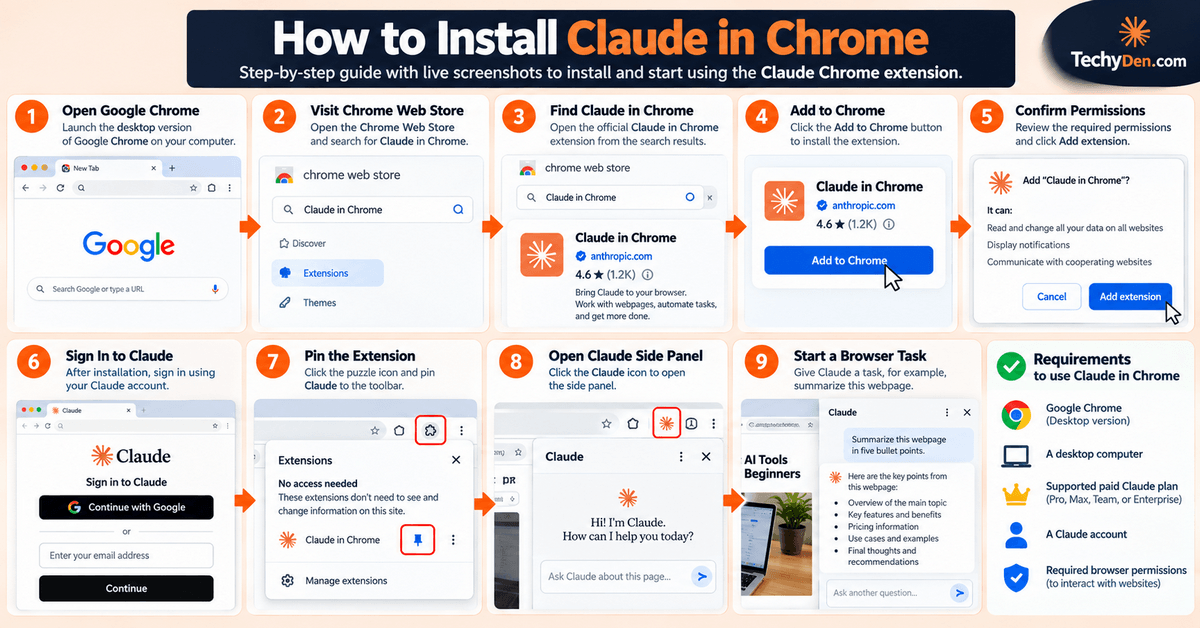
Step-by-Step Installation
Once you have the requirements in place, you can install the Claude in Chrome extension and connect it to your Claude account.
- Open Google Chrome: Launch the desktop version of Google Chrome on your computer. Make sure Chrome is updated if an extension or browser feature requires a recent version.
- Visit the Chrome Web Store: Open the Chrome Web Store and search for the official Claude in Chrome extension. When installing any AI browser extension, verify that you are selecting the official extension rather than an unrelated third-party extension using a similar name.
- Find Claude in Chrome: Search for Claude in Chrome in the Chrome Web Store and open the extension’s listing. Review the extension information before installing it.
- Select Add to Chrome: Click Add to Chrome to begin the installation. Chrome may display a permissions prompt explaining what the extension can access. Review these permissions before proceeding.
- Sign In to Claude: After installing the extension, sign in using your Claude account. Use the account associated with the supported Claude plan you intend to use with Claude in Chrome.
- Pin the Extension: After installation, pin the Claude extension to the Chrome toolbar. Pinning the extension makes it easier to access Claude without searching through Chrome’s extension menu each time.
- Grant the Required Permissions: Claude in Chrome requires appropriate browser permissions to perform its supported browser actions. Review the requested permissions carefully before granting access. Browser permissions are particularly important for AI browser agents because the extension may interact with webpages on your behalf. If you are unsure why a particular permission is required, review the official Claude documentation before continuing.
- Open the Claude Side Panel: Once the extension is installed and configured, open Claude through the Chrome toolbar and access the Claude side panel. The side panel allows you to interact with Claude while keeping the webpage you are working on visible.
- Start a Browser Task: You can now give Claude a browser-related task. For example, you could start with a simple request such as: “Summarize this webpage in five bullet points.” Once you are comfortable with how Claude responds, you can move to more complex tasks involving multiple webpages, research, navigation, or repetitive browser actions.
The installation sequence in the article outline follows this same process: open Chrome, visit the Chrome Web Store, find Claude in Chrome, add the extension, sign in, pin it, grant permissions, open the side panel, and begin a browser task.
How to Open Claude in Chrome
After installation, accessing Claude should be part of your normal Chrome workflow.
Look for the Claude extension in the Chrome toolbar. If you have pinned the extension, you can select its icon to access Claude and open the side panel.
The side panel is useful because you can continue viewing the current webpage while interacting with Claude. This means you do not have to constantly switch between Chrome and a separate Claude browser tab.
For example, while reading a competitor’s article, you could open the Claude Chrome side panel and ask Claude to:
- Summarize the article
- Identify its main topics
- Extract specific information
- Compare the page with another source
- Help create research notes
As you become familiar with the Claude browser extension, you can move from simple webpage questions to more advanced browser automation and multi-step tasks.
Keep in mind that Claude in Chrome is an AI browser agent, so it is important to review its actions when a task involves sensitive information or consequential changes. Installing the extension gives Claude access to browser capabilities, but you should still decide which tasks you are comfortable allowing it to perform.
How to Use Claude in Chrome
Once you have completed the Claude in Chrome setup, you can start using Claude directly from the browser to handle research, navigation, webpage analysis, and other browser tasks. The best way to get started is with a simple task and gradually move toward more complex multi-step workflows.
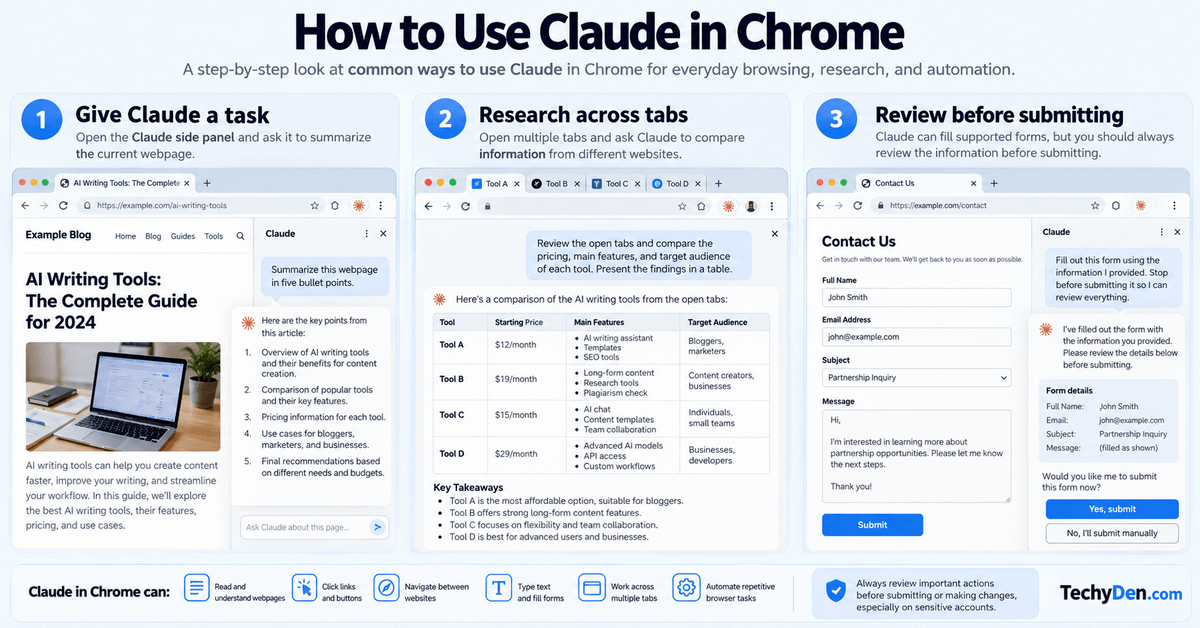
The quality of the results depends heavily on how clearly you describe what you want Claude to accomplish. Instead of giving a vague instruction, specify the goal, the websites or webpages Claude should use, the information it should collect, and the format in which you want the final result.
1. Give Claude a Simple Task
For your first task, start with something straightforward that does not require Claude to make important changes to an account or website.
For example, while viewing an article, you could ask:
"Summarize this webpage in five bullet points."
Claude can analyze the webpage and provide a concise summary without requiring you to copy the entire article into a separate AI chat.
You can also make the request more specific:
"Summarize this article in five bullet points and identify the three most important takeaways for a blogger."
Clear instructions give Claude a better understanding of the desired outcome.
Simple tasks are a good way to become familiar with the Claude browser extension before moving to more advanced browser automation.
2. Give Claude a Multi-Step Task
After trying simple requests, you can give Claude a task that involves several browser actions.
For example:
"Open these competitor websites, compare their pricing pages, and create a summary."
This type of request requires Claude to understand the objective, navigate between webpages, locate the relevant information, and organize the findings.
For a better result, make the task more specific. For example:
"Visit these five competitor websites. Find their current pricing plans, identify the main features included in each plan, and create a comparison table with the company name, starting price, key features, and target audience."
This gives the Claude browser agent a clearly defined objective and a specific deliverable.
When using multi-step tasks, it is also useful to define boundaries. Tell Claude which websites to use, what information to collect, and what it should do if information cannot be found.
3. Ask Claude to Research Across Tabs
Research often requires information from multiple webpages. Claude in Chrome can make this process easier by working with multiple tabs as part of a browser workflow.
For example, if you are researching competing AI tools, you could open their websites in separate tabs and ask Claude to compare them.
A useful prompt might be:
"Review the open tabs and compare the pricing, main features, target audience, and notable limitations of each product. Present the findings in a table."
This approach can be useful for:
- Competitor research
- Product comparisons
- Content research
- Market research
- Web research
- SEO research
For bloggers, a multi-tab workflow can also help when researching an article. You could open several competing articles and ask Claude to identify common topics, unique subtopics, frequently discussed features, and questions that your article should address.
However, information gathered through browser automation should still be checked against the original webpages, particularly when you are publishing factual or commercial information.
4. Ask Claude to Fill Out a Form
Claude in Chrome can also interact with supported forms by entering text and completing fields.
For example, you might ask Claude to fill out a simple, non-sensitive form using information that you have provided.
A suitable instruction could be:
"Fill in the form using the information I provided. Stop before submitting it so I can review everything."
This is a safer approach for consequential tasks because you retain the opportunity to check the information before anything is submitted.
Be particularly careful with forms involving:
- Financial transactions
- Purchases
- Account changes
- Passwords
- Sensitive personal information
- Medical information
- Confidential business information
An AI browser agent can make mistakes, so you should review important fields and the final action before allowing the task to proceed.
5. Ask Claude to Automate a Repetitive Workflow
One of the more practical applications of Claude in Chrome is handling repetitive browser tasks.
Suppose you regularly research several websites and collect the same types of information. Instead of manually repeating the process every time, you could describe the workflow to Claude.
For example:
"Visit each of these websites, find the latest product pricing, record the starting price and main features, and organize the information into a comparison table. If a price is unavailable, mark it as 'Not listed' rather than guessing."
This type of instruction gives Claude both the task and the rules it should follow.
Other examples of repetitive workflows include:
- Collecting information from several webpages
- Checking online dashboards
- Comparing product specifications
- Researching competitor content
- Gathering article ideas
- Reviewing website pages
- Moving information between web applications
- Performing routine browser research
The more predictable the workflow, the easier it is to describe what Claude should do.
For recurring tasks, you can also structure your instructions so that Claude knows the exact sequence to follow and what the final output should contain.
6. Start With Small Tasks Before Automating Complex Workflows
If you are new to Claude in Chrome, avoid starting with a complicated task involving several websites and important account actions.
Instead, work through a progression:
- Start with webpage analysis.
- Try a simple research task.
- Test navigation between a few pages.
- Experiment with a multi-tab workflow.
- Try a low-risk repetitive task.
- Move to more advanced automation only after understanding how Claude behaves.
This approach makes it easier to identify mistakes and understand where human approval is necessary.
Claude in Chrome can make browser workflows more efficient, but it should not be treated as an infallible automation system. For important tasks, keep yourself involved in the process and review the information and actions before they have real-world consequences.
Best Use Cases for Claude in Chrome
Claude in Chrome becomes most useful when you move beyond simple questions and use it to handle practical browser-based workflows. Because the Claude browser agent can read webpages, navigate between websites, interact with supported elements, and work across multiple tabs, it can help reduce repetitive manual work.
The best use cases depend on what you do online. Researchers can use it to gather information, bloggers can use it for content research, and SEO professionals can use it to investigate search results and competitors, while marketers and developers can use it for browser-based workflows and testing.
Here are some of the most useful ways to use Claude in Chrome.
1. Web Research
Web research is one of the most natural use cases for Claude in Chrome.
Instead of manually opening multiple webpages, reading each source, and copying important information into your notes, you can ask Claude to research a specific topic and organize the findings.
For example:
"Research the latest information about AI browser agents from these websites and summarize the key developments in a table."
Claude can help you navigate relevant webpages, identify useful information, and organize the results.
You can use Claude for research involving:
- Articles and blog posts
- Product documentation
- Company websites
- Industry reports
- Product pages
- News and announcements
- Educational resources
However, AI-assisted research should not replace source verification. When the information will be published or used for an important decision, check the original source and confirm important facts.
2. Competitor Research
Claude in Chrome can also help with competitor research by allowing you to investigate several competing websites in a browser workflow.
For example, you could ask:
"Visit these competitor websites and compare their main products, pricing, features, target audience, and content strategy."
This can save time when you need to collect information from several websites.
For bloggers and digital marketers, competitor research can include:
- Comparing competing websites
- Reviewing product features
- Examining pricing pages
- Identifying common topics
- Comparing article structures
- Finding frequently discussed features
- Collecting information about competing products
The important part is to define the scope clearly. Tell Claude which websites to examine and exactly what information you want to collect.
3. SEO Research
Claude in Chrome can also assist with browser-based SEO research.
For example, you could ask Claude to examine search results and help identify patterns in the pages appearing for a particular query.
A useful prompt could be
"Review the search results for this keyword and identify the common topics, content formats, and questions addressed by the top-ranking pages."
Claude can help with tasks such as
- SERP research
- Competitor analysis
- Search intent analysis
- Content gap research
- Reviewing competitor titles
- Identifying frequently covered subtopics
- Checking on-page elements
However, Claude should complement dedicated SEO platforms rather than replace them. Specialized SEO tools can provide quantitative data such as search volume, keyword difficulty, backlinks, rankings, and historical performance that a browser agent may not provide on its own.
For TechyDen, Claude in Chrome can be especially useful as a research assistant alongside existing SEO tools.
4. Content Research
Content creators often need to collect information from multiple sources before writing an article.
Claude in Chrome can help organize this research process.
For example:
"Review these five articles about AI browsers. Identify the topics they all cover, the unique topics covered by each article, and questions that a new comprehensive article should answer."
This can help you identify patterns and gaps before creating your own content.
Content research can include:
- Finding supporting information
- Reviewing competing articles
- Identifying common questions
- Comparing different viewpoints
- Collecting statistics
- Checking product specifications
- Reviewing official documentation
- Organizing research notes
The goal is not to copy competitor content. Instead, use browser-based AI assistance to understand the existing information and develop a more useful original article.
5. Blogger Workflows
For bloggers and content creators, Claude in Chrome can become a useful research and productivity assistant.
A blogger may need to open dozens of webpages while researching a single article. Claude can help with many of the repetitive parts of that process.
Some practical blogger workflows include:
Research Competing Articles
Ask Claude to examine competing articles and identify their main topics, structure, and important subtopics.
“Analyze these competing articles and identify the common topics, missing subtopics, and questions my article should answer.”
This can help you build a more comprehensive content outline.
Collect Article Titles
Claude can help collect and organize article titles from multiple websites.
“Review these competitor websites and list the article titles related to AI browser tools.”
This provides a quick overview of the topics competitors are publishing.
Compare SERP Content
Use Claude to review search results and compare the types of content appearing for a keyword.
“Compare the pages ranking for this keyword and identify their content formats, major sections, and search intent.”
This can help you understand what information users are likely looking for.
Research Product Features
If you are writing a product review or comparison, Claude can help gather information from official product pages.
“Visit the official product pages for these AI tools and compare their current features, pricing information, and supported platforms.”
Always verify important product information against official sources before publication.
Check Documentation
Claude can help you navigate technical documentation when researching software, plugins, APIs, browser extensions, or other tools.
“Review the official documentation and summarize the requirements for using this feature.”
This is particularly useful when preparing technical tutorials.
Gather Statistics
Claude can help locate statistics and supporting information from webpages.
Always check statistics against the original source. When publishing a number, record the source and verify that the figure is current and accurately represented.
Organize Research Into a Document
Once you have gathered information from several webpages, Claude can help organize the findings into a structured research summary.
“Organize the information collected from these sources into sections for features, pricing, use cases, limitations, and FAQs.”
6. Digital Marketing
Digital marketers can use Claude in Chrome for research and routine browser workflows.
For example, Claude can help review competitor websites, research products, analyze marketing pages, compare offers, and collect information from multiple sources.
Potential workflows include:
- Competitor marketing research
- Product research
- Landing-page analysis
- Offer comparison
- Content research
- Campaign research
- Market research
Claude can also help organize findings into summaries that are easier to analyze.
7. Email Management
Email is another area where browser automation can potentially reduce repetitive work.
If you use email through a web application, Claude may be able to assist with browser-based tasks such as reviewing messages, organizing information, or drafting responses.
For example:
"Review these emails and summarize the messages that require a response."
For sensitive communications, however, maintain human oversight. Before sending an email, review the recipients, subject, message, attachments, and any other important details.
An AI browser agent should not be given unrestricted authority to send consequential communications without appropriate review.
8. Calendar Management
Claude in Chrome can also be useful for browser-based calendar workflows.
For example, you could ask Claude to help review your calendar or organize information related to upcoming events.
A possible task could be:
"Review my upcoming calendar events and create a summary of meetings scheduled for this week."
More complex calendar actions should be handled carefully, particularly when they involve changing appointments, inviting other people, or cancelling events.
Always review consequential calendar changes before they are finalized.
9. Data Collection
Claude can help collect information from multiple webpages and organize it into a structured format.
For example, if you are researching several products, you could ask Claude to collect:
- Product name
- Pricing
- Key features
- Supported platforms
- Target audience
- Important limitations
You can then ask Claude to organize the information into a table or research summary.
This can be useful for content creation, market research, product comparisons, and business analysis.
The quality of the final dataset depends on the quality and consistency of the source information. If a webpage does not provide a particular value, instruct Claude not to guess.
For example:
"If the information is not available on the official website, mark it as Not Listed instead of estimating it."
10. Repetitive Administrative Tasks
Many everyday online tasks involve repeating the same sequence of actions.
Claude browser automation can potentially help with workflows such as:
- Checking dashboards
- Reviewing online records
- Collecting routine information
- Moving information between webpages
- Performing recurring research
- Updating web-based records
The best candidates are tasks that are predictable, clearly defined, and relatively low risk.
Before automating an administrative workflow, identify which steps require human judgment. Let Claude handle suitable repetitive actions while keeping approval checkpoints for anything important or irreversible.
11. Website Testing
Claude in Chrome can also be useful for testing websites from a user’s perspective.
For example, you could ask Claude to navigate through a website and look for obvious problems with a particular workflow.
A test might involve:
"Open the homepage, navigate to the pricing page, find the signup button, and check whether the signup workflow loads correctly."
This can be useful for basic browser-based testing and quality checks.
For more advanced technical testing, however, dedicated testing and development tools may still be necessary. Claude in Chrome should be viewed as an additional browser-based testing assistant rather than a complete replacement for professional testing systems.
12. Developer Workflows
Developers can use Claude in Chrome alongside coding and development tools for browser-based workflows.
For example, a developer might:
- Build or modify a website.
- Open the website in Chrome.
- Ask Claude to interact with the site.
- Check whether a particular workflow behaves as expected.
- Identify visible issues.
- Return to the development environment to make changes.
- Test the updated version again.
This creates a useful build → test → inspect → fix cycle.
Claude in Chrome can therefore complement tools such as Claude Code when developers need browser interaction as part of the development process.
Overall, the most useful Claude in Chrome workflows are those where the browser itself is part of the task. Whether you are researching competitors, preparing a blog post, collecting product information, testing a website, or handling repetitive browser work, the browser agent can reduce manual steps while still allowing you to remain in control of important decisions.
Claude in Chrome for Bloggers and Content Creators
For bloggers and content creators, Claude in Chrome can function as a browser-based research assistant that helps with many of the tasks involved in creating and updating content. Blog research often means opening multiple search results, studying competitor articles, checking official documentation, comparing products, collecting statistics, and organizing information before writing begins.
The Claude Chrome extension can make these workflows more efficient by allowing Claude to work with webpages and browser tabs. Instead of repeatedly copying information from one webpage into an AI chatbot, you can ask Claude to examine relevant pages, compare information, identify patterns, and organize research.
The biggest value for bloggers is not replacing human writing or editorial judgment. It is reducing repetitive research and browser tasks so you can spend more time developing original ideas, verifying information, and improving the reader’s experience.
1. Research Blog Topics
Finding fresh and useful blog topics requires more than simply generating a list of ideas. You need to understand what competitors are publishing, what questions users are asking, which topics are becoming important, and where existing content may be incomplete.
Claude in Chrome can help you research these opportunities by examining relevant websites and articles.
For example, you could ask:
"Review these websites and identify emerging topics related to AI tools for bloggers. Group the ideas by topic and identify subjects that appear to be receiving increasing coverage."
You can also use Claude to analyze several competitor websites and identify recurring themes.
Potential topic categories could include:
- AI tools
- AI agents
- AI browser tools
- SEO
- WordPress
- Blogging productivity
- Content creation
- Website optimization
- Online marketing
The results should be treated as research rather than a final editorial decision. Search demand, audience needs, originality, competition, and your own expertise should also influence which topic you eventually choose.
2. Analyze Competitor Articles
Competitor analysis is one of the most useful applications of an AI browser agent for content creators.
Instead of manually opening several articles and taking notes, you can ask Claude to compare their structure and content.
Try a prompt such as
"Analyze these competitor pages and identify common topics, missing subtopics, and questions that my article should answer."
You can make the analysis more detailed by asking Claude to examine:
- Article titles
- Introductions
- H2 and H3 headings
- Topics covered
- Examples
- Statistics
- FAQs
- Product information
- External sources
- Content gaps
For example:
"Compare these five competing articles. Identify the sections they all cover, sections unique to each article, questions they answer, and important topics that appear to be missing."
This can help you develop a more comprehensive article structure.
The objective should not be to reproduce competitor content. Use competitor analysis to understand the existing search landscape and then create something more useful, original, and accurate.
3. Collect Supporting Sources
Strong blog content often requires information from several reliable sources. Claude in Chrome can help you locate and organize supporting information while browsing.
For example:
"Review these official sources and identify the facts that support the claims in my article. Organize each claim with the corresponding source."
This can be useful when researching:
- Product specifications
- Software features
- Pricing
- Company announcements
- Technical documentation
- Industry statistics
- Research findings
- Product limitations
For technology articles, official documentation should generally be given priority for specifications, features, pricing, and product availability.
Claude can help you locate and organize information, but important claims should still be checked against the original source before publication.
This is especially important for information that changes frequently, such as software pricing, AI model capabilities, product plans, and platform availability.
4. Compare Product Features
Technology bloggers frequently need to compare products, software, SaaS platforms, plugins, hosting providers, and AI tools.
Claude in Chrome can simplify the initial research by examining multiple product pages.
For example:
"Visit the official websites for these five AI tools and compare their current features, pricing, supported platforms, and target users. Organize the information into a table."
You can also make the instructions more specific:
"Compare these products using the following columns: starting price, free plan, AI features, integrations, supported platforms, usage limits, and target audience. If information is not available, mark it as 'Not listed' rather than guessing."
This can be useful for creating:
- Software comparisons
- AI tool roundups
- Product reviews
- WordPress plugin comparisons
- Hosting comparisons
- SaaS comparisons
- Buying guides
Because product information can change, always verify pricing and important specifications immediately before publishing.
5. Research Keywords
Claude in Chrome can assist with keyword and search-intent research by examining search results and relevant webpages.
For example:
"Review the search results for 'Claude in Chrome' and identify recurring questions, related topics, search intents, and subtopics covered by competing pages."
You can ask Claude to organize the findings into categories such as
- Primary topic
- Related topics
- Long-tail searches
- How-to queries
- Comparison queries
- Commercial-intent queries
- Troubleshooting queries
- Frequently asked questions
Another useful prompt is
"Analyze the competing pages for this keyword and identify topics that are commonly covered, topics covered by only a few pages, and important questions that appear to be underserved."
However, Claude in Chrome should not be presented as a replacement for dedicated SEO tools.
Specialized platforms can provide quantitative information such as search volume, keyword difficulty, backlinks, ranking history, traffic estimates, and competitor keyword data. Claude can complement those tools by helping you investigate the actual webpages and search results behind the data.
For example, you might use an SEO platform to identify promising keywords and then use Claude in Chrome to investigate the search results and understand the content and search intent behind those keywords.
6. Build Content Briefs
Once your research is complete, Claude can help transform scattered findings into a structured content brief.
For example:
"Based on the competitor research in these tabs, create a content brief with the primary keyword, search intent, recommended H2 and H3 sections, related questions, content gaps, and supporting sources."
A useful content brief can contain:
- Primary keyword
- Secondary keywords
- Search intent
- Target audience
- Recommended title
- H2 and H3 structure
- Long-tail keywords
- Questions to answer
- Competitor content gaps
- Supporting sources
- Examples to include
- Internal linking opportunities
You can also give Claude your existing content outline and ask it to compare that structure against competing articles.
For example:
"Compare my current outline with these competitor pages. Identify important subtopics I have missed, but do not remove sections that are relevant to my audience."
This can be particularly useful when preparing long-form articles.
7. Gather FAQ Questions
Frequently asked questions can reveal useful long-tail search opportunities and help you make an article more comprehensive.
Claude in Chrome can review competing articles, search results, documentation, and relevant webpages to identify recurring questions.
Try:
"Review these pages and identify the most common questions readers may have about this topic. Group similar questions and remove duplicates."
You can then ask Claude to organize the questions according to search intent:
- Beginner questions
- How-to questions
- Pricing questions
- Comparison questions
- Safety questions
- Troubleshooting questions
- Advanced questions
For example, when researching Claude in Chrome, questions might include whether it is free, how to install it, whether it works on mobile, whether it can fill forms, and whether it is safe.
Not every question needs to appear in the final article. Select questions that genuinely help your target audience and fit the article’s subject.
8. Research Affiliate Products
Claude in Chrome can also help bloggers research products for affiliate articles, reviews, and comparison posts.
For example:
"Visit the official websites for these products and collect their current pricing, major features, supported platforms, and key differences. Do not guess information that is not available."
This can help create an initial product research table.
When researching affiliate products, separate different types of information:
- Official product claims
- Your own hands-on experience
- Third-party reviews
- Customer feedback
- Pricing information
- Editorial conclusions
Claude can help collect and organize this information, but the final article should accurately represent what has actually been verified.
For example, don’t ask Claude to invent a product advantage simply because a competitor article mentions one. Instead, ask it to identify the claim and locate evidence supporting or contradicting it.
9. Check Website Content
Claude in Chrome can also help review existing website content.
For example, you could open one of your older articles and ask:
"Review this article as a content editor. Identify outdated information, missing subtopics, unanswered questions, unclear sections, and opportunities to improve the article."
Claude can help identify potential issues such as
- Outdated product information
- Missing explanations
- Unanswered questions
- Weak introductions
- Repetitive sections
- Missing examples
- Content gaps
- Areas that need clearer explanations
This can be particularly useful during content refreshes.
For a large website, however, a browser agent should complement rather than replace dedicated crawling, analytics, and SEO tools. Claude can review individual pages and provide qualitative feedback, while specialized tools can provide site-wide technical and performance data.
10. Create Research Tables
Research often becomes difficult to manage when information is collected from many webpages.
Claude in Chrome can help transform browser research into structured tables.
For example:
"Create a comparison table using the information from these webpages. Include product name, starting price, key features, supported platforms, target audience, and limitations. Do not guess missing information."
A table like this can make it easier to identify:
- Missing data
- Conflicting information
- Important product differences
- Additional sources that need checking
- Topics that require deeper research
For TechyDen articles, this can be especially useful when preparing AI tool comparisons, software reviews, hosting comparisons, WordPress articles, and product roundups.
11. Automate Repetitive Blogging Tasks
Blogging includes many repetitive browser activities that do not necessarily require creative judgment.
Claude in Chrome can help with suitable tasks such as:
- Checking competitor websites
- Collecting article titles
- Reviewing product pages
- Gathering product specifications
- Checking official documentation
- Comparing multiple webpages
- Collecting research notes
- Organizing information
- Preparing research summaries
- Reviewing existing articles
For example, suppose you regularly publish AI tool reviews on TechyDen. You could give Claude a repeatable research instruction:
"Visit each official website in these tabs. Collect the product name, current pricing, major features, supported platforms, and notable limitations. If information is unavailable, mark it as 'Not listed.' Do not make assumptions."
You can also create a more SEO-focused workflow:
"Review these competing pages for the target keyword. Identify their common topics, unique subtopics, FAQs, examples, and content gaps. Then organize the findings into a research table for my article."
Another useful blogging prompt is
"Review these product pages and documentation. Extract only information that is explicitly stated by the sources and organize it under features, pricing, integrations, limitations, and supported platforms."
For content updates, try:
"Review this existing article and identify information that may be outdated. For each potentially outdated claim, locate the current information from an official source and show me what needs to be checked."
And for content planning:
"Analyze these competitor pages and identify common topics, missing subtopics, and questions that my article should answer. Do not copy their wording."
These prompts work best when they clearly define the goal, sources, scope, output format, and limitations.
A Practical Blogging Workflow With Claude in Chrome
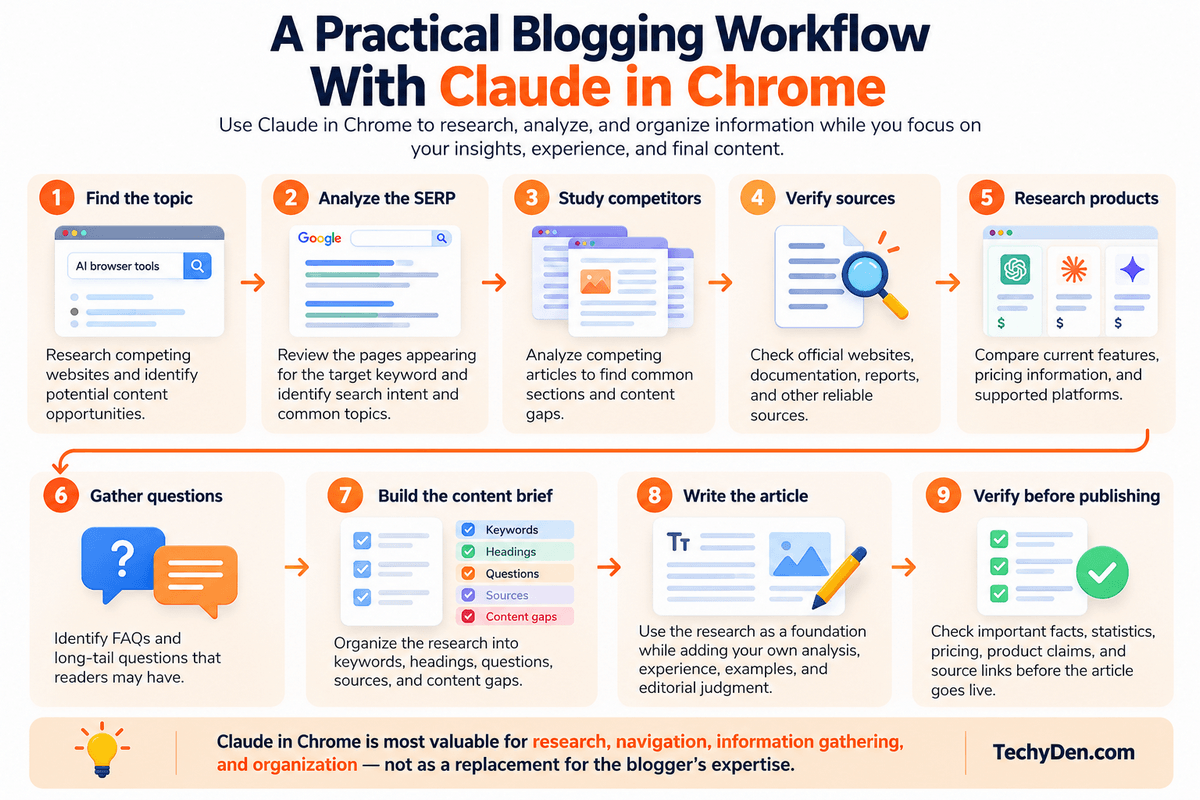
A complete content-research workflow could look like this:
- Step 1: Find the topic: Research competing websites and identify potential content opportunities.
- Step 2: Analyze the SERP: Review the pages appearing for the target keyword and identify search intent and common topics.
- Step 3: Study competitors: Analyze competing articles to find common sections and content gaps.
- Step 4: Verify sources: Check official websites, documentation, reports, and other reliable sources.
- Step 5: Research products: If the article involves products or software, compare current features and pricing.
- Step 6: Gather questions: Identify FAQs and long-tail questions that readers may have.
- Step 7: Build the content brief: Organize the research into keywords, headings, questions, sources, and content gaps.
- Step 8: Write the article: Use the research as a foundation while adding your own analysis, experience, examples, and editorial judgment.
- Step 9: Verify before publishing: Check important facts, statistics, pricing, product claims, and source links before the article goes live.
This workflow shows where Claude in Chrome can provide the most value: research, navigation, information gathering, and organization rather than replacing the blogger’s expertise.
For professional bloggers, that distinction is important. The strongest use of an AI browser agent is not to remove the human from the content workflow but to reduce repetitive browser work and give the writer more time to focus on originality, accuracy, experience, and usefulness.
Claude in Chrome for SEO Professionals
Claude in Chrome can be useful for SEO professionals who spend a significant amount of time researching search results, analyzing competitor pages, checking content, and collecting information from websites.
An AI browser agent can make the research process more efficient because it can work directly with webpages instead of requiring you to copy information into a separate chatbot. You can use it to investigate search results, compare competing pages, identify content gaps, and organize findings into a structured format.
However, Claude in Chrome should be viewed as a complement to dedicated SEO tools, not as a replacement for them. SEO platforms provide specialized quantitative data such as keyword volume, keyword difficulty, backlinks, rankings, traffic estimates, and historical trends. Claude can add value by helping you understand the actual content and webpages behind that data.
1. Competitor Research
Competitor research is one of the most practical SEO applications for Claude in Chrome.
You can open several competitor websites and ask Claude to compare their content, structure, products, and optimization patterns.
For example:
"Analyze these competitor pages for the target keyword. Compare their titles, headings, main topics, FAQs, examples, and content depth. Identify important topics that are missing from some of the pages."
Claude can help organize the findings into a table containing:
| Element | Competitor A | Competitor B | Competitor C |
|---|---|---|---|
| Title | |||
| Main topic | |||
| Major sections | |||
| FAQs | |||
| Examples | |||
| Supporting sources |
This can make it easier to understand the content landscape before creating or updating an article.
2. SERP Research
Search engine results pages provide valuable clues about search intent and the type of content users expect.
Claude in Chrome can help you review the pages appearing for a target query and identify common patterns.
For example:
"Analyze the current search results for this keyword. Identify the dominant search intent, common content formats, recurring topics, and questions addressed by the ranking pages."
You can investigate whether the results primarily contain:
- How-to guides
- Product reviews
- Comparisons
- Tutorials
- List posts
- News articles
- Official documentation
- Educational content
You can then use these observations when planning your own content.
SERP research is particularly useful when the keyword could have multiple interpretations. Instead of assuming search intent, examining the actual results can provide additional context.
3. Content Gap Research
Content gap research involves identifying useful topics or questions that existing competing pages do not adequately cover.
Claude can compare multiple competitor pages and highlight differences between them.
For example:
"Compare these five articles and create a list of topics covered by at least three competitors, topics covered by only one competitor, and potentially useful topics that none of them address."
This can help you identify opportunities to make your article more comprehensive.
Content gaps may include:
- Missing explanations
- Unanswered questions
- Missing examples
- Outdated information
- Missing use cases
- Missing comparison data
- Missing troubleshooting information
- Missing expert perspectives
A content gap does not automatically mean that you should add another section. Evaluate whether the topic is genuinely useful to your audience and relevant to the search intent.
4. Search Intent Analysis
Understanding search intent is an important part of SEO.
Claude in Chrome can help you examine the pages appearing for a keyword and classify the apparent intent behind those results.
For example:
"Review the top-ranking pages for this keyword and explain whether the dominant search intent is informational, commercial investigation, transactional, navigational, or a combination."
You can then ask Claude to explain the evidence behind its classification.
For example, if most results are detailed tutorials, that may indicate users want instructions. If most results are product comparisons, the search may have a stronger commercial-investigation component.
Search intent should be treated as an observation based on the current search results rather than a permanent classification. Search results can change over time.
5. On-Page SEO Checks
Claude in Chrome can also help perform qualitative on-page SEO checks while you browse an article.
You could ask:
"Review this page for on-page SEO issues. Check the title, headings, introduction, keyword relevance, topical coverage, internal linking opportunities, readability, FAQs, and missing information."
Claude can help identify areas such as:
- Unclear title
- Weak introduction
- Poor heading structure
- Missing subtopics
- Repetitive content
- Unanswered questions
- Weak internal linking opportunities
- Missing contextual information
- Content that may need updating
For example, if you are refreshing an older TechyDen article, Claude could review the page and provide a list of sections that deserve further investigation.
This type of review is useful for qualitative analysis, but it should not be treated as a substitute for a complete technical SEO audit.
6. Collecting Competitor Data
SEO research often requires collecting similar information from several competing pages.
Claude in Chrome can help gather and organize that information.
For example:
"Review these competitor pages and collect their article title, publication or update date if available, word-count estimate, main headings, FAQs, product mentions, and primary sources. Organize the results into a table."
You can use this information to understand how competitors approach a topic.
For product-focused searches, you could instead collect:
- Product names
- Pricing
- Features
- Plans
- Supported platforms
- Pros and limitations
- Target users
The important rule is to tell Claude what to do when information is unavailable. For example:
"If a page does not provide the information, mark it as 'Not available.' Do not estimate or invent a value."
This reduces the risk of introducing unsupported information into your research.
7. Website Content Audits
Claude in Chrome can also assist with qualitative website content audits.
For an individual article, you could ask:
"Review this article and identify outdated information, missing sections, unanswered questions, weak explanations, and opportunities to improve its usefulness for readers."
For a content refresh, you might ask Claude to compare the existing article against several current competing pages:
"Compare this existing article with the current competing pages. Identify important topics that should be considered for an update and distinguish genuinely useful additions from unnecessary repetition."
This can help prioritize content improvements.
For example, an older technology article may contain outdated:
- Pricing
- Product features
- Screenshots
- Software versions
- Platform availability
- Compatibility information
- External links
Claude can help identify areas that deserve checking, but the current information should be verified from authoritative sources before making changes.
How SEO Professionals Can Combine Claude With SEO Tools
A practical SEO workflow can combine specialized SEO platforms with Claude in Chrome.
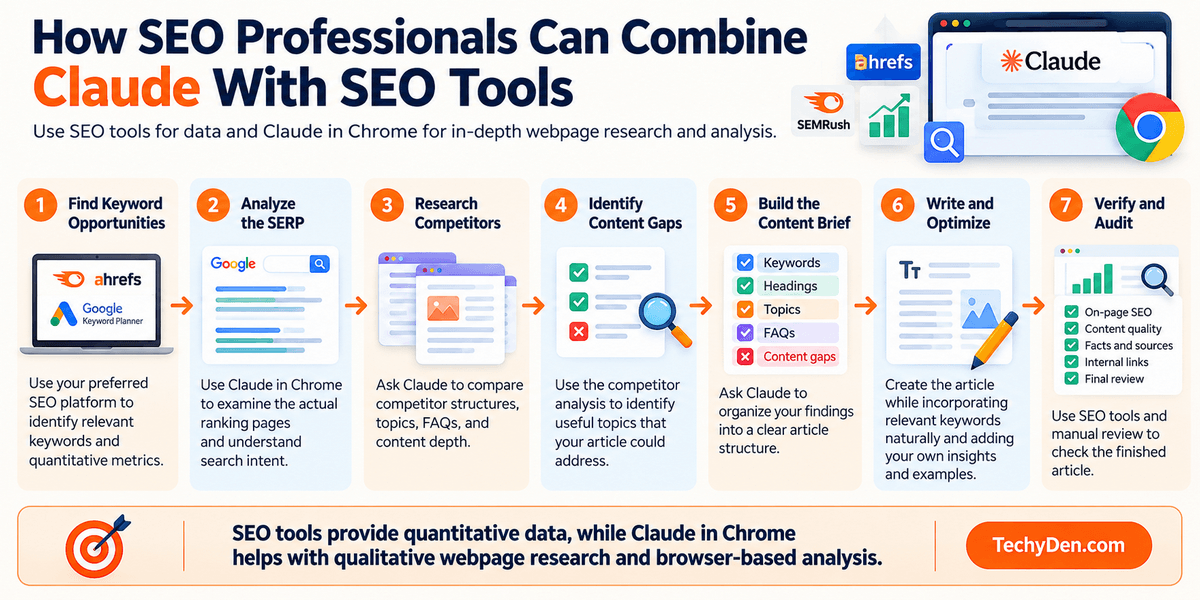
For example:
- Step 1: Find keyword opportunities: Use your preferred SEO platform to identify relevant keywords and quantitative metrics.
- Step 2: Analyze the SERP: Use Claude in Chrome to examine the actual ranking pages and understand search intent.
- Step 3: Research competitors: Ask Claude to compare competitor structures, topics, FAQs, and content depth.
- Step 4: Identify content gaps: Use the competitor analysis to identify useful topics that your article could address.
- Step 5: Build the content brief: Ask Claude to organize your findings into an article structure.
- Step 6: Write and optimize: Create the article while incorporating relevant keywords naturally and adding original information.
- Step 7: Verify and audit: Use SEO tools and manual review to check the finished article.
This division of responsibilities can make the workflow more efficient: dedicated SEO tools provide quantitative data, while Claude in Chrome can assist with qualitative webpage research and browser-based analysis.
A Practical SEO Prompt
An SEO professional could use a prompt such as
"Analyze these competing pages for my target keyword. Identify their search intent, common topics, unique topics, FAQs, content gaps, supporting sources, and potential internal linking opportunities. Separate observations from recommendations and do not invent information that is not present on the pages."
This gives Claude a clear research objective while reducing the risk of treating assumptions as facts.
Used this way, Claude in Chrome can become a useful addition to an SEO workflow. Its main advantage is its ability to work directly with webpages and browser-based research, while dedicated SEO platforms remain important for the quantitative data needed to make informed SEO decisions.
Claude in Chrome Pricing
If you’re considering the Claude Chrome extension, one of the first questions is how much it costs and which Claude plan includes browser access.
Claude in Chrome is not currently offered as a separately priced browser extension. Instead, access to Claude in Chrome is included with supported Claude plans. Anthropic’s current pricing page lists Claude in Chrome as unavailable on the free plan and available on the Pro, Max, Team, and Enterprise plans.
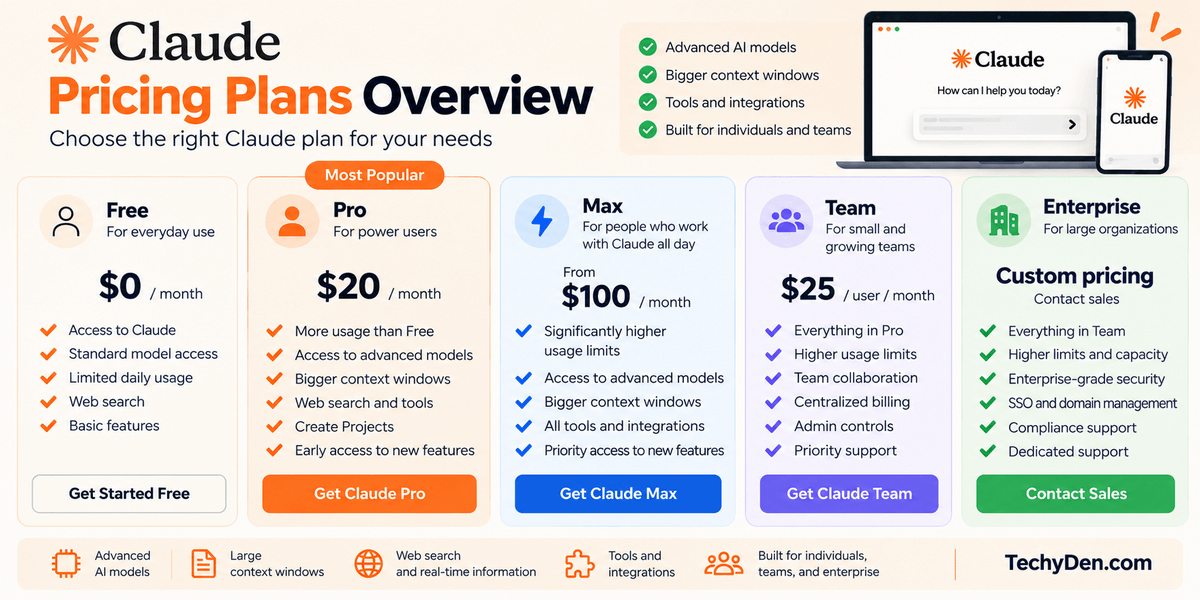
This means you don’t need to purchase a separate “Claude in Chrome” subscription. You choose a Claude plan that includes the feature and use the browser capability as part of that subscription.
Is Claude in Chrome Free?
No. Claude in Chrome is not included with the Free Claude plan.
Anthropic’s current plan comparison shows Claude in Chrome as No for Free and Yes for Pro, Max 5x, and Max 20x.
The free plan currently costs $0 and includes access to Claude on the web, desktop, and mobile; web search; file creation; code execution; memory; connectors; and artifacts. However, Claude in Chrome is listed among the features available on the paid plans.
If your main reason for upgrading is browser automation, you’ll therefore need a paid Claude plan that supports Claude in Chrome.
1. Claude Pro
Claude Pro costs $20 per month when billed monthly or $17 per month with an annual subscription, which is billed as $200 upfront. Anthropic’s pricing page currently lists Claude in Chrome as one of the features included with Pro.
The Pro plan also includes more usage than Free, Claude Code, Claude Design, Slides and Docs, Claude Science, Projects, more Claude models, and Claude for Microsoft 365.
For an individual blogger, researcher, marketer, developer, or content creator who wants access to Claude in Chrome, Pro provides a relatively straightforward way to add the browser capability without moving to a higher-usage Max subscription.
The Pro plan may be particularly relevant if you want to use Claude for a combination of:
- Browser research
- Content creation
- SEO research
- Claude Code
- Projects
- Web search
- Document work
- Browser automation
Anthropic notes that usage limits apply, so the practical amount of browser and Claude usage you can perform depends on your activity, task complexity, model selection, and other factors.
2. Claude Max
Claude Max is designed for users who work with Claude more extensively throughout the day.
Anthropic currently lists Max starting at $100 per month, with options providing 5x or 20x more usage than Pro. Max also provides higher output limits, early access to advanced Claude features, and priority access during high-traffic periods.
Claude in Chrome is included with both Max 5x and Max 20x.
The Max plan may therefore be relevant to users who frequently combine browser automation with other Claude capabilities and regularly reach the usage limits of lower-tier plans.
For example, a professional content creator could use Claude throughout the day for:
- Web research
- Competitor research
- Content briefs
- Writing and editing
- Claude Code
- Browser automation
- Research projects
- Document creation
However, choosing Max simply because it includes Claude in Chrome is not necessary. Pro already includes Claude in Chrome. The main distinction is the substantially higher usage allowance and additional capacity provided by Max.
3. Claude Team
Claude Team is designed for organizations and teams rather than individual users.
Anthropic currently lists the standard Team seat at $20 per user per month when billed annually or $25 per user per month when billed monthly. Premium seats cost $100 per user per month when billed annually or $125 per user per month when billed monthly.
Claude in Chrome is included with Team.
The team plan also includes features such as central billing and administration, single sign-on, admin controls for remote and local connectors, enterprise deployment for the Claude desktop app, and no model training on your content by default.
For teams using Claude in Chrome, these administrative capabilities can be important because browser agents may interact with websites and web applications used for business operations.
4. Claude Enterprise
Claude Enterprise is designed for larger organizations that need additional administration, security, compliance, and access controls.
Anthropic lists Claude in Chrome as available on Enterprise plans. Enterprise pricing is structured around a seat price plus usage at API rates. The current pricing page lists a US$20 per seat per month price when billed annually, with usage costs scaling according to the model and task.
Enterprise includes additional capabilities such as
- User and organization spend limits
- Fine-grained role-based access
- SCIM
- Audit logs
- Compliance API
- Custom data retention controls
- Network-level access control
- IP allowlisting
- HIPAA-ready offering
- Claude Security beta
These controls can be particularly relevant when employees use an AI browser agent in a business environment.
Claude in Chrome Pricing Comparison
Here is a simplified comparison based on Anthropic’s current pricing information:
| Claude Plan | Current Price | Claude in Chrome | Best Suited For |
|---|---|---|---|
| Free | $0 | No | Casual Claude use |
| Pro | $20/month or $17/month annually | Yes | Individual professionals |
| Max 5x | From $100/month | Yes | Heavy Claude users |
| Max 20x | Higher Max tier | Yes | Very heavy Claude users |
| Team | $20/seat annually or $25 monthly | Yes | Teams |
| Enterprise | Custom usage-based structure | Yes | Larger organizations |
Anthropic’s pricing page notes that prices shown do not include applicable taxes and that prices and plans can change. Usage limits also apply.
Which Claude Plan Do You Need for Claude in Chrome?
If your primary requirement is simply accessing Claude in Chrome, Pro is the key individual plan to consider, because Anthropic currently includes Claude in Chrome with Pro.
You may consider the higher Max tiers if you use Claude heavily throughout the day and need substantially more usage. Max currently offers 5x or 20x the usage of Pro, depending on the selected tier.
For organizations, Team and Enterprise provide Claude in Chrome along with additional administrative and security capabilities.
One important point is that Claude in Chrome pricing is effectively tied to your Claude subscription rather than being an additional standalone extension fee. Before subscribing, check Anthropic’s official pricing page because plan prices, features, usage limits, and availability can change.
Is Claude in Chrome Safe?
Claude in Chrome includes several safety mechanisms designed to reduce the risks of AI-powered browser automation, but it should not be treated as completely risk-free.
Unlike a traditional chatbot that mainly generates text, Claude in Chrome can interact directly with websites. It can read webpage content, navigate between pages, click buttons, enter information, and perform other browser actions on your behalf. This creates additional security and privacy considerations.
Anthropic states that Claude in Chrome has safety classifiers and multiple layers of protection, but also warns that browser-based AI carries inherent risks. Prompt-injection attacks remain a particular concern because webpages can contain instructions that attempt to influence an AI agent’s behavior.
The safest approach is to treat Claude in Chrome as an assistant that requires appropriate permissions, clear boundaries, and human oversight for important actions.
1. Prompt Injection Risks
Prompt injection is one of the most important risks to understand when using an AI browser agent.
A webpage can contain instructions that are designed to manipulate an AI system. For example, a malicious webpage could contain hidden or visible text telling Claude to ignore the user’s original instructions, visit another website, disclose information, or perform an unexpected action.
This is different from a normal chatbot interaction because Claude in Chrome can potentially act on information it encounters while browsing.
Anthropic uses several layers of protection against these attacks, including model training, content classifiers that scan untrusted content, automatic action screening, site restrictions, and confirmations for certain higher-risk actions. Anthropic also states that these safeguards reduce the risk but do not eliminate it.
A good rule is
If Claude suddenly starts doing something unrelated to your request, stop the task and review what happened.
Unexpected website navigation, requests for sensitive information, or instructions that appear unrelated to your original task can be warning signs of a possible prompt-injection attempt.
2. Permissions
Permissions determine what Claude in Chrome can access and what actions it can perform.
The extension requires browser permissions that allow it to interact with webpages, tabs, screenshots, downloads, and other browser functionality. For example, its permissions include capabilities for reading webpage content, controlling tabs, clicking and typing through browser automation, and displaying the Claude side panel.
Claude in Chrome also provides different permission modes:
- Manually approve: Claude asks for permission before taking actions.
- Automatically approve: Claude continues working while automatically screening actions for safety and pauses when it needs your approval.
- Skip all approvals: Claude does not pause for approval and does not automatically screen actions. Anthropic recommends using this mode only when you completely trust everything involved in the task.
For important workflows, manually reviewing actions provides greater control.
You can also manage permissions for individual websites and review or revoke previously granted site permissions through the extension settings.
3. Review Important Actions
Even when Claude is capable of completing a task automatically, you should maintain human oversight when the consequences matter.
Pay particular attention to actions involving:
- Purchases
- Financial transactions
- Account changes
- Sensitive communications
- Deleting information
- Administrative actions
Anthropic’s permissions system places additional restrictions around several high-risk actions. For example, Claude is prohibited from making purchases or financial transactions, creating accounts, executing financial trades, permanently deleting files or messages, and handling certain sensitive information.
Claude may also require explicit permission before entering potentially sensitive information into a website or granting an authorization.
For anything involving money, important messages, confidential information, or irreversible changes, review what Claude is doing rather than allowing the workflow to run completely unattended.
4. Avoid Sensitive Information
Claude in Chrome can use screenshots of browser tabs to understand what is displayed on a webpage. Information visible on the screen can therefore become part of the conversation context. Anthropic specifically recommends avoiding the extension on sensitive websites and considering a separate Chrome profile that does not have access to sensitive accounts.
Be particularly cautious with:
- Financial accounts and investment platforms
- Medical or health information
- Legal documents and contracts
- Confidential business information
- Work accounts containing sensitive company data
- Personal information belonging to other people
Anthropic also recommends against using Claude in Chrome on pages containing regulated data and notes that Claude in Chrome is not available to HIPAA-covered organizations.
A practical approach is to keep sensitive accounts separate from your normal AI-assisted browsing environment. If you do not need Claude to see a particular page or piece of information, do not expose it to the browser agent.
5. Enterprise Security Controls
Organizations using Claude in Chrome on Team or Enterprise plans have additional administrative controls.
Administrators can control whether Claude in Chrome is available across the organization and can restrict the websites that Claude is allowed to access.
Organization Controls
Team and enterprise administrators can enable or disable Claude in Chrome for their organization. Enterprise environments can also use role-based controls to determine which users or roles have access to the capability.
This can be useful when an organization wants to introduce browser automation gradually rather than making it available to every employee immediately.
Site Allowlists
An allowlist restricts Claude to websites that an organization has explicitly approved.
For example, a company could initially allow Claude to work only with selected internal tools and approved business applications.
Anthropic recommends starting with a restrictive allowlist when introducing Claude in Chrome to an organization and expanding access as administrators become more comfortable with its behavior.
Site Blocklists
Blocklists provide another layer of protection by preventing Claude from accessing specified websites, regardless of other user permissions.
Organizations can use blocklists to exclude websites that should never be accessed by the browser agent.
Admin Configuration
Enterprise administrators can combine organization-level controls, user or role permissions, allowlists, blocklists, and managed Chrome deployment to control how Claude in Chrome is introduced and used.
Anthropic also recommends piloting Claude in Chrome with a limited group of users and a restrictive allowlist before expanding access across an organization.
Claude in Chrome Safety: What Users Should Remember
Claude in Chrome has multiple safeguards, but no browser agent can completely eliminate the risks associated with autonomous website interaction.
For everyday research and low-risk browser tasks, the safeguards can make Claude in Chrome useful. For tasks involving sensitive information, money, important communications, or irreversible changes, keep a human in the loop.
The safest workflow is simple:
Give Claude limited access, use trusted websites, review important actions, and stop the task whenever its behavior differs from your instructions.
Claude in Chrome Limitations
Claude in Chrome can automate many browser tasks, but it is not a replacement for a human operator in every situation. The extension has limitations involving supported platforms, website access, permissions, usage limits, speed, and the reliability of browser automation.
Understanding these limitations is important before using Claude in Chrome for important business, personal, or repetitive workflows.
1. Paid Plans Required
Claude in Chrome is currently available only with paid Claude plans.
Anthropic lists Claude in Chrome as available with Pro, Max, Team, and Enterprise plans. The Free plan does not include access to Claude in Chrome.
This means you cannot simply install the Chrome extension and use browser automation with a free Claude account.
For individual users, Claude Pro provides access to Claude in Chrome, while Max is designed for users who need substantially more usage. Team and Enterprise plans provide additional organization and administrative controls.
Plan availability and pricing can change, so check Anthropic’s current pricing page before subscribing.
2. Chrome Desktop Only
One of the most important platform limitations is browser compatibility.
Anthropic currently supports Claude in Chrome on Google Chrome for desktop. The company specifically states that Claude in Chrome is not supported on mobile devices or other Chromium-based browsers.
That means you should not assume that the extension will work in:
- Chrome on Android
- Chrome on iPhone or iPad
- Microsoft Edge
- Brave
- Opera
- Other Chromium-based browsers
This distinction is particularly important because browsers such as Edge and Brave are also based on Chromium. Claude in Chrome is currently designed specifically for Google Chrome.
3. Browser Automation Can Make Mistakes
Claude can read webpages, click elements, type information, navigate between pages, and complete multi-step browser workflows. However, browser automation is not perfectly deterministic.
Websites can change their layouts, buttons can move, pages can load dynamically, and a task can produce unexpected results. Anthropic’s troubleshooting documentation recommends using the latest version of Chrome, refreshing pages when necessary, disabling conflicting extensions, and breaking complex tasks into smaller steps when performance problems occur.
Claude may also misunderstand what a webpage is asking it to do or choose an incorrect action.
For example, a seemingly simple instruction such as:
"Find the latest article and summarize it."
could become more complicated if the website has multiple similar links, dynamically loaded content, pop-ups, or navigation elements.
For important workflows, review Claude’s actions instead of assuming that every step was executed exactly as intended.
4. Prompt Injection Remains a Risk
Prompt injection remains one of the most significant limitations of browser-based AI agents.
A webpage, email, document, or other piece of web content can contain instructions specifically designed to influence an AI agent. Claude has safety classifiers that screen incoming content and actions, and potentially unsafe actions can be blocked or paused for approval. However, Anthropic explicitly states that the risk is not zero.
This means browser automation should not be treated as completely secure or fully autonomous.
Be particularly careful when Claude is browsing unfamiliar websites or pages containing user-generated content.
If Claude suddenly:
- Visits an unexpected website
- Requests unrelated information
- Attempts an action you did not ask for
- Starts following instructions contained within a webpage
- Tries to access sensitive information
Stop the task and investigate before continuing.
5. Some Websites May Be Restricted
Claude cannot access every website.
Anthropic maintains blocked categories and restrictions for certain high-risk websites. Its current documentation lists categories such as financial services, banking, investment platforms, cryptocurrency exchanges, adult content, and known pirated-content sites among restricted or blocked areas.
Claude may also ask for additional permission before accessing certain websites.
For Team and Enterprise customers, administrators can impose additional restrictions using allowlists and blocklists. An organization can therefore limit Claude to approved websites or prevent it from accessing particular sites.
As a result, a browser workflow that works on one website may not work on another.
6. Certain Actions Require Approval
Claude in Chrome includes different permission modes that determine how much control the user retains.
The available modes include:
- Manually approve: Claude asks for permission before each action.
- Automatically approve: Claude continues working while screening actions for safety and pauses when user approval is required.
- Skip all approvals: Claude does not pause for approval and does not automatically screen its actions.
Anthropic recommends caution when using the least restrictive mode.
Some actions require explicit approval regardless of the selected permission mode. These include modifying permissions, granting authorizations, and entering potentially sensitive information into websites. Other actions are prohibited altogether, including purchases and financial transactions.
This can interrupt an otherwise automated workflow, but the interruption is intentional because certain actions have significant consequences.
7. Usage Limits Depend on Your Claude Plan
Claude in Chrome uses the usage limits associated with your Claude plan.
Anthropic explains that usage limits apply across different Claude interfaces, meaning browser activity can count against the same overall allocation used by Claude and Claude Code. Browser interactions can also be more computationally intensive than ordinary conversations.
Long-running browser workflows can therefore consume more of your available usage.
The permission mode can also affect usage. Anthropic notes that Automatically approve performs additional safety checks on each action and therefore uses more of your usage allocation than other modes.
If you regularly run lengthy multi-step browser tasks, your plan’s usage limits become an important consideration.
8. Browser Tasks Can Be Slower Than Manual Actions
Automation does not always mean faster.
For a simple task that takes a few seconds manually, Claude may need to:
- Understand your instruction.
- Inspect the current webpage.
- Determine the next action.
- Check that action for safety.
- Execute the action.
- Inspect the result.
- Decide what to do next.
A human who already knows exactly where to click may complete the same task faster.
Claude becomes more useful when a workflow contains many repetitive steps, requires information from multiple pages, or would otherwise require substantial manual attention.
For complex workflows, Anthropic also recommends breaking tasks into smaller steps when performance becomes an issue.
9. Not Every Workflow Can Be Fully Automated
Claude in Chrome is designed to automate browser tasks, but it does not mean that every workflow can run from beginning to end without human involvement.
Some tasks require approval because of their potential consequences. Others may be blocked because of website restrictions, security protections, or organizational policies. Some websites may also behave unpredictably when automated.
There are also actions Claude is specifically prohibited from performing, including purchases or financial transactions, creating accounts, handling sensitive credit-card or ID information, permanent deletions, and certain actions involving instructions from emails or web content.
Therefore, it is better to think of Claude in Chrome as an AI browser assistant with controlled automation, rather than an unrestricted autonomous browser.
The most reliable workflows are usually those where:
- The objective is clearly defined.
- The websites involved are trusted.
- The task has predictable steps.
- Sensitive information is minimized.
- Important actions can be reviewed.
- Human approval is available when necessary.
Claude in Chrome can significantly reduce repetitive browser work, but its limitations mean that human oversight remains important for tasks involving sensitive information, important accounts, irreversible changes, or real-world consequences.
Claude in Chrome vs Claude Cowork
Claude in Chrome and Claude Cowork are closely connected in 2026, but they are designed around different starting points.
- Claude in Chrome is centered on the webpage you already have open. It works through the Chrome extension and can read the current page, interact with websites, move between tabs, fill forms, and use your existing browser context and logins.
- Claude Cowork, on the other hand, is designed around delegated work. You give Claude a larger task, and it can work across files, connected tools, websites, and other resources as part of a longer workflow.
The distinction has become less clear because Anthropic has integrated the Chrome side panel with Cowork. On Max and Team plans, the Chrome side panel already runs as a Claude Cowork session, with the same integration gradually rolling out to Pro users.
Claude in Chrome vs Claude Cowork: Key Differences
| Claude in Chrome | Claude Cowork |
|---|---|
| Works inside your Chrome browser | Broader agentic workspace |
| Uses your existing browser context | Can handle larger multi-step tasks |
| Useful for pages you’re already viewing | Designed for delegated work |
| Chrome browser extension | Claude environment |
| Useful for direct browser interaction | Useful for end-to-end workflows |
| Can work across your existing tabs | Can combine browser work with files, tools, and connectors |
| Uses websites through your existing browser | Can use its own built-in browser in the Claude Desktop app |
Claude in Chrome: Browser-Centered Work
Claude in Chrome is particularly useful when the task begins with a webpage that you are already viewing.
For example, you could ask Claude to:
- Analyze the article currently open in Chrome
- Compare several open webpages
- Extract information from multiple tabs
- Fill out a form
- Navigate through a website
- Research information across several websites
- Work inside a web application
- Collect information from a vendor portal
- Perform repetitive browser actions
Claude in Chrome can use your existing browser environment, including websites where you are already signed in. This makes it particularly useful when the work depends on the exact webpage, account, or application that is already open in Chrome.
For example, a blogger could open several competing articles and ask Claude to compare their topics, identify missing subtopics, and organize the research.
Claude Cowork: Broader Agentic Work
Claude Cowork is designed for larger tasks that may involve multiple steps and different types of resources.
Instead of simply asking Claude to interact with the page in front of you, you can give it a broader objective such as:
"Research the latest information about these products, compare their features, collect the supporting data, and prepare a report."
A Cowork workflow can combine web research with files, connected applications, and other tools. Anthropic describes Cowork as a place where users can hand Claude a task and allow it to work across files, calendars, email, messaging applications, the web, and connected tools.
This makes Cowork better suited to workflows where browser interaction is only one part of a larger assignment.
Claude in Chrome and Cowork Are Now Closely Integrated
One of the biggest changes in 2026 is that the Chrome side panel is increasingly becoming a Cowork experience rather than a completely separate browser assistant.
Anthropic announced in August 2026 that the Claude in Chrome side panel became a Claude Cowork session. Conversations can be saved to history, skills and connectors can work inside the browser, and a task started in Chrome can be continued in the Claude desktop, web, or mobile experience.
This means the distinction is no longer simply
- Claude in Chrome = browser tasks
- Claude Cowork = everything else
Instead, Chrome can serve as the browser interaction layer for a larger Cowork workflow.
For example, imagine you are preparing a monthly business report:
- Claude in Chrome opens vendor portals that you already use.
- Claude reads invoices across multiple browser tabs.
- It collects the relevant amounts and dates.
- The information becomes part of the broader Cowork session.
- You can continue working on the resulting report or files elsewhere in Claude.
Anthropic has specifically described workflows where Claude in Chrome gathers information from websites and Cowork continues the larger task, including producing finished files.
Claude Cowork Also Has Its Own Built-In Browser
There is another important 2026 development: Claude Cowork now has a built-in browser in the Claude Desktop app.
This browser is different from Claude in Chrome.
With the built-in Cowork browser, Claude uses its own browser rather than directly controlling your normal Chrome browser. It can open websites, read pages, click, type, and fill forms without requiring the Chrome extension.
This creates two ways for Claude to work with websites:
- Claude in Chrome: Claude works in your own Chrome browser, on the page you already have open, using the accounts and browser context you have chosen to make available.
- Cowork built-in browser: Claude works in its own browser environment inside the Claude Desktop app. It does not automatically see your normal browser tabs, bookmarks, or passwords. You can choose whether to import specific website logins when supported.
Which One Should You Use?
The choice largely depends on where the work starts.
Use Claude in Chrome when:
- You are already looking at the webpage you need.
- The task depends on your existing Chrome tabs.
- You need Claude to work inside a web application.
- You are already signed in to a website.
- You want Claude to interact directly with your current browser session.
Use Claude Cowork when:
- You have a larger task to delegate.
- The workflow involves multiple steps and resources.
- You need to combine browser research with files or connected tools.
- You want Claude to continue working across a broader workflow.
- The browser is only one component of the overall task.
There is also no need to think of them as completely separate products anymore. Anthropic’s current documentation allows users to choose between Built-in browser and Chrome (Claude in Chrome) as their preferred browser for Cowork web tasks.
The Simple Difference
A useful way to remember the distinction is:
- Claude in Chrome starts with your browser.
- Claude Cowork starts with the task.
Claude in Chrome is particularly valuable when you want Claude to work with the webpage, tabs, and accounts already in front of you. Cowork is more appropriate when browser activity is part of a larger delegated workflow.
And in 2026, these experiences increasingly overlap: Claude in Chrome can run as a Cowork session, while Cowork can use either your Chrome browser or its own built-in browser.
Claude in Chrome vs Claude Code
Claude in Chrome and Claude Code are both agentic tools from Anthropic, but they are designed for different types of work.
The simplest way to understand the difference is:
- Claude in Chrome is primarily for interacting with websites.
- Claude Code is primarily for building and working with software.
Claude in Chrome can browse webpages, click buttons, fill forms, navigate websites, and inspect information displayed in the browser. Claude Code, by contrast, is designed for software development workflows such as writing code, modifying files, running commands, debugging applications, and working with code repositories.
The two can also work together, particularly when a developer needs to verify how an application behaves in a real browser.
1. Claude in Chrome: Browser Interaction
Claude in Chrome is best understood as a browser interaction tool.
It gives Claude access to a Chrome browser so it can interact with websites on your behalf. Depending on the task and permissions, Claude can read webpages, click elements, type into fields, navigate between pages, work across tabs, and interact with web applications.
For example, a blogger might use Claude in Chrome to:
- Research competing articles
- Compare information across several websites
- Collect product specifications
- Fill out repetitive web forms
- Analyze webpages
- Gather information from multiple browser tabs
The focus is therefore on what Claude can do inside the browser.
2. Claude Code: Software Development
Claude Code is designed primarily for software development and coding workflows.
Developers can use Claude Code to work with source code, repositories, terminal commands, tests, configuration files, and development environments.
Typical Claude Code tasks include:
- Writing new code
- Editing existing code
- Refactoring applications
- Fixing bugs
- Running tests
- Inspecting error messages
- Working with Git repositories
- Running development commands
- Debugging applications
- Reviewing implementation changes
In other words, Claude Code focuses on building and modifying software, while Claude in Chrome focuses on interacting with the browser and websites.
3. Claude in Chrome vs Claude Code
| Claude in Chrome | Claude Code |
|---|---|
| Designed for browser interaction | Designed for software development |
| Works with webpages and web applications | Works with source code and development environments |
| Can click, type, navigate, and fill forms | Can write, modify, test, and debug code |
| Useful for browser research | Useful for programming workflows |
| Works with webpages and browser tabs | Works with repositories, files, terminals, and development tools |
| Can inspect browser state | Can inspect code, commands, errors, and test results |
| Useful for website testing and verification | Useful for building and fixing applications |
These roles can overlap when the software being developed is itself a website or web application.
4. Using Claude in Chrome and Claude Code Together
One of the most useful workflows for developers is to combine Claude Code with Claude in Chrome.
Anthropic explicitly describes the integration as a build → test → verify workflow. You can build an application with Claude Code, deploy it to a URL that Claude can access, and then use the Chrome extension to test and verify the result in a real browser.
A typical workflow looks like this:
1. Build: Ask Claude Code to create or modify the application. For example:
"Build a responsive pricing page with three pricing plans and a mobile-friendly layout."
Claude Code can create the necessary files and implementation.
2. Run and Deploy: Start the development server or deploy the application to a URL that Claude can reach.
3. Test in the Browser: Claude in Chrome can open the application and interact with it like a user.
It can check things such as:
- Page layout
- Buttons
- Navigation
- Forms
- Responsive behavior
- Interactive components
- Links
- Visible error messages
4. Inspect Problems: Claude’s Chrome integration can provide access to browser information such as console errors, network requests, and DOM state. This gives Claude Code additional information when something does not behave as expected.
5. Fix the Code: Claude Code can then modify the source code based on what was discovered during browser testing.
6. Test Again: The updated application can be opened in Chrome and tested again. This creates a feedback loop:
Build → Test → Inspect → Fix → Test Again
Why Browser Verification Matters
Code that looks correct in a source file is not necessarily correct when rendered in a real browser.
A website can have problems such as:
- Incorrect spacing
- Broken responsive layouts
- Buttons that do not work
- JavaScript errors
- Incorrect links
- Visual differences from the intended design
- Unexpected behavior on different screen sizes
- Network or loading problems
Browser verification gives Claude Code a way to inspect the application from the user’s perspective rather than relying only on the source code.
Anthropic’s Claude Code guidance specifically recommends giving Claude a way to verify its work and identifies browser testing as an important form of domain-specific verification for frontend development.
A Practical Example
Suppose you are developing a WordPress landing page or a custom web application.
You could ask Claude Code to:
"Build the landing page based on this design and make the layout responsive."
After the code is created, Claude in Chrome can inspect the resulting webpage.
You could then ask:
"Open the page and check the desktop and mobile layouts. Look for broken buttons, console errors, spacing problems, and differences between the implementation and the intended design."
Claude can interact with the browser and inspect the page. If it identifies a problem, Claude Code can modify the underlying code.
The process can then repeat until the implementation meets the requirements.
Claude in Chrome Is Not a Replacement for Claude Code
Although Claude in Chrome can help developers test websites, it does not replace the software-development capabilities of Claude Code.
Similarly, Claude Code is not simply a browser automation tool.
Think of the distinction this way:
- Claude in Chrome: “Interact with and inspect this website.”
- Claude Code: “Build, modify, test, and debug this software.”
- Together: “Build the software, open it in a real browser, verify how it works, identify problems, fix the code, and test it again.”
This combination is particularly useful for frontend development because it connects the code environment with the real browser experience.
Claude in Chrome vs Other AI Browsers
Claude in Chrome is part of a rapidly developing category of AI-powered browser and browser-agent products. Other major products in this space include ChatGPT’s browser capabilities, Perplexity Comet, Gemini in Chrome, and Microsoft Copilot in Edge.
These products overlap in several areas, including webpage understanding, research, browser interaction, and multi-step tasks. However, they differ in how they access the browser, where they run, what plans provide access, and how deeply they are integrated into their respective ecosystems.
Because these products are changing quickly, it is useful to compare their documented capabilities rather than assume that one product is universally better than another.
Claude in Chrome vs ChatGPT vs Perplexity Comet vs Gemini vs Copilot
| Feature | Claude in Chrome | ChatGPT | Perplexity Comet | Gemini | Microsoft Copilot |
|---|---|---|---|---|---|
| Browser interaction | Yes. Can read, click, type, navigate, and fill forms in Chrome | Yes. ChatGPT Work can use a cloud browser for supported tasks; ChatGPT also has browser capabilities in supported products | Yes. Comet Assistant can interact with websites and perform browser tasks | Yes. Gemini in Chrome can understand the current tab, and its Auto Browse feature can perform multi-step web tasks | Yes. Browse with Copilot can click, type, navigate, and perform supported tasks in Edge |
| Multi-step tasks | Yes | Yes | Yes | Yes, with Auto Browse where available | Yes |
| Research | Yes, including research across webpages and tabs | Yes, including web research and longer multi-step Work tasks | Yes; research is a core Perplexity capability | Yes; Gemini can answer questions using browser context and web information | Yes; Copilot can research and summarize webpages |
| Webpage interaction | Directly interacts with webpages in Chrome | Cloud browser can interact with supported websites; product availability varies by experience | Comet Assistant interacts with websites in the Comet browser | Gemini in Chrome can use the current tab and, on computer, up to 10 shared tabs; Auto Browse can perform actions | Browse with Copilot can interact directly with webpages in Edge |
| Coding workflow | Can connect with Claude Code for browser testing and verification | ChatGPT supports coding through its development and Work experiences | Perplexity provides coding-related AI capabilities, while Comet focuses on browser-based assistance | Gemini integrates with Google’s developer ecosystem and coding tools | Copilot integrates strongly with Microsoft developer and Microsoft 365 environments |
| Browser availability | Google Chrome desktop; not supported on other Chromium browsers or mobile devices | ChatGPT Work uses its own cloud browser; ChatGPT also has a built-in browser on supported desktop experiences | Comet is a dedicated AI browser available across desktop and mobile platforms | Gemini in Chrome is available on supported Chrome desktop environments; availability is still rolling out | Built into Microsoft Edge; Browse with Copilot availability varies by market and plan |
| Paid access | Claude in Chrome is available on paid Claude plans: Pro, Max, Team, and Enterprise | Cloud browser is available in ChatGPT Work on supported paid plans; availability depends on plan and region | Comet is available, while Comet Assistant usage varies by Perplexity plan | Gemini in Chrome has different availability depending on the feature; Auto Browse currently requires Google AI Pro or Ultra in supported regions | Browse with Copilot is currently rolling out to Microsoft 365 Premium consumers in the US, with additional markets planned |
The table summarizes capabilities documented by the respective companies. Features, plans, geographic availability, and rollout status can change, so individual users may see different options depending on their account and location.
1. Claude in Chrome
Claude in Chrome is a Chrome extension that places Claude alongside the webpage you are already viewing.
Claude can read the page and, with the required permissions, click, type, navigate, and fill forms. It can also work across browser tabs and connect with Claude Cowork and Claude Code.
A particularly important characteristic is that Claude in Chrome works with your existing Chrome environment. This makes it useful when a task depends on the page you are currently viewing, existing tabs, or websites where you are already signed in.
Claude in Chrome is currently supported on desktop Google Chrome and is not supported on mobile devices or other Chromium-based browsers.
2. ChatGPT
ChatGPT has browser-agent capabilities that can handle supported web tasks through its own browser environment.
ChatGPT Work’s cloud browser runs on a separate computer in the cloud. It can read webpages, click buttons, enter information into forms, and perform supported tasks on public and signed-in websites. It can also continue working after you leave the conversation or close your computer, pausing when it needs your input, authentication, or confirmation.
This is different from Claude in Chrome’s basic model because Claude in Chrome operates through your Chrome browser, while ChatGPT’s cloud browser operates in its own remote browser environment.
ChatGPT also has a built-in browser in its desktop application. That browser uses its own browser state, while the Chrome extension is used when a task needs your existing Chrome profile, signed-in sessions, open tabs, or Chrome extensions.
3. Perplexity Comet
Perplexity Comet is an AI-native browser rather than simply a browser extension added to an existing browser.
Its Comet Assistant is designed to work across websites and handle tasks such as research, purchases, job searches, trip planning, and other multi-step online activities. Perplexity says the newer Comet Assistant can work on longer and more complex jobs and has improved capabilities for perceiving and interacting with web environments.
Perplexity’s current plan documentation lists Browser Agent (Comet Assistant) as a plan feature, with access and usage limits varying by subscription. The Free plan does not include Browser Agent queries, while Pro, Max, and enterprise plans have different limits.
Comet is therefore particularly relevant when the user wants the browser itself to be an AI-assisted environment rather than adding AI capabilities to an existing Chrome installation.
4. Gemini in Chrome
Google’s Gemini in Chrome brings Gemini directly into the Chrome browsing experience.
Gemini can use content from the current browser tab and, on supported computers, users can share up to 10 open tabs with Gemini. Google says the feature is being gradually released, so availability can depend on the user’s account, region, device, language, and rollout status.
Google has also introduced Auto Browse, which allows Gemini in Chrome to perform multi-step tasks on the web. Examples include comparing products, adding items to a cart, finding and booking travel accommodations, making restaurant reservations, and scheduling appointments. The current documentation says Auto Browse requires eligibility, Chrome on a computer, and Google AI Pro or Google AI Ultra on a personal account; the feature is currently limited to supported users in the US and is being gradually released.
This makes Gemini in Chrome another direct competitor in the browser-agent category, although its availability is currently more dependent on Google’s rollout and eligibility requirements.
5. Microsoft Copilot
Microsoft Copilot takes a similar approach through Microsoft Edge.
Microsoft’s Browse with Copilot feature allows Copilot to perform browser actions such as clicking, typing, navigating between tabs, and interacting with webpages. Users can see the activity and take control at any point.
Copilot can work with the current tab or open another tab in the same browser window. Microsoft also provides security controls that can restrict access to certain websites, and its documentation advises users to avoid using browser automation for sensitive financial, medical, identity, and highly confidential information.
For work users, Microsoft also provides an enterprise version of Browse with Copilot that respects Microsoft 365 tenant controls and policies.
Traditional Chrome Browsing
Traditional Chrome is different from all of these AI-assisted approaches.
A normal Chrome browser does not independently interpret a goal and then execute a multi-step workflow for you. You manually:
- Open websites
- Search for information
- Click links
- Fill forms
- Switch between tabs
- Copy information
- Compare results
- Complete repetitive actions
You can still use AI through individual extensions, websites, or tools, but the browser itself does not automatically operate as an AI agent.
This difference is important because AI browsers and browser agents are designed to move from “show me information” toward “help me accomplish this task.”
Which Browser Approach Fits Different Workflows?
Instead of declaring one product the winner, it is more useful to match the product to the workflow.
- Claude in Chrome is designed for users who want Claude to work directly alongside their existing Chrome browsing session. It is particularly relevant when the task depends on the current webpage, open tabs, or existing browser sessions.
- ChatGPT provides cloud-browser and built-in-browser experiences for supported tasks, making it suitable for workflows where a separate browser environment can perform multi-step work on the user’s behalf.
- Perplexity Comet is designed as an AI-native browser with an agent that can assist across websites and perform longer, multi-step online tasks.
- Gemini in Chrome is closely integrated with Google’s Chrome and Gemini ecosystem, with capabilities ranging from understanding the current page to performing multi-step Auto Browse tasks for eligible users.
- Microsoft Copilot is closely integrated with Microsoft Edge and can perform browser actions through Browse with Copilot, with Microsoft providing additional Edge and organizational controls.
- Traditional Chrome remains the most manual approach, but it also gives the user direct control over every browsing action without delegating the workflow to an AI agent.
The Browser AI Landscape Is Changing Quickly
The biggest takeaway from this comparison is that the boundaries between AI assistant, AI browser, browser extension, and browser agent are becoming less distinct.
Claude in Chrome now connects with Claude Cowork and Claude Code. ChatGPT offers cloud and built-in browser experiences. Perplexity has developed Comet into an AI-native browser with an increasingly capable browser agent. Google is adding increasingly agentic capabilities to Gemini in Chrome, while Microsoft is bringing browser automation directly into Edge through Copilot.
For users, the practical question is therefore not simply “Which AI browser is best?”
A better question is: “Which browser environment and AI workflow best match the task I need to complete?”
That distinction becomes especially important for bloggers, SEO professionals, developers, researchers, and business users because their browser workflows can be very different.
Tips for Getting Better Results With Claude in Chrome
Claude in Chrome can handle surprisingly complex browser tasks, but the quality of the result depends heavily on how the task is defined.
Browser agents work best when they have a clear objective, a defined scope, trusted sources, and explicit boundaries. Instead of giving Claude a broad instruction and letting it decide everything, break the workflow into manageable steps and specify what the final result should look like.
The following tips can help you get more consistent results from Claude in Chrome.
1. Give Claude a Clear Goal
Start with a specific objective.
Instead of:
"Research competitors."
Give Claude a clear goal:
"Analyze the top five competing articles for the keyword 'best AI tools for bloggers' and identify common topics, missing subtopics, and questions that my article should answer."
The second instruction tells Claude exactly what you want to accomplish.
A clear goal is especially important for multi-step browser tasks because Claude may otherwise spend time exploring pages or performing actions that are not necessary for the final objective.
2. Specify the Final Deliverable
Tell Claude what you want to receive when the task is finished.
For example:
"Create a table with the website name, article title, publication date, word count, main topics, and source URL."
Or:
"Give me a five-point summary followed by a list of content gaps."
This is more effective than simply saying:
"Analyze these pages."
The final deliverable gives Claude a target to work toward and makes it easier for you to determine whether the task was completed correctly.
3. Define Which Websites to Use
When accuracy matters, tell Claude which websites it should use.
For example:
"Use the official manufacturer's website for product specifications and reputable review websites for independent observations. Do not use random affiliate sites as the primary source."
You can also provide a specific list of URLs.
This is particularly useful for:
- Product research
- SEO research
- Competitor analysis
- Technical documentation
- Statistics
- Software research
- Content research
Defining the sources also reduces unnecessary browsing and helps keep the research focused.
4. Limit the Scope
Avoid giving Claude an unnecessarily large task in a single instruction.
Instead of:
"Research everything about AI browsers."
Try:
"Compare five AI browsers and analyze their browser automation features, supported platforms, pricing, and major limitations."
You can also define limits such as:
- Number of websites
- Number of pages
- Number of products
- Date range
- Geographic market
- Specific features
- Maximum number of results
For example:
"Review the first 10 relevant results and identify the five most common topics."
A limited scope makes complex browser workflows easier to manage and review.
5. Use Approval Checkpoints
Approval checkpoints are particularly important when Claude can take actions rather than simply read information.
For example, you can tell Claude:
"Research the available options and prepare the information, but do not submit anything. Stop and ask for my approval before making any changes."
For an email workflow:
"Draft the replies but do not send them."
For a form:
"Fill in the form, but stop before submitting it."
For a purchase-related workflow:
"Compare the products and prepare the information, but do not purchase anything."
These checkpoints allow you to benefit from automation while retaining control over consequential actions.
6. Start With Low-Risk Tasks
If you are new to Claude in Chrome, start with simple tasks that do not involve sensitive information or irreversible actions.
Good starting tasks include:
- Summarizing webpages
- Comparing articles
- Collecting publicly available information
- Researching product specifications
- Organizing information from multiple tabs
- Checking links on a website
- Creating research tables
Once you understand how Claude behaves, you can gradually introduce more complex workflows where appropriate.
Avoid beginning with tasks involving financial accounts, medical information, confidential business data, important account changes, or irreversible actions.
7. Review the Result
Do not assume that a completed browser task is automatically a correct task.
Review the final result for:
- Incorrect information
- Missing information
- Misinterpreted webpage content
- Incorrect links
- Duplicate entries
- Unsupported assumptions
- Formatting problems
- Actions Claude may have taken unexpectedly
For research tasks, verify important claims against the original sources.
For data collection, check a sample of the collected information against the source webpages.
For website testing, reproduce important problems yourself when possible.
The more consequential the task, the more carefully the result should be reviewed.
8. Don’t Give Broad Unrestricted Instructions
Avoid instructions such as:
"Go online and do whatever is necessary to finish this."
That gives an AI browser agent too much freedom.
A better approach is to define the task and its boundaries:
"Review these five websites, collect the specified information, create a comparison table, and stop when the table is complete. Do not log in to additional websites, submit forms, make purchases, or modify any account settings."
Specific boundaries make it easier for Claude to determine what is inside and outside the task.
They also reduce the chance of unexpected actions when Claude encounters unfamiliar webpages or instructions embedded in web content.
9. Stop Claude if Something Looks Unexpected
One of the most important rules for using a browser agent is simple:
If Claude starts doing something you did not ask it to do, stop the task.
Pay attention if Claude:
- Opens an unexpected website
- Attempts to access unrelated information
- Requests sensitive credentials
- Starts following instructions from a webpage
- Tries to perform an unexpected account action
- Changes the task objective
- Attempts an action that could have significant consequences
Unexpected behavior can have different causes, including a misunderstanding of your instruction, a website’s design, or prompt-injection content encountered during browsing.
Do not simply allow the workflow to continue because Claude appears close to completing the task.
Instead, stop, review what happened, and decide whether the task should continue.
A Simple Framework for Better Claude in Chrome Tasks
A useful way to structure browser-agent instructions is:
Goal → Sources → Scope → Actions → Restrictions → Deliverable → Approval
For example:
Goal: Compare five competitor articles.
Sources: Use only the five URLs provided.
Scope: Analyze titles, headings, questions, and major topics.
Actions: Open each page and record the relevant information.
Restrictions: Do not copy article text or visit unrelated websites.
Deliverable: Create a comparison table and identify content gaps.
Approval: Stop before taking any external action.
This approach gives Claude enough freedom to complete the task while establishing clear boundaries.
The goal is not to give Claude as much autonomy as possible. The goal is to give it the right amount of autonomy for the task.
For simple research, Claude may be able to work with relatively little supervision. For sensitive or consequential workflows, human review should remain part of the process.
Claude in Chrome Troubleshooting
Claude in Chrome can occasionally have problems accessing webpages, interacting with buttons, filling forms, connecting to Claude, or displaying the expected side panel.
Some problems are caused by browser settings or permissions, while others can result from website restrictions, conflicting Chrome extensions, organization policies, or changes to the Claude interface.
Before trying complicated workarounds, check Anthropic’s official Claude in Chrome troubleshooting guide, because supported features and solutions can change as the product evolves.
Here are solutions to some of the most common Claude in Chrome problems.
1. Claude in Chrome Extension Not Working
If the Claude Chrome extension is installed but does not appear to work correctly, start with the basic checks.
Try these steps:
- Make sure you are using the latest version of Google Chrome.
- Confirm that the Claude extension is enabled.
- Refresh the webpage.
- Close and reopen the Chrome tab.
- Disable other extensions that may interfere with webpage interaction.
- Sign out of Claude and sign in again.
- If necessary, clear the Claude website’s browser cache and cookies.
Anthropic specifically recommends using the latest Chrome version, disabling potentially conflicting extensions, and refreshing the page when browser actions are not working correctly.
If the extension will not install or you cannot sign in, also verify that your Claude account has an eligible paid plan. Team and Enterprise users may need their organization’s administrator to enable the extension.
2. Claude Can’t Access a Website
If Claude can access some websites but not a particular website, check the site’s permissions first.
Claude may need permission to access the current website. Open the Claude in Chrome permissions controls and make sure the site has been granted the appropriate access.
There are also websites that Claude may not be able to access because they fall into restricted categories. Anthropic currently lists categories such as financial services, banking, investment platforms, cryptocurrency exchanges, adult content, and known pirated-content sites among restricted areas.
If you are using a Team or Enterprise account, your organization’s administrator may also have restricted the website using an allowlist or blocklist. In that situation, changing your personal browser permissions may not solve the problem.
For a website that normally should work, try:
- Refreshing the page
- Checking Claude’s site permission
- Waiting for the page to finish loading
- Checking whether the site uses heavy JavaScript
- Checking whether your organization restricts the site
3. Claude Can’t Click a Button
If Claude can read a webpage but cannot click a particular button, the problem may be related to the webpage itself, browser extensions, or the way the page loads its interactive elements.
Try:
- Refreshing the webpage.
- Waiting until the page has completely loaded.
- Updating Chrome.
- Temporarily disabling other Chrome extensions.
- Asking Claude to locate the button again.
- Breaking the task into a smaller step.
Websites that rely heavily on JavaScript or dynamically generated interface elements may take additional time to become fully interactive. Anthropic recommends refreshing the page and disabling other extensions if browser actions are not working correctly.
You can also make your instruction more specific.
Instead of:
"Continue."
Try:
"Find the 'Next' button near the bottom of the article and click it."
A more precise instruction can help Claude understand which element you want it to interact with.
4. Claude Can’t Fill a Form
If Claude cannot fill out a form, first check whether it has permission to interact with the website.
Then make sure:
- The webpage has completely loaded.
- The required fields are visible.
- Chrome is up to date.
- Another extension is not interfering with the page.
- The website is not restricted.
- Claude has the necessary permission for the action.
Some actions involving potentially sensitive information require explicit permission regardless of the selected permission mode. Anthropic also prohibits Claude from handling certain sensitive information and from performing some high-risk actions.
For example, instead of asking Claude to:
"Complete this form."
you could specify:
"Fill in the non-sensitive fields using the information I provided. Do not submit the form. Stop before submission and ask me to review it."
This makes the task more controlled and easier to troubleshoot.
5. Claude in Chrome Not Showing
If the Claude icon or side panel does not appear, first make sure the extension is installed and enabled.
The standard process is:
- Open Google Chrome.
- Check the Extensions menu.
- Confirm that Claude is installed and enabled.
- Pin the Claude extension to the Chrome toolbar.
- Click the Claude icon to open the side panel.
Anthropic’s current installation instructions require users to install the Claude in Chrome extension from the Chrome Web Store, sign in, pin the extension, and grant the required permissions.
If you are using an Enterprise account, your administrator may need to enable Claude in Chrome for your organization before you can use it.
There is also an important distinction between the classic side panel and the newer Cowork-based side panel.
Anthropic is rolling out the Cowork side panel to different plans and accounts. On Max and Team plans, the side panel runs as a Claude Cowork session, while the rollout to Pro accounts is still progressing. Enterprise users may also need their administrator to enable Cowork.
6. Claude Side Panel Looks Different
If the Claude side panel suddenly looks different, that does not necessarily mean something is broken.
Anthropic is transitioning the Chrome side panel toward a Cowork-based experience. On supported accounts, the side panel can use the same interface and capabilities as Claude Cowork, with conversations saved to Claude history and available across supported surfaces.
The newer Cowork side panel also starts in Automatically approve mode. Claude continues working while checking actions for safety and pauses when an action requires your approval.
If you prefer the older interface, Anthropic currently provides a way to switch back:
- Open the Claude side panel.
- Click the three-dot menu in the upper-right corner.
- Select Switch back to classic.
Some features, such as recorded workflows, are available only in the classic side panel.
Therefore, an interface difference after an update may simply reflect Anthropic’s ongoing product rollout rather than an extension problem.
7. Claude in Chrome Is Not Available on My Plan
Claude in Chrome is currently available on paid Claude plans: Pro, Max, Team, and Enterprise. The Free plan does not include Claude in Chrome.
If you have a paid subscription but still cannot use the feature, check the following:
- Confirm that you are signed into the correct Claude account.
- Verify that your subscription is active.
- Make sure the Chrome extension is installed.
- Check whether the feature is still rolling out to your account.
- If you use Team or Enterprise, ask your administrator whether Claude in Chrome is enabled.
- For Enterprise, check whether Cowork has also been enabled if you are expecting the Cowork-based side panel.
Anthropic notes that Team and Enterprise administrators can control whether the extension is available and which websites Claude can access.
Quick Claude in Chrome Troubleshooting Checklist
If Claude in Chrome is not working, go through this checklist before assuming the extension is broken:
- Update Chrome: Make sure you are running the latest Chrome version.
- Refresh the webpage: Some pages need to reload before Claude can interact with them correctly.
- Check site permissions: Confirm that Claude has permission to access the current website.
- Disable conflicting extensions: Another Chrome extension may interfere with webpage interaction.
- Check website restrictions: The site may be restricted by Anthropic or by your organization’s administrator.
- Check your Claude plan: Claude in Chrome requires a supported paid plan.
- Restart Claude: Sign out and back in if the extension has trouble connecting.
- Try a smaller task: Complex workflows can be easier to diagnose when divided into smaller steps.
- Check whether the interface changed: The Chrome side panel is being integrated with Claude Cowork, so a different interface may be part of a normal product rollout.
- Check Anthropic’s troubleshooting guide: If the problem continues, consult Anthropic’s latest troubleshooting documentation because browser support and available features continue to change.
When to Contact Anthropic Support
If Claude in Chrome continues to fail after checking permissions, updating Chrome, refreshing the page, and disabling conflicting extensions, the problem may require account-specific or product-specific assistance.
Anthropic recommends contacting Support for technical or account issues. If Claude behaves unexpectedly in a way that could indicate a prompt-injection or other safety issue, Anthropic also provides a channel for reporting suspected safety problems.
For organizations, contacting the Team or Enterprise administrator should be the first step when extension availability or website access is controlled by organizational policies.
Frequently Asked Questions About Claude in Chrome
What is Claude in Chrome?
Claude in Chrome is a Chrome browser extension that lets Claude interact with websites on your behalf. It can read webpages, click buttons, type information, navigate between pages, and work across multiple browser tabs. You can launch tasks from the Chrome side panel, Claude Cowork, or Claude Code.
Is Claude in Chrome free?
No. Claude in Chrome is currently available with paid Claude plans rather than the Free plan. Anthropic lists Claude in Chrome as available on Pro, Max, Team, and Enterprise plans. Pricing and feature availability can change, so check Anthropic’s current pricing page before subscribing.
How do I install Claude in Chrome?
To install Claude in Chrome, open Google Chrome and install the Claude extension from the Chrome Web Store. Sign in with your Claude account, pin the extension to the Chrome toolbar, and grant the required permissions. You can then open the Claude side panel and start a browser task.
Does Claude work with Chrome?
Yes. Claude in Chrome is specifically designed to work with Google Chrome on desktop. The extension lets Claude interact with webpages in your existing Chrome environment, including pages you are already viewing and supported websites where you are signed in. It can also manage multiple browser tabs during supported tasks.
Can Claude click buttons in Chrome?
Yes. Claude in Chrome can interact directly with webpages, including clicking buttons and links, navigating between pages, and performing other supported browser actions. Its permissions and safety system can require approval for certain actions. Website restrictions or technical problems can also prevent Claude from interacting with particular elements.
Can Claude fill out forms?
Yes. Claude in Chrome can fill out supported web forms by typing information into webpage fields. However, certain sensitive actions or information require explicit permission, and some actions are restricted. For important forms, it is safer to ask Claude to fill the information but stop before submitting so you can review it first.
Can Claude browse the internet?
Yes. Claude in Chrome can browse websites and interact with webpages as part of a task. It can read pages, navigate between websites, click elements, type information, and perform supported browser workflows. However, some websites are restricted, and Claude’s browser activity is subject to safety checks and permissions.
Can Claude in Chrome work across multiple tabs?
Yes. Claude in Chrome supports multi-tab workflows. You can group tabs for Claude so it can view and interact with multiple webpages without requiring you to manually switch between them. This is useful for research, competitor analysis, product comparisons, and other tasks where information is spread across several webpages.
Is Claude in Chrome safe?
Claude in Chrome includes safety classifiers, permission controls, website restrictions, and checks designed to reduce browser-agent risks. However, Anthropic says browser interaction still carries inherent risks, including prompt injection. Avoid using it for sensitive information such as financial accounts, medical information, or other people’s personal data, and review important actions.
Does Claude in Chrome work on mobile?
No. Claude in Chrome itself is a Chrome desktop extension and is not the same as using Claude or Cowork on mobile. Anthropic currently provides Claude Cowork on mobile for supported paid plans, but the Chrome extension works through the desktop Chrome browser.
Does Claude in Chrome work with Microsoft Edge?
Claude in Chrome is designed for Google Chrome rather than Microsoft Edge. Anthropic’s documentation describes the extension as a Chrome browser extension. If you want Claude to browse through a different environment, Claude Cowork now also offers a built-in browser that is separate from your normal browser.
Does Claude in Chrome work with Brave?
Claude in Chrome is designed specifically for Google Chrome and is not officially supported as a Brave browser extension. Although Brave is Chromium-based, Chromium compatibility does not automatically mean that a Chrome extension’s AI browser functionality is supported there. Anthropic recommends using the supported Chrome environment for Claude in Chrome.
Which Claude plans support Claude in Chrome?
Claude in Chrome is currently available on Pro, Max, Team, and Enterprise plans. The Free plan does not include Claude in Chrome. On Team and Enterprise accounts, administrators can also control whether the extension is available and which websites Claude can access through organization settings.
Can Claude in Chrome automate repetitive tasks?
Yes. Claude in Chrome can perform multi-step and repetitive browser workflows when the task is supported and permitted. For example, it can collect information from several webpages, work across tabs, or repeat a defined sequence of browser actions. However, certain actions require approval or are prohibited, so not every workflow can be fully automated.
Can Claude in Chrome work with Gmail?
Yes. Claude in Chrome has built-in knowledge for navigating popular platforms including Gmail. It can therefore assist with supported browser tasks inside Gmail. For sensitive email workflows, use appropriate permissions and review actions before sending, deleting, or modifying important messages. Anthropic also provides Gmail through supported Claude connectors for workflows that use those integrations.
Can Claude in Chrome work with Google Docs?
Yes. Claude in Chrome has built-in knowledge for navigating Google Docs and can perform supported browser interactions there. Anthropic specifically lists Google Docs among the platforms Claude can navigate using site-specific capabilities. For important documents, review changes before allowing Claude to modify or share content.
What is the difference between Claude in Chrome and Claude Cowork?
Claude in Chrome works through your own Chrome browser, using the webpage and browser context you provide. Claude Cowork is designed for broader delegated tasks and can use files, connectors, and browser tools. The two now overlap significantly because the Chrome side panel can run a Cowork session on supported plans.
What is the difference between Claude in Chrome and Claude Code?
Claude in Chrome is primarily designed for browser interaction, such as reading webpages, clicking, typing, navigating, and testing websites. Claude Code is designed primarily for software development, including writing and modifying code, running commands, and debugging. They can work together when Claude Code builds an application and Claude in Chrome verifies it in a real browser.
Final Verdict: Who Should Use Claude in Chrome?
Claude in Chrome turns Claude from a primarily conversational AI into a browser-capable assistant that can navigate websites, research information, work across tabs, and perform supported browser tasks.
Good Fit
- Bloggers: Useful for competitor research, topic research, product comparisons, and collecting information from multiple webpages.
- Researchers: Helpful for gathering, comparing, and summarizing information across websites. Always verify important claims against original sources.
- Developers: Can complement Claude Code by helping test websites and web applications in a real browser.
- Marketers: Useful for competitor analysis, website research, product research, and other browser-based workflows.
- Productivity-Focused Professionals: Helpful for repetitive tasks such as researching websites, comparing information, organizing findings, and working across multiple tabs.
- Users With Repetitive Browser Tasks: A good fit for predictable workflows such as opening webpages, finding specific information, recording results, and moving to the next page.
Consider Carefully
Claude in Chrome requires extra caution when handling financial, medical, confidential business, or other sensitive information. Organizations should use appropriate permissions, policies, allowlists, and blocklists where necessary.
It is also not a fully deterministic automation tool. If a workflow requires identical, guaranteed execution every time, traditional automation software may be more appropriate.
What Makes Claude in Chrome Different?
The biggest change is the move from answering questions to interacting with the web.
Instead of asking:
"What are the features of these five products?"
You can ask Claude to:
"Open the five product pages, collect their features, compare them, and organize the results."
Claude can potentially read webpages, navigate sites, click buttons, enter information, work across tabs, and perform repetitive browser tasks.
The Bottom Line
Claude in Chrome is best viewed as a browser-capable AI assistant, not a completely autonomous browser.
It can be particularly useful for bloggers, researchers, developers, marketers, and professionals who perform repetitive web-based tasks. For sensitive or high-impact workflows, human supervision remains essential.
The best approach is to give Claude a clear objective, define boundaries, use appropriate permissions, and review important actions and results before relying on them.